
Note: This article contains affiliate links. If you click on these links and make a purchase, we may earn a small commission at no extra cost to you. This helps support our research and content. Read our full affiliate disclosure here.
If you have boxes of loose prints, slides, or negatives and want quick digitization without a bulky desktop setup, a portable photo scanner can save time and space. The right unit preserves image detail while being easy to use, portable enough to move between rooms, and capable of producing files you can archive or share. This guide covers the top shortlisted portable photo scanners across common home use cases. We evaluate scan resolution and color accuracy, speed and workflow, connectivity, and ease of use to help you pick the scanner that fits how you plan to preserve and access old photos. Read on for practical buying criteria and answers to common questions before the product list.
Top Picks at a Glance
| Best Overall The best all-around choice for most situations | Doxie Pro DX400 |  |
| Best Budget The cheapest option that still gets the job done reliably | MUNBYN Portable Wand Scanner IDS001-BK |  |
| Top Rated A top-rated pick with lots of positive feedback | Doxie Go SE Portable Scanner |  |
| Most Popular A crowd favorite that many people choose with confidence | KODAK Slide N Scan |  |
| Best Seller A high-volume bestseller chosen again and again | Brother DS-640 Mobile Scanner |  |
Doxie Pro DX400

| Maximum Copy Speed Black and White | 22 pages_per_minute |
|---|---|
| Resolution | 600 dpi |
| Maximum Media Size | 11×17 inches |
| Maximum Sheet Capacity | 20 |
| Printer Connectivity Type | USB |
The Doxie Pro DX400 is a small, portable desktop scanner that handles everyday paperwork, receipts, photos, and business cards with duplex scanning and built-in OCR. It feeds up to 20 sheets in its collapsible automatic document feeder for two-sided scanning at roughly 22 pages per minute, or you can use the direct feed for thicker or delicate items. Scans reach up to 600 dpi and the bundled Doxie software automates cropping, rotation, contrast adjustments, and creates searchable PDFs you can send to cloud apps like Dropbox, Evernote, and iCloud. The DX400 connects over USB and includes both USB-C and USB cables plus multiple region power adapters and a small maintenance kit, so it is ready to use out of the box. The compact footprint keeps it easy to store on a desk or stow when not in use, but it is a wired device with a modest sheet capacity, so it is best suited for regular personal or small business scanning rather than heavy-duty batch jobs.
Best for: Buyers who want a dependable, compact scanner to digitize photos, receipts, and two-sided documents at home or in a small office without complex setup.
Less Ideal for: Users who need high-volume, continuous batch scanning or wireless/cloud-first hardware should look at larger production scanners or networked models instead.
- Automatic duplex scanning via a collapsible 20-sheet feeder for two-sided documents
- Scans up to 600 dpi with OCR to produce searchable PDFs
- Includes USB and USB-C cables plus multiple regional power adapters and maintenance kit
- Compact, lightweight design that stores easily on a desk
- Wired USB connectivity only, no Wi-Fi or wireless transfer
- Limited sheet capacity and speed compared with larger production scanners
Verdict: The Doxie Pro DX400 is the best compact photo and document scanner for users who want simple, high-quality duplex scans with built-in OCR in a small, travel-friendly package.
MUNBYN Portable Wand Scanner IDS001-BK

| Scanner Type | Handheld Scanner |
|---|---|
| Connection Type | Wireless Scan, USB Cord to Connect PC and Transfer |
| Resolution | 900 / 600 / 300 dpi |
| Color Depth | 48 bpp |
| Media Type | Documents |
The MUNBYN portable wand scanner is a lightweight, battery-operated handheld scanner designed to digitize photos, documents, book pages and other flat media up to A4 size. You sweep the wand over the page and it captures images at selectable resolutions up to 900 dpi, storing files on the included 16 GB SD card so scans can be made without a computer present. Transfer to a PC or phone is done with a USB cable and files appear like removable storage, and the unit does not require driver installation on modern systems. The wand format avoids feeding or creasing delicate originals and is convenient for on-the-go or occasional scanning where a flatbed is impractical. Expect a bit of practice to achieve steady, even passes for consistent results, and note the scanner runs on AA batteries rather than a rechargeable pack so you will need spares for heavy use. For quick digitizing of photos and paperwork on a budget, it delivers good clarity and portability, but it is not a replacement for higher-speed automatic feeders or professional flatbed scanners when you need perfect alignment or batch processing.
Best for: Buyers who want an affordable, highly portable way to digitize photos and occasional documents without needing a desktop flatbed or automatic feeder.
Less Ideal for: Users who need high-volume, perfectly aligned batch scanning or fast single-pass feeds should choose a dedicated sheet-fed or flatbed scanner instead.
- Portable, lightweight wand design that scans without a computer connected
- Supports up to 900 dpi for high-detail photo scans
- Includes 16 GB SD card for standalone storage of thousands of scans
- No driver installation required; files transfer via USB as removable storage
- Requires AA batteries rather than built-in rechargeable power
- Handheld sweeping requires practice for even, straight scans and can be slower than sheet-fed scanners
Verdict: A budget-friendly, truly portable wand scanner that lets you digitize photos and A4 documents on the go without a computer.
Doxie Go SE Portable Scanner

| Scanner Type | Receipt |
|---|---|
| Connection Type | USB |
| Resolution | 600 |
| Color Depth | 24 bits |
| Standard Sheet Capacity | 400 |
The Doxie Go SE is a pocketable, battery-powered scanner designed for on-the-go scanning of receipts, photos, and single-sheet documents. Scanning is simple: insert a page and Doxie scans it in about 8 seconds at up to 600 dpi color with 24-bit depth, then stores images on its internal memory or included USB media. The rechargeable battery and small footprint make it convenient for travel, remote work, or clearing stacks at home without a computer present. Doxie's app and bundled ABBYY OCR let you create searchable multi-page PDFs and sync directly to cloud apps, which is useful for archiving photos or receipts. Practical limits include single-sheet feeding only and modest built-in storage compared with desktop feeders, so batch work requires periodic syncing; also it connects over USB rather than Wi-Fi. For someone who needs dependable, high-quality scans in a truly portable package, Doxie balances image quality and simplicity well, but it is not a replacement for high-volume automatic document feeders.
Best for: Buyers who prioritize a reliable, portable scanner for occasional to moderate scanning of photos, receipts, and documents and want accurate, searchable scans without needing a computer at the moment of capture.
Less Ideal for: Users who need high-volume automated scanning or a networked scanner that can transfer files over Wi‑Fi without manual syncing.
- Compact, battery-powered design for scanning without a computer
- High optical resolution up to 600 dpi with 24-bit color for clear photo scans
- Included software with ABBYY OCR creates searchable multi-page PDFs
- Can store many scans locally (up to thousands) and scans ~8 seconds per page
- Rechargeable battery supports scanning up to 400 pages per charge
- Single-sheet feed only, so large batches require more user attention
- No built-in Wi‑Fi; file transfer and syncing use USB or the Doxie app
Verdict: Choose the Doxie Go SE when you want a dependable, battery-powered portable scanner that produces high-quality searchable scans wherever you go.
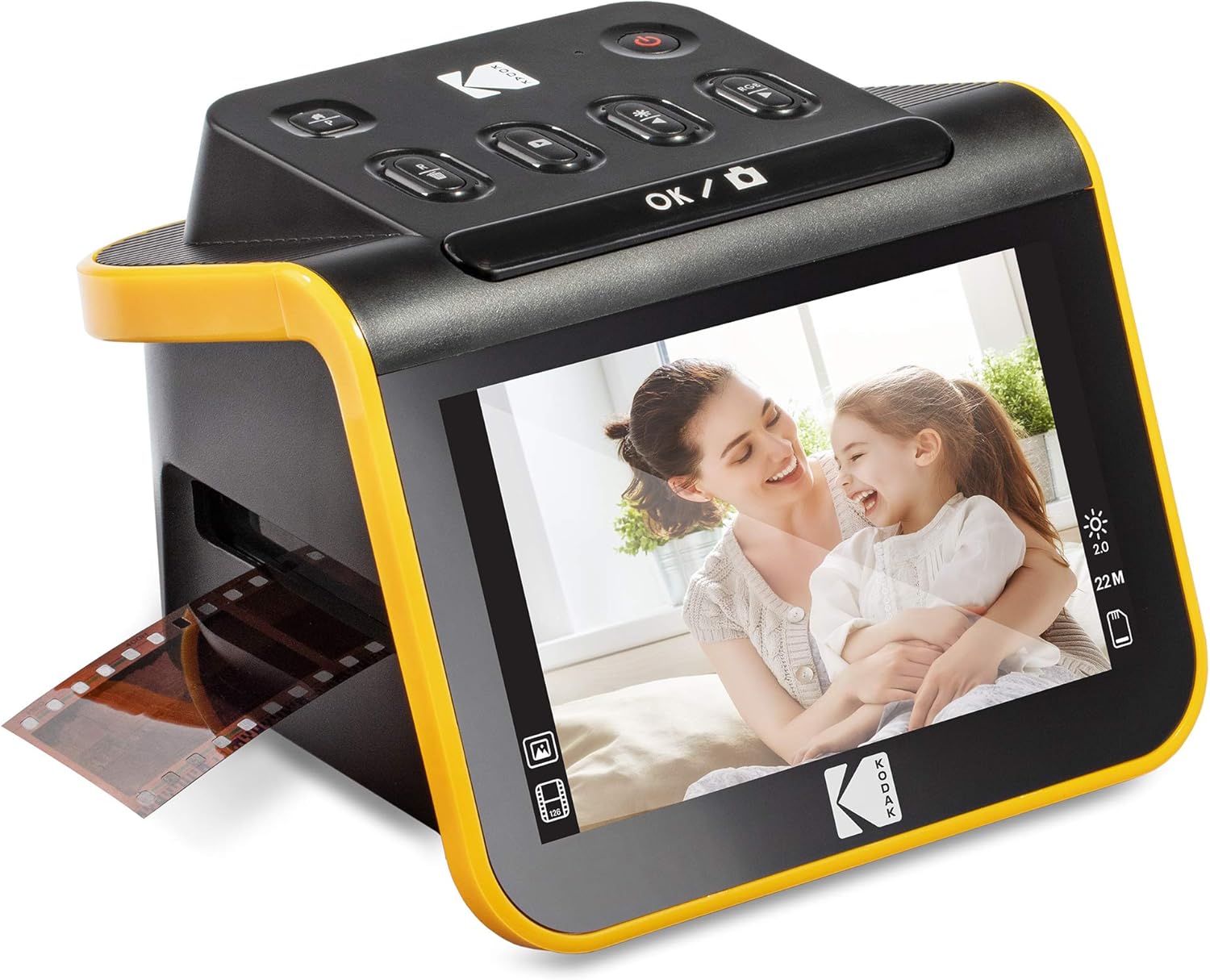
KODAK Slide N Scan
| Image sensor | 13MP (22MP interpolation) |
|---|---|
| Screen size | 5" LCD |
| Connection Type | HDMI, USB |
| Media Type | Negatives, Slide |
| Power | USB powered (5V/1A) or power adapter |
The KODAK Slide N Scan is a straightforward film and slide scanner intended for quickly digitizing old negatives and slides without a computer. It uses a 13MP sensor with an option for 22MP interpolation, a large 5" preview screen with gallery mode, and a quick-feeding tray plus adapters for 135, 110 and 126 formats so you can process multiple media types. Scans are saved directly to an SD or SDHC card (up to 32GB) and you can also connect to a PC, Mac or TV via USB-C or HDMI for transfer or larger viewing. The scanner offers simple one-button scanning and on-device adjustments for film type, color and brightness, which keeps the workflow fast for casual users and family archivists. Expect good results for sharing and prints at moderate sizes, but the unit relies on interpolation for the 22MP mode and does not replace higher-end drum or flatbed film scanning for critical archival work. Also note an SD card is required but not included.
Best for: People who want an easy, mostly standalone way to digitize family slides and negatives for sharing or casual archiving without learning complex software.
Less Ideal for: Photographers or archivists who need highest-fidelity, archival-grade scans or larger format scanning should choose a dedicated professional scanner or lab services.
- Large 5" LCD for previewing scans and using gallery mode as a desktop photo frame
- Quick-feeding tray and included adapters let you scan 135, 110 and 126 film and 50mm slides without frequent repositioning
- Saves JPEGs directly to SD/SDHC card and offers USB-C and HDMI output for easy transfer and TV viewing
- Simple one-button scanning with on-device color and brightness adjustments simplifies workflows for nontechnical users
- 22MP mode uses digital interpolation rather than a true higher-resolution sensor
- SD card is required to operate but is not included with the unit
Verdict: Choose this if you want a fast, easy standalone scanner to convert family slides and negatives into shareable JPEGs with minimal setup.
Brother DS-640 Mobile Scanner

| Connection Type | USB |
|---|---|
| Resolution | 300 dpi |
| Scanner Type | Business Card, Document |
| Standard Sheet Capacity | 1 |
| Optical Sensor Technology | CIS |
The Brother DS-640 is a slim, travel-friendly mobile scanner designed for people who need quick, single-sheet scans on the go. It connects over the included micro USB 3.0 cable and draws power from a laptop or PC, so there is no separate power brick to carry. The scanner handles a variety of media — business cards, receipts, ID cards, laminated and plain paper — and produces up to 300 dpi scans with CIS sensor technology and basic image optimization such as automatic color detection, background removal, and text enhancement. Bundled software offers OCR and multiple "scan-to" destinations including files, email and cloud services, which makes turning paper into editable Word files straightforward. Practical limits include a one-sheet feed and no duplex capability, so it is best for low-volume, occasional scanning rather than heavy batch jobs. Driver support covers Windows, Mac and Linux but you will need a computer connection for use and for accessing some enhancement features. For a cautious buyer wanting a reliable portable scanner, the DS-640 delivers predictable, simple scanning without unnecessary complexity.
Best for: Buyers who want a dependable, easy-to-use portable scanner for occasional document, receipt, and photo scans and who prioritize simplicity and predictable performance.
Less Ideal for: Users who need high-volume or duplex scanning, a standalone battery-powered unit, or frequent batch processing should consider higher-capacity desktop models.
- True portability with USB-powered operation and a slim footprint
- Scans color and B&W at the same rated speed up to 16 ppm
- Accepts varied media including business cards, IDs and receipts
- Includes software with OCR and multiple scan-to destinations
- Simple setup and cross-platform driver support (Windows, Mac, Linux)
- Single-sheet feeder only, not designed for batch scanning
- No automatic duplex scanning for two-sided documents
- Requires a connected computer for power and full functionality
Verdict: A compact, USB-powered mobile scanner that reliably converts cards, receipts, and single-page documents into editable files for cautious, low-volume users.
Choosing the Right Portable Photo Scanner: Key Factors to Consider
Scan Resolution and Detail
Resolution determines how much of the original photo's detail is captured when you digitize it. Higher optical resolution preserves texture, fine facial detail, and small text on photo backs. For most printed family photos, 300 to 600 dpi is a practical minimum; for enlargements or slides you may need higher effective resolution.
Consider whether the scanner reports optical resolution or interpolated resolution. Optical resolution reflects the sensor's native capability and is more meaningful for true detail. If you plan to crop and enlarge images later, favor models with better native optics and consistent sharpness across the frame.
Color Accuracy and Dynamic Range
Color accuracy affects how faithfully skin tones, skies, and other hues are reproduced in digital files. Dynamic range governs how well the scanner captures shadow and highlight detail in faded or contrasty prints. Units with better color depth and image processing preserve subtleties and need less post-scan correction.
Look for scanners that offer manual color adjustment options or good automatic correction routines. If you have a lot of aged or discolored photos, the scanner's handling of faded tones and its ability to recover detail in highlights and shadows will significantly impact the final result.
Scan Speed and Workflow
Speed matters when you have hundreds of photos to digitize. Scan speed should be considered alongside the scanner's workflow: one-touch operation, automatic file naming, batch scanning capability, and whether it accepts multiple prints at once. A slightly slower but more automated unit can be faster overall for large batches than a fast scanner that requires manual intervention on each image.
Also consider how the scanner outputs files. Direct-to-SD or USB stick saves can streamline archiving, while a computer-tethered workflow may provide more control and immediate editing. Factor in how you prefer to organize and back up your images when evaluating throughput.
Connectivity and File Compatibility
Flexible connectivity ensures your scanned files are easy to move into photo editors, cloud storage, or shared libraries. Common options include USB, Wi-Fi, and direct-to-storage media. Some scanners create JPGs by default while others can produce TIFFs for archival needs; select the file types that match your long-term storage strategy.
Check whether the scanner's software embeds metadata, supports common color profiles, and exports at sizes you need. If you plan to scan on the go, wireless transfer and mobile app compatibility can make the process smoother.
Portability, Power, and Build
A portable photo scanner should be compact and lightweight without sacrificing stability during scanning. Build quality affects how well the scanner holds alignment and maintains consistent image capture. Also review the power options: USB bus power is convenient for travel and laptop use, while battery-powered models free you from needing a host device.
Ergonomic design features like a simple feed path, anti-scratch rollers, and easy access to the paper path reduce the chance of damaging fragile prints. Consider where you will use the scanner most and whether you need a truly mobile device or just a smaller footprint for home use.
Software and Post-Processing
Included software often determines how usable and finished your scans will be after capture. Good software offers dust and scratch removal, color restoration, cropping, and basic exposure fixes. Advanced users may prefer raw output that they edit in external applications, while casual users benefit from strong automatic correction tools.
Check whether the bundled app supports batch editing, automatic file naming, and simple archival workflows. Software that can detect print borders and deskew images will save time and improve consistency across large collections.
When a Portable Scanner Is the Right Choice
Portable photo scanners are ideal when you need mobility, limited workspace use, or quick digitization without a full-sized flatbed setup. They are convenient for scanning at different locations, such as a relative's house, community archive events, or small home offices where you do not want to dedicate a permanent workspace.
They also suit projects with mostly small prints, snapshots, and casual slide scanning where speed and convenience outweigh the precision of a high-end film scanner. If you prioritize a compact footprint and a simple workflow, a portable unit can knock out large volumes of prints faster than repeatedly handling individual flatbed scans.
- Best for loose prints and snapshots
- Easy to set up and move between locations
- Faster throughput for small-format photo batches
Preparing Photos for Scanning
Handle prints carefully by their edges to avoid fingerprints. If photos are dirty, lightly brush or blow off dust before scanning. Flatten curled or bent prints under a heavy book for a few hours if possible, or use a scanner with a feed path that keeps the photo flat during capture.
Group photos by size and orientation for faster batch scanning. Keep a clean, well-lit sorting area and a labeled box or folder system to maintain original order. For fragile or glued items, consider capturing a reference image with a camera before scanning so you can reverse any conservation steps if needed.
- Remove dust and loose debris gently
- Flatten curled prints before scanning
- Organize by size to speed batch processing
File Management and Long-Term Storage
Decide whether you need high-resolution archival TIFFs or smaller JPEGs for sharing. Archival TIFFs use more storage and preserve maximum data, while JPEGs are smaller and easier to distribute. Implement a consistent file naming and folder structure that includes dates or event identifiers to simplify future retrieval.
Back up digitized images using at least two separate storage methods, such as an external drive and cloud backup. Verify backups periodically and consider creating lower-resolution copies for quick viewing while keeping masters in a lossless format.
- Choose file formats based on archival goals
- Use consistent file naming conventions
- Maintain multiple backups in different locations
Basic Post-Scan Corrections to Prioritize
After scanning, prioritize color balance and exposure corrections to restore natural tones. Use dust and scratch removal tools sparingly to avoid softening fine detail. Crop and straighten images to remove scan borders and make files consistent.
If many photos are faded or discolored, batch color restoration can save time, but review each result to avoid overcorrection. Preserve an untouched master file before applying destructive edits so you can revert or reprocess later.
- Adjust color and exposure first
- Use dust removal conservatively
- Keep an original master for each file
Mobile Scanning Alternatives and When to Use Them
Smartphone scanning apps can be a fast alternative for quick sharing or low-volume digitization, but they often lack consistent color reproduction and stable lighting. Use a smartphone when portability is the highest priority and you do not need archival-grade fidelity.
For larger projects or when you require consistent color and resolution across an archive, a dedicated portable photo scanner will generally produce more reliable results and easier batch processing than a phone-based workflow.
- Smartphone apps are convenient for one-off scans
- Dedicated scanners win on consistency and batch handling
- Consider hybrid workflows for quick capture plus later re-scan
How We Chose the Best Portable Photo Scanner
We shortlisted portable photo scanners based on criteria that matter for everyday home archiving and light professional use. Primary considerations were scan resolution and image fidelity because accurate capture of fine detail and color is essential for preserving old prints and slides. Scan speed and document throughput were included to reflect real-world workflow: units that can handle multiple prints quickly reduce project time. Connectivity and file handling were evaluated to ensure scanned images are easy to transfer, back up, and open in common photo editors. Portability and build quality guided selection for users who need a compact, durable device that is simple to set up and move. Usability factors such as one-touch scanning, bundled software for basic corrections, and power options (USB bus power or internal battery) determined the practicality for nontechnical users. We excluded large flatbed scanners, multi-function office machines, and specialty high-end film scanners that require extensive setup. The final picks balance image quality, speed, and ease of use for typical home archiving projects.
Our full evaluation process is outlined in our review methodology.
FAQ
What resolution do I need to scan old family photos?
For everyday prints, 300 to 600 dpi typically provides good results for viewing and 8×10 prints. If you plan to make large enlargements or scan slides, aim for higher native optical resolution. Higher resolution files are larger and require more storage.
Can a portable scanner handle slides and negatives?
Some portable photo scanners include attachments or modes for scanning slides and negatives. If you have many film items, confirm the scanner supports the film format and delivers sufficient dynamic range for recovering shadow and highlight detail.
How should I store my scanned files long term?
Keep master files in a lossless format or high-quality JPEGs on at least two separate storage media, such as an external drive and cloud backup. Use clear folder structures and consistent file naming to make files easy to find in the future.
Will a portable scanner damage fragile photos?
Most portable units are gentle with single loose prints, but torn, glued, or extremely brittle photos should be handled cautiously. Use a flatbed or consult a conservator for delicate items. Always test with a less valuable print first.
Is wired or wireless connectivity better for scanning?
Wired connections offer reliable, fast transfers and are preferable for large batches. Wireless and direct-to-storage options add convenience for mobile use and when you want to avoid tethering to a computer. Choose based on your workflow and where you will scan most often.
Final Verdict
Prioritize the features that match how you will use a portable photo scanner. If your main goal is archival-quality captures, emphasize native scan resolution, color fidelity, and file output options. If you are converting large volumes quickly, speed, batch workflow, and reliable connectivity should take precedence. Balancing these tradeoffs will help you pick a scanner that fits both your project size and long-term storage plan. Focus on consistent results, an efficient workflow, and a backup strategy so your digitized photos remain accessible for years to come.