
Note: This article contains affiliate links. If you click on these links and make a purchase, we may earn a small commission at no extra cost to you. This helps support our research and content. Read our full affiliate disclosure here.
If you want to clear clutter, preserve photos, or send clear copies of paperwork, the right home scanner makes a huge difference. A home scanner should be easy to use, produce legible searchable documents, and handle the paper types you have on hand. This guide highlights seven shortlisted scanners for home use, chosen for reliability, image fidelity, and day-to-day convenience. We evaluate each option on factors such as scan speed, image quality, feed reliability, and software features so you can pick a model that fits your typical projects and workspace. Read on for concise buying guidance and the specific evaluation criteria we used to select these top picks.
Top Picks at a Glance
| Best Overall The best all-around choice for most situations | Canon imageFORMULA R30 Scanner |  |
| Best Quality Built to a higher standard if you want something more solid | Doxie Pro DX400 |  |
| Best Value The sweet spot between price and what you get | Epson WorkForce ES-400 II |  |
| Best Budget The cheapest option that still gets the job done reliably | Canon CanoScan LiDE 300 |  |
| Top Rated A top-rated pick with lots of positive feedback | ScanSnap iX1600 |  |
| Most Popular A crowd favorite that many people choose with confidence | KODAK Slide N Scan |  |
| Best Seller A high-volume bestseller chosen again and again | Brother DS-640 Compact Mobile Scanner |  |
Canon imageFORMULA R30 Scanner

| Connection Type | USB |
|---|---|
| Resolution | 600 dpi |
| Standard Sheet Capacity | 60 |
| Scanner Type | Document |
| Color Depth | 24 bits |
The Canon imageFORMULA R30 is a small office/home scanner built for straightforward, everyday digitizing. It feeds stacks into a 60-sheet automatic document feeder and scans both sides in a single pass at up to 25 pages per minute, so it handles invoices, contracts, receipts, photos, and mixed batches without constant babysitting. Setup is plug-and-scan over USB and Canon supplies CaptureOnTouch Lite built into the unit, so you can preview, edit, and create searchable images without installing extra software. A CIS sensor with 600 dpi optical resolution and 24-bit color depth produces usable scans for archiving and small business tasks, while the LED light source and TWAIN support broaden compatibility. The R30 is compact and reasonably portable for a desktop scanner, but it is optimized for document throughput rather than high-end photo restoration or heavy production scanning; very thick or fragile originals may need gentler flatbed handling. If you want a simple, reliable scanner for home office paperwork and occasional photo scanning, the R30 makes the job fast and painless.
Best for: Buyers who need a compact, reliable scanner to digitize household bills, receipts, and small business documents quickly and with minimal setup.
Less Ideal for: People who primarily scan fragile photos, oversized documents, or need wireless/networked scanning should consider flatbed or network-capable alternatives.
- 60-sheet automatic document feeder for unattended batch scanning
- Duplex scanning up to 25 pages per minute for faster two-sided capture
- Built-in CaptureOnTouch Lite software with plug-and-scan setup simplifies use
- 600 dpi CIS optical resolution and 24-bit color for clear document images
- No flatbed option for delicate or oversized originals
- USB-only connectivity limits placement and network sharing
Verdict: A compact plug-and-scan document scanner that speeds up home office paperwork with a 60-sheet ADF and reliable duplex capture.
Doxie Pro DX400

| Maximum Copy Speed Black and White | 22 pages_per_minute |
|---|---|
| Resolution | 600 |
| Maximum Media Size | 11×17 inches |
| Maximum Sheet Capacity | 20 |
| Printer Connectivity Type | USB |
The Doxie Pro DX400 is a compact desktop scanner built to clear paper clutter at home or in a small office by scanning receipts, statements, photos, business cards, and multi-page documents. It uses a collapsible 20-sheet automatic document feeder for duplex jobs at up to 22 pages per minute, or a direct feed for thicker and delicate originals. Scans reach up to 600 dpi with automatic cropping, rotation, and contrast adjustments, and built-in OCR produces searchable PDFs for easy archiving. Doxie's software integrates with common cloud and productivity apps and works on both Mac and PC, while included USB and USB-C cables and multi-region power adapters make setup straightforward. Practical limits include a 20-sheet feeder and USB-only connectivity, so it is less suited to heavy-volume scanning or networked office fleets, but for performance-minded home users who want fast duplex captures and reliable software handling, it delivers a tidy, well-rounded experience.
Best for: Home users and small-business owners who prioritize fast, accurate duplex scans and reliable OCR for organizing documents and digitizing paper-heavy workflows.
Less Ideal for: Departments or users who need high-volume, networked, or wireless scanning across many users should consider desktop scanners with higher sheet capacities and network connectivity.
- Duplex scanning via a collapsible 20-sheet automatic document feeder for efficient two-sided capture
- Up to 600 dpi resolution with automatic cropping, rotation, and contrast adjustments for clean, legible scans
- OCR creates searchable PDFs so scanned text can be copied and searched
- Includes Doxie software for Mac and PC with direct export to common cloud apps
- Bundled USB and USB-C cables plus multi-region power adapters and a maintenance kit for immediate use
- USB-only connectivity limits wireless or networked scanning workflows
- 20-sheet feeder capacity is modest for high-volume scanning tasks
Verdict: For performance-minded home users who need fast duplex scanning and searchable PDFs, the Doxie Pro DX400 delivers compact, accurate scans with easy software integration.
Epson WorkForce ES-400 II

| Connection Type | USB |
|---|---|
| Resolution | 300 dpi |
| Color Depth | 8 bpp |
| Standard Sheet Capacity | 50 |
| Scanner Type | Document |
The Epson WorkForce ES-400 II is a compact desktop document scanner designed for routine home or small-office scanning tasks. It scans single- and double-sided pages in one pass at up to 35 pages per minute (70 images per minute) at 300 dpi, and the 50-sheet automatic document feeder handles batches of mixed pages so you can scan stacks without babysitting. Epson ScanSmart software provides previewing, searchable PDF creation with OCR, simple file naming, and direct upload to common cloud services, while the included TWAIN driver lets it integrate with document-management software. Image adjustments such as auto crop, blank-page skip, background removal, dirt detection, and skew correction help produce consistent results from imperfect originals, and ultrasonic double-feed detection reduces missed pages. The scanner connects over USB and uses a CCD sensor and LED light source for reliable color capture, though it lacks Wi-Fi or direct-to-drive scanning options found on some higher-priced models. For buyers who want fast, dependable desktop scanning with solid software, this is a practical, space-efficient choice.
Best for: Buyers who want a compact, reliable scanner to quickly digitize paperwork at home or for a small office and value fast batch scanning plus easy OCR and cloud workflow integration.
Less Ideal for: Users who need wireless scanning, higher-resolution photo scanning, or an integrated touchscreen and direct-to-drive features should consider different models.
- 50-sheet auto document feeder speeds batch scanning
- Two-sided single-pass scanning at up to 35 ppm (70 ipm)
- ScanSmart software with OCR and direct cloud upload
- Ultrasonic double-feed detection and skew correction improve reliability
- TWAIN driver for integration with document-management workflows
- No built-in Wi‑Fi or direct-to-USB thumb drive scanning
- Color depth limited to 8-bit per channel and 300 dpi resolution
Verdict: A fast, space-efficient desktop scanner that makes routine home paperwork scanning simple with dependable batch duplexing and strong OCR/cloud software.
Canon CanoScan LiDE 300

| Scanner Type | Document, Photo |
|---|---|
| Connection Type | USB |
| Resolution | Optical: 2400 x 2400 dpi |
| Color Depth | 48 bits |
| Light Source Type | LED |
The Canon CanoScan LiDE 300 is a slim flatbed scanner designed for straightforward home scanning of photos, receipts, business cards and single-page documents. It connects over USB and uses Auto Scan Mode and four EZ buttons to detect the item type and launch common tasks like PDF creation, copying and sending to cloud services. At up to 2400 x 2400 dpi optical resolution and 48-bit color depth the unit produces detailed image scans and includes built-in image enhancements such as fade correction and dust reduction for older photos. Its low power draw and single-sheet flatbed design keep the unit compact and easy to store on a desk. Limitations include no automatic document feeder for multi-page jobs and a reliance on a wired USB connection, so batch scanning or wireless workflows require extra steps or accessories. For casual home users who need clear photo and occasional document scans, the CanoScan LiDE 300 makes the workflow quick and simple.
Best for: Home users on a budget who want a compact, easy-to-use scanner for photos, receipts and occasional single-page documents and who prioritize image quality and simple workflows.
Less Ideal for: People who need high-volume or multi-page scanning, office teams requiring networked or wireless scanning, or users who prefer an automatic document feeder for batch jobs.
- High optical resolution (2400 x 2400 dpi) for detailed photo and document scans
- Auto Scan Mode and four EZ buttons simplify scanning tasks like PDF creation and cloud upload
- Built-in image enhancements such as fade correction and dust reduction improve photo quality
- Compact, low-profile design that is easy to store on a home desk
- No automatic document feeder, so multi-page scanning is manual and slower
- USB-only connection limits placement and lacks wireless scanning options
Verdict: A budget-friendly compact flatbed that delivers high-resolution photo and single-page document scans with user-friendly one-touch controls.
ScanSnap iX1600

| Connection Type | USB, Wi-Fi |
|---|---|
| Resolution | 600 |
| Standard Sheet Capacity | 50 |
| Wattage | 15 watts |
| Optical Sensor Technology | CIS |
The ScanSnap iX1600 is a desktop document scanner aimed at home and small-office use that scans both sides of a page at once and handles mixed media from receipts and business cards to photos. It connects via Wi-Fi or USB and offers a large color touchscreen for selecting up to 30 saved scan profiles, which makes repeated tasks fast without a computer. The 50-sheet automatic document feeder and 40 ppm duplex speed keep batch scanning efficient, and ScanSnap Home software automates image processing, file naming, and cloud routing for a tidy digital archive. Photo-friendly features such as facial rotation and red-eye reduction are useful for scanning personal prints. The iX1600 does not include a TWAIN driver, so integration with legacy imaging software can be limited, and it is a premium-priced unit relative to basic scanners. Still, for users who want reliable, hands-off scanning with wireless cloud delivery and a simple touchscreen workflow, the iX1600 delivers consistent, high-quality results.
Best for: Someone who wants a dependable, low-fuss scanner for home or small-business workflows that prioritizes consistent duplex scans, simple touchscreen profiles, and seamless cloud delivery.
Less Ideal for: Users who need tight integration with legacy TWAIN-dependent software or who only need an occasional, very low-cost scanner.
- Fast duplex scanning up to 40 pages per minute for efficient batch work
- 50-sheet automatic document feeder reduces manual feeding for multi-page jobs
- Wi-Fi and USB connections plus cloud-ready touchscreen allow scanning without a PC
- ScanSnap Home software automates image processing, organization, and cloud routing
- No TWAIN driver limits direct integration with some legacy third-party imaging applications
- Higher price point compared with entry-level document scanners
Verdict: Buy this if you want a reliable, hands-off home scanner that delivers fast duplex scanning and easy wireless cloud workflows.
KODAK Slide N Scan
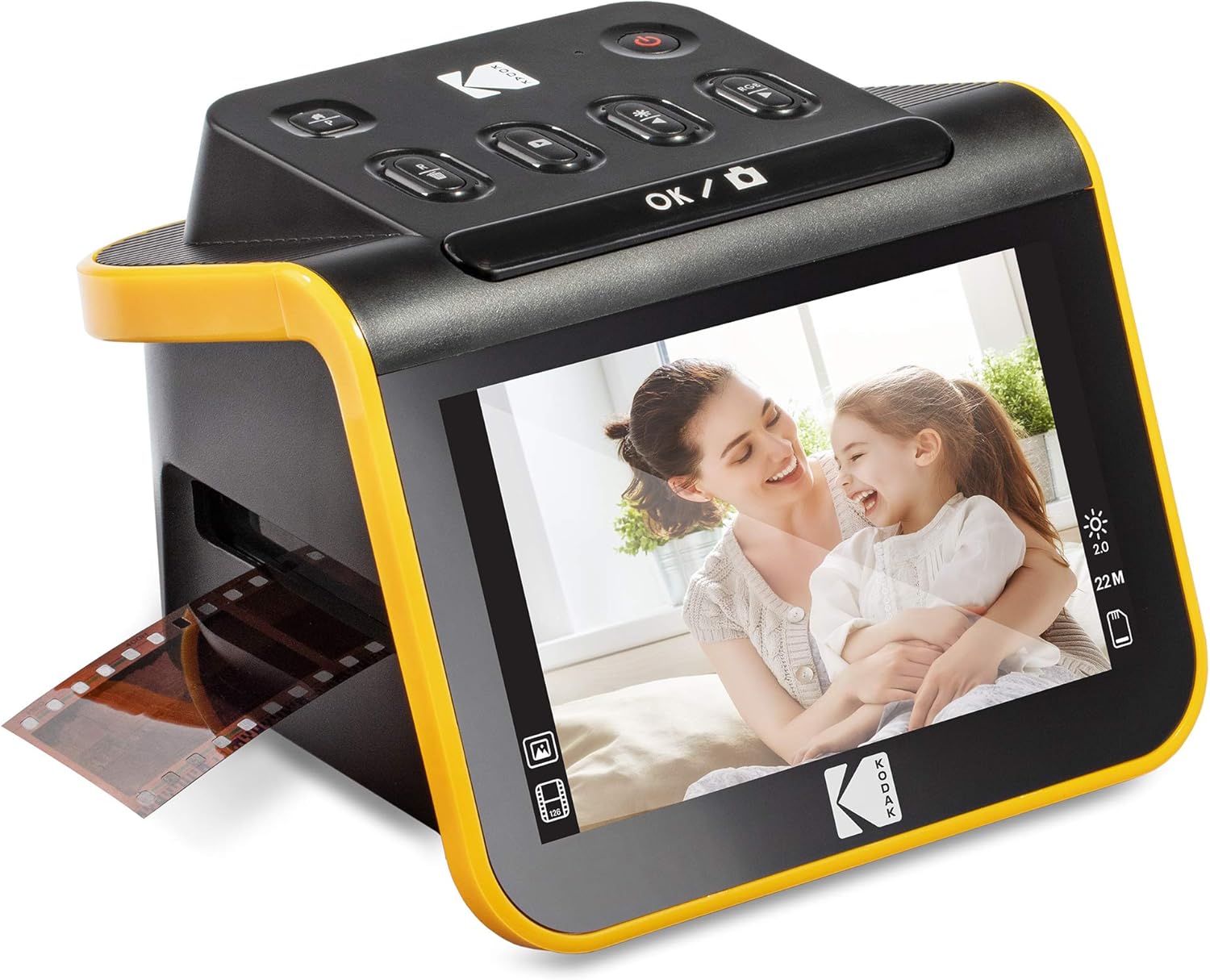
| Resolution | 13MP/22MP (interpolation) |
|---|---|
| Image sensor | 13-megapixel CMOS |
| Connection Type | HDMI, USB |
| Media Type | Negatives, Slide |
| Supports SD | SD/SDHC up to 32GB |
The KODAK Slide N Scan is a straightforward desktop film and slide scanner aimed at turning old negatives and 50mm slides into digital JPEGs without PC-only workflows. You load strips or individual slides into the quick-feeding tray or the included 50mm holder, choose film type on the unit, and press scan to save images directly to an SD/SDHC card or connect to a computer over USB. The large 5" LCD with gallery mode makes previewing and basic edits like color, brightness, and date assignment fast and easy, and an HDMI output lets you view scans on a TV. The scanner uses a 13MP sensor with an optional interpolation to 22MP for higher-resolution files, and adapters for 135, 110 and 126 formats are included so most common vintage film will work. Limitations to consider are the reliance on SD card storage (card not included) and that the higher 22MP mode is interpolated rather than native optical resolution, so results vary by original film quality. For home users wanting a no-fuss way to digitize boxes of slides and negatives, this is a convenient, all-in-one option.
Best for: Buyers who want a simple, mostly standalone solution to convert family slides and negatives into viewable digital photos with minimal technical setup and quick previews.
Less Ideal for: Photographers needing true high-resolution archival scans or professional image restoration should consider higher-end film scanners with optical multi-pass scanning and RAW output.
- Easy-load tray and included adapters for 135, 110, 126 formats enable faster batch scanning
- Large 5" LCD with gallery mode for previewing and simple on-device edits
- Saves scans directly to SD/SDHC card and also offers USB and HDMI outputs
- Includes cleaning brush and cables for a ready-to-use desktop workflow
- 22MP option is produced by digital interpolation rather than true optical resolution
- Requires an SD card to operate which is not included
Verdict: A user-friendly, all-in-one scanner that quickly converts common slides and negatives into JPEGs for home archiving and easy sharing.
Brother DS-640 Compact Mobile Scanner

| Scanner Type | Business Card, Document |
|---|---|
| Connection Type | USB |
| Resolution | 300 |
| Optical Sensor Technology | CIS |
| Standard Sheet Capacity | 1 |
The Brother DS-640 is a slim, USB-powered mobile scanner aimed at home and small office users who need quick, portable scans. It feeds single sheets, business cards, receipts and plastic IDs through a CIS sensor at up to 16 pages per minute, and the bundled software offers OCR and simple document management for scanning to file, image, email or cloud. Because it draws power from a micro USB 3.0 connection, you can run it from a laptop without a separate power adapter, which makes it convenient for travel or occasional use at home. Image optimization features like automatic color detection, bleed-through prevention and text enhancement help produce usable scans without extra editing. The main limitations are its one-sheet feed capacity and lack of duplex or high-capacity handling, so it is not built for heavy batch scanning; scan speed measurements assume a connected PC and compatible software. For a buyer who prioritizes portability, simple setup and reliable OCR, the DS-640 is a practical choice; those needing frequent multi-page or two-sided batch scanning should look at higher-capacity models instead.
Best for: Buyers who want a lightweight, reliable scanner for occasional home use, travel, or single-page workflows and who value simple setup and bundled OCR for digitizing documents.
Less Ideal for: Users who routinely scan large stacks of multi-page documents, need automatic two-sided scanning, or require high-capacity batch throughput.
- True USB-powered portability for laptop use without a separate power supply
- Scans color and black-and-white documents at up to 16 ppm for quick single-sheet jobs
- Includes OCR and document-management software for editable Word files and multiple scan destinations
- Supports a variety of media including business cards, receipts and plastic ID cards
- Image-enhancement features (color detection, bleed-through prevention, text enhancement) improve final scan quality
- Single-sheet feed only, no automatic document feeder for batch jobs
- No built-in duplex scanning so two-sided originals require manual re-feed
Verdict: Choose the DS-640 when you need a compact, USB-powered scanner with decent speed and OCR for occasional home or on-the-go document digitizing.
Choosing the Right Scanner for Home: Key Factors to Consider
Scan Speed and Duty Cycle
How fast a scanner processes pages affects how you'll use it at home. If you frequently digitize whole folders, faster pages-per-minute rates and a larger automatic document feeder reduce time spent babysitting scans. A scanner with a modest duty cycle is fine for occasional jobs, but choose a higher-rated unit if you anticipate weekly batch scanning.
Also consider warm-up times and how the scanner performs with duplex (two-sided) jobs. A device that advertises high ppm but slows significantly for two-sided scans or for mixed media can cost you time in practice.
Image Quality and Resolution
Image fidelity matters when you scan photos, receipts, or documents you might zoom or crop later. Optical resolution determines the level of detail captured, while color depth and dynamic range influence how accurately photos and colored documents reproduce. For most document work, 300 dpi is sufficient; for photos or archival scans, look for higher optical resolution and strong color rendering.
Keep in mind that software sharpening and compression can alter results, so a scanner with good base optical performance plus useful image correction tools produces the most reliable outcomes.
Paper Handling and Feed Reliability
A dependable paper feed eliminates jams and misfeeds that interrupt scanning sessions. Look for rollers and feeders designed for mixed paper types and weights, and features like separable feed paths for thick or delicate pages. Automatic document feeders with adjustable guides and sensors reduce skew and double-feed errors.
If you plan to scan photos, receipts, and thin media alongside standard paper, check for a straight-through or manual-feed option to protect fragile originals.
OCR Accuracy and Software Features
OCR capability turns scanned images into searchable, editable text and is vital for organizing paperwork. The accuracy of OCR depends on both optical capture and the scanning software's recognition engine. Useful software features for home users include automatic document detection, blank-page removal, batch naming, and built-in export to searchable PDFs or common cloud services.
Consider whether the scanner's software supports the platforms you use, such as Windows, macOS, or mobile apps, and whether it provides straightforward tools for organizing and correcting scans without a steep learning curve.
Connectivity and File Workflow
How a scanner connects affects convenience. USB is common and simple, but Wi-Fi, wired network, or direct mobile scanning options can streamline sharing across devices. Built-in support for saving to cloud accounts or sending scans to email speeds up common home workflows.
Also think about where scanned files will live. Some scanners integrate with desktop folders, while others rely on cloud apps. Choose a connectivity approach that matches your existing setup and security preferences.
Size, Noise, and Physical Footprint
Home scanners need to fit your workspace and lifestyle. Desktop sheet-fed scanners are compact and well suited to small desks, while flatbed units add versatility for books and delicate items but require more counter space. Noise levels matter if you scan while others are sleeping or working nearby.
Evaluate the tradeoff between capability and footprint. If storage is limited, consider a smaller unit that packs away easily or a scanner with a fold-flat feeder to minimize space demands.
Flatbed Vs. Sheet-Fed: Which Works at Home
Flatbed scanners allow safe scanning of books, magazines, and thick or fragile originals because the item stays stationary while the sensor moves. They are versatile for one-off photo or book scanning but are typically slower for multi-page document batches.
Sheet-fed scanners excel at processing stacks of loose pages quickly via an automatic document feeder. If your home scanning mostly consists of invoices, forms, and single-sheet items, a sheet-fed model saves time. For mixed needs, consider a hybrid unit that combines a flatbed and an ADF.
- Flatbed: Best for photos, books, and fragile documents
- Sheet-fed: Best for high-volume single-sheet scanning
- Hybrid: Offers flexibility at the cost of larger footprint
Setting Up a Smooth Home Scanning Workflow
Organize scanning tasks by type and desired output. Create presets for common jobs such as single-sided black-and-white receipts, duplex searchable PDFs for paperwork, and high-resolution color for photos. Presets save time and ensure consistent file naming, resolution, and compression settings.
Keep basic maintenance supplies on hand, such as a small lint-free cloth and a cleaning sheet recommended by the manufacturer. Regularly calibrate color if you rely on accurate photo reproduction, and check feed rollers periodically if you scan in batches to reduce misfeeds.
- Establish presets for common scan types
- Schedule occasional roller cleaning and calibration
- Choose consistent file naming and folder structure for archives
Preserving Photos and Sensitive Documents
When scanning family photos or archival documents, use higher optical resolution and save master copies in lossless formats where possible. Handle originals with clean hands and scan on a flatbed to avoid bending or feeding delicate items.
For sensitive documents that contain personal information, prefer scanners and workflows that allow local saving to encrypted folders. Avoid automatic cloud upload unless you verify the security and privacy settings of the associated service.
- Use flatbed and higher dpi for photos
- Keep master files uncompressed for archiving
- Use secure local storage or encrypted cloud options for private documents
Mobile Scanning Alternatives
Smartphone scanning apps can be useful for quick one-off captures, receipts, or when portability is essential. They are convenient but often fall short on image quality, consistency, and OCR accuracy compared with a dedicated desktop scanner.
Consider using mobile scanning as a complement to a home scanner for on-the-go needs, while relying on a dedicated unit for higher-volume jobs and archival-quality scans.
- Mobile apps: Great for quick captures and receipts
- Desktop scanners: Better for batch jobs, OCR, and photo quality
- Combine both for maximum flexibility
File Formats and Long-Term Storage
Choose file formats based on intended use. PDFs are ideal for documents and OCR workflows, while TIFF or PNG preserve maximum quality for photos. Consider keeping a high-quality master file and a compressed copy for everyday sharing.
Plan a consistent backup strategy. Store critical documents in at least two locations, such as an external drive and a secure cloud account, and verify backups periodically to ensure files remain accessible.
- Use searchable PDF for documents with OCR
- Keep photo masters in lossless formats for archiving
- Backup scanned archives in multiple locations
How We Chose the Best Scanner for Home
We prioritized features and performance that matter for everyday home scanning tasks. Our selection filters focused on scan speed for multi-page jobs, optical resolution and color accuracy for photos and images, and reliable paper feeding to avoid jams during batch scans. We also considered software features that simplify tasks common in home use, such as automatic document detection, OCR and searchable-PDF output, and direct scan-to-cloud or mobile workflows. Practical concerns shaped exclusions. We did not include specialty commercial scanners intended for high-volume offices, dedicated film or slide scanners, or devices requiring complex networking setups that are impractical for most homes. Each candidate had to offer a good balance of hardware build, consistent image quality, and software usability for nontechnical users. Additional filters removed units with frequent reported feed failures or lacking basic image correction and OCR capabilities. The final list reflects devices that meet those real-world criteria while remaining convenient for typical household scanning needs.
Our full evaluation process is outlined in our review methodology.
FAQ
What resolution do I need for scanning old photos at home?
For casual photo sharing, 300 dpi often suffices. For high-quality archival scans or the ability to crop and enlarge, choose 600 dpi or higher optical resolution. Higher dpi increases file size and scan time.
Can a home scanner create searchable PDFs?
Often yes. Many home scanners include OCR tools that convert images to searchable text. OCR accuracy depends on the scan resolution, image clarity, and the software engine used.
Is Wi-Fi connectivity necessary for a home scanner?
Wi-Fi can be convenient for sharing scans with multiple devices or saving directly to cloud services, but it is not required. USB-connected scanners are reliable and simpler to set up if you scan from a single computer.
How do I avoid paper jams with an automatic feeder?
Use the recommended paper weight range, fan and align pages before loading, and avoid overfilling the feeder. Periodically clean and replace feed rollers as suggested by the manufacturer to maintain reliability.
Should I choose a flatbed if I only scan documents occasionally?
If you occasionally scan books, photos, or delicate items, a flatbed offers more versatility. For infrequent single-sheet document scans, a compact sheet-fed scanner may be faster and take less space.
Final Verdict
Prioritize the features that match how you plan to scan at home. If you mainly digitize stacks of invoices and forms, prioritize a reliable sheet-fed scanner with good feed mechanics and fast duplex speed. If your focus is photos or bound materials, favor a flatbed or hybrid that offers higher optical resolution and gentle handling. Balance scan speed, image fidelity, and software OCR accuracy against your workspace limitations and connectivity needs. With those tradeoffs in mind, you can confidently choose a home scanner that saves time, preserves originals, and produces searchable, well-organized digital files.