
Note: This article contains affiliate links. If you click on these links and make a purchase, we may earn a small commission at no extra cost to you. This helps support our research and content. Read our full affiliate disclosure here.
If you have boxes of prints, negatives, or slides gathering dust, choosing the right photo scanner for home use makes the difference between a weekend project and a years-long chore. A good home photo scanner captures fine detail and color, moves quickly through batches, and produces files you can edit or share without extra headaches. This guide covers seven shortlisted photo scanners for home use that meet a range of needs from casual archiving to serious preservation. We evaluated options for image quality, ease of use, and workflow features so you can pick the scanner that fits your time and archival goals.
Top Picks at a Glance
| Best Overall The best all-around choice for most situations | ScanSnap iX1300 Scanner |  |
| Best Quality Built to a higher standard if you want something more solid | Epson Perfection V850 Pro |  |
| Best Value The sweet spot between price and what you get | Epson Perfection V19 II |  |
| Best Budget The cheapest option that still gets the job done reliably | Hczrc Portable Handheld Scanner |  |
| Top Rated A top-rated pick with lots of positive feedback | Plustek ePhoto Z300 |  |
| Most Popular A crowd favorite that many people choose with confidence | KODAK Slide N Scan Scanner |  |
| Best Seller A high-volume bestseller chosen again and again | Canon CanoScan LiDE 400 |  |
ScanSnap iX1300 Scanner

| Connection Type | USB, Wi-Fi |
|---|---|
| Resolution | 600 dpi |
| Standard Sheet Capacity | 20 |
| Color Depth | 48 bits |
| Optical Sensor Technology | CIS |
The ScanSnap iX1300 is a compact duplex scanner aimed at home users who want a simple, reliable way to digitize documents and photos. It scans both sides at once at up to 30 pages per minute and accepts paper, receipts, business cards and thicker items using a return-scan path for photos. Connection options include USB or Wi‑Fi so you can scan to a Mac, PC, mobile device, Chromebook or cloud services without a computer. The unit's automatic image processing—deskew, color optimization and blank-page removal—produces ready-to-use PDFs and JPEGs with minimal tweaking, and the ScanSnap Home software centralizes organization and basic editing. The 20-sheet feeder is fine for occasional to moderate home use but is smaller than office-focused units, and the iX1300 lacks TWAIN drivers for some legacy workflows. Its compact footprint keeps it unobtrusive on a desk, and one-touch scanning simplifies repeated tasks for nontechnical users.
Best for: Buyers who want an easy, space-conscious scanner that handles photos, receipts and mixed home documents with good image processing and wireless convenience.
Less Ideal for: Users who need heavy daily batch scanning for large volumes or those requiring TWAIN support for specialized software integration.
- Duplex scanning up to 30 ppm for fast two-sided capture
- Wi‑Fi and USB connectivity for scanning to computers, mobile devices, or cloud services
- Automatic image processing (deskew, color optimization, blank-page removal) for clean results without manual edits
- Compact, space-saving design suitable for home desks
- Return-scan path option for higher-quality photo scans and thicker media
- 20-sheet feeder limits long-batch scanning compared with higher-capacity models
- No TWAIN driver, which can restrict direct scanning into some legacy or specialist applications
Verdict: Choose the iX1300 if you want a compact, wireless duplex scanner that delivers clean, ready-to-use scans of photos and mixed home documents with minimal fuss.
Epson Perfection V850 Pro

| Scanner Type | Photo |
|---|---|
| Connection Type | USB |
| Resolution | 9600 |
| Color Depth | 48 bits |
| Optical Sensor Technology | CCD |
The Epson Perfection V850 Pro is a desktop photo scanner built for high-quality film and print archiving. It uses a dual-lens system, a CCD sensor and a ReadyScan LED light source to produce very detailed scans up to 6400 dpi for film and high optical resolution for prints, and it includes film holders for 35 mm, medium and large formats. Image-restoration tools such as Digital ICE help remove dust and scratches during scanning, and the scanner offers deep color capture with 48-bit color depth and a 4.0 Dmax for better shadow detail and tonal gradation. Connection is via Hi-Speed USB and the unit supports TWAIN on Windows and macOS, so it integrates with common scanning workflows. The unit is relatively large and heavy compared with consumer flatbeds and requires a desktop workspace, and advanced features are most useful to users who understand film scanning settings and post-processing. For serious hobbyists and pros who want archival-quality digitization, the V850 Pro delivers the precision and image-restoration tools to justify its footprint and learning curve.
Best for: Buyers who prioritize archival image quality and need professional-level tools to digitize slides, negatives and prints at home or in a small studio.
Less Ideal for: Casual users who only need occasional document scans or want a compact, grab-and-scan consumer flatbed should consider simpler, lighter models instead.
- Very high optical and film resolution up to 6400 dpi for detailed scans
- Dual-lens system and CCD sensor for improved sharpness and tonal accuracy
- Includes multiple film holders for 35 mm, medium and large-format film
- Digital ICE technology for automated dust and scratch removal on film and prints
- ReadyScan LED light with no warmup and TWAIN support for compatibility with scanning software
- Large and heavy desktop footprint compared with consumer flatbed scanners
- Advanced film-scanning features require time to learn for best results
Verdict: Choose the V850 Pro if you need pro-grade film and photo scans with high resolution and built-in image-restoration for archival-quality results.
Epson Perfection V19 II

| Resolution | 4800 dpi |
|---|---|
| Connection Type | USB |
| Scanner Type | Document, Photo |
| Color Depth | 48-bits internal / 24-bits external |
| Light Source Type | LED |
The Epson Perfection V19 II is a lightweight flatbed scanner aimed at home users who need simple, high-resolution photo and document scanning. It delivers up to 4800 dpi optical resolution, uses LED lighting and a CIS sensor, and connects over USB with the option to be powered from the host for portable setups. The unit includes one-touch buttons and Epson ScanSmart software to scan to PDF, email, or editable Office files with OCR, plus Easy Photo Fix to restore faded photos and a removable high-rise lid for books and albums. Practical conveniences include a built-in kickstand for vertical storage and fast letter-size scans in about 10 seconds at 300 dpi. Trade-offs are its single-sheet flatbed design and lack of film transparency holders, so it is best for photos, documents, and books rather than negatives or high-end film work, and it relies on a PC for full software functionality.
Best for: Buyers who want an affordable, space-saving scanner for digitizing family photos, documents, and albums with straightforward software and minimal setup.
Less Ideal for: Photographers or hobbyists who need film/negative scanning, high-end color fidelity, or dedicated transparency scanning should look at models with film holders and higher Dmax capability.
- High optical resolution up to 4800 dpi for detailed photo enlargements
- One-touch scanning with bundled ScanSmart software for quick scans to PDF or editable Office files
- Easy Photo Fix color restoration for faded prints with a single click
- High-rise removable lid and kickstand make scanning books and vertical storage easier
- No film/negative holders or transparency unit so it cannot scan slides or film
- USB-powered design requires a host connection for full functionality and may limit standalone use
Verdict: A compact, easy-to-use home photo scanner that gives high-resolution, one-touch scans for quickly digitizing prints and albums.
Hczrc Portable Handheld Scanner

| Resolution | 900 dpi |
|---|---|
| Connection Type | USB |
| Optical Sensor Technology | CIS |
| Light Source Type | LED |
This compact handheld scanner is built for quick, on-the-go scans of photos, receipts and A4 documents without installing drivers. You power it with two AA batteries, slide it over the page while holding the Scan button and the unit writes JPEG or PDF files directly to a Micro SD card (a 16 GB card is included). It offers three resolution settings up to 900 dpi, a CIS sensor and LED lighting so photo and document detail can be captured well for casual archiving or sharing. The scanner is plug-and-play for transferring files to a computer via USB, and includes basic calibration steps to improve white balance. Practical limits are the manual sliding technique, which requires a steady hand to avoid banding, and dependence on AA batteries and a Class 6 or higher microSD under 32 GB. For simple home photo scanning and quick document capture it is lightweight, portable and easy to use, but it is not a replacement for flatbed scanners when you need perfect alignment or color-critical results.
Best for: Home users who want a cheap, portable way to digitize photos and documents quickly without installing software and who prioritize convenience over studio-grade results.
Less Ideal for: Photographers or archivists who need color-accurate, perfectly aligned scans or those who prefer automatic feeders or flatbed scanners for batch or delicate originals.
- Supports up to 900 dpi resolution for detailed photo scans
- Saves directly to microSD as JPEG or PDF with 16 GB card included
- Battery-powered and pocketable for travel and mobile use
- USB connection for straightforward file transfer to a PC
- Handheld sliding scan method can produce uneven results if moved too quickly or unsteadily
- Only supports microSD cards Class 6 and above and under 32 GB
Verdict: A budget-friendly, portable scanner that makes quick, reasonably detailed photo and document scans at home without software or a power cord.
Plustek ePhoto Z300

| Scanner Type | Document, Photo |
|---|---|
| Connection Type | USB |
| Resolution | 600 dpi x 600 dpi, 300 dpi x 300dpi |
| Optical Sensor Technology | CCD |
| Light Source Type | LED |
The Plustek ePhoto Z300 is a purpose-built photo scanner designed to speed through batches of loose photos while preserving image detail. It accepts 3×5 to 8×10 photos and feeds them through a special roller mechanism that is gentler on older, fragile prints than document rollers, ejecting each scan automatically so you can keep a steady workflow. The CCD sensor and up to 600 dpi optical resolution deliver better color accuracy and dynamic range than typical CIS-based sheet scanners, which helps retain highlights and shadow detail for faded images. Bundled software offers auto crop, deskew, color restoration, red-eye removal, and simple batch naming and saving to common formats or cloud services. On the downside it is a simplex scanner so it does not scan duplex documents and it cannot handle media thicker than about 0.76 mm, so it is not suitable for thick albums or framed pieces. For home use it is faster and more convenient than a flatbed for loose photos but less flexible for odd-size or very thick originals.
Best for: Home users who need a reliable, speedy way to convert large stacks of loose photos to digital files while prioritizing image fidelity and consistent results.
Less Ideal for: Users who need to scan very thick, mounted, or framed items or who require duplex scanning or full flatbed versatility should consider other scanner types.
- Fast single-pass scanning (around 2 seconds for a 4×6 at 300 dpi) for quick digitizing of large photo collections.
- CCD optical sensor with up to 600 dpi that preserves better color accuracy and dynamic range than CIS alternatives.
- Roller feed designed to be gentle on old or slightly sticky photos and automatic ejection for continuous scanning.
- Included software provides auto crop, deskew, color restoration, red-eye removal, and batch naming for organized results.
- Simplex-only feed; cannot scan both sides in one pass.
- Cannot accept media thicker than roughly 0.76 mm, limiting use with thick memorabilia or mounted photos.
Verdict: Choose the ePhoto Z300 if you want a dependable, fast photo-focused scanner that preserves color and detail while speeding through large home collections.
KODAK Slide N Scan Scanner
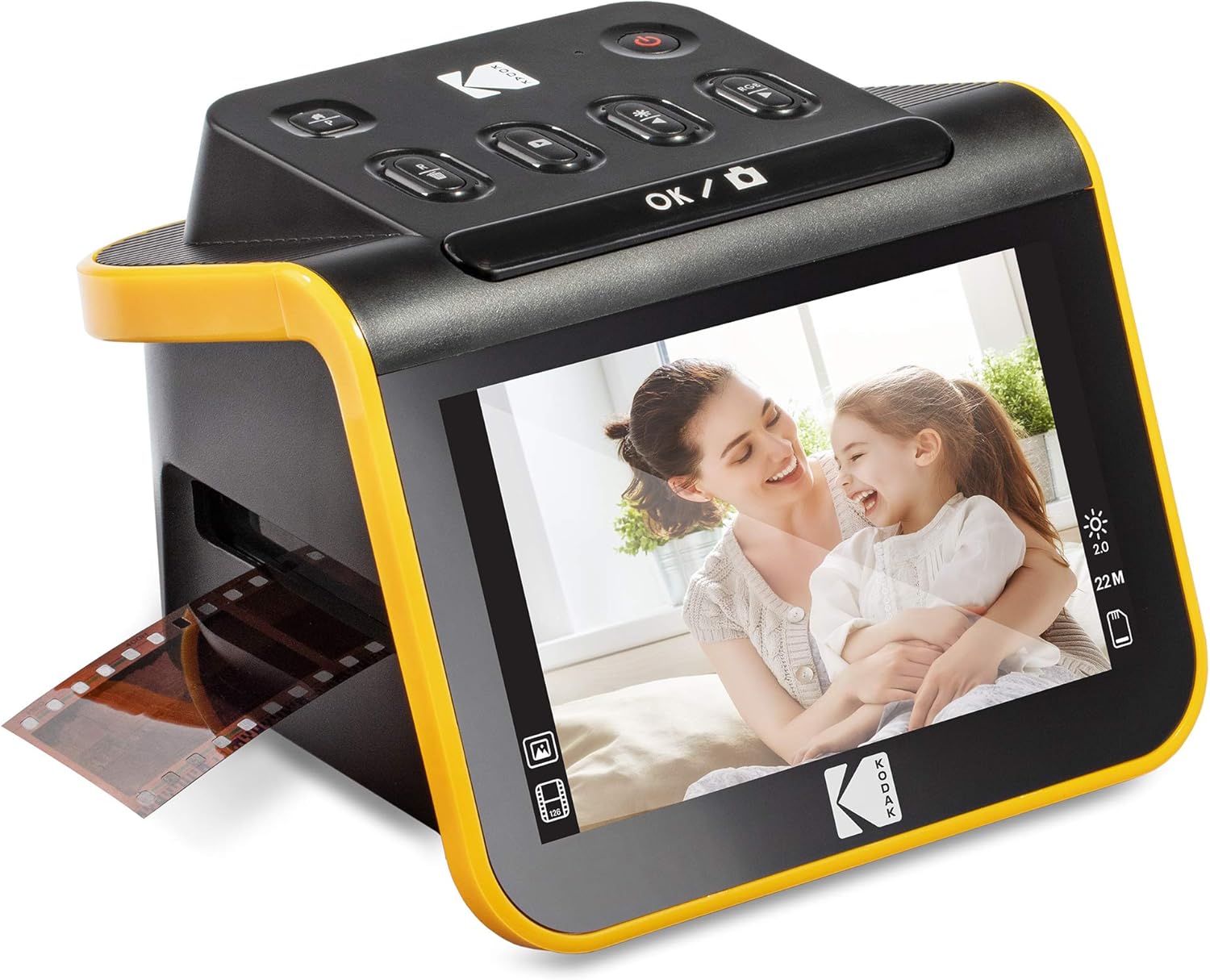
| Resolution | 13MP / 22MP (interpolated) |
|---|---|
| Image sensor | 13-megapixel CMOS |
| Connection Type | HDMI, USB |
| Media Type | Negatives, Slide |
| Screen Size | 5" LCD |
The KODAK Slide N Scan is a purpose-built film and slide scanner for people who want a simple, mostly hardware-driven way to digitize old negatives and slides. It accepts 50mm slides and uses adapters for 135, 110 and 126 films, feeds continuously via an easy-load tray and creates image files saved directly to an SD/SDHC card (USB connection to a computer is also supported). A 5" LCD with gallery mode makes previewing and basic editing straightforward without needing a PC, and quick controls let you choose film type, adjust color and assign date/time. The unit captures at 13MP sensor resolution with an interpolated 22MP option for larger files, and it includes USB and HDMI outputs for display or transfer. Practical limits are that it requires an SD card (not included), the higher-resolution 22MP result is interpolation rather than true optical resolution, and advanced color correction or batch-level editing will still benefit from desktop software after transfer. For casual users turning boxes of slides into shareable JPEGs, it reduces friction compared with scanner-and-software workflows.
Best for: Buyers who want a low-friction, mostly hardware-based way to digitize family slides and negatives for sharing and archiving without learning complex scanning software.
Less Ideal for: Photographers seeking the highest optical resolution or professionals who need raw-file capture and advanced color management should look at dedicated flatbed or drum scanners and software workflows instead.
- Accepts 50mm slides and 135/110/126 film with included adapters for broad compatibility
- Quick-feeding tray allows continuous loading to speed up batch scanning
- 5-inch LCD preview with gallery mode for on-device review and simple edits
- Saves JPEGs directly to SD/SDHC card and offers USB/HDMI outputs for easy transfer or display
- 22MP option is achieved via interpolation rather than higher native optical resolution
- Requires an SD card to operate since internal storage is not provided
Verdict: A straightforward, user-friendly film and slide scanner that gets boxes of old negatives and slides into JPEGs quickly with on-device preview and minimal setup.
Canon CanoScan LiDE 400

| Scanner Type | Document, Photo |
|---|---|
| Connection Type | USB |
| Resolution | 4800 |
| Color Depth | 48-bit |
| Optical Sensor Technology | CIS |
The Canon CanoScan LiDE 400 is a compact flatbed scanner built for home users who want high-resolution scans without a lot of fuss. It connects via USB Type-C for combined power and data and can produce up to 4800 x 4800 dpi images, making it suitable for digitizing photos and documents with good detail. The scanner includes five EZ buttons and an Auto Scan mode that detects what you place on the glass and starts the appropriate workflow, plus built-in PDF creation for multi-page documents. Image-enhancement features such as color restore and dust removal help improve older prints, and its slim profile and vertical stand save desk space. Trade-offs are minimal for casual home use but include a single-sheet feed (no automatic document feeder) and reliance on a computer connection for power and control, so it is less suited to heavy office scanning or standalone scanning without a PC.
Best for: Home users who want an easy, reliable way to digitize family photos and occasional documents with good image quality and simple controls.
Less Ideal for: People who need high-volume, unattended batch scanning or a standalone scanner that works without a PC should look elsewhere.
- High maximum optical resolution (4800 x 4800 dpi) for detailed photo scans
- USB Type-C connection supplies power and data with a single cable
- Auto Scan mode and five EZ buttons simplify everyday scanning tasks
- Image enhancement features like color restore and dust removal improve older photos
- No automatic document feeder, so batch scanning multi-page documents is manual
- Requires a connected computer for operation since it is USB-powered
Verdict: Choose the CanoScan LiDE 400 if you want a compact, easy-to-use home photo scanner that delivers high-resolution scans and helpful image-restoration tools.
Choosing the Right Photo Scanner for Home: Key Factors to Consider
Optical Resolution and Detail
Optical resolution determines how much fine detail the scanner captures from a print, slide, or negative. Higher true optical resolution matters if you plan to crop, enlarge, or restore old photos because it preserves edge detail and texture.
For home archiving, balance resolution with practicality. Very high-resolution scans create large files that require more storage and longer processing time. Consider how you will use the digitized images—social sharing needs much less resolution than large prints or detailed restoration work.
Color Depth and Accuracy
Color depth and the scanner's color reproduction affect how faithfully skin tones, shadows, and subtle hues transfer to digital files. Look for devices that capture rich color depth and provide effective color-management or profile support.
Built-in restoration tools for dust removal and color fading can save time, but they vary in aggressiveness. If you care about archival accuracy, prioritize color fidelity and the ability to export raw or high-bit-depth TIFFs for later editing.
Batch Scanning Speed and Feed Capacity
Batch throughput influences how long the entire archiving project will take. Scanners with automatic feeders or continuous passthrough designs process many prints quickly and reduce manual handling.
However, faster feeders may handle delicate or odd-sized originals less gently. For valuable or fragile photos, you may prefer a flatbed option even if it slows progress. Consider the number of photos you need to scan and whether occasional manual intervention is acceptable.
Software Features and Output Options
The bundled software shapes your day-to-day experience. Useful features include automatic cropping, file naming presets, OCR for captions, batch renaming, simple color correction, and options to save JPEG, TIFF, or lossless formats.
Workflow integrations such as direct export to cloud folders or photo management apps speed follow-up tasks. Verify that the software supports the operating system you use and that its restoration tools match the level of control you want.
Ease of Use and Physical Footprint
A home scanner should fit your workspace and be straightforward to operate. Compact designs are easier to store but may compromise on batch capacity or flatbed size. Check how intuitive the controls are, whether drivers install cleanly, and how accessible routine maintenance tasks like glass cleaning are.
Consider the noise level during operation and the power draw if you plan long scanning sessions. A unit that is simple to set up and maintain will encourage you to complete the archive rather than leave it half done.
File Management and Long-Term Storage
Digitizing photos creates a need for consistent file organization. Look for scanners or software that let you apply date, event, and sequence metadata during capture to avoid a messy backlog later.
Think about the storage medium you will use for long-term preservation. High-resolution TIFFs need more space than JPEGs, and consistent naming conventions and backups are critical for preserving the archive for years to come.
Deciding Between Flatbed and Feed-Through Scanners
Flatbed scanners let you place delicate prints, odd sizes, and mounted photos on a glass platen and typically do not risk feeding damage. They are the safer choice for fragile or valuable originals and for scanning bulky photo albums or framed items within size limits.
Feed-through or sheet-fed designs excel at speed and batch throughput for loose prints. They are compact and fast for standard-size photos but may struggle with warped, glued, or irregular pieces.
- Flatbed: gentle handling, best for fragile or atypical items.
- Feed-through: faster batch scanning, better for stacks of loose prints.
- Consider a hybrid workflow: flatbed for the rare delicate items and feed-through for bulk processing.
Preparing Photos for Scanning
Clean photos gently with a soft brush or microfiber cloth to remove surface dust that can show up as spots in scans. Avoid abrasive cleaning methods that could damage emulsion or paper.
Flatten curled prints where possible by placing them under light weight for a day. For stuck pages in albums, test a small area first or choose flatbed scanning with the page open at a safe angle.
- Remove paper clips, staples, and adhesive residues beforehand.
- Sort images by size and priority to plan batch runs efficiently.
Managing File Sizes and Formats
Choose file formats based on your goals. JPEGs are fine for sharing and general viewing, while TIFFs are preferable for archival copies and intensive edits because they are lossless. RAW-style outputs or high-bit-depth TIFFs retain more information for color correction.
Implement a consistent folder and filename structure before you start. Include dates, event names, or sequence numbers in filenames and maintain a mirrored backup on a separate drive or cloud storage.
- Reserve TIFFs for master archives and use compressed JPEGs for everyday access.
- Keep a small index spreadsheet that maps scanned filenames to original box and sleeve numbers.
Basic Color Correction and Restoration Tips
Many scanners include automated color correction and dust-removal features. Use these as a first pass but review results at full resolution to ensure corrections do not erase fine details or introduce artifacts.
For heavily faded or discolored photos, scan at a higher bit depth and perform targeted corrections in photo-editing software. Work on copies of files rather than originals so you always retain an untouched master.
- Use subtle noise reduction and sharpening; overprocessing creates unnatural results.
- When restoring, keep a record of edits applied so you can revert or refine later.
Workflow Tips to Finish Large Archiving Projects
Break the project into manageable sessions and set realistic daily or weekly goals. Scanning in small batches keeps quality control consistent and makes organization easier.
Label boxes and batches as you scan so you can track originals without constant re-sorting. Schedule periodic backups during the process to protect against data loss.
- Assign categories and prioritize the most important or vulnerable items first.
- Use software presets to maintain consistency across sessions and reduce repetitive settings adjustments.
How We Chose the Best Photo Scanner for Home
We shortlisted models that balance image capture fidelity with everyday usability for household archiving tasks. Our selection filters prioritized true optical resolution and color depth suitable for enlargements, consistent auto-cropping and dust-removal workflows, and reliable batch-handling to process dozens or hundreds of prints efficiently. We also weighed connection options, software features for file naming and basic restoration, and physical size and storage needs for typical home desks or shelves. Excluded were devices designed solely for occasional phone-document capture, multi-function office scanners with minimal photo-specific processing, and specialist museum-grade scanners whose cost and workflow are impractical for household projects. The core dimensions that mattered were optical scan quality, scanning speed and batch capacity, software workflow and output formats, and the unit's footprint and ease of setup. These criteria reflect common home-archiving tradeoffs between image fidelity and the time you can reasonably invest.
Our full evaluation process is outlined in our review methodology.
FAQ
What resolution should I scan family photos at for archiving?
For general archiving of standard prints, 300 to 600 dpi balances file size and usable detail. Choose 600 dpi or higher if you plan to crop or make large prints. For slides or negatives, use the scanner's maximum optical resolution to capture fine grain and detail.
Can I scan photos directly from an album?
Yes. Flatbed scanners are best for album pages because they let you scan with the page open and protect mounted photos. Take care with glued pages and use gentle handling to avoid stressing bindings or lifting images.
How should I store digitized photos for long-term safety?
Keep master files in a lossless format such as TIFF on a dedicated backup drive, and maintain at least one off-site or cloud backup. Use consistent filenames and folder structures, and periodically verify backups for integrity.
Do I need special software to repair faded or discolored photos?
Basic correction tools included with many scanners can handle mild fading and dust removal. For extensive color restoration or advanced retouching, use dedicated photo-editing software that supports high-bit-depth files.
How do I speed up the scanning process without losing quality?
Use a feed-through scanner for stacks of uniform, stable prints to gain speed. Set reliable software presets for resolution, file format, and naming so each batch requires minimal manual adjustments. Reserve higher-resolution or flatbed scans for fragile or high-priority originals.
Final Verdict
When choosing a photo scanner for home use, prioritize the features that match how you plan to work. If you have many loose photos and want a fast turnaround, a reliable feed-through scanner with solid software automation will save time. If you are preserving fragile, rare, or varied-size items, a flatbed with strong color and detail performance is the safer bet. Balance optical quality, batch throughput, and the software workflow that will keep the project moving. Plan your file formats and backup strategy up front so your newly digitized memories remain accessible and safe for years to come.