
Note: This article contains affiliate links. If you click on these links and make a purchase, we may earn a small commission at no extra cost to you. This helps support our research and content. Read our full affiliate disclosure here.
If you rely on a Mac for photo editing, paperwork, or archiving, the right scanner makes a big difference in day-to-day workflow. A good Scanner for Mac saves time by producing accurate scans that require minimal correction, integrates cleanly with macOS apps and cloud services, and handles the media types you work with most often. This guide covers a curated shortlist of top scanner options that balance image quality, speed, and usability on Macs. We evaluated each scanner for how well it fits into Mac-based workflows, how simple it is to set up and maintain, and how reliably it reproduces documents and photos. Read on for focused guidance and practical tradeoffs to help you pick the best Scanner for Mac for your needs.
Top Picks at a Glance
| Best Overall The best all-around choice for most situations | Epson WorkForce ES-400 II |  |
| Best Quality Built to a higher standard if you want something more solid | ScanSnap iX2500 |  |
| Best Value The sweet spot between price and what you get | Brother Duplex Compact DS-740D |  |
| Best Budget The cheapest option that still gets the job done reliably | Canon CanoScan LiDE 300 |  |
| Top Rated A top-rated pick with lots of positive feedback | Fujitsu ScanSnap iX1500 |  |
| Most Popular A crowd favorite that many people choose with confidence | KODAK Slide N Scan Film Scanner |  |
| Best Seller A high-volume bestseller chosen again and again | Canon CanoScan LiDE 400 |  |
Epson WorkForce ES-400 II

| Scanner Type | Document |
|---|---|
| Connection Type | USB |
| Resolution | 300 dpi |
| Standard Sheet Capacity | 50 |
| Color Depth | 8 bpp |
The Epson WorkForce ES-400 II is a compact desktop document scanner built for everyday office and home use, offering two-sided scanning in a single pass and a 50-sheet auto document feeder to handle batches quickly. It scans at up to 35 pages per minute (70 images per minute duplex) at 300 dpi and produces color, grayscale, or black-and-white files while the included ScanSmart software provides previewing, simple file naming, OCR for searchable PDFs, and direct upload to cloud services. Practical image features like auto crop, blank page skip, background removal, double-feed detection, and skew correction help reduce cleanup and missed pages when processing mixed stacks. The scanner connects via USB and includes a TWAIN driver for integration with Mac and PC document workflows. Trade-offs are modest resolution and color depth relative to photo-focused scanners and reliance on a USB connection rather than built-in Wi-Fi, so it is optimized for document workflows rather than high-end photo or large-networked deployments.
Best for: Mac users who need a reliable, fast desktop scanner for routine document digitizing and workflows that value OCR, cloud upload, and consistent two-sided scanning.
Less Ideal for: Photographers or users who require high-resolution color scans or networked wireless scanning for multiple users should consider a different model.
- Duplex single-pass scanning at up to 35 ppm (70 ipm) speeds for fast batch processing
- 50-sheet Auto Document Feeder handles mixed documents and reduces manual feeding
- ScanSmart software with OCR and direct upload to cloud services simplifies file management
- Ultrasonic double-feed detection and skew correction improve reliability with mixed stacks
- Maximum optical resolution is 300 dpi which limits detail for high-resolution photo scans
- No built-in Wi-Fi or wireless scanning options, USB-only connectivity
Verdict: A fast, reliable duplex desktop scanner for Mac users who need efficient batch document scanning with OCR and cloud integration.
ScanSnap iX2500

| Connection Type | USB, Wi-Fi |
|---|---|
| Resolution | 600 dpi |
| Standard Sheet Capacity | 100 |
| Optical Sensor Technology | CIS |
The ScanSnap iX2500 is a desktop duplex scanner built for fast, frequent scanning: it scans up to 45 pages per minute and handles double-sided sheets in a single pass using a 100-sheet automatic feeder. It connects over Wi‑Fi (including Wi‑Fi 6) or USB‑C so you can place it away from your computer and scan directly to a Mac, PC, phone, or cloud service. The responsive 5" touchscreen makes it easy to select profiles and destinations without a computer, and ScanSnap software can create searchable PDFs and editable Office files while automatically optimizing, naming, and sorting scans. Physical design choices like the brake roller separation system, multi-feed sensor, and skew detection reduce jams and protect documents during high-volume batches. The iX2500 is engineered for offices and power users who need reliable, repeatable performance, though it does not include a TWAIN driver and is a dedicated ScanSnap ecosystem product rather than a general-purpose driver-based scanner for niche software workflows.
Best for: Mac users who prioritize speed and reliable batch scanning for heavy home‑office or small‑office workloads and want simple, deviceless scanning to cloud services.
Less Ideal for: People who need TWAIN support or require the smallest possible desktop footprint for occasional, low‑volume personal use should consider alternatives.
- 45 pages per minute duplex scanning for high-throughput work
- 100-sheet automatic document feeder for large batches
- Wi‑Fi (including Wi‑Fi 6) and USB‑C for flexible placement and cloud/phone scanning
- 5" touchscreen with customizable profiles for one-touch scanning workflows
- Automatic image cleanup and OCR to produce searchable PDFs and editable Office files
- No TWAIN driver included which limits integration with some legacy apps
- Relatively large footprint and power draw compared with compact personal scanners
Verdict: If you need fast, dependable batch scanning and native cloud/Mac workflows, the ScanSnap iX2500 delivers professional throughput and easy deviceless scanning.
Brother Duplex Compact DS-740D

| Resolution | 300 |
|---|---|
| Connection Type | USB |
| Optical Sensor Technology | CCD |
| Standard Sheet Capacity | 25 |
| Media Type | Business Card, Embossed Card, Laminated Card, Plain Paper, Plastic Card, Receipt |
The Brother DS-740D is a lightweight, ultra-compact duplex document scanner designed for mobile and small office use. It scans single- and double-sided pages in a single pass at up to 16 pages per minute and powers from a micro USB 3.0 connection to a laptop or PC, making it easy to use on the road or at a cramped desk. The included iPrint&Scan software and OCR/document management suite let you send scans to files, email or cloud services and apply automatic image fixes such as color detection, bleed-through prevention, background removal and text enhancement. Its DSD (Desk Saving Design) reduces the operating footprint so it fits in small spaces or a bag, and broad driver support includes TWAIN/WIA for PC, ICA for Mac and SANE for Linux. Limitations are a small standard sheet capacity and reliance on a wired USB connection and a host computer for power and software features, so it is best for light to moderate scanning rather than high-volume batch jobs.
Best for: Buyers who want a space-saving, portable scanner for occasional to moderate two-sided scanning and who prioritize practical workflow features like OCR and cloud scan destinations.
Less Ideal for: Users who need high-volume, unattended batch scanning or prefer a wireless standalone scanner with built-in storage or battery power.
- Duplex single-pass scanning up to 16 ppm for two-sided documents
- Very compact, low-profile design that saves desk space and fits in a bag
- Includes software suite with OCR and image optimization tools
- USB-powered for on-the-go use without a separate power adapter
- Compatible with Windows, Mac and Linux via TWAIN/WIA/ICA/SANE drivers
- Small standard sheet capacity makes it less suited for large batch scanning
- Requires a connected computer for power and full software functionality
Verdict: A compact, USB-powered duplex scanner that delivers practical, space-saving scanning and OCR features for Mac users who need portable two-sided document capture.
Canon CanoScan LiDE 300

| Scanner Type | Document, Photo |
|---|---|
| Connection Type | USB |
| Resolution | Optical: 2400 x 2400 dpi |
| Color Depth | 48 bits |
| Light Source Type | LED |
The CanoScan LiDE 300 is a compact flatbed scanner built for everyday document and photo digitizing. It connects over USB and uses Auto Scan Mode to detect whether you are scanning a photo, document, or receipt, then applies basic image corrections like fade correction and dust reduction. Four EZ buttons let you launch common tasks such as creating searchable PDFs with OCR, copying, or sending to cloud services, which speeds simple workflows. The 2400 x 2400 dpi optical resolution and 48-bit color depth deliver good detail for home photo scanning, while the low power draw keeps it efficient. Its slim profile makes it easy to tuck on a desk, but there is no automatic document feeder so it is best for single-sheet jobs rather than high-volume multipage scanning. Mac users should verify driver and software compatibility with their macOS version because minimum system info lists Windows 7, though basic TWAIN or ICA support is commonly available for Macs through Canon or third-party software.
Best for: Value-minded Mac users who need a compact, photo-capable flatbed for occasional document and image scanning and who prioritize easy, one-button workflows over high-volume throughput.
Less Ideal for: People who need fast, unattended multi-page scanning or a dedicated production scanner for frequent heavy office use.
- High optical resolution up to 2400 x 2400 dpi for detailed photo scans
- Auto Scan Mode and EZ buttons simplify common tasks like PDF creation and cloud upload
- Compact, slim design that is easy to store on a desk
- Includes image enhancements such as fade correction and dust reduction
- No automatic document feeder, so batch scanning multipage documents is manual
- Minimum system details list Windows 7 which means checking Mac driver compatibility may be necessary
Verdict: A budget-friendly, slim flatbed that delivers high-resolution photo and document scans with simple one-button controls, ideal for occasional Mac scanning needs after confirming driver support.
Fujitsu ScanSnap iX1500

| Scanner Type | Document, Receipt |
|---|---|
| Connection Type | USB, Wi-Fi |
| Resolution | 600 |
| Standard Sheet Capacity | 50 |
| Optical Sensor Technology | CIS |
The Fujitsu ScanSnap iX1500 is a desktop duplex scanner designed to simplify everyday scanning for home and small-office users. It offers a large 4.3-inch touch screen with programmable shortcuts so you can start common scan jobs directly from the unit without returning to a computer, and it connects over USB or 2.4/5 GHz Wi‑Fi for flexible placement. The iX1500 scans at up to 30 pages per minute through a 50-sheet automatic document feeder and includes automatic image adjustments such as auto color detection, deskew, blank-page removal, and rotation to reduce manual cleanup. Fast Startup makes the scanner ready as soon as the lid is opened, and ScanSnap Home/Cloud integrations let you route scans to cloud services, folders, or user-specific profiles. Practical limits are its focus on single-pass document workflows rather than heavy production use and its reliance on vendor software for advanced file management, but for users who need dependable, mostly hands-off scanning of receipts, photos, business cards, and multipage documents, the iX1500 is a strong, reliable choice.
Best for: Mac users who prioritize a reliable, user-friendly scanner for daily paperwork, receipts, photos, and multipage documents and value simple, fast workflows and consistent results.
Less Ideal for: Teams that need heavy, continuous production scanning or users who require server-grade document management and deep third-party software integration.
- Large 4.3-inch touchscreen with customizable shortcut buttons for quick, repeatable scans
- Wireless and USB connectivity including 2.4 GHz and 5 GHz Wi‑Fi for flexible placement
- 30 ppm duplex scanning speed with a 50-sheet automatic document feeder for efficient batch scans
- Automated image processing (auto color detection, deskew, blank-page removal, rotation) reduces manual editing
- Not intended for high-volume production environments compared with dedicated production scanners
- Advanced document management depends on ScanSnap software rather than built-in file organization features
Verdict: Choose the iX1500 if you want a dependable, easy-to-use desktop scanner for Mac that streamlines everyday batch scanning with built-in automation and wireless convenience.
KODAK Slide N Scan Film Scanner
| Resolution | 13MP / 22MP (interpolation) |
|---|---|
| Image sensor | 13-megapixel CMOS |
| Connection Type | HDMI, USB |
| Media Type | Negatives, Slide |
| SD card support | SD / SDHC up to 32GB |
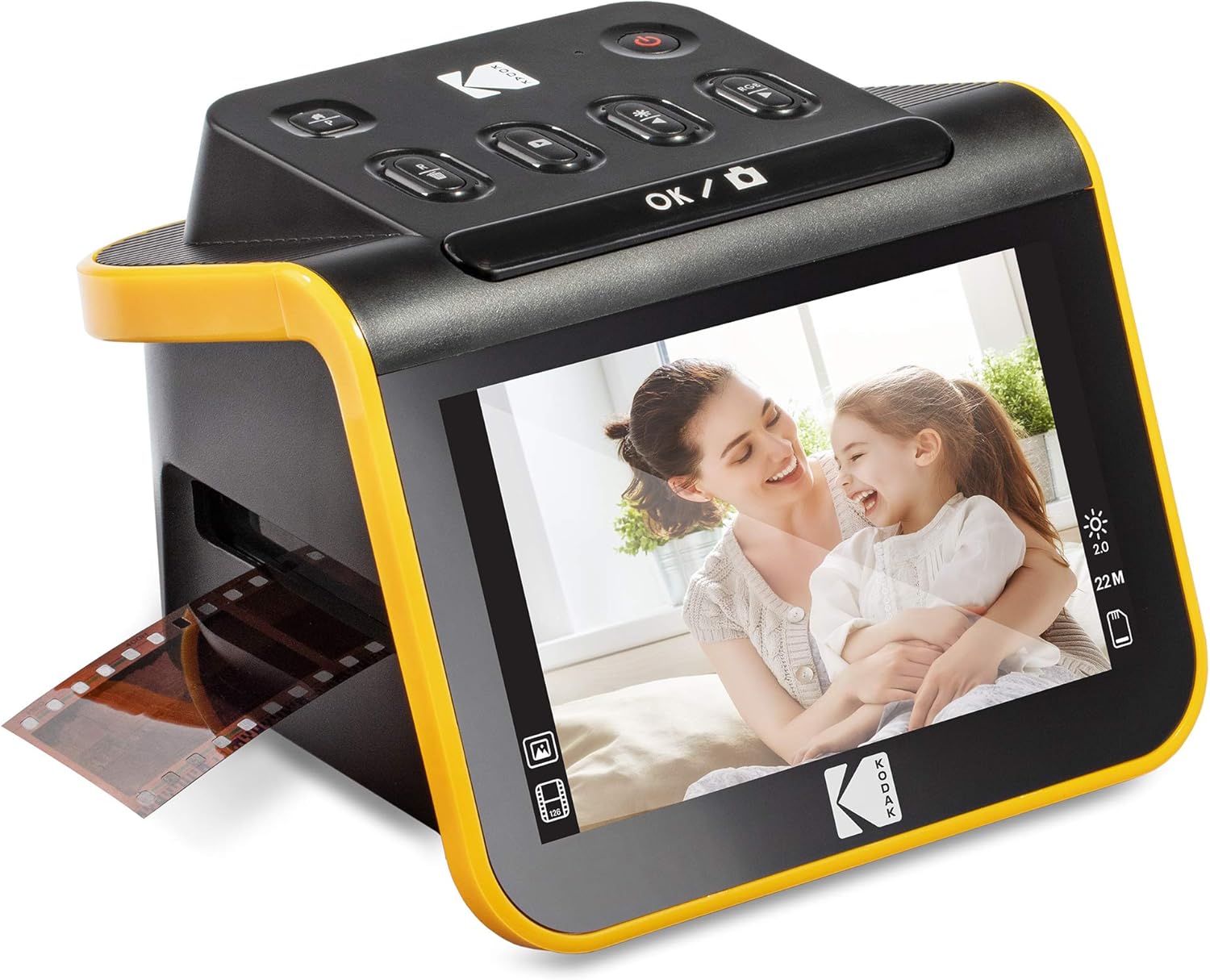
The KODAK Slide N Scan is a straightforward desktop film and slide scanner intended for hobbyists and families who want to digitize old negatives and slides without complicated software. It accepts 50mm slides and 135/110/126 negatives, offers a quick-feed insert for continuous scanning, and saves JPEGs directly to an SD/SDHC card or transfers to a computer via the included USB cable. The unit has a 5" LCD for preview and gallery-mode display and can output over HDMI for TV playback. Kodak advertises a 13MP sensor with selectable interpolation up to 22MP, one-touch editing controls for basic color and brightness adjustments, and adapters for multiple film formats. Practical benefits include fast, no-fuss scans with on-device preview so you can see results immediately and batch through collections with the quick-feed tray. Limitations are that finer image control and advanced restoration require separate software on a computer, and an SD card is required but not included. Power options require a USB port, power adapter, or power bank which may matter for some setups.
Best for: Buyers who want an easy, mostly standalone way to digitize family slides and negatives and prefer seeing results immediately on a screen before moving files to a computer.
Less Ideal for: Photographers or archivists who need high-end optical resolution, extensive restoration tools, or professional color management for large-volume archival work.
- Handles multiple film formats (50mm slides plus 135/110/126 negatives) with included adapters.
- Built-in 5" LCD and gallery mode let you preview and share scans without a computer.
- Quick-feeding tray speeds up batch scanning compared with single-frame insertion.
- Saves JPEGs to SD/SDHC card and connects to PC or TV via USB and HDMI for easy transfer and viewing.
- Interpolation used to reach 22MP rather than true optical increase in resolution.
- Requires an SD card for operation which is not included.
- Advanced dust/scratch removal or high-end color correction must be done with external software.
Verdict: If you want a simple, preview-capable scanner to quickly convert family slides and negatives to JPEGs without fiddling with software, this Kodak is an easy, practical choice.
Canon CanoScan LiDE 400

| Scanner Type | Document, Photo |
|---|---|
| Connection Type | USB (Type-C) |
| Resolution | 4800 x 4800 dpi |
| Color Depth | 48-bit |
| Optical Sensor Technology | CIS |
The Canon CanoScan LiDE 400 is a compact flatbed scanner designed for scanning documents and photos at home or in a small office. It connects with a single USB Type-C cable that supplies both power and data, which keeps setup simple and reduces cable clutter. The scanner delivers up to 4800 x 4800 dpi optical resolution with 48-bit color depth and 16-bit greyscale depth, so it captures fine detail in photos and printed material, and includes software image enhancements like color restore and dust removal. Five EZ buttons and an Auto Scan mode make common tasks—scanning to PDF, creating searchable multi-page PDFs, and quick photo capture—straightforward for nontechnical users. The unit is very slim and stores easily upright on a desk, and typical scans complete quickly. Limitations include a single-sheet flatbed design rather than an automatic document feeder, so large multipage jobs require manual page placement, and the scanner is optimized for letter and photo sizes rather than oversized originals. Drivers and software are targeted at Windows and macOS but verify compatibility with your Mac version before buying.
Best for: Buyers who prioritize dependable, easy-to-use photo and document scans on a Mac and want a compact, simple single-cable setup with built-in image enhancements.
Less Ideal for: Users who routinely scan large stacks of paperwork or oversized documents should choose a scanner with an automatic document feeder or larger bed.
- High optical resolution up to 4800 x 4800 dpi for detailed photo scans
- USB Type-C single-cable connection for power and data simplifies setup
- Built-in image enhancement tools like color restore and dust removal
- Five EZ buttons and Auto Scan mode speed common tasks and reduce learning curve
- Slim, upright footprint that stores easily when not in use
- No automatic document feeder, so multi-page scanning is manual
- Not suited for oversized documents beyond standard letter/photo sizes
Verdict: A compact, Mac-friendly flatbed scanner that delivers high-resolution photo and document scans with a simple USB-C setup, ideal for cautious buyers who want reliable, easy results.
Choosing the Right Scanner for Mac: Key Factors to Consider
macOS Compatibility and Drivers
macOS compatibility affects whether a scanner plugs in and works immediately or needs extra configuration. Native support or vendor-provided drivers that are kept current with macOS updates reduce setup headaches and prevent interruptions in daily workflows.
Check for scanners that advertise native support or include macOS utility software. If the scanner offers TWAIN or ICA drivers, macOS apps are more likely to access the device directly. Compatibility matters most if you use macOS-specific software for OCR, photo edits, or scanned PDF workflows.
Image Quality and Resolution
Resolution and sensor quality determine how well the scanner reproduces photos, fine print, and graphics. Higher optical resolution yields more detail without interpolation, which is important for archiving photos or scanning high-density text.
Also consider color depth and dynamic range for faithful color reproduction. For everyday documents, modest resolution is fine, but for photo or archival work choose scanners with higher optical DPI and consistent color handling.
Scan Speed and Document Throughput
If you scan large batches, speed and an automatic document feeder are crucial. Look at pages-per-minute for single- and double-sided scans, and whether the scanner handles duplex scanning automatically.
Throughput also includes how reliably the feeder handles mixed media without frequent jams. Faster scanners save time, but be mindful of the tradeoff between speed and scan quality for detailed tasks.
Media Types and Size Support
Different tasks require different media handling. Some scanners specialize in photos and flat originals, while others include feeders for letter, legal, or long documents. If you digitize receipts, business cards, or fragile photos, verify the scanner supports those sizes and has appropriate handling modes.
Transparency adapters are rare but necessary for film or slide scanning. Sheet-fed scanners are excellent for documents, while flatbeds provide flexibility for books and delicate originals.
Connectivity and Workflow Integration
Connection options—USB, Wi-Fi, Ethernet—affect where and how you place the scanner and whether multiple devices can share it. Networked scanners simplify shared-office use, while direct USB connections can be simpler and more stable for single-user setups.
Also look at software integration with cloud services, automatic file naming, and OCR capabilities. Built-in scanning workflows reduce manual steps and speed up regular tasks.
Maintenance and Long-Term Reliability
Scanners in frequent use require simple maintenance and accessible replacement parts. Consider how easy it is to clean glass, replace feed rollers, or swap consumables. Robust construction and a straightforward maintenance routine cut downtime and extend usable life.
Also consider whether the vendor offers firmware updates and support for macOS changes to keep the device functioning over the long term.
Scanner Types and When to Choose Them
Scanners generally fall into flatbed, sheet-fed, or hybrid categories. Flatbed scanners provide gentle handling and are ideal for books, fragile photos, and odd-sized originals. Sheet-fed scanners excel at batch document processing and are useful when you need to convert many pages into searchable PDFs quickly. Hybrid units combine a flatbed with an automatic feeder to offer the best of both worlds for mixed workloads.
When choosing a scanner for Mac, match the device type to your primary tasks. Photographers and archivists often prefer flatbeds for detail and care, while office users and small businesses typically benefit more from fast sheet-fed models with reliable duplex scanning.
- Flatbed: Best for delicate originals, photos, and books
- Sheet-fed: Best for high-volume document scanning and receipts
- Hybrid: Versatile option for mixed media and occasional batch jobs
Optimizing Scans on macOS
macOS offers system-level scanning support through built-in image capture utilities and document workflows. Use a scanner utility that integrates with macOS to apply ICC profiles, set resolution, and configure automatic naming or destination folders. This minimizes manual steps and ensures scanned files are ready for editing or archiving.
Enable OCR where supported to create searchable PDFs. For consistent color, calibrate your workflow by using the scanner's color settings and check results in your preferred Mac photo or PDF app.
- Set a default folder to keep scanned files organized
- Use OCR to make documents searchable
- Apply color profiles for consistent photo scans
Managing Different Media: Photos, Receipts, and Books
Scanning many media types requires different handling. Receipts and small papers are easiest in a sheet-fed scanner with a dedicated carrier or a slot for single items. For photos, use a flatbed to avoid curl and to keep originals flat during capture. Books usually require a flatbed and careful positioning to avoid spine shadow.
If you scan both documents and photos regularly, choose a model with both a flatbed and an automatic feeder or ensure your workflow can accommodate switching devices.
- Use flatbed for photos and fragile items
- Use sheet-fed for stacks of invoices or receipts
- Consider a hybrid if you mix media frequently
OCR and Searchable PDFs for Mac Workflows
Optical character recognition transforms static scans into searchable, editable documents. Look for scanners or bundled software that provide reliable OCR and language options that meet your needs. Accuracy improves with good scan quality, correct resolution, and clean originals.
On a Mac, OCR output can be integrated into Spotlight and other system searches if the scanned PDFs include searchable text. This makes document retrieval much faster when you maintain a consistent filing and naming practice.
- Higher resolution improves OCR accuracy
- Clean originals and proper contrast aid text recognition
- Integrate OCR output with macOS search for quick retrieval
Network Scanning and Multi-User Setups
If multiple users need access, choose a scanner that supports network scanning over Wi-Fi or Ethernet. Networked devices can scan to a shared folder, email, or cloud destination. Confirm the scanner supports relevant protocols and that macOS can discover and connect without driver conflicts.
For shared workgroups, consider user authentication and workflow controls to manage who can perform high-volume scans or access sensitive files. Regularly update firmware to maintain network security and compatibility.
- Ethernet provides stable connection for busy offices
- Wi-Fi offers placement flexibility but check reliability
- Look for network-friendly scanning destinations like SMB or cloud
How We Chose the Best Scanner for Mac
We focused on features and performance that matter to Mac users and everyday scanning tasks. Selection prioritized scanners with proven macOS compatibility, robust image reproduction, and reliable driver or native integration with common Mac apps. We also looked for devices offering useful workflows for the home office and creative work, including duplex scanning, automatic document feeders, and supported scan resolutions. Build quality and maintenance needs were considered to ensure longevity in frequent-use scenarios. Usability factors such as bundled software, control-panel simplicity, and network or USB connectivity were part of the evaluation. We excluded devices lacking stable macOS support or those that required complex third-party drivers to function. In short, products that combined dependable macOS integration, clear scan output, consistent speed, manageable upkeep, and practical connectivity made the list.
Our full evaluation process is outlined in our review methodology.
FAQ
Do scanners need special drivers to work with macOS?
Often modern scanners include macOS drivers or use built-in system interfaces. Some models provide native utilities for advanced features. Always check driver availability for your macOS version before buying.
What resolution should I use for photos versus documents?
For documents, 300 dpi is usually sufficient for readable, OCR-friendly scans. For photos or archival work, aim for higher optical resolution, typically 600 dpi or more, to preserve detail.
Can I create searchable PDFs from scanned documents on a Mac?
Yes. Many scanners and bundled apps include OCR to produce searchable PDFs. macOS can also index searchable PDFs so they appear in system searches when OCRed properly.
Is a flatbed or sheet-fed scanner better for receipts?
For single receipts, a flatbed works but can be slower. Sheet-fed scanners with a narrow feeder or single-sheet mode are usually faster and more convenient for frequent receipt scanning.
How do I maintain a scanner to prevent jams and poor image quality?
Regularly clean the platen glass and feed rollers, follow manufacturer-recommended cleaning intervals, and use the correct media guides. Replacing worn rollers and keeping firmware current also helps maintain reliable performance.
Final Verdict
Choosing the right Scanner for Mac comes down to matching the device type and features to your primary tasks. Prioritize macOS compatibility and image quality if you scan photos or archival materials, and favor scan speed, duplex capability, and a reliable automatic feeder if you process large volumes of documents. Consider connectivity and OCR support to simplify workflows and make scanned files easy to find and use. By weighing these tradeoffs against your typical workload, you can confidently select a scanner that integrates cleanly with your Mac and supports efficient, long-term scanning.