
Note: This article contains affiliate links. If you click on these links and make a purchase, we may earn a small commission at no extra cost to you. This helps support our research and content. Read our full affiliate disclosure here.
If you need to convert printed photos and paper records into reliable digital files, picking the right scanner matters. A good scanner for photos and documents preserves color and detail from old prints while handling stacks of paperwork without constant babysitting. This guide highlights seven shortlisted scanners that fit mixed-use needs, with attention to image quality, throughput, connectivity, and software tools. Whether you plan to archive family photos or streamline document workflows, these top picks cover the common tradeoffs buyers face. Read on for the evaluation approach and the key features we focused on.
Top Picks at a Glance
| Best Overall The best all-around choice for most situations | Epson FastFoto FF-680W |  |
| Best Quality Built to a higher standard if you want something more solid | Epson Perfection V550 |  |
| Best Value The sweet spot between price and what you get | Doxie Pro DX400 |  |
| Best Budget The cheapest option that still gets the job done reliably | Canon CanoScan LiDE 300 |  |
| Top Rated A top-rated pick with lots of positive feedback | ScanSnap iX1500 Desktop Scanner |  |
| Most Popular A crowd favorite that many people choose with confidence | KODAK Slide N Scan |  |
| Best Seller A high-volume bestseller chosen again and again | ScanSnap iX2500 Scanner |  |
Epson FastFoto FF-680W

| Scanner Type | Document, Photo |
|---|---|
| Connection Type | Wi-Fi |
| Resolution | 600 dpi |
| Color Depth | 24 bpp |
| Standard Sheet Capacity | 10 |
The Epson FastFoto FF-680W is built to digitize large stacks of photos and documents quickly, combining duplex feeding with wireless and USB connections. It scans photos as fast as one per second at 300 dpi and can batch-feed up to 36 photos, while offering higher-resolution options (600 dpi optical, interpolated up to 1200 dpi) for archiving or enlargements. The FastFoto software adds automatic enhancements such as color restoration, red-eye reduction, de-skewing, cropping, and OCR for documents, and the mobile app supports voice annotations and cloud upload to Dropbox or Google Drive. SafeTouch feeding and an included carrier sheet help protect fragile originals, and the unit handles a variety of media including panoramas and Polaroids. Expect a modest footprint and straightforward setup, though top archival workflows may require manual checks for very delicate items and the best results rely on using the supplied software and recommended settings. The scanner is a practical choice when you need fast throughput plus simple restoration and cloud backup for mixed photo and document scanning projects.
Best for: Buyers who need to convert large collections of printed photos and mixed documents into organized digital files quickly and want built-in image restoration and cloud backup options.
Less Ideal for: Users whose priority is delicate one-off archival scanning, extremely high-end color-critical reproduction, or those who prefer a flatbed-only workflow for unusual media.
- Very fast batch scanning (up to 36 photos, about 1 photo/second at 300 dpi)
- Wireless and USB connectivity for flexible placement and mobile scanning
- Automatic image restoration features (color restore, red-eye reduction, de-skew, crop)
- Includes SafeTouch carrier sheet and cleaning cloth to protect fragile originals
- Built-in OCR and cloud upload support for easy document archiving and sharing
- Not intended as a gentle flatbed for extremely fragile or oddly shaped originals that require manual handling
- Top-end archival quality may require careful settings and possible re-scans at higher resolution
- Requires Epson FastFoto software/app for many automated features and cloud workflows
Verdict: Choose the FastFoto FF-680W when you need rapid, reliable batch scanning of photos and documents with handy automatic restoration and cloud backup features.
Epson Perfection V550

| Resolution | 6400 dpi |
|---|---|
| Color Depth | 48 bpp |
| Connection Type | USB |
| Light Source Type | LED |
| Optical Sensor Technology | CCD, CMOS |
The Epson Perfection V550 is a flatbed scanner designed for photographers and hobbyists who need high-resolution scans of photos, slides, negatives and documents. It uses a built-in transparency unit to handle 35mm slides and film strips and offers a 6400 dpi optical resolution and 48-bit color depth for detailed enlargements and accurate color reproduction. ReadyScan LED lighting provides fast scans with no warmup time and low power draw, while Digital ICE and Easy Photo Fix help remove dust, scratches and color fade with one-touch correction. Auto edge detection separates multiple photos on the platen into individual files and ABBYY FineReader Sprint Plus OCR converts documents into editable text. Practical limits include its flatbed form factor, which is slower for high-volume document scanning than sheet-fed models, and the need for included software on some platforms to access all features. For hands-on photo restoration and high-detail negative scanning it delivers strong, predictable results.
Best for: Photographers, archivists, and serious hobbyists who prioritize image quality and film scanning capabilities for restoring and enlarging photos.
Less Ideal for: Users who need fast, high-volume document scanning or a compact portable scanner for occasional home document use should consider a sheet-fed or dedicated document scanner instead.
- High 6400 dpi optical resolution for detailed scans and enlargements
- Built-in transparency unit for 35mm slides, negatives and film strips
- Digital ICE and Easy Photo Fix automate dust, scratch and fade correction
- ReadyScan LED offers fast scanning with no warmup and lower power use
- Auto edge detection saves multiple scans as separate files and includes OCR for editable text
- Flatbed design is slower for large batches of single-sheet documents compared with sheet-fed scanners
- Some advanced features require the bundled software and may need downloads for certain operating systems
Verdict: Choose the V550 when you need high-resolution, film-capable scans and reliable photo restoration in a flatbed scanner.
Doxie Pro DX400

| Resolution | 600 dpi |
|---|---|
| Maximum Copy Speed Black and White | 22 pages_per_minute |
| Maximum Media Size | 11×17 inches |
| Maximum Sheet Capacity | 20 |
| Printer Connectivity Type | USB |
The Doxie Pro DX400 is a small, portable document scanner built to clear paper clutter at home or in a small office by handling documents, receipts, business cards, and photos. It uses a collapsible 20-sheet automatic document feeder for two-sided scanning at up to 22 pages per minute and also accepts single items through a direct feed for thicker or delicate media. Scans can reach 600 dpi and the included Doxie software on Mac and PC automatically crops, rotates, adjusts contrast, and runs OCR to produce searchable PDFs or JPEGs you can send to cloud apps. Connectivity is USB-only, but the box includes USB and USB-C cables and international power adapters so it is ready out of the box. The compact footprint and maintenance kit with a replacement paper pad and cleaning cloth make it convenient for frequent use, though the 20-sheet feeder and USB-only connection limit throughput and network flexibility compared with larger office scanners.
Best for: Buyers who want a reliable, space-saving scanner to digitize household paperwork, receipts, photos, and occasional business documents while keeping things simple and organized.
Less Ideal for: Businesses that need high-volume, networked scanning or faster, heavy-duty feeders should look at larger office models designed for sustained throughput.
- Automatic duplex scanning via a 20-sheet collapsible feeder for two-sided papers
- 600 dpi scanning with automatic cropping, rotation, contrast adjustment, and OCR for searchable PDFs
- Compact, portable design with included USB and USB-C cables and international power adapters
- Bundled Doxie software that integrates with Mac and PC and exports to cloud apps
- USB-only connectivity limits wireless or networked scanning
- 20-sheet feeder and 22 ppm speed may be slow for large batch jobs
Verdict: A compact, duplex-capable scanner that simplifies going paperless at home or in a small office with solid 600 dpi scans and easy-to-use software.
Canon CanoScan LiDE 300

| Scanner Type | Document, Photo |
|---|---|
| Connection Type | USB |
| Resolution | Optical: 2400 x 2400 dpi |
| Color Depth | 48 bits bits |
| Light Source Type | LED |
The Canon CanoScan LiDE 300 is a slim flatbed scanner designed to digitize documents, receipts, business cards and photos. It connects over USB and uses Auto Scan Mode to detect the type of item and apply appropriate settings, while four EZ buttons provide one-touch actions for common tasks like creating searchable PDFs with OCR and sending files to cloud services. The 2400 x 2400 dpi optical resolution and 48-bit color depth help preserve photo detail and color, and built-in image enhancements such as fade correction and dust reduction improve older prints. Its low 4.5 watt power draw and compact profile make it easy to fit on a desk and run from a laptop. Limitations include a single-sheet flatbed (no ADF) so it is slower for multi-page batches, and USB-only connectivity means no wireless scanning. For casual photo archiving and occasional document scanning it delivers good image quality at a modest feature set.
Best for: Buyers who want an affordable, simple-to-use flatbed for archiving photos and scanning occasional documents with good image quality and easy software tools.
Less Ideal for: Anyone who needs fast batch scanning, networked/wireless scanning, or heavy daily document processing should look at feed-based or network-capable models instead.
- High 2400 x 2400 dpi optical resolution for detailed photo scans
- Auto Scan Mode and EZ buttons simplify common tasks like PDF creation and cloud uploads
- Built-in image enhancements (fade correction, dust reduction) improve older photos
- Low power consumption and compact slim design for easy desktop placement
- No automatic document feeder so multi-page scanning is manual and slower
- USB-only connection limits placement and prevents wireless scanning
Verdict: A budget-friendly slim flatbed that delivers high-resolution photo scans and easy one-touch workflows for casual archiving and occasional document work.
ScanSnap iX1500 Desktop Scanner

| Connection Type | USB, Wi-Fi |
|---|---|
| Resolution | 600 |
| Standard Sheet Capacity | 50 |
| Optical Sensor Technology | CIS |
The Fujitsu ScanSnap iX1500 is a desktop document scanner built for straightforward, regular scanning of documents, receipts, business cards and photos. It uses a 50-sheet automatic document feeder and CIS optics to scan at up to 30 pages per minute, and supports both USB and 2.4/5 GHz Wi-Fi so you can scan directly to a PC, mobile device or cloud services. The large 4.3-inch touchscreen and saved shortcut buttons simplify frequent tasks and user profiles, which is useful when multiple people share a single machine. Automated image processing like auto color detection, deskew, blank page removal and rotation reduces manual cleanup for batches of mixed media. Practical limits include CIS-style sensors that are fine for documents and casual photo scans but are not aimed at high-end photo archiving, and the feeder design may require careful handling of fragile or glossy photos to avoid damage. For everyday photo and document digitizing in a home or small office the iX1500 is fast, reliable, and easy to use.
Best for: Buyers who prioritize dependable, easy daily scanning for mixed documents and snapshots and want a shared, low‑maintenance scanner for a home or small office.
Less Ideal for: Users seeking museum‑grade photo scanning, very large-format film or archival preservation should consider a flatbed or dedicated photo scanner instead.
- 50-sheet automatic document feeder for batch scanning
- Large 4.3-inch touchscreen with customizable shortcut buttons for quick workflows
- Wi-Fi and USB connectivity including 2.4 GHz and 5 GHz support for flexible placement
- Automated image processing (auto color, deskew, blank page removal) reduces manual work
- CIS optical sensor is not optimized for high-end archival photo scans
- Not designed for very delicate originals—feeder handling can risk fragile media
Verdict: A reliable, fast desktop scanner that streamlines everyday photo and document digitizing with simple touchscreen controls and wireless connectivity.
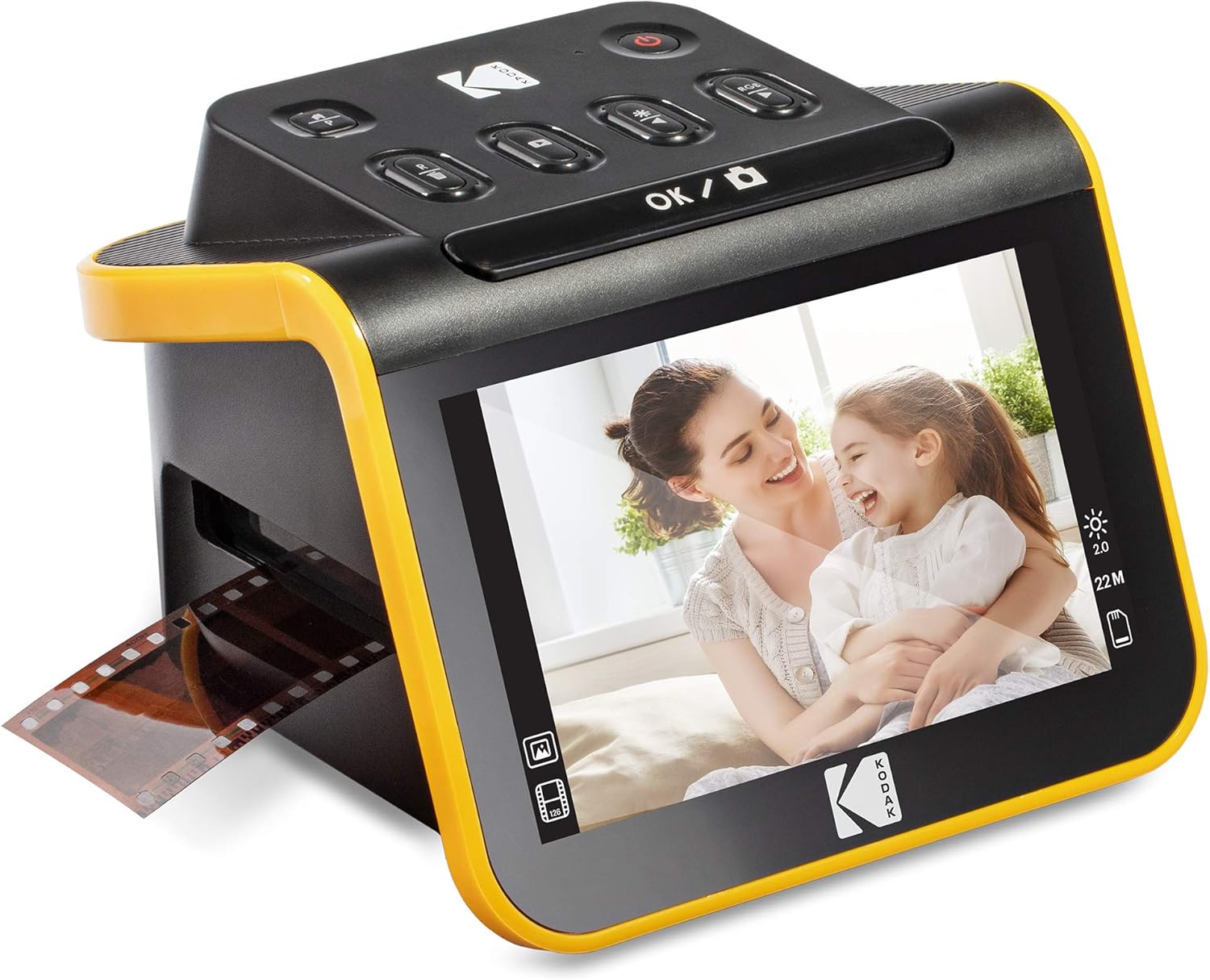
KODAK Slide N Scan
| Resolution | 22 Megapixels |
|---|---|
| Image sensor | 13-megapixel CMOS |
| Connection Type | HDMI, USB |
| Media Type | Negatives, Slide |
| Power | USB power or 5V/1A adapter |
The KODAK Slide N Scan is a purpose-built film and slide scanner that makes digitizing old negatives and slides straightforward without needing a PC. Load strips or slides into the easy-load tray, choose film type on the device, and use the single scan button to save JPEGs directly to an SD/SDHC card or transfer via USB or HDMI. The unit uses a 13MP sensor with an option for 22MP interpolation, and the 5" LCD with gallery mode lets you preview and tweak color, brightness, and date/time before saving, which is handy for quick batches and sharing with family. Adapters for 135, 110 and 126 formats plus a 50mm slide holder and cleaning brush are included, and the scanner is powered from USB or an adapter, so it is portable and simple to set up. Expect good convenience and decent image quality for consumer archiving, though the 22MP mode is interpolated rather than native optical resolution and you must supply an SD card and, for best results, perform further editing on a computer.
Best for: Buyers who want a simple, stand-alone way to digitize family slides and negatives quickly without needing scanning software or deep technical setup and who value on-device previewing.
Less Ideal for: Photographers seeking maximum native optical resolution or color-critical archival scans should consider higher-end film scanners with true optical sensors and RAW output.
- Easy-load tray with adapters for 135, 110, and 126 films plus a 50mm slide holder for continuous scanning
- Large 5" LCD and gallery mode let you preview and make basic edits before saving
- Saves JPEGs directly to SD/SDHC (up to 32GB) without requiring a computer
- Multiple connection options including USB and HDMI for transferring or viewing on a TV
- 22MP output is achieved via digital interpolation rather than native optical resolution
- Requires an SD card to operate, which is not included
Verdict: A user-friendly, standalone scanner that quickly converts and previews family slides and negatives without a computer, making it the practical choice for casual archiving.
ScanSnap iX2500 Scanner

| Resolution | 600 dpi |
|---|---|
| Standard Sheet Capacity | 100 |
| Connection Type | USB, Wi-Fi |
| Optical Sensor Technology | CIS |
The ScanSnap iX2500 is a high-capacity desktop scanner designed for frequent scanning of documents, receipts, business cards, and photos. It uses a 100-sheet automatic document feeder to scan duplex pages at up to 45 pages per minute and produces 600 dpi images with basic color depth suited to everyday office and photo digitizing tasks. On-device controls come through a responsive 5" touchscreen so users can select profiles and destinations without a PC, and the scanner supports Wi‑Fi (including Wi‑Fi 6) or USB-C connections for flexible placement. Included software automates cleanup, searchable PDFs, and can export to common formats like Word and Excel, while ScanSnap Cloud allows deviceless scanning to popular cloud services. Practical strengths are reliable paper handling with multi-feed and skew detection and a removable receipt guide for smaller items. Expect a relatively large footprint for a desktop device and no TWAIN driver if you need legacy scanning workflows, but for straightforward photo and document digitization it focuses on speed, ease of use, and stable wireless operation.
Best for: Buyers who prioritize dependable, easy-to-use scanning for mixed piles of documents and photos and who want fast, repeatable workflows with cloud or mobile destinations.
Less Ideal for: Anyone needing a highly compact portable scanner, a scanner with TWAIN support for legacy enterprise software, or a specialist photo scanner for archival-grade color depth and resolution.
- Fast duplex scanning up to 45 pages per minute for large batches
- 100-sheet automatic document feeder reduces manual handling
- Responsive 5" touchscreen for on-device profile selection and team sharing
- Wi‑Fi (including Wi‑Fi 6) and USB‑C connectivity for flexible placement and deviceless scanning
- Automatic image cleanup and searchable PDF/office file export simplify organization
- No TWAIN driver for legacy apps that require it
- Larger desktop footprint compared with compact single-sheet or portable scanners
- Color depth and 600 dpi are adequate but not specialist-grade for high-end photo archiving
Verdict: Choose the iX2500 when you want a fast, reliable desktop scanner that streamlines high-volume photo and document scanning with simple touchscreen controls and cloud-ready workflows.
Choosing the Right Scanner for Photos and Documents: Key Factors to Consider
Image Resolution and Color Fidelity
Higher native optical resolution and good color depth matter when you are digitizing photographs because they determine how much detail and tonal range the scanner captures. For old prints you plan to crop or enlarge, look for scanners with sufficient optical resolution rather than relying on interpolated upscaling.
Color fidelity is equally important. A scanner with better color depth and accurate color profiles reduces the time you spend correcting faded or shifted hues in postproduction. When shopping, consider whether the scanner supports color correction tools, previewing, and RAW or high-bit image output for archival use.
Scan Speed and Throughput
Throughput is a practical concern when you have large batches of documents or many photos to digitize. Measured in pages or images per minute, real-world speed varies with resolution and file type. A scanner that lists a high ppm figure at low resolution may slow significantly when you choose high-resolution photo scans.
Think about how often you will run long jobs. If you expect frequent bulk scanning, prioritize duty cycle and rated daily volume to avoid premature wear. Also check whether the scanner supports duplex scanning and if it can handle mixed sizes in a single run without manual intervention.
Feeder and Media Handling
Media handling affects convenience and the risk of damaging originals. Sheet feeders are fast for documents but can be rough on delicate photos or curled paper. Flatbed options are gentler and required for bound items, odd sizes, or fragile photos.
Some hybrid scanners combine an automatic document feeder with a flatbed, offering flexibility. Look for features like adjustable guides, support for thicker media, and gentle feed modes. If you plan to scan fragile or valuable photos, a robust flatbed with high-resolution capture is often the safer choice.
Software, OCR, and File Output
A capable software suite saves time and reduces post-scan editing. Optical character recognition turns scanned pages into searchable, editable text, which is essential for document workflows. For photos, built-in dust and scratch removal, color restoration, and batch naming tools streamline archiving.
Also verify the file formats the scanner can produce. Long-term archiving often prefers lossless formats like TIFF plus separate searchable PDF exports for documents. Ease of integration with cloud services and document management tools is a bonus for ongoing office use.
Connectivity and Integration
Connectivity choices affect where and how you can place the scanner. USB remains common for direct PC connection, but networked Ethernet or Wi-Fi models support shared use across multiple devices without a dedicated workstation. Some scanners offer direct-to-cloud or USB-drive export for quick transfers.
Consider driver support for your operating system and whether mobile scanning apps or TWAIN/ISIS drivers are provided for legacy software. Reliable network features and straightforward setup reduce friction when integrating the scanner into an existing workflow.
Flatbed Vs. Sheet-Feeder: Which Works for Mixed Jobs
Choosing between a flatbed and a sheet-fed scanner is one of the first practical decisions. Flatbeds are best for fragile prints, odd sizes, and books because they let you capture images without forcing paper through rollers. Sheet-fed scanners excel for stacks of loose documents and can be much faster for standard-size pages.
For mixed-use scanning, consider a hybrid model that offers both. That gives you the speed of an automatic feeder for paperwork and the gentle handling of a flatbed when you need to archive photos or scan bound material.
- Flatbed: gentler on originals, required for fragile or bound items
- Sheet-fed: faster for bulk paperwork, check for gentle feed modes
- Hybrid: best of both for users who need flexibility
Preparing Photos and Documents for Best Results
Preparation improves scan quality and saves retouching time. Clean dust and fingerprints from photos with a soft brush or microfiber cloth. For documents, straighten pages and remove staples to prevent jams.
For archival scans, work at a higher resolution and save masters in a lossless format. Create a consistent naming convention and folder structure before starting large batches to make the files easier to search later.
- Remove staples, paper clips, and creases when possible
- Use a lint-free cloth or soft brush to clear dust from photos
- Scan masters in lossless formats and create lower-res derivatives for daily use
OCR and Searchable PDFs for Document Workflows
Optical character recognition transforms images of text into searchable, editable content. Good OCR software reduces manual transcription and speeds indexing. When evaluating a scanner, check the accuracy of the bundled OCR and whether it supports multiple languages and layout retention.
Also confirm whether the workflow lets you create searchable PDFs directly, combine scanned pages into multipage documents, and run batch OCR to save time on large projects.
- Look for multi-language support and layout-preserving OCR
- Batch OCR saves time on long document runs
- Confirm output options for searchable PDFs and editable text exports
Archival Considerations for Photo Scanning
Archiving family photos calls for careful attention to resolution, color accuracy, and file formats. Capture uncompressed or lossless masters when possible and store backup copies in a separate location. Consider creating metadata records or simple captions to preserve context for future users.
If you plan to print enlarged reproductions, scan at a higher DPI and ensure the scanner produces color-accurate results or supports color profiling so prints match the original as closely as possible.
- Save master files in TIFF or other lossless formats
- Include basic metadata or captions for each scan
- Use color profiles for consistent print reproduction
Maintenance and Longevity
Scanners require basic upkeep to remain reliable. Keep glass surfaces clean and follow manufacturer guidance for roller maintenance and replacement intervals. For devices with automatic feeders, periodically check and clean rollers to avoid misfeeds and scratches.
Consider the expected duty cycle relative to your scanning needs. A machine rated for light occasional use may fail or degrade faster if used heavily. Choosing a scanner with replaceable consumables helps extend its useful life and keeps image quality consistent.
- Clean glass and rollers regularly
- Track rated daily duty cycle and match to your workload
- Choose models with replaceable consumables for longer service life
How We Chose the Best Scanner for Photos and Documents
We shortlisted scanners that handle both photo-grade imaging and practical document scanning without relying on single-use designs. Our selection focused on measurable specs and real-world workflow performance rather than marketing claims. Key evaluation criteria included native optical resolution and color depth for photo fidelity, how many pages or photos the unit can process per minute for throughput, the reliability of the feeder and media handling for mixed media runs, and the included software ecosystem for scanning, OCR, and image cleanup. We also assessed connectivity options and file-format flexibility because buyers often need JPG, TIFF, and searchable PDFs. Build quality and ease of maintenance were used to gauge how long a scanner will deliver consistent results. We excluded single-purpose film scanners and devices built only for occasional home snapshots to keep the list useful for buyers who need both photo preservation and document productivity. The final picks are those that balanced image accuracy, speed, and practical software support.
Our full evaluation process is outlined in our review methodology.
FAQ
What resolution should I use for scanning old family photos?
For general archiving, 300 to 600 DPI is usually sufficient, but scan at 600 DPI or higher if you plan to crop or print large enlargements. Higher DPI yields more detail but larger files and slower throughput.
Can I scan both photos and double-sided documents in the same machine?
Yes. Many hybrid scanners offer a flatbed for photos and an automatic document feeder that supports duplex scanning. Verify that the feeder has a gentle mode if you plan to run delicate photos through it.
Do I need special software to restore faded photos?
Basic color correction and dust removal are often included in scanning suites, but for extensive restoration you may want dedicated photo-editing software. Built-in tools can handle common issues and speed up batch corrections.
Is network or Wi-Fi important for a home scanning setup?
Networked scanners are useful if multiple people need access or you want to save scans to a NAS or cloud service directly. For single-user setups, USB connection to a dedicated workstation is often simpler and more reliable.
How should I store scanned masters for long-term preservation?
Save high-resolution masters in a lossless format and keep at least one offsite or cloud backup. Use clear folder structures and consistent file names, and consider embedding basic metadata to preserve context.
Final Verdict
Deciding on a scanner for photos and documents comes down to balancing image fidelity with practical workflow needs. Prioritize optical resolution and color handling if photo preservation is the main goal, and favor robust feeders and OCR capabilities when document throughput matters. A hybrid approach often provides the best flexibility for mixed use. Weigh the tradeoffs between speed, gentle media handling, and software features before buying. Focus on the criteria that match your primary tasks and choose a scanner whose duty cycle and connectivity support how you will actually work.