
Note: This article contains affiliate links. If you click on these links and make a purchase, we may earn a small commission at no extra cost to you. This helps support our research and content. Read our full affiliate disclosure here.
Picking the right A3 printer for architects matters because drawings, renderings, and detailed plans depend on precise lines, true-to-source scale, and stable paper handling. You want hardware that reproduces thin linework without feathering, holds consistent scale across long prints, and handles heavier bond and coated media without jams. This guide shortlists top A3 printers that meet those needs and explains the practical tradeoffs you should expect. We evaluated options across common architectural workflows, focusing on print accuracy, media flexibility, and running cost considerations. Read on to see which features matter most for studio and on-site drafting, and why these printers made the cut.
Top Picks at a Glance
| Best Overall The best all-around choice for most situations | Ricoh SP-6430DN |  |
| Best Quality Built to a higher standard if you want something more solid | Canon imagePROGRAF PRO-300 |  |
| Best Value The sweet spot between price and what you get | Brother MFC-J6930DW |  |
| Best Budget The cheapest option that still gets the job done reliably | Canon PIXMA iX6820 |  |
| Top Rated A top-rated pick with lots of positive feedback | Epson WorkForce WF-7720 |  |
| Most Popular A crowd favorite that many people choose with confidence | Epson EcoTank ET-15000 |  |
| Best Seller A high-volume bestseller chosen again and again | HP OfficeJet Pro 9730 |  |
Ricoh SP-6430DN

| B&W Pages per Minute | 38 pages_per_minute |
|---|---|
| Maximum Print Resolution Black and White | 1200 dpi |
| Maximum Media Size | A3 |
| Maximum Sheet Capacity | 600 |
| Printer Connectivity Type | Ethernet |
The Ricoh SP-6430DN is a compact monochrome A3 laser printer built to handle higher-volume office workflows and larger-format documents. It prints up to 38 ppm in black and white with a maximum resolution of 1200 dpi, and it supports A3 media up to heavier stocks so it can produce posters, layouts, and technical sheets that architects may need for review copies. The unit offers automatic duplexing, two paper trays and a 600-sheet maximum capacity to keep jobs running without constant reloading, and basic network connectivity via Ethernet plus a USB port for direct connections. A simple LCD control panel, app control and smartphone printing add convenience for mixed environments. Important limitations are its monochrome output only, so color plans require a separate device, and the reliance on Ethernet rather than built-in Wi-Fi may complicate wireless setups. For firms that need fast, reliable black and white A3 prints and a small footprint, the SP-6430DN is a practical choice.
Best for: Small architecture teams or project managers who need fast, reliable black-and-white A3 output for proofs, plans, and large-format internal documents and who prioritize speed and paper handling over color.
Less Ideal for: Design studios or architects who require color printing for presentations or client-ready full-color renderings should look at color-capable A3 printers instead.
- Fast monochrome printing up to 38 pages per minute for quick set revisions
- Supports A3 media and heavier stocks for large-format proofs and posters
- Automatic duplex and two trays reduce manual paper handling for busy offices
- Network-ready with Ethernet and USB ports plus smartphone printing via app
- Prints only in black and white, so color drawings require a separate printer
- No built-in Wi-Fi, which limits easy wireless connectivity in modern offices
Verdict: Choose the SP-6430DN when you need fast, dependable monochrome A3 printing and strong paper handling for architectural drafts and internal large-format documents.
Canon imagePROGRAF PRO-300

| Maximum Media Size | 13 x 19 inch |
|---|---|
| Resolution | 4800 x 1200 dpi |
| Ink System | 9-color + Chroma Optimizer (pigment) |
| Connectivity | USB, Wi-Fi |
| Display | 3.0" color LCD |
The Canon imagePROGRAF PRO-300 is a compact 13×19-inch professional inkjet designed for high-quality photo and fine-art output. It uses a 9-color LUCIA PRO pigment ink set plus Chroma Optimizer and a dedicated Matte Black nozzle to deliver wider gamut, deeper blacks, and smooth tonal gradations, which helps preserve detail in architectural renders and presentation prints. The printer supports both top and rear manual feeds for thicker media and panorama lengths up to 39 inches, and the 3.0-inch color LCD and Canon Professional Print and Layout software streamline setup and color management. Automatic duplexing and technologies like nozzle recovery and skew correction reduce print waste and maintenance interruptions during batch runs. On the downside, it is a single-function print device without scanning or copying, and the multi-tank pigment system means higher ongoing ink costs compared with plain-office printers. For studios that need gallery-quality A3 prints and reliable color reproduction, the PRO-300 balances professional output with a relatively small footprint.
Best for: Architects and small studio professionals who prioritize color accuracy, fine tonal detail, and gallery-quality A3 (13×19) output for presentation boards, renderings, and client proofs.
Less Ideal for: Users who need an all-in-one for scanning or frequent document duplexing or those on a strict budget for consumables.
- 9-color LUCIA PRO pigment ink plus Chroma Optimizer for wide color gamut and smooth tonality
- Dedicated Matte Black and Photo Black nozzles let you switch media types without ink switching
- Supports up to 13×19 inch and panorama printing with top and rear manual feed options
- 3.0-inch color LCD and Canon Professional Print and Layout software simplify color control and workflow
- Nozzle recovery and skew correction reduce print failures and waste during long runs
- Print-only device with no scanning or copying functions
- Pigment multi-tank system increases ongoing ink costs compared with consumer models
Verdict: Choose the PRO-300 when you need compact, gallery-quality A3 prints with faithful color and deep blacks for professional presentations and client deliverables.
Brother MFC-J6930DW

| Printer Type | Inkjet |
|---|---|
| Maximum Media Size | 11 inch x 17 inches |
| Duplex | Automatic |
| Printer Connectivity Type | Ethernet, USB, Wi-Fi |
| Maximum print Resolution Color | 4800 x 1200 dpi |
The Brother MFC-J6930DW is an A3-capable multifunction inkjet designed for small offices and design pros who need ledger-size prints without stepping up to wide-format equipment. It prints color and black-and-white pages, scans on a flatbed, copies and handles faxing, with automatic duplexing and an A3/11×17 maximum media size. Connectivity includes USB, Ethernet and Wi-Fi and it supports app control for mobile printing. Notable strengths are the high color resolution rating and a large paper capacity suited to moderate batch runs, while its listed print speed and quick first-page time help keep short jobs moving. Drawbacks to expect are the relatively modest color ppm compared with some laser devices and the ongoing cost and yield considerations that come with pigment/ink supplies in high-volume environments. For users who need A3 prints occasionally and value multifunction convenience, this model balances capability and footprint, but heavy continuous A3 production or environments prioritizing the lowest per-page cost may be better served by a dedicated production printer or laser alternative.
Best for: Design professionals or small-office buyers who need occasional A3/11×17 output plus scanning and faxing in a single, networked machine and who prioritize practical, space-conscious workflow solutions.
Less Ideal for: Large print shops or studios that require high continuous A3 throughput or the lowest per-page cost should consider production or laser-class A3 solutions instead.
- Prints up to 11×17 (A3) and supports automatic duplexing for two-sided A3/A4 work
- Multifunction: print, scan, copy and fax in one office-grade unit
- Ethernet, USB and Wi‑Fi connectivity with app control for mobile printing
- High maximum color resolution for detailed graphics and drawings
- Large sheet capacity and 150-sheet output capacity suitable for moderate batch jobs
- Color and mono speeds are mid-range at about 10 ppm, slower than many office lasers
- Ink-based operation can produce higher running costs for heavy A3 printing
- Item weight and footprint are substantial compared with typical A4 home printers
Verdict: A practical A3 multifunction inkjet that delivers ledger-size capability and networked convenience for architects and small firms needing occasional large-format prints without stepping up to production hardware.
Canon PIXMA iX6820
| Printer Type | Inkjet |
|---|---|
| Maximum Media Size | 13 x 19 inch |
| Maximum print Resolution Color | 9600 x 2400 dpi |
| Printer Connectivity Type | Wireless;Ethernet; USB |
| Ink Color | Cyan, Magenta, Yellow, Black |
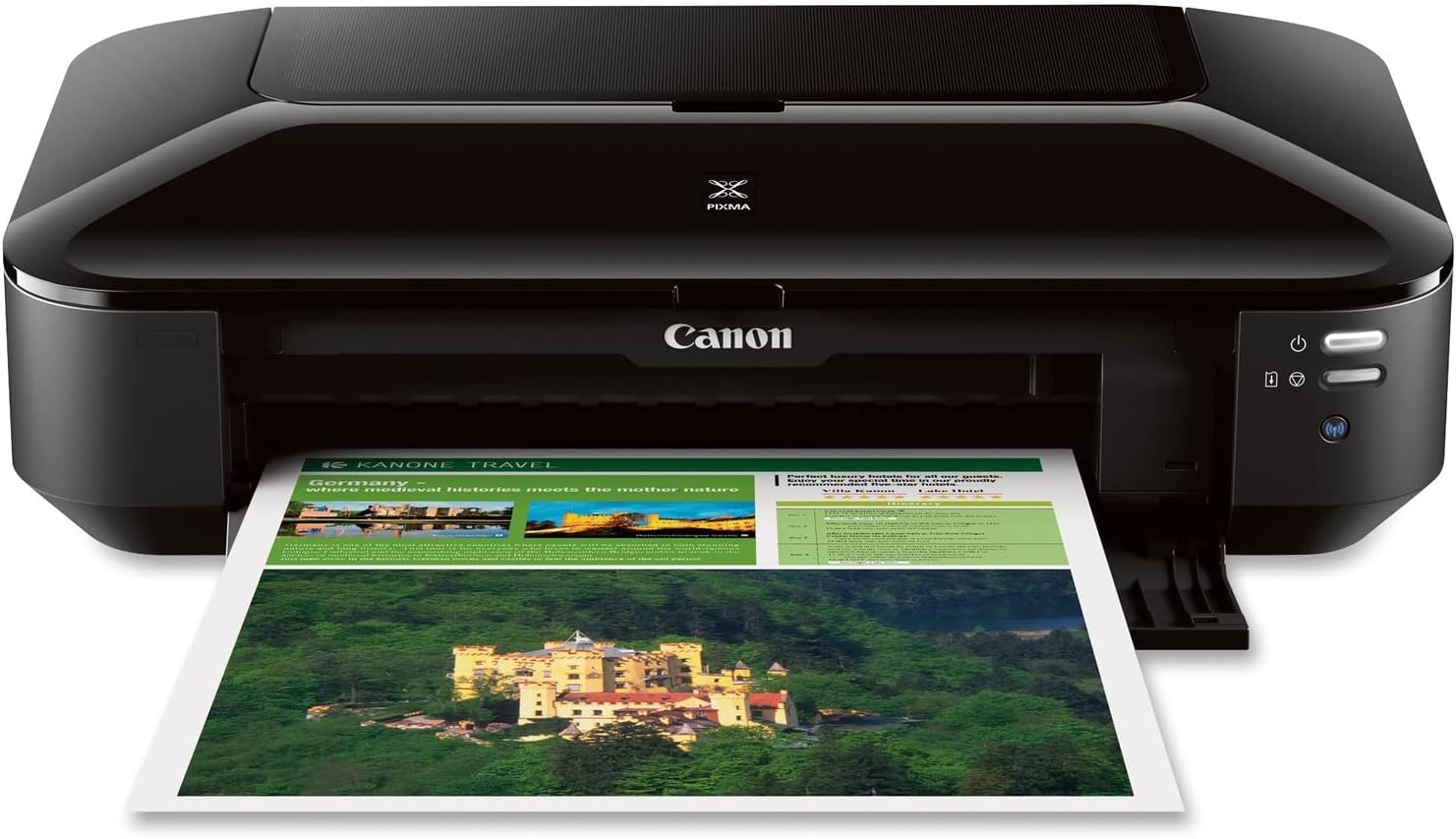
The PIXMA iX6820 is a single-function inkjet built around wide-format A3+/13 x 19 inch printing and high-resolution output, making it a straightforward choice for small offices or architects who need large presentation charts. It uses a five-ink system with a pigment black for crisp text and dye-based color inks for vivid graphics, and its 9600 x 2400 dpi capability produces detailed color prints and borderless photos. Connectivity includes wireless, Ethernet, and USB so you can print from PCs or mobile devices via AirPrint and Google Cloud Print, and features like Auto Power On and quiet mode help it fit into an office workflow. The printer lacks automatic duplexing and a built-in scanner, so it is focused strictly on one-way print duties rather than multifunction office work. Paper handling is simple with a single tray and a modest sheet capacity, so larger print runs require frequent refilling. For buyers prioritizing large-format, high-detail prints on a budget, the iX6820 delivers reliable image quality without extra multifunction complexity.
Best for: Budget-minded architects or small-studio users who need sharp, large-format color prints and prefer a dedicated printer for presentation charts rather than an all-in-one device.
Less Ideal for: Teams that need scanning, copying, automatic duplexing, or high-capacity paper handling should consider multifunction or office-focused models instead.
- Supports wide-format printing up to 13 x 19 inches for A3+ output
- High maximum color resolution (9600 x 2400 dpi) for detailed graphics and photos
- Five individual ink tanks let you replace only the color that runs out
- Multiple connectivity options including wireless, Ethernet, USB, and AirPrint
- No automatic duplex printing
- Not a multifunction unit so it lacks scanning and copying capabilities
Verdict: If you need affordable, high-resolution A3+ prints without multifunction extras, the PIXMA iX6820 is a focused, budget-friendly choice.
Epson WorkForce WF-7720

| Maximum Media Size | 13 x 19 inch |
|---|---|
| Maximum Sheet Capacity | 500 |
| Duplex | Automatic |
| Printer Connectivity Type | Wi-Fi |
| Display Type | LCD |
The WF-7720 is a wide‑format A3-capable all‑in‑one aimed at small offices and design professionals who need occasional large prints without a production press. Powered by Epson PrecisionCore, it delivers borderless prints up to 13 x 19 inches, a 35‑page auto document feeder for multi‑page scanning, and automatic duplexing for two‑sided jobs. Dual paper trays plus a rear specialty feed and a 500‑sheet total capacity make it useful for medium‑volume workflows, and the 4.3-inch color touchscreen keeps basic tasks and copy/scan setups straightforward. Connectivity includes Wi‑Fi, Wi‑Fi Direct and Ethernet for flexible networked printing from desktops and mobile devices. On the downside this is an inkjet that depends on genuine Epson DURABrite inks, so running costs and cartridge availability should be considered for heavy plotting or continuous high-volume use. Print speed and resolution are strong for a wide‑format inkjet, but extremely large or color‑critical architectural renderings may still benefit from higher-end plotters or dedicated large-format color printers.
Best for: Designers and architects who need reliable, office-friendly wide‑format printing and occasional A3 output without investing in a dedicated plotter.
Less Ideal for: Firms that require continuous high-volume CAD plotting or absolute color-critical proofing should consider dedicated large-format plotters or higher-end color production devices instead.
- Prints borderless up to 13 x 19 inches for A3+/wide-format output
- 500‑sheet capacity with dual trays plus rear feed for specialty media
- Automatic duplexing and 35‑page ADF speed multi‑page jobs
- Multiple networking options including Ethernet, Wi‑Fi and Wi‑Fi Direct
- High print resolution for detailed prints and photos
- Designed to work only with genuine Epson cartridges which raises running costs and limits third‑party ink use
Verdict: A dependable wide‑format all‑in‑one that delivers A3-capable prints and office-grade reliability for architects who need occasional large prints without a dedicated plotter.
Epson EcoTank ET-15000

| Maximum Media Size | 11 x 17 inch |
|---|---|
| Maximum Sheet Capacity | 250 |
| Color Pages per Minute | 9 pages_per_minute |
| B&W Pages per Minute | 17 pages_per_minute |
| Printer Connectivity Type | Wi-Fi |
The ET-15000 is Epson's wide-format EcoTank aimed at users who need low running costs and the ability to print larger documents and photos. It prints up to 13 x 19 inches via the rear feed and supports duplexing and an automatic document feeder for multi-page jobs, while the 2.7-inch color touchscreen and Wi-Fi/Ethernet make setup and networked use straightforward. The refillable ink tanks dramatically reduce per-page cost—Epson quotes multi-year yields from included bottles—and the 250-sheet front tray plus rear specialty feed handle higher-volume runs and heavier media. Image quality and resolution are strong for an inkjet, with up to 4800 x 2400 dpi color resolution for presentations, plots, and client visuals. Expect modest footprint and weight for a wide-format unit and a learning curve around initial ink filling and occasional maintenance to keep color balance consistent. This is a practical choice when wide-format color output and low-cost ink are higher priorities than fastest photo lab speeds or niche color-critical proofing workflows.
Best for: Architects and small design studios that prioritize affordable, in-house wide-format color and graphics for presentations, mockups, and client materials and who want reliable networked printing for office workflows.
Less Ideal for: Users who need lab-grade, color-critical proofs or the fastest photo output speeds should consider specialist proofing or production printers instead.
- Wide-format printing up to 13 x 19 inches via rear feed
- Refillable EcoTank system that lowers long-term ink costs and includes starter bottles
- Automatic duplexing and an automatic document feeder for multi-page office tasks
- 250-sheet front tray plus rear specialty feed for higher-capacity paper handling
- Wi-Fi and Ethernet connectivity with a color touchscreen for convenient networked use
- Initial setup uses included ink for priming which reduces first-bottle yield and requires careful filling
- Not designed as a color-critical proofing device for professional photographers or print shops
Verdict: Choose the ET-15000 when you need wide-format color and low ongoing ink costs in a networked all-in-one that handles regular office and design printing efficiently.
HP OfficeJet Pro 9730

| Printer Type | Inkjet |
|---|---|
| Maximum Media Size | Legal (8.5 x 14 inches) |
| Maximum print Resolution Color | 4800 x 1200 dots_per_inch |
| Color Pages per Minute | 18 pages_per_minute |
| B&W Pages per Minute | 22 pages_per_minute |
The HP OfficeJet Pro 9730 is a wide‑format all‑in‑one inkjet aimed at offices that need occasional A3 (11×17) output along with everyday printing, scanning, copying, and faxing. It supports automatic two‑sided printing and single‑pass duplex scanning via an automatic document feeder, and the two 250‑sheet trays combine for a large 500‑sheet capacity so you can load varied media without constant refilling. Print speeds are competitive for office work at up to 22 ppm B&W and 18 ppm color, and the printer produces high-resolution color up to 4800 x 1200 dpi with HP P3 color support for a wider gamut than standard sRGB. Setup and daily use are simplified by a phone-like 4.3" touchscreen and robust Wi‑Fi plus Ethernet/USB options, and HP adds features like AI formatting and security protections useful in a shared network environment. Expect typical inkjet considerations: color photo output and ongoing ink costs depend on cartridge usage and subscription choices, and this is a fairly large, heavier unit better suited to a dedicated office space than a small home desk.
Best for: Buyers who prioritize reliable, office-capable A3 printing with secure network features and an easy touchscreen interface for predictable day‑to‑day productivity.
Less Ideal for: People looking for a compact home printer or the lowest long‑term operating cost for high‑volume color photo printing should consider other options.
- Prints up to 11 x 17 wide-format sheets for A3-size output
- Automatic duplex printing and single-pass duplex ADF for faster two-sided workflows
- High color resolution (4800 x 1200 dpi) with P3 color gamut for more accurate color
- Large 500-sheet combined paper capacity from two 250-sheet trays
- Multiple connectivity options including dual-band Wi‑Fi, Ethernet, USB, and mobile app
- Bulky and heavy, requiring a dedicated office footprint
- Ongoing ink costs and subscription choices affect total cost of ownership
Verdict: A capable wide‑format all‑in‑one that delivers A3 printing, duplex scanning, and office‑grade connectivity for architects who want reliable, color‑accurate prints in a shared workspace.
Choosing the Right A3 Printer for Architects: Key Factors to Consider
Line Precision and Resolution
Architectural drawings rely on crisp, consistent lines and clear hatch patterns. Higher reported resolution helps, but actual line precision depends on printhead design, ink droplet size, and driver algorithms. Small deviations in vector-to-paper translation can cause dimension or legibility issues on dense technical sheets.
Ask how the printer handles thin hairlines, micro-hatches, and very small text at typical working scales. Reliable precision reduces the need to reprint, preserves scale clarity when scanning, and keeps construction documents readable at all magnifications.
Media Handling and Paper Feed
Architectural work uses a variety of media: bond paper for plans, coated sheets for presentation boards, and heavier stocks for overlays. The printer's feed path, roller pressure, and adjustable trays determine how consistently it accepts different thicknesses and sizes without skewing or jamming.
Look for straight-through paper paths or manual feed options for thicker media, adjustable guides to keep sheets aligned, and robust rollers for frequent use. Reliable media handling cuts downtime and preserves margins and registration on long prints.
Color Reproduction for Renderings
Renderings and client presentations require believable color and smooth gradients. The inkset, color management support, and the printer's ability to map RGB or CMYK files accurately matter for matching on-screen proofs to hard copy. Neutral grays and skin tones are common problem areas, so check how the device handles midtone transitions.
Good color reproduction streamlines review cycles and reduces the time spent tweaking files to match print output. For heavily color-dependent work, consider printers that support ICC profiles and have fine-tunable color controls.
Print Speed and Workflow Throughput
Studios often need quick verifications and multiple iterations. Print speed, both in drafts and high-quality modes, impacts how fast you can iterate and deliver prints to clients. Equally important is how the printer handles back-to-back jobs without overheating or slowing down unexpectedly.
Assess duty cycles and whether the machine supports queued jobs over network printing. Faster printers can save time on repeat tasks, but extremely high speed should not compromise line integrity or color accuracy for critical documents.
Consumables, Maintenance, and Ongoing Cost
Operating cost includes ink or toner yields, frequency of head servicing, and parts that wear with use. Architects printing large-format sets should consider cost per A3 page at typical coverage levels and how easy it is to replace consumables.
Also factor in maintenance tasks such as head alignment, nozzle checks, and cleaning cycles. Lower ongoing cost and easier maintenance reduce total ownership burden and keep studio workflows uninterrupted.
Connectivity, File Handling, and Driver Support
Architectural files come from CAD, BIM, and graphic design tools, which may output complex PDFs, TIFFs, or native print jobs. Reliable drivers and network interfaces ensure accurate job interpretation, scaling, and nesting. Support for direct PDF printing, robust RIP options, or networked printing with job management speeds up production.
Consider whether the printer supports common connectivity options used in studios, such as wired Ethernet, Wi-Fi, and USB, and whether it integrates with existing printing workflows or software for batching and color management.
Choosing Between Dye and Pigment Inks
The ink chemistry affects longevity, color stability, and paper compatibility. Pigment inks generally offer better line crispness and resistance to fading, which benefits long-term archival of drawings and client presentation boards. Dye inks can produce more vivid colors on certain coated media but may sacrifice some edge definition on fine linework.
For architects, pigment-based systems are often preferable for technical documents because they maintain sharpness and withstand handling without smudging. If saturated presentation color is a priority, confirm how each ink type reproduces gradients and midtones on your chosen media.
- Pigment inks: better edge sharpness and durability
- Dye inks: more vivid on some coated stocks
- Consider media-in-ink compatibility before choosing ink chemistry
Paper Sizes, Margins, and Scaling Accuracy
A3 printers used by architects must preserve scale when printing scaled drawings. Check how a printer reports printable area and minimum margins, and whether it supports true A3 edge-to-edge printing or requires manual scaling. Even small margin variances can shift linework and affect dimensioning on prints.
Also verify how the device handles scaling commands from CAD or PDF drivers. Some printers offer advanced scaling or tiling features that are helpful for printing oversized sheets split across multiple A3 pages.
- Confirm actual printable area versus advertised paper size
- Check driver scaling options for precise output
- Look for tiling support for oversized plans
Integration with Studio Workflows
Think about how the printer will fit into your existing workflow. Does it accept direct PDF spooling from networked workstations? Can it be managed remotely for queued jobs and status alerts? Integration reduces manual handoffs and speeds up review cycles.
Also consider whether the unit supports standard file formats used in architecture software and whether it plays nicely with color management tools so that proofs match on-screen expectations.
- Network printing and queued job support for multi-user studios
- Driver compatibility with CAD/BIM applications
- Remote management and job status notifications
Space, Ventilation, and Duty Cycle Considerations
A3 printers vary in footprint, noise, and heat generation. Place the device in a location with sufficient clearance for feeding and removing prints. High-throughput use can produce heat and require ventilation, so factor that into site placement to avoid performance degradation.
Check the rated monthly duty cycle to match expected studio volume. Choosing a printer with a higher duty rating than your present needs gives room for growth and reduces wear-related maintenance.
- Measure available space for loading and stacking prints
- Account for ventilation and noise in shared work areas
- Match duty cycle to anticipated monthly prints
Testing Prints: What to Look For
When you test prints, inspect line edges, small text legibility, and hatch consistency at typical scales. Verify that cross-hatching remains distinct and that thin leader lines do not break up. Check for any banding in gradients and how gray ramps reproduce.
Also run a media-feeding test with heavier stocks and envelopes. Note any skew, misfeeds, or sheet curl. Finally, evaluate how repeatable output is across multiple prints to ensure consistent quality for multi-sheet sets.
- Inspect hairlines and small text for breaks
- Check gradient banding and neutral gray rendering
- Test feed reliability with heavier media
How We Chose the Best A3 Printer for Architects
We focused on attributes that directly affect architectural output quality and daily studio workflows. Key evaluation criteria included print precision and line clarity, which measures how faithfully a device reproduces fine technical lines and hatch patterns. Media handling and paper feed reliability were assessed to ensure consistent prints on heavier bond papers, envelopes, and coated sheets. Color accuracy and tonal range were considered for renderings and client presentations, with attention to how well printers reproduce subtle gradients and skin tones. Speed and print throughput were evaluated in the context of batch plotting and tight deadlines, balancing tempo against quality settings. Finally, total cost factors were examined, including typical yield and replacement consumable accessibility. We excluded devices intended only for casual home use or small-photo printers that lack true A3 capacity. We also filtered out machines with demonstrably poor paper handling or limited media-size support. The resulting shortlist reflects printers that meet practical studio demands: accurate linework, dependable paper handling, predictable color, usable throughput, and reasonable ongoing operating characteristics.
Our full evaluation process is outlined in our review methodology.
FAQ
What file formats should I send to an A3 printer for best results?
PDF is usually the most reliable format because it preserves vector data, fonts, and embedded images. High-resolution TIFFs or flattened EPS files can also work for raster-heavy renderings. Ensure the driver or RIP supports the format and that scaling settings preserve true dimensions.
How do I ensure prints stay to scale from CAD drawings?
Use the printer driver's scaling settings and verify paper size and printable area before printing. Print a test box with known dimensions and measure the output to confirm scale. Disable any 'fit to page' options that might automatically adjust scale.
Can I print on heavier presentation boards with an A3 printer?
Many A3 printers accept heavier stocks if they offer a straight-through feed or manual bypass tray. Check the printer's supported paper weight range and test feed behavior to ensure thicker sheets do not jam or skew.
How often should I perform maintenance on an A3 printer used in a studio?
Maintenance frequency depends on usage. For moderate daily use, perform routine checks weekly, such as nozzle health reports and alignment tests, and follow the manufacturer's recommended cleaning cycles. More intensive cleaning may be needed if you notice color shifts or nozzle dropouts.
Will color profiles improve rendering accuracy?
Yes. Using ICC profiles tailored to your paper and ink combination improves color matching and reduces guesswork. Create or download profiles for the media you use most often and test with proof prints to refine settings.
Final Verdict
For architecture work, prioritize print precision and dependable media handling above pure headline speed. Accurate line reproduction and consistent paper feeding prevent reprints and preserve drawing scale, while decent color management supports client-grade renderings. Balance operating costs and maintenance needs with the expected studio volume. Choose a printer whose strengths align with whether your focus is dense technical sets, presentation renderings, or a mix of both to get the most reliable results.