
Note: This article contains affiliate links. If you click on these links and make a purchase, we may earn a small commission at no extra cost to you. This helps support our research and content. Read our full affiliate disclosure here.
Picking the right all-in-one color printer affects more than occasional photo prints. You need a machine that produces accurate color for documents and photos, handles the scanning and copying tasks you rely on, and keeps running costs predictable. This guide presents seven shortlisted all-in-one color printers that meet common home and small-office needs. We evaluated each option for print quality, operating cost, connectivity, and ease of maintenance to help you find a model that fits the way you work. Read the evaluation summary and the factors to consider to narrow down the best printer for your setup.
Top Picks at a Glance
| Best Overall The best all-around choice for most situations | HP OfficeJet Pro 8125e | 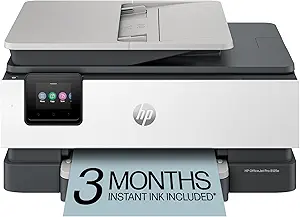 |
| Best Quality Built to a higher standard if you want something more solid | Epson EcoTank ET-5800 |  |
| Best Value The sweet spot between price and what you get | Brother Work Smart 1360 |  |
| Best Budget The cheapest option that still gets the job done reliably | Canon PIXMA TS3720 | 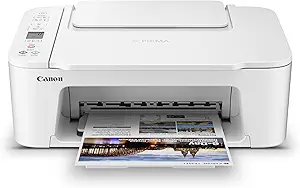 |
| Top Rated A top-rated pick with lots of positive feedback | Xerox C245 Color Multifunction Printer |  |
| Most Popular A crowd favorite that many people choose with confidence | Canon PIXMA TR4720 |  |
| Best Seller A high-volume bestseller chosen again and again | Epson EcoTank ET-2800 | 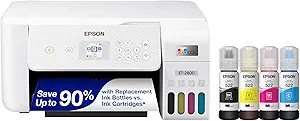 |
HP OfficeJet Pro 8125e

| Print speed B&W | 20 pages per minute |
|---|---|
| Print speed Color | 10 pages per minute |
| Maximum print resolution | 4800 x 1200 dpi |
| Input sheet capacity | 225 |
| Connectivity | Wi‑Fi; Ethernet; USB; AirPrint; Wireless direct printing |
The HP OfficeJet Pro 8125e is an all-in-one inkjet built for busy home offices that need color documents, scanning, and occasional copying without a large footprint. It prints up to 10 color or 20 black pages per minute, supports automatic two-sided printing, and includes a 1-sided automatic document feeder for multi-page scans and copies. Smart features include an intuitive touchscreen, app control with Apple AirPrint and wireless direct printing, and AI-driven formatting to remove unwanted content from web pages or emails before printing. Paper handling is practical for small workgroups with a 225-sheet input capacity and a 60-sheet output. The printer supports HP 923 cartridges and integrates with HP+ and Instant Ink subscription options to simplify replacement cartridges. Trade-offs are typical for this class: it is an inkjet so long-run color cost can be higher than laser, and some users may need to accept the HP+ activation and Instant Ink prompts to access certain features. For balanced home-office buyers who value convenience and smart features, it covers the core needs well.
Best for: Buyers who need a versatile, compact all-in-one for regular home-office tasks and value fast printing, automatic duplex, and easy mobile connectivity.
Less Ideal for: Users who primarily print high-volume color jobs and want the lowest long-term cost per page should consider a color laser alternative.
- Fast print speeds for the class: up to 20 ppm black and 10 ppm color
- Automatic duplex printing and single-pass ADF for efficient multi-page workflows
- Multiple connectivity options including dual-band Wi‑Fi, Ethernet, USB, AirPrint, and wireless direct
- Large 225-sheet input capacity suited to regular home-office use
- AI-driven formatting and app control simplify printing from web pages and mobile devices
- Color ink costs can be higher over time compared with comparable laser printers
- Some advanced features require HP+ activation and Instant Ink subscription to unlock
Verdict: A practical, feature-rich all-in-one for balanced home-office users who want fast, convenient color printing with modern mobile and AI-enabled conveniences.
Epson EcoTank ET-5800

| Printer Type | Inkjet |
|---|---|
| Print Resolution | 4800 x 2400 |
| Paper Capacity | 250 per tray (500 total) |
| Connectivity | Wi-Fi, Ethernet |
| Duplex | Automatic |
The Epson EcoTank ET-5800 is a high-volume all-in-one aimed at business or power-home users who need low running costs and reliable color output. It uses supersized refillable ink tanks and ships with multiple 542 ink bottles to deliver thousands of pages before replacement, which drives down cost per page compared with cartridge machines. The printer offers automatic duplex, two 250-sheet front trays plus a rear specialty feed, a 4.3-inch color touchscreen, Ethernet and Wi-Fi, and a sheetfed scanner with ADF for typical office workflows. Print quality is driven by PrecisionCore and DURABrite pigment inks for crisp text and vibrant, instant-dry color up to 8.5 x 14 inches, and rated speeds are fast for an inkjet—especially black. The main compromises are the large physical footprint and that setup uses bottled ink (initial fill and maintenance require care to avoid spills), and some advanced enterprise features like PCL/PostScript support are limited compared with higher-end office models. For buyers prioritizing low operating cost and steady throughput, the ET-5800 packs a compelling combination of speed, capacity, and color quality.
Best for: Buyers who need a business-capable all-in-one with minimal per-page cost and steady daily throughput and who value fast black printing and large paper capacity.
Less Ideal for: If you need a compact personal printer for occasional home use or must avoid any ink-bottle handling, a smaller cartridge-based model or compact office laser would be a better fit.
- Very low running cost with supersized refillable ink tanks and included replacement bottles
- Fast black and respectable color print speeds for high-volume use
- 500-sheet total capacity with two front trays plus rear specialty feed supports long runs
- Automatic duplexing and a sheetfed ADF streamline copying and scanning tasks
- Network options include Wi‑Fi and Ethernet plus a responsive 4.3" color touchscreen
- Large footprint may be impractical for small desks or tight workspaces
- Initial ink setup and occasional maintenance involve handling bottles which can be messy
Verdict: Choose the ET-5800 when you want a fast, high-capacity all-in-one that cuts per-page costs with supertank ink for heavy color and black printing.
Brother Work Smart 1360

| Printer Type | Inkjet |
|---|---|
| Printer Output Type | Color |
| Duplex | Automatic |
| Maximum Sheet Capacity | 150 |
| Printer Connectivity Type | USB, Wi-Fi |
The Brother Work Smart 1360 is a compact all-in-one inkjet designed for home and small home-office use, blending everyday color printing with scanning and copying. It connects via Wi‑Fi or USB and supports mobile printing standards like AirPrint and Mopria, so sending jobs from phones and tablets is straightforward. Notable features include automatic duplex (two-sided) printing, a 20-sheet single-sided automatic document feeder for short multi-page jobs, a 150-sheet input tray, and a simple 1.8" color display for on-device control. Print speeds are competitive for its class, with up to 16 ppm black and 9 ppm color, and Page Gauge plus Brother Mobile Connect make ink monitoring and setup easier. Image resolution specs are high on paper, which helps when printing photos or graphics, though true photo quality will depend on paper and ink choices. Expect moderate running costs since it uses standard-yield cartridges, and the starter inks are limited; users should plan for ongoing ink purchases or consider high-yield options. The printer balances useful productivity features in a small footprint but is best for light to moderate printing needs rather than heavy office volumes.
Best for: Buyers who want a space-saving, no-frills all-in-one that covers everyday home and small office printing, scanning, and copying while prioritizing easy mobile setup and reliable duplex capability.
Less Ideal for: Users who need heavy monthly page volumes, fastest professional photo output, or a large touchscreen interface should consider more robust office models instead.
- Automatic duplex printing for two-sided documents
- Wireless printing with AirPrint and Mopria support plus USB connectivity
- 20-sheet automatic document feeder and 150-sheet paper tray for routine productivity
- Compact footprint suited to home and small home-office spaces
- Brother Mobile Connect and Page Gauge help with setup and ink monitoring
- Starter ink yields are limited so consumable costs start immediately
- 1.8" color display is small compared with larger touchscreens on higher-end models
Verdict: A compact, practical all-in-one that delivers dependable duplexed color printing and easy mobile connectivity for home and small home-office users.
Canon PIXMA TS3720

| Printer Type | Inkjet |
|---|---|
| Maximum Media Size | 8.5 x 14 inch |
| Maximum Sheet Capacity | 60 |
| Printer Connectivity Type | USB, Wi-Fi |
| Compatible Cartridge | Canon CL-276, Canon PG-275 |
The Canon PIXMA TS3720 is a small, budget-focused all-in-one inkjet designed for everyday home use. It prints, copies, and scans using a two-cartridge FINE hybrid ink system that pairs pigment black for sharp text with dye color inks for photos, and it supports borderless photos and a variety of paper types up to 8.5 x 14 inches. Setup and mobile printing are straightforward via the Canon PRINT app, AirPrint, or Mopria, and the rear tray holds about 60 sheets for occasional jobs. Print speeds are modest at roughly 7.7 ppm black and 4 ppm color, so it handles schoolwork, bills, and family photos rather than heavy office loads. Notable conveniences include dual-band Wi-Fi, a simple 1.5-inch LCD for controls, and Chromebook compatibility. Limitations are single-sided printing only and a basic feature set with no automatic document feeder or duplexing, so users who need fast duplex or high-volume throughput should look elsewhere. For a low-cost home printer that prioritizes simplicity and decent photo quality, the TS3720 delivers usable performance without extras.
Best for: Buyers who want an inexpensive, easy-to-use all-in-one for occasional home printing, photos, schoolwork, and light document scanning with simple mobile connectivity.
Less Ideal for: Users who need heavy daily printing, automatic two-sided copying, or advanced office features like ADF and high-capacity paper handling should consider more capable models.
- Compact footprint suited to small desks or apartments
- Two-cartridge hybrid ink system for sharp text and reasonable photo color
- Easy wireless and mobile printing via Canon PRINT, AirPrint, and Mopria
- Accepts varied media including borderless photos and envelopes
- Simple setup and 60-sheet rear tray for light home use
- Print speeds are modest, especially for color jobs
- No automatic duplexing or document feeder for multi-page tasks
- Basic controls and small LCD limit advanced workflow options
Verdict: A compact, wallet-friendly all-in-one that covers basic home printing and photo needs with easy wireless setup.
Xerox C245 Color Multifunction Printer

| Printer Type | Laser |
|---|---|
| Print Speed | 26 pages_per_minute |
| Duplex | Automatic |
| Printer Connectivity Type | Ethernet, USB, Wi-Fi |
| Maximum print Resolution Color | 2400×600 dots_per_inch |
The Xerox C245 is a compact color laser all-in-one aimed at home professionals and small teams that need reliable, business-quality output in a small footprint. It prints, scans, and copies with a 50-sheet feeder and delivers up to 26 pages per minute in both color and black and white, plus automatic two-sided printing to save paper. Connectivity includes Wi‑Fi, Ethernet, USB, and mobile printing via AirPrint and Mopria, and setup is simplified by the Xerox Easy Assist app and a 2.8-inch color touchscreen. The printer offers high-resolution color at 2400×600 dpi and supports a range of media including envelopes and card stock, while Energy Star and EPEAT qualifications help lower operating cost. Important limitations are a modest 50-sheet maximum tray capacity and a relatively high power draw listed at 398 watts, so it is best for moderate daily volumes rather than heavy production use. Genuine high-yield toner options are available to reduce per-page cost and the device includes basic security features for small office environments.
Best for: Buyers who prioritize dependable, business-quality color printing in a compact all-in-one for home offices or small teams and value straightforward setup and mobile workflows.
Less Ideal for: Users who need high-volume daily printing, large paper trays, or a production workgroup printer should consider larger office models instead.
- Fast 26 ppm color and B&W printing for its class
- Automatic duplex printing to reduce paper use
- Wireless, Ethernet, and USB connectivity plus mobile printing support
- High resolution color output (2400×600 dpi) for crisp graphics and text
- Compact footprint with guided smartphone setup via the Xerox Easy Assist app
- Paper capacity is limited to a 50-sheet maximum, restricting large batch jobs
- Power consumption is relatively high at 398 watts during operation
Verdict: If you want a reliable, compact color laser multifunction that delivers professional-looking output and easy mobile setup for a small office, the Xerox C245 is a strong pick.
Canon PIXMA TR4720

| Printer Type | Inkjet |
|---|---|
| Print Resolution | 4800 x 1200 dpi |
| B&W Pages per Minute | 8.8 |
| Color Pages per Minute | 4.4 |
| Connectivity | USB, Wi-Fi |
The Canon PIXMA TR4720 is a compact all-in-one inkjet suited for everyday home and small office tasks. It prints, copies, scans and faxes, and adds an automatic document feeder and automatic two-sided printing to cut paper handling time. Setup and mobile printing are straightforward using the Canon Print app or direct Wi-Fi, and the front-loading 100-sheet tray keeps paper handling simple. The hybrid ink system aims for sharp black text and acceptable color photos and documents, while borderless printing up to letter size is convenient for casual photo printing. Speed is modest—about 8.8 ipm for black and 4.4 ipm for color—so it is best for intermittent home use rather than heavy daily production. The TR4720 includes a basic 2-line LCD and app controls rather than a large touchscreen, and it uses Canon CL-276/PG-275 cartridges, which can add ongoing cost compared with high-yield or tank-style systems. Overall, it balances a small footprint and useful automation features with average speed and running cost for typical home and light office tasks.
Best for: Buyers who want a compact, easy-to-set-up all-in-one for home or light office use and who prioritize wireless mobile printing and basic automation features over high-speed throughput.
Less Ideal for: People who need fast, high-volume printing or the lowest possible per-page ink cost should consider higher-capacity or ink-tank alternatives instead.
- 4-in-1 functionality with auto document feeder and fax for multi-page workflows
- Automatic duplex printing saves paper and time for two-sided documents
- Easy mobile printing via Canon Print app and Wi‑Fi connectivity
- Front 100-sheet tray and compact design fit small home or office spaces
- Hybrid ink produces sharp black text and decent color/borderless photo prints
- Relatively slow color print speed compared with higher-end models
- Uses standard cartridge sizes which can increase long-term consumable costs
Verdict: A compact, feature-rich 4-in-1 that delivers convenient wireless printing and useful automation for home and light office users.
Epson EcoTank ET-2800

| Printer Type | Inkjet |
|---|---|
| Functions | Print, Copy, Scan |
| Connectivity | Wired, wireless, USB |
| Black Print Speed | 10 pages per minute |
| Color Print Speed | 5 pages per minute |
The Epson EcoTank ET-2800 replaces disposable cartridges with refillable high‑capacity ink tanks so you can print far longer between refills; Epson includes starter bottles that cover a large initial page yield. It functions as a basic all‑in‑one: print, copy and scan from the color flatbed, and you can connect over Wi‑Fi, USB or use mobile and voice printing for quick jobs. Print quality is strong for everyday documents and photos thanks to Micro Piezo heat‑free printing and high resolution settings, and speeds reach about 10 ppm for black and 5 ppm color which keeps small batch jobs moving. The small color LCD and app control make setup and daily use straightforward. Expect manual duplexing for two‑sided prints and a modest paper tray capacity, so it is best for light to moderate home or small office workloads rather than heavy daily throughput. Using genuine Epson ink is recommended to maintain print performance and warranty coverage.
Best for: Buyers who want a low‑maintenance, cost‑conscious home all‑in‑one that minimizes cartridge hassles and handles everyday document and photo printing with simple wireless setup.
Less Ideal for: Those needing high monthly page volumes, fast commercial color throughput, or larger paper capacity should consider a higher‑end office model instead.
- Cartridge‑free EcoTank system reduces frequent cartridge swaps and lowers long‑term ink costs
- High initial ink supply included for many pages out of the box
- Wireless, mobile and voice printing options plus USB connectivity for flexible workflows
- High resolution print engine produces sharp text and good color for photos and graphics
- Built‑in flatbed scanner and basic copy functionality for everyday document tasks
- No automatic duplexer; two‑sided printing requires manual page flipping
- Paper tray and sheet capacity are modest compared with higher‑end office models
- Color print speed is relatively slow for large color jobs
Verdict: Choose the ET-2800 if you want an easy, cartridge‑free home all‑in‑one that cuts ink hassle and cost while delivering reliable everyday print, copy, and scan performance.
Choosing the Right All-in-One Color Printer: Key Factors to Consider
Print Quality & Color Accuracy
Print quality determines how usable the printer is for photos, marketing materials, and color-coded documents. Look at advertised resolution and color management features. Higher resolution and multi-level droplet control help with fine detail, while a wider color gamut improves rendition of saturated hues and skin tones.
Color accuracy also depends on the ink set and color profiling support. Printers that accept ICC profiles or have manual color adjustment tools let you tune output to match screens or paper types. If you print photos or client-facing materials, prioritize devices with proven color consistency over time.
Operating Cost and Ink/Toner Yield
Running cost is often the largest lifetime expense for an all-in-one color printer. Consider typical page yields for the consumables and whether the machine accepts larger 'high-yield' cartridges or third-party bulk options. Cost per page varies widely between inkjet and laser technologies and between standard and high-yield consumables.
Also account for how the printer reports low-ink and whether it forces cartridge replacement when only one color is depleted. Models that let you replace individual cartridges and that have clear yield specifications make it easier to estimate ongoing costs.
Connectivity and Mobile Workflow
How well a printer fits your workflow depends on its connectivity options. Wi-Fi and Ethernet are essential for shared environments, while stable wireless drivers and fast reconnection matter for day-to-day reliability. USB direct connection remains useful for single-user setups or initial configuration.
Mobile printing capabilities, cloud integration, and compatibility with common scanning-to-email or scan-to-cloud services speed up tasks. Also check whether the printer supports modern security features like WPA3 Wi-Fi and user access controls if it will be on a shared network.
Scanner Features and ADF Reliability
The multi-function aspect is only valuable if the scanner and automatic document feeder are dependable. Look at optical resolution for scanning clarity, especially if you digitize photos or detailed documents. For batch jobs, a durable automatic document feeder with reliable paper handling and duplex scanning saves time.
Scan software and OCR quality affect how usable scanned documents are. If you frequently convert paper to editable files, prioritize devices with robust OCR tools and straightforward file export options.
Physical Size, Duty Cycle, and Maintenance
Physical footprint and monthly duty cycle ratings help match a printer to your space and workload. A compact unit may suit a home office but will typically have smaller paper trays and lower recommended monthly page volumes. Larger units handle higher volumes and often include larger trays and more serviceable parts.
Maintenance considerations include how easy it is to access paper jams, replace consumables, and perform routine cleaning. Devices with user-replaceable components and clear maintenance indicators reduce downtime and frustration.
Inkjet Vs Laser for Color Output
Both inkjet and color laser technologies produce acceptable color for everyday documents, but they differ in strengths. Inkjet printers often produce smoother color gradients and better photo detail, making them a strong choice for occasional photo prints and color-accurate marketing materials.
Color laser models typically excel at high-volume color document printing with faster page speeds and less frequent consumable changes. They are often preferable when you need consistent color on plain paper at higher monthly volumes.
- Inkjet: better for photos and subtle color blends
- Laser: faster for document-heavy color printing
- Consider paper type and finish for best results
Choosing the Right Paper and Media
Paper choice strongly influences final output. Matte, glossy, and heavyweight photo papers interact differently with inks and toners, changing color saturation and perceived sharpness. Check the printer's recommended media list and whether it supports thicker stock for brochures and postcards.
For everyday color documents, standard multipurpose paper is fine, but for presentations or photos choose paper matched to the printer's color profile to reduce banding and improve color vibrancy.
- Use recommended media profiles when available
- Store paper in a dry place to avoid curl and jams
- Test small batches before committing to large print runs
Setting Up for Reliable Wireless Printing
To avoid frequent reconnection issues, place the printer within good signal range of the router and use 5 GHz Wi-Fi when supported for less interference. Name the device clearly on your network and reserve the printer's IP address on the router when possible to prevent address changes that break shared printing.
Install official drivers or manufacturer-provided print utilities when available to enable full feature sets like scan-to-cloud or automatic firmware updates. For environments with multiple users, consider network configuration that limits open access and enables secure printing.
- Prefer 5 GHz Wi-Fi for less congestion
- Reserve a static IP for shared network printers
- Install full-feature drivers for scan and color controls
Maintaining Color Consistency Over Time
Color drift occurs over time as print heads wear and inks age. Periodic color calibration can help maintain consistent output. Many all-in-one printers include built-in alignment and calibration routines. Running these utilities after changing cartridges or paper types keeps results predictable.
Store spare ink or toner in recommended conditions and rotate consumables if you do not use the printer often. If you print infrequently, choose a model with user-replaceable print heads or anti-clogging features to reduce maintenance headaches.
- Run alignment and calibration after major consumable changes
- Use fresh media to avoid absorption inconsistencies
- Consider professional color profiling for critical projects
Optimizing Scans and OCR Workflows
For digitizing documents, scan resolution and OCR accuracy determine how much time you spend fixing files later. Use the scanner's recommended settings for text documents and higher optical resolution for images. Test OCR on a representative sample to confirm acceptable accuracy before committing to a large batch.
Set up scan destinations and naming conventions in the printer software to streamline workflows. Automating common tasks, such as scanning to a specific cloud folder or email address, saves time and reduces manual errors.
- Use optical resolution for scans, not interpolated settings
- Configure named scan destinations for repeatable workflows
- Test OCR on representative documents to verify accuracy
How We Chose the Best All-in-One Color Printer
We focused on attributes that actually affect everyday use and long-term ownership. First, print quality and color accuracy were central, because all-in-one color printers are chosen primarily for output that looks good on both documents and photos. Second, total operating cost was evaluated, including typical ink or toner yields and how straightforward supplies replacement is. Third, connectivity and workflow support were considered, including Wi-Fi reliability, mobile printing, and network features for shared use. Fourth, multi-function performance was assessed: scanner resolution, duplex copying and automatic document feeder reliability. Finally, reliability and ease of maintenance were reviewed by checking common user-serviceable parts and typical upkeep tasks. We excluded devices that are single-function or strictly monochrome, since they do not meet the all-in-one color requirement. We also filtered out models that lack modern connectivity options or that have egregiously high expected running costs. The resulting shortlist balances quality, practical features, and predictable ownership costs. These criteria align with the scoring metrics used in the product cards so you can compare tradeoffs easily.
Our full evaluation process is outlined in our review methodology.
FAQ
How often should I run a color calibration on my all-in-one printer?
Calibrating after major consumable changes or every few months is usually sufficient. If you rely on color-critical output, perform calibration more frequently or whenever you notice color shifts.
Are high-yield cartridges worth it for home use?
High-yield cartridges usually lower cost per page but may cost more up front. They are worth it if you print moderate to high volumes; for very occasional printing, standard cartridges may be more economical due to lower initial outlay.
Can I use third-party or generic ink cartridges?
Third-party cartridges can reduce operating costs but often vary in yield and reliability. They may also affect color consistency and printhead longevity, so weigh savings against potential service and quality tradeoffs.
What causes streaks or banding in color prints?
Streaks and banding can come from clogged nozzles, misaligned print heads, or incorrect media settings. Running nozzle checks, alignment routines, and using the correct paper profile usually resolves these issues.
Is duplex scanning common on all-in-one color printers?
Duplex scanning with an automatic document feeder is available on many all-in-one models but not all. If you scan two-sided documents often, prioritize units that advertise reliable duplex ADF performance.
Final Verdict
When choosing an all-in-one color printer, prioritize the features that match how you use the device. If photo and color fidelity matter, favor devices with strong color management and photo media support. If you print high volumes of color documents, focus on page speed, duty cycle, and cost per page. Balance initial convenience features like wireless setup and mobile printing against predictable long-term costs and maintenance. Use the scoring criteria and factors above to weigh tradeoffs and select the printer that best fits your daily workflow and budget expectations.