
Note: This article contains affiliate links. If you click on these links and make a purchase, we may earn a small commission at no extra cost to you. This helps support our research and content. Read our full affiliate disclosure here.
Picking the right all-in-one printer for photos and documents matters because you want lab-quality color for images and dependable text output for paperwork. Whether you print family photos, shipping labels, or multipage reports, a single device that handles high-resolution photo prints, fast document runs, and accurate scanning saves space and simplifies your workflow. This guide shortlists the top seven all-in-one printers that strike practical balances between photo fidelity, document speed, and everyday usability. We evaluate each pick on print quality, scanning versatility, connectivity, and running cost so you can match a model to how you work and create. Read on for the essentials that shaped our selections.
Top Picks at a Glance
| Best Overall The best all-around choice for most situations | HP OfficeJet Pro 8125e | 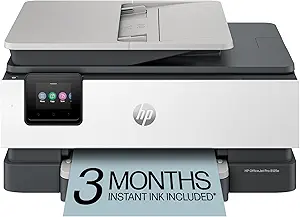 |
| Best Quality Built to a higher standard if you want something more solid | Epson EcoTank Photo ET-8550 |  |
| Best Value The sweet spot between price and what you get | HP Envy Photo 7975 |  |
| Best Budget The cheapest option that still gets the job done reliably | Brother Work Smart 1360 MFC-J1360DW |  |
| Top Rated A top-rated pick with lots of positive feedback | Canon PIXMA TS6520 |  |
| Most Popular A crowd favorite that many people choose with confidence | Canon PIXMA TR4720 |  |
| Best Seller A high-volume bestseller chosen again and again | Epson EcoTank ET-2800 | 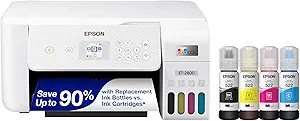 |
HP OfficeJet Pro 8125e

| Printer Type | HP Thermal Inkjet |
|---|---|
| Maximum Sheet Capacity | 225 |
| Scanner Type | Flatbed, 1-sided ADF |
| Duplex | Automatic (standard) |
| Printer Connectivity Type | Apple AirPrint; Ethernet networking; USB; Wireless (Wi‑Fi); Wireless direct printing |
The HP OfficeJet Pro 8125e is a compact all‑in‑one inkjet that targets home and small office users who need decent color output and everyday multifunction capability. It produces relatively fast black and color prints for its class and supports automatic two‑sided printing plus a single‑sided ADF for batch scanning or copying. Connectivity is flexible with dual‑band Wi‑Fi, AirPrint, Ethernet and USB, and HPs app and AI formatting tools make printing from phones and web content easier and reduce wasted pages. The 225‑sheet input and 60‑sheet output capacity keep routine jobs flowing, and the printer accepts HP 923 cartridges with optional Instant Ink subscription for automatic replenishment. Image resolution and color depth are suitable for document graphics and casual photo prints, though dedicated photo labs or pigment photo printers will outmatch it for color-critical photo work. Buyers should also factor in ink costs and subscription choices when evaluating long term running expenses.
Best for: Buyers who want a balanced all‑around AIO printer for mixed photo and document tasks in a home or small office and value simple mobile printing and automatic duplexing.
Less Ideal for: People who need professional photo lab quality or the lowest possible long‑term ink cost should consider specialized photo printers or alternative ink systems instead.
- All‑in‑one functionality with flatbed scanner, ADF and automatic duplex printing
- Flexible connectivity: dual‑band Wi‑Fi, AirPrint, Ethernet and USB
- 225‑sheet input capacity reduces how often you refill paper for medium workloads
- HP app and AI formatting tools simplify printing from smartphones and clean up web and email content
- Ink supply and subscription choices can increase operating costs compared with some alternatives
- Not a dedicated photo printer, so color‑critical photo prints will lack the fidelity of photo‑specific models
Verdict: A versatile home/office all‑in‑one that balances speed, mobile convenience and everyday color printing for buyers who need solid mixed‑use performance.
Epson EcoTank Photo ET-8550

| Printer Type | Inkjet |
|---|---|
| Printer Output Type | Color |
| Maximum Media Size | 13 x 19 inch |
| Color Pages per Minute | 12 pages_per_minute |
| B&W Pages per Minute | 16 pages_per_minute |
The Epson EcoTank Photo ET-8550 is a cartridge-free, six-color inkjet all-in-one built for high-quality photo and document work at home or in a small studio. It uses high-capacity Claria ET Premium ink bottles and a MicroPiezo printhead to deliver sharp detail and rich color across media up to 13 x 19 inches, including borderless prints and cardstock up to 1.3 mm thick. The ET-8550 handles scanning and copying as well, and offers automatic duplexing, USB connectivity and mobile control via iOS/Android apps. Real-world benefits include much lower running costs per photo because replacement bottles print far more pages than cartridges, less frequent ink changes, and support for various photo sizes and CD/DVD printing. Trade-offs are its large footprint and heavier weight compared with compact photo printers, and while print speeds are reasonable for its class the ET-8550 prioritizes image quality over speed for high-resolution photo jobs.
Best for: Photographers and creative hobbyists who prioritize image quality, low running costs, and wide-format capability for at-home photo and mixed document workflows.
Less Ideal for: Buyers who need a compact, portable printer or the fastest possible photo throughput should consider smaller dedicated photo printers or faster production models.
- Cartridge-free EcoTank system greatly reduces ongoing ink costs
- Six-color Claria ET Premium ink and high resolution for lab-quality photo prints
- Supports wide-format media up to 13 x 19 inches including borderless and thick stock
- Includes scanner and copier functions with automatic duplex printing
- Mobile printing and app control for convenient wireless workflows
- Large and relatively heavy for a home photo printer
- Slower when producing high-resolution photos compared with smaller dedicated photo printers
Verdict: Buy this if you want lab-quality, wide-format photo printing with very low ongoing ink cost thanks to the EcoTank refill system.
HP Envy Photo 7975

| Printer Type | HP Thermal Inkjet |
|---|---|
| Scanner Type | ADF; Flatbed |
| Print Resolution | 4800 x 1200 dpi (Color), 1200 x 1200 dpi (B&W) |
| Connectivity | USB, Wi-Fi |
| Duplex | Automatic |
The HP Envy Photo 7975 is a home-focused all-in-one inkjet that balances photo quality with everyday document printing. It handles photo and document jobs via a 2.7-inch color touchscreen, supports mobile and USB/Wi-Fi connections, and includes a separate photo tray plus an automatic document feeder for scanning multi-page originals. Photo prints can reach up to 4800 x 1200 optimized dpi while text and black-and-white output use up to 1200 x 1200 dpi, so photos look vibrant and documents stay sharp. Built-in auto duplex and a 125-sheet maximum capacity make it practical for routine home office tasks, and HPs AI print formatting helps trim unwanted webpage content before printing. Expect moderate print speeds (around 10 ppm color, 15 ppm black) and typical cartridge costs for color photo-capable machines. The unit is feature-rich for family use, but heavier duty or high-volume users may find cartridge replacement frequency and running costs an important consideration.
Best for: Buyers who want a single home printer that produces true-to-screen photos and also handles homework, scanning and everyday document needs with simple mobile and touchscreen controls.
Less Ideal for: People who need heavy-duty daily throughput or the lowest possible cost per page for high-volume business printing should consider a laser or business-class device instead.
- High-quality photo printing up to 4800 x 1200 optimized dpi for borderless photos
- All-in-one functionality with flatbed scanner and 35-sheet ADF for multi-page jobs
- Dedicated photo tray plus touchscreen and mobile printing for easy photo workflows
- Automatic duplex printing and 125-sheet capacity for routine home office use
- Ink cartridges for photo-capable color output can be costly over time
- Not targeted at high-volume business environments where faster duty-cycle devices are needed
Verdict: Choose the Envy Photo 7975 when you want a single home printer that reliably produces high-quality borderless photos while still handling everyday document and scanning tasks.
Brother Work Smart 1360 MFC-J1360DW

| Printer Type | Inkjet |
|---|---|
| Duplex | Automatic |
| Maximum Sheet Capacity | 150 |
| Automatic Document Feeder | 20 sheets |
| Printer Connectivity Type | USB, Wi-Fi |
The Brother Work Smart 1360 is a compact color inkjet all-in-one designed for home and small home-office use, offering print, copy, and scan in a space-saving package. It connects via Wi‑Fi or USB and supports mobile printing through AirPrint and Mopria, plus the Brother Mobile Connect app for easy setup and on-the-go printing. Practical features include automatic two-sided printing, a 20-sheet single-sided automatic document feeder, and a 150-sheet input tray that keep light batches moving without constant refills. Print speeds are reasonable for the class at up to 16 ppm black and 9 ppm color, and Windows drivers advertise high-resolution output up to 1,200 x 6,000 dpi for detailed photo and document prints. The printer uses Brother LC501 ink with standard and high-yield options and supports cloud scanning/printing to services like Google Drive and Dropbox. Limitations are typical for budget inkjets: photo quality will not match dedicated photo printers, and ongoing ink costs matter if you print frequently in color. For buyers who need basic photo printing along with everyday documents on a tight budget, this model blends useful features with a small footprint.
Best for: A buyer who needs an affordable, space-efficient all-in-one that handles everyday documents and occasional photos while prioritizing wireless convenience and low upfront cost.
Less Ideal for: People who regularly print high-volume color photos or who need studio-level photo color accuracy should choose a dedicated photo printer instead.
- Automatic duplexing for two-sided documents
- Wireless printing with AirPrint, Mopria, and Brother Mobile Connect app
- 20-sheet ADF and 150-sheet tray reduce hands-on time for multi-page jobs
- High advertised print resolution for sharper document and casual photo prints
- Compact footprint suitable for small home offices
- Not a dedicated photo printer so image quality lags specialist models
- Ink running costs can add up for frequent color printing
Verdict: Choose the Work Smart 1360 when you want an affordable, compact wireless all-in-one that handles documents and occasional photos without unnecessary extras.
Canon PIXMA TS6520

| Printer Type | Inkjet |
|---|---|
| Printer Connectivity Type | USB, Wi-Fi |
| Duplex | Automatic |
| Display Type | OLED |
| Color Pages per Minute | 9 pages_per_minute |
The Canon PIXMA TS6520 is a compact home all-in-one that balances photo-capable color printing with everyday document work. It uses a two-cartridge hybrid ink system (pigment black and dye color) to produce sharp text and reasonably vibrant photos, and supports borderless prints up to letter size. Setup and mobile printing are straightforward via the Canon app, AirPrint, or Mopria, and Wi-Fi works on both 2.4GHz and 5GHz for reliable connectivity. The 1.42" OLED and simple control panel make status checks and small adjustments quick, and automatic two-sided printing helps save paper during regular document jobs. This model lacks an automatic document feeder, so multi-page scanning and copying require manual page flips, and the single paper tray and modest sheet capacity limit heavy-duty office use. Print speeds are sufficient for home and student use but are not geared for high-volume throughput. For a household wanting dependable daily printing plus occasional photo work, the TS6520 covers the essentials without unnecessary complexity.
Best for: Buyers who prioritize a dependable, easy-to-use all-in-one for everyday home, student, or small household photo and document printing where reliability and straightforward setup matter.
Less Ideal for: Users who need high-volume throughput, frequent multi-page scanning or copying, or larger paper capacities should consider more business-oriented models with an ADF and bigger trays.
- Two-cartridge hybrid ink system for sharp text and good color photos
- Automatic duplex printing to save paper
- Reliable dual-band Wi-Fi and mobile printing support
- Compact footprint with an easy-to-read OLED status display
- No automatic document feeder for multi-page scanning or copying
- Single paper tray with low sheet capacity limits high-volume use
Verdict: A compact, reliable all-in-one that delivers sharp documents and decent photo prints with simple setup and consistent wireless performance.
Canon PIXMA TR4720

| Printer Type | Inkjet |
|---|---|
| Print Resolution | 4800 x 1200 |
| B&W Pages per Minute | 8.8 |
| Color Pages per Minute | 4.4 |
| Connectivity | USB, Wi‑Fi |
The Canon PIXMA TR4720 is a compact 4‑in‑1 inkjet aimed at home and small-office use where photo and document versatility matters more than speed. It prints borderless photos up to 8.5 x 11 inches, handles everyday color and black text reasonably well with a hybrid ink system, and supports mobile printing through the Canon Print app plus USB and Wi‑Fi connectivity. The front 100‑sheet tray and automatic two‑sided printing make routine document jobs convenient, while the auto document feeder speeds multi‑page scanning and faxing. Print speeds are modest—about 8.8 ppm black and 4.4 ppm color—so it is best for intermittent jobs rather than high-volume work. Setup and cartridge changes are straightforward and the 2‑line LCD provides simple controls, but heavier users will notice ink costs and slower color throughput compared with higher-end models. For buyers prioritizing compactness, photo borderless printing, and straightforward mobile workflow, the TR4720 delivers a balanced combo of features in a small footprint.
Best for: Buyers who want a small all‑in‑one that handles both photos and everyday documents with easy mobile printing and simple setup, and who value user feedback and proven performance over bleeding‑edge speed.
Less Ideal for: People who print large volumes regularly or need fast professional photo production should look at higher‑end or business‑class printers instead.
- Prints borderless photos up to 8.5 x 11 inches for better photo output at home
- Automatic duplex printing saves paper and simplifies two‑sided document jobs
- Auto document feeder speeds multi‑page scanning and faxing
- Wireless and mobile printing support via Canon Print app plus USB connectivity
- Compact footprint with a 100‑sheet front tray fits small home or office spaces
- Modest print speeds, especially for color photo and document jobs
- Ink can be expensive for frequent color printing
Verdict: A compact, feature‑balanced all‑in‑one that is a reliable choice for home users who want good borderless photos and straightforward mobile document printing.
Epson EcoTank ET-2800

| Printer Type | Inkjet |
|---|---|
| Print functions | Print, Copy, Scan |
| Color Pages per Minute | 5 pages_per_minute |
| B&W Pages per Minute | 10 |
| Printer Connectivity Type | wired, wireless |
The Epson EcoTank ET-2800 is a compact all-in-one inkjet built around refillable high-capacity ink tanks so you can print long runs without swapping cartridges. It prints, copies, and scans with a flatbed scanner and a simple color LCD and supports wireless and app-based printing plus voice-activated commands for convenient mobile use. The EcoTank bottles included with the printer replace many individual cartridges, cutting routine ink purchases and reducing plastic waste while delivering sharp text and vivid color graphics using Epson's Micro Piezo heat-free print technology. Paper handling covers common photo and document sizes up to 8.5 x 14 inches and the printer reaches about 10 ISO black pages per minute and 5 ppm in color for everyday tasks. Expect manual duplexing only and modest photo speeds, and remember Epson recommends genuine ink for best results which can affect long-term running costs. For everyday home photo and document printing the ET-2800 balances low-maintenance ink capacity with reliable image quality in a small footprint.
Best for: Buyers who want low-maintenance, reliable home printing for a mix of photos and documents and prioritize fewer ink replacements and straightforward mobile printing.
Less Ideal for: If you need fast professional photo production, heavy office duplex workflows, or the absolute lowest per-page ink cost at scale, look at higher-end photo or commercial printers instead.
- Cartridge-free EcoTank design drastically reduces how often ink needs replacing.
- Includes ink bottles that print thousands of pages, lowering ongoing cartridge waste.
- Wireless, app, and voice printing make mobile workflows easy.
- High-resolution print engine produces sharp text and strong color graphics.
- Built-in flatbed scanner adds copying and scanning in one compact unit.
- No automatic duplexing; two-sided printing must be done manually.
- Color photo speed and throughput are modest compared with higher-end photo printers.
- Printer performance relies on genuine Epson ink for optimal results.
Verdict: Choose the ET-2800 if you want an easy, low-maintenance all-in-one that cuts cartridge changes while delivering reliable photo and document quality for home use.
Choosing the Right All-in-One Printer for Photos and Documents: Key Factors to Consider
Print Quality and Color Accuracy
How closely a printer reproduces colors and fine detail determines whether your photos look professional or merely acceptable. High native print resolution and multiple color cartridges expand color gamut and smooth gradients, which is especially important for portrait and landscape photos. For documents, high black density and sharp text rendering ensure legibility for small fonts and fine lines.
When evaluating print quality, consider how the printer handles different paper types. Dedicated photo papers, glossy finishes, and heavyweight stocks need precise ink placement and drying control. Some all-in-one printers include pigment inks for durable documents and dye inks for vivid photos. Understanding the ink chemistry helps you anticipate longevity and color stability for both photos and important documents.
Scanning Capability and ADF
Scanning performance matters when you digitize photos, receipts, or multipage documents. Look for scanners with high optical resolution for faithful photo reproduction and accurate color scanning. A robust scan engine reduces banding and preserves highlight and shadow detail in images.
Automatic document feeders matter for productivity. If you routinely scan multipage contracts or receipts, an ADF with reliable paper handling and duplex scanning saves time. For photo scanning, a flatbed surface that supports nonstandard media, thicker photo paper, or fragile originals is important. Also consider built-in software features for color correction and OCR to make scans searchable and editable.
Paper Handling and Media Flexibility
A printer that accepts a range of paper sizes and finishes prevents workflow interruptions. If you print 4×6 or 5×7 photos, check for dedicated photo trays or rear specialty feeds that reduce jams and maintain image quality. For documents, a standard input tray capacity and optional secondary tray for different media types lets you switch between photo paper and office paper without frequent reloading.
Consider duplex printing capabilities for two-sided documents and the printer's maximum supported paper weight. Heavier cardstock or specialty media should pass through without skewing. Reliable pickup rollers and adjustable paper guides also reduce misfeeds and wasted prints over time.
Connectivity and Mobile Features
Modern printers need flexible connectivity to fit varied environments. Wi-Fi and Ethernet are essential for shared use in homes or small offices, while USB provides a dependable local connection. Mobile printing support, such as printing from phones or tablets, streamlines casual photo prints and on-the-spot document jobs.
Look for compatibility with common printing standards and services that match how you work. Wireless setup should be straightforward and stable. Additional features like cloud printing, direct photo printing from memory cards, or an app with print preview and color adjustments enhance convenience for photo workflows and remote document handling.
Operating Cost and Ink Management
Total cost of ownership includes ink or toner expenses and how often you need replacements. Printers with high-capacity cartridges, refillable tanks, or separate color cartridges can lower per-page costs, especially if you print frequently. For photo enthusiasts, the tradeoff between cheaper dye inks and longer-lasting pigment inks is worth considering based on whether prints will be handled or displayed.
Also evaluate yield claims and how ink monitoring is handled. Some machines alert early and allow partial cartridge replacement, which reduces waste. Consider the availability of genuine supplies and whether third-party refill options are practical for your usage pattern.
Ease of Use and Maintenance
A straightforward setup and an intuitive control interface reduce frustration and time to productivity. Clear instructions, reliable paper handling, and well-designed trays matter when switching between photo jobs and document batches. Maintenance tasks like printhead cleaning, alignment, and cartridge changes should be easy to perform without tools.
Long-term reliability also hinges on firmware updates and support for drivers on your devices. A printer that offers simple firmware updating and broad driver support across major operating systems reduces the risk of obsolescence. Consider manufacturer-provided utilities for color calibration and maintenance as part of the ownership experience.
Understanding Photo Versus Document Print Modes
All-in-one printers often provide distinct output profiles for photos and documents. Photo modes prioritize color depth and saturation, using additional color cartridges or specific halftoning to smooth tonal transitions. Document modes focus on crisp black text and fast render times, usually reducing color detail to conserve ink.
When switching between tasks, check for a mode selector or custom presets. Presets let you choose glossy photo settings for images and draft or economy modes for internal documents. Learning how to toggle these options ensures you get the expected results without manually adjusting color curves for each job.
- Photo modes use higher color resolution and different ink combinations
- Document modes favor speed and black density over color fidelity
- Custom presets save time when alternating between printing types
Optimizing Files for Better Prints
How you prepare files affects final output more than many buyers expect. For photos, work from high-resolution images and use color-managed workflows when possible. Ensuring images are in the correct color space and resolution prevents unexpected color shifts and pixelation.
For documents, embed fonts when creating PDFs and use standard page margins and sizes to avoid layout shifts. If your printer driver offers a 'fit to page' option, use it cautiously because it can alter aspect ratios on photos and crop important details.
- Use high-resolution images and correct color profiles for photo printing
- Embed fonts and use standard page sizes for consistent document output
- Preview before printing to catch scaling or cropping issues
Choosing Paper Types and Finishes
Paper choice has a major impact on perceived print quality. Glossy papers intensify color saturation and contrast, while matte finishes provide a subdued, gallery-like look and reduce glare. For everyday documents, standard multipurpose office paper is suitable, but important presentations benefit from heavier, brighter stocks.
When switching media, adjust printer settings to match the paper type. Using the correct paper profile in the driver minimizes head strikes, ink bleed, and drying issues. If you print a lot of photos, keep small test prints to find the best paper and setting combination.
- Glossy for vivid color, matte for subdued tones and low glare
- Use heavier stock for presentations and cover pages
- Match driver paper settings to avoid print defects
Workflow Tips for Hybrid Home and Small-Office Use
If you split time between photo projects and office tasks, plan a simple workflow to reduce setup friction. Designate default trays for office paper and a rear or specialty tray for photo paper. This keeps photo stock separate and reduces the chance of jams or incorrect prints when switching jobs.
Use networked storage or cloud services to centralize files and allow multiple devices to send jobs. Maintain a short checklist for routine maintenance tasks such as nozzle checks and alignment to keep output consistent across both use cases.
- Reserve separate trays for different media to avoid reloading
- Centralize files with cloud or network folders for seamless printing
- Perform periodic maintenance checks to ensure consistent results
Color Management and Calibration
For consistent, predictable photo prints, consider color management. Some all-in-one printers support ICC profiles and color calibration tools that help match on-screen colors to printed output. Without calibration, colors may look different across devices and papers.
If accurate color is critical, use a calibrated monitor and create or download ICC profiles for the specific paper and printer combination. Even simple adjustments in the printer driver, like turning off automatic color corrections, can make a noticeable difference when pairing images with known paper types.
- Use ICC profiles for predictable color matching
- Calibrate your monitor when color accuracy matters
- Disable conflicting automatic corrections when using profiles
How We Chose the Best All-in-One Printer for Photos and Documents
We focused on features and performance that matter for people who need both photographic prints and regular document handling. Our selection filters prioritized print output quality for photos, measured by color gamut and resolution capabilities, plus text clarity for documents. We also required versatile scanning hardware capable of both high-resolution photo scans and multipage document capture, with reliable auto document feeders where applicable. Connectivity and workflow were key. Candidates had to offer modern connection options such as Wi-Fi, wired networking, and mobile printing support to fit varied home and small-office setups. We evaluated running cost factors including ink yield and refillability options that affect long-term operating expenses. Usability and physical design were considered next: intuitive control panels, paper handling capacity, and media versatility for photo paper sizes mattered for real-world use. We excluded models that were single-function devices, specialty photo kiosks, or printers with very limited scan functionality. Low-resolution photo-only machines and purely commercial, heavy-production printers were also out. The final list reflects balanced machines that perform well across photo output, document handling, connectivity, and ongoing cost.
Our full evaluation process is outlined in our review methodology.
FAQ
Can an all-in-one printer handle both borderless photos and duplex documents?
Often yes, but it depends on the model. Many machines support borderless photo printing and automatic duplex for documents, though borderless output can be limited to certain sizes and may require manual paper handling on some units.
Which ink type is better for photos versus documents?
Dye-based inks tend to produce more vibrant photo colors, while pigment-based inks offer better longevity and sharper text. The ideal choice depends on whether your priority is color richness for photos or archival durability and document clarity.
How do I reduce ink costs when printing lots of documents and occasional photos?
Look for printers with high-capacity cartridges or refillable ink systems and use economy or draft modes for routine documents. Reserve high-quality photo modes and premium paper for images where detail and color matter most.
Is a higher DPI number always better for photo prints?
Higher DPI can improve detail, but effective print quality also depends on sensor or file resolution and the printer's ink system. Beyond a certain point, higher DPI yields diminishing returns unless your source images are sufficiently detailed.
Do I need special software to scan photos accurately?
Specialized scanning software can improve color correction and dust removal, but built-in scanner apps are often adequate for casual use. For archival-quality scans, use software that supports color profiles and offers fine control over resolution and color balance.
Final Verdict
When choosing an all-in-one printer for photos and documents, prioritize the features that match how you use the device. If photo fidelity is critical, focus on units with higher photo print quality, wider color support, and robust scan resolution. If office productivity matters more, emphasize document sharpness, ADF performance, and lower operating costs. Balance tradeoffs between vibrant photo output and long-term running cost by considering ink type, cartridge options, and media handling. With attention to print profiles, paper selection, and connectivity, you can pick an all-in-one that reliably handles both photographic work and everyday document tasks without compromise.