
Note: This article contains affiliate links. If you click on these links and make a purchase, we may earn a small commission at no extra cost to you. This helps support our research and content. Read our full affiliate disclosure here.
If you have stacks of prints, slides, or negatives you want to preserve, a dedicated photo scanner for Mac can turn fragile analog memories into stable digital files. The right scanner makes a big difference in color accuracy, detail retention, and how quickly you can process large batches. This guide highlights the top shortlisted options for Mac users, focusing on image fidelity, scanning throughput, and software integration. Each pick was evaluated against practical home and small-studio needs so you can find a scanner that fits your workflow.
Top Picks at a Glance
| Best Overall The best all-around choice for most situations | Epson FastFoto FF-680W |  |
| Best Quality Built to a higher standard if you want something more solid | Epson Perfection V850 Pro |  |
| Best Value The sweet spot between price and what you get | KODAK SCANZA Film Scanner |  |
| Best Budget The cheapest option that still gets the job done reliably | ClearClick InstaScan Photo Scanner |  |
| Top Rated A top-rated pick with lots of positive feedback | Plustek ePhoto Z300 Photo Scanner |  |
| Most Popular A crowd favorite that many people choose with confidence | KODAK Slide N Scan Scanner |  |
| Best Seller A high-volume bestseller chosen again and again | Canon CanoScan LiDE 300 |  |
Epson FastFoto FF-680W

| Scanner Type | Document, Photo |
|---|---|
| Connection Type | Wi-Fi |
| Resolution | 600 dpi |
| Color Depth | 24 bpp |
| Optical Sensor Technology | CIS |
The Epson FastFoto FF-680W is built for people who need to digitize large photo collections and occasional documents quickly. It accepts batches of photos—up to 36 at a time—and can scan single photos as fast as one per second at 300 dpi, while offering higher resolution modes up to 1200 dpi for enlargements. Duplex scanning captures both photo faces or two-sided documents in one pass, and Epson's software adds auto enhancement, color restoration, red-eye reduction, de-skewing, cropping, and OCR for documents. Connectivity includes Wi-Fi and USB, and the FastFoto mobile app and software enable cloud backup to Dropbox or Google Drive and basic slide show and voice annotation features. The scanner ships with a carrier sheet and SafeTouch handling for delicate originals. Limitations are that some advanced edits need third-party software for fine control and top speeds depend on host computer performance; Mac users should confirm software compatibility and system requirements before purchase.
Best for: Buyers who want a fast, user-friendly way to digitize large personal photo collections and occasionally convert documents, prioritizing speed and automation over manual image editing.
Less Ideal for: Professional photographers or archivists who need pixel-level control and advanced restoration workflows should consider a dedicated flatbed or higher-end drum scanner and specialized software.
- Very fast batch photo scanning (up to 36 photos) for large archives
- Duplex capture records both sides of photos or two-sided documents in one pass
- Auto enhancement and color restoration revive old photos without manual editing
- Wi‑Fi and USB connectivity with cloud upload options for easy backup and sharing
- Includes carrier sheet and SafeTouch handling for delicate originals
- Top advertised scan speeds and features rely on connected computer and app compatibility
- Does not replace full-featured photo editing software for advanced restoration
Verdict: If you need to convert a large backlog of family photos quickly with simple automatic restoration and cloud backup, this scanner is a strong choice.
Epson Perfection V850 Pro

| Scanner Type | Photo |
|---|---|
| Connection Type | USB |
| Resolution | 9600 |
| Color Depth | 48 bits |
| Optical Sensor Technology | CCD |
The Epson Perfection V850 Pro targets photographers and archivists who need very high-quality scans of film and prints. It uses a dual-lens system and CCD sensor to deliver up to 6400 dpi optical resolution for film and high flatbed resolution, plus a 4.0 Dmax for strong shadow detail and smooth tonal gradations. ReadyScan LED lighting removes warmup time, and the included 35mm, medium and large-format film holders let you batch-scan slides and negatives; Digital ICE reduces dust and scratches during film and print scanning. Connection is via Hi-Speed USB 2.0 and it supports both Windows and macOS through TWAIN. The scanner is relatively large and heavy compared with consumer units, and its professional feature set is aimed at precise archival work rather than quick point-and-shoot scanning, so it requires some learning to get the best results. File handling and scan speeds reflect the high-resolution focus, so expect longer scan times and larger files when using top settings.
Best for: Photographers and serious archivists who prioritize maximal image detail and accurate tonal range when digitizing film and prints for long-term archival or professional use on a Mac.
Less Ideal for: Casual users looking for fast, simple scans or a compact scanner for occasional document digitizing should consider smaller, consumer-oriented models instead.
- High optical resolution for film and prints (6400 dpi film capability)
- High dynamic range with 4.0 Dmax for better shadow and highlight detail
- Dual-lens system and ReadyScan LED for optimized, fast lens selection and no warmup time
- Includes film holders for 35mm, medium and large formats and supports fluid mount option
- Digital ICE technology reduces dust and scratch defects during scans
- Large and heavy compared with consumer flatbeds, requiring dedicated workspace
- High-resolution scans produce very large files and longer scan times
Verdict: Choose the V850 Pro when you need professional-grade film and photo scans with exceptional detail and tonal range for archival or pro work on a Mac.
KODAK SCANZA Film Scanner

| Compatible film types | 35mm, 126, 110, Super 8, 8mm |
|---|---|
| Sensor | 14MP (interpolates to 22MP) |
| Screen | 3.5" tilt-able LCD |
| Connection type | HDMI, USB |
| Storage | SD card up to 128GB (not included) |
The KODAK SCANZA is a desktop film-to-JPEG scanner aimed at quickly digitizing old negatives and slides without a computer. You load film into numbered inserts, preview images on the tilt-able 3.5" LCD, make simple edits and save scans directly to an SD card or connect via USB or HDMI for transfer or TV playback. It uses a 14MP sensor with optional interpolation to 22MP, includes multiple adapters for common film sizes and ships with cables and a cleaning brush. In practice the unit is fast and user-friendly for batch scanning home archives and the on-device gallery and capture button make it convenient when you do not want to fuss with software. Image quality is good for sharing and prints but will not match professional flatbed scans or scans from higher-end drum scanners, and the device only captures developed negatives as still images rather than true film transfers. The SCANZA is a solid, no-frills choice if you want straightforward, largely standalone scanning of a variety of film formats rather than studio-grade results.
Best for: Buyers who want a practical, standalone scanner to quickly convert family negatives and slides to shareable digital files without relying on desktop software or complex workflows.
Less Ideal for: Photographers seeking archival, high-resolution flatbed-quality scans or motion transfers from Super 8 should consider higher-end film scanners or professional scanning services.
- Supports multiple film formats including 35mm, 126, 110, Super 8 and 8mm
- Built-in 3.5" tilt-able LCD for previewing, simple editing and on-device capture
- Saves directly to SD card and offers USB and HDMI outputs for easy transfer or TV display
- Comes with multiple adapters, cables and a cleaning brush for out-of-box scanning
- Image quality is lower than professional flatbed scanners and is interpolation-based for the 22MP mode
- Device only produces still JPEGs from film and cannot develop raw film or capture motion from Super 8 reels
Verdict: A straightforward, self-contained film scanner that lets you quickly convert a variety of old negatives and slides into JPEGs without needing a computer.
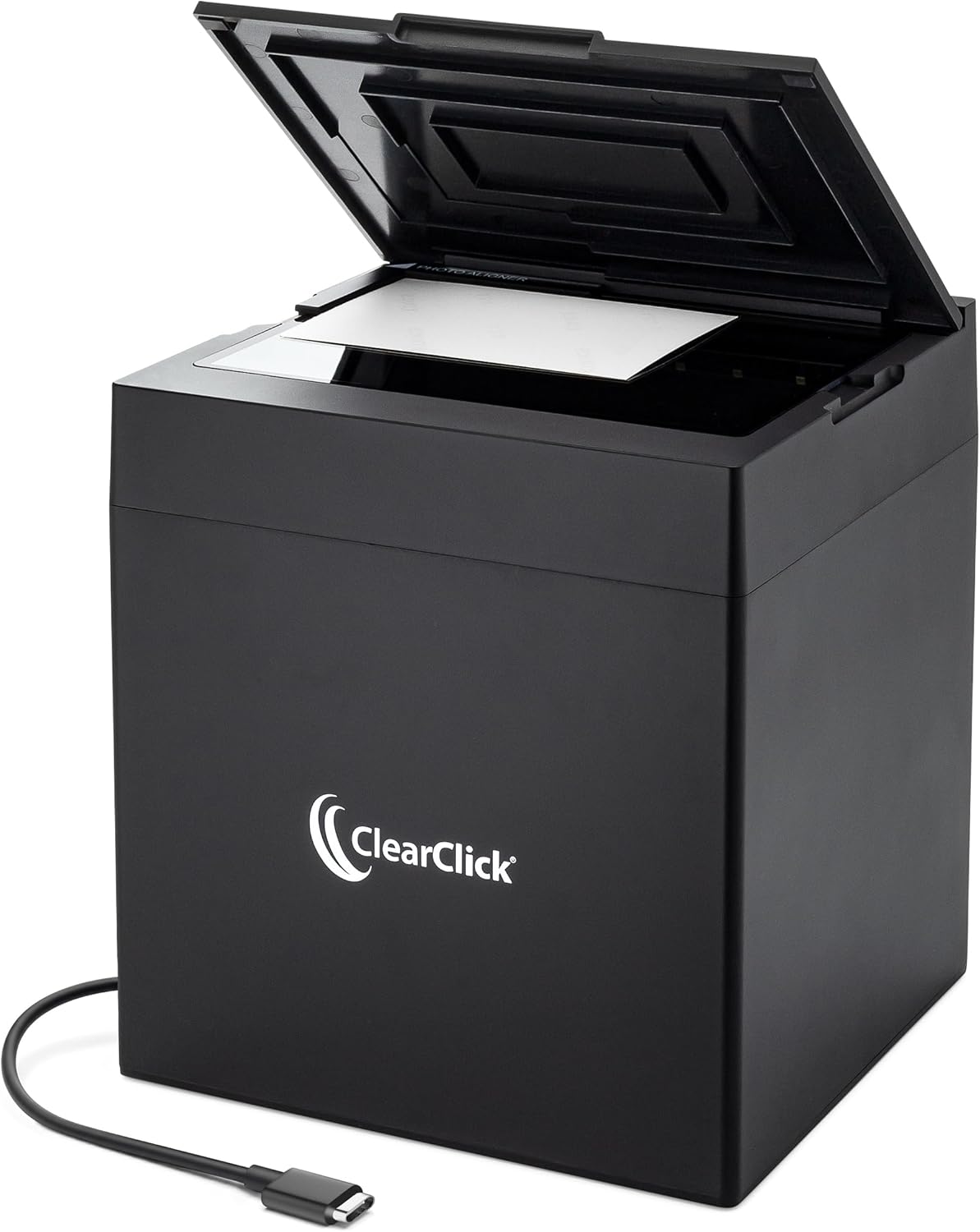
ClearClick InstaScan Photo Scanner
| Resolution | 300 dpi |
|---|---|
| Connection Type | USB |
| Color Depth | 24 bits |
| Greyscale Depth | 8-bit |
| Minimum System Requirements | Mac OS X 11.0 or higher |
The ClearClick InstaScan is a simple, budget-focused photo scanner that digitizes small prints almost instantly by using a built-in 4K camera and internal lighting. You place a 4×6 or 5×7 photo on the glass plate, launch the included software on a Mac or PC, make any manual crop or brightness adjustments, then click Scan to save a JPEG, PNG, or WEBP file. Its plug-and-play USB connection requires no driver installation on supported macOS versions and includes software tools for basic editing before capture. The unit aims for convenience and speed rather than pro-level scans, quoting an effective 300 DPI output and a cropped resolution near 2500×1800 pixels. That makes it well suited for preserving family snapshots and receipts quickly, but it is not designed for large documents, negatives, slides, or high-end archival work. The compact footprint and included USB-A adapter make setup straightforward for Mac users who want a low-cost, easy workflow for batches of small photos, while those needing higher resolution, film scanning, or full-document support should look at dedicated flatbed alternatives.
Best for: Mac users on a tight budget who want a quick, no-fuss way to digitize boxes of small prints and receipts without a steep learning curve.
Less Ideal for: Photographers, archivists, or anyone needing high-resolution film, slide, or large-document scanning should choose a dedicated flatbed or film scanner instead.
- Very fast capture workflow with one-click scanning
- Plug-and-play USB connection with no driver installation on Mac or PC
- Includes software for cropping and basic image adjustment before saving
- Built-in lighting and 4K camera tuned for small photo scanning
- Compact footprint that is easy to store and set up
- Limited to photos 5×7 and smaller and cannot scan 8×10 or full letter documents
- Resolution aimed at consumer photo preservation rather than archival-grade scans
- Not compatible with smartphones, tablets, or Chromebooks
Verdict: If you need an affordable, fast, and easy Mac-compatible way to convert stacks of 4×6 and 5×7 photos to digital files, this is a practical pick.
Plustek ePhoto Z300 Photo Scanner

| Scanner Type | Document, Photo |
|---|---|
| Connection Type | USB |
| Resolution | 600 dpi x 600 dpi, 300 dpi x 300 dpi |
| Optical Sensor Technology | CCD |
| Light Source Type | LED |
The Plustek ePhoto Z300 is a compact photo scanner built for digitizing prints quickly and safely. It feeds photos through a special roller that is gentler than document-only rollers, so fragile or slightly sticky vintage prints are less likely to be damaged. The scanner uses a CCD sensor with up to 600 dpi optical resolution, which improves color accuracy and dynamic range compared with typical CIS-based feeders, and the bundled software offers auto crop, deskew, color restoration, red-eye removal, and batch naming to speed processing. Scanning speed is fast—about 2 seconds for a 4×6 at 300 dpi—so you can work through large stacks efficiently. It is USB-powered/connected and supports both Mac and PC, though Mac users should confirm OS compatibility and download the latest drivers from the manufacturer site. Limitations include a simplex feed (no duplex scanning) and a maximum material thickness under about 0.76 mm, so very thick items or partially mounted scraps may not pass. For reliable, high-throughput photo digitizing with good color fidelity, the Z300 is a practical choice.
Best for: Buyers who need a dependable, high-throughput way to digitize boxes of printed photos and who prioritize photo-safe handling and color accuracy when converting memories to digital files.
Less Ideal for: People who need to scan thick mounted items, books, or tear sheets, or those who require duplex document scanning for paperwork rather than photos.
- Gentle roller feed designed for fragile or sticky vintage photos
- CCD sensor for better color accuracy and dynamic range than typical CIS scanners
- Fast scanning speed (about 2 seconds for a 4×6 at 300 dpi) for high throughput
- Software includes auto-crop, deskew, color restoration, and batch naming to streamline workflow
- Works with Mac and PC with downloadable drivers
- Simplex-only feed (no duplex scanning)
- Cannot handle items thicker than approximately 0.76 mm
Verdict: Choose the ePhoto Z300 when you want a fast, photo-safe scanner with CCD-based color accuracy for reliably digitizing large collections of printed photos.
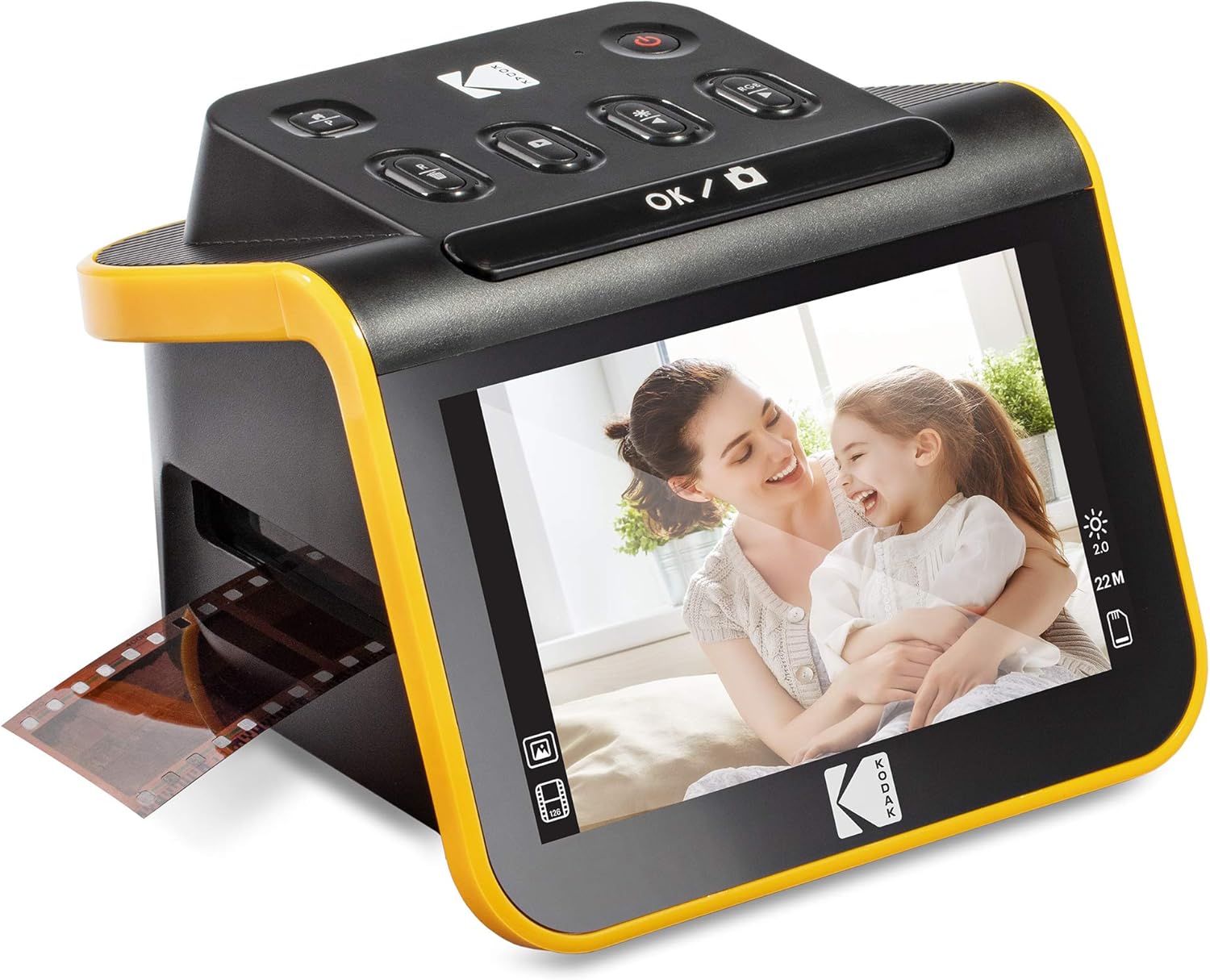
KODAK Slide N Scan Scanner
| Resolution | 13MP / 22MP (interpolated) |
|---|---|
| Image sensor | 13-megapixel CMOS |
| Connection Type | USB, HDMI |
| Media Type | Negatives, Slide |
| Screen Size | 5" LCD |
The KODAK Slide N Scan is a straightforward desktop scanner for converting 35mm/110/126 negatives and 50mm slides into digital JPEGs. It uses a CMOS sensor with selectable 13MP or interpolated 22MP output, shows previews on a large 5" LCD, and can save files directly to an SD/SDHC card or transfer via USB or HDMI to a computer or TV. Loading is simplified by a quick-feeding tray and included adapters for different film formats, so you can scan multiple frames without constantly repositioning mounts. Basic onboard editing (color/brightness, film type, date/time) and a one-button scan workflow make it usable without complex software, which helps with quick archiving sessions. Limitations include reliance on an SD card (not included) for standalone use and interpolation for the highest resolution rather than native optical scanning, so extreme enlargement may reveal limits in fine detail. Mac users should verify Type-C compatibility for their machine and expect the device to serve best as a fast, user-friendly converter rather than a professional-grade archival scanner.
Best for: Buyers who want a low-friction way to convert family slides and negatives into viewable digital files and prefer a device that works with minimal software setup and fast batch scanning.
Less Ideal for: If you need museum-grade archival scans or maximum native optical resolution for large prints, a higher-end dedicated film scanner is a better choice.
- Large 5" LCD for instant preview and gallery mode sharing
- Easy-load continuous feeding tray and included adapters for 135/110/126 formats
- Saves directly to SD/SDHC card or connects via USB/HDMI for quick transfer
- Simple one-button scanning with basic onboard edits for color and brightness
- Top resolution of 22MP is achieved by interpolation rather than native optical capture
- Requires an SD card to operate in standalone mode which is not included
Verdict: A user-friendly tabletop scanner that quickly converts slides and negatives into shareable JPEGs with on-device previews and simple controls, ideal for fast home archiving.
Canon CanoScan LiDE 300

| Scanner Type | Document, Photo |
|---|---|
| Connection Type | USB |
| Resolution | Optical: 2400 x 2400 dpi |
| Color Depth | 48 bits bits |
| Light Source Type | LED |
The Canon CanoScan LiDE 300 is a compact flatbed scanner designed for digitizing photos, receipts, business cards, and single documents. It connects over USB and uses Auto Scan Mode to detect what you place on the glass, plus four EZ buttons for one-touch tasks like creating searchable PDFs with OCR and sending files to cloud services. The scanner offers up to 2400 x 2400 dpi optical resolution and image enhancements such as fade correction and dust reduction, which help preserve older photos without complicated settings. Its low power draw and slim profile make it easy to store on a desk when not in use. Limitations include a one-sheet capacity and reliance on a USB connection without wireless options, so it is best for casual to moderate scanning rather than high-volume batch jobs. Driver and software availability for Mac can vary by OS version, so check compatibility before relying on advanced features on newer Mac releases.
Best for: Buyers who want a reliable, easy-to-use photo and document scanner for occasional to moderate use and prioritize straightforward, dependable scanning over high-volume automation.
Less Ideal for: Users needing fast batch scanning, networked wireless workflows, or heavy daily throughput should consider higher-capacity or sheet-fed models instead.
- High optical resolution up to 2400 x 2400 dpi for detailed photo scans
- Auto Scan Mode and EZ buttons simplify scanning for nontechnical users
- Image enhancement features like fade correction and dust reduction improve older photos
- Creates searchable PDFs with OCR and can send scans to cloud services
- Slim, low-power design that is easy to store on a desk
- Single-sheet flatbed design limits throughput for large scanning projects
- No built-in Wi‑Fi or network scanning capability
Verdict: A compact, user-friendly photo scanner that delivers high-resolution scans and easy one-touch workflows for cautious buyers who want dependable results rather than high-volume speed.
Choosing the Right Photo Scanner for Mac: Key Factors to Consider
Image Resolution and Detail
Higher optical resolution matters when you want to enlarge scans or capture fine grain and texture from older prints. Optical resolution determines the true detail the scanner can capture; interpolated numbers from software do not add real information.
If you plan to print enlargements or crop aggressively, prioritize scanners with proven high optical dpi and a consistent way to measure effective resolution. For many home users preserving 4×6 or 5×7 prints, mid-range optical resolution is sufficient, but slide and negative scanning usually benefits from higher-resolution sensors.
Color Accuracy and Dynamic Range
Good color reproduction preserves the mood and skin tones of originals, and dynamic range determines how well highlights and shadows are retained. Look for scanners with strong color management support, including ICC profile compatibility and options for raw or unprocessed output.
A scanner with limited dynamic range may clip highlight detail on glossy prints or crush shadow detail in aged negatives. When color fidelity matters, prioritize devices that let you disable aggressive automatic corrections and provide controls for white balance, exposure, and color profiling.
Scanning Speed and Workflow
Throughput affects how long a project takes, especially if you are digitizing hundreds of photos. Speed depends on the scanner's hardware, whether it uses a flatbed or feeder, and the media type being scanned.
Consider whether you need batch-feeding or dedicated film/slide carriers and whether the scanner supports duplex or automatic feeder mechanisms. Also evaluate the time needed for setup, preview scans, and any manual adjustments. Faster hardware with reliable batch handling will save hours on large jobs.
Software Compatibility with macOS
Native or well-supported macOS software makes scanning and file management far easier. Check for up-to-date drivers, scanning utilities that support common Mac file formats, and compatibility with Apple Photos or image-editing apps.
Some scanners include proprietary software with advanced color controls; others rely on standard TWAIN or ICA drivers. If you use a specific Mac workflow or image editor, ensure the scanner supports the input formats and color-management options you need.
Media Types and Physical Handling
Different projects require different handling. Flatbed scanners are versatile for mixed media and fragile prints, while dedicated film scanners or units with film holders capture slides and negatives more efficiently.
Assess the size of originals you will scan, whether you need holders for strips or individual mounts, and how the device treats delicate materials. Features like an anti-reflective glass, adjustable platen, or specialized film trays can reduce damage and improve consistent alignment.
Long-Term Reliability and Maintenance
A scanner that requires frequent calibration or has fragile mechanical parts can slow work and increase cost over time. Look for solid construction, replaceable parts, and accessible cleaning procedures.
Consider warranty support and the expected serviceability if you anticipate heavy use. Devices with simple maintenance routines and easy access to dust-prone surfaces will maintain image quality longer.
Flatbed Vs. Dedicated Film Scanners
Flatbed scanners offer broad versatility for mixed media, including prints, books, and odd-sized originals. They are the practical choice when you need to digitize a variety of items without switching hardware.
Dedicated film scanners or models with film holders tend to produce better results for slides and negatives because they are optimized for small-format film capture and often include specialized holders and higher dynamic range.
- Flatbed: great for fragile prints and bound materials; slower for film unless equipped with quality film adapters.
- Film scanner: optimized for slides and negatives; usually faster and more accurate for that media but less versatile for prints.
Optimizing Color and File Formats for Mac Workflows
Choose file formats that fit your workflow. Use TIFF for archival scans that may require future editing, and high-quality JPEG for ready-to-share files. Ensure your scanning software can embed ICC profiles or export in color-managed formats.
On macOS, verify that exported files open correctly in your editing tools and that metadata such as color profiles and capture settings are preserved. Back up original high-resolution files before extensive edits.
- TIFF: best for archival, preserves detail and color without compression artifacts.
- JPEG: good for everyday sharing when file size matters; use highest quality settings.
- RAW or proprietary formats: useful if you plan significant post-processing and your tools support them.
Cleaning and Preparing Originals
Clean prints and film carefully before scanning to minimize dust and scratches. Use a soft microfiber cloth for prints and an air blower or anti-static brush for film. Avoid using liquids on photos unless absolutely necessary and tested on an inconspicuous area.
Handle originals at the edges with clean hands or cotton gloves. Proper preparation reduces the need for digital retouching and prevents introducing new damage during the process.
- Remove loose dust with an air blower, not canned air.
- Work in a low-dust environment to reduce recontamination between scans.
Batch Scanning Strategies
Plan your scanning sessions by grouping similar-size prints and consistent exposure types together. This reduces the time spent on individual adjustments and helps maintain consistent color and exposure settings across a batch.
If your scanner supports an automatic feeder, test it first on a small set of prints to ensure no scuffing or misfeeds occur. For film, use holders that align frames precisely to speed up capture and minimize cropping.
- Calibrate color and exposure on a representative sample before running large batches.
- Label and back up batches immediately to avoid confusion or data loss.
Backing Up and Organizing Scanned Files
Establish a naming and folder system before you begin scanning so files are easy to locate. Include date ranges, event names, or original print identifiers in filenames for long-term organization.
Use a redundant backup strategy. Store master TIFFs on a primary drive and keep a second copy on a separate local drive or networked storage. Consider offsite backups for irreplaceable materials.
- Create both a working copy and a read-only archival copy for important scans.
- Embed basic metadata such as date scanned and original physical size to aid future cataloging.
How We Chose the Best Photo Scanner for Mac
We prioritized tools that deliver reliable, color-accurate scans and smooth integration with Mac systems. Criteria included optical resolution and dynamic range for capturing fine detail and tonal subtleties; scanning speed and batch handling to reflect real-world throughput when digitizing large photo piles; software integration and driver support tailored to macOS workflows, including file format options and color management; physical handling and accessories such as film holders, feeders, and platen size for different media types; and build quality plus long-term reliability for frequent use. We focused on scanners that perform well across these dimensions rather than single standout features. Exclusions: multifunction or document-first devices with limited photo-specific capabilities, and units that lack macOS-compatible software or drivers. The result is a set of devices that balance image fidelity, efficiency, and Mac-native workflow support.
Our full evaluation process is outlined in our review methodology.
FAQ
Will any photo scanner work natively with macOS?
Many scanners offer native macOS drivers and software, but not all. Check for explicit macOS support and recent driver updates. If a scanner relies on generic drivers, verify it works with your macOS version before depending on it for critical projects.
Is a flatbed scanner good enough for scanning slides and negatives?
Flatbeds with quality film holders can do an acceptable job for slides and negatives, but dedicated film scanners usually yield better dynamic range and sharper detail. Your choice depends on volume and how much post-processing you are willing to do.
What resolution should I scan old family photos at?
For standard 4×6 or 5×7 prints, scanning at 300 to 600 dpi is often sufficient for archiving and modest prints. For enlargements or capturing fine detail in slides and negatives, consider higher optical resolutions to preserve detail and allow cropping.
How can I reduce dust and scratches when scanning older prints?
Clean prints gently with a microfiber cloth and use an air blower or soft brush for film. Scan in a clean area and handle originals by the edges. Where possible, use scanner software dust-removal features as a final step rather than aggressive manual cleaning.
Should I save scans as TIFF or JPEG?
Save master archival copies as TIFF to avoid compression artifacts and retain full detail. Use high-quality JPEGs for sharing and smaller storage needs. Keep one untouched master file for each original before making edited derivatives.
Final Verdict
When choosing a photo scanner for Mac, prioritize image quality, color management, and a workflow that matches the volume and types of media you need to digitize. Balance optical resolution and dynamic range against scanning speed and the convenience of Mac-compatible software. For mixed media or occasional use, versatility and ease of handling may matter most; for slide and negative projects, film-optimized capture and accessories will pay off. Decide which tradeoffs fit your goals and pick the scanner that aligns with your desired balance of fidelity, efficiency, and long-term reliability.