
Note: This article contains affiliate links. If you click on these links and make a purchase, we may earn a small commission at no extra cost to you. This helps support our research and content. Read our full affiliate disclosure here.
If you have boxes of faded prints, slides, or negatives, choosing the right photo scanner makes the difference between usable digital archives and disappointing scans. A good Photo Scanner for Old Photos minimizes handling damage, captures fine detail, and offers tools that help restore color and remove dust. This guide covers seven shortlisted scanners that suit home archivists and family historians, with attention to gentle feeding, image resolution, and basic restoration features. Below you will find the evaluation criteria we used and practical notes to help you decide which scanner matches your workflow and preservation goals.
Top Picks at a Glance
| Best Overall The best all-around choice for most situations | Epson FastFoto FF-680W |  |
| Best Quality Built to a higher standard if you want something more solid | Epson Perfection V850 Pro |  |
| Best Value The sweet spot between price and what you get | KODAK SCANZA Film Scanner |  |
| Best Budget The cheapest option that still gets the job done reliably | ClearClick InstaScan Photo Scanner |  |
| Top Rated A top-rated pick with lots of positive feedback | Plustek ePhoto Z300 |  |
| Most Popular A crowd favorite that many people choose with confidence | KODAK Slide N Scan Film Scanner |  |
| Best Seller A high-volume bestseller chosen again and again | ScanSnap iX2500 Photo Edition |  |
Epson FastFoto FF-680W

| Scanner Type | Document, Photo |
|---|---|
| Connection Type | Wi-Fi |
| Resolution | 600 dpi |
| Color Depth | 24 bpp |
The Epson FastFoto FF-680W is a purpose-built photo scanner that lets you quickly digitize large collections and also handle documents. It feeds photos through an automatic feeder to scan up to 36 photos in a batch and can scan individual photos as fast as one per second at 300 dpi, while offering higher-resolution options up to 1200 dpi for enlargements. The FastFoto software automates restoration tasks such as color correction, red-eye reduction, de-skewing and cropping, and the duplex feed captures handwritten notes on the back of prints in a single pass. Wireless and USB connectivity plus cloud upload support make it straightforward to back up scans to Dropbox or Google Drive, and included carrier sheets and SafeTouch handling help protect fragile originals. For users who also need document scanning, the unit supports OCR and long documents. The trade-offs are that the unit is optimized for photo batches rather than flatbed-style single delicate scans, and top-tier scan speeds and features depend on using the vendor software and a compatible computer or mobile app.
Best for: People who want to convert large stacks of printed photos into organized, restored digital files quickly and who value automated software tools and cloud backup.
Less Ideal for: Collectors who need flatbed scanning of heavily mounted, framed, or extremely delicate originals that require one-off careful placement and contact scanning.
- Very fast batch scanning (up to 36 photos at once and as fast as 1 photo per second at 300 dpi)
- Automated image restoration including color restoration, red-eye reduction, de-skew and auto-cropping
- Duplex feed captures front and handwritten back notes in one pass
- Wireless and USB connectivity with direct cloud upload support for easy backup
- Designed for feeder-based scanning rather than flatbed handling of extremely fragile or mounted originals
- Full feature set relies on Epson FastFoto/ScanSmart software and compatible devices
Verdict: If you need to digitize and restore large volumes of old photos fast while preserving handwritten notes, this scanner is the most efficient all-around choice.
Epson Perfection V850 Pro

| Scanner Type | Photo |
|---|---|
| Connection Type | USB |
| Resolution | 9600 |
| Color Depth | 48 bits |
| Optical Sensor Technology | CCD |
The Epson Perfection V850 Pro is a pro-grade flatbed scanner built to digitize prints, slides, and negatives with high fidelity. It uses a dual-lens CCD system, a ReadyScan LED light source, and up to 6400 dpi film resolution to capture fine detail, while a 4.0 Dmax helps preserve shadow gradation. Included film holders and Digital ICE image-restoration technology make it practical for batch scanning old photos and removing dust and scratches automatically. The scanner connects via Hi-Speed USB 2.0 and supports both Windows and macOS with TWAIN support for integration into workflows. Because it is a substantial desktop unit with precision optics, setup and scanning are more deliberate than consumer sheet-fed devices, and achieving best results can require time to position film and choose the correct lens and settings. The V850 Pro is best when archival quality and image fidelity matter more than speed or compactness, delivering output that benefits restoration, printing, and long-term archiving of old photos and film.
Best for: Photographers and archivists who prioritize archival-quality scans of old photos and film and need precise color and shadow reproduction for restoration or printing.
Less Ideal for: Buyers seeking a compact, quick-transfer scanner for casual snapshots or high-volume office document scanning should consider simpler sheet-fed models instead.
- High-resolution film scanning up to 6400 dpi for fine detail
- 4.0 Dmax tonal range preserves shadow detail in old photos
- Dual-lens CCD system and ReadyScan LED enable optimum lens selection and fast readiness
- Digital ICE technology automatically reduces dust and scratches on film and prints
- Includes multiple film holders for slides, negatives, and medium/large formats
- Large, heavy desktop unit that is less convenient for casual or mobile use
- Scanning workflow is more time-consuming than basic sheet-fed scanners
Verdict: Choose the V850 Pro when you need professional, archival-quality scans of old photos and film where detail and tonal fidelity matter most.
KODAK SCANZA Film Scanner

| Scanner Type | Film |
|---|---|
| Connection Type | HDMI, USB |
| Resolution | 14MP sensor (interpolates to 22MP) |
| Media Type | Negatives, Slide |
The KODAK SCANZA is a purpose-built film-to-JPEG scanner designed for quickly digitizing developed negatives and slides without a computer. You load film or slides into numbered adapters, preview on the 3.5-inch tilt-able LCD, then capture and save images directly to an SD card or export via USB; it also offers HDMI output for projecting results to a TV. The unit uses a 14MP sensor with optional interpolation up to 22MP, simple one-touch controls and multiple adapter trays to handle 35mm, 126, 110, Super 8 and 8mm formats, which makes batch scanning straightforward for family archives. Practical benefits include fast, hands-on operation, an integrated gallery for quick review and basic on-device editing for brightness and color, plus the bundled cables and cleaning brush. Limitations are that it is not a flatbed scanner so extremely high-end archival scans will be outperformed by dedicated flatbeds, it only handles already-developed film (no developing capability), and image quality depends on the built-in camera rather than high-end optics.
Best for: Buyers who want a fast, hands-on way to convert boxes of developed negatives and slides into usable JPEGs without learning complex software or investing in a flatbed scanner.
Less Ideal for: Archivists or professionals seeking the highest-resolution, color-accurate archival scans or anyone who needs to develop raw film should consider a dedicated flatbed scanner or lab services instead.
- Supports multiple film formats: 35mm, 126, 110, Super 8 and 8mm with included adapters
- 3.5-inch tilt-able LCD for previewing, editing and batch review without a PC
- Saves scans directly to SD card and offers USB and HDMI output for easy transfer and viewing
- Bundled accessories include power/USB/HDMI cables and a cleaning brush for maintenance
- Not a flatbed scanner so it cannot match the highest archival scan quality
- Only captures developed film as still images and cannot develop raw film
Verdict: A practical, easy-to-use film scanner for quickly converting a variety of developed negatives and slides into JPEGs without a computer.
ClearClick InstaScan Photo Scanner
| Scanner Type | Photo, Receipt |
|---|---|
| Connection Type | USB |
| Resolution | 300 dpi |
| Color Depth | 24 bits |
| Greyscale Depth | 8-bit |
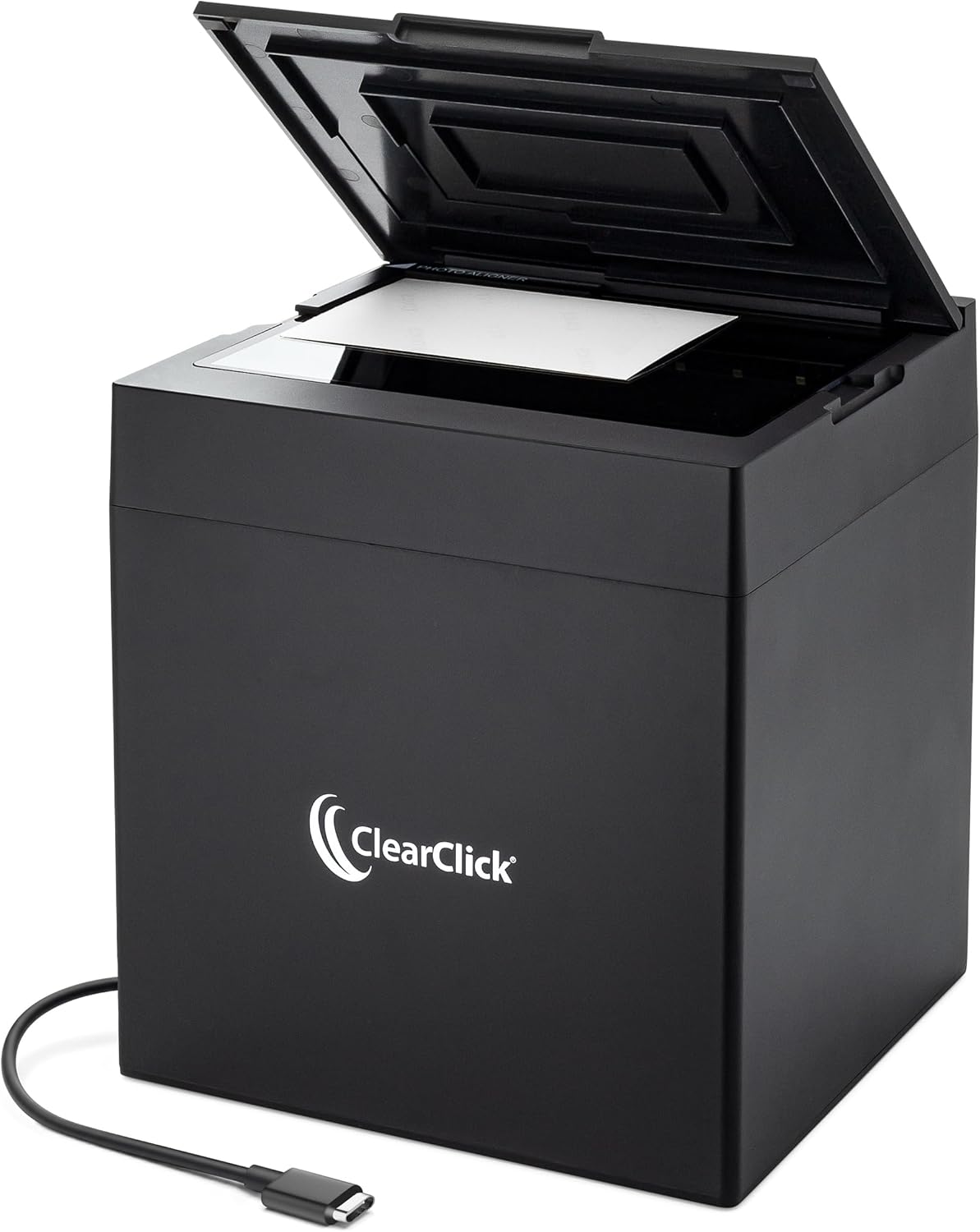
The ClearClick InstaScan is a small desktop photo scanner built to convert stacks of old 4×6 and 5×7 prints into digital images quickly. It uses a built-in 4K camera and internal lighting to capture each photo almost instantly and ships with PC and Mac software for cropping, brightness and contrast adjustments before saving. Setup is simple because it connects over USB-C (USB-A adapter included) and requires no manual driver installs, and the software outputs JPG, PNG, or WEBP files at roughly 2500×1800 pixels after cropping, which corresponds to about 300 DPI. Practical benefits include fast one-click scanning without an automatic feeder, modest editing tools, and USA-based support with a two-year warranty. Important limitations are that it only handles photos and small documents up to 5×7, is not compatible with phones, tablets, or Chromebooks, and image quality relies on the camera and software adjustments rather than high-end flatbed optics, so very fine detail or large-format scans are outside its scope.
Best for: Buyers who want an affordable, no-fuss way to digitize small stacks of printed photos on a PC or Mac without learning complex scanning workflows.
Less Ideal for: Photographers or archivists needing high-resolution archival scans, users who must scan larger prints or full-size documents, or those who need mobile device compatibility.
- Very fast single-photo capture using a built-in 4K camera and internal lighting
- Simple plug-and-play USB setup with no driver installation required
- Included software for cropping and basic image adjustments before saving
- Compatible with Windows and Mac and outputs common image formats (JPG, PNG, WEBP)
- Two-year warranty and USA-based tech support
- Only accepts photos and small documents up to 5×7 and lacks an auto-feeder
- Not suitable for smartphones, tablets, or Chromebook workflows
- Image detail is limited to approximately 300 DPI equivalent and may not match high-end flatbed scanners for fine archival work
Verdict: A budget-friendly, plug-and-play scanner that makes quick digitizing of 4×6 and 5×7 printed photos easy for PC and Mac users.
Plustek ePhoto Z300

| Scanner Type | Document, Photo |
|---|---|
| Connection Type | USB |
| Resolution | 600 dpi x 600 dpi |
| Optical Sensor Technology | CCD |
The Plustek ePhoto Z300 is a single-sheet photo scanner built to digitize prints quickly while protecting fragile originals. It scans common photo sizes (3×5 up to 8×10) and thicker items up to about 0.76 mm by feeding each photo through a soft roller rather than pressing them on a flatbed, which reduces surface contact and the risk of damage. The CCD optical sensor delivers up to 600 dpi resolution with richer color accuracy and better dynamic range than many contact image sensors, and bundled software offers auto-crop, deskew, color restoration and batch naming to speed large runs. Typical use is straightforward: insert photos one at a time and the unit ejects them after a two- to five-second scan depending on size and resolution, making it far faster than a flatbed for large quantities. Limitations include a simplex feed (no duplex needed for photos) and a one-sheet capacity that requires manual feeding, and it is designed for photo and document scanning rather than high-volume document workflows. For preserving and restoring old prints, it balances speed and image quality with a photo-friendly feeding mechanism.
Best for: Buyers who need a reliable, photo-focused scanner to digitize and restore many old prints quickly while minimizing handling damage.
Less Ideal for: People who need unattended high-volume document scanning, or who must scan oversized or very thick originals and bound material.
- Photo-friendly roller feed minimizes contact and reduces risk to fragile or sticky vintage photos
- CCD sensor with up to 600 dpi gives better color accuracy and dynamic range than typical CIS scanners
- Fast per-photo scanning speed (about 2 seconds for 4×6 at 300 dpi) for large batches
- Software includes auto-crop, deskew, color restoration and batch naming to streamline digitizing
- Single-sheet manual feed means continuous hands-on operation for large collections
- Not a flatbed, so it cannot scan very thick or bound items beyond its 0.76 mm limit
Verdict: Choose the ePhoto Z300 when you want a fast, photo-safe scanner with a CCD sensor and image-restoration tools to reliably digitize old prints.
KODAK Slide N Scan Film Scanner
| Resolution | 13MP/22MP (interpolation) |
|---|---|
| Image sensor | 13-megapixel CMOS |
| Connection Type | HDMI, USB |
| Media Type | Negatives, Slide |
| SD Card Support | SD/SDHC up to 32GB |
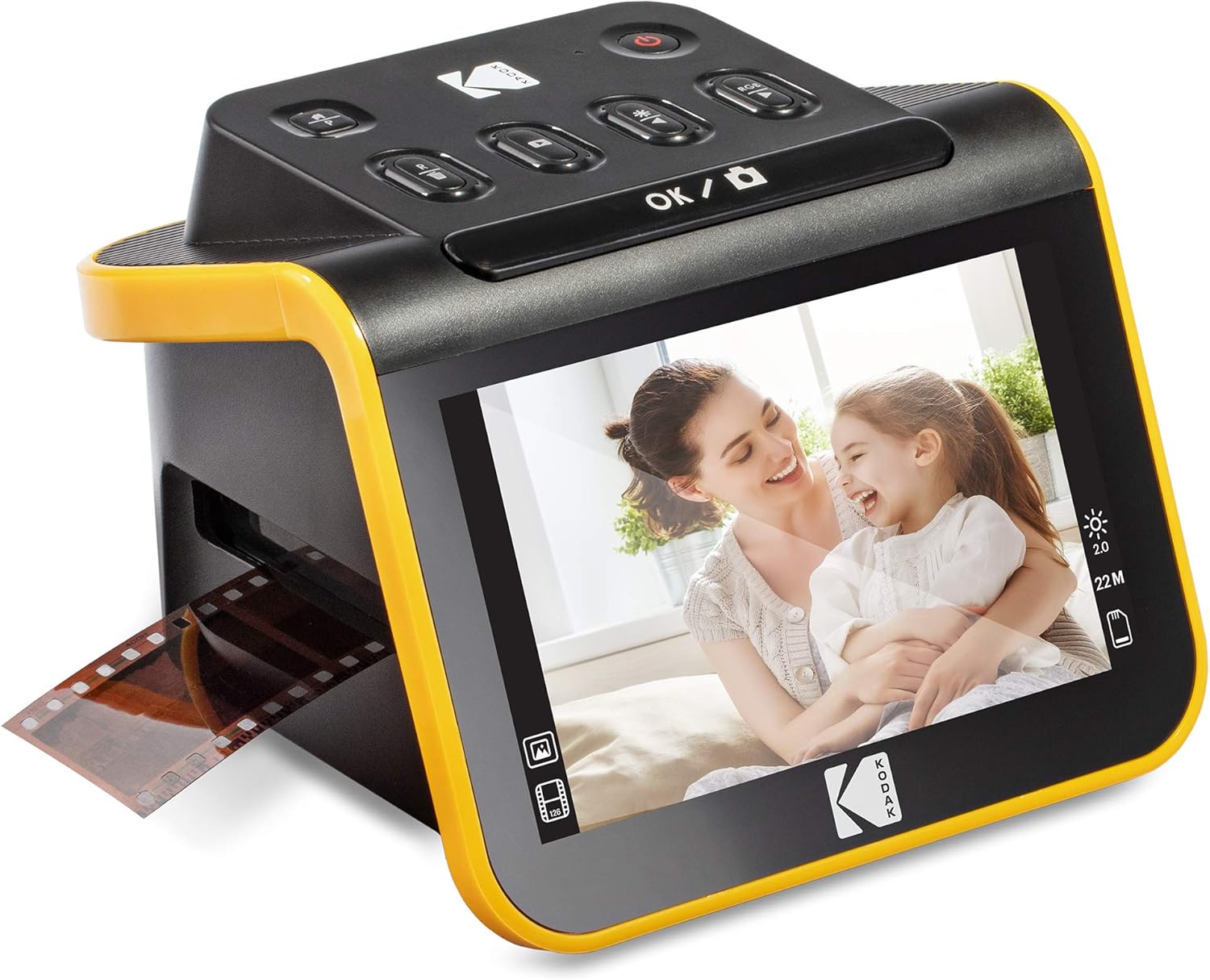
The KODAK Slide N Scan is a purpose-built film and slide scanner that simplifies digitizing old negatives and slides without needing a computer at every step. You load strips or individual slides into the quick-feeding tray or 50mm holder, preview images on the large 5" LCD, then press Scan to save JPEG files to an SD/SDHC card; you can also connect to a PC or TV over USB or HDMI. The unit offers a 13MP sensor with an interpolated 22MP output and one-touch edits for color, brightness and date stamps, which makes it easy to get presentable results quickly. Included adapters for 135, 110 and 126 film plus a cleaning brush reduce setup friction, and gallery mode turns the scanner into a simple desktop photo frame. Expect factory-style, convenient scanning rather than professional-grade restoration: the higher 22MP setting is interpolation rather than true optical resolution, and you must supply your own SD card and, for some setups, a power adapter. For casual archivists who value speed and simplicity, this scanner removes much of the technical hassle of converting legacy film to digital files.
Best for: Buyers who want a fast, low-friction way to convert boxes of old slides and negatives into shareable digital photos without deep technical know-how, and who prefer proven products with broad user adoption.
Less Ideal for: Those seeking professional archival-quality scanning or precise film restoration where native optical resolution and raw output are required should look at higher-end film scanners or lab services instead.
- Large 5-inch LCD for easy previewing and gallery mode
- Quick-feeding tray and included adapters for 135, 110 and 126 film types
- Saves JPEGs directly to SD/SDHC card for fast, computer-free workflow
- USB and HDMI outputs let you transfer images to a computer or display on a TV
- One-touch editing controls for basic color, brightness and date/time adjustments
- 22MP option is achieved via interpolation rather than native optical resolution
- Requires a separate SD/SDHC card and may need an external power adapter in some setups
Verdict: A user-friendly, all-in-one film scanner that gets large batches of old slides and negatives digitized quickly with minimal technical fuss.
ScanSnap iX2500 Photo Edition

| Connection Type | USB, Wi-Fi |
|---|---|
| Resolution | 600 dpi |
| Color Depth | 24 bits |
| Standard Sheet Capacity | 100 |
| Optical Sensor Technology | CIS |
The ScanSnap iX2500 Photo Edition is a high-speed desktop scanner built to digitize photos, documents, receipts, and cards with minimal fuss. It uses a 100-sheet automatic feeder and duplex scanning to process batches quickly and includes dedicated photo carrier sheets to protect delicate prints. Onboard image optimization automatically crops, rotates, restores color, and reduces red-eye so scanned photos need little manual correction, and ScanSnap Home software organizes and can create searchable PDFs or editable Office files. The large 5" touchscreen makes it easy to pick scan profiles and destinations without a computer, and the scanner supports direct scanning to phones, cloud services, Windows, and Mac over USB or Wi-Fi including Wi‑Fi 6. Practical limitations are its lack of a TWAIN driver for some legacy workflows and the unit size and weight that make it more of a desktop appliance than a portable option, but for steady photo scanning tasks it combines speed, protective handling, and automated cleanup to streamline preserving old prints.
Best for: Buyers who want a reliable, fuss-free solution to digitize and preserve large collections of old photos with protective handling and automated image cleanup.
Less Ideal for: People needing a lightweight, portable scanner for occasional use or users requiring TWAIN driver compatibility for legacy software workflows.
- High-speed duplex scanning with a 100-sheet automatic feeder for fast batch work
- Built-in image enhancement (auto rotation, cropping, color restoration, red-eye reduction) tailored for photos
- Includes photo carrier sheets to protect fragile prints during scanning
- 5" touchscreen and ScanSnap Home software simplify profile selection, editing, and cloud/mobile scanning
- Supports Wi‑Fi (including Wi‑Fi 6) and USB for flexible, standalone or connected use
- No TWAIN driver, which may limit integration with some legacy imaging applications
- Desktop footprint and weight make it less suitable for mobile or tightly packed workspaces
Verdict: Choose the iX2500 Photo Edition when you need a fast, protective, and automated desktop scanner to convert large volumes of old photos into clean, organized digital files.
Choosing the Right Photo Scanner for Old Photos: Key Factors to Consider
Image Resolution and Sensor Type
Higher optical resolution lets you preserve fine grain, sharp edges, and small details in old prints and slides. Look for scanners that specify optical resolution rather than interpolated numbers, and prefer dedicated contact or flatbed sensors that capture the original at its true detail. A better sensor and lens assembly will reproduce texture and small features that matter for restoration work.
Resolution choices affect downstream uses. If you plan to crop tightly, make large prints, or retouch defects, higher native resolution gives more data to work with. For simple archiving and sharing, moderate resolution may be acceptable, but never substitute interpolation for true optical detail.
Color Depth and Dynamic Range
Old photos often suffer from faded dyes, color shifts, and limited contrast. Scanners that capture greater bit depth and a wide tonal range provide more information for correcting color casts and recovering shadow and highlight detail. Look for devices that offer at least 24-bit color capture and support for 48-bit or higher workflows when preserving originals matters.
Better color fidelity reduces the need for aggressive post-scan adjustments that can introduce artifacts. A wide dynamic range helps when dealing with prints that have blown highlights or dense shadows from aging, allowing you to balance exposure and recover subtle midtones during editing.
Handling, Transport, and Original Safety
Many older prints are brittle, warped, or delicate along the edges. The scanner's physical handling method impacts how likely damage will occur during digitization. Flatbed scanners let you place photos directly on glass with minimal movement, which is safest for single prints and odd sizes. Sheet-fed and film feeders offer speed but can stress corners and emulsion if guides are rigid or rollers are abrasive.
Consider whether the scanner offers protective mats, adjustable guides, or noncontact options for fragile media. Also check how easy it is to clean the platen and whether the device exposes images to heat or pressure that could accelerate deterioration.
Restoration Tools and Software
Built-in or bundled software often determines how effectively you can remove dust, repair scratches, and correct color shifts. Automated dust and scratch removal can speed throughput, but manual retouching controls are essential for nuanced repairs. Seek scanners with software that supports batch correction, multiple output formats, and non-destructive workflows.
Compatibility with common photo-editing applications and the ability to export high-bit-depth images matters for long-term archives. If you plan to do advanced restoration, ensure the scanner's workflow integrates cleanly with your chosen editing tools.
Throughput and Workflow Efficiency
If you are digitizing large family archives, throughput becomes a practical constraint. Look at how many prints the device can process per hour, whether it supports batch feeding of similar-sized items, and how intuitive the scanning interface is. Faster speeds with poor image quality are a false economy, so balance throughput with the level of detail you need.
Also consider file handling: devices that offer direct-to-file saving, automatic naming, and network or USB connectivity reduce manual steps. Robust file-format options and easy batch naming help when organizing thousands of images.
File Formats and Long-Term Archiving
Long-term preservation benefits from lossless, non-proprietary file formats. Scanners that can save in TIFF or high-bit-depth PNG give you archival-grade files that can be reprocessed in the future. JPEG may be fine for casual sharing, but it introduces compression artifacts and is not ideal for master copies.
Metadata support is also important. The ability to embed scan settings, capture dates, and simple notes helps keep provenance and context with each digital file, which matters for family history and future restoration.
Preparing Prints and Negatives for Scanning
Handle originals with clean, dry hands or cotton gloves to avoid transferring oils. Lay items flat and remove loose dust with a soft brush or an air blower rather than wiping, which can abrade fragile surfaces.
Flatten curled prints gently before scanning by placing them under a heavy book for a few hours when safe, or use a flatbed with a hinged lid that accommodates slight warping. For negatives or slides, use dedicated holders and avoid touching the emulsion side.
- Work in a clean, low-dust workspace.
- Label batches to track originals and scanned files.
- Test a small set of representative items before committing to full batches.
Choosing a Scanning Workflow
Decide whether you want archival masters and separate working copies. Create high-bit-depth TIFF masters for preservation and derive smaller JPEGs for sharing to save space and reduce editing time.
Batch scanning with consistent settings saves time, but scan a few tricky items individually with custom settings. Establish a naming convention and folder hierarchy before you start to avoid duplicates and lost files.
- Master file: high-resolution, lossless format, original scan settings recorded.
- Working file: resized and color-corrected for web or print use.
Simple Restoration Steps After Scanning
Begin with color balance and exposure corrections to neutralize overall casts. Use histogram adjustments and curves to recover detail from highlights and shadows. Avoid overcorrection that flattens tonal variation.
Employ dust and scratch removal tools as a first pass, then switch to manual cloning or healing for areas the automatic tools miss. Work non-destructively with layers so you can revert or refine edits later.
- Correct global issues first, then address local defects.
- Preserve a copy of the original scan before editing.
- Use selective sharpening after restoration to avoid emphasizing noise.
Organizing and Backing Up Digital Archives
After scanning, implement a two-location backup strategy using local and off-site storage. Verify backups by spot-checking files for completeness and integrity.
Include basic metadata for each image: who, when, location, and any context. Good metadata increases the value of your digital archive for future family members and researchers.
- Use consistent folder names and date conventions.
- Consider periodic checksum audits for large archives.
When to Consider Professional Services
Very fragile, extensively damaged, or highly valuable originals may be better handled by conservation or professional digitization services that specialize in delicate media. They have equipment and techniques that minimize risk while achieving high fidelity.
If your archive includes unusual formats or very large-format prints, professional houses can also offer tailored workflows that home scanners cannot match.
- Weigh the cost and risk: professional work may preserve items that home methods could harm.
- Request sample scans and handling protocols before committing irreplaceable originals.
How We Chose the Best Photo Scanner for Old Photos
We focused on attributes that matter when converting fragile, aged prints into reliable digital files. Primary filters included gentle handling and transport methods to reduce the risk of scratches or edge wear during scanning. Image capture performance was another key dimension: optical resolution, color depth, dynamic range, and sensor quality all affect how much detail and tonal nuance a scan preserves. Restoration and software tools were evaluated for effectiveness and ease of use, including dust and scratch removal, color-cast correction, and batch processing. We also considered throughput and workflow: scan speed, batch feeding options, and file-format flexibility for those who want TIFF or RAW archives. Physical size, build quality, and ease of maintenance were secondary but relevant for regular scanning projects. Exclusions: devices that only photograph originals with phones, low-resolution consumer scanners lacking appropriate restoration tools, and models that require specialized service to function were excluded. The final shortlist balances careful handling, high-quality image capture, useful restoration features, and practical throughput for home use.
Our full evaluation process is outlined in our review methodology.
FAQ
Can I use a flatbed scanner for fragile old photos?
Yes. Flatbed scanners are generally the safest option for fragile prints because you place the photo on the glass without feeding it through rollers. They allow careful positioning and minimize stress on edges.
What resolution do I need to scan old family photos?
For typical small prints, aim for at least 3000 to 4000 dpi optical resolution when preserving fine detail, especially if you plan to crop or make large prints. Lower resolutions may suffice for casual sharing.
Is automatic dust and scratch removal reliable?
Automatic tools can handle many common defects quickly but often miss or incorrectly alter complex areas. Use automatic removal as a first pass, then refine with manual retouching for sensitive regions.
Should I save scans as TIFF or JPEG?
Save archival masters as high-bit-depth TIFF files to avoid compression artifacts and preserve editing headroom. Create JPEG derivatives for everyday sharing to save space.
How should I clean the scanner glass before scanning old photos?
Use a soft, lint-free cloth and a mild glass cleaner sprayed onto the cloth, never directly onto the glass. Remove dust with a blower first, then wipe gently to avoid introducing scratches.
Can scanning fix color fading in decades-old prints?
Scanning captures the existing state of the image; color correction tools can compensate for many faded tones and casts, but full reversal depends on how much original color information remains in the print.
Final Verdict
When preserving old photos, prioritize scanners that balance careful physical handling with high optical quality and robust restoration tools. Decide whether your priority is speed or archival fidelity, and choose devices and workflows that support generating lossless master files plus practical working copies. By focusing on image detail, color depth, and safe handling methods, you can create durable digital archives that protect family history for future use.