
Note: This article contains affiliate links. If you click on these links and make a purchase, we may earn a small commission at no extra cost to you. This helps support our research and content. Read our full affiliate disclosure here.
Printing on cardstock changes the rules compared with ordinary paper. You need a machine that feeds thick sheets reliably, lays down ink or toner without smudging, and delivers the color fidelity or sharpness your projects demand. If you work on invitations, business cards, or crafts, the right printer makes the difference between wasted sheets and professional results. This guide lists seven top printers for cardstock that made our shortlist for home and small-studio use. We evaluated them on feed reliability, print quality, and handling of different stock weights to help you find the best fit.
Top Picks at a Glance
| Best Overall The best all-around choice for most situations | HP Envy Photo 7975 |  |
| Best Quality Built to a higher standard if you want something more solid | Epson EcoTank Photo ET-8550 |  |
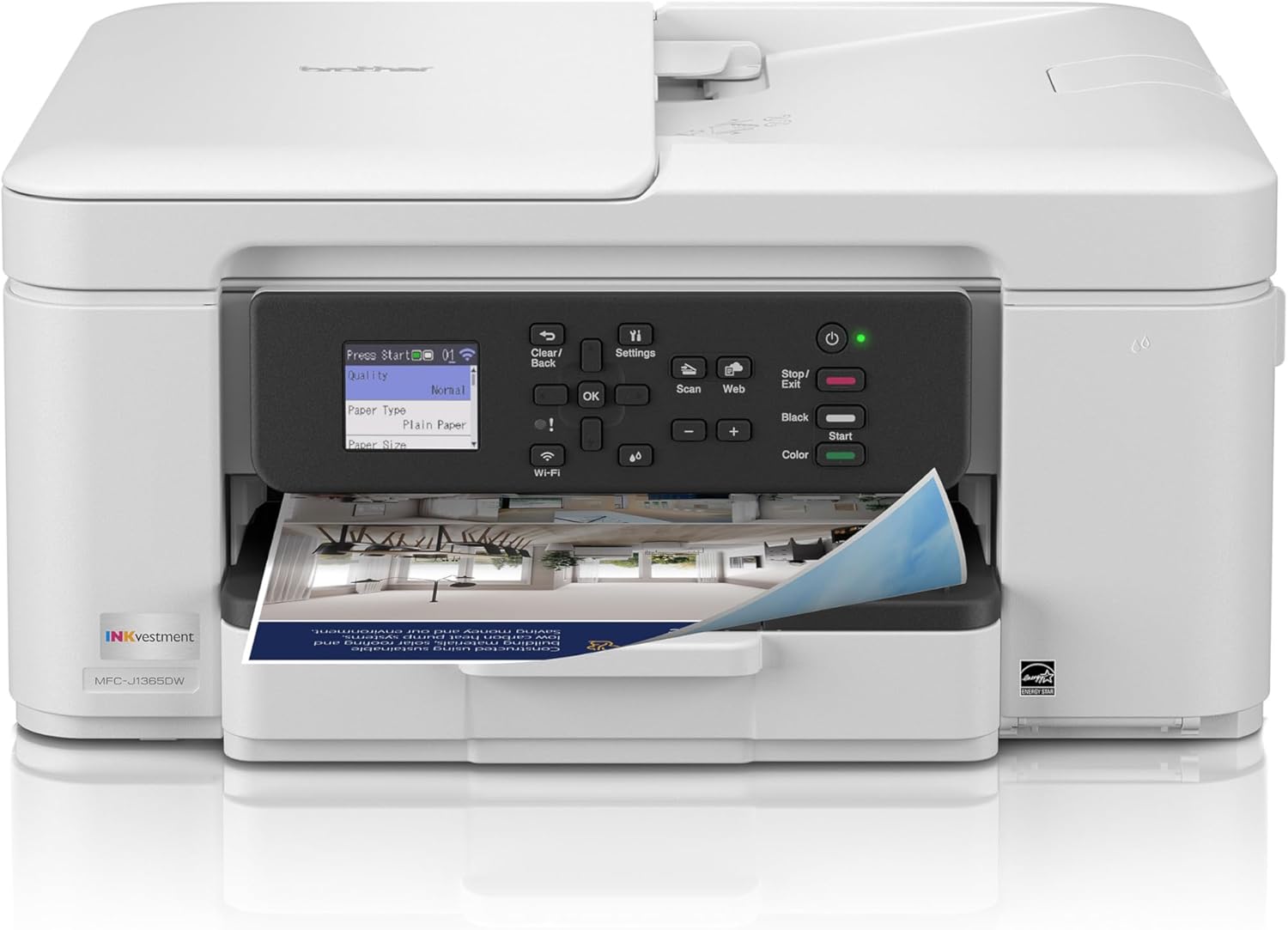
| Best Value The sweet spot between price and what you get | Brother INKvestment MFC-J1365DW |  |
| Best Budget The cheapest option that still gets the job done reliably | Canon PIXMA TS3720 | 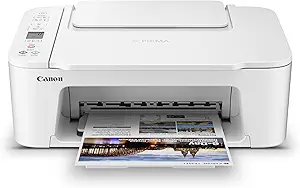 |
| Top Rated A top-rated pick with lots of positive feedback | Epson EcoTank ET-2800 |  |
| Most Popular A crowd favorite that many people choose with confidence | Canon PIXMA TR4720 |  |
| Best Seller A high-volume bestseller chosen again and again | HP OfficeJet Pro 8125e | 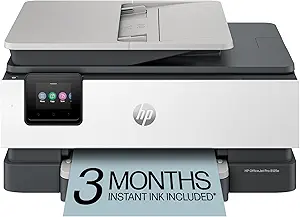 |
HP Envy Photo 7975

| Printer Type | HP Thermal Inkjet |
|---|---|
| Print Resolution | Up to 4800 x 1200 optimized dpi (color) |
| Scanner Type | ADF; Flatbed |
| Printer Connectivity Type | USB, Wi-Fi |
| Duplex | Automatic |
The HP Envy Photo 7975 is a home-focused all-in-one that handles photos, documents and light office tasks with an emphasis on photo quality. It prints up to 4800 x 1200 optimized dpi color and includes a separate photo tray and borderless printing for edge-to-edge photos, while a 35-sheet automatic document feeder and flatbed scanner cover copying and scanning needs. Setup and everyday use are simplified by a 2.7-inch color touchscreen plus Wi-Fi and mobile printing; HPs AI formatting can clean up web pages and emails before printing. For cardstock use the dedicated photo tray and high color resolution produce vivid, true-to-screen results, though sheet capacity is modest and heavier cardstock may need manual feed and slower speeds. Ink uses HP 64/64XL cartridges, so ongoing cost depends on cartridge choice and photo-printing frequency. Automatic duplexing and a 125-sheet maximum paper capacity make it practical for mixed home projects but not optimized for high-volume cardstock runs.
Best for: Buyers who want a single home printer that produces high-quality photos and can handle occasional cardstock and craft projects while remaining easy to use and networked.
Less Ideal for: Do not choose this if you need a production printer for frequent, high-volume cardstock printing or a dedicated commercial photo lab workflow.
- High color resolution up to 4800 x 1200 optimized dpi for detailed, vibrant photos
- Separate photo tray and borderless printing for edge-to-edge photo and cardstock projects
- Automatic duplex and 35-sheet ADF add convenience for everyday document tasks
- 2.7-inch color touchscreen and Wi-Fi/mobile printing simplify setup and operation
- Not designed for heavy continuous cardstock runs due to limited sheet capacity and manual feeding for thicker stock
- Uses HP 64/64XL cartridges so photo-heavy use can be costly over time
Verdict: A user-friendly home all-in-one that delivers photo-quality prints and can accommodate occasional cardstock projects with good color detail.
Epson EcoTank Photo ET-8550

| Printer Type | Inkjet |
|---|---|
| Maximum Media Size | 13 x 19 inch |
| Print Resolution (Color) | 1440 dots_per_inch |
| Color Pages per Minute | 12 pages_per_minute |
| Duplex | auto |
The Epson EcoTank Photo ET-8550 is a wide-format inkjet all-in-one that targets users who need lab-quality color photos and heavy printing without frequent cartridge swaps. It uses a six-color Claria ET Premium refillable ink system and high-resolution MicroPiezo printing to produce sharp, detailed prints up to 13 x 19 inches and supports a range of media including glossy photo paper and cardstock up to 1.3 mm thick. The refillable bottles dramatically reduce the need for replacements and lower per-photo costs, while built-in scanner and copier functions and automatic duplexing add everyday convenience. Connectivity includes USB and mobile printing control via iOS/Android apps, and the printer delivers up to 12 ppm in color and 16 ppm black-and-white for reasonable throughput on mixed jobs. Expect excellent color depth and photographic detail, but note the unit is sizable and consumes typical printer power during operation, so it fits best in a dedicated workspace rather than a small desk. For high-volume photo and cardstock projects this model balances image quality with low running costs.
Best for: Photographers and creators who prioritize high-quality wide-format photo and cardstock printing while keeping long-term ink costs low and want an all-in-one that handles mixed media reliably.
Less Ideal for: Casual users who only print occasional documents or who need a compact, space-saving desktop printer should consider smaller models instead.
- Cartridge-free EcoTank system cuts per-page and per-photo ink costs with high-capacity refill bottles
- Six-color ink set and high maximum resolution produce strong color accuracy and fine photographic detail
- Wide-format support up to 13 x 19 inches and ability to print on cardstock up to 1.3 mm thick
- Includes scanner and copier plus automatic duplexing for versatile in-house workflows
- Large physical footprint makes it less suitable for small desks or tight work areas
- Higher upfront size and complexity compared with small photo-only printers
Verdict: Choose the ET-8550 if you need wide-format, photo-grade prints and reliable cardstock handling while minimizing long-term ink costs.
Brother INKvestment MFC-J1365DW
| Printer Type | Inkjet |
|---|---|
| Duplex | Automatic |
| Maximum Sheet Capacity | 150 |
| ADF Capacity | 20-sheet |
| Color Pages per Minute | 9 ppm |
The Brother INKvestment MFC-J1365DW is a small footprint all-in-one inkjet designed for home and small-office use that balances features and running-cost value. It prints both color and black-and-white, copies and scans using a flatbed plus a 20-page single-sided ADF, and supports automatic two-sided printing to save paper. Connectivity includes Wi-Fi, Wi‑Fi Direct and USB, and the 1.8" color display plus Brother Mobile Connect make setup and mobile printing straightforward. In practical use it handles day-to-day tasks like multi-page document scans, duplex reports, and occasional color job on heavier paper; the 150-sheet tray and included starter ink (high-yield black and standard color yields) help reduce refill frequency. Print speeds favor text work more than photo jobs, and while color output is serviceable for cardstock craft or invitations, expect typical inkjet limitations on very thick or coated cardstock and higher per-page ink cost compared with laser options. Page Gauge and Refresh subscription help monitor and manage ink usage if you print heavier volumes.
Best for: Buyers who want a space-efficient, budget-conscious all-in-one for regular home or small-office printing and occasional cardstock projects where duplexing and mobile printing matter.
Less Ideal for: People who need professional photo-quality prints on thick coated cardstock or very high-volume batch printing should consider a dedicated photo or higher-capacity printer instead.
- Automatic duplexing and 20-sheet ADF speed up multi-page workflows
- Wi‑Fi, Wi‑Fi Direct and USB make mobile and local printing easy
- 150-sheet tray reduces how often you refill paper for typical home/office use
- Includes starter cartridges with relatively high page yields and Page Gauge to track ink
- Compact footprint fits small desks or craft stations
- Inkjet output can struggle on very thick or heavily coated cardstock compared with specialty printers
- Color printing costs are higher than comparable laser or commercial print services
- No large multi-tray capacity for high-volume batch runs
Verdict: A compact, feature-rich all-in-one that gives practical duplexing, mobile connectivity, and decent cardstock-capable color output for budget-minded home and small-office users.
Canon PIXMA TS3720

| Printer Type | Inkjet |
|---|---|
| Maximum print Resolution Color | 4800 x 1200 dots_per_inch |
| Color Pages per Minute | 4 pages_per_minute |
| B&W Pages per Minute | 7.7 pages_per_minute |
| Printer Connectivity Type | USB, Wi-Fi |
The Canon PIXMA TS3720 is a compact all-in-one inkjet that handles printing, copying and flatbed scanning for everyday home tasks. It uses a two-cartridge FINE hybrid ink system with pigment black and dye color inks, which yields sharp text and good-looking photos at up to 4800 x 1200 dpi; borderless photo printing up to 5 x 7 inches is supported. Setup and mobile printing are straightforward via the Canon PRINT app, AirPrint and Mopria, and Wi‑Fi or USB connection options make it easy to place on a small desk or shelf. The rear tray holds up to 60 sheets and the printer produces roughly 7.7 monochrome or 4 color pages per minute, so it is best for occasional to moderate home use rather than high-volume office jobs. Expect single-sided printing only and basic controls on the small 1.5 inch LCD, and plan for regular cartridge replacements if you print a lot of cardstock or photos. For users who need an affordable, space-saving machine that prints decent photos and documents from mobile devices, the TS3720 covers the essentials well.
Best for: A budget-focused home user who wants a small, easy-to-set-up all-in-one for documents and occasional photos and values mobile printing and compactness over high throughput.
Less Ideal for: Those who need high-volume duplex printing, a large paper capacity, or the lowest long-term ink costs for frequent cardstock or photo production should consider a different model.
- Compact footprint that fits small home workspaces
- Easy wireless and mobile printing via Canon PRINT, AirPrint and Mopria
- Two-cartridge hybrid ink system produces sharp text and good color photos
- Supports borderless photo printing and a variety of media types
- Rear tray holds up to 60 sheets for light batch jobs
- Single-sided (simplex) printing only
- Modest paper capacity and moderate print speeds not ideal for heavy volume
- Two-cartridge system can lead to higher ink costs with frequent photo or cardstock use
Verdict: An affordable, compact all-in-one that delivers good-looking documents and occasional photos for budget-conscious home users who need simple wireless printing.
Epson EcoTank ET-2800

| Printer Type | Inkjet |
|---|---|
| Functions | Print, Copy, Scan |
| Connectivity | USB, Wi‑Fi |
| Max Color Resolution | 5760 x 1440 dpi |
| Print Speed (B&W) | 10 ppm |
The Epson EcoTank ET-2800 is a home-focused all-in-one that replaces cartridges with large refillable ink tanks so you can print many pages between bottle refills. It handles document and photo printing, flatbed scanning, and copying, and connects over Wi-Fi or USB with app control and basic voice-activated printing. Ink bottles yield far more pages than cartridges, lowering ongoing costs and reducing interruptions during larger print runs. Print quality is sharp thanks to PrecisionCore/Micro Piezo heat-free technology and high resolution, and the ET-2800 can produce borderless photos and standard documents reliably at up to 10 ISO ppm for black and 5 ppm for color. The machine is simplex only and lacks an automatic document feeder or duplexing, so two-sided jobs require manual flipping. Paper capacity tops out around 100 sheets, and while the printer supports envelopes and photo sizes it is a basic tray design rather than a heavy-duty media feed. For users who prioritize dependable, low-cost everyday printing from a compact home printer, the EcoTank delivers consistent output; if you need built-in duplexing or high-volume office features, consider a different model.
Best for: Buyers who want a dependable, low-maintenance home printer that minimizes ink changes and delivers consistent everyday document and photo prints.
Less Ideal for: Those who need built-in two-sided printing, an automatic document feeder, or a high-capacity tray for heavy office workloads should look at higher-end models.
- Cartridge-free refillable ink tanks for much longer runs between replacements
- Low running cost with high-yield ink bottles (equivalent to many cartridges)
- High print resolution for sharp text and detailed color prints
- Wireless and app-based control plus voice-activated printing for easy home use
- No automatic duplex printing so two-sided prints require manual flipping
- Modest 100-sheet tray and no ADF limits heavy or multi-page workflows
Verdict: Choose the EcoTank ET-2800 if you want a reliable, low-running-cost home all-in-one that reduces ink changes and delivers consistent everyday prints.
Canon PIXMA TR4720

| Printer Type | Inkjet |
|---|---|
| Maximum Media Size | 8.5 x 11 inch |
| Maximum Sheet Capacity | 100 |
| Printer Connectivity Type | USB, Wi-Fi |
| Duplex | Automatic |
The Canon PIXMA TR4720 is a small-format wireless all-in-one inkjet built for home and light office tasks; it prints, copies, scans and faxes and adds a 100-sheet front tray with an auto document feeder for multi-page jobs. Setup is straightforward with the Canon Print app and Wi-Fi support, and the hybrid ink system produces sharp black text and usable color photos and borderless prints up to letter size. Automatic two-sided printing and the ADF save time and paper when processing multi-page documents. Print speeds are modest — about 8.8 ipm black and 4.4 ipm color — so it is better for occasional heavy pages than high-volume daily throughput. The TR4720 accepts Canon CL-276 and PG-275 cartridges and has a simple 2-line LCD and basic controls rather than a touchscreen. For cardstock specifically, the printer can handle up to letter-size media and borderless photos, but its compact paper path and standard tray mean very thick cardstock or frequent heavy-stock runs may feed less reliably than dedicated photo or craft printers.
Best for: Buyers who want an affordable, space-saving all-in-one that handles occasional short runs of specialty paper and everyday documents while prioritizing straightforward setup and reliable basic print quality.
Less Ideal for: Crafters or small businesses that need frequent, heavy-duty cardstock printing, wide-format photos, or the fastest page-per-minute performance should look at dedicated photo or production-oriented printers.
- True 4-in-1 function: print, copy, scan and fax in one compact unit.
- Auto document feeder and automatic duplex reduce manual handling for multi-page jobs.
- Wireless printing and Canon Print app make mobile and cloud printing straightforward.
- Front 100-sheet tray supports moderate batches without constant refilling.
- Print speeds are relatively slow compared with higher-end home office models.
- No touchscreen or advanced control panel for in-device workflow management.
- Not optimized for very thick cardstock or high-volume heavy-stock printing.
Verdict: Choose the PIXMA TR4720 if you want a compact, easy-to-use all-in-one that handles occasional cardstock and everyday documents with reliable basic print and mobile-friendly connectivity.
HP OfficeJet Pro 8125e

| Print Resolution | 4800 x 1200 optimized dpi |
|---|---|
| Color Speed | 10 pages per minute |
| B&W Speed | 20 pages per minute |
| Maximum Sheet Capacity | 225 |
| Duplex | Automatic (standard) |
The HP OfficeJet Pro 8125e is an all‑in‑one inkjet built for home and small office workflows where reliable color printing and scanning matter. It prints up to 10 ppm in color and 20 ppm in black, supports automatic two‑sided printing and a 1‑sided ADF for batch scans, and includes a 225‑sheet input tray so you can load larger jobs without constant refills. Its connectivity options include dual‑band Wi‑Fi, AirPrint, Ethernet and USB, and the HP app plus AI formatting tools help clean up web pages and emails before printing. For heavier media like cardstock, the printer handles standard media sizes up to 8.5 x 11.7 inches and a 60‑sheet output; print resolution up to 4800 x 1200 optimized dpi gives good color detail on coated stock. Expect the usual inkjet limits: cardstock handling is fine for short runs and occasional projects but slower speeds, increased ink usage, and careful manual feeding may be needed for heavier or textured papers. The included setup cartridges and optional Instant Ink via HP+ simplify getting started, and built‑in security and energy certifications are useful for cautious buyers.
Best for: Buyers who want a dependable all‑in‑one for home or small office projects that occasionally include cardstock and who prioritize ease of setup, app control, and security features.
Less Ideal for: Not the best choice for users who need high‑volume or industrial cardstock printing or frequent heavy‑weight media where a dedicated heavy‑paper tray or a color laser would be more efficient.
- Good print resolution up to 4800 x 1200 optimized dpi for detailed color prints
- Automatic duplexing and a 1‑sided ADF for convenient two‑sided printing and batch scanning
- 225‑sheet input capacity reduces paper refills for medium‑size jobs
- Multiple connectivity options including dual‑band Wi‑Fi, Ethernet, AirPrint and USB
- AI formatting tools and HP app simplify mobile printing and cleaning up web content before printing
- Not a purpose‑built heavy cardstock feeder so very thick or textured stock may require manual single‑sheet feeding
- Ink usage can be high for saturated color prints on heavy paper
- Larger print runs on cardstock will be slower than on laser printers
Verdict: A reassuring, app‑friendly all‑in‑one that handles occasional cardstock projects with good color quality while keeping setup and connectivity simple for risk‑averse buyers.
Choosing the Right Printer for Cardstock: Key Factors to Consider
Media Weight and Thickness Range
Cardstock comes in a range of weights and thicknesses, often expressed in pounds or grams per square meter. Choosing a printer that explicitly supports the weight of your stock is essential. When a device lists a maximum media weight, that reflects the combined capabilities of its feed system, platen clearance, and fusing or drying process.
If you plan to print very stiff or heavy sheets, look for devices with a straight paper path or a rear-feed option that reduces bending. Also confirm whether the machine requires a manual setting change for thicker media versus an auto-detect feature. Incorrect settings can cause insufficient ink transfer, poor registration, or jams that mar multiple sheets.
Feed Mechanism and Media Path
How a printer moves paper matters more with heavy stock. Trays that force cardstock through tight curves or rollers designed only for standard office paper are common sources of problems. Manual feed slots, straight-through duplex paths, and rear or top-feed options keep cardstock flatter and reduce curl.
Assess whether the device supports single-sheet manual feeding, a dedicated heavy-media tray, or straight-through exit paths. For frequent cardstock jobs, a robust manual feed with clear thickness adjustment will reduce misfeeds and mechanical stress on rollers.
Print Technology and Ink/Toner Behavior
Inkjet and laser technologies interact with cardstock differently. Inkjet can deliver richer color and smoother gradients but needs inks that sit on the surface without excessive soak or feathering. Quick-drying or pigment-based inks are generally better for card stock and reduce smudging, particularly when printing double-sided.
Laser printers fuse toner to the page, which often reduces smudge risk and can handle heavier stock without waiting for drying. However, heat-based fusing requires sufficient platen clearance and compatible coatings on the cardstock. Consider your need for vibrant color versus quick handling and choose a technology that matches your workflow.
Color Accuracy and Resolution
For invitations, photo cards, or marketing materials, color accuracy matters. Look beyond nominal DPI numbers and examine how a printer reproduces solid fills, gradients, and small text on thick substrates. Cardstock can alter perceived saturation and contrast because of its weight and finish, so a device with good color management settings and ICC profile support will give more predictable results.
If you need exact color matching, check whether the printer supports custom profiles or manual color adjustments. Consistent output across runs is important when producing multiple copies.
Double-Sided Printing and Alignment
Printing double-sided on cardstock is a common requirement, but it is more demanding than single-sided output. Heavy sheets are harder to flip precisely, and registration misalignment can be more noticeable. Printers that advertise duplexing for heavy media or that provide a manual duplex workflow with alignment guides are preferable.
Consider whether you will duplex frequently. If so, evaluate how the device handles feeding the same sheet back through the path and whether it keeps consistent margins and registration across both sides.
Operational Practicalities and Maintenance
Using cardstock regularly affects everyday maintenance needs. Thicker media can accelerate wear on feed rollers and require occasional cleaning to prevent scuffs or tracking marks. Look for printers with accessible feed paths and straightforward maintenance procedures.
Also think about how easy it is to change media settings, load single sheets quickly, and clear occasional jams. Availability of adjustable guides, a clear manual-feed tray, and accessible rollers will reduce downtime and frustration for frequent cardstock users.
Preparing Cardstock for Best Results
Before feeding cardstock, handle sheets carefully to avoid fingerprints or dust that show up in prints. Store stock flat and allow it to acclimate to room temperature and humidity to prevent warping that can cause jams or misfeeds. If your supplier ships cardstock stacked tightly, fan the stack gently to reduce adhesion between sheets.
Adjust the printer settings to match the exact media type and weight. Use the manufacturer's heavy-media or cardstock setting when available and choose the appropriate paper finish. When printing high-density color areas, reduce ink saturation slightly or select a setting designed for heavy paper to avoid pooling and extended drying time.
- Fan and flatten sheets before loading
- Use manual feed for single sheets to reduce jams
- Select matching media type and weight in driver
Choosing Between Inkjet and Laser for Cardstock
Inkjet printers often produce superior color gradients and photo-like results, but ink soak and drying time on heavy stock can be an issue. Pigment inks typically sit on the surface better than dye inks and resist smudging, which is an advantage for cards and invitations.
Laser printers use toner fused to the sheet, which can handle heavier media without drying delays and usually offers excellent durability for business cards, labels, and postcards. Ensure your chosen laser unit lists compatible media weights and has a media path that minimizes sheet bending.
- Inkjet: better color depth, watch drying and ink type
- Laser: fast handling and smudge resistance, check fusing clearance
How to Load and Align Single Sheets
Load single sheets using the designated manual feed or rear feed. Align the sheet against guides without forcing it past its natural rest point. Over-tight guides can cause skewing; under-tight guides allow slippage. For critical jobs, align a test sheet and print only one page to verify margins and orientation before printing a full run.
If producing multiple copies, label the first sheet and note the exact placement so you can replicate the load process consistently. Use the printer's preview or alignment tools if available to fine-tune placement.
- Always use the manual feed for individual sheets
- Run a single-sheet test before batch printing
- Mark a reference sheet to repeat exact placement
Finishes, Coatings, and Special Cardstock
Cardstock finishes impact ink adhesion and visual outcome. Uncoated stock absorbs ink more, which can mute colors and increase drying time. Coated and semi-coated sheets keep ink on the surface for brighter output but may require special inks or laser compatibility checks. Some specialty papers like pearlescent or textured stock need gentle handling and may not feed reliably through all devices.
When using coated or specialty stock, consult the media-associated settings in the driver and run a few test prints. If you plan to apply overlaminates or embossing after printing, consider how the printer's output will accept those post-print processes.
- Uncoated: softer look but more ink absorption
- Coated: brighter color, may need pigment inks
- Specialty stock: test for feed reliability first
Workflow Tips for Small Runs Vs. Large Batches
For small runs or one-off projects, single-sheet manual feeding and taking time to set media settings is workable. Expect a slightly slower throughput for heavy sheets, and plan for drying time with inkjet jobs.
For larger batches, prioritize a machine with a dedicated heavy-media tray or a reliable straight-through path to maintain throughput and reduce handling. Also plan periodic maintenance checks during long runs to prevent guide drift and roller wear.
- Small runs: manual feed and careful settings
- Large batches: dedicated tray and regular maintenance
- Monitor for feed marks or wear during extended jobs
How We Chose the Best Printer for Cardstock
We focused on attributes that matter specifically when printing on heavy stock, not general office use. Our shortlist emphasizes mechanical feed systems and media handling first. We checked recommended cardstock weight ranges and how printers accept single-sheet manual feeds or straight-through paths to minimize bending and jams. Print quality was assessed by examining how well devices render solid fills, fine text, and small graphics on thicker substrates. Drying and smudge resistance for ink models plus toner adhesion for laser units were also considered. Durability and build quality were weighed because heavier media and repeated manual feeding stress rollers and trays. Additional filters excluded devices rated only for light office paper or those lacking a manual feed or rear feed path. We prioritized machines that balance consistent heavy-stock handling, dependable color or monochrome output, and straightforward adjustments for media thickness.
Our full evaluation process is outlined in our review methodology.
FAQ
What paper weight is safe to run in a printer for cardstock?
It depends on the model, but many machines support common cardstock weights up to around 200 to 300 gsm. Always check the device's specified maximum media weight and use manual feed or rear-feed options for heavier sheets to reduce jams.
Can I duplex print on heavy cardstock without alignment issues?
Duplexing on heavy stock is possible but more challenging. Printers with explicit heavy-media duplex support or manual duplex workflows with alignment guides produce the best results. Expect to run small tests to confirm registration before a full batch.
Are pigment inks better than dye inks for cardstock?
Pigment inks generally sit on the surface and resist smudging more than dye inks, making them better for many cardstock applications. However, dye inks can offer more vivid colors on certain coated stocks, so testing with your specific paper is recommended.
How can I prevent smudging when using an inkjet printer?
Use quick-drying or pigment-based inks, select a driver setting intended for heavy or coated paper, and allow printed sheets to dry flat before stacking. Reducing ink saturation in heavy color areas can also help reduce pooling and smearing.
Will printing cardstock wear out my printer faster?
Frequent use of heavy media can increase wear on feed rollers and guides because of the greater mechanical stress. Regular cleaning and occasional roller checks mitigate this, and choosing a device with accessible maintenance points helps extend service life.
Final Verdict
When choosing a printer for cardstock, start with the media weight range and feed path. Prioritize devices that explicitly support the thickness you need and offer manual or straight-through feeding to reduce jams and bending. Balance your need for color fidelity against drying time and smudge risk when choosing between inkjet and laser technologies. Ultimately, pick a model whose handling, maintenance features, and media settings match the volume and finish of the projects you plan to produce.