
Note: This article contains affiliate links. If you click on these links and make a purchase, we may earn a small commission at no extra cost to you. This helps support our research and content. Read our full affiliate disclosure here.
Picking the right printer for scrapbooking changes how your finished pages look and how much time you spend wrestling with materials. A good craft printer must balance color fidelity, paper handling, and archival inks so photos, embellishments, and patterned papers print accurately without jams or edge defects. This guide covers seven shortlisted printers that suit a range of scrapbook workflows, from weekend hobbyists to serious memory-keepers. Below we outline the criteria we used to evaluate options and what matters when pairing a printer with specialty papers and adhesives, then summarize practical pros and cons to help you pick the best fit for your craft setup.
Top Picks at a Glance
| Best Overall The best all-around choice for most situations | Liene 4×6 Photo Printer DHP513 |  |
| Best Quality Built to a higher standard if you want something more solid | Epson EcoTank Photo ET-8550 |  |
| Best Value The sweet spot between price and what you get | Canon PIXMA TS4320 |  |
| Best Budget The cheapest option that still gets the job done reliably | mafiti X6 Thermal Pocket Printer |  |
| Top Rated A top-rated pick with lots of positive feedback | Fujifilm Instax Mini Link 2 |  |
| Most Popular A crowd favorite that many people choose with confidence | KODAK Step Instant Photo Printer |  |
| Best Seller A high-volume bestseller chosen again and again | Nelko PP01 Portable Photo Printer |  |
Liene 4×6 Photo Printer DHP513

| Printer Type | Dye Sublimation |
|---|---|
| Maximum Media Size | 4 x 6 inch |
| Maximum Sheet Capacity | 20 |
| Printer Connectivity Type | USB, Wi-Fi |
| Maximum print Resolution Color | 300 x 300 dpi |
The Liene DHP513 is a portable dye-sublimation 4×6 photo printer aimed at producing durable, water- and scratch-resistant prints from smartphones and PCs. It connects via built-in Wi‑Fi hotspot or USB‑C and works with the Liene app for basic editing, templates, and print control. Setup is straightforward: load the single compatible color cartridge and the 4×6 glossy paper cassette, then print directly from your device or app. Print quality is the standout here — dye-sublimation yields vibrant, laminated photos with a 300 x 300 dpi effective resolution and a one-minute initial print time, which is reasonable for high-quality 4×6 output. The unit holds up to 20 sheets in the cassette, so frequent projects require replenishing paper and cartridges. It is compact and easy to store, and supports up to five simultaneous device connections for quick sharing. Limitations include modest print speed and the reliance on proprietary cartridges and paper, which increases running cost compared with generic inkjet photo printing. There is also no scanning or advanced photo lab features, so it is best used for direct photo printing and craft projects rather than high-volume commercial work.
Best for: Crafters and scrapbookers who want easy, high-quality 4×6 prints from phones or laptops and value durable, ready-to-attach photos over low per-page cost.
Less Ideal for: People who need fast high-volume printing, multifunction office features, or who prefer printers that accept widely available third-party inks and paper.
- Dye-sublimation printing produces durable, laminated 4×6 photos with vibrant colors.
- Built-in Wi‑Fi hotspot and USB‑C let you print directly from phones, tablets, and computers without a router.
- Includes app with simple editing, templates, and print controls for on-the-fly customization.
- Compact, minimalist design that is easy to store and move for scrapbooking sessions.
- Uses proprietary cartridges and photo paper, which raises ongoing supply costs.
- Maximum sheet capacity of 20 means frequent paper changes for larger projects.
Verdict: If you want straightforward, durable 4×6 photos for scrapbooks printed directly from your phone, this compact dye-sublimation unit delivers reliable, print-ready images.
Epson EcoTank Photo ET-8550

| Printer Type | Inkjet |
|---|---|
| Print Colors | 6-color Claria ET |
| Maximum Media Size | 13 x 19 inch |
| Color Resolution | 1440 dpi (color) |
| Connectivity | USB, wireless (mobile support) |
The Epson EcoTank Photo ET-8550 is a wide-format inkjet all-in-one built for photo enthusiasts who need lab-quality prints without frequent cartridge changes. It uses a 6-color Claria ET Premium refillable ink system and a high-accuracy printhead to produce sharp, color-rich photos up to 13 x 19 inches and even print on thicker media and printable discs. Typical use is printing borderless photos, proofing scrapbook layouts, and scanning or copying photos for archiving; mobile and USB connectivity plus an app and touch controls make it easy to print from phones and PCs. Notable benefits include very low running costs thanks to high-yield ink bottles, strong color and resolution for detailed images, and automatic duplexing for two-sided documents. Important limitations are its relatively large footprint and modest print speeds for color photo jobs, and Epson recommends genuine ink for best results which limits third-party ink options. For dedicated crafters, the ET-8550 balances professional-looking output with much lower ongoing ink expense compared with cartridge printers.
Best for: Photography-focused crafters and scrapbookers who prioritize print quality and low long-term ink costs and plan to produce oversized or frequent photo prints at home.
Less Ideal for: Casual users who only print occasionally, need a compact desktop printer, or require the fastest page-per-minute document throughput.
- True wide-format photo printing up to 13 x 19 inches for scrapbook layouts and oversized prints
- Six-color Claria ET Premium ink set for improved color accuracy and smoother gradations
- Cartridge-free refillable ink tanks greatly reduce running costs and refill frequency
- Scanner and copier included for archiving and reproducing photos without extra equipment
- Wireless mobile printing support and touch/app controls simplify printing from smartphones and tablets
- Large physical footprint compared with standard home photo printers
- Color photo print speeds are moderate, so large batches take time
- Manufacturer strongly recommends genuine ink which limits use of third-party bottles
Verdict: Choose the ET-8550 if you want lab-quality, wide-format photo prints with very low running costs for extensive scrapbooking and photo projects.
Canon PIXMA TS4320

| Printer Type | Inkjet |
|---|---|
| Duplex | Automatic |
| Maximum print Resolution Color | 1200 x 1200 dots_per_inch |
| Printer Connectivity Type | USB, Wi-Fi |
| Maximum Sheet Capacity | 100 |
The Canon PIXMA TS4320 is a small, budget-friendly all-in-one inkjet that handles everyday documents and casual photo projects with a simple, app-driven workflow. It prints color and black-and-white pages, scans on a flatbed, and offers automatic duplexing to save paper; connectivity includes USB and dual-band Wi‑Fi for mobile printing via Canon PRINT, AirPrint, or Mopria. The two-cartridge hybrid ink system produces sharp text and reasonably vibrant photos at modest resolutions up to 1200 x 1200 dpi, and the 100-sheet input matches light home use rather than high-volume runs. For scrapbooking, it supports a variety of media types including glossy photo paper, card stock, and labels, so you can print photos, journaling cards, and decorative elements without extra complexity. Limitations for serious scrapbookers are its lack of an ADF, no dedicated photo tray, and moderate print speeds, so large batches or heavyweight media beyond typical card stock may require patience and manual feeding.
Best for: Craft hobbyists who prioritize a compact, easy-to-use printer for occasional photo prints and paper craft elements and who value straightforward wireless printing and duplexing.
Less Ideal for: Scrapbookers who routinely print large photo batches, heavy specialty papers, or need fast production should consider higher-end photo printers with dedicated trays and faster throughput.
- Automatic duplex printing reduces paper use for multi-page projects
- Dual-band Wi‑Fi and mobile printing support make it easy to print from phones and tablets
- Accepts card stock, glossy photo paper, and labels useful for scrapbooking elements
- Compact footprint fits into small craft spaces
- No automatic document feeder or dedicated photo tray limits batch scanning and heavy media handling
- Moderate print speed and two-cartridge system may be slower and less economical for high-volume photo printing
Verdict: A compact, budget-friendly all-in-one that fits casual scrapbooking needs by printing photos and card-stock elements easily from mobile devices while saving paper with automatic duplexing.
mafiti X6 Thermal Pocket Printer

| Printer Type | Thermal |
|---|---|
| Printer Connectivity Type | Bluetooth |
| Print Resolution | 200 x 200 dpi |
| Paper Size | 57 millimeters |
The mafiti X6 is a tiny, battery-powered thermal pocket printer designed for instant inkless printing of black-and-white labels, receipts, and small photos directly from iOS or Android devices over Bluetooth. It is typically used for scrapbooking, journaling, labeling and quick on-the-go prints where portability matters — the built-in 800 mAh battery and small footprint let you tuck it into a bag and print without cords. The companion Tiny Print app adds templates, OCR and creative tools so you can format captions, stickers and simple graphics before printing. Practical benefits include low running cost because it uses thermal rolls (included) and easy setup via Bluetooth. Limitations to keep in mind are monochrome output, low resolution compared with dedicated photo printers, small maximum media size (57 mm wide) and modest sheet capacity, so it is best for accent prints and labels rather than full-size photo pages or high-detail images.
Best for: Crafters and scrapbookers on a budget who want a pocketable, low-cost way to print small labels, captions and accent photos from their phone while working on layouts or albums.
Less Ideal for: Users who need full-color, high-resolution photos or larger-format prints for display should choose a dedicated photo printer instead.
- Truly portable with built-in 800 mAh battery for on-the-go printing
- Inkless thermal printing keeps ongoing costs low and avoids cartridges
- Bluetooth connectivity and companion app with templates and OCR
- Includes thermal paper rolls so you can start printing right away
- Prints only in monochrome and at modest resolution, limiting photo quality
- Small media width and capacity make it unsuitable for larger scrapbook pages
Verdict: Choose the mafiti X6 if you want a very affordable, pocketable inkless printer to add quick monochrome labels and small accent prints to your scrapbooks.
Fujifilm Instax Mini Link 2

| Print media | Glossy photo paper |
|---|---|
| Maximum Media Size | 2 x 3 inches |
| Maximum Sheet Capacity | 10 |
| Printer Connectivity Type | Bluetooth |
| Control Method | App |
The Fujifilm Instax Mini Link 2 is a small Bluetooth photo printer designed to turn smartphone images and short video clips into 2 x 3 inch instant prints for scrapbooks and keepsakes. It pairs with the free INSTAX MINI LINK app to select images, apply filters, add frames or text, and use playful features like Match Test, Video Print, and the INSTAXAiR motion-drawing tool before printing. The unit is lightweight, has an OLED display and a single paper tray that holds up to 10 sheets, and charges via USB. For scrapbooking it shines as a quick way to produce tactile photos with creative overlays and a printable QR code linking to recorded drawings or videos. Limitations include the fixed small print size, ongoing cost of Instax Mini film, and limited paper capacity which means frequent refills for larger projects; image editing is app-dependent so advanced color control is limited compared with desktop photo printers.
Best for: Buyers who prioritize reliable, portable instant prints and want an easy, app-driven way to add playful, physical photos and QR-encoded memories to scrapbooks.
Less Ideal for: People who need larger-format prints, high color-accuracy editing, or high-volume printing for large projects should consider a different photo printer solution.
- Compact and lightweight for easy placement in a craft area or to take to events
- Bluetooth and app control make selecting, editing, and printing images from a smartphone simple
- Creative app features like INSTAXAiR, Video Print, and Match Test add unique, scrapbook-ready effects
- OLED display and USB charging provide straightforward operation and power management
- Holds up to 10 sheets so you can print multiple photos without constant reloading
- Prints only one small Instax Mini size which limits layout options for larger scrapbook pages
- Requires proprietary Instax Mini film, adding recurring cost
- Small paper capacity requires refilling during extended scrapbooking sessions
Verdict: If you want a dependable, pocketable printer that produces instant 2 x 3 prints with fun app editing tools for scrapbook embellishments, the Instax Mini Link 2 is a strong pick.
KODAK Step Instant Photo Printer
| Print media | Glossy photo paper |
|---|---|
| Maximum Media Size | 2×3 |
| Maximum Sheet Capacity | 10 |
| Printer Connectivity Type | Bluetooth, NFC |
| Battery life (prints) | Up to 25 prints per charge |
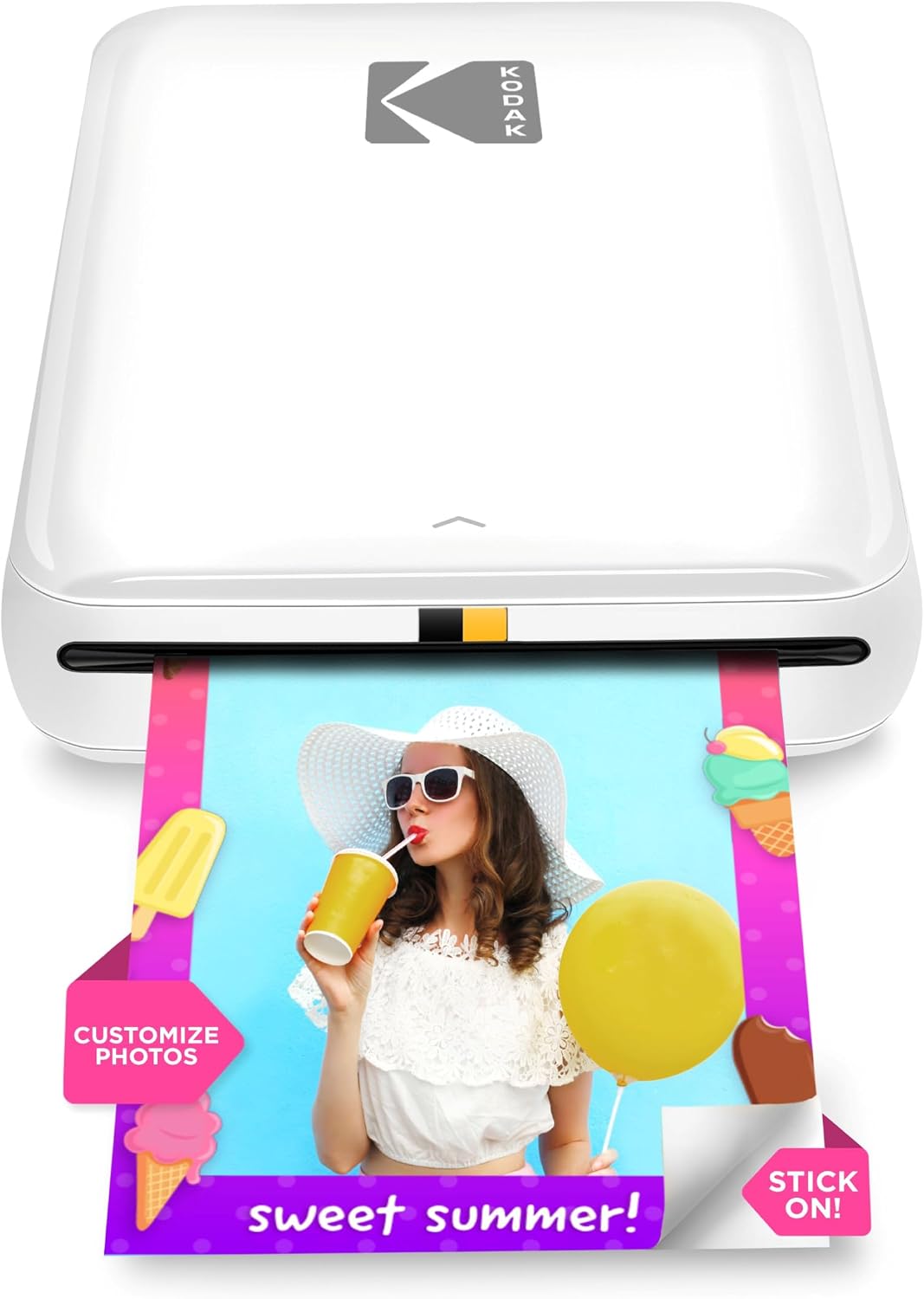
The KODAK Step Instant Photo Printer is a compact, battery-powered ZINK printer designed to turn smartphone photos into 2×3 sticky-backed prints without ink cartridges. You pair it with the KODAK STEP PRINTS app over Bluetooth or NFC, edit photos with filters, stickers and collages, then print in about 60 seconds; the battery supports roughly 25 prints per charge. ZINK paper produces water- and smudge-resistant results with a protective coating, which makes the prints durable for scrapbooks and craft projects. The printer holds up to 10 sheets and is truly pocket friendly for on-the-go use. Image detail is modest—maximum color resolution is listed around 313 x 400 dpi—so very fine photographic nuances may be softer than lab prints, and print size is limited to small 2×3 photos. Also the app is required to print, so you cannot print directly from a computer without the mobile app. For scrapbookers who want quick, durable mini prints and easy mobile editing, the Step is a convenient portable option; those who need larger or gallery-quality photos will need a different solution.
Best for: Scrapbookers and crafters who value instant, durable mini prints and simple mobile editing to add quick photos and embellishments to projects.
Less Ideal for: People who need larger print sizes, lab-level photo detail, or a computer-based printing workflow should choose a different printer.
- Truly portable design with built-in rechargeable battery for mobile printing
- ZINK zero-ink paper yields sticky-backed, smudge- and water-resistant prints
- Bluetooth and NFC connectivity plus an app with editing, collage and sticker tools
- Prints ready in about 60 seconds and holds up to 10 sheets for short sessions
- Limited to 2×3-inch prints with modest resolution compared to standard photo labs
- Requires the mobile app for editing and printing, no direct computer print workflow
Verdict: A pocketable ZINK printer that delivers quick, durable 2×3 prints with mobile editing—ideal for adding instant photos to scrapbooks and crafts.
Nelko PP01 Portable Photo Printer

| Printer Type | Inkjet |
|---|---|
| Print media | Glossy photo paper |
| Paper Size | 52x90mm (2×3") |
| Print Resolution | 600 DPI |
| Printer Connectivity Type | Bluetooth |
The Nelko PP01 is a pocket-sized inkjet photo printer designed to print 2×3 sticky-backed photos from iOS and Android phones over Bluetooth using the Nelko app. Setup involves loading 2×3 photo paper, installing the single color cartridge, pairing by Bluetooth, then editing and printing from the app; prints typically finish in under 90 seconds. Its 600 DPI output delivers vivid, detailed small prints suitable for scrapbooks, planners, party favors, and journals, and the adhesive backs make it easy to apply pages. The app adds practical value with filters, frames, text, and simple AI editing for quick customization. Limitations to note are the small print size only (actual printable area ~45×58mm), the reliance on Nelko-specific cartridges and paper, and a modest sheet capacity that requires reloading for larger batches. The printer is primarily a single-function, portable device aimed at casual and craft use rather than high-volume photo production.
Best for: Buyers who want a low-effort, portable solution for making small, adhesive photos for scrapbooks, planners, and party keepsakes and prefer a simple phone-to-printer workflow with app editing.
Less Ideal for: People who need larger prints, fast high-volume output, or a generalized desktop photo printer for professional photo work should look elsewhere.
- Truly portable pocket size for on‑the‑go scrapbooking and events
- High 600 DPI print resolution for sharp 2×3 photos
- Sticky-backed photo paper creates ready-to-use scrapbook stickers
- Bluetooth app workflow with built-in editing, frames, and AI features
- Includes starter cartridge, 20 sheets, USB charging cable and basic accessories
- Prints are limited to 2×3 size with a reserved blank margin at the bottom
- Uses proprietary ink cartridges and paper so consumable costs can add up
- Not intended for high-volume or fast batch printing
Verdict: If you want a compact, easy-to-use phone printer that creates adhesive 2×3 photos ideal for scrapbooking and craft projects, the Nelko PP01 is a straightforward, reliable choice.
Choosing the Right Printer for Scrapbooking: Key Factors to Consider
Color Accuracy and Ink System
Color accuracy determines how closely printed photos and patterned papers match the originals. For scrapbooking, small shifts in hue or saturation can clash with surrounding embellishments, so printers with wider color gamuts and additional color cartridges often produce more natural skin tones and deeper color transitions.
Consider whether the printer uses pigment or dye inks. Pigment inks generally offer better lightfastness and resistance to smudging, which matters if your pages will be handled frequently or stored in albums. Also check whether the printer supports expanded color cartridges like light cyan or light magenta when you need finer gradations in portraits and subtle background washes.
Paper Handling and Media Flexibility
Scrapbook layouts use a wide range of media types: heavyweight cardstock, textured papers, photo paper, and sometimes thin vellum. A suitable printer should accept single-sheet feeding, have a straight-through or semi-straight paper path for thicker stock, and support multiple sizes including 12×12 or at least borderless 8.5×11 prints if you trim to size.
Pay attention to maximum supported paper weight and whether the printer has a manual feed tray for specialty sheets. Jams and curl are common with heavy or coated media, so a design that minimizes roller stress and allows for manual straight feeds will reduce wasted sheets and frustration.
Ink Longevity and Finish Compatibility
Archival quality matters when you want scrapbooks to last decades. Look for printers with inks rated for lightfastness and resistance to humidity. Pigment-based inks tend to be more fade-resistant, while some dye-based photo inks can still work well if stored properly and protected with topcoats.
Also consider how printed surfaces interact with adhesives, inks, and sealing sprays you use. High-gloss and some coated photo papers can repel glue, while matte and fine-art papers accept adhesives better. Test a small sample to confirm the finish you choose holds embellishments and layered elements without wrinkling or peeling.
Resolution, Detail, and Borderless Options
Resolution and printer optics influence how sharp small text, thin outlines, or delicate patterned papers appear on the page. For hobby scrapbooking, look for printers with high optical resolution and fine droplet control to render photos and small decorative elements crisply.
Borderless printing options are useful if you want full-bleed photos or patterned backgrounds without trimming. However, borderless modes can sometimes crop or slightly scale images, so ensure the printer's software gives precise preview and scaling controls for layout work.
Connectivity, Workflow, and Software Support
A practical scrapbooking workflow depends on reliable connectivity and easy image handling. Printers that offer Wi-Fi, wired Ethernet, and USB give flexibility for laptop and desktop setups. Native printing from creative apps, simple driver interfaces, and support for common file types make batch printing and layout adjustments faster.
Consider whether the manufacturer provides color-management tools or ICC profiles that integrate with photo-editing software. Those profiles help ensure what you see on-screen approximates the printed result, reducing test prints and wasted materials.
Preparing Files for Craft Printing
Start with high-resolution images and set the document size to the final printed dimensions to avoid scaling artifacts. Convert images to the printer's recommended color space when possible and use ICC profiles for consistent color across devices.
- Crop to include any bleed or allow space for decorative borders
- Use 300 ppi or higher for photo elements to maintain sharpness
- Flatten layered design files only after you are satisfied with color and layout adjustments
Choosing Paper Types and Finishes
Different papers change both appearance and handling. Glossy photo paper yields vibrant colors and sharp detail, but can be harder to glue down and shows fingerprints. Matte and fine-art papers offer a more tactile finish and accept adhesives more reliably. For layered layouts, test how each finish responds to mounting adhesives and edge distressing techniques.
- Use heavyweight cardstock for base pages to prevent warping
- Reserve glossy sheets for photo elements you plan to mat or mount
- Consider textured papers for title blocks and journaling cards to add depth
Maintaining Your Printer for Crafts Use
Regular maintenance preserves print quality. Run scheduled nozzle checks and head cleans when you notice banding or color shifts. If you print infrequently, run a short nozzle check monthly and print a small color test to keep ink lines fresh.
- Store spare cartridges upright in a cool, dry place
- Run a short print once a week to prevent heads from drying on dye-based systems
- Use manufacturer-recommended cleaning cycles sparingly to avoid excessive ink waste
Workflow Tips for Batch Projects
Plan batch runs by grouping similar prints to minimize color profile swaps and paper changes. Set up templates for common page sizes and export multiple files at once to reduce repetitive tasks.
- Print a small contact sheet to verify color before full runs
- Label paper stacks by finish and intended layout to prevent mix-ups
- Allow prints to dry and cure fully before handling or applying adhesives
How We Chose the Best Printer for Scrapbooking
We focused on features that directly affect scrapbook output and everyday usability. Our evaluation prioritized color accuracy and gamut because faithful photo and patterned-paper reproduction is essential for cohesive pages. Paper handling and feed flexibility were next, including support for heavyweight cardstock, single-sheet feeding, and borderless printing to reduce trimming. We assessed ink permanence and media compatibility to ensure prints resist fading and work with common adhesives and topcoats used in scrapbooking. Practical criteria included ease of setup and driver stability for Mac and PC environments, print speed for batch projects, and maintenance requirements such as head-clean cycles and replaceable cartridges. We excluded devices that only support kiss-cut labels or thermal-transfer methods, since they do not meet typical scrapbook photo or cardstock printing needs. Our shortlist reflects printers that balance reliable daily use, craft-friendly paper paths, and color systems designed for photo and mixed-media projects.
Our full evaluation process is outlined in our review methodology.
FAQ
What type of ink is best for scrapbooking prints?
It depends on priorities. Pigment inks generally offer better fade resistance and hold up well to handling, which is good for long-term scrapbooks. Dye inks can produce more vibrant colors but may fade faster and be more susceptible to smudging unless properly sealed.
Can I print directly onto thick cardstock?
Many printers accept heavyweight cardstock via a rear manual feed or straight-through path. Check the printer's maximum supported paper weight and use single-sheet feeding for thicker stock to reduce jams and edge damage.
How do I prevent prints from fading in albums?
Use archival-rated papers and inks when possible, store albums out of direct sunlight, and consider protective sleeves or sprays designed for photo preservation. Pigment inks and acid-free papers significantly improve longevity.
Is borderless printing necessary for scrapbook pages?
Borderless printing is helpful for full-bleed photos and backgrounds but is not required. If you plan to mat photos or design with borders, standard edge printing may be sufficient and can reduce trimming errors.
How often should I run maintenance cycles?
Frequency depends on use. For regular printing, perform a nozzle check monthly and clean as needed when you see banding. For infrequent hobby use, run a short color test weekly to keep ink flowing.
Final Verdict
Prioritize color accuracy, media handling, and ink permanence when choosing a printer for scrapbooking. Decide whether you value the deepest color gamut for photos or the archival strength of pigment inks, and match those priorities to a printer with a flexible paper path and reliable single-sheet feeding. Also weigh connectivity and workflow tools that reduce setup time for batch projects. With those tradeoffs in mind, select a craft-ready printer that aligns with how often you print, the paper sizes you use, and how long you expect your albums to last.