
Note: This article contains affiliate links. If you click on these links and make a purchase, we may earn a small commission at no extra cost to you. This helps support our research and content. Read our full affiliate disclosure here.
If you ship packages regularly, a dedicated printer for shipping labels on a budget can save time and reduce errors compared with printing labels on a home inkjet. You want a machine that reliably produces scannable barcodes, handles common label sizes, and keeps per-label costs low. This guide shortlists the top affordable printers that excel at label clarity, throughput, and consumable efficiency. We evaluated reliability, print speed, and cost-of-ownership so you can pick a model that fits a small business, weekend seller, or busy home office. Read on for clear buying guidance and the key features to prioritize.
Top Picks at a Glance
| Best Overall The best all-around choice for most situations | MUNBYN ITPP130B Thermal Label Printer |  |
| Best Quality Built to a higher standard if you want something more solid | MUNBYN RealWriter 941 |  |
| Best Value The sweet spot between price and what you get | Phomemo 241BT 4×6 Label Printer |  |
| Best Budget The cheapest option that still gets the job done reliably | Labeer Y43BT Thermal Label Printer |  |
| Top Rated A top-rated pick with lots of positive feedback | Rollo USB Shipping Label Printer X1038 |  |
| Most Popular A crowd favorite that many people choose with confidence | NULLTONEX Y813 Thermal Label Printer |  |
MUNBYN ITPP130B Thermal Label Printer
| Printer Type | Thermal |
|---|---|
| Maximum Media Size | 4 x 6 inch |
| Resolution | 203 x 300 dpi |
| Printer Connectivity Type | Bluetooth |
| Hardware Interface | USB |
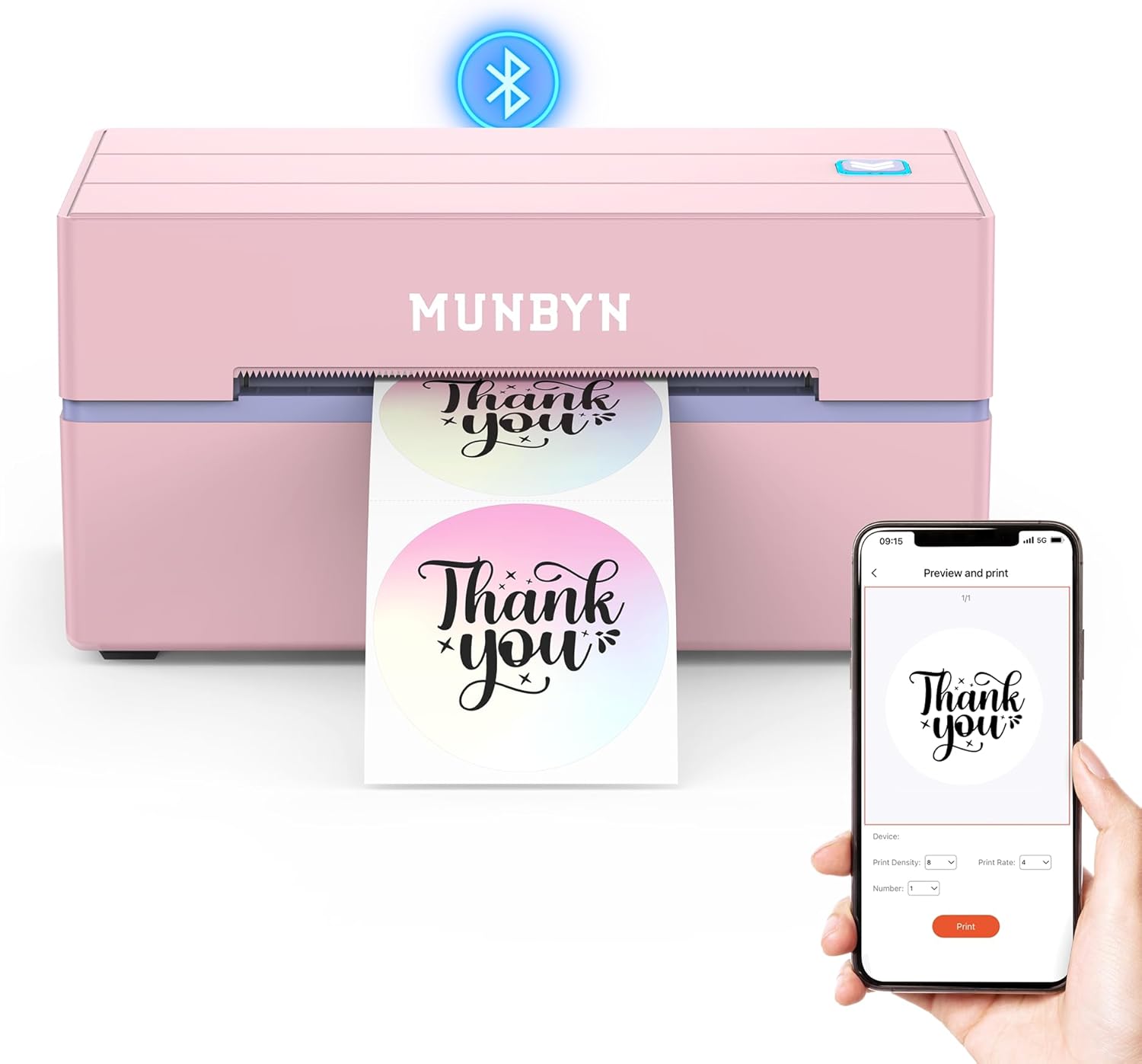
The MUNBYN ITPP130B is a small thermal label printer intended for shipping, branding, and general label tasks that connects by Bluetooth or USB and is controlled via the MUNBYN Print app or a Chrome web editor. Setup is straightforward: pair with a phone or tablet using the app or plug into a desktop browser to design and print, and the unit handles standard shipping labels up to 4×6 inches. Its 203 dpi engine delivers crisp mono output for barcodes, addresses, and simple graphics, and the printer supports a wide range of label sizes and template assets inside the app. The compact footprint and mobile-friendly controls make it useful for tight workspaces and on-the-go sellers, while the claimed 180 ppm speed covers high-volume batches in short runs. Limitations include single-color thermal output only and a recommendation to use MUNBYN-brand labels for best results with some carriers, and color graphics or photographic prints are not possible. For budget-conscious sellers who need reliable monochrome shipping labels and easy mobile printing, it covers the essentials without extra frills.
Best for: Small business sellers and side‑hustle shippers who want an affordable, mobile-friendly printer that makes crisp monochrome shipping labels with minimal setup.
Less Ideal for: Users who need color label printing, high-resolution graphics, or a heavy-duty industrial printer for continuous large-scale production should look elsewhere.
- Simple Bluetooth and USB connectivity for phones, tablets, and PCs
- Supports standard 4×6 shipping labels and several other label sizes
- 203 dpi thermal resolution suitable for clear barcodes and text
- Compact, portable design that fits small workspaces and mobile operations
- Monochrome thermal printing only so no color or photo prints
- Manufacturer recommends using its own labels for optimal compatibility with some carriers
Verdict: A budget-friendly, compact thermal printer that delivers reliable monochrome 4×6 shipping labels with easy mobile and desktop connectivity.
MUNBYN RealWriter 941

| Printer Type | Thermal |
|---|---|
| Resolution | 203 x 203 DPI |
| Printer Connectivity Type | USB |
| Maximum Media Size | 4 x 6 inch |
| Power Consumption | 60 watts |
The MUNBYN RealWriter 941 is a USB-only direct thermal 4×6 label printer built for fast, no-ink shipping and barcode printing. You load rolls or fan-fold labels from the rear, the printer auto-detects label width from about 1.57 to 4.3 inches, and it prints at a factory 203 dpi using a ROHM print head for clear barcodes and text. Setup is straightforward with a one-click Chrome installation and driver support for Windows and macOS, and the unit is intended for regular shipping workflows with platforms like Etsy, Shopify, eBay, and major carrier services. Its strengths are cost efficiency from inkless printing and relatively high throughput for a desktop unit, while trade-offs are the lack of wireless options on this USB-only version and a modest 203 dpi resolution that is fine for shipping labels but not for high-detail graphics. The simple app/control approach and automatic paper handling make it practical for small businesses printing batches of labels, though power consumption and physical footprint should be considered for tight workspaces.
Best for: Small business owners and high-volume home shippers who prioritize fast, low-cost shipping label production and need reliable barcode and address printing integrated with common e-commerce platforms.
Less Ideal for: Buyers who require wireless printing, higher-resolution graphics output, or a compact mobile solution should consider other models with Wi‑Fi, Bluetooth, or higher DPI.
- Direct thermal printing requires no ink or toner, lowering running costs
- Auto-detects label width and supports common shipping sizes from 1.57" to 4.3"
- 203 dpi ROHM print head produces clear barcodes and readable text for shipping
- One-click setup on Chrome and compatibility with major selling platforms simplifies integration
- USB-only connectivity on this version means no Bluetooth or Wi‑Fi for wireless printing
- 203 dpi resolution is adequate for labels but not for detailed graphics or photo-quality prints
Verdict: Choose the RealWriter 941 if you want a budget-friendly, inkless 4×6 label printer that reliably turns e-commerce orders into crisp, scannable shipping labels.
Phomemo 241BT 4×6 Label Printer

| Printer Type | Thermal |
|---|---|
| Maximum Media Size | 4 x 6 inch |
| Resolution | 203 x 203 DPI |
| Printer Connectivity Type | Bluetooth, USB |
| B&W Pages per Minute | 66 pages_per_minute |
The Phomemo 241BT is a compact thermal label printer aimed at low-cost shipping and labeling tasks. It prints monochrome labels up to 4 x 6 inches using direct thermal technology, so there is no ink or toner to replace, and it connects wirelessly via Bluetooth or by USB to a PC or Mac. Setup is typically done through the Labelife mobile app for phones and tablets or by installing a driver for desktop systems, and the built-in OLED makes status checks straightforward. With a claimed speed up to roughly 150 mm/s (about 66 pages per minute for smaller pages) and support for common templates, it handles bulk printing for e-commerce orders or warehouse packing without much fuss. Important limitations are the black-and-white-only output and the reliance on the app for Bluetooth pairing, which can add a step for some desktop workflows, and optimal results depend on using compatible thermal labels to avoid fading. For budget-minded sellers, its small footprint, app control, and no-ink operation make it a practical pick for routine shipping label needs.
Best for: Buyers looking to reduce ongoing supply costs and streamline routine shipping label printing for a small business or side hustle will appreciate this printer's low operating cost and simple app-driven workflow.
Less Ideal for: Shoppers who need color labels, heavy industrial duty throughput, or plug-and-play Bluetooth pairing with no app should consider other models or higher-end thermal printers.
- Direct thermal printing eliminates ink or toner costs
- Bluetooth and USB connectivity for phone, tablet, and PC printing
- Prints standard 4 x 6 shipping labels compatible with major carriers and platforms
- Compact design and OLED status display save workspace and simplify monitoring
- Prints only in monochrome so no color labels without special media
- Bluetooth pairing requires using the Labelife app which may complicate some workflows
Verdict: A budget-friendly, no-ink 4×6 thermal printer that cuts supply costs and handles everyday shipping labels with simple Bluetooth or USB control.
Labeer Y43BT Thermal Label Printer

| Printer Type | Thermal |
|---|---|
| Maximum Media Size | 4×6 inches |
| Maximum Print Resolution Black and White | 203 dots_per_inch |
| Printer Connectivity Type | Bluetooth |
| Maximum Sheet Capacity | 50 |
The Labeer Y43BT is a budget-oriented direct thermal label printer that handles standard 4×6 shipping labels plus smaller label formats and connects wirelessly over Bluetooth or by USB. It uses 203 dpi thermal printing so barcodes, address labels, and inventory tags are clear enough for shipping and scanning, and it prints without ink, toner, or ribbons which lowers operating costs. Setup is aimed at multi-device use with drivers and a USB drive included for Windows, macOS, ChromeOS, Linux, iOS and Android, and an app or PDF workflow makes it simple to print return labels or platform-generated shipping files. The unit is compact and offers automatic duplexing and a 50-sheet max media capacity, which is handy for a small business or home office handling occasional batches. Limitations include modest 203 dpi resolution compared with higher-end thermal printers and a basic feature set intended for straightforward label jobs rather than high-volume industrial use.
Best for: Buyers prioritizing low upfront and operating cost who need a compact, easy-to-use label printer for occasional to moderate shipping and inventory labeling from mobile devices or PCs.
Less Ideal for: Businesses printing high volumes of labels, requiring very high-resolution barcode printing, or needing advanced industrial features like heavy-duty roll handling should look at more robust models.
- Direct thermal printing requires no ink, toner, or ribbons which reduces ongoing supply costs
- Bluetooth and USB connectivity lets you print from phones, tablets, and computers
- Supports standard 4×6 shipping labels and multiple smaller label sizes
- Compact footprint suitable for small business counters or home offices
- 203 dpi resolution is adequate for shipping but not as sharp as higher-resolution thermal models
Verdict: A compact, low-cost thermal printer that prints standard 4×6 shipping labels from phones or PCs while keeping ongoing supply expenses minimal.
Rollo USB Shipping Label Printer X1038

| Print resolution | 203 x 203 DPI |
|---|---|
| Maximum media size | 4.1 Inch Width |
| Paper size | 4 inch x 6 inches |
| Printer connectivity type | wired |
| Hardware interface | USB |
The Rollo USB Shipping Label Printer is a compact direct-thermal printer built to churn out 4×6 shipping labels quickly and without ink. It connects via USB to Windows or Mac, detects labels automatically, and prints at a factory-resolution 203 DPI so barcodes and addresses remain crisp for scanners. Typical use is continuous label printing for e-commerce or small warehouse workflows where speed and uptime matter; Rollo claims commercial-duty components and is sold with a one-year limited warranty. Practical benefits include inkless operation that removes ongoing toner costs, support for a wide range of label widths, and compatibility with major shipping platforms and the vendor's shipping app for streamlined postage workflows. Important limitations are its wired-only USB interface on this model and simplex printing only, so it is focused strictly on single-sided labels rather than broader office printing tasks, and it does require driver setup on the host computer. For sellers who need a fast, no-frills label solution the Rollo delivers reliable, high-volume label output but it is not a replacement for an all-purpose office printer.
Best for: Buyers who prioritize a dependable, high-throughput label printer for daily shipping and order fulfillment and who value low ongoing costs and straightforward integration with shipping platforms.
Less Ideal for: Users who need wireless printing from phones or tablets or who want a multi-function office printer that handles paper documents and duplex jobs.
- Direct thermal printing eliminates ink and toner costs.
- Automatic label detection simplifies continuous label feeding.
- 203 DPI resolution produces clear, scannable barcodes and text.
- Compact, commercial-grade design suited for sustained daily use.
- Compatible with major shipping platforms and supports multiple label widths.
- USB-only connectivity limits mobile or wireless printing workflows.
- Simplex-only printing restricts use to single-sided labels.
Verdict: A fast, inkless 4×6 label printer built for reliable high-volume shipping workflows on a budget.
NULLTONEX Y813 Thermal Label Printer

| Printer Type | Thermal |
|---|---|
| Resolution | 203 x 203 dpi |
| Maximum Media Size | 4 X 6 Inches |
| Printer Connectivity Type | Bluetooth, USB, wireless |
| Power Consumption | 24 watts |
The NULLTONEX Y813 is a compact direct-thermal label printer built for small business shipping and general label tasks. It prints monochrome labels at 203 dpi and supports standard 4×6 shipping labels plus narrower widths from 1.57 to 4.3 inches, making it a fit for address, barcode, and mailing labels. Connectivity options include Bluetooth for on-the-go printing from phones and tablets through the FlashLabel Pro app and a USB connection for stable laptop or PC use. The unit ships with cables and starter labels so you can set up quickly, and the app provides many templates and fonts for common carrier forms. Practical benefits include no-ink operation, low maintenance, and a compact footprint that suits a busy packing station. Limitations to note are single-color thermal output, no duplex capability, and the printer relies on the app or drivers for Bluetooth pairing which can require troubleshooting on some systems; heavy enterprise environments may need a more industrial model. For sellers or home shippers who need straightforward, budget-friendly 4×6 label printing, this handles the basics reliably.
Best for: Buyers who want an affordable, plug-and-play label printer for packing and shipping tasks and who value low operating costs and simple mobile printing workflows.
Less Ideal for: Large warehouses or high-volume shipping centers that need industrial throughput, color labels, or advanced enterprise integrations should consider heavier-duty models.
- Direct thermal printing requires no ink or toner, lowering ongoing costs.
- Bluetooth and USB dual connectivity support printing from phones, tablets, and computers.
- Accepts standard 4×6 shipping labels and narrower widths for versatile label types.
- Compact, durable design ships with cables and starter labels for quick setup.
- 203 dpi resolution produces scannable barcodes and clear text for shipping workflows.
- Prints only in monochrome using direct thermal media.
- Bluetooth pairing and driver setup can require extra steps on some devices.
- Not intended for high-volume industrial use compared with commercial-grade printers.
Verdict: A budget-friendly, no-ink 4×6 thermal printer that delivers dependable monochrome shipping labels with both Bluetooth and USB connectivity.
Choosing the Right Printer for Shipping Labels on a Budget: Key Factors to Consider
Print Method and Longevity
The printer's print method determines running costs and label longevity. Direct thermal printers do not require ink or toner, so they have lower consumable spending, but labels can fade if exposed to heat or sunlight for extended periods. Thermal transfer models use a ribbon to produce durable labels that resist smudging and light exposure, but ribbons add an ongoing cost and occasional changeover time.
Choose the method that matches your shipment handling. If labels are scanned indoors and used for short transit times, direct thermal often suffices. For labels exposed to rough handling or long storage, thermal transfer is more durable and worth the extra consumable cost.
Label Size Compatibility
Shipping labels commonly use a handful of standardized widths and lengths. Make sure the printer accepts the label roll widths you need, such as 4-inch or 4.25-inch thermal rolls used for many carrier labels. Check the maximum media length and whether the printer supports die-cut labels, continuous rolls, or black-marked media for consistent feeding.
A mismatch between your label layout and printer media can lead to wasted labels, manual trimming, or frequent roll changes. For occasional specialty labels, verify that the printer allows easy adjustment of label height and supports the media type you plan to use.
Print Resolution and Barcode Accuracy
Resolution affects both text clarity and barcode scannability. Higher dpi yields sharper barcodes that scan more reliably across different scanners and distances. For most shipping labels, 203 to 300 dpi is common; 300 dpi is preferable if you include small barcodes, dense QR codes, or tiny text.
Even with adequate resolution, correct driver settings and label templates are vital. Confirm that the printer offers stable drivers or supports common printer languages so generated labels consistently render at the intended size and placement.
Connectivity and Workflow Integration
How the printer connects to your system affects workflow speed. USB is reliable for a single workstation, while Ethernet or Wi-Fi is better for shared packing areas or integration with print servers. Some printers support network printing through standard protocols or include built-in web interfaces for remote configuration.
Also consider compatibility with your shipping platform or label-printing software. Native driverless printing, command language support, or a well-documented SDK makes it easier to integrate label printing into existing order-management workflows without manual export-import steps.
Speed and Throughput
Print speed determines whether the printer can keep up during busy packing periods. Measured in inches per second or labels per minute, higher throughput reduces bottlenecks at the packing station. But fast speeds matter only if feed reliability and label drying or curing match the rate; a fast printer that jams or misfeeds negates the speed advantage.
Assess typical daily label volumes and choose a device rated for that duty cycle. Also factor in warm-up and first-label times because frequent short runs are common in small packing operations.
Maintenance Needs and Serviceability
Ease of maintenance affects uptime. Look for printers with accessible media paths, removable printheads, and simple cleaning procedures. Devices that expose common wear parts for quick replacement reduce downtime and make it easier to keep barcodes readable over time.
Also consider vendor documentation and availability of replacement parts like platen rollers and drive belts. Even on a budget, a machine that is easy to service will have a lower total cost of ownership because it spends less time offline.
Setting Up a Packing-Station Workflow
Arrange the label printer close to the scale and packing materials to minimize steps during fulfillment. Positioning the printer on the same surface or an adjacent shelf reduces label drop time and helps maintain a steady cadence when processing batches of orders.
Standardize a simple routine: print the label, apply to the package, then move the parcel to the staging area for final checks. Consistent placement and an unobstructed feed path reduce jams and misfeeds that slow operations.
- Keep a spare roll of labels and any required ribbon nearby
- Use a dedicated power outlet to avoid accidental disconnects
- Label frequently used templates for quick access in your software
Optimizing Label Templates and Margins
Correct template setup prevents cut-off text and barcode misalignment. Verify printer page size, label dimensions, and margins in both your shipping software and the printer driver. Small offsets compound when printing thousands of labels.
If your software allows, create separate templates for different carriers or package sizes to avoid manual adjustments. Test-print a sheet or a few labels whenever you change a template to catch alignment issues early.
- Set quiet zones around barcodes to improve scan success
- Use standard label sizes to reduce setup complexity
- Keep a test-roll for template adjustments
Managing Consumables and Reducing Waste
Track label roll yields and ribbon life so you replace supplies before they run out in the middle of a shift. Buying compatible third-party media can lower costs but verify print quality and adhesive performance before committing to bulk purchases.
Implement a simple inventory buffer of media and small parts. A single exhausted roll can create a backlog if a replacement roll needs to be ordered or verified.
- Rotate stock by date to avoid older labels degrading
- Mark rolls with expected remaining label counts after partial use
- Store thermal labels away from heat and sunlight
Troubleshooting Common Printing Issues
Frequent jams, faint prints, or skewed labels usually point to media misalignment, a dirty printhead, or incorrect driver settings. Regular cleaning with recommended tools and ensuring the roll is seated correctly solves many problems quickly.
If barcodes fail to scan, check resolution settings, label template scale, and whether the label adhesive or surface is interfering with scanning. Reprinting a sample at a higher contrast or dpi can help isolate whether the issue is with media or printer configuration.
- Clean printhead regularly according to the maintenance schedule
- Verify label roll orientation and sensor alignment
- Test with a known-good barcode scanner to rule out scanner issues
Scaling Up: When to Move Beyond an Entry-Level Unit
As your weekly label volume grows, you may outgrow a budget printer even if it was cost-effective initially. Signs you need to upgrade include frequent paper jams under load, rising mean time between failures, or persistent slowdowns during peak periods.
When scaling, prioritize printers with higher duty-cycle ratings, enterprise-class connectivity, and options for automated roll splicing or larger media capacities to reduce downtime during bulk runs.
- Monitor average labels per day for three months to judge growth
- Consider models with replaceable printheads for heavy use
- Plan for spare parts and technician access if volumes justify it
How We Chose the Best Printer for Shipping Labels on a Budget
We focused on practical factors that matter to people printing shipping labels a few times a day to several hundred labels per week. Primary evaluation criteria included print legibility and barcode accuracy, since unreadable labels delay shipments and trigger scanning errors. We also measured throughput considerations such as print speed and warm-up time to reflect real-world packing-station flow. Consumable costs were treated as a separate filter, looking at typical label roll yields and replacement media affordability. Connectivity and integration mattered for usability, so we favored printers with reliable USB and network options and straightforward driver or driverless printing support. Durability and maintenance were checked through reported duty cycles and common failure modes to estimate long-term ownership. We excluded multi-function office machines and devices designed only for occasional home printing that lack label-roll handling or durable thermal print mechanisms. The resulting list focuses on compact, label-capable printers that balance consistent output with low operating cost.
Our full evaluation process is outlined in our review methodology.
FAQ
Is a thermal printer necessary for shipping labels?
Often. Thermal printers are common for shipping labels because they produce clear barcodes without ink. Direct thermal is fine for short transit life, while thermal transfer is better if labels need to resist abrasion or long-term exposure.
Can I use standard inkjet paper and an inkjet printer for shipping labels?
Usually not recommended. Inkjet-printed labels can smear and may not adhere well to corrugated boxes. Dedicated label printers and media are designed to place durable, scannable barcodes on package surfaces.
How do I choose the right label size for carrier labels?
Match the printer to the carrier label specifications you use most often, commonly 4-inch-wide labels. Check your shipping software templates and choose a printer that supports those roll widths to avoid template resizing or trimming.
What connectivity is best for a multi-person packing area?
Ethernet is the most reliable for shared environments, while Wi-Fi adds flexibility if wiring is impractical. Ensure the printer supports network printing protocols and consider a static IP or print server for stable operation.
How often should I clean the printhead?
Clean the printhead at least once a month for moderate use, and more frequently if you notice streaking or faint print lines. Regular cleaning prevents buildup that degrades barcode readability.
Final Verdict
For budget-focused shipping-label printing, prioritize print legibility, media compatibility, and low consumable cost. Decide between direct thermal for lowest running cost and thermal transfer if you need extra durability. Also weigh connectivity and duty-cycle ratings against your daily label volume. Focusing on these tradeoffs will help you pick an affordable printer that keeps labels scannable and shipments moving with minimal downtime.