
Note: This article contains affiliate links. If you click on these links and make a purchase, we may earn a small commission at no extra cost to you. This helps support our research and content. Read our full affiliate disclosure here.
Picking the right sticker printer matters whether you need durable product labels, craft stickers, or planner decals. The right device affects print quality, running costs, and how smoothly your label workflow runs. This guide shortlists seven top sticker printers across common use cases and evaluates how they perform on print precision, media handling, connectivity, and operating cost. Below you will find concise picks chosen for different priorities, plus clear buying guidance so you can match a printer to the jobs you actually need done.
Top Picks at a Glance
| Best Overall The best all-around choice for most situations | Canon IVY 2 Mini Photo Printer |  |
| Best Quality Built to a higher standard if you want something more solid | Liene PixCut S1 DHP700 |  |
| Best Value The sweet spot between price and what you get | MUNBYN RealWriter 130B |  |
| Best Budget The cheapest option that still gets the job done reliably | XenGro Mini Sticker Printer AHM2 |  |
| Top Rated A top-rated pick with lots of positive feedback | NIIMBOT M2 Label Maker |  |
| Most Popular A crowd favorite that many people choose with confidence | Phomemo M02 Mini Sticker Printer | 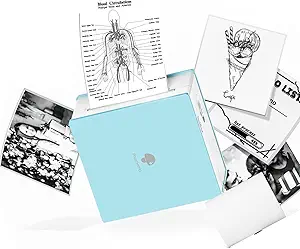 |
| Best Seller A high-volume bestseller chosen again and again | TYPONOS PM240 Label Maker |  |
Canon IVY 2 Mini Photo Printer

| Print technology | Zink Technology |
|---|---|
| Print size | 2 x 3 in |
| Maximum sheet capacity | 10 |
| Connectivity | Bluetooth |
| Print resolution | 313 x 512 dpi |
The Canon IVY 2 is a compact, battery-powered photo printer that uses ZINK thermal paper to produce 2 x 3 inch peel-and-stick photos directly from your smartphone or tablet via the Canon Mini Print app and Bluetooth 5.0. It is designed for casual, on-the-go use: load a SMART SHEET and ZINK paper, pair the printer, edit images with stickers or filters in the app, then print a glossy sticker photo in under a minute. Key practical benefits include no ink cartridges to replace, built-in adhesive backs for easy sticking, and fast USB‑C charging that reaches a full charge quickly. Image quality is tuned for improved skin tones and contrast for social prints rather than professional enlargements, and the small sheet capacity (10 sheets) means frequent refills for parties or events. Print speed and resolution are modest, so expect short wait times per photo and limited detail compared with larger photo printers. The app-driven workflow is simple but required for customization and printing.
Best for: Buyers who want a simple, portable sticker printer for casual photo sharing, scrapbooking, events, and social crafts and value convenience over professional print quality.
Less Ideal for: People who need large, high-resolution prints, high-volume continuous printing, or a multifunction desktop photo printer should consider other options.
- No ink required thanks to ZINK paper, eliminating cartridge purchases and maintenance
- Peel-and-stick 2×3 prints make it easy to decorate scrapbooks, planners, and parties
- Bluetooth 5.0 and Canon Mini Print app provide direct mobile printing and basic image editing
- Pocketable, lightweight design with fast USB-C charging for quick portable use
- Small 2×3 print size and 10-sheet capacity limit output for larger projects
- Print resolution and single-sheet print speed are modest compared with larger photo printers
Verdict: Choose the IVY 2 if you want a truly portable, no-ink sticker printer for quick, fun 2×3 prints and easy mobile sharing.
Liene PixCut S1 DHP700

| Printer Type | Thermal Dye Sublimation |
|---|---|
| Maximum print Resolution Color | 300 dpi |
| Print media | 4×6 and 4×7 photo/sticker paper |
| Connectivity | Bluetooth |
| Maximum Sheet Capacity | 18 |
The PixCut S1 combines a 300 dpi thermal dye-sublimation printer with an integrated precision cutter to produce laminated, durable stickers and photo labels in about two minutes per sheet. You design or edit images in the Liene app (Android/iOS) and send jobs over Bluetooth, then the machine prints with CMY inks and automatically laminates and cuts along the subject using AI-guided extraction. It supports 4×6 and 4×7 PET photo and sticker paper and ships with blades, ink cartridge(s), and starter paper. The result is vivid, waterproof, scratch-resistant stickers suitable for custom labels, phone skins, badges, and craft projects. Limitations to consider are the proprietary media requirement and modest throughput: the unit handles up to 18 sheets and prints roughly one page per minute, so it is best for small-batch runs rather than continuous heavy production. Setup and app-driven workflow make it easy for hobbyists and creators, while the integrated cutting removes the need for separate equipment.
Best for: Buyers who prioritize print and cut quality for small-batch, high-impact sticker projects and want a compact, app-driven machine that delivers professional-looking results without a separate cutter.
Less Ideal for: People needing high-volume or continuous production or those who require open media compatibility for third-party papers and inks.
- Integrated print-and-cut workflow speeds production and removes need for separate cutter
- Thermal dye-sublimation printing with automatic lamination produces waterproof, fade-resistant stickers
- AI image extraction and guided cutting produce accurate, professional-looking edges
- Mobile app control with templates and a large built-in asset library simplifies design and personalization
- Uses proprietary Liene paper and cartridges limiting third-party media choices
- Low sustained speed and 18-sheet capacity make it unsuitable for high-volume production
Verdict: If you want a compact, app-controlled device that produces laminated, pro-looking stickers with built-in precision cutting for small runs, the PixCut S1 is a top choice.
MUNBYN RealWriter 130B
| Printer Type | Thermal |
|---|---|
| Maximum Media Size | 4 x 6 inch |
| Resolution | 203 x 300 dpi |
| Printer Connectivity Type | Bluetooth |
| Hardware Interface | USB |
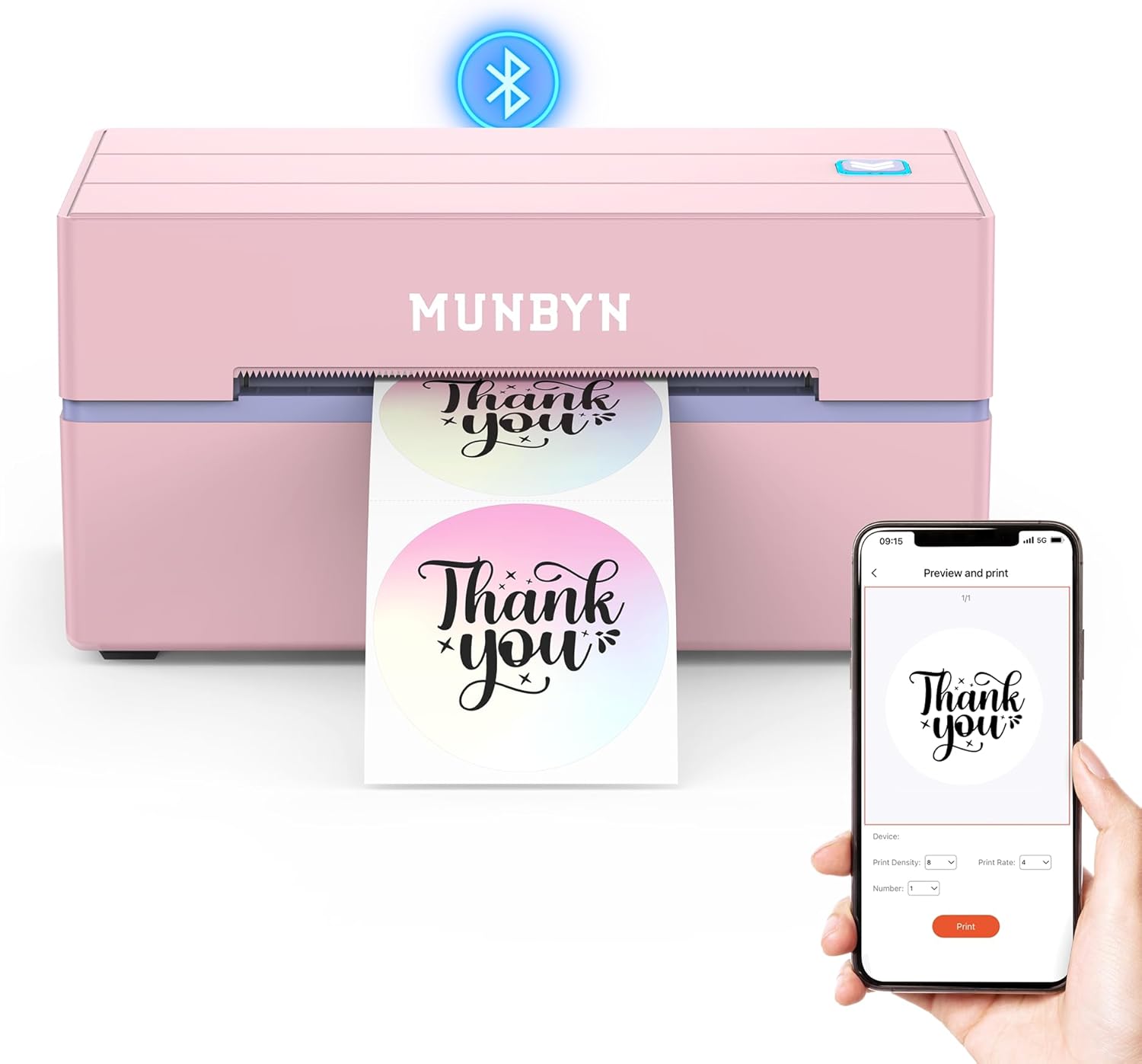
The MUNBYN RealWriter 130B is a portable thermal label printer that prints monochrome labels up to 4 x 6 inches and connects by Bluetooth or USB. It is typically used for shipping labels, barcode/QR codes, pricing stickers, and home or small-business organization tasks via the MUNBYN Print mobile app or the Munbyn Editor in Chrome. The printer offers 203 dpi thermal resolution, fast B&W throughput for simple label jobs, and a straightforward three-step setup for iOS, Android, and Windows/macOS via browser. Practical benefits include app templates, hundreds of fonts and design elements, and support for common shipping platforms which speeds batch printing for small sellers. Important limitations are that it is thermal-only (no color ink) and MUNBYN recommends using its own label stock for best results; some users may see compatibility issues with certain UPS thermal paper. The unit is small and portable so it fits tight workspaces, but buyers should plan label supplies around the recommended sizes for consistent print quality.
Best for: Buyers who want a compact, app-driven label printer to streamline shipping, sticker, and barcode tasks for a small business or organized home workflow.
Less Ideal for: People who need full-color label printing or who require guaranteed compatibility with third-party thermal papers without vendor-recommended media.
- Bluetooth and USB connectivity for mobile and desktop printing
- Supports up to 4 x 6 inch labels, suitable for shipping and stickers
- 203 dpi thermal resolution for clear barcodes and text
- Includes mobile app and web editor with templates, fonts, and design elements
- Thermal monochrome printing only, no color output
- Manufacturer recommends using its own label stock and notes possible issues with some UPS thermal paper
Verdict: A compact, app-friendly thermal label printer that speeds shipping and sticker workflows for small sellers and home organizers.
XenGro Mini Sticker Printer AHM2

| Printer Type | Thermal |
|---|---|
| Resolution | 203 x 203 dpi |
| Printer Connectivity Type | Bluetooth |
| Maximum Media Size | 3 x 4 inches |
| B&W Pages per Minute | 10 pages_per_minute |
The XenGro AHM2 mini sticker printer is a pocketable thermal printer that connects over Bluetooth to iOS and Android devices and prints monochrome stickers and notes without ink. It is intended for quick labeling, study aids, journaling, and small photo prints using the vendor app's templates, OCR, and simple editing tools. Setup is straightforward through the app and the unit ships with multiple preloaded paper rolls and a USB-C cable, so you can start printing right away. The 203 dpi thermal engine produces sharp black-and-white output suitable for text, simple graphics, and small photos, while the built-in serrated cutter makes it easy to tear clean edges. Because it is thermal, prints are inkless and low maintenance, but results are limited to single-color prints and depend on thermal paper quality. Its tiny size and light weight make it truly portable, but the small maximum media size and one-sheet capacity mean it is made for short runs and personal use rather than bulk labeling or high-volume office tasks.
Best for: Buyers who want an inexpensive, easy-to-use portable label and note printer for personal organization, study aids, journaling, or casual crafting and value low operating cost and convenience.
Less Ideal for: People who need full-color photo printing, high-volume commercial label production, or wider media sizes should choose a different, higher-capacity printer.
- Truly portable pocket-sized design for easy carry and use anywhere
- Inkless thermal printing eliminates cartridges and reduces upkeep
- Includes multiple paper rolls and USB-C cable to start immediately
- 203 dpi resolution produces clear, readable text and simple graphics
- App features like templates and OCR speed creation and layout on a phone
- Prints only in black-and-white using thermal paper
- Small maximum media size and single-sheet capacity limit large or bulk jobs
- Quality depends on using compatible thermal rolls for best results
Verdict: A compact, budget-friendly thermal sticker printer that delivers inkless black-and-white labels and notes for personal use and light creative projects.
NIIMBOT M2 Label Maker

| Printer Type | Thermal |
|---|---|
| Maximum print Resolution Color | 300 x 300 dpi |
| Printer Connectivity Type | Bluetooth |
| Maximum Media Size | 2inch |
| Built-In Media | 1 ×Black Ribbon, 1 ×Roll Label Tape/50×30mm |
The NIIMBOT M2 is a thermal transfer 2-inch label printer built for durable, high-resolution stickers rather than quick disposable thermal labels. It pairs by Bluetooth to the NIIMBOT app or connects to a PC by USB (driver required) so you can design labels, import tables or barcodes, and print from mobile or desktop. Using a ribbon and label roll, the M2 produces 300 dpi prints that resist water, oil, wear and extreme temperatures, which makes its output suitable for refrigerated goods, lab samples, cable tags and long-term inventory labels. The app supports templates, batch printing and basic image/QR insertion, and the printer automatically detects consumable width and offers density adjustment and rewind. Downsides: it needs both labels and ribbons (ribbons sold separately for color), and PC use requires driver installation, so setup is slightly more involved than plug-and-play thermal models. Battery life and ribbon yield vary with heavy batch runs, so expect periodic consumable changes for intensive use.
Best for: Buyers who prioritize durable, long-lasting labels for business or technical workflows and need a reliable printer that creates resistant, high-resolution stickers for storage, refrigeration, or outdoor use.
Less Ideal for: If you want a simple, low-cost handheld thermal labeler with no ribbons or minimal setup for occasional home use, this model is more than required and involves extra consumable steps.
- 300 dpi thermal transfer printing for sharp, durable labels
- Prints in color when using optional color ribbons
- Bluetooth mobile app plus USB connection for PC use
- Automatic consumable width detection and adaptive print density
- Outputs water, oil and temperature-resistant labels suitable for long-term storage
- Requires both label rolls and ribbons so consumable management is more complex
- PC printing needs a driver install rather than true plug-and-play
- Color ribbons are sold separately which adds running cost
Verdict: Choose the M2 when you need factory-quality, fade-resistant labels that hold up in harsh conditions and deliver crisp 300 dpi prints for business labeling needs.
Phomemo M02 Mini Sticker Printer

| Printer Type | Thermal |
|---|---|
| Printer Connectivity Type | Bluetooth |
| Resolution | 203 x 203 DPI |
| Print media | Thermal Paper |
| Wattage | 1000 milliamp_hours |
The Phomemo M02 is a pocket-sized thermal sticker printer that connects over Bluetooth to iOS and Android phones and prints photos, text and simple graphics without ink. You use it with Phomemo's app to compose labels, scan notes or pull images and then send jobs wirelessly; the app includes templates and basic AI-assisted layout tools to speed up creation. Its thermal printing keeps supplies simple — rolls of compatible thermal sticker paper — and the machine is small enough to toss in a bag for on-the-spot labels, journaling or study flashcards. Print quality is limited to thermal monochrome at around 203 dpi for black-and-white output, so detailed photographic prints will look grainy compared with ink-based printers, and color is not native except via specialized paper. Battery is rechargeable and the unit relies on app control, which is convenient but means you need a compatible smartphone and the app for full functionality. For buyers who prioritize portability, easy sticker printing and a large template library, the M02 is a practical, low-maintenance choice; for high-resolution photo or full-color printing look elsewhere.
Best for: Buyers who want an easy, portable way to print stickers, labels and quick study aids from their phone and value simplicity and social-proof features like a popular app and template library.
Less Ideal for: People who need high-resolution photo prints, full-color output, or a standalone printer that works without a smartphone and app.
- Truly portable pocket form factor for on-the-go sticker printing.
- Inkless thermal printing removes the need for cartridges or messy maintenance.
- Bluetooth connectivity and a dedicated app with templates and AI-assisted layouts simplify design and printing.
- Compatible with a variety of Phomemo thermal sticker papers for labels, photos and decorative stickers.
- Monochrome thermal output at ~203 dpi limits fine detail and true color reproduction.
- Dependence on the mobile app and a compatible smartphone for full feature access.
Verdict: A compact, app-driven inkless sticker printer that delivers simple, on-the-go monochrome labels and creative stickers with minimal fuss.
TYPONOS PM240 Label Maker

| Printer Type | Thermal |
|---|---|
| Print Resolution | 203 x 203 dpi |
| Connectivity | Bluetooth, USB (USB Type C) |
| Built-In Media | 3 label rolls (40×30mm, 50×80mm, 50×50mm) |
The TYPONOS PM240 is a portable thermal label maker designed for small business, school, and home labeling tasks. It prints at 203 dpi without ink, using 1–2 inch label rolls and supports round and transparent labels. You control the printer from the included app (iOS/Android) or via USB from a PC; the app offers many templates, icons, fonts, Excel import, OCR and batch-printing tools, and the device detects label size automatically via built-in RFID chips. Physically it is lightweight and battery powered, with a 1500mAh rechargeable cell offering long standby between charges and automatic power-off that can be adjusted in the app. Print speed is brisk for single labels and the unit rewinds paper automatically. Limitations include monochrome-only output and reliance on the vendor app for advanced layout features, and Bluetooth and USB cannot be used simultaneously which means switching connection modes for different workflows. For straightforward sticker, address, price, and barcode printing the PM240 covers the essentials in a compact package.
Best for: Buyers who want a low-hassle, portable sticker printer for routine labeling tasks and who prioritize reliable, app-driven templates and batch printing over color output.
Less Ideal for: Users who need full-color labels, industrial high-volume thermal production, or a device that must maintain simultaneous Bluetooth and USB connections.
- Thermal printing at 203 dpi produces clear, inkless monochrome labels
- Bluetooth app with templates, Excel import, OCR and batch printing for fast setup
- Includes three label rolls covering common sizes and round/transparent options
- Rechargeable 1500mAh battery and adjustable auto power-off for portable use
- Auto label-size detection via RFID chip reduces manual setup errors
- Prints only in monochrome so no color labels
- Bluetooth and USB cannot be used at the same time which can interrupt mixed workflows
- Advanced layout depends on the app and PC driver rather than extensive onboard controls
Verdict: A compact, app-driven thermal label maker that delivers fast, clear monochrome stickers and easy batch printing for everyday home, classroom, and small-business needs.
Choosing the Right Sticker Printer: Key Factors to Consider
Print Resolution and Color Accuracy
Sticker output must be sharp and color-accurate when used for branding or decorative purposes. Higher DPI and better color profiles produce crisper text and smoother gradients, which matter for small text, logos, and photographic elements on stickers.
If you plan to print product labels or images, prioritize machines with robust color management and higher native resolution. For simple monochrome barcode or shipping labels, resolution matters less, but consistent contrast and edge definition are still important to ensure scannability and legibility.
Media Types and Size Support
Sticker printers differ in whether they accept roll media, fanfold sheets, or individual cut sheets, and in the maximum and minimum widths they handle. Matching the printer to your preferred label format avoids wasted conversions and reduces setup time.
Also consider adhesive types and material compatibility. Some printers can handle gloss, matte, and semi-permanent adhesives while others struggle with thicker vinyl or specialty media. If you expect to print weatherproof or outdoor stickers, confirm the printer supports compatible inks or thermal processes.
Connectivity and Workflow Integration
Fast, reliable connectivity reduces frustration and saves time. Look for printers with multiple connection options such as USB, Ethernet, and wireless printing, plus mobile printing support if you need to print from phones or tablets.
Equally important is the quality of the included software and template tools. A well-designed driver and label editor speeds layout, barcode generation, and batch jobs. Consider whether the printer supports common design formats and integrates with your operating system and label-control software.
Operating Cost and Consumables
Long-term costs are driven by ink or toner consumption, label media pricing, and how often you need to replace parts like printheads. A low upfront cost can be offset by expensive consumables, so check yield figures and media pricing for your expected print volume.
Also factor in maintenance needs. Thermal printers might have different consumable profiles than inkjet models. If you plan high-volume runs, look for machines with economical ink systems, refillable tanks, or bulk media options that lower per-sticker cost.
Speed and Duty Cycle
How many stickers you need per day affects which printer makes sense. Speed is often measured in inches per second or pages per minute for sheet-fed models. A faster printer reduces production time but may sacrifice some print finesse on complex color jobs.
Duty cycle, or the recommended monthly print volume, indicates reliability under sustained use. Choose a model with a duty cycle comfortably above your expected peak to avoid early wear or service issues.
Finish, Durability, and Environmental Resistance
Finished stickers may be used on products, packaging, or outdoors, so consider whether the printer and consumables produce scratch-resistant, water-resistant, or UV-stable output. Some printers work with protective overlaminates or use inks formulated for longevity.
Consider the lifecycle of the sticker in its intended environment. Indoor decorative uses have different durability needs than outdoor or industrial applications. Matching the media, ink type, and optional finishing steps will yield stickers that last as long as required.
Which Printer Technologies Work Best for Stickers
Two mainstream printing technologies dominate sticker production: inkjet and thermal/transfer. Inkjet models offer rich color and photographic quality, which is beneficial for full-color branding and decorative stickers. Thermal transfer and direct thermal printers excel with durable, long-lasting labels and often handle specialty media and adhesives better.
Choosing between them depends on your needs. If you need high-resolution color and small runs, a color inkjet sticker printer with good color management may be ideal. If you need durable, weather-resistant labels or high-volume runs, a thermal transfer setup with compatible ribbons and media might be a better fit.
- Inkjet: best for color fidelity and photographic detail
- Thermal transfer: best for durable, long-lasting labels
- Direct thermal: simpler consumables but less suitable for long-term outdoor use
Setting Up a Reliable Label Workflow
A reliable workflow minimizes manual adjustments and reduces mistakes. Begin by standardizing label sizes, templates, and file formats. Use a template-driven approach in your label software so staff can select presets rather than rebuild layouts each time.
Automate repetitive tasks like serial numbering or barcode generation where possible. Test each template on the actual media before committing to a full run to avoid misalignment and wasted media.
- Create and lock templates for common sizes
- Preflight color and crop settings before batch printing
- Use roll holders, label guides, and external cutters for consistent output
Managing Color and Consistency
Consistent color matters for brand labels. Calibrate and profile the printer if you need repeatable color across batches. Use the same media type and ink set when reproducing brand colors to reduce variation.
Keep environmental factors in mind. Temperature and humidity can affect ink drying and label adhesion, so allow acclimation time for media and test in the intended environment when color fidelity is crucial.
- Calibrate regularly and use ICC profiles when available
- Print color swatches on the intended media for proofing
- Store media in controlled conditions to prevent curling and adhesive failure
Finishing Options and Post-Print Processes
Finishing steps determine how the sticker is presented and how long it lasts. Common finishing options include laminating for durability, die-cutting for shaped stickers, and kiss-cutting for sticker sheets. Your choice affects equipment needs and turnaround time.
If you plan to produce large runs of shaped stickers, consider die-cut-ready media and finishers that pair with your printer. For short runs or prototypes, manual trimming and overlaminating can be practical alternatives.
- Lamination adds scratch and moisture resistance
- Die-cutting produces consistent shapes for branding
- Kiss-cutting is useful for sticker sheets and planners
Common Maintenance Tasks to Keep Printers Running
Routine maintenance protects print quality and extends lifespan. Regular printhead cleaning, alignment checks, and feed-path inspections prevent streaking and jams. Replace worn rollers and keep media guides properly adjusted.
Track consumable lifecycles and maintain a small stock of essential parts to avoid downtime. Following the manufacturer's maintenance schedule helps prevent unexpected failures during critical production runs.
- Clean printheads and rollers on a scheduled basis
- Check and adjust media guides before each roll or sheet run
- Keep spare ribbons, cartridges, and cutter blades on hand for high-volume use
How We Chose the Best Sticker Printer
We focused on attributes that most directly influence real-world use of sticker printers. Our primary filters were print resolution and color fidelity, since sticker legibility and color accuracy matter for branding and decorative use. We also weighed media flexibility and roll or sheet handling to ensure each printer can run the sticker sizes you need without constant reloading. Connectivity and software support were evaluated to reflect how easily the device integrates into existing workflows, whether via USB, wireless, or robust driver and template software. Durability and duty cycle were considered so picks can handle typical small-business or craft workloads. We examined operating costs by looking at media and ink/toner consumption characteristics and compatibility with standard label stock. We excluded machines that lack basic label-printing features such as die-cut support or reliable feed mechanisms, and we did not include devices intended only for general document printing without label-specific handling. The final list balances print quality, media handling, workflow reliability, and ongoing cost to suit a range of sticker-printing needs.
Our full evaluation process is outlined in our review methodology.
FAQ
Can I use waterproof media with any sticker printer?
It depends. Some printers are compatible with waterproof vinyl or polyester media, while others may not handle thicker substrates or require specific inks or ribbons. Check the media compatibility and ink type for the printer you choose.
How do I know which sticker size the printer supports?
Printers list supported media widths and minimum margins in their specifications. Verify both maximum and minimum label widths and whether the device accepts rolls, sheets, or both. Also confirm feed mechanisms for small die-cut shapes.
Are thermal printers more economical than inkjets for stickers?
Often thermal transfer printers are more economical for long runs and durable labels because ribbons and compatible media can reduce per-label cost. However, inkjets can be cost-effective for short runs or color-critical jobs. The right choice depends on volume and durability needs.
Do I need special software to design and print sticker sheets?
Basic templates are often included, but dedicated label or design software gives more control over layout, barcodes, and batch printing. Many printers support standard file formats and integrate with common design tools for advanced control.
What causes misalignment or feeding errors?
Misalignment is usually due to incorrect media guides, incompatible media thickness, or worn feed rollers. Ensure media is properly seated, use the correct type for the printer, and perform routine maintenance to keep feeds aligned.
How can I make stickers resistant to sunlight and moisture?
Use UV-stable inks, weatherproof media such as vinyl or polyester, and consider a protective laminate. For thermal transfer printers, select appropriate ribbons rated for outdoor use to improve resistance to fading and moisture.
Final Verdict
Choose a sticker printer by matching technology and media support to your primary use case. Prioritize print resolution and color consistency for branding or decorative needs, or favor thermal transfer and media durability for long-lasting product and outdoor labels. Balance connectivity, software, and operating cost against your expected volume so you do not overbuy for occasional use or under-spec a high-volume need. Focus on the factors that directly affect output and workflow: resolution, media handling, consumable economics, and reliability. With those priorities clear, you can select a printer that delivers the right mix of quality, durability, and efficiency for your sticker projects.