
Note: This article contains affiliate links. If you click on these links and make a purchase, we may earn a small commission at no extra cost to you. This helps support our research and content. Read our full affiliate disclosure here.
Picking the right All-in-One Inkjet Printer matters because it affects everyday tasks like homework, invoices, and occasional photo prints. You want dependable output, low ongoing ink cost, and simple scanning that integrates with your workflow. This guide covers seven shortlisted printers that balance those priorities for home and small-office use. We evaluated each option for print and scan performance, ease of setup and use, and the long-term cost of ownership. Below you will find practical notes on capability differences and which features matter most for common use cases, followed by our selection rationale and a helpful FAQ to answer typical ownership questions.
Top Picks at a Glance
| Best Overall The best all-around choice for most situations | Epson EcoTank ET-4800 |  |
| Best Quality Built to a higher standard if you want something more solid | Brother INKvestment Tank MFC-T780DW |  |
| Best Value The sweet spot between price and what you get | Brother Work Smart 1360 MFC-J1360DW |  |
| Best Budget The cheapest option that still gets the job done reliably | HP DeskJet 2855e All-in-One Printer |  |
| Top Rated A top-rated pick with lots of positive feedback | Epson EcoTank ET-2800 | 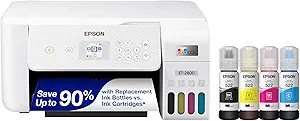 |
| Most Popular A crowd favorite that many people choose with confidence | Canon PIXMA TR4720 |  |
| Best Seller A high-volume bestseller chosen again and again | Canon PIXMA TS6520 |  |
Epson EcoTank ET-4800

| Printer Type | Inkjet |
|---|---|
| Printer Connectivity Type | Wi-Fi, wired |
| Maximum print Resolution Color | 5760 x 1440 dots_per_inch |
| B&W Pages per Minute | 10 pages_per_minute |
| Color Pages per Minute | 5 pages_per_minute |
The ET-4800 is designed for home or small office users who want low running costs and full multifunction capability. It replaces cartridges with large refillable EcoFit ink bottles included in the box, which cuts waste and extends time between refills. Print quality is strong for text and decent for photos thanks to Epson's Micro Piezo print head and a maximum resolution of 5760 x 1440 dpi, and the unit handles basic office tasks with a flatbed scanner, automatic document feeder, copier and fax. You get flexible connectivity via Wi‑Fi, USB and an Ethernet port plus a color LCD for control. Print speeds are modest — about 10 ppm black and 5 ppm color — and duplexing is manual, so heavy duplex workflows will be slower. The printer is relatively compact and energy efficient at 12 watts, but its strengths are cost-per-page and multifunction convenience rather than pro photo speed or advanced enterprise features.
Best for: Buyers who want an economical, low-maintenance all-in-one for everyday home or small office printing with attention to low ink cost and multifunction convenience.
Less Ideal for: Those who need fast duplexed printing for high-volume office workflows or professional photographers seeking the fastest photo throughput and finishing options.
- Cartridge-free EcoTank system with high-capacity refill bottles included
- Good print resolution for sharp text and decent color prints
- All-in-one functions: flatbed scanner, ADF, copier and fax included
- Multiple connectivity options: Wi‑Fi, USB and Ethernet
- Low power consumption and lower long-term ink cost
- No automatic duplex printing; duplexing is manual
- Print speeds are modest compared with faster office lasers
Verdict: Choose the ET-4800 if you want an affordable, cartridge-free all‑in‑one that cuts ink waste and long‑term costs while covering everyday home or small office tasks.
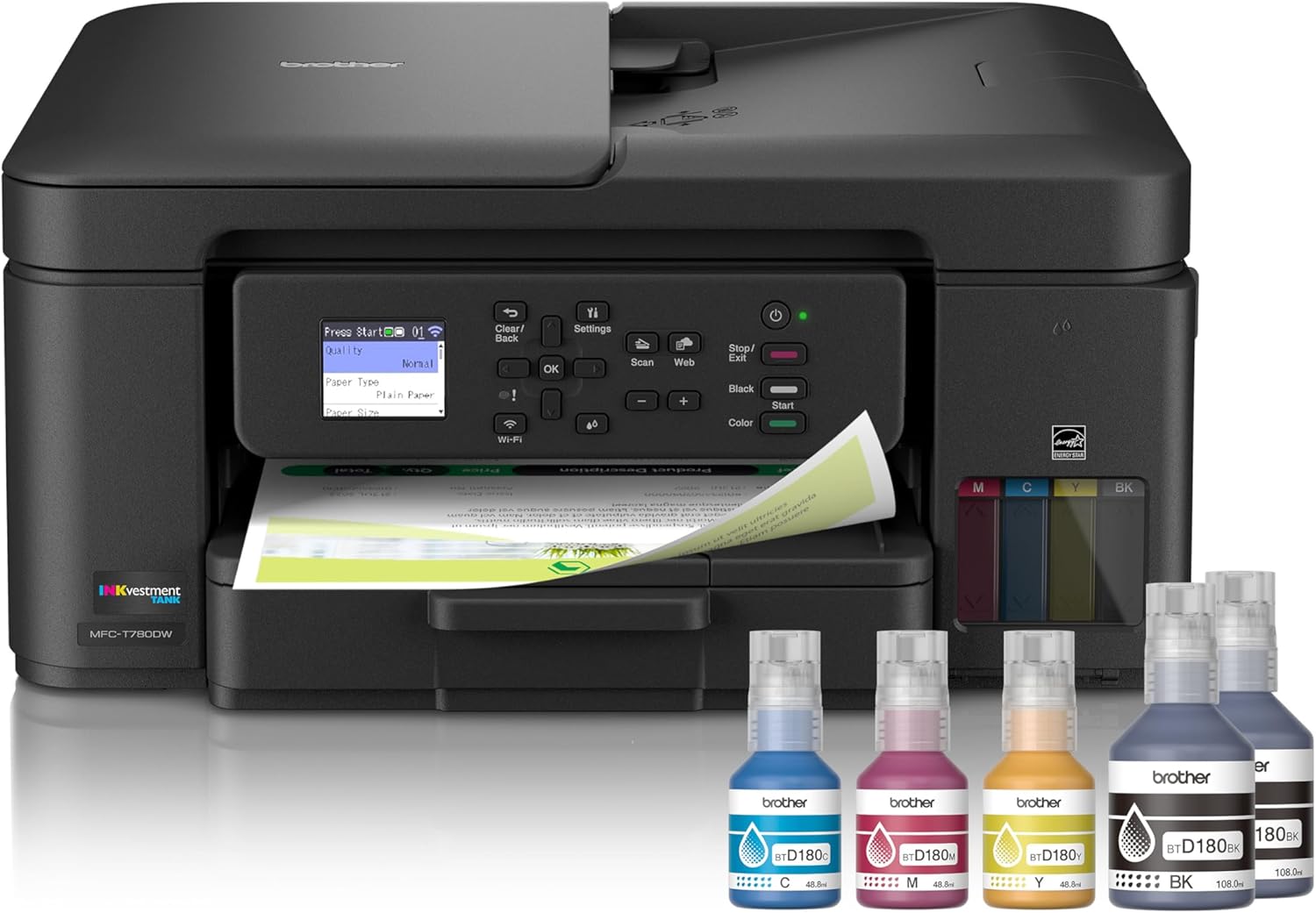
Brother INKvestment Tank MFC-T780DW
| Functions | Print / Copy / Scan |
|---|---|
| Max ISO Print Speed | 16 ppm black / 15.5 ppm color |
| Paper Tray Capacity | 150 sheets |
| Auto Document Feeder | Up to 20 sheets |
| Display | 1.8" Color LCD |
The Brother INKvestment Tank MFC-T780DW is a multifunction inkjet designed for home and small offices that need steady, cost-effective color printing. It combines a refillable ink tank system with spill-free, keyed bottles that make refills fast and less messy, and Brother includes up to three years of ink in the box for long initial uptime. You get printing, copying and scanning plus a single-sided 20-sheet ADF, a 150-sheet main tray and automatic duplex for two-sided jobs, and wireless plus USB connectivity with mobile printing through the Brother Mobile Connect app. Print speeds are competitive for an inkjet at about 16 ppm black and 15.5 ppm color, and Brother recommends its high-yield BTD180 bottles for reliable color and black yields. The practical benefits are low running cost per page and fewer interruptions to replace consumables, but buyers should expect typical inkjet limitations such as slower photo output and slightly larger desktop footprint than compact cartridge-based models. Setup and app-driven workflows simplify mobile printing and scanning, making this a sensible pick for users who prioritize ongoing print capacity over compact size.
Best for: Buyers who need steady, cost-efficient color printing for a home or small office and value long initial ink supply, duplexing and mobile workflow convenience.
Less Ideal for: Photographers or users who need top-tier photo print quality or those seeking the smallest possible desktop printer should look elsewhere.
- Refillable spill-free ink tank with keyed bottles for quick, low-mess refills
- Includes up to three years of ink in-box to reduce early running costs
- Automatic duplex printing and a 20-sheet ADF speed up two-sided and multi-page jobs
- Wireless connectivity and Brother Mobile Connect app for printing and scanning from mobile devices
- Inkjet output is not optimized for high-quality photo printing compared with dedicated photo printers
- Physical footprint and weight are larger than more compact cartridge-based home printers
Verdict: Choose the MFC-T780DW if you want an all-in-one inkjet that dramatically lowers refill frequency and running costs while keeping solid productivity for a home or small office.
Brother Work Smart 1360 MFC-J1360DW

| Printer Type | Inkjet |
|---|---|
| Duplex | Automatic |
| Maximum Sheet Capacity | 150 |
| ADF Capacity | 20-sheet |
| Connectivity | USB, Wi-Fi |
The Brother Work Smart 1360 is a budget-focused all-in-one inkjet aimed at home and small home-office use. It handles everyday tasks—color and black printing, flatbed scanning, and copying—while saving space with a compact footprint. Notable features include automatic duplex (two-sided) printing, a 20-sheet single-sided automatic document feeder for multi-page scans or copies, a 150-sheet input tray, and wireless plus USB connectivity for printing from laptops and mobile devices via AirPrint and Mopria. Setup and mobile control are simplified by the Brother Mobile Connect app and the small color display, and Page Gauge helps track ink levels. Print speeds are reasonable for the class, up to 16 ppm black and 9 ppm color, though color output and photo-quality detail are limited by standard yield inks and small cartridge capacities. This model uses Brother LC501-series cartridges and offers high-yield options if you need lower running costs. Expect solid basic performance and easy cloud/mobile workflows, but not the advanced speed, heavy-duty duty cycle, or photo fidelity of larger office printers.
Best for: Buyers who want a compact, no-frills multifunction printer that streamlines everyday home and small office tasks with easy mobile/cloud printing and automatic duplexing.
Less Ideal for: Users who need high-volume commercial printing, professional photo quality, or faster enterprise-grade throughput should consider larger office-class models instead.
- Automatic two-sided printing saves paper and reduces manual handling.
- 20-sheet ADF and flatbed scanner let you scan or copy multi-page documents easily.
- Wireless, Wi‑Fi Direct, AirPrint and Mopria support make mobile and cloud printing straightforward.
- 150-sheet tray capacity fits moderate home-office print volumes without frequent refills.
- Standard yield starter inks mean replacement cartridges are needed relatively often for heavier use.
- Small color display limits onsite menu navigation compared with larger touchscreens.
Verdict: A compact, practical all-in-one that delivers convenient duplexing, mobile/cloud printing, and basic scan/copy capability for home and small-office users.
HP DeskJet 2855e All-in-One Printer

| Printer Type | Inkjet |
|---|---|
| Print Output Type | Color |
| Compatible Cartridge | HP 67 |
| Maximum Sheet Capacity | 60 |
| Printer Connectivity Type | single band wi-fi (2.4ghz only) |
The HP DeskJet 2855e is an entry-level all‑in‑one designed for light home use, combining color printing, a flatbed scanner, and copying in a compact footprint. It is typically used for printing letters, school assignments, recipes, and occasional photos, with a 60-sheet input tray that keeps running tasks straightforward. Notable features include HP AI formatting to trim unwanted web content before printing, HP+ Instant Ink enrollment with a three‑month trial, and smartphone control via the HP app for printing and scanning. Print speeds are modest at about 7.5 ppm black and 5.5 ppm color, and duplexing is manual, so heavy duplex workflows will be slower. Connectivity is limited to single‑band 2.4 GHz Wi‑Fi and one USB 2.0 port, which keeps the price and complexity down but may frustrate users needing modern dual‑band wireless or wired networking. Image quality and color resolution are good for documents and casual photos, though it is not intended for professional photo work. For buyers on a tight budget who want a simple multifunction printer, it covers core needs without extra bells and whistles.
Best for: Buyers who need an affordable, simple multifunction printer for everyday home documents and occasional color prints and who prioritize low upfront cost and ease of use over advanced networking or high-volume duty.
Less Ideal for: Users who need fast duplex printing, large monthly page volumes, or advanced network features should consider higher‑end models designed for heavier workloads.
- All-in-one functionality for printing, scanning, and copying in a compact unit
- Includes 3 months of Instant Ink with HP+ activation for lower running costs initially
- HP AI formatting and HP app make smartphone printing and tidy web-page prints easy
- 60-sheet input tray suits light home and office tasks without constant refills
- Only supports single‑band 2.4 GHz Wi‑Fi and one USB 2.0 port, limiting connectivity options
- Manual duplexing adds extra steps for double‑sided documents
Verdict: A budget-friendly compact all‑in‑one that delivers straightforward home printing, scanning, and copying with easy smartphone control and an Instant Ink trial to lower initial running costs.
Epson EcoTank ET-2800

| Printer Type | Inkjet |
|---|---|
| Printer Connectivity Type | wired, wireless |
| Color Pages per Minute | 5 pages_per_minute |
| B&W Pages per Minute | 10 |
| Maximum print Resolution Color | 5760 x 1440 dots_per_inch |
The Epson EcoTank ET-2800 replaces disposable cartridges with large refillable ink tanks that come with starter bottles, making it a low-maintenance option for everyday home printing. It prints color and black-and-white documents, offers a flatbed scanner and copying, and connects via wired or wireless networks with app and voice-capable control for convenient mobile printing. Print quality is sharp due to Epson Micro Piezo technology and high resolution, and the advertised page yields mean you refill far less often than cartridge-based printers. The unit prints up to 10 ISO B&W pages per minute and handles common paper sizes including borderless photo sizes, though duplexing is manual rather than automatic. Its 100-sheet tray and LCD make short jobs easy, but photo enthusiasts or heavy duplex users may miss faster color speeds and automatic two-sided printing. For typical home and small office tasks this model reduces running costs and simplifies ink management while delivering reliable daily performance.
Best for: Buyers who prioritize a low-running-cost, low-hassle home all-in-one that reliably handles everyday documents and occasional photos without frequent ink changes.
Less Ideal for: If you need fast color photo throughput, automatic two-sided printing, or advanced photo finishing, consider a model focused on those priorities instead.
- Cartridge-free design with high-capacity refillable ink tanks reduces frequency of ink replacement
- Includes starter ink bottles that provide high page yields out of the box
- Sharp print quality powered by Micro Piezo technology and high maximum resolution
- Wireless, USB, app and voice-capable connectivity for easy mobile printing and setup
- Built-in flatbed scanner and copy functions for basic all-in-one needs
- Duplex printing is manual rather than automatic
- Color print speed is modest compared with faster photo-focused models
Verdict: Choose the ET-2800 if you want an all-in-one home printer that cuts ink hassles and long-term costs with reliable cartridge-free performance.
Canon PIXMA TR4720

| Printer Type | Inkjet |
|---|---|
| Print Resolution | 4800 x 1200 |
| Print Speed B&W | 8.8 pages_per_minute |
| Print Speed Color | 4.4 pages_per_minute |
| Connectivity | USB, Wi-Fi |
The Canon PIXMA TR4720 is a space-conscious 4-in-1 inkjet designed for home or small-office use. It handles basic daily tasks — printing documents and borderless photos, scanning on the flatbed, copying and sending faxes — and includes an auto document feeder for multi-page scans and copies. Setup and mobile printing are straightforward via the Canon Print app and built-in Wi‑Fi, and the front 100-sheet tray and automatic two-sided printing make routine jobs easier and reduce paper use. Print quality is good for text and casual color work thanks to Canon's hybrid ink system, though photo and color print speeds are modest compared with higher-end models. Connectivity is limited to USB and Wi‑Fi and the small two-line LCD means fewer on-device controls. This model comes with starter ink and supports Canon PG-275 and CL-276 cartridges, so running costs depend on cartridge choices and print volume. For buyers who want a compact, easy-to-use all-in-one for everyday documents and occasional photos, the TR4720 hits the mark; power users or heavy photo printers may want a faster, higher-capacity alternative.
Best for: Buyers who prioritize a compact, easy-to-setup all-in-one for routine home or small-office printing and who value wireless mobile printing and automatic duplexing.
Less Ideal for: Users who need fast high-volume output, professional photo-quality results, or extensive on-device controls should consider more robust inkjet or dedicated photo printers.
- Compact 4-in-1 design fits small desks and home offices
- Automatic duplex printing reduces paper use for two-sided documents
- Auto document feeder simplifies multi-page scanning and copying
- Mobile printing via Canon Print app and Wi‑Fi for convenient remote jobs
- Modest color and photo print speeds compared with higher-end inkjets
- Limited onboard controls with a simple two-line LCD display
Verdict: A compact, user-friendly all-in-one that delivers reliable everyday printing, scanning and faxing for home and small-office users.
Canon PIXMA TS6520

| Printer Type | Inkjet |
|---|---|
| Duplex | Automatic |
| Printer Connectivity Type | USB, Wi-Fi |
| Display Type | OLED |
| Compatible Cartridge | PG-295 & CL-286 |
The Canon PIXMA TS6520 is a compact home/office all-in-one that handles everyday documents and occasional photos without fuss. It uses a two-cartridge hybrid ink system to produce sharp black text and reasonably vibrant color prints, and automatic two-sided printing helps reduce paper use. Setup and mobile printing are straightforward via Canon PRINT, AirPrint, or Mopria, and dual-band Wi-Fi keeps connections stable around the house. The 1.42-inch OLED gives clear status feedback and ink-level info, while the flatbed scanner covers basic copying and scanning tasks. Where the TS6520 trades down from higher-end models is in speed and feed capacity: it has a modest single-sheet capacity and average page-per-minute rates, so it is best for low- to moderate-volume users rather than heavy printing. It also lacks an automatic document feeder for multi-page scans. For buyers who prioritize dependable, simple operation in a small footprint, the TS6520 delivers reliable prints and easy wireless use without extra complexity.
Best for: Buyers who want a low-maintenance, easy-to-setup all-in-one for household use, schoolwork, and occasional photo printing where reliability and simple wireless printing matter more than high throughput.
Less Ideal for: Users who need to scan or copy large multi-page documents regularly or print high volumes day after day should consider models with an ADF and larger paper trays.
- Compact footprint fits small desks or home workspaces
- Automatic duplex printing saves paper and speeds two-sided jobs
- Reliable wireless options with dual-band Wi-Fi and mobile printing support
- Hybrid two-cartridge ink system produces sharp text and good color for photos and documents
- Single-sheet input capacity limits high-volume print jobs
- No automatic document feeder for multi-page scanning or copying
Verdict: A compact, user-friendly all-in-one that delivers dependable wireless printing and two-sided printing for risk-averse buyers who want fuss-free home use.
Choosing the Right All-in-One Inkjet Printer: Key Factors to Consider
Print Quality and Color Accuracy
Print quality determines whether your documents look professional and whether photos meet expectations. For text-heavy tasks, crisp, dark black text and legible fine lines matter. When color output matters, look for models with additional color inks or color management features that improve gradation and skin tones.
Color accuracy affects photo and marketing material fidelity. Printers with better color handling will produce smoother gradients and more accurate hues, which is useful for printing family photos or small batches of promotional materials. If you occasionally need lab-grade photos, consider a dedicated photo solution instead of relying solely on a general-purpose inkjet.
Running Costs and Ink Yield
The upfront price of a printer is only one part of ownership cost. Ink consumption and the availability of high-capacity cartridges or refillable tanks strongly influence ongoing expenses. Pages-per-cartridge and manufacturer-stated yields give a baseline for cost-per-page calculations, but real-world yield depends on coverage and the type of documents you print.
Look for printers that support high-yield cartridges, subscription ink plans, or integrated refill tanks to lower per-page costs. For users who print sporadically, consider how much ink is wasted by cleaning cycles and whether pigment or dye inks better suit your needs for longevity and colorfastness.
Connectivity and Mobile Support
How a printer connects to your devices shapes the ease of everyday use. Modern All-in-One Inkjet Printers should offer Wi-Fi and Ethernet for networked homes or small offices, plus direct USB for wired setups. Native support for printing from phones and tablets via standard protocols or vendor apps simplifies mobile workflows.
Cloud printing, AirPrint, and Mopria compatibility reduce friction when printing from diverse devices without driver installs. Also consider whether the printer offers Bluetooth or direct Wi-Fi for quick sharing when a network is unavailable.
Scanner Features and OCR
The scanner is a central reason buyers choose an all-in-one device. A flatbed scanner with good optical resolution produces sharp scans of documents and photos. If you archive receipts or digitize paperwork, look for automatic document feeder support, duplex scanning, and reliable OCR (optical character recognition) to convert scans into editable text.
Ease of use for scanning matters too. Intuitive scanning software, color-correction options, and direct-to-cloud or email scanning workflows speed up repetitive tasks and reduce the need for manual file handling.
Paper Handling and Duty Cycle
Paper capacity and feed versatility affect how often you need to reload media and what jobs the printer can handle. A larger main tray and a rear feed for specialty paper reduce interruptions when printing envelopes, labels, or heavier stock. Duplex printing support is also useful for reducing paper usage and producing professional double-sided documents.
Duty cycle gives an idea of how much monthly output a unit can tolerate. For light to moderate home or small-office printing, choose a unit with a duty cycle comfortably above your expected monthly pages to avoid excess wear and reduce the chance of failure.
Ease of Setup and Maintenance
An intuitive setup process and clear maintenance routines reduce the friction of getting started and keeping the printer running. Look for straightforward cartridge access, clear status indicators, and helpful mobile apps that guide you through tasks like alignment, cleaning, and firmware updates.
Maintenance considerations include the frequency of head cleanings, availability of replaceable parts, and how easily you can clear paper jams. Printers that minimize required interventions let you focus on work rather than upkeep.
Which Printer Features Matter Most for Home Vs Small Office
Home users often prioritize compact size, low noise, and economical ink usage for occasional documents and schoolwork. A modest paper tray and basic scanning functions are usually sufficient. Small offices usually need faster real-world print speeds, larger input capacity, and better networked scanning workflows for multi-user access.
- Home: compact footprint, easy mobile printing, decent photo capability
- Small office: higher duty cycle, larger trays, network scanning and security features
How Ink Types Affect Output and Longevity
Ink formulas differ in how they render colors and how long prints last. Dye-based inks typically offer more vibrant colors but can fade faster, while pigment inks are more water-resistant and hold up better over time. Choose the type that best matches your balance of color fidelity and archival needs.
- Dye inks: vivid color, lower longevity
- Pigment inks: durable text, better water resistance
- Hybrid or expanded-color systems: improved photo detail
Setting Up a Reliable Wireless Printing Environment
Place the printer within good range of your Wi-Fi router to minimize connectivity dropouts. Use a 2.4 GHz band for longer range when needed or 5 GHz for faster speeds if your environment supports it. Assigning a static IP or reserving the printer in your router helps prevent occasional disconnections and simplifies access from multiple devices.
- Test mobile printing from phones and tablets during setup
- Enable automatic firmware updates to maintain security
- Use WPA2 or WPA3 encryption for secure network printing
Scanning Workflows That Save Time
If you scan documents frequently, map a simple workflow that sends scans directly to cloud storage, email, or a designated network folder. Configure OCR settings for language and resolution to reduce manual cleanup. For multi-page documents, use an automatic document feeder with duplex scanning to minimize handling time.
- Create named scan profiles for common tasks
- Use folder monitoring on your computer to auto-import scans
- Adjust DPI: 300 dpi is often enough for text; 600 dpi or higher for photos
Common Maintenance Tasks and Troubleshooting Tips
Keep spare sets of the most frequently used consumables and note where to check the printhead and ink levels. Regularly run manufacturer-recommended cleaning cycles only when print quality drops to avoid unnecessary ink waste. For persistent streaks or color shifts, try a head alignment procedure before replacing cartridges.
- Avoid long idle periods that can clog nozzles
- Store photo paper and specialty media flat and in original packaging
- Use the printer app for guided diagnostics when available
How We Chose the Best All-in-One Inkjet Printer
We applied a practical, usage-driven filter to identify models that fit typical home and small-office needs. First, we required reliable multi-function capability: high-quality printing, flatbed scanning, and basic copying functions all built into one unit. We prioritized printers with modern connectivity, including wired network options and wireless printing from phones and computers, because seamless connectivity reduces setup friction and daily hassles. Next, we evaluated output performance across two dimensions: real-world print speed for mixed documents and photo/color accuracy for users who occasionally print images. Long-term operating cost was another explicit criterion, estimated from ink-yield information and support for high-capacity ink options. Usability and maintenance came next: easy paper handling, intuitive control panels or apps, and accessible consumable access points improve everyday experience. We excluded single-function printers, models without a flatbed scanner, and units primarily aimed at heavy commercial duty. We also deprioritized machines with limited mobile or cloud printing support. The final list balances print quality, speed, running costs, and user-oriented features that matter for typical buyers.
Our full evaluation process is outlined in our review methodology.
FAQ
How often should I replace ink cartridges?
Replacement frequency depends on how much you print and the cartridge yield. Heavy color printing and photos consume ink faster, while occasional document printing can stretch cartridges over months. Monitor estimated ink levels and keep a spare set if you rely on the printer for important tasks.
Is a tank-style ink system worth it for home use?
Tank-style systems lower per-page costs and are ideal if you print frequently. For light users, the upfront cost and occasional ink settling can offset the savings. Evaluate your monthly page count to decide whether a refillable system offers real savings.
Can these printers scan to cloud services directly?
Many modern all-in-one inkjet printers support direct scanning to cloud services via their companion apps or built-in cloud connectors. The exact services supported vary, but direct-to-cloud saves a step compared with scanning to a local computer and then uploading.
What print settings should I use for high-quality photos?
For the best photo prints, use the highest available resolution, select a photo paper profile in the printer driver, and choose color management if available. Let the print head warm up and use manufacturer-recommended paper for optimal color and detail.
How do I avoid paper jams?
Use paper that matches the printer's supported weight range, load the tray without overfilling, and fan sheets before loading to prevent static adhesion. Keep the feed path clear of debris and use the recommended feed slot for envelopes and heavy stock.
Final Verdict
Choosing the right All-in-One Inkjet Printer comes down to balancing print quality, ongoing ink costs, and the scanning features you actually use. Prioritize a model with connectivity and mobile printing that fits your workflow, and consider high-yield or refillable ink options if you print frequently. For occasional photo work, favor better color handling; for heavy document output, favor speed and larger paper capacity. With those tradeoffs in mind, focus on the criteria that match your daily tasks to pick confidently.