
Note: This article contains affiliate links. If you click on these links and make a purchase, we may earn a small commission at no extra cost to you. This helps support our research and content. Read our full affiliate disclosure here.
Picking the right all-in-one printer for a business affects daily productivity, document security, and long-term operating costs. You need a machine that keeps up with frequent print runs, handles scanning and copying reliably, and integrates cleanly with your office network and workflows. This guide presents seven shortlisted all-in-one printers for businesses that meet those needs and a range of office sizes. We evaluated each model on measurable factors like print speed, network security, and ongoing maintenance demands. Read on for the criteria we used and the core tradeoffs to consider before you buy.
Top Picks at a Glance
| Best Overall The best all-around choice for most situations | Canon imageCLASS MF665Cdw |  |
| Best Quality Built to a higher standard if you want something more solid | Brother MFC-L8930CDW |  |
| Best Value The sweet spot between price and what you get | HP OfficeJet Pro 8125e | 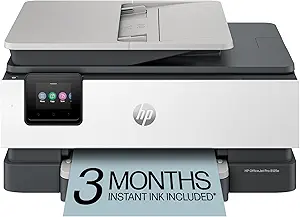 |
| Best Budget The cheapest option that still gets the job done reliably | Canon PIXMA TS6520 |  |
| Top Rated A top-rated pick with lots of positive feedback | Xerox C245 Color Multifunction Printer |  |
| Most Popular A crowd favorite that many people choose with confidence | Epson EcoTank ET-2800 |  |
| Best Seller A high-volume bestseller chosen again and again | Brother DCP-L2640DW Multifunction Laser |  |
Canon imageCLASS MF665Cdw

| Printer Type | Laser |
|---|---|
| Printer Output Type | Color |
| Color Pages per Minute | 26 pages_per_minute |
| Maximum print Resolution Color | 600 x 600 dpi |
| Duplex | Automatic |
The Canon imageCLASS MF665Cdw is a compact color laser all-in-one aimed at small or hybrid offices that need reliable multifunction performance. It prints both color and black-and-white documents at up to 26 pages per minute, with a roughly 10.3 second first page out time, and supports automatic two-sided printing to save paper. The 5-inch color touchscreen and Application Library make common tasks and presets easy to access, while the 50-sheet single-pass duplex ADF speeds batch scanning and copying of two-sided originals. Standard paper handling includes a 250-sheet cassette plus a multipurpose tray, and the machine works with Canon Genuine Toner 075 cartridges for consistent output and high yields. Connectivity is geared toward simple setups with USB and wireless printing via Canon PRINT, AirPrint and Mopria, though wired network ports are not listed. The MF665Cdw balances speed, an easy user interface and low-touch maintenance, but buyers who require advanced network interfaces or very high monthly volumes should consider models with LAN ports or larger input capacity.
Best for: Buyers who need a dependable, easy-to-use multifunction laser for everyday office tasks and moderate monthly print volumes, with an emphasis on fast duplex printing and simple mobile connectivity.
Less Ideal for: Large offices or teams that require enterprise network ports, heavy monthly duty cycles, or higher-resolution color photo printing.
- Consistent color and mono print speed up to 26 ppm for quick office output
- 50-sheet single-pass duplex ADF streamlines two-sided scanning and copying
- 5-inch color touchscreen with Application Library for easy task access
- 250-sheet paper capacity plus multipurpose tray reduces refills for typical small-office use
- No explicit wired Ethernet port listed for direct LAN integration
- Print resolution limited to 600 x 600 dpi which may not suit high-detail graphics
Verdict: A fast, no-frills color laser all-in-one that suits small offices needing dependable duplex printing, scanning and simple mobile workflows.
Brother MFC-L8930CDW

| Printer Type | Laser |
|---|---|
| Print Speed (Color) | 33 pages_per_minute |
| Duplex | Automatic |
| Printer Connectivity Type | Ethernet, USB, Wi-Fi |
| Scanner Type | Flatbed, Sheetfed |
The Brother MFC-L8930CDW is built for busy work teams that need fast, reliable color laser output plus robust scanning and security. It prints and copies up to 33 ppm in color and black, offers automatic duplex printing and a single-pass 80-page auto document feeder for two-sided scanning, and includes a 7-inch color touchscreen for job setup and scan preview. Connectivity options include dual-band Wi-Fi, Gigabit Ethernet, USB and mobile printing, and the printer accepts Brother Genuine TN635 series toners with higher-yield replacements available for lower running costs. Practical perks include expandable paper capacity to support large jobs, NFC badge authentication for secure release, and cloud scan destinations for streamlined workflows. Trade-offs are its substantial footprint and power draw compared with small office inkjets and the ongoing cost and logistics of color laser toners and maintenance for heavy color use. For teams prioritizing speed, security, and high-volume color capability, this model delivers a business-grade balance of performance and manageability.
Best for: Businesses and work teams that prioritize fast, secure, high-volume color printing, advanced scanning workflows, and centralized network management.
Less Ideal for: Individuals or small home offices with light printing needs or limited space who want lower upfront and operating costs.
- Fast print and copy speeds up to 33 pages per minute in color and black
- Single-pass duplex scanning via 80-sheet auto document feeder for efficient batch scanning
- Dual-band Wi-Fi plus Gigabit Ethernet and USB for flexible network and mobile connectivity
- Includes 7" color touchscreen with scan preview and customizable shortcuts
- Supports high-yield replacement toners to reduce cost per page for high-volume printing
- Large and heavy compared with small office printers, requiring dedicated space
- Higher power consumption and ongoing toner costs compared with inkjet alternatives
Verdict: Choose the MFC-L8930CDW when you need a business-grade all-in-one that delivers fast color output, robust scanning, and enterprise-style security for high-volume office workflows.
HP OfficeJet Pro 8125e

| Printer Type | HP Thermal Inkjet |
|---|---|
| Maximum Sheet Capacity | 225 |
| Duplex | Automatic (standard) |
| Printer Connectivity Type | Apple AirPrint; Ethernet; USB; Wireless (Wi-Fi); Wireless direct printing |
| Compatible Cartridge | HP 923 series |
The HP OfficeJet Pro 8125e is a feature-packed all-in-one built around everyday business document tasks. It prints color and black-and-white jobs, scans with a flatbed plus a single-sided ADF, and copies directly from the touchscreen or the HP app. Notable features include automatic two-sided printing, a 225-sheet input capacity, dual-band Wi-Fi with wireless direct printing and Ethernet, and AI-assisted formatting to better fit web pages and emails to paper. The printer supports standard HP 923 cartridges and offers a three-month Instant Ink trial when you activate HP+. In practice the 8125e is geared toward steady small-office use: it handles multi-page scan jobs faster than a basic all-in-one, reduces wasted pages with its AI formatting, and keeps connectivity simple for mixed laptop and mobile environments. Limitations include average color speed compared with laser alternatives and reliance on HP cartridge programs for long-term ink cost savings, so expect higher running costs if you avoid subscription ink services.
Best for: Buyers who want a practical, no-frills office AIO that streamlines daily document tasks and prioritizes reliable connectivity and paper handling for a small business or home office.
Less Ideal for: Large workgroups with very high monthly color volume or teams that need fast, low-cost color output should consider higher-volume laser or business-class ink models instead.
- Automatic two-sided printing and 225-sheet input reduce manual handling for busy document workflows
- Flatbed plus single-sided ADF lets you scan multi-page documents without manual feeding
- Multiple connectivity options including dual-band Wi-Fi, Ethernet, AirPrint and wireless direct make it easy to print from phones and laptops
- AI formatting and HP app controls simplify printing web pages and mobile scanning
- Includes a three-month Instant Ink trial to help avoid unexpected ink shortages during initial setup
- Color print speed and per-page ink costs can be higher than comparable laser printers
- ADF is single-sided, so two-sided originals require manual flipping for double-sided scans/copies
Verdict: Choose the 8125e when you need a connected, paper-friendly all-in-one that simplifies everyday small-business printing and scanning tasks.
Canon PIXMA TS6520

| Printer Type | Inkjet |
|---|---|
| Duplex | Automatic |
| Printer Connectivity Type | USB, Wi-Fi |
| Display Type | OLED |
| Compatible Cartridge | PG-295 & CL-286 |
The PIXMA TS6520 is a budget-friendly all-in-one that delivers solid document and photo output for home and small office use. It uses a two-cartridge hybrid ink system to produce sharp text and reasonably vibrant color prints, and automatic two-sided printing helps reduce paper use. Setup is straightforward via the Canon PRINT app, AirPrint, or Wi-Fi, and the 1.42-inch OLED gives quick status updates without a large control panel. Scanning and copying are handled by the flatbed scanner, and the unit's compact footprint fits easily on a desk or shelf. Limitations for business use include a single paper tray with a very small sheet capacity and no automatic document feeder, so high-volume or multi-page scan/copy workflows will be slower and require manual page handling. Print speeds are modest but acceptable for occasional office tasks. For buyers prioritizing value and reliable wireless printing in a small footprint, the TS6520 is a practical choice; those needing heavy daily throughput or advanced scanning should look at higher-capacity models.
Best for: Small teams or solo business users who need an affordable, space-saving all-in-one for occasional printing, scanning, and copying and who value easy wireless mobile printing.
Less Ideal for: Busy offices that require high-volume printing, frequent multi-page scanning, or unattended batch copying should choose a model with larger paper capacity and an automatic document feeder.
- Automatic duplex printing saves paper and simplifies two-sided jobs
- Reliable wireless and mobile printing including dual-band Wi-Fi, AirPrint, and Canon PRINT app
- Compact design with an easy-to-read 1.42-inch OLED status display
- Two-cartridge hybrid ink system that produces sharp text and good color for photos
- Single tray with very limited sheet capacity restricts continuous printing
- No automatic document feeder, making multi-page scanning and copying manual
Verdict: Choose the PIXMA TS6520 when you want an inexpensive, compact wireless all-in-one that delivers good everyday print and photo quality without taking up much space.
Xerox C245 Color Multifunction Printer

| Print speed | 26 pages_per_minute |
|---|---|
| Duplex | Automatic |
| Connectivity | Ethernet, USB, Wi-Fi |
| Maximum print resolution | 2400×600 dots_per_inch |
| Maximum sheet capacity | 50 |
The Xerox C245 is a compact color laser multifunction printer designed for small offices and home professionals that need reliable everyday color output. It prints, scans, and copies from a single footprint and delivers up to 26 pages per minute for both color and black and white, with automatic two-sided printing to save paper. Connectivity covers Wi‑Fi, Ethernet, USB and mobile standards like Apple AirPrint and Mopria, and setup is simplified through the Xerox Easy Assist app and a 2.8-inch color touchscreen. A 50-sheet feeder and support for envelopes, labels, and cardstock make routine document work straightforward, while Energy Star and EPEAT qualifications help control power use. Expect professional-looking 2400×600 dpi prints and the option to use high-yield toners for lower running costs. The trade-offs are a modest 50-sheet capacity and a relatively heavy, desk-level footprint that may suit only single-user or small-team environments rather than busy workgroups.
Best for: Buyers who prioritize dependable, business-quality color for a small office or a single professional and want an easy-to-manage all-in-one without IT support.
Less Ideal for: High-volume workgroups or busy print centers that need larger paper capacity and faster throughput should consider higher-capacity models.
- Consistent 26 ppm color and mono output for steady everyday printing
- Automatic duplexing reduces paper use and simplifies two-sided jobs
- Multiple connectivity options including Wi‑Fi, Ethernet, USB, AirPrint, and Mopria
- High-resolution 2400×600 dpi output produces sharp text and vibrant graphics
- Guided mobile setup and a color touchscreen make installation and basic operation easy
- 50-sheet feeder limits continuous batch printing for larger teams
- Relatively heavy and compact footprint may be bulky for very small desks
Verdict: Choose the Xerox C245 when you need a reliable, easy-to-setup color all-in-one that delivers professional prints for a small office or solo professional.
Epson EcoTank ET-2800

| Printer Type | Inkjet |
|---|---|
| Printer Connectivity Type | USB, Wi-Fi |
| Maximum print Resolution Color | 5760 x 1440 dpi |
| B&W Pages per Minute | 10 |
| Duplex | Simplex |
The Epson EcoTank ET-2800 is a cartridge-free all-in-one that prints, copies and scans using high-capacity refillable ink tanks designed to cut replacement frequency and waste. It is typically used for everyday home or small-office jobs where low running cost and convenience matter: set it up on Wi‑Fi, print from mobile apps or use voice commands, and run batches of documents without frequently swapping cartridges. Notable features include Epson's PrecisionCore heat-free printhead for sharp text and decent photo output, a flatbed scanner, a small color LCD, and the bundled ink bottles that Epson rates as equivalent to roughly 90 cartridges. Practical benefits are much lower ink spend over time and fewer interruptions for ink changes, plus simple app-based control. Important limitations are modest color print speed (about 5 ppm), no automatic two-sided printing, and a single paper tray with limited capacity, so it is less suited to heavy, duplexed office workflows or high-volume departments.
Best for: Buyers who prioritize low long-term ink costs and reliable everyday printing with straightforward wireless and mobile connectivity for small-office or home-office use.
Less Ideal for: Teams that need fast duplex printing, large paper capacity, or heavy daily throughput should consider a higher-capacity office model instead.
- Cartridge-free EcoTank system with high-capacity refillable ink bottles reduces ongoing ink cost
- Wireless and mobile printing plus voice-activated printing for convenient remote workflows
- PrecisionCore heat-free print technology delivers sharp text and good color detail
- Includes bundled ink that covers many months of typical home or small-office printing
- No automatic duplex (two-sided) printing which slows double-sided workflows
- Relatively slow color printing speed compared with higher-end office models
Verdict: Choose the ET-2800 if you want an affordable cartridge-free all-in-one that significantly lowers ink costs while offering reliable wireless printing for small-scale business or home-office use.
Brother DCP-L2640DW Multifunction Laser

| Printer Type | Laser |
|---|---|
| Printer Output Type | Monochrome |
| B&W Pages per Minute | 36 pages_per_minute |
| Auto Document Feeder Capacity | 50 pages |
| Maximum Sheet Capacity | 250 |
The Brother DCP-L2640DW is a small-footprint monochrome laser multifunction designed for busy small offices and home businesses. It prints up to 36 ppm, supports automatic duplexing, and includes a 50-page automatic document feeder to speed multi-page scans and copies. Connectivity covers dual-band Wi-Fi, Ethernet, and USB so multiple users can print from laptops and mobile devices, and the Brother Mobile Connect app simplifies mobile printing and managing supplies. The 250-sheet input tray reduces paper refills for higher-volume jobs and Toner Save Mode plus eligibility for Brother Refresh subscription help control running costs. Expect sharp black-and-white output at up to 1200 x 1200 dpi for text and simple graphics, but no color printing capability and the initial toner yield is modest compared with dedicated high-yield models. Its combination of speed, network options, and straightforward controls make it practical for risk-averse buyers who prioritize reliable, familiar office features over color or specialty printing.
Best for: Buyers who want a dependable, business-focused monochrome AIO that emphasizes fast text output, reliable network connectivity, and simple supply management.
Less Ideal for: Those who need color printing, photo-quality output, or a very high initial toner yield should consider color or higher-capacity alternatives.
- Fast monochrome printing up to 36 pages per minute.
- 50-sheet auto document feeder for efficient multi-page scanning and copying.
- Dual-band Wi-Fi plus Ethernet and USB for flexible networked or local connections.
- Automatic duplex printing and 250-sheet tray reduce paper handling and refills.
- Works with Brother Mobile Connect app and Refresh subscription for supply management.
- Monochrome only so it cannot produce color prints or photos.
- Initial in-box toner yield is limited compared with some high-yield packages.
Verdict: A dependable, fast monochrome all-in-one that suits small businesses needing reliable text printing, network flexibility, and easy supply management.
Choosing the Right All-in-One Printer for Businesses: Key Factors to Consider
Print Speed and Monthly Duty Cycle
Print speed determines how quickly documents leave the machine during peak office hours. For businesses, peak throughput matters more than burst rates; a machine with a high rated monthly duty cycle and consistent sustained speed reduces bottlenecks and prevents slowdowns during heavy print days.
Choosing a printer with an appropriate duty cycle helps avoid premature wear and increases uptime. If your office prints hundreds or thousands of pages monthly, select models rated for that volume or higher to minimize service interruptions and unexpected maintenance.
Network Security and Authentication
Office printers are networked endpoints and can be vectors for data exposure if not secured. Features such as secure printing (PIN release), user authentication, encrypted data transfer, and regular firmware updates reduce the risk of unauthorized access and data leakage.
Consider how the printer integrates with your existing directory services or single sign-on systems. Built-in security features and a clear update path matter as much as initial capabilities because they control long-term vulnerability management.
Paper Handling and Finishing Options
Paper capacity, automatic duplexing, multi-page automatic document feeders, and optional finishing like stapling or hole punching determine how much manual work staff must do. More capable paper handling reduces interruptions and supports higher productivity for multi-page reports and mailings.
Think about the common document types you process and whether you need specialty trays for envelopes, thicker stock, or large-format prints. Adequate input and output capacity reduces the frequency of refills and prevents paper jams that interrupt workflow.
Consumables Cost and Availability
Consumables drive the total cost of ownership. High-capacity toner or ink options lower cost per page and require fewer replacements. Availability of replacement cartridges and clarity around yield estimates are important so departments can budget accurately.
Evaluate whether the printer supports high-yield consumables, subscription or supply programs, and how easy it is to swap cartridges. Consider the environmental impact of consumables and whether recycling or take-back programs are available.
Software Ecosystem and Mobile Support
A printer that integrates with your document management, scanning workflows, and mobile devices reduces friction. Look for reliable drivers, support for common protocols like AirPrint and Mopria where relevant, and software that enables automated scanning to network folders or cloud services.
Ease of deploying drivers across an organization and remote management tools for administrators improve long-term maintainability. Scanning accuracy and OCR support can also save time when converting paper documents into searchable digital files.
Serviceability and Warranty Options
Quick access to service and straightforward warranty terms reduce downtime when something goes wrong. Business environments benefit from service plans, on-site repair options, and clear replacement part supply chains.
Check how easy routine maintenance is for in-house staff and whether common issues like paper jams or roller replacements are user-serviceable. A practical warranty and responsive support network protect uptime and budgeting.
Sizing the Printer to Your Office Workload
Estimate typical daily and monthly page volumes before choosing a machine. Small teams with light scanning needs can prioritize compact models with modest duty cycles, while departments that batch-print reports and mailings need larger-capacity devices with robust feeding mechanisms.
Also consider growth. A printer sized slightly above current needs offers headroom for seasonal spikes and business expansion without a short replacement cycle.
- Match monthly duty cycle to expected volume plus a margin.
- Consider input tray capacity if multiple users share the device.
- Plan for peak-day throughput, not just average daily use.
Optimizing Network Setup and Permissions
Place office printers on a secured subnet or VLAN when possible to contain access and simplify monitoring. Restrict administrative interfaces to trusted IP ranges and enable logging to track usage and detect anomalies.
Implement user authentication for sensitive documents. PIN release, badge release, or directory-based authentication prevents unauthorized pickup of confidential print jobs and reduces the chance of lost or exposed paperwork.
- Use encrypted protocols like TLS for network communication.
- Limit admin access and change default credentials during setup.
- Enable automatic updates or schedule regular firmware checks.
Streamlining Scanning Workflows
Efficient scanning setups save time by automating destination and OCR options. Look for models that can scan directly to network folders, email, or cloud storage with configurable profiles for common jobs.
Batch scanning and good OCR accuracy reduce manual cleanup when digitizing archives or incoming paperwork. Consider how easily you can create and deploy scan profiles across multiple users or departments.
- Create scan-to-folder templates for recurring tasks.
- Test OCR accuracy on your typical document types.
- Use the document feeder for multi-page jobs to avoid manual scanning.
Choosing Between Laser and Ink Technologies
Laser-based devices typically excel at high-volume black-and-white printing and have lower cost per page for heavy use. Color laser options are viable for basic color documents but may not match photographic color quality. Ink-based models can deliver superior color and photo detail but may incur higher per-page costs at scale.
Match the print technology to your most common outputs. If most printing is text and invoices, laser is often the more economical and durable choice. If you need vibrant marketing materials in-house, carefully weigh color quality against supply costs and longevity.
- Prefer laser for high-volume black-and-white work.
- Consider ink for high-fidelity color needs.
- Assess long-term consumables cost for your output mix.
Implementing Maintenance Routines to Reduce Downtime
Regular, simple maintenance keeps machines reliable. Train staff on basic tasks like clearing jams, replacing consumables, and cleaning feeders. Schedule periodic checks for rollers and feeders to prevent gradual degradation that causes jams.
Establish a clear escalation path for faults and a spare consumables inventory for busy departments. Preventive maintenance reduces interruptions and often lowers total support costs over a printer's life.
- Keep a small stock of high-use consumables on hand.
- Document common troubleshooting steps for end users.
- Schedule preventive maintenance aligned with heavy usage periods.
How We Chose the Best All-in-One Printer for Businesses
We compiled this list by applying practical, business-focused filters that identify all-in-one printers suited to sustained office use. First, we prioritized sustained print speed and monthly duty cycle ratings to ensure devices can handle regular output without excessive wear. Second, we looked for robust network and security features, including support for secure printing, user authentication, and firmware update mechanisms. Third, we assessed paper handling and finishing options so the machines can support common office tasks like multi-page scanning, duplex printing, and stapling or sorting when available. Fourth, we considered maintenance overhead: ease of replacing consumables, availability of high-capacity consumables, and simple serviceability for in-house staff or service technicians. Finally, we evaluated software and mobile integration for printing and scanning workflows, including cloud and network compatibility. Excluded from consideration were home-oriented models with low monthly duty cycles, single-function printers, and devices lacking essential security or network features expected in business deployments. The list emphasizes measurable specs and real-world operational concerns rather than only advertised features.
Our full evaluation process is outlined in our review methodology.
FAQ
How many pages per month should my office printer handle?
That depends on team size and tasks. Small teams may only need a few hundred pages monthly, while busy offices often require devices rated for several thousand pages. Choose a model with a rated monthly duty cycle above your expected usage to allow headroom.
Is secure printing necessary for a small business?
Often yes. Secure printing features like PIN release and user authentication reduce the risk of sensitive documents being left at the device. Even small businesses benefit from basic access controls and encrypted communications.
Can I scan directly to cloud storage from an office printer?
Many business-class all-in-one printers support scan-to-cloud or can push scans to network folders and email. Verify support for your preferred cloud service and whether the device offers configurable scan profiles and OCR if you need searchable documents.
How do I lower the cost per page for high-volume printing?
Use high-capacity consumables, choose devices with efficient toner or ink usage, and enable duplex printing to halve paper use for two-sided documents. Monitoring usage and selecting the right consumable yields can substantially reduce ongoing costs.
What should I do if the printer frequently jams?
First, check paper type and tray settings to ensure correct media is loaded. Inspect rollers and the feeder for wear or debris, and follow the manufacturer's cleaning guidance. If jams persist, evaluate whether the device is undersized for current volume or requires service.
Final Verdict
For business environments, prioritize printers that align with your daily throughput, security needs, and document workflows. Tradeoffs usually center on print technology versus color quality, and upfront features versus long-term consumables cost. Focus on sustained speed, network security, and ease of maintenance to maximize uptime. Choose a model that comfortably exceeds your current monthly volume, supports secure and automated scanning workflows, and offers clear service and consumable paths. That approach reduces interruptions and keeps business printing predictable and efficient.