
Note: This article contains affiliate links. If you click on these links and make a purchase, we may earn a small commission at no extra cost to you. This helps support our research and content. Read our full affiliate disclosure here.
If you need a compact, affordable all-in-one printer for everyday home use, choosing the right model matters for both wallet and workflow. You will use this device for homework, bills, occasional photos, and scanned receipts, so reliability, low running costs, and easy setup are the priorities. This guide shortlists the top affordable all-in-one printers that balance print quality, connectivity, and operating cost. Each pick was evaluated for its suitability in small households and home offices, and the evaluation focuses on print speed, ink or toner efficiency, ease of use, and scanning performance. Read on for concise buying guidance and the factors we used to create this shortlist.
Top Picks at a Glance
| Best Overall The best all-around choice for most situations | HP OfficeJet 3830 |  |
| Best Value The sweet spot between price and what you get | Brother Work Smart 1360 MFC-J1360DW |  |
| Best Budget The cheapest option that still gets the job done reliably | Canon PIXMA TS3720 | 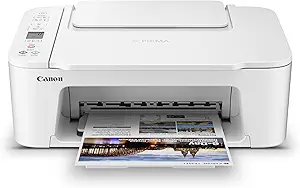 |
| Top Rated A top-rated pick with lots of positive feedback | Canon PIXMA TR4720 |  |
| Most Popular A crowd favorite that many people choose with confidence | HP DeskJet 2855e |  |
HP OfficeJet 3830

| Printer Type | Inkjet |
|---|---|
| Functions | Print, Scan, Copy, Fax |
| Printer Connectivity Type | USB, Wi-Fi |
| Auto Document Feeder | 35-sheet |
| Color Pages per Minute | 16 pages_per_minute |
The HP OfficeJet 3830 is a small, budget-oriented all-in-one designed for home use and light home-office workloads. It handles printing, copying, scanning and faxing, and adds a 35-sheet automatic document feeder so you can scan or copy multi-page documents without constant page-by-page feeding. Setup is straightforward from a smartphone, tablet, or PC using Wi‑Fi and the HP mobile apps, and it supports direct mobile printing and AirPrint. Print quality is good for documents and decent for photos thanks to high color resolution, while black text prints faster than color. The 2.2-inch display and optional quiet mode make day-to-day operation simple, and the printer is Instant Ink eligible for lower ongoing costs if you enroll. Expect manual duplexing only and modest paper handling compared with larger models, so it is best for moderate monthly volumes rather than heavy office printing. Overall, it gives a solid mix of features for buyers who need an inexpensive, space-saving all-in-one with reliable mobile connectivity.
Best for: Buyers seeking an inexpensive, space-saving all-in-one that covers printing, scanning, copying and faxing for a home or small home-office where mobile printing and occasional photo prints matter.
Less Ideal for: Users who need high-volume daily printing, automatic duplexing, or a larger paper capacity for heavy office workloads should consider more robust models.
- All-in-one functions plus a 35-sheet automatic document feeder for multi-page scanning and copying
- Wireless mobile printing and AirPrint support for easy printing from phones and tablets
- High color print resolution for better photo and graphics detail
- Compact footprint with an easy smartphone setup and a simple 2.2-inch display
- Instant Ink eligibility reduces ongoing ink costs for light to moderate users
- Only manual duplex printing rather than built-in automatic two-sided printing
- Lower paper input capacity and slower color speeds compared with higher-end home office printers
Verdict: A compact, budget-friendly all-in-one that delivers reliable mobile printing and essential office features for home users who want a capable, space-saving printer.
Brother Work Smart 1360 MFC-J1360DW

| Printer Type | Inkjet |
|---|---|
| Duplex | Automatic |
| Maximum Sheet Capacity | 150 |
| Automatic Document Feeder | 20 sheets |
| Connectivity | USB, Wi-Fi |
The Brother Work Smart 1360 is a compact all-in-one inkjet aimed at home and small home-office users who need basic color printing, copying, and scanning without a lot of fuss. It supports wireless printing, USB, AirPrint and Mopria so you can print from laptops, tablets, and phones, and the Brother Mobile Connect app simplifies setup and mobile workflows. The unit includes a 20-sheet automatic document feeder and a 150-sheet tray, plus automatic two-sided printing to save paper. Print speeds are geared toward everyday tasks — up to 16 ppm black and 9 ppm color — and the 1.8" color display and Page Gauge ink monitoring make routine use straightforward. Image quality is good for documents and casual color prints, and Brother recommends genuine LC501 cartridges with standard and high-yield options for lower running costs. Limitations to expect are modest photo-quality capability compared with dedicated photo printers and average ink yields on the starter cartridges, so ongoing ink cost should be planned for. The printer's small footprint and energy-efficient features make it a sensible, no-frills choice for budget-conscious home users.
Best for: Buyers who want a compact, no-frills multifunction printer that saves space and handles everyday home and home-office document tasks efficiently while keeping upfront cost low.
Less Ideal for: Users who need professional photo-quality prints, high monthly page volumes, or the lowest long-term ink cost for heavy printing should consider higher-end or business-focused models.
- Compact all-in-one design with print, copy, and scan in one unit.
- Automatic duplex printing and 20-sheet ADF for two-sided jobs and multipage scanning.
- Wireless, USB, AirPrint, and Mopria support for flexible mobile and PC printing.
- 150-sheet input tray reduces how often you reload paper.
- Mobile app with ink monitoring makes setup and remote printing easier.
- Starter ink yields are limited so replacement cartridges may be needed sooner than expected.
- Not optimized for high-quality photo printing compared with dedicated photo printers.
Verdict: A compact, budget-minded all-in-one that covers everyday home printing, scanning, and copying with useful duplex and mobile features.
Canon PIXMA TS3720

| Printer Type | Inkjet |
|---|---|
| Maximum print Resolution Color | 4800 x 1200 dpi |
| Printer Connectivity Type | USB, Wi-Fi |
| Compatible Cartridge | Canon CL-276, Canon PG-275 |
| Maximum Sheet Capacity | 60 |
The Canon PIXMA TS3720 is a small, budget-minded all-in-one inkjet that handles everyday home printing, scanning and copying with straightforward setup and wireless convenience. It uses a two-cartridge hybrid ink system with pigment black for sharp text and dye-based colors for photos, and supports borderless prints up to 5 x 7 inches plus a range of paper types including envelopes and labels. Setup and mobile printing work through the Canon PRINT app, AirPrint and Mopria, and the rear tray holds up to 60 sheets for occasional home use. Print speeds are modest at about 7.7 ppm black and 4 ppm color, and the unit prints single-sided only, so heavier duplex workflows will be slower and require manual page flipping. The 1.5-inch LCD and simple controls keep operation easy, and dual-band Wi-Fi helps with stable connections. This is a practical, space-saving choice for households that need reliable basic printing without extra bells and higher running costs of larger machines.
Best for: Buyers looking for an inexpensive, space-saving all-in-one to handle basic home printing, schoolwork and occasional photo prints with simple mobile setup.
Less Ideal for: Users who need fast two-sided printing, high monthly volume, or advanced office features such as automatic document feeders and large paper capacity.
- Compact footprint fits small home desks or counters
- Easy wireless and mobile printing via Canon PRINT, AirPrint and Mopria
- Two-cartridge hybrid ink system for sharp text and decent color photos
- Supports a variety of media including envelopes, labels and borderless photos
- Single-sided printing only, no automatic duplex
- Relatively slow color print speed compared with higher-end models
Verdict: A compact, wallet-friendly all-in-one that delivers basic home printing and easy mobile connectivity without unnecessary extras.
Canon PIXMA TR4720

| Printer Type | Inkjet |
|---|---|
| Printer Connectivity Type | Wi-Fi |
| Duplex | Automatic |
| Compatible Cartridge | PG-275, CL-276 |
| Maximum Media Size | A4/Letter |
The PIXMA TR4720 is a small, budget-friendly all-in-one inkjet designed for home use that handles printing, scanning, copying, and faxing. Setup uses the Canon PRINT app and Wi‑Fi connectivity for direct mobile printing, and the automatic duplexer and auto document feeder make two-sided and multi-page jobs simpler without manual flipping. Print resolution is strong for the class at up to 4800 x 1200 dpi for color, so photos and graphics look reasonably sharp for home projects. It ships with starter PG-275 and CL-276 cartridges and is built around single-tray paper handling with a stated maximum sheet capacity of 100. Practical limits include modest paper capacity and typical consumer ink costs if you print heavily, but for light to moderate home workloads it is easy to install, compact on a desk, and offers dependable basic features like automatic two-sided printing and phone-based control.
Best for: Buyers wanting a reliable, space-saving multipurpose printer for everyday home tasks who prioritize easy setup, duplexing, and mobile printing over high-volume throughput.
Less Ideal for: Users who need heavy daily printing, large paper capacity, or the lowest long-term ink cost should consider higher-capacity or ink-tank alternatives.
- True all‑in‑one functionality with print, scan, copy and fax in one compact unit
- Automatic duplex printing and auto document feeder for unattended multi-page jobs
- Wi‑Fi and mobile app control make printing from smartphones straightforward
- High maximum color print resolution (4800 x 1200 dpi) for sharper photos and graphics
- Starter ink cartridges are small so running costs can be higher with frequent printing
- Single paper tray and 100-sheet capacity limit large batch printing
Verdict: A compact, reliable all-in-one that covers essential home printing tasks with automatic duplexing and mobile setup, making it a solid budget choice for everyday use.
HP DeskJet 2855e

| Printer Type | Inkjet |
|---|---|
| Print Output | Color |
| Input Capacity | 60 sheets |
| Connectivity | single band wi-fi (2.4ghz only) |
| Compatible Cartridge | HP 67 |
The HP DeskJet 2855e is a compact all-in-one inkjet intended for basic home printing, scanning, and copying tasks. It delivers color and black-and-white prints at modest speeds (about 5.5 ppm color, 7.5 ppm black) and includes a flatbed scanner and a 60-sheet input tray for occasional batch jobs. Setup and mobile workflow are centered on the HP app and single-band 2.4 GHz Wi‑Fi, and the printer supports HP+ activation that includes a three-month Instant Ink trial for ink delivery. Print quality is suitable for documents, web pages, and casual photo and graphic tasks thanks to a high nominal color resolution, though heavier photo or high-volume office work will expose the limits of its speed and small paper capacity. It uses HP 67 cartridges and requires manual duplexing for double-sided pages. For buyers focused on a simple, app-driven home printer on a budget, the DeskJet 2855e covers the essentials with a small footprint and straightforward features, but it is not aimed at power users or high-volume households.
Best for: Buyers who want an inexpensive, app-focused all-in-one for occasional home use and value easy setup and ink subscription options over speed or heavy-duty throughput.
Less Ideal for: Users who need fast, high-volume printing, automatic duplexing, or advanced connectivity features should consider a more robust model.
- Compact all-in-one design for printing, scanning, and copying in a small footprint
- Includes 60-sheet input tray that handles common paper sizes up to legal
- Simple mobile and remote workflows via the HP app and HP+ Instant Ink trial
- Decent nominal color resolution (4800 x 1200 dpi) for document and casual photo prints
- Single-band 2.4 GHz Wi‑Fi only and limited connectivity options
- Slow print speeds compared with higher-end home or office models
- No automatic duplex printing; double-sided printing is manual
Verdict: A small, budget-friendly all-in-one that delivers simple, app-driven home printing and a free Instant Ink trial for users who prioritize convenience over speed.
Choosing the Right All-in-One Printer for Home on a Budget: Key Factors to Consider
Running Costs and Consumables
Consumable costs determine long-term affordability. A low initial price can be undermined by expensive replacement ink or toner, so check typical page yields and whether high-yield or third-party cartridges are available.
Also consider how the printer reports ink levels and whether individual color cartridges are used. Printers that force you to replace a full multi-color pack when only one color is low drive up costs. Look for models with solid ink-yield documentation to estimate monthly spending.
Print Speed for Everyday Tasks
Print speed matters for routine home jobs like homework, quick invoices, or multi-page documents. Faster first-page-out time and higher pages-per-minute reduce waiting and frustration during bursts of printing.
Remember that quoted speed figures are often measured under ideal conditions. Prioritize machines with consistent real-world speed for mixed document types rather than headline numbers that only apply to black-and-white text.
Scan and Copy Capability
An all-in-one should deliver dependable scanning and copying since these features are frequently used for schoolwork and simple home office tasks. Check scan resolution, whether the scanner supports duplex scanning, and if there is an automatic document feeder for multi-page jobs.
Ease of scanning to email or cloud services and reliable OCR support are useful when you digitize receipts and forms. Scanning speed and single-pass duplex capability matter if you regularly scan two-sided documents.
Connectivity and Ease of Setup
Wireless printing, mobile app support, and a straightforward setup process make a printer much easier to live with. Look for Wi-Fi support, reliable mobile printing standards, and a clear control panel or app for basic tasks.
Having Ethernet or USB options provides flexibility for different home setups. Also consider how well the printer handles network drops, whether it reconnects reliably, and if firmware updates are straightforward.
Physical Size and Noise
Home environments often mean tight desk or shelf space, so the printer footprint is important. Measure the space where the unit will sit and compare it to the printer's open and closed dimensions, including paper trays.
Noise level can also affect placement. Some budget models are louder when printing or scanning; if the printer will sit in a living area or near sleeping children, seek models with quieter operation or adjustable power settings.
Paper Handling and Supported Media
Consider typical household jobs like printing envelopes, labels, or photos. Check the input tray capacity and whether the printer accepts different paper sizes and weights without frequent jams.
An automatic document feeder and a straight paper path help with heavier media or longer print runs. If you expect to print photos, confirm support for photo paper sizes and whether the printer uses dedicated photo trays or manual feed options.
How to Estimate True Cost Per Page
Estimating the real cost per printed page helps you compare printers beyond the sticker price. Start by identifying manufacturer-stated page yields for standard cartridges or toner, then divide the cartridge cost by the yield to calculate cost per page for black and for color.
Account for real usage patterns. If you print mostly black text, color cartridge yields may not matter. For mixed use, blend the black and color costs based on your monthly page mix. Also factor in occasional maintenance items and the likelihood of needing replacement parts over time.
- Use ISO or manufacturer yield numbers as a baseline, but expect lower yields with heavy photo printing
- Include the cost of high-yield cartridge options if available
- Consider third-party cartridge options only if you are comfortable with potential warranty or reliability tradeoffs
Balancing Photo Quality with Document Needs
Budget all-in-ones often prioritize sharp text over high-end photo reproduction. If you only occasionally print family photos, a model that produces decent 4×6 prints may be sufficient. For better color fidelity look for higher DPI and more color cartridges.
For mixed use choose a machine that offers a dedicated photo mode and supports photo paper sizes. Keep in mind that photo printing dramatically increases ink consumption, which influences running costs.
- Check DPI and color cartridge configuration for photo work
- Use photo paper recommended by the manufacturer for best results
- Print a few test pages to assess real-world photo output before heavy use
Tips for Setting Up in a Small Home Office
Place the printer where its cabling and paper flow are convenient to avoid repeated handling. Leave clearance for paper trays and the scanner lid to open fully. If desk space is limited, consider wall shelf placement with a stable surface.
Optimize network setup by giving the printer a stable Wi-Fi connection, ideally with a strong signal or a wired Ethernet link. Use the manufacturer app or a web interface for initial setup, and enable automatic updates if available to keep security and connectivity current.
- Measure the printer with trays extended before committing to placement
- Keep spare cartridges and basic paper stock close at hand
- Use a dedicated power strip with surge protection in areas with frequent brownouts
Maintaining Print Quality Over Time
Regular use prevents ink from drying and keeps print heads functioning. Run a short test print weekly if the printer sits idle for long periods. Use the printer's maintenance utilities for head cleaning only when necessary, since excessive cleaning uses up ink.
Store spare cartridges in a cool, dry place and avoid refilling cartridges unless you understand the risks. Recalibrate color settings if prints drift over time and replace consumables that are past their recommended shelf life.
- Run regular nozzle checks to detect clogging early
- Perform head alignment when print artifacts appear
- Keep firmware up to date to maintain compatibility and fix bugs
When to Consider a Higher-Capacity Option
If your household printing jumps from occasional documents to regular multi-page jobs or heavy photo use, a higher-capacity machine may lower overall costs and reduce interruptions. Look for larger input trays, higher-yield cartridges, and duty cycles rated for heavier monthly volume.
A higher-capacity model also tends to have sturdier paper handling and faster throughput. Weigh the slightly higher upfront and possibly larger footprint against the convenience and lower per-page cost for busy households.
- Track your monthly page count for a few months before upgrading
- Compare duty cycle ratings to your projected monthly use
- Check whether larger trays and duplexing are included to save time
How We Chose the Best All-in-One Printer for Home on a Budget
We focused on real-world home use when assembling the shortlist of affordable all-in-one printers. Candidates had to deliver consistent text quality for documents, usable photo output for family snapshots, and reliable scanning and copying performance. We prioritized models with straightforward setup and mobile printing options so nontechnical users can get running quickly. Running cost was a major filter: we assessed estimated ink or toner yield and the availability of high-yield replacement cartridges. Compact footprint and energy efficiency were considered to suit limited home desk space. We excluded specialty or commercial-grade models with oversized capacity or industrial duty cycles, and we left out units lacking basic wireless or USB connectivity. In short, we evaluated print speed, consumable efficiency, ease of setup and use, scanning and copy capability, and physical size and energy consumption to create a practical list for budget-conscious home buyers.
Our full evaluation process is outlined in our review methodology.
FAQ
How often should I replace ink or toner in a home all-in-one printer?
Replacement frequency depends on your monthly page volume and the mix of color versus black printing. Light home use can go months between replacements, while photo-heavy or frequent multi-page printing consumes cartridges faster. Estimating pages per month helps plan purchases.
Is wireless printing reliable for everyday home use?
Wireless printing is generally reliable for home environments with a stable Wi-Fi network. Performance depends on signal strength and router quality. For the most consistent results, place the printer near the router or use a wired connection if you encounter frequent drops.
Can I use third-party cartridges to save money?
Third-party cartridges can lower costs but carry tradeoffs in yield, print quality, and sometimes reliability. They may also affect warranty coverage in some cases. If you choose third-party supplies, buy from reputable sellers and test compatibility before committing to bulk purchases.
Do compact all-in-one printers handle photos well?
Compact models can produce acceptable casual photos, but they typically do not match dedicated photo printers in color depth and longevity. For occasional 4×6 prints they are fine, but heavy photo printing will raise consumable costs and may reveal quality limitations.
What maintenance is required to keep prints looking good?
Basic maintenance includes occasional nozzle checks, using the manufacturer cleaning utilities sparingly, and regular use to prevent ink drying. Store cartridges properly and replace them when print defects appear. Firmware updates can also resolve print quality issues.
Final Verdict
For budget-minded home buyers, prioritize low running costs, dependable wireless setup, and adequate scan/copy capability over headline features. If you print mostly documents, focus on a model with efficient black consumables and reliable text output. If photos are occasional, choose one with decent color handling but be realistic about higher ink consumption. Balance size and capacity against your expected monthly volume. Use the factors above to match a machine to your household habits and you will get the best combination of low ongoing cost and reliable performance from an affordable all-in-one printer.