
Note: This article contains affiliate links. If you click on these links and make a purchase, we may earn a small commission at no extra cost to you. This helps support our research and content. Read our full affiliate disclosure here.
If you create or reproduce artwork at home, choosing the right All-in-One Printer for Art Prints affects how faithfully your prints match the original. You need flat, even color, reliable detail in highlights and shadows, and inks and papers that hold up over time. This guide shortlists the top picks in the category, focusing on models suited to producing fine art reproductions and gallery prints. We evaluated candidates for output resolution, color accuracy, media handling, and archival performance so you can pick a printer that fits your workflow and intended print sizes. Read on for practical guidance before the product list.
Top Picks at a Glance
| Best Overall The best all-around choice for most situations | HP OfficeJet Pro 8135 |  |
| Best Value The sweet spot between price and what you get | Brother Work Smart MFC-J1360DW |  |
| Best Budget The cheapest option that still gets the job done reliably | HP DeskJet 2955 All-in-One |  |
| Top Rated A top-rated pick with lots of positive feedback | Canon PIXMA TR4720 |  |
| Most Popular A crowd favorite that many people choose with confidence | Canon PIXMA TR4720 |  |
| Best Seller A high-volume bestseller chosen again and again | Epson EcoTank ET-2800 |  |
HP OfficeJet Pro 8135
| Printer Type | HP Thermal Inkjet |
|---|---|
| Maximum print Resolution Color | Up to 4800 x 1200 optimized dpi |
| Maximum Sheet Capacity | 225 |
| Duplex | Automatic (standard) |
| Connectivity | Wi‑Fi; Ethernet; USB; AirPrint |
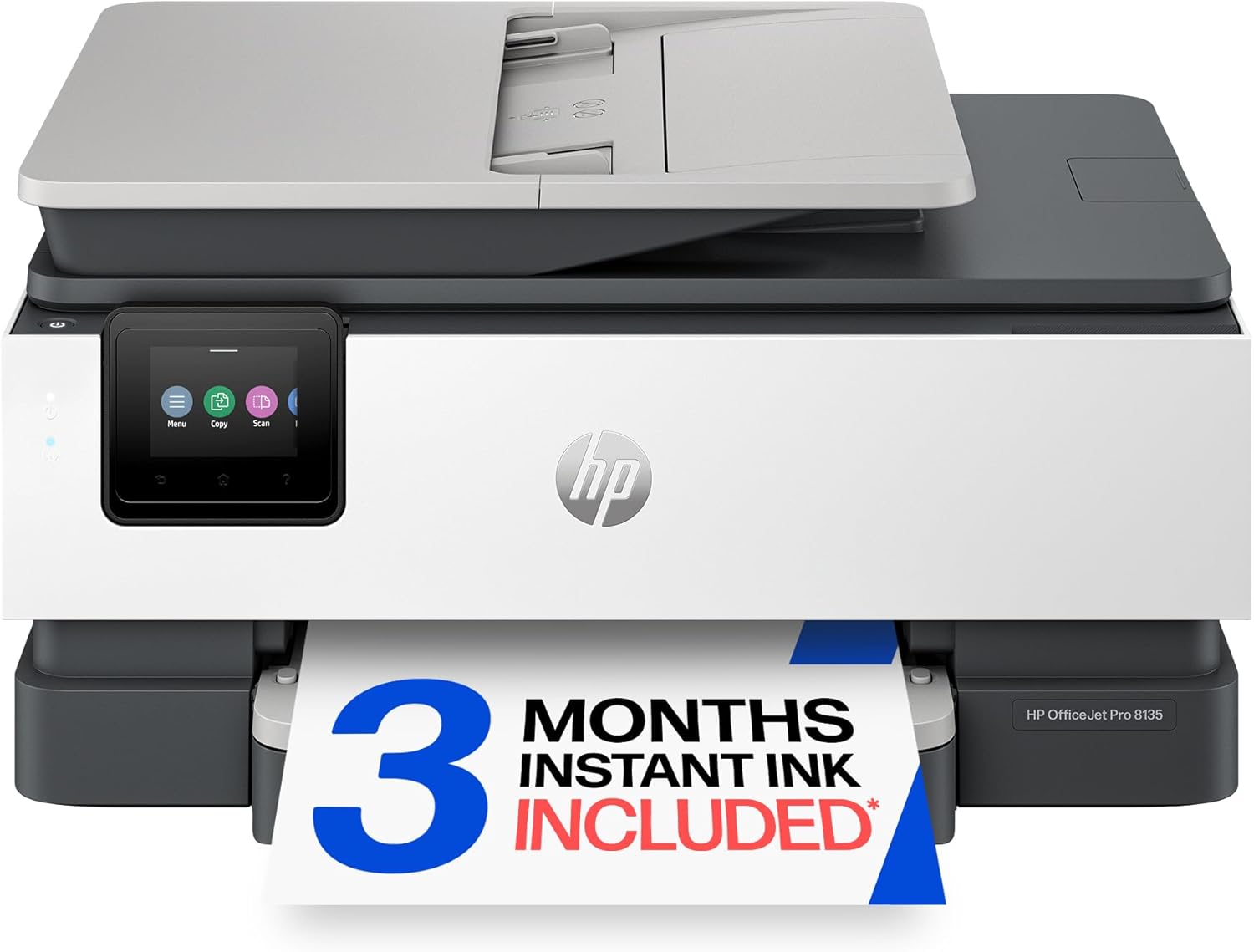
The HP OfficeJet Pro 8135 is an all-in-one color inkjet designed for home and home-office use that prioritizes fast everyday document printing and convenient mobile workflows. It handles print, scan, copy and fax tasks, offers a 2.7-inch color touchscreen and an automatic document feeder for multi-page jobs, and supports duplex printing and several connectivity options including Wi‑Fi, Ethernet, AirPrint and USB. The printer delivers up to 20 ppm in black and 10 ppm in color and can hold up to 225 sheets for longer runs, while HP AI formatting helps remove unwanted content from web pages and emails to reduce wasted pages. For art-printing considerations, its optimized color resolution (up to 4800 x 1200 dpi on photo paper) can produce detailed color output on compatible media, but true gallery-quality fine art prints may still be limited by inkset and paper type compared with dedicated photo or pigment-based fine art printers. Setup is straightforward via the HP app and Instant Ink trial is included, though the machine is intended to be used with original HP cartridges that include proprietary chips.
Best for: Buyers who want a versatile, easy-to-use AIO that handles everyday color documents and occasional high-resolution photo prints while favoring convenience and mobile workflows.
Less Ideal for: Photographers or artists who need museum-grade pigment prints, specialized color management, or long-term archival permanence should consider a dedicated photo or pigment-based fine art printer instead.
- All-in-one functionality with ADF and duplex for multi-page workflows
- High optimized color resolution for better photo and color document detail
- Multiple connectivity options including dual-band Wi‑Fi, Ethernet, AirPrint and USB
- Large 225-sheet input capacity reduces frequent refills and supports longer print runs
- 2.7-inch color touchscreen and HP app make setup and mobile printing simple
- Uses dye-based ink system and OEM cartridges only, which may limit archival pigment output and increase ongoing ink costs
- Not a dedicated fine-art printer so color and longevity on specialty art papers will be less consistent than professional photo printers
Verdict: A practical, feature-rich AIO that balances fast everyday printing and decent high-resolution color output for users who need a capable all-purpose printer with mobile-friendly features.
Brother Work Smart MFC-J1360DW

| Printer Type | Inkjet |
|---|---|
| Duplex | Automatic |
| Maximum Sheet Capacity | 150 |
| Automatic Document Feeder | 20 sheets |
| Connectivity | USB, Wi-Fi |
The Brother Work Smart MFC-J1360DW is a small all-in-one inkjet designed for home and home-office use that handles everyday color printing, copying, and scanning. It offers automatic two-sided printing, a 20-sheet single-sided automatic document feeder, and a flatbed scanner, plus wireless and USB connectivity for printing from phones or computers. Print speeds are practical for light batch jobs—up to 16 ppm black and 9 ppm color—and Page Gauge and the Brother Mobile Connect app make ink monitoring and mobile setup straightforward. The 150-sheet tray reduces refills for moderate workloads and the printer supports common cloud services for direct scanning and printing. For art print purposes this model produces good color and sharp text at its listed resolutions, but it is not a photo-lab substitute: color depth and large-format color management are limited compared with higher-end photo printers, and standard-yield starter inks mean frequent cartridge changes during heavy color runs. The compact footprint and duplexing make it a sensible, efficient choice if you need versatile office-style color prints rather than gallery-grade fine art reproductions.
Best for: Buyers who prioritize a compact, efficient all-in-one that handles routine color printing, scanning, and duplexed documents with simple mobile and cloud workflows.
Less Ideal for: Those needing gallery-grade photo or large-format art reproductions should consider a dedicated photo printer with wider color gamut and larger media support.
- Automatic duplexing for two-sided documents saves paper and time
- Wireless, USB and mobile app support for easy phone and cloud printing
- 20-sheet ADF plus 150-sheet tray reduces manual feeding for multi-page jobs
- High nominal print resolution for sharp text and decent color detail
- Compact footprint suitable for small home studios or home offices
- Not optimized for gallery-quality photo or large-format fine art prints
- Uses standard-yield starter inks which may require frequent replacement during color-heavy runs
Verdict: Choose the Brother Work Smart MFC-J1360DW if you want a compact, app-friendly all-in-one that reliably handles everyday color prints and duplexed documents for a small art-print workflow rather than gallery-grade photo output.
HP DeskJet 2955 All-in-One

| Printer Type | HP Thermal Inkjet |
|---|---|
| Maximum Media Size | 8.5 x 11.69 in |
| Maximum Sheet Capacity | 60 |
| Connectivity | Apple AirPrint; USB; Wireless; Wireless direct; Mopria |
| Compatible Cartridge | HP 68 / HP 68e |
The HP DeskJet 2955 is an entry-level all-in-one intended for home use where space and cost matter more than heavy duty output. It prints color and black-and-white documents, makes copies and scans on its flatbed, and connects via Wi‑Fi, AirPrint, Mopria or USB so you can print from phones or laptops. The 60-sheet input tray and modest print speeds (around 7.5 ppm black, 5.5 ppm color) suit occasional to light daily tasks rather than large volumes. Notable extras include a basic LCD control icon panel, a 3-month Instant Ink trial for lower upfront ink cost, and manual duplexing via driver support. Print resolution specs are decent for text and basic graphics, but this printer is not optimized for high-quality fine art or photo printing; color output and paper handling are limited compared with photo-focused models. Setup and mobile printing are straightforward, and the footprint is small enough for a dorm or home office. If you need inexpensive, simple printing and scanning with easy mobile support, this is a sensible budget pick; if your priority is gallery-quality art prints, look at higher-end photo inkjets instead.
Best for: Buyers who need an inexpensive, compact all-in-one for everyday documents, occasional color prints, and simple scanning with reliable mobile connectivity.
Less Ideal for: Photographers or artists seeking high-fidelity color reproduction, large-format or high-volume printing should choose a dedicated photo printer or higher-end inkjet.
- Compact footprint fits small home offices or desktops
- Wireless and mobile printing support including AirPrint and Mopria
- Includes 3-month trial of Instant Ink to lower initial ink costs
- Flatbed scanner and copy functions add basic multifunction capability
- Limited paper capacity and modest print speeds not suited for high-volume jobs
- Not designed for gallery-quality photo or art prints due to basic color reproduction and paper handling
Verdict: A very affordable, compact all-in-one that handles basic home printing and scanning with easy mobile setup, making it a smart budget choice for everyday document work.
Canon PIXMA TR4720

| Printer Type | Inkjet |
|---|---|
| Printer Connectivity Type | Wi‑Fi |
| Duplex | Automatic |
| Maximum print Resolution Color | 4800 x 1200 dpi |
| Maximum Sheet Capacity | 100 |
The PIXMA TR4720 handles printing, copying, scanning and faxing in a compact footprint intended for home or small office use. It connects over Wi‑Fi and supports mobile printing through Canon's app, making it easy to send jobs from a phone or tablet. Notable hardware includes an automatic document feeder for multi‑page scans and copies, automatic duplex printing for two‑sided documents, and a 100‑sheet input capacity that reduces frequent reloading. Print resolution tops out at 4800 x 1200 dpi for color, which produces sharp text and decent photo detail for casual prints and proofs though it is not a professional photo lab substitute. The TR4720 ships with starter PG‑275/CL‑276 cartridges and is designed for straightforward cartridge changes. Tradeoffs are typical for an affordable all‑in‑one: print speed and advanced color management are limited compared with dedicated photo printers, and ink costs can add up if you print many high‑quality art prints. For reliable everyday printing and occasional color or art proofs, the TR4720 is a practical, easy‑to‑use choice.
Best for: Buyers who prioritize a dependable, easy‑to‑use all‑in‑one for home or small office printing and occasional color/art proofs will appreciate the TR4720's simplicity and dependable feature set.
Less Ideal for: Professional artists or photographers who need gallery‑quality, large format, or high‑volume fine art prints should choose a dedicated photo printer with pigment inks and wider color support instead.
- All‑in‑one functionality: print, copy, scan and fax in one compact unit.
- Automatic duplex printing and a 35‑sheet auto document feeder speed multi‑page jobs.
- Wi‑Fi and mobile app control make setup and remote printing convenient.
- High maximum color resolution (4800 x 1200 dpi) for detailed color documents and proof prints.
- Not optimized for high‑volume or gallery‑quality fine art prints compared with dedicated photo printers.
- Uses starter ink cartridges out of the box which may require early replacements under heavy color use.
Verdict: If you want a reliable, compact all‑in‑one that produces good color proofs and handles routine document work with minimal fuss, the PIXMA TR4720 is a sensible pick.
Canon PIXMA TR4720

| Printer Type | Inkjet |
|---|---|
| Printer Output Type | Color |
| Resolution | 4800 x 1200 |
| Maximum Sheet Capacity | 100 |
| Printer Connectivity Type | USB, Wi-Fi |
The PIXMA TR4720 is a compact 4-in-1 inkjet intended for home or small office use where space and convenience matter. It handles everyday black-and-white pages faster than color, offers automatic two-sided printing to save paper, and includes a 100-sheet front tray plus an auto document feeder for multi-page scans and copies. Wireless and USB connectivity plus the Canon Print app make mobile printing straightforward, and the hybrid ink system is tuned to produce sharp text and decent color photos up to 8.5 x 11 inches. For art prints the printer can produce borderless copies and high-resolution output up to 4800 x 1200 dpi, but its color speed and consumer-grade inks limit professional color fidelity and long-term pigment durability. Setup and cartridge replacement are simple, and the small footprint fits a studio or desk, yet users who need gallery-grade color matching or heavy photo throughput will find higher-end photo printers better suited to intensive art print work.
Best for: Artists or hobbyists who want an affordable, compact all-in-one that handles occasional high-resolution borderless prints and general studio paperwork while prioritizing ease of setup and wireless convenience.
Less Ideal for: Photographers or artists who need archival pigment inks, precise color management, or high-volume professional photo printing should consider a dedicated photo printer instead.
- Compact 4-in-1 design fits small studios or desks
- Auto duplex printing reduces paper use for documents
- Auto document feeder and 100-sheet tray streamline multi-page jobs
- Wireless printing and Canon Print app enable easy mobile workflows
- High maximum resolution (4800 x 1200 dpi) and borderless printing up to 8.5 x 11"
- Hybrid dye-based inks limit archival longevity and exact color matching for fine art prints
- Color print speed is relatively slow compared with document-focused models
Verdict: A space-saving wireless all-in-one that delivers high-resolution borderless prints for occasional art projects while keeping setup and mobile printing simple.
Epson EcoTank ET-2800

| Printer Type | Inkjet |
|---|---|
| Printer Connectivity Type | USB, Wi-Fi |
| Maximum print Resolution Color | 5760 x 1440 dpi |
| B&W Pages per Minute | 10 |
| Color Pages per Minute | 5 |
The Epson EcoTank ET-2800 is a cartridge-free all-in-one inkjet that prints, scans, and copies using large refillable ink tanks instead of cartridges, which makes it practical for steady home printing. Setup and everyday use are straightforward: fill the keyed EcoFit tanks once and use the Wi-Fi and app controls for mobile or voice-activated printing. The printer uses PrecisionCore / Micro Piezo heat-free technology and delivers up to 10 pages per minute for black-and-white and about 5 ppm for color, with high maximum resolution for detailed photo work. Its flatbed scanner and LCD make copying and scanning simple, and the included starter ink yields a large page count before replacement. Trade-offs include simplex-only printing and modest color speed compared with higher-end photo printers, and Epson recommends genuine ink to maintain performance. For color-accurate art prints, the ET-2800 can produce crisp, detailed output on suitable photo papers but it is best for casual or lower-volume fine-art proofs rather than heavyweight professional gallery prints.
Best for: Buyers who want a low-maintenance, reliable home all-in-one that saves on ink replacements and delivers detailed color prints for proofs and casual art reproductions.
Less Ideal for: Photographers or artists seeking a dedicated professional photo printer for heavy, gallery-quality fine art prints or users who require automatic duplexing and faster color throughput.
- Cartridge-free EcoTank system cuts frequency of ink replacements and reduces cartridge waste
- High-resolution print head capable of detailed output for photos and graphics
- Wireless and mobile printing with app and voice control for easy home use
- Generous starter ink yield that covers many pages before replacement
- No automatic duplex (2-sided) printing
- Color print speed is relatively slow for high-volume photo runs
Verdict: Choose the ET-2800 if you want a dependable, cartridge-free home all-in-one that lowers ink fuss while producing high-resolution color output for casual art prints and proofs.
Choosing the Right All-in-One Printer for Art Prints: Key Factors to Consider
Print Resolution and Droplet Size
Higher native resolution and smaller droplet sizes translate to finer detail and smoother gradients in art prints. For artwork with subtle tonal transitions or fine line work, a printer that can render small ink droplets will reduce banding and visible rasterization. Consider how the resolution interacts with your typical viewing distance: larger gallery prints viewed up close benefit more from finer resolution than prints meant for distance viewing.
Also take into account the printer's use of multi-pass printing and any built-in smoothing algorithms. These can improve perceived detail but may slow production. If you reproduce high-detail images, prioritize machines with demonstrable fine-detail performance and adjustable resolution settings.
Color Gamut and Profiling Support
A wide color gamut ensures the printer can reproduce saturated hues and subtle midtones found in many artworks. Look at the ink set composition and whether the printer includes additional inks beyond CMYK, such as light cyan, light magenta, or dedicated photo blacks, because these expand gamut and smooth gradations.
Equally important is support for ICC profile workflows and third-party profiling tools. Being able to use custom profiles for specific paper and ink combinations is essential for consistent color reproduction across different runs. If color fidelity is a priority, choose a printer that explicitly supports color-management workflows and provides access to advanced color settings.
Media Compatibility and Paper Handling
Fine art papers vary widely in weight, texture, and surface sizing. Check the printer's maximum supported paper weight and whether it accepts thick fine art sheets, textured rag papers, and compatible coated stocks. Borderless printing capability is useful for edge-to-edge reproductions, while flatbed or rear-feed options can reduce curling and misfeeds with heavy papers.
Also evaluate maximum print size and roll support if you plan to make larger pieces. Reliable paper handling reduces waste and frustration during long print runs. Features like manual feed paths, platen release mechanisms, and adjustable feed pressure improve success with specialty media.
Ink Chemistry and Longevity
Ink formulation directly affects color permanence and resistance to fading from light and environmental factors. Pigment-based inks typically offer superior lightfastness and archival performance compared with dye-based inks, which may be more vibrant initially but fade faster. Consider the manufacturer-stated permanence or third-party lightfastness testing when longevity matters.
Also consider ink capacity and ease of replacement. Larger pigment cartridges or continuous-ink systems reduce interruptions for batch printing, but check for any trade-offs in color gamut or longevity. Proper storage and handling of inks also influence final archival outcomes.
Resolution of Grayscale and Neutral Tones
Reproducing neutral tones and subtle grayscale transitions is vital for many prints, especially black-and-white artworks. Some printers include dedicated gray or multiple black inks to improve neutral balance and reduce color casts in shadows and highlights. Evaluate whether the printer provides selectable grayscale modes and how it handles black density and shadow detail.
Accurate neutrals reduce post-print color correction and are particularly important for photographers and artists working in monochrome or with desaturated palettes. Test prints or sample output data showing neutral rendering can be helpful indicators.
Connectivity, Workflow, and Maintenance
Studio efficiency depends on how easily the printer integrates with your workflow. Look for reliable connectivity options such as Ethernet, Wi-Fi, and USB, as well as support for common printing protocols. Mobile and cloud printing are convenient but less critical than stable local network performance in a production environment.
Maintenance features matter: automated head cleaning, accessible printheads, and clear onboard diagnostics reduce downtime. Consider consumable management like ink warnings and waste-ink handling, since frequent maintenance cycles can add cost and interrupt long print jobs.
Preparing Artwork for Reliable Prints
Preparing your files before printing reduces surprises and saves time. Start by working in the correct color space for your target output, typically an RGB master that you then soft-proof in the printer's ICC profile to simulate how colors will render on your chosen paper.
Resize and sharpen images appropriately for the intended print size and viewing distance. Heavy sharpening intended for screen viewing can produce artifacts in high-resolution prints, so apply output sharpening tuned to the printer resolution and paper type.
- Convert to the printer profile and soft-proof rather than relying on the monitor alone
- Use high-resolution source files and avoid upscaling large amounts
- Apply output sharpening specifically for the target print size and paper
Choosing Paper and Surface Texture
Paper selection has as much impact on the final look as the printer itself. Smooth, glossy papers emphasize color saturation and micro-detail, while textured rag stocks soften highlights and provide tactile depth suited to fine art. Understand how a paper's whiteness, base tone, and texture influence perceived color and contrast.
- Match paper weight to the printer's supported thickness to prevent feed problems
- Test different surface textures to find the best visual match for the artwork
- Consider archival-rated papers with acid-free certification for longevity
Color Management Basics for Consistent Results
Color management bridges the gap between what you see on-screen and what the printer produces. Use calibrated monitors and consistent lighting when assessing prints. Create or download ICC profiles for your paper and ink pairing and apply them during export or print to ensure predictable color.
If you need precise matching, consider creating custom profiles with a spectrophotometer. Even simple soft-proofing can reveal gamut issues and let you adjust contrast and saturation prior to committing to prints.
- Calibrate your monitor regularly and view proofs under neutral lighting
- Use ICC profiles matched to specific paper and ink combinations
- Perform test strips before full runs to confirm color and exposure
Managing Print Longevity and Display Conditions
Archival performance depends on both ink chemistry and display environment. Pigment inks on archival paper generally offer the best resistance to light and humidity. When preparing artwork for sale or gallery display, consider framing under UV-protective glazing and rot-resistant mats to extend print life.
Inform buyers or recipients about ideal display conditions and recommended care to preserve color integrity over time.
- Choose pigment inks and archival papers for the longest-lasting prints
- Frame under UV-filtering glass and avoid direct sunlight
- Store unframed prints in acid-free sleeves in a cool, dry place
Scaling Up Production Without Sacrificing Quality
If you plan to print in batches, set up a standardized workflow and use consistent printer settings to minimize variability across runs. Use larger ink capacities or continuous-feed options when available to reduce interruptions for frequent replacements. Schedule maintenance checks to prevent clogged nozzles and color shifts during longer jobs.
Run periodic color control strips across batches to spot shifts early and recalibrate or reprofile as necessary.
- Standardize color profiles and output settings across print runs
- Use larger ink capacities for high-volume production
- Monitor color control strips to detect drift between batches
How We Chose the Best All-in-One Printer for Art Prints
We prioritized attributes that matter to artists and photographers who need predictable, long-lasting prints. First, we evaluated print quality with emphasis on maximum resolution and the number of ink channels, since finer nozzle counts and additional colorants improve tonal range and neutral grays. Second, we considered color accuracy and profiling support, including whether a printer supports ICC profiles and custom color management workflows. Third, media handling and size capability were reviewed, focusing on sheet and roll feeds, paper thickness tolerance, and borderless printing for edge-to-edge art. Fourth, archival permanence was assessed by the type of inks used and stated lightfastness ratings. Fifth, we inspected usability features that affect studio productivity, such as connectivity options, print speeds for high-resolution images, and maintenance routines. Exclusions: we filtered out printers aimed solely at general office use with limited color gamut, machines that cannot handle fine art paper weights, and models lacking basic color-management support. The final selection balances technical print characteristics with practical studio workflow needs.
Our full evaluation process is outlined in our review methodology.
FAQ
Do pigment inks always produce more accurate colors than dye inks?
Pigment inks generally offer superior lightfastness and neutral blacks, which improves longevity and archival quality. Dye inks can appear more saturated initially but often fade faster. Color accuracy depends on the full ink formulation and profiling, not just pigment versus dye.
How important is an ICC profile for art printing?
An ICC profile is essential for predictable results because it maps how a specific printer, ink, and paper combination reproduces color. Soft-proofing with the correct profile helps you anticipate gamut limitations and adjust images before printing.
Can I use textured fine art paper with any All-in-One Printer?
Not all machines handle heavy or highly textured media reliably. Check the printer's maximum paper weight and feed path design. Printers with a straight-through rear feed or manual feed options are usually better for thick or textured sheets.
How can I extend the lightfastness of my prints once framed?
Use pigment-based inks and archival papers, and frame prints behind UV-protective glazing. Displaying prints away from direct sunlight and in stable humidity conditions significantly improves long-term preservation.
Is professional calibration equipment necessary for good prints?
Calibration tools improve consistency but are not strictly required for casual printing. A calibrated monitor and using manufacturer or third-party ICC profiles will yield much better results than no color management. For gallery or commercial work, a spectrophotometer is recommended.
Final Verdict
Choosing an All-in-One Printer for Art Prints means balancing resolution, color control, media handling, and longevity. Prioritize machines that support advanced color management, handle the paper types you prefer, and use inks with proven permanence. Consider workflow needs such as connectivity and maintenance when deciding between studio-friendly features and raw technical capability. Focus on the tradeoffs that matter most for your intended output and viewing conditions to pick a printer that reliably produces the prints you want.