
Note: This article contains affiliate links. If you click on these links and make a purchase, we may earn a small commission at no extra cost to you. This helps support our research and content. Read our full affiliate disclosure here.
If you want clutter-free printing without running a cable across your desk, a Bluetooth Printer can make printing from laptops, phones, and tablets far easier. Choosing the right Bluetooth-enabled printer matters because wireless pairing, print speed, and output quality all affect how smoothly your documents and photos flow from device to paper. This guide highlights six shortlisted Bluetooth Printers that balance reliable connectivity, usable feature sets, and everyday print performance. We evaluated candidates for wireless stability, print quality, and long-term ownership concerns. Read on for practical notes to help you pick the best Bluetooth Printer for how you print.
Top Picks at a Glance
| Best Quality Built to a higher standard if you want something more solid | KODAK Dock Plus PD460 |  |
| Best Value The sweet spot between price and what you get | KNAON Y813BT Thermal Label Printer |  |
| Best Budget The cheapest option that still gets the job done reliably | Rongta F11A Portable Thermal Printer |  |
| Top Rated A top-rated pick with lots of positive feedback | Nelko PP01 Photo Printer |  |
| Most Popular A crowd favorite that many people choose with confidence | JADENS JD268BT Thermal Label Printer |  |
| Best Seller A high-volume bestseller chosen again and again | TATTMUSE A285M Portable Thermal Printer |  |
KODAK Dock Plus PD460

| Printer Type | 4PASS Dye Sublimation |
|---|---|
| Maximum Media Size | 4 x 6 inches |
| Printer Connectivity Type | Bluetooth, Docking |
| Hardware Interface | USB Type C |
| Maximum print Resolution Color | 300 |
The KODAK Dock Plus PD460 is a compact desktop photo printer that uses 4PASS dye-sublimation to produce borderless 4×6 prints with a protective laminated finish. It is designed to dock compatible smartphones for a stable connection while charging the device as it prints, and it pairs with the KODAK Photo Printer app over Bluetooth for editing and print control. Typical use is casual home or event printing—albums, frames, and keepsakes—where quick, durable 4×6 photos are wanted without a lot of setup. Notable features include USB-C hardware, single-tray loading, and an all-in-one cartridge system that simplifies refills. Practical benefits are consistent color layering, prints that resist water and fingerprints, and the convenience of a docking station for phone-based workflows. Limitations to consider are the single 4×6 media size and modest sheet capacity, so it is not suited for high-volume or varied-size photo jobs, and print speed is about one photo per minute which may feel slow in fast-paced environments.
Best for: Buyers who prioritize print quality from smartphone photos and want a simple, docked desktop solution for making durable 4×6 keepsakes at home or events.
Less Ideal for: Users who need fast throughput, varied print sizes, or high-volume photo production should consider more versatile or higher-capacity printers.
- 4PASS dye-sublimation with laminated finish for durable, fade- and fingerprint-resistant 4×6 prints
- Smartphone docking that charges while printing for a stable workflow
- Bluetooth and app control for on-device editing and quick print setup
- USB-C interface and a simple all-in-one cartridge system for easy refills
- Limited to 4×6 borderless prints and small sheet capacity, so not ideal for varied print sizes or large runs
- Print speed of roughly one photo per minute can be slow for batch printing
Verdict: If you want a phone-first desktop printer that delivers durable, frame-ready 4×6 photos with an easy dock-and-print workflow, the KODAK Dock Plus is a strong pick.
KNAON Y813BT Thermal Label Printer
| Printer Type | Thermal |
|---|---|
| Maximum Print Resolution Black and White | 203 dpi |
| Printer Connectivity Type | Bluetooth |
| Paper Size | 4.2 inches |
| B&W Pages per Minute | 60 pages_per_minute |
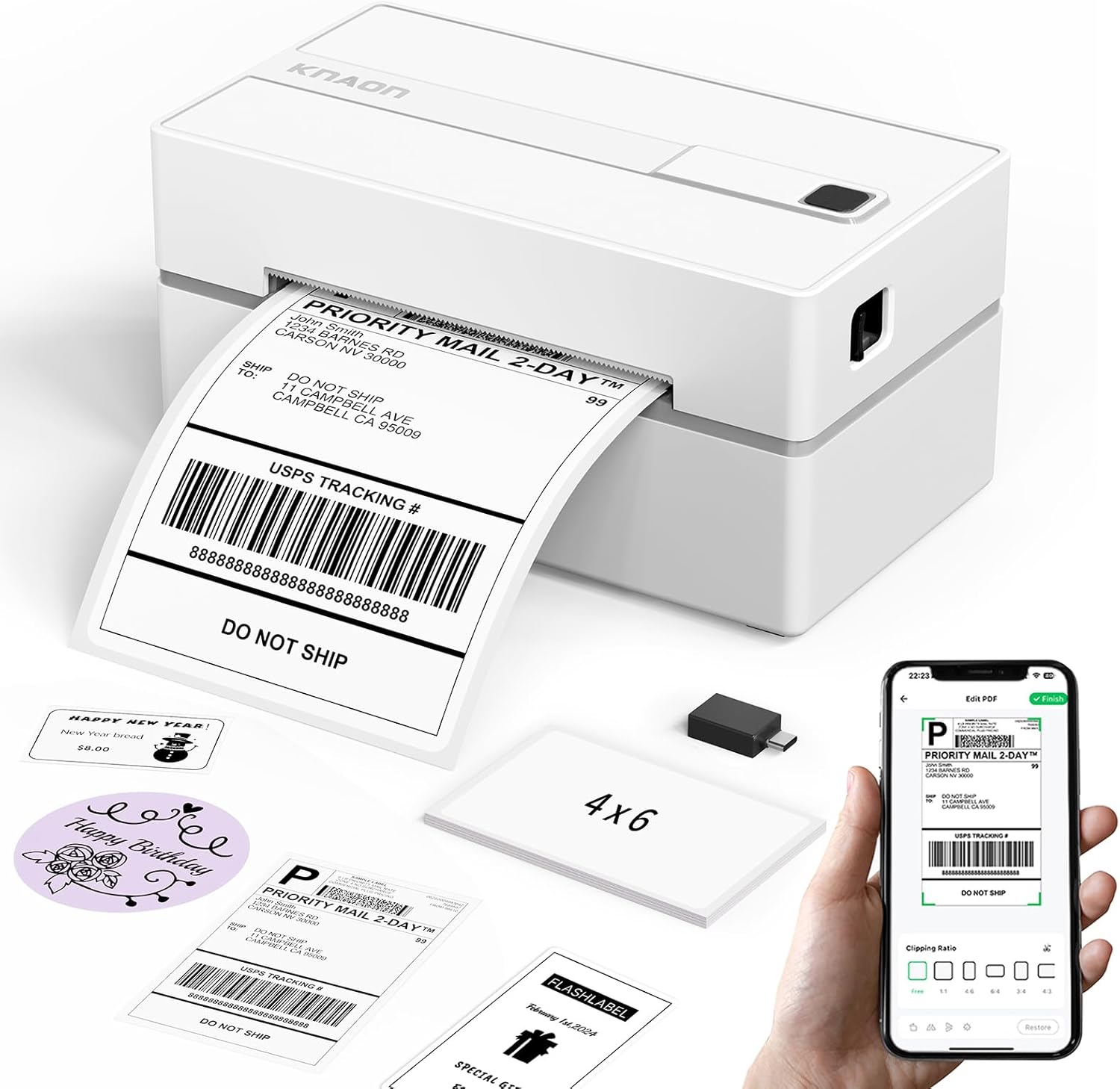
The KNAON Y813BT is a small Bluetooth-enabled thermal label printer built for printing 4×6 shipping labels and a variety of other thermal labels from phones, tablets and computers. It pairs with the FlashLabel Pro app for iPhone and Android and includes USB driver support for Windows, macOS, ChromeOS and Linux, so you can print both mobile shipping labels and locally stored PDFs. The printer is inkless and fast for its size, with a quoted speed up to 180 mm/s and support for paper widths from about 1.5 to 4.2 inches, making it useful for shipping, inventory tags, barcode labels and thank-you stickers. The unit ships with starter label paper, a USB-C adapter and setup materials, and KNAON provides quick driver guides to simplify installation. Limitations to note are its basic 203 dpi print resolution and simplex-only output, which is fine for shipping labels and barcodes but not for high-detail graphics or two-sided jobs. The compact footprint and Bluetooth option make it convenient for home businesses and pop-up shops, though heavy-duty commercial users may want higher-resolution, industrial models.
Best for: Buyers who want a compact, easy-to-set-up label printer for shipping, small-batch inventory tags and other thermal labels and who prioritize wireless mobile printing and low upkeep.
Less Ideal for: Users who need high-resolution label graphics, photo-quality output, or industrial continuous-duty printing should consider higher-end or industrial label printers instead.
- Wireless Bluetooth printing from phones and tablets via the FlashLabel Pro app
- USB connectivity with built-in driver files for quick setup on multiple desktop OSes
- Inkless thermal printing so you avoid ink costs and maintenance
- Supports common shipping label widths up to 4.2 inches and prints at a fast quoted speed
- 203 dpi resolution limits fine-detail or photo-quality printing
- Simplex-only printing without duplex capability
Verdict: A compact, app-friendly Bluetooth thermal printer that makes fast, inkless 4×6 shipping and label printing simple for home businesses and mobile workflows.
Rongta F11A Portable Thermal Printer
| Printer Type | Thermal |
|---|---|
| Print Resolution | 203 x 203 dpi |
| Connectivity | Bluetooth, USB |
| Maximum Media Size | Letter (8.5 x 11 inches) |
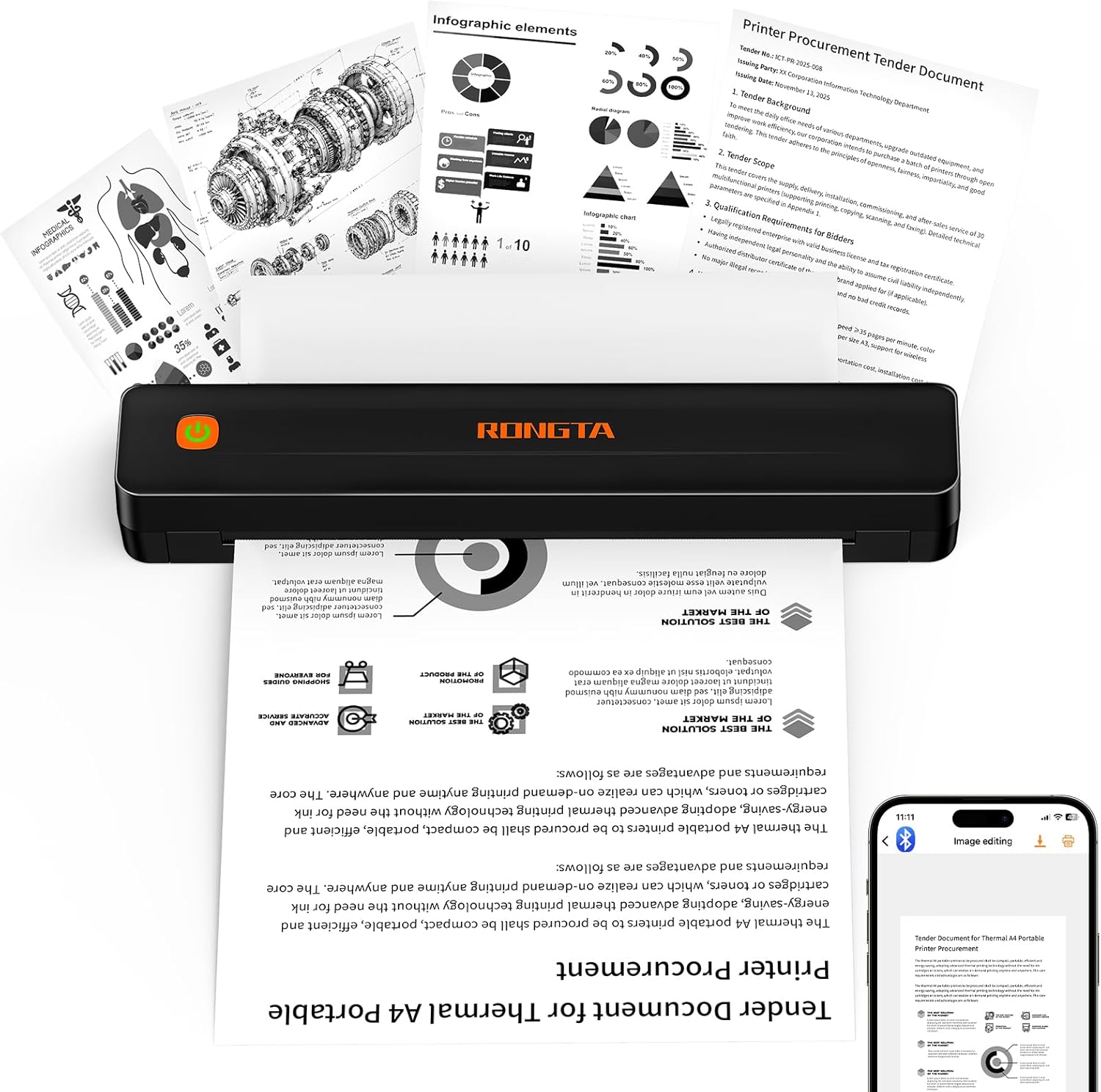
The Rongta F11A is a small, travel-friendly thermal printer that connects over Bluetooth or USB to phones, tablets, and laptops for quick inkless printing. It handles U.S. Letter, A4 and similar paper sizes and prints monochrome documents at 203 dpi with a reported speed around 7 pages per minute, making it suitable for recipes, notes, forms and basic documents on the go. Setup is driven through the RONGTA mobile app for iOS and Android and the unit also supports Windows and macOS via USB. Because it uses thermal paper there are no cartridges to buy, which keeps ongoing costs low, and the printer is quiet in operation. Limitations include simplex-only output and modest resolution that is fine for text and simple graphics but not for high-detail images, and the app-dependent Bluetooth pairing process may feel clunkier than standard OS-level pairing. For straightforward mobile printing where portability and low running cost matter, this unit does the job; users needing duplex, high-resolution photo output, or native OS Bluetooth pairing should look elsewhere.
Best for: Buyers who want an inexpensive, portable printer for occasional on-the-go document and label-style printing and who prioritize low operating cost over photo quality.
Less Ideal for: Users who need high-resolution photo printing, duplex capability, or a printer that pairs directly with the OS without a vendor app should consider other models.
- Bluetooth and USB connectivity for phones, tablets and PCs
- Prints up to US Letter size on thermal paper, no ink or cartridges required
- Compact, lightweight design built for travel and portable use
- Low noise operation and decent print speed for text (about 7 ppm)
- Print resolution and monochrome thermal output are limited for detailed graphics or photos
- Requires the RONGTA mobile app for Bluetooth pairing rather than standard OS pairing
Verdict: Choose the Rongta F11A when you need an affordable, truly portable inkless printer for basic monochrome documents and minimal running costs.
Nelko PP01 Photo Printer

| Printer Type | Inkjet |
|---|---|
| Print Resolution | 600 x 600 DPI |
| Printer Connectivity Type | Bluetooth |
| Paper Size | 52x90mm (2×3") |
The Nelko PP01 is a compact Bluetooth inkjet photo printer designed for quick 2×3-inch prints from iOS and Android phones using the Nelko app. It is used by loading sticky-backed 2×3 paper, installing a color ink cartridge, pairing over Bluetooth, editing in the app, and printing a single photo in under 90 seconds. Key features include 600 DPI resolution, app-based editing with filters and AI tools, and adhesive, water-resistant prints suitable for scrapbooks and labels. The printer is genuinely portable and straightforward to operate, and the included USB cable and starter paper/cartridge make it usable out of the box. Practical limitations are its small print size and modest throughput — expect about one page per minute and occasional maintenance like cleaning the cartridge head if it sits idle. Paper must be loaded correctly (smooth side down) and kept to recommended counts to avoid jams. For buyers who want reliable, on-the-spot smartphone prints rather than high-volume or larger-format photos, the PP01 delivers predictable, good-looking results.
Best for: Buyers who prioritize dependable, portable photo printing from a smartphone for scrapbooks, events, or on-the-spot keepsakes and who value easy app editing and consistent color output.
Less Ideal for: People who need high-volume printing, larger photo sizes, or faster photo lab quality prints should consider larger desktop photo printers or commercial services instead.
- High 600 DPI print resolution for sharp 2×3 color images
- Bluetooth connectivity with a dedicated app offering editing and AI tools
- Sticky-backed, smudge-proof and water-resistant photo paper for easy use in scrapbooks
- Pocket-size portability and included USB charging cable and starter media
- Limited to 2×3-inch prints which is unsuitable for larger photos
- Slow single-sheet throughput of about one print per minute and small paper capacity
Verdict: A compact, app-driven Bluetooth pocket printer that reliably produces sharp 2×3 sticky-backed photos on demand.
JADENS JD268BT Thermal Label Printer

| Printer Type | Thermal |
|---|---|
| Resolution | 203 x 203 DPI |
| Maximum Media Size | 4 x 6 inches |
| Printer Connectivity Type | Bluetooth |
| Total Usb Ports | 1 |
The JADENS JD268BT is a compact thermal label printer made for printing 4×6 shipping labels and a range of smaller label sizes without ink or toner. It connects over Bluetooth for Windows and macOS and offers USB for direct wired printing, while Android and iOS users print through the vendor app. The unit uses a 203 x 203 DPI thermal head for readable barcodes and address labels and accepts fanfold rolls or standard 4×6 rolls with a stated maximum sheet capacity of 50. Setup is straightforward with included USB cable, power cord, starter labels, and driver resources on a U-disk, and the high-speed thermal engine makes short work of batch shipping tasks. Important limitations are platform-dependent Bluetooth support for phones and modest resolution compared with higher-end label printers, so image-heavy labels or advanced print quality needs may not be met. For sellers who need a simple, low-maintenance shipping label solution, this printer covers common marketplace workflows reliably.
Best for: Buyers who prioritize a low-cost, easy-to-use shipping label printer with wireless and USB options and want a solution that integrates with common marketplace shipping workflows.
Less Ideal for: Users who need phone-native Bluetooth printing without a vendor app, professional-grade photo or high-resolution label printing, or very large continuous batch printing without reloading.
- Thermal printing requires no ink or toner, lowering running costs and mess.
- Bluetooth and USB connectivity let you print wirelessly or wired from computers.
- Accepts common label sizes including 4×6 and multiple smaller label formats.
- Compact footprint and included starter labels, cable, and drivers simplify setup.
- Bluetooth printing from iOS/Android requires using the JADENS app rather than native phone printing.
- 203 x 203 DPI is adequate for text and barcodes but not for high-detail graphics.
- Maximum sheet capacity of 50 limits very large unattended print runs.
Verdict: A budget-friendly, inkless 4×6 thermal printer that reliably handles everyday shipping labels with Bluetooth and USB connectivity.
TATTMUSE A285M Portable Thermal Printer

| Printer Type | Thermal |
|---|---|
| Connectivity | Bluetooth, USB |
| Maximum Media Size | 8.5 x 11 inch |
| B&W Pages per Minute | 7 |
| Wattage | 11.1 watt-hours |
The TATTMUSE A285M is a travel-friendly thermal printer designed for quick black-and-white prints without ink. It pairs over Bluetooth with phones and tablets using the vendor app and connects to laptops by USB-C with a driver, making it useful for on-the-go receipts, invoices, boarding passes and single-sheet letter/A4 prints. Notable features include inkless thermal printing (so no cartridges), a built-in paper bin that accepts rolls or single sheets in several widths including 8.5 x 11, and a rechargeable battery rated at 11.1 watt-hours for portable use. Print quality is typical for thermal technology at around 203 dpi and up to 7 ppm, adequate for text and simple graphics but not photo-grade color. Setup for phones is straightforward via Bluetooth and the app, while computer use requires downloading and installing a driver. Expect limitations common to thermal models: only black-and-white output, dependence on specific thermal paper formats, and manual duplexing. For buyers wanting a lightweight, maintenance-free printer for fieldwork or travel, the A285M delivers a practical, cost-saving solution.
Best for: Buyers who prioritize a low-maintenance, portable printer for fieldwork, travel, or occasional office tasks and who want simple black-and-white receipts, invoices, or documents from a phone or tablet.
Less Ideal for: Those who need color or high-resolution photo printing, heavy daily desktop printing, or seamless wireless printing from a laptop without installing drivers should look elsewhere.
- Inkless thermal printing eliminates cartridges and lowers running costs
- Bluetooth support for phones and tablets enables true mobile printing
- Accepts multiple thermal paper widths including US Letter and A4
- Compact, lightweight design with built-in paper bin for travel use
- Prints only in monochrome thermal quality, not suitable for color or photo printing
- Laptops and desktops require a driver and USB connection rather than Bluetooth
Verdict: Choose the A285M when you need a lightweight, ink-free Bluetooth printer for portable black-and-white documents and receipts.
Choosing the Right Bluetooth Printer: Key Factors to Consider
Bluetooth Pairing & Range
Bluetooth pairing determines how quickly and reliably your devices connect to the printer. Stable pairing reduces the time you spend troubleshooting failed prints and avoids repeated reconnections when you move devices around.
Range matters if you plan to print from a different room or from across an open office. Class and Bluetooth version affect effective range and resistance to interference. Consider whether the printer supports automatic reconnection and background pairing for phones and tablets to streamline day-to-day use.
Print Quality for Your Use Case
Not all printers render text and images equally. If you mostly print documents, sharp black text and strong toner or ink deposition are essential. If you occasionally print photos or marketing materials, look for better color reproduction and higher dpi specifications.
Consider how often you print color versus black-and-white, and whether you need borderless photo options. The perceived quality also depends on paper compatibility, so check that the printer supports the media types you plan to use.
Speed and Duty Cycle
Print speed impacts productivity, especially in small-office contexts. Measured in pages per minute, speed estimates are usually given for black-and-white text and for color. Faster machines reduce wait time for multi-page jobs.
Duty cycle indicates how many pages the device is designed to handle monthly. Match the duty cycle to your expected monthly output to avoid excessive wear or premature maintenance needs.
Consumables Cost and Availability
Ongoing costs often exceed the initial purchase price. Ink and toner yield, cartridge economy, and the availability of high-yield or third-party options influence long-term cost per page. Some designs use individual color cartridges, which can be more efficient than tri-color combos.
Also factor in whether the printer supports refillable tanks or bulk supplies for lower per-page expense. Consider ease of cartridge replacement and whether the device alerts you clearly about low supplies.
Mobile App Features and Setup
A well-designed mobile app simplifies pairing, printing, and accessing advanced features like scanning or cloud printing. Apps can offer cropping, color correction, and duplex settings that are handy for mobile workflows.
Look for straightforward setup wizards, clear instructions for Bluetooth pairing, and compatibility notes for common mobile operating systems. Reliability of the app matters too because poor software can negate strong hardware connectivity.
Size, Placement, and Paper Handling
Physical footprint and paper handling affect where you can place the printer and how you use it daily. Compact models are ideal for tight desks, while larger units may offer better paper trays and fewer refills.
Consider input tray capacity, support for multiple paper sizes, duplex capability, and whether the printer allows easy access for clearing jams. Noise level during printing can also be important in quiet environments.
Bluetooth Vs Wi-Fi: When Bluetooth Is the Better Choice
Bluetooth printing is useful when you want a direct, local connection from a phone or tablet without joining a shared Wi-Fi network. It can be friendlier for devices that do not have easy network access or when you prefer to avoid exposing the printer on a home or office network.
Choose Bluetooth when ease of pairing and direct device-to-printer communication is more important than maximum range or shared network printing. Bluetooth tends to be simpler for ad-hoc mobile printing and for environments where network administration is restricted.
- Quick ad-hoc prints from phones and tablets
- Useful in environments without a stable Wi-Fi network
- Less exposure to network-based access if privacy is a concern
Setting Up a Bluetooth Printer Smoothly
Start by placing the printer and your device within a few feet during initial pairing to minimize interference. Follow the printer's on-device prompts to enable Bluetooth and make the device discoverable. On your phone or tablet, use the system Bluetooth menu or the manufacturer's mobile app to initiate pairing.
If pairing fails, restart both devices, ensure no other Bluetooth device is actively connected to the printer, and update the printer firmware if that option is available. Keep the mobile app installed and allow any permissions it requests for a smoother setup and ongoing printing experience.
- Begin pairing with devices close to each other
- Use the dedicated mobile app when available for setup
- Restart devices and disable other active Bluetooth links if needed
Optimizing Print Settings for Mobile Jobs
Mobile print jobs often need quick adjustments to fit different paper sizes or conserve ink. Use print preview and quick presets to choose draft mode for text-only prints or higher-quality modes for images. Enabling automatic duplexing saves paper for multi-page documents when the printer supports it.
When printing photos from a phone, select high-quality photo paper and the appropriate color profile if available. Cropping and borderless options in the app can prevent unwanted margins and ensure images are sized correctly for the paper.
- Use draft mode for everyday text to reduce ink use
- Enable duplex printing to save paper
- Select correct paper type and quality for photos
Maintenance Tips to Keep Bluetooth Printing Reliable
Routine maintenance reduces downtime. Run periodic head-cleaning cycles if the printer uses inkjets, and keep the paper path free of dust and debris. Replace cartridges promptly when print quality degrades to avoid clogged nozzles.
Keep firmware and mobile app software updated to maintain Bluetooth compatibility and security. Store extra cartridges or toner if your printing needs are irregular to avoid long gaps that can cause ink drying or toner settling issues.
- Perform regular cleaning cycles for ink-based printers
- Keep firmware and apps updated for reliable Bluetooth operation
- Store spare consumables to avoid printing interruptions
When to Consider Alternative Connection Options
If you need printing from multiple users across a network or require remote printing, Wi-Fi or wired Ethernet solutions may be more appropriate. Bluetooth is best suited to single-user or small-group scenarios where direct device-to-printer printing is sufficient.
For heavy-duty environments with high monthly volumes, assess whether the printer's duty cycle and consumable options match your needs before relying on a Bluetooth-only workflow.
- Choose Wi-Fi for shared network printing and remote access
- Use wired Ethernet for consistent throughput in busy offices
- Confirm duty cycle for high-volume printing needs
How We Chose the Best Bluetooth Printer
We selected products for this list using criteria that matter for real-world wireless printing. First, we prioritized Bluetooth pairing stability and range because flaky connections are the most common source of frustration when printing from phones and tablets. Second, we checked native mobile-device support and ease of setup to ensure the printers can connect quickly to common operating systems and apps. Third, we considered print quality for both text and images at typical consumer resolutions so the unit works for documents and occasional photos. Fourth, we evaluated print speed and duty-cycle guidance to match different usage levels from light home use to small-office workloads. Finally, we looked at consumable cost and maintenance needs, including how easy it is to replace ink or toner and perform routine upkeep. We excluded devices that require proprietary connection ecosystems without standard Bluetooth profiles or models whose Bluetooth capability is strictly for limited features such as firmware updates only. The result is a list of Bluetooth Printers that balance dependable wireless use, usable output, and manageable long-term costs.
Our full evaluation process is outlined in our review methodology.
FAQ
Can any phone print to a Bluetooth Printer?
Most modern phones support Bluetooth printing, but compatibility depends on the phone's operating system and the printer's supported Bluetooth profiles. Using the printer's mobile app generally improves compatibility and adds features beyond basic printing.
Is Bluetooth printing secure?
Bluetooth offers a local direct connection, which reduces exposure to network-based threats, but security depends on the implementation. Use devices with up-to-date firmware and avoid pairing in public spaces to reduce the risk of unauthorized access.
Will Bluetooth printing be slower than Wi-Fi?
Bluetooth can be slower than Wi-Fi for large files or high-resolution images because it has lower throughput. For typical document printing, the difference is often small, but large photo jobs may take noticeably longer over Bluetooth.
How do I share a Bluetooth Printer with multiple users?
Sharing typically requires each user to pair their device with the printer individually. Some printers allow multiple paired devices to remain stored, but active connections may need to be managed to avoid conflicts.
Do all Bluetooth Printers support duplex printing?
Not all Bluetooth Printers include automatic duplexing. Duplex capability is a model-specific feature; check the specifications if two-sided printing is important for your workflow.
Final Verdict
When choosing a Bluetooth Printer, prioritize stable wireless connectivity and the mobile setup experience first, since those factors determine day-to-day usability. Balance print quality, speed, and duty cycle against ongoing consumables cost to match the device to your expected workload. If you mainly print short documents from a phone or tablet, choose a compact model with reliable Bluetooth and a good mobile app. For regular high-volume or multi-user needs, confirm the printer's duty-cycle and consider whether Bluetooth alone will meet your requirement.