
Note: This article contains affiliate links. If you click on these links and make a purchase, we may earn a small commission at no extra cost to you. This helps support our research and content. Read our full affiliate disclosure here.
Picking the right color all-in-one printer for a small business affects daily productivity, document quality, and operating costs. You want a machine that reliably handles mixed workloads, produces sharp color output, and connects smoothly with mobile and networked devices. This guide shortlists the top options for small offices and evaluates them on the features that matter most to business users. Below are our top picks for compact, capable color all-in-one printers for small businesses. We assessed each model for print and scan performance, network and mobile workflow, consumable costs, and durability to help you find the best fit for your office. Read on for practical buying considerations and answers to common small-business printer questions.
Top Picks at a Glance
| Best Overall The best all-around choice for most situations | Canon imageCLASS MF753Cdw II |  |
| Best Quality Built to a higher standard if you want something more solid | HP Color LaserJet Pro MFP 3301sdw |  |
| Best Value The sweet spot between price and what you get | Canon PIXMA G3290 |  |
| Best Budget The cheapest option that still gets the job done reliably | HP OfficeJet Pro 8125e | 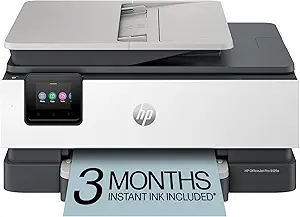 |
| Top Rated A top-rated pick with lots of positive feedback | Xerox C245 Color Multifunction Printer |  |
| Most Popular A crowd favorite that many people choose with confidence | Epson EcoTank ET-2800 |  |
| Best Seller A high-volume bestseller chosen again and again | Brother Work Smart 1360 MFC-J1360DW | 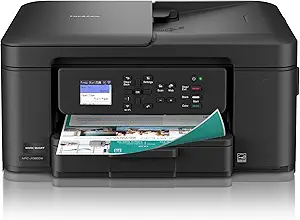 |
Canon imageCLASS MF753Cdw II

| Printer Type | Laser |
|---|---|
| Print Speed | 35 pages_per_minute |
| Print Resolution | 1200 x 1200 dpi |
| Printer Connectivity Type | Ethernet, USB, Wi-Fi |
| Duplex | Automatic |
The Canon imageCLASS MF753Cdw II is a 4-in-1 color laser multifunction printer that handles printing, scanning, copying, and faxing for a small office environment. It delivers fast output up to 35 pages per minute in color and black and white, with a 5-inch color touchscreen and one-pass duplex automatic document feeder to speed two-sided scanning and copying. Paper handling includes a standard 250-sheet cassette and a multipurpose tray, and capacity can be expanded with an optional cassette for higher volume needs. Connectivity options are robust, offering Ethernet, USB, and Wi-Fi plus mobile printing support through Canon apps. Print quality is high at 1200 x 1200 dpi using Canon Genuine Toner 069, so business documents and color reports look crisp. The unit is relatively heavy and takes some space, and ongoing costs depend on OEM toners, but the machine is built for consistent day-to-day office use and backed by a three-year limited warranty and Canon support.
Best for: Small business owners and hybrid work teams who need a dependable multifunction color laser that balances speed, print quality, and everyday reliability for office documents and color reports.
Less Ideal for: Individuals with very tight desk space or those who only need occasional home printing and want a compact inkjet or lower upfront cost option.
- Fast color and B&W print speeds up to 35 ppm for higher productivity
- One-pass duplex ADF and automatic duplex printing for efficient two-sided workflows
- 5-inch color touchscreen simplifies navigation and job setup
- Multiple connectivity options including Wi-Fi, Ethernet, USB, and mobile printing
- Large and relatively heavy footprint that requires dedicated space
- Ongoing consumable costs tied to Canon Genuine Toner 069
Verdict: A workhorse color laser multifunction built for small offices that need fast, reliable color printing plus scanning and copying in daily use.
HP Color LaserJet Pro MFP 3301sdw

| Printer Type | Laser |
|---|---|
| Duplex | Automatic |
| Color Pages per Minute | 30 |
| Maximum Sheet Capacity | 250 |
| Printer Connectivity Type | USB, Wi-Fi |
The HP Color LaserJet Pro MFP 3301sdw is a business-focused all-in-one laser that delivers fast color and black-and-white output alongside scanning and copying. Designed for small teams, it supports wireless and Ethernet connectivity and integrates with the HP app so users can print and scan from smartphones or remote locations. Notable hardware features include automatic two-sided printing, a 250-sheet input tray, an automatic document feeder and 600×600 dpi copy/print resolution for crisp office documents. The next-generation TerraJet toner aims to produce more vivid color than entry-level lasers, and the printer includes basic security and management features for office deployment. Practical limitations are its modest print resolution by photo standards and the device's weight and footprint that require dedicated space; toner costs and the requirement for original HP cartridges with chips may also raise ongoing operating expenses. For teams that need reliable, speedy color document production and integrated scanning in an office environment, the 3301sdw covers the essentials well.
Best for: Buyers who prioritize reliable, fast color document printing and integrated scanning for a small office workflow and want straightforward network and mobile printing.
Less Ideal for: This is not a good fit for users who need high-resolution photo printing or an ultra-compact desktop printer for occasional home use.
- Fast rated print speeds up to 30 pages per minute for color and black-and-white
- Automatic duplexing and a 250-sheet input tray reduce manual paper handling
- Built-in Wi‑Fi, Ethernet and HP app support mobile and network printing
- Automatic document feeder and flatbed scanner streamline multi-page scanning and copying
- Print resolution is limited to 600×600 dpi, not ideal for high-detail photo output
- Requires original HP toner cartridges with chips which can increase consumable costs
Verdict: A dependable, fast color laser MFP built for small offices that need dependable color document throughput and integrated scanning.
Canon PIXMA G3290

| Printer Type | Inkjet SuperTank |
|---|---|
| Print Resolution | 4800 x 1200 |
| Maximum Print Speed Color | 6 pages_per_minute |
| B&W Pages per Minute | 11 pages_per_minute |
| Printer Connectivity Type | USB, Wi-Fi |
The PIXMA G3290 is a compact MegaTank all-in-one aimed at low running costs and moderate office throughput. It uses refillable ink bottles (pigment black and dye-based color) to deliver high page yields—Canon rates up to 6,000 black or 7,700 color pages per full bottle set—so it is built for heavy document and occasional photo printing without frequent cartridge purchases. Setup is straightforward via Wi-Fi or USB and the 2.7-inch color touchscreen and mobile printing support make everyday tasks easy to start. Print quality is strong for business documents with a high color resolution (4800 x 1200) and it supports borderless photo printing up to letter size. Practical features for small offices include automatic duplexing, a 100-sheet tray, and flatbed scanning. Trade-offs are modest print speeds compared with laser workhorses (about 11 ppm mono, 6 ppm color) and the hybrid ink system favors sharp text and vivid photos rather than photographic studio output. For a small business looking to cut ink costs while keeping versatile media support, the G3290 delivers solid value.
Best for: Small business buyers who prioritize low ink costs and reliable everyday color document printing with easy wireless and mobile workflow integration.
Less Ideal for: Teams that need very high-speed document throughput or studio-grade photo color accuracy should consider dedicated laser or photo printers instead.
- Very high page yield per ink bottle set (up to 6,000 black / 7,700 color) for low operating cost
- Automatic duplex printing and 100-sheet tray support efficient office workflows
- Wi-Fi and USB connectivity plus mobile printing and a 2.7-inch color touchscreen for easy setup and use
- Hybrid ink system with pigment black for sharp text and high color resolution for good photo and document output
- Color and mono print speeds are slower than typical office laser printers
- Not optimized for professional photo labs where the highest color fidelity is required
Verdict: Choose the PIXMA G3290 if your small business needs versatile color printing with very low ink costs and solid wireless convenience.
HP OfficeJet Pro 8125e

| Printer Output Type | Color |
|---|---|
| Scanner Type | Flatbed, 1-sided ADF |
| Maximum Sheet Capacity | 225 |
| Duplex | Automatic (standard) |
| Printer Connectivity Type | Apple AirPrint; Ethernet networking; USB; Wireless (Wi-Fi); Wireless direct printing |
The HP OfficeJet Pro 8125e is a multifunction inkjet built to handle everyday small-business printing tasks without taking up much space. It prints color and black-and-white documents, scans via a flatbed and single‑sided ADF, and supports automatic two‑sided printing for multipage jobs. Connectivity options include dual‑band Wi‑Fi with wireless direct, Ethernet, USB and Apple AirPrint, plus app control for printing and scanning from phones. Practical features for a busy small office include a 225‑sheet input capacity, a 60‑sheet output tray, a touchscreen for local control, and HP AI tools that help format web pages and remove unwanted content before printing. It includes a three‑month Instant Ink trial with HP+ activation, which can reduce ink hassles but converts ongoing ink to a subscription model after the trial. Image and text quality are good at high resolution settings, though photo-quality results depend on paper choice. For buyers prioritizing low upfront cost and broad connectivity, this model balances speed and convenience, while those wanting the lowest long‑term ink cost should budget for subscription or third‑party options.
Best for: Small business users who need a compact, affordable all-in-one that handles everyday document printing, scanning, and occasional color jobs while offering flexible wireless connectivity and a low entry price.
Less Ideal for: Businesses that print high monthly volumes or require automatic two-sided scanning and tight control over ink costs should consider higher-capacity laser or enterprise models instead.
- All-in-one functions with flatbed scan plus single-sided ADF for quick document workflows
- Automatic duplex printing reduces paper use for multipage jobs
- 225-sheet input capacity suits moderate print volumes without constant refills
- Multiple connectivity options including dual-band Wi‑Fi, Ethernet, USB, and AirPrint
- High maximum resolution for sharp text and detailed color prints
- Instant Ink trial leads to subscription for some buyers who prefer one-time purchases
- ADF is single-sided only, so scanning duplex originals requires extra steps
Verdict: A budget-friendly, connected color all‑in‑one that covers typical small‑business document tasks with good print quality and convenient mobile printing.
Xerox C245 Color Multifunction Printer

| Printer Type | Laser |
|---|---|
| Functions | Print, Scan, Copy |
| Print Speed | 26 pages_per_minute |
| Connectivity | Ethernet, USB, Wi-Fi |
| Duplex | Automatic |
The Xerox C245 is a compact color laser multifunction printer aimed at home offices and small businesses that need reliable everyday color output. It prints, scans, and copies at up to 26 pages per minute with automatic two-sided printing and a 50-sheet feeder for light batch jobs. Connectivity includes Wi‑Fi, Ethernet, USB, and mobile options like AirPrint and Mopria, while a guided setup app and 2.8 inch color touchscreen simplify installation and routine tasks. Print quality is strong for business documents with a quoted maximum resolution of 2400×600 dpi, and the device supports envelopes, labels, and heavier media. Energy Star and EPEAT qualifications plus support for high-yield toners help control operating cost and power use. The machine is not intended for high-volume production lines: its 50-sheet capacity and modest tray size limit throughput, and the unit is relatively heavy for a small-desk device. For small teams that value consistent, easy-to-manage color output and straightforward networked printing, the C245 is a practical choice.
Best for: Small business owners and home professionals who prioritize dependable, networked color printing and simple setup for everyday documents and client materials.
Less Ideal for: Busy workgroups or print-heavy departments that require large paper capacity, faster duty cycles, or a production-class printer.
- Consistent 26 ppm color and black printing with automatic duplexing for two-sided jobs
- Multiple connectivity options including Wi‑Fi, Ethernet, USB, AirPrint, and Mopria
- Guided smartphone setup via Xerox Easy Assist and an intuitive color touchscreen
- Supports a variety of media including envelopes, labels, glossy paper, and card stock
- Energy Star and EPEAT certified with high-yield toner options to lower operating cost
- 50-sheet feeder and small tray capacity limit throughput for higher-volume offices
- Relatively heavy and large compared with ultra-compact desktop printers
Verdict: A reliable, network-ready color laser all-in-one that delivers consistent professional prints and easy setup for small business use.
Epson EcoTank ET-2800
| Printer Type | Inkjet |
|---|---|
| Printer Connectivity Type | USB, Wi-Fi |
| Maximum print Resolution Color | 5760 x 1440 dpi |
| Color Pages per Minute | 5 pages_per_minute |
| B&W Pages per Minute | 10 |
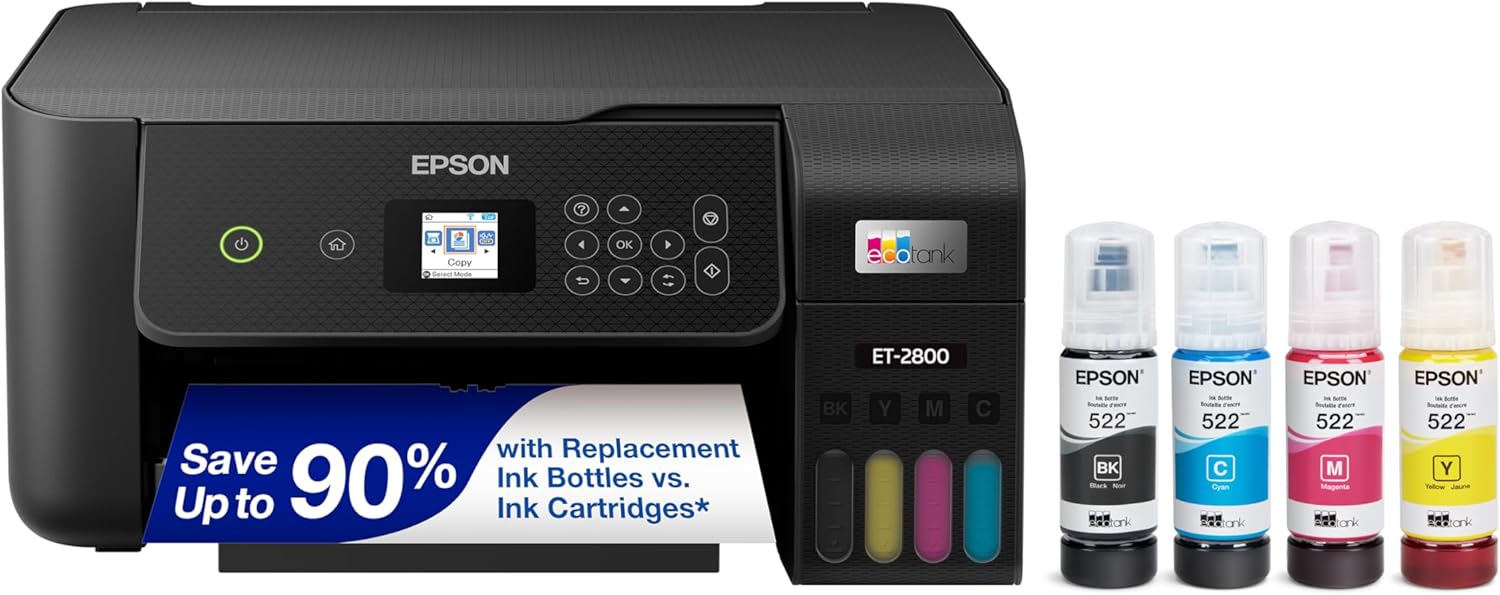
The ET-2800 replaces cartridges with refillable EcoTank bottles, which makes it well suited for heavy-duty document and occasional photo printing without frequent replacements. It prints, copies, and scans using PrecisionCore Micro Piezo heat-free technology for sharp text and reasonably vivid color photos, and supports wireless and voice-activated printing plus USB connectivity. Real-world benefits include very low ongoing ink cost and reduced plastic waste thanks to high-capacity bottles that Epson equates to many individual cartridges, a simple LCD control, and a flatbed scanner for small office tasks. Print speeds are modest—about 10 pages per minute for black and 5 for color—so large, time-sensitive print runs will feel slow compared with laser models. The unit is simplex only and has a 100-sheet capacity, so you may need to reload for bigger jobs. Epson recommends using genuine ink to maintain performance and warranty coverage.
Best for: Buyers who prioritize low running costs and visible customer feedback and want a dependable color all-in-one for routine document and occasional photo work in a small office environment.
Less Ideal for: Not a great fit for teams that need fast two-sided production printing, very high monthly page volumes, or heavy photo-lab quality output.
- Cartridge-free EcoTank system cuts frequency of ink replacements and reduces plastic waste
- High-capacity ink bottles provide a very low cost per page compared with cartridges
- Wireless and voice-activated printing plus USB make mobile workflows easy
- High optical resolution and PrecisionCore tech produce sharp text and good photo detail
- Relatively slow color print speed compared with office laser printers
- Simplex-only printing and 100-sheet tray limit throughput for high-volume jobs
Verdict: Choose the ET-2800 if you want a low-cost-per-page, cartridge-free color all-in-one that earns strong social proof for reliable everyday small-office printing.
Brother Work Smart 1360 MFC-J1360DW

| Printer Type | Inkjet |
|---|---|
| Functions | Print, Copy, Scan |
| Duplex | Automatic |
| Connectivity | USB, Wi-Fi |
| Input Capacity | 150 sheets |
The Brother Work Smart 1360 is a compact color inkjet all-in-one aimed at home and small office use, combining printing, copying, and scanning in a space-saving chassis. It offers automatic two-sided printing, a 20-sheet single-sided automatic document feeder and a 150-sheet tray so routine document jobs and multi-page scans are handled with minimal fuss. Connectivity includes Wi-Fi and USB with AirPrint and Mopria support, and the Brother Mobile Connect app simplifies setup, mobile printing, and ink monitoring. Print speeds are practical for light office work, up to 16 ppm black and 9 ppm color, and the printer uses Brother LC501 ink with high-yield options to lower running costs. The 1.8-inch color display provides basic on-device controls and cloud scanning to services like Google Drive and OneDrive. Expect modest color photo quality typical of inkjets and average duty-cycle suitability for small-business workloads; heavy volume users will want a higher duty-cycle or pigment-based office model. Setup is straightforward but keep in mind ongoing ink purchases are a recurring cost if you do frequent color printing.
Best for: Small-business buyers who prioritize reliable, easy-to-set-up multifunction printing with wireless and cloud/mobile workflows and moderate monthly print volumes.
Less Ideal for: Businesses that need heavy daily print volumes, enterprise-grade duty cycles, or archival pigment-based color printing should consider higher-capacity or laser alternatives.
- Automatic duplex (two-sided) printing saves paper on reports and handouts
- 20-sheet ADF plus flatbed scanner makes multi-page copying and scanning convenient
- Wi‑Fi, AirPrint and Mopria support with a companion mobile app for easy mobile/cloud printing
- 150-sheet input tray reduces frequent refills for small office print runs
- Supports Brother genuine LC501 high-yield cartridges to stretch ink between replacements
- Not designed for high-volume office throughput compared with dedicated office laser or high-capacity ink models
- Small 1.8-inch display limits on-device navigation compared with larger touchscreens
- Uses dye-based color inks which may not match pigment-based printers for long-term photo permanence
Verdict: A compact, easy-to-manage all-in-one that delivers reliable wireless color printing and scanning for small businesses with moderate monthly volume.
Choosing the Right Color All-in-One Printer for Small Businesses: Key Factors to Consider
Print Speed and Throughput
Print speed determines how quickly invoices, proposals, and client materials can be produced during busy periods. Measured in pages per minute, throughput affects queue build-up when multiple users send jobs. Consider both the rated first-page-out time and sustained monthly duty cycle to ensure the device handles peak demands without slowing the office workflow.
High-speed models reduce wait time and help maintain productivity, but make sure the quoted speeds reflect real-world color printing rather than optimized black-and-white figures. Also check whether the printer supports duplex printing at comparable speeds to single-sided output.
Color Quality and Media Support
Color accuracy and saturation matter for marketing materials, client presentations, and color-coded internal documents. Look for printers with multiple color cartridges and technologies that produce consistent color across runs. Paper handling options like a second tray, manual feed, or support for heavier media let you print brochures, envelopes, and labels without frequent paper swaps.
Pay attention to recommended paper weights and supported sizes to avoid jams and poor image quality. Some small-business printers are optimized for plain office paper and struggle with thick cardstock or glossy media.
Network Connectivity and Mobile Workflow
Small businesses need printers that integrate into mixed-device environments. Reliable Ethernet port performance, robust Wi-Fi, and support for secure network protocols keep the device accessible to desktop and laptop users. Mobile printing via native apps, AirPrint, or Mopria simplifies printing from phones and tablets.
Administrative features such as user authentication, guest network printing, and printable job management help protect sensitive documents and control usage. Consider whether the printer supports centralized management tools if you plan to maintain multiple devices.
Operating Cost and Consumable Management
Long-term cost is driven by ink or toner yield, cartridge sizes, and replacement frequency. High-yield cartridges or tank-style systems lower per-page costs but may have higher upfront consumable prices. Evaluate manufacturer yield claims and factor in the kind of documents you print—color-rich marketing pieces consume more ink than text-heavy reports.
Look for printers with easy cartridge access and clear consumable status reporting to avoid unexpected downtime. Also consider third-party consumable compatibility policies if cost is a primary concern, keeping in mind potential tradeoffs in warranty or print quality.
Scanning, Copying, and Document Workflow
A capable scanner speeds administrative tasks like digitizing invoices and client paperwork. Duplex automatic document feeders (ADF) are essential for multi-page scanning, while optical resolution and color depth affect legibility and color fidelity. Integration with cloud storage services and OCR capabilities streamline document search and archiving.
Some printers include scan-to-email, scan-to-folder, and programmable workflow keys to automate repetitive jobs. Check whether scanned output formats and resolution settings meet your recordkeeping or client-delivery standards.
Reliability, Serviceability, and Support
Downtime from jams, frequent maintenance, or confusing error messages can erode productivity. Choose printers with straightforward paper paths, user-replaceable parts, and accessible maintenance guides. Duty cycle ratings offer a rough idea of durability, but real-world reliability also depends on build quality and ease of service.
Consider warranty length and whether on-site support or convenient drop-off service is available in your area. For busy offices, features like a removable jam access panel and clear LED status indicators reduce the time spent troubleshooting.
Setting Up a Shared Office Printer
Plan the printer location near the network hub or an office Wi-Fi access point to maximize signal stability and reach. Provide a clear path to the device and enough space for paper trays to extend and for users to change cartridges without obstruction. Hardwiring the primary office printer with Ethernet improves reliability for multi-user environments.
During setup, configure user access controls and enable secure printing options if available. Register the printer with mobile printing protocols and test printing from the common devices used in your office to confirm compatibility. Finally, set default preferences such as duplex printing and draft mode to reduce waste and costs.
- Place near network equipment for best wired or wireless performance
- Enable duplex printing and default draft mode to save toner
- Set up user authentication for sensitive document control
Optimizing Color Output for Business Documents
Use the printer's color management settings to match on-screen colors to printed output for client-facing materials. Many devices offer presets for photo, brochure, or plain text that balance color saturation and ink use. Calibrate the device if consistent color matching is critical across multiple print runs.
Select appropriate paper stock and finish for the intended use. Glossy or coated papers increase perceived color vibrancy but may require different ink handling and drying times. When producing multi-page color documents, test a short run to ensure consistent color registration and no smudging.
- Use color presets for different document types
- Calibrate when exact color matching is needed
- Test print on the final paper stock before large runs
Managing Consumables and Reducing Waste
Track consumable levels and maintain a small inventory of high-yield cartridges to avoid interruption during busy periods. Use the printer's status notifications or administrative console to forecast replacements. Where available, select high-yield or economy settings for internal documents to extend consumable life.
Recycle empty cartridges through appropriate programs and plan routine maintenance checks to reduce waste from misfeeds or degraded print heads. Training staff on proper handling of paper and cartridges lowers the incidence of user-caused issues.
- Keep spare high-yield cartridges on hand
- Use draft mode for internal documents to save ink
- Recycle used cartridges responsibly
Securing Your Office Printer
Enable built-in security features such as password-protected management pages, network encryption, and secure print release to prevent unauthorized access. Keep the device firmware up to date to address known vulnerabilities. For shared devices, require authentication for advanced functions like network scanning or access to stored documents.
Segment guest access from the primary office network when offering public printing to visitors. Regularly review audit logs and access reports if the device provides them to spot unusual activity.
- Use WPA2/WPA3 or wired Ethernet for secure connections
- Enable secure print release for confidential documents
- Keep firmware current and monitor access logs
When to Choose Multifunction Features Over Standalone Units
Multifunction devices combine print, scan, copy, and sometimes fax into a single footprint, saving space and consolidating maintenance. Choose an all-in-one when your office needs frequent scanning or copying alongside daily printing and where a single device simplifies administration.
However, if your operation requires very high-volume printing or specialized finishing options, a standalone production printer or dedicated scanner might be more appropriate. Assess the balance of features versus expected usage to decide whether the multifunction approach fits your workflow.
- Multifunctions save space and centralize maintenance
- Dedicated devices can outperform in very high-volume or specialized tasks
- Match device capabilities to your most frequent tasks
How We Chose the Best Color All-in-One Printer for Small Businesses
We focused on criteria that directly affect productivity, operating cost, and reliability in a small-business environment. Our editorial filters prioritized print and scan throughput, network connectivity and mobile workflow options, and real-world durability features such as duty cycle and paper handling. We also evaluated cost factors including standard-yield consumable prices and estimated yield to reflect ongoing expenses for a small office. Additional criteria included ease of setup and administration for nontechnical users, security features relevant to shared office devices, and support for common business media such as envelopes, labels, and heavier paper stocks. We excluded specialty production devices and consumer-grade models meant for occasional home use. Units that lacked basic duplex printing or reliable wired or wireless networking were removed from consideration. The final selection balances speed, color quality, and predictable operating costs so businesses can choose a printer that fits their regular workload and budget constraints.
Our full evaluation process is outlined in our review methodology.
FAQ
How do I estimate the right duty cycle for my office?
Estimate your monthly page count by tracking typical daily printing and multiplying by workdays per month. Choose a printer with a recommended monthly duty cycle comfortably above that estimate to avoid overworking the device and to extend its lifespan.
Is wireless printing secure enough for business documents?
Wireless printing can be secure when you use strong network encryption, keep firmware updated, and enable device authentication features. Segmenting guest access and using secure print release adds protection for confidential documents.
How often should I replace cartridges to avoid print-quality issues?
Replace cartridges when the printer reports low levels or when you notice color fade or banding. Replacing proactively before a critical print job and keeping spare cartridges on hand reduces downtime and prevents rushed replacements.
Do color cartridges always cost significantly more than black?
Color cartridges can be more expensive on a per-page basis for color-rich documents, but costs vary widely by cartridge yield and device efficiency. Using color only when necessary and selecting high-yield or economy options helps control expenses.
What scanning features are most useful for small businesses?
Duplex automatic document feeders, OCR support for searchable PDFs, and direct scan-to-email or cloud-folder options are especially useful. These features speed document digitization and make records easier to store and find.
Final Verdict
For small businesses, prioritize printers that match your regular monthly volume, offer reliable network and mobile connectivity, and keep consumable costs predictable. Balance color quality against operating expenses by choosing the right cartridge yields and media handling for your typical documents. Focus on throughput, scan capabilities, and simple administration when selecting a color all-in-one printer for a small office. That approach will minimize downtime and ongoing costs while providing the output quality needed for client-facing materials and internal workflows.