
Note: This article contains affiliate links. If you click on these links and make a purchase, we may earn a small commission at no extra cost to you. This helps support our research and content. Read our full affiliate disclosure here.
If you run a small business, the right inkjet printer can keep operations moving smoothly without eating into margins. You need dependable output for invoices, client documents, marketing materials, and occasional color jobs, plus low operating costs and minimal downtime. This guide highlights seven top inkjet printers that suit small business workflows and varied print volumes. We shortlisted machines that balance print speed, per-page cost, and reliability, and we evaluate them across practical factors like connectivity, consumable availability, and maintenance requirements. Read on to see which models best fit your office needs and workflows.
Top Picks at a Glance
| Best Overall The best all-around choice for most situations | HP OfficeJet Pro 8125e | 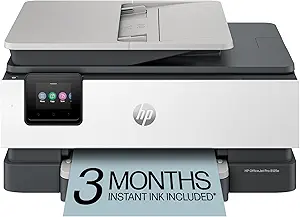 |
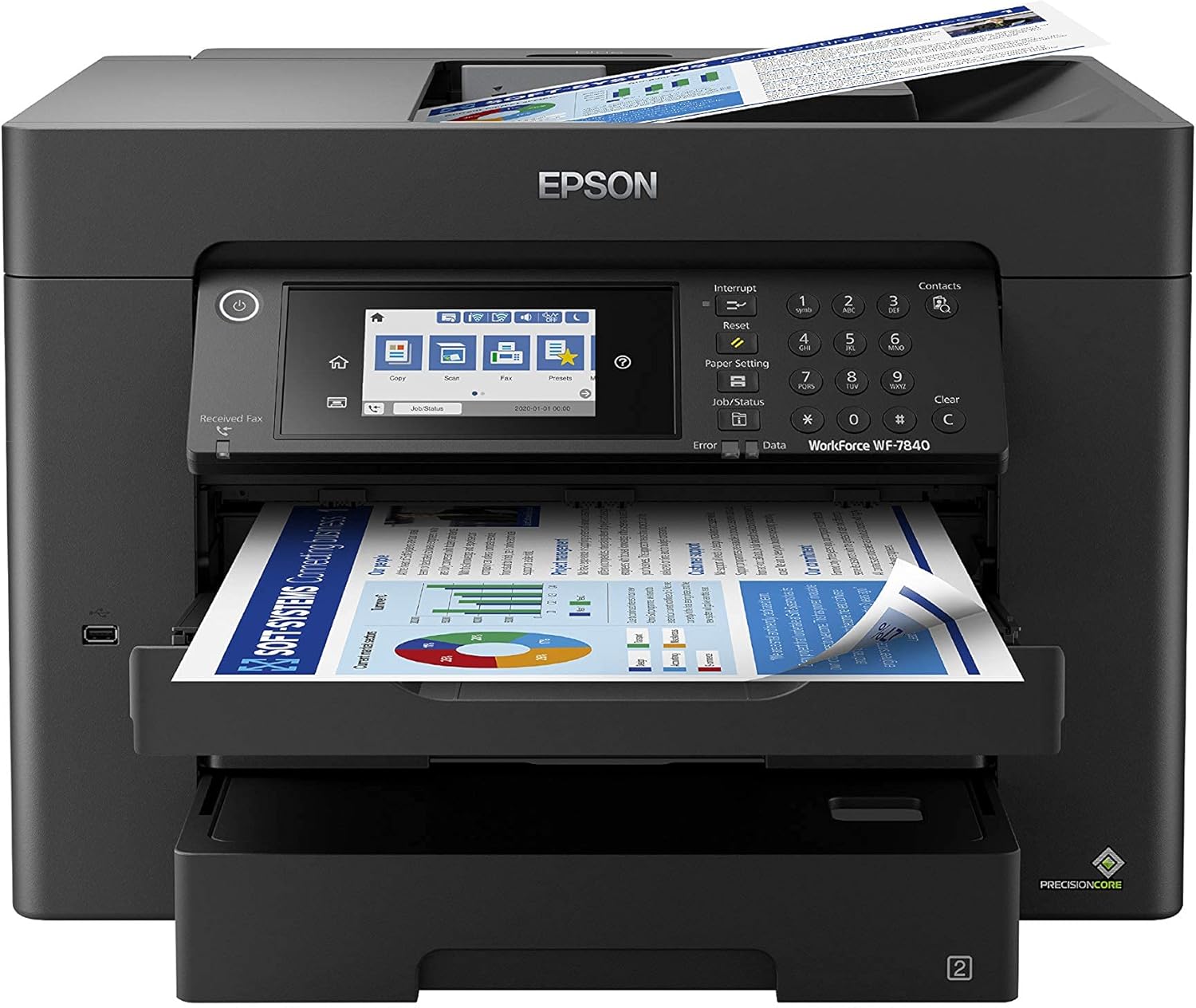
| Best Quality Built to a higher standard if you want something more solid | Epson WorkForce Pro WF-7840 |  |
| Best Value The sweet spot between price and what you get | Brother INKvestment Tank MFC-T580DW |  |
| Best Budget The cheapest option that still gets the job done reliably | HP DeskJet 2955 All-in-One |  |
| Top Rated A top-rated pick with lots of positive feedback | Canon PIXMA TR4720 |  |
| Most Popular A crowd favorite that many people choose with confidence | Canon PIXMA TR4720 |  |
| Best Seller A high-volume bestseller chosen again and again | Epson EcoTank ET-2800 |  |
HP OfficeJet Pro 8125e

| Printer Type | HP Thermal Inkjet |
|---|---|
| Maximum Sheet Capacity | 225 |
| Duplex | Automatic (standard) |
| Printer Connectivity Type | Apple AirPrint; Ethernet networking; USB; Wireless (Wi-Fi); Wireless direct printing |
| Color Pages per Minute | 10 pages_per_minute |
The HP OfficeJet Pro 8125e is a compact multifunction inkjet that targets small business and home-office workflows by combining reasonably fast color and black-and-white printing with scanning and copying. It prints up to 10 ppm in color and 20 ppm in black, supports automatic two-sided printing and includes a 1-sided ADF for basic batch scanning. Connectivity covers dual-band Wi-Fi with wireless direct, Ethernet and AirPrint, and the HP app makes mobile printing and scanning straightforward. Notable productivity aids are a 225-sheet input tray, automatic duplexing and AI-driven formatting tools that help remove unwanted web content before printing. The unit ships with HP 923 setup cartridges and can enroll in Instant Ink for automated replenishment. Trade-offs are typical for its class: photo print resolution is optimized on HP photo paper for best results and cost per page depends on cartridge choice and subscription, and some buyers may find advanced business features like heavy-duty paper handling or high-volume duty cycles limited compared with larger office printers.
Best for: Buyers who need a balanced, space-efficient all-in-one that handles everyday office documents, occasional batch scanning and reliable wireless printing for a small business or home office.
Less Ideal for: Not the best choice for users who require heavy daily print volumes, advanced enterprise features, or large-format production printing.
- All-in-one functionality with print, scan, copy and 1-sided ADF for small batch jobs
- Automatic duplexing and 225-sheet input capacity reduce manual feed and interruptions
- Multiple connectivity options including dual-band Wi-Fi, Ethernet and AirPrint for flexible setup
- AI formatting features and HP app simplify mobile printing and clean up web content before printing
- Not engineered for very high monthly volumes compared with dedicated workgroup printers
- Best color photo quality requires HP Advance Photo Paper for optimal results
Verdict: A compact, well-rounded all-in-one that balances speed, wireless connectivity and everyday office features for small businesses seeking a space-efficient printer.
Epson WorkForce Pro WF-7840
| Printer Type | Inkjet |
|---|---|
| Maximum Media Size | 13 x 19 inch |
| Maximum Sheet Capacity | 500 |
| B&W Pages per Minute | 25 pages_per_minute |
| Printer Connectivity Type | Wireless |
The Epson WorkForce Pro WF-7840 is a business-focused all-in-one that combines wide-format printing with fast output and office-friendly features. It uses PrecisionCore heat-free printheads and DURABrite Ultra pigment inks to deliver sharp color and black-and-white prints at up to 25 ISO ppm for black and 12 ppm for color, and it handles large jobs with a 500-sheet capacity and three trays. The 4.3-inch color touchscreen, wireless and wired network connectivity, and mobile printing support via Epson apps make setup and daily operation straightforward in a shared office. Built-in automatic duplexing, an ADF for scanning and copying, and support for media up to 13 x 19 inches add real flexibility for marketing materials and tabloid-size documents. Downsides to expect are the printer's substantial physical footprint and the requirement to use genuine Epson cartridges, which can raise ongoing ink costs compared with some office laser alternatives. For teams that need high-quality wide-format color and reliable throughput, the WF-7840 is a practical choice.
Best for: Small business users who prioritize fast, high-quality wide-format color and need robust daily throughput and networked features for shared office use.
Less Ideal for: Home users or very small offices with limited space or those seeking the lowest possible cost per page from third-party inks or a compact laser alternative.
- Wide-format printing up to 13 x 19 inches for tabloid-size output
- High sheet capacity (500 sheets) and multiple trays for long runs
- Fast black print speed (up to 25 ISO ppm) for business throughput
- Automatic duplexing and ADF for two-sided copying and scanning
- 4.3-inch color touchscreen plus wireless and Ethernet connectivity for easy networked use
- Large physical footprint that requires dedicated space
- Uses only genuine Epson DURABrite cartridges which can increase operating cost
Verdict: Choose the WF-7840 if your small business needs fast, wide-format color printing with high capacity and office-ready networking.
Brother INKvestment Tank MFC-T580DW

| Functions | Print / Copy / Scan |
|---|---|
| Paper Tray Capacity | 150 sheets |
| Auto Duplex | Yes |
| Max ISO Print Speed | 16 ppm black / 9 ppm color |
| Mobile Compatibility | AirPrint, Mopria, Brother Mobile Connect |
The Brother INKvestment Tank MFC-T580DW is a compact all-in-one inkjet that focuses on low ongoing ink cost and straightforward operation for small business or home office settings. It uses refillable, spill-resistant ink tanks and ships with up to three years of ink in the box, so you can print a lot before needing replacements. Typical use cases are printing invoices, reports, marketing flyers, and occasional color materials; the 150-sheet tray and automatic duplexing help keep small batches flowing without constant attention. Setup and everyday control are simple via the 1-line LCD, USB or Wi-Fi, and Brother Mobile Connect lets you print and scan from a phone. Print speeds are modest — up to 16 ppm black and 9 ppm color — so it is not optimized for high-volume, high-speed production, and the basic display and paper handling limit advanced workflow features. If you prioritize low ink expense and reliable color output in a small footprint, this model delivers sensible value for small-business needs.
Best for: Small-business or home-office buyers who want to minimize ink costs and waste while getting dependable color prints, scanning, and duplexing in a compact, easy-to-manage machine.
Less Ideal for: Businesses that need high-speed production, advanced finishing or large daily page volumes should consider higher-capacity office printers instead.
- Refillable spill-resistant ink tanks with up to three years of ink included reduce running costs and cartridge waste
- Wireless connectivity plus Brother Mobile Connect app for printing and scanning from mobile devices
- Automatic duplex printing and 150-sheet main tray support routine office workflows without frequent refills
- Compact all-in-one design includes flatbed scanning and copying for common small-business tasks
- Relatively basic 1-line LCD and limited advanced workflow features compared with higher-end business models
- Print speeds are modest (up to 16 ppm black / 9 ppm color), so large print jobs take longer
Verdict: Choose this Brother INKvestment Tank when you want a compact all-in-one that significantly lowers ink cost and disruption for a small business or home office.
HP DeskJet 2955 All-in-One

| Printer Type | HP Thermal Inkjet |
|---|---|
| Scanner Type | Flatbed |
| Maximum Sheet Capacity | 60 |
| Color Pages per Minute | 5.5 pages_per_minute |
| Printer Connectivity Type | Apple AirPrint; USB; Wireless (Wi-Fi); Wireless direct printing; Mopria |
The HP DeskJet 2955 is a budget-friendly all-in-one designed for straightforward everyday printing, scanning, and copying. It connects via USB, AirPrint, Mopria, and dual-band Wi‑Fi for printing from phones, tablets, or PCs, and the HP app simplifies mobile workflows. The 60-sheet input tray and flatbed scanner make it suitable for light office tasks like invoices, memos, and occasional color documents, while HP AI formatting helps trim unwanted web content before printing. Print speeds are modest (about 7.5 ppm black, 5.5 ppm color) and duplexing is manual, so it is not optimized for heavy duty or high-volume use. The printer ships with starter HP 68 setup cartridges and includes a three-month Instant Ink trial for automatic cartridge delivery. Its compact footprint and low power use fit small workspaces, but users who need faster throughput, automatic duplexing, or higher monthly page yields should look at higher-tier models.
Best for: Small-business owners or sole proprietors seeking an inexpensive, space-saving printer for occasional invoices, forms, and color documents who prioritize low upfront cost and simple mobile printing.
Less Ideal for: Offices that regularly print large volumes, require automatic duplexing, or need faster page throughput should consider more robust business-grade printers.
- Compact all-in-one design suitable for small desks and limited office space
- Wireless connectivity with AirPrint, Mopria, and HP app for easy mobile printing
- Includes a 3-month Instant Ink trial to simplify ink replacement
- Made with recycled plastics and ENERGY STAR certified for lower environmental impact
- Slow print speeds and manual duplexing limit productivity for higher-volume printing
- 60-sheet input tray is small for frequent batch jobs
Verdict: Choose this compact DeskJet if you need an affordable, simple wireless all-in-one for light small-business printing and mobile workflows.
Canon PIXMA TR4720

| Printer Type | Inkjet |
|---|---|
| Printer Connectivity Type | Wi-Fi |
| Duplex | Automatic |
| Compatible Cartridge | PG-275, CL-276 |
| Maximum print Resolution Color | 4800 x 1200 dpi |
The Canon PIXMA TR4720 is a compact 4‑in‑1 inkjet that prints, copies, scans and faxes while providing simple mobile and app-based setup. It includes an auto document feeder for multi-page scans and faxes, automatic two‑sided printing to save paper, and Wi‑Fi connectivity for printing from smartphones and computers. The printer ships with starter PG‑275 black and CL‑276 color cartridges and delivers up to 4800 x 1200 dpi color resolution for reasonably detailed documents and basic graphics. The 100‑sheet maximum input and single tray keep the footprint small but mean heavy daily print volumes will require frequent refills. Its strengths are easy setup, duplexing, and useful ADF fax support for a small office workflow, while those who need very high monthly duty cycles, fast photo lab quality, or advanced media handling may want a higher‑end business model.
Best for: Small business owners or home-office operators who prioritize reliable everyday office features like duplexing, an ADF and mobile printing in a compact, easy-to-manage machine.
Less Ideal for: Businesses that need heavy monthly page counts, large paper handling capacity, or professional photo-quality printing should consider more robust office or photo printers.
- All‑in‑one functionality: print, copy, scan and fax in one compact unit
- Automatic duplex printing reduces paper use and manual flipping
- Auto document feeder simplifies multi-page scanning and faxing
- Wi‑Fi and mobile app control enable easy printing from smartphones
- High color resolution (4800 x 1200 dpi) for clear documents and basic graphics
- Limited sheet capacity and single tray make it less suitable for high daily volumes
- Starter cartridges are included but may require replacement quickly under regular office use
Verdict: A compact, app-friendly all‑in‑one that delivers dependable duplexing and ADF fax/scan features for small business workflows.
Canon PIXMA TR4720

| Printer Type | Inkjet |
|---|---|
| Print Resolution | 4800 x 1200 |
| B&W Pages per Minute | 8.8 |
| Color Pages per Minute | 4.4 |
| Connectivity | USB, Wi-Fi |
The Canon PIXMA TR4720 is a compact 4-in-1 inkjet designed for home and small-office tasks where space and simplicity matter. It handles everyday printing, scanning and copying plus faxing, and the built-in auto document feeder speeds multi-page scanning and copying. Automatic two-sided printing helps reduce paper use and the front 100-sheet tray keeps a modest workload going without constant refills. Wireless and USB connectivity plus Canon's mobile app let you print from phones and cloud services, and the hybrid ink system produces sharp black text and reasonably good color photos up to 8.5 x 11 inches. Expect office-style black text at about 8.8 ipm and color at about 4.4 ipm, so it is better suited to documents than high-volume photo work. The TR4720 is small and energy efficient but not built for heavy daily duty; larger offices or users who need very fast throughput or high-yield ink systems should look elsewhere. Setup and cartridge replacement are straightforward, making it an easy pick for teams that need reliable basic printing without a steep learning curve.
Best for: Small-business owners or teams who prioritize a compact, easy-to-use all-in-one that handles occasional multi-page jobs and mobile printing without complex setup.
Less Ideal for: Businesses with heavy daily print volumes, high monthly page counts, or teams that need fast color throughput and the lowest possible ink cost per page.
- All-in-one functionality (print, copy, scan, fax) in a compact footprint
- Automatic duplex printing and a 100-sheet front tray reduce paper changes and save paper
- Auto document feeder for multi-page scanning and copying
- Wi-Fi and app-based mobile printing for convenient remote and cloud printing
- Print speeds are modest, especially for color pages
- Uses standard Canon cartridges rather than high-yield tank systems, so running costs can be higher for heavy use
Verdict: Choose the PIXMA TR4720 if you need a compact, straightforward wireless all-in-one that covers basic small-business printing, scanning and faxing with minimal setup.
Epson EcoTank ET-2800

| Printer Type | Inkjet |
|---|---|
| Printer Connectivity Type | USB, Wi-Fi |
| Maximum print Resolution Color | 5760 x 1440 dpi |
| B&W Pages per Minute | 10 |
| Maximum Sheet Capacity | 100 |
The Epson EcoTank ET-2800 is a small all-in-one inkjet that replaces cartridges with high-capacity refillable ink tanks, letting you print long runs before buying replacement bottles. It prints, scans and copies, offers wireless and USB connectivity, and supports mobile and voice-activated printing for easy setup from phones or tablets. Print quality is strong for documents and occasional photos thanks to Epson's PrecisionCore/Micro Piezo heat-free print tech and a high maximum resolution, while the flatbed scanner and color LCD make copying and scanning straightforward. The main practical benefit is much lower ink replacement frequency and reduced cartridge waste, which suits regular document printing and small-business administrative tasks. Expect modest color photo speed and no automatic duplexing on this model, and Epson recommends using genuine ink to maintain performance and warranty coverage. For buyers who prioritize steady, low-cost-per-page output and simple wireless operation, the ET-2800 is a reliable everyday workhorse; power users who need fast duplexing, large paper handling, or heavy photo production should look at higher-tier models.
Best for: Buyers seeking a dependable, low-cost-per-page printer for steady everyday document and occasional photo printing who prefer simple wireless setup and low maintenance.
Less Ideal for: Businesses that need fast automatic duplexing, large paper trays, or high-volume photo production should consider higher-capacity office models instead.
- Cartridge-free EcoTank design cuts frequency of ink replacements and plastic waste
- Wireless and mobile printing with voice-activated support for easy setup and remote printing
- High print resolution for crisp text and decent color graphics
- All-in-one functionality with a flatbed scanner and intuitive color LCD
- Low power consumption (listed at 12 watts) for energy-efficient operation
- No automatic two-sided (duplex) printing; prints single-sided only
- Color print speed is modest compared with higher-end office printers
- Manufacturer strongly recommends genuine ink which limits third-party ink options
Verdict: Choose the ET-2800 if you want a reliable, cartridge-free all-in-one that minimizes ink swaps and keeps running costs low for everyday small-business printing.
Choosing the Right Inkjet Printer for Small Businesses: Key Factors to Consider
Print Speed and Duty Cycle
How fast a printer produces pages and its rated monthly duty cycle determine whether it can handle your office volume. Higher pages-per-minute ratings reduce wait time during multi-user bursts and frequent print runs. Duty cycle gives a rough upper limit on how much printing the device can tolerate regularly before wear increases.
If your business often prints multi-page reports, invoices, or client packets, prioritize a model with a higher throughput and a duty cycle comfortably above your monthly average. Relying on a consumer-grade duty cycle for heavy use can lead to premature maintenance needs and higher downtime.
Operating Cost and Ink Yield
Long-term cost depends heavily on ink efficiency and how many pages a set of cartridges yields. Look beyond the sticker price to per-page cost estimates for both black-and-white and color printing. High-capacity or subscription-based consumables can lower running costs, but check whether replacements are widely available locally.
Consider the typical mix of your printing. If most output is monochrome text, prioritize black cartridge yield and duplex efficiency. If you produce occasional color marketing materials, factor in color cartridge yield and the cost of photo-quality output versus standard color prints.
Paper Handling and Flexibility
Input tray capacity, adjustable trays for different media sizes, duplexing, and a reliable feed path all affect how much manual work the printer requires. A larger input capacity reduces the need to reload paper during busy periods, and automatic duplexing saves time and paper for two-sided documents.
If your small business uses envelopes, labels, or thicker paper stock, confirm that the printer supports those media types without frequent jams. Multiple trays or a single tray with adjustable stops can make handling mixed jobs simpler and reduce operator errors.
Connectivity and Network Support
Ease of connecting the printer to your office network and devices determines how smoothly staff can print from laptops, smartphones, and tablets. Look for reliable Ethernet for shared-office stability, Wi-Fi with robust security options, and native mobile printing support. Cloud and app integrations matter if you print directly from cloud services or mobile devices.
Consider whether the device supports simultaneous connections without long wake-up delays. For mixed OS environments, check driver availability and whether the printer supports standard network printing protocols to avoid workarounds.
Maintenance, Serviceability, and Warranty
Frequent maintenance needs or hard-to-replace parts increase total ownership friction. Evaluate how easy it is to replace consumables, access jammed paper paths, and perform routine cleaning. A simpler, modular design can reduce technician time and user frustration.
Warranty coverage and the availability of service or replacement parts within your region are important for minimizing downtime. Consider models with straightforward self-service guidance and clear indicators for when supplies or maintenance are needed.
Print Quality and Color Accuracy
Print quality affects how professional client documents and marketing materials appear. For most small businesses, sharp text and solid color fills matter more than high-end photo reproduction. Evaluate text crispness, color saturation for logos, and how well the device handles gradients and small fonts.
If you occasionally produce marketing collateral in-house, ensure the printer supports the color profiles and media types you use. For predominantly text-based printing, prioritize toner consistency and legibility at typical office resolutions.
Choosing Between Office and Compact Models
Office-class inkjet printers trade compactness for features that reduce hands-on time, such as larger paper trays, faster processors, and tougher feed mechanisms. Compact models save desk space and are suitable when print volume is low, but they often have smaller ink reservoirs and lower duty cycles.
Match the form factor to the physical constraints of your workspace and the expected print load. If staff share a small area, a compact device with good network features may be preferable. If a single printer must serve multiple users with high throughput, an office-class unit is usually the better long-term choice.
- Compact models are best for light, occasional printing.
- Office-class models are built for sustained daily volumes.
- Consider where the printer will sit and whether ventilation or noise will affect the workspace.
Managing Consumables and Reducing Waste
Plan how you will manage ink cartridges, maintenance kits, and paper supplies to avoid interruptions. Maintaining a small stock of high-use consumables can prevent slowdowns, especially if deliveries or local availability are uncertain.
Use settings that minimize color usage for routine documents, such as driver-level color-saver modes or defaulting to grayscale when color is unnecessary. Implement duplexing to halve paper usage for two-sided documents and reduce long-term supply costs.
- Store spare cartridges in a cool, dry place to prolong shelf life.
- Enable duplexing by default for internal documents.
- Use draft modes for internal drafts to extend cartridge life.
Integration With Office Workflows
Check how the printer integrates with common office software and workflows. Support for scan-to-email, network scanning, and reliable document feeders helps streamline administrative tasks. Built-in scanning and copying functions can consolidate devices and free up desk space.
Automated features like scheduled maintenance alerts, remote management, and usage reporting can reduce administrative overhead and help you track per-department printing habits for cost allocation.
- Look for multi-function features if you need scanning and copying.
- Ensure driver and firmware update paths are straightforward.
- Consider printers that support user authentication if you need print tracking.
Security Considerations for Shared Printers
Networked printers can be an attack vector if not properly secured. Ensure models support encrypted connections, secure printing options, and user authentication for sensitive documents. Regularly apply firmware updates to address known vulnerabilities.
If your business handles confidential client information, consider printers with secure release features that hold jobs until a user authenticates at the device. Audit logs and usage reports help maintain compliance and track document access when needed.
- Enable WPA3 or the highest available Wi-Fi encryption.
- Use secure printing features for confidential documents.
- Keep firmware updated and restrict administrative access.
Setting Up an Efficient Print Environment
Position the printer to minimize disruption and ensure easy access to paper and supplies. Keep common sizes and media types preloaded in labeled trays to reduce errors and speed up job setup. Train staff on basic clearing of jams and consumable replacement to avoid unnecessary service calls.
Establish simple rules for color versus black-and-white printing and encourage digital distribution for documents that do not require hard copies. Regularly review printing needs and adjust default settings to reflect current use patterns.
- Label trays by media type and size.
- Create a quick reference for staff on common troubleshooting steps.
- Review default print settings quarterly to reduce waste.
How We Chose the Best Inkjet Printer for Small Businesses
We prioritized criteria that matter most to small business users and that reliably predict long-term satisfaction. Print speed and first-page-out times were included to reflect how quickly devices keep an office moving during busy periods. Cost-per-page and ink yield were used to estimate ongoing operating expenses for black-and-white and color output. Paper handling and input capacity were evaluated to determine how well each printer handles typical small office jobs without frequent intervention. Connectivity and mobile printing features were checked for compatibility with mixed-device environments. Reliability and serviceability considered common failure modes, ease of replacing consumables, and routine maintenance needs. We excluded consumer hobby printers and photo-centric models that sacrifice document throughput or have unusually high per-page costs. Printers with unclear or proprietary consumable ecosystems that add long-term cost risk were deprioritized. The final list favors machines that deliver consistent daily performance, affordable running costs, and straightforward upkeep for small business environments.
Our full evaluation process is outlined in our review methodology.
FAQ
How do I estimate the right inkjet printer capacity for my small business?
Start by tracking your typical monthly page count over a few weeks, including both color and black-and-white jobs. Choose a printer with a duty cycle comfortably above that average and consider models with high-capacity cartridges if your monthly volume is steady.
Are inkjet printers more expensive to run than other technologies?
It depends on workload and cartridge efficiency. For low-to-moderate color printing, modern inkjets can be cost-competitive. High-volume monochrome jobs are often cheaper on laser devices, so weigh your typical job mix when estimating operating cost.
What maintenance should I expect with an office inkjet?
Routine maintenance typically includes replacing ink cartridges, periodic head cleaning, and occasional paper path checks. Devices with automatic maintenance cycles reduce manual tasks, but expect periodic interventions for heavy use or specialty media.
How important is mobile printing support for small businesses?
Mobile printing is useful if staff frequently print from phones or tablets. Native mobile printing and cloud integration simplify workflows, but ensure these features are secure and compatible with your network and authentication policies.
Can I use third-party or remanufactured cartridges?
Third-party cartridges can reduce costs but vary in reliability and yield. They may increase the likelihood of print quality issues or maintenance events, so weigh potential savings against the risk of additional downtime and service needs.
Final Verdict
Prioritize the aspects that most directly affect your day-to-day operations: print speed and duty cycle for throughput, operating cost for long-term budgets, and paper handling for convenience. Balance those against connectivity and security features that fit your office environment. Choose a printer that aligns with your expected monthly volume and the types of documents you print most often. With the right balance of throughput, cost efficiency, and serviceability, you can select an inkjet that supports your small business reliably for years.