
Note: This article contains affiliate links. If you click on these links and make a purchase, we may earn a small commission at no extra cost to you. This helps support our research and content. Read our full affiliate disclosure here.
If you have boxes of prints, slides, or negatives, a dedicated photo scanner makes the job of preserving images much easier and results better than a flatbed or phone photo alone. The right photo scanner keeps colors accurate, recovers detail from older prints, and moves through batches quickly so you can finish projects without losing quality. This guide shortlists the top photo scanners for home and small-office use and explains the features that matter most, from image resolution and color depth to scanning speed and software workflow. Below are our picks and the evaluation criteria used to choose them, followed by practical buying guidance to help you pick the best fit for your scanning needs.
Top Picks at a Glance
| Best Overall The best all-around choice for most situations | ScanSnap iX1300 Scanner |  |
| Best Quality Built to a higher standard if you want something more solid | Epson Perfection V850 Pro |  |
| Best Value The sweet spot between price and what you get | Epson Perfection V19 II |  |
| Best Budget The cheapest option that still gets the job done reliably | Canon CanoScan LiDE 300 |  |
| Top Rated A top-rated pick with lots of positive feedback | DigitPro M129A Photo & Film Scanner |  |
| Most Popular A crowd favorite that many people choose with confidence | KODAK Slide N Scan |  |
| Best Seller A high-volume bestseller chosen again and again | Plustek ePhoto Z300 |  |
ScanSnap iX1300 Scanner

| Connection Type | USB, Wi-Fi |
|---|---|
| Resolution | 600 dpi |
| Standard Sheet Capacity | 20 |
| Color Depth | 48 bits |
| Scanner Type | Document, Receipt |
The ScanSnap iX1300 is a compact duplex scanner aimed at everyday home and small-office scanning tasks. It scans both sides at once at up to 30 pages per minute and accepts documents, receipts, and photos using either the U-turn feeder or a return-scan path for delicate media. Setup is straightforward over USB or Wi‑Fi and you can scan directly to Mac, PC, mobile devices, or cloud services without a computer if you opt to use the cloud features. The 20-sheet automatic feeder, 600 dpi optical resolution, and onboard image processing (deskew, color optimization, blank-page removal) produce clean, shareable files with minimal fiddling. ScanSnap Home software centralizes organization and basic editing for receipts, business cards, and photos. Limitations include the modest 20-sheet feeder for higher-volume projects and the lack of TWAIN drivers for some legacy imaging workflows, which could restrict direct integration with certain third-party capture software. The unit trades larger capacity and pro-level drivers for a smaller footprint and simpler, consumer-friendly workflow.
Best for: Buyers who want a reliable, easy-to-use scanner for mixed jobs—documents, receipts, and occasional photos—and prefer a compact machine with simple wireless or USB workflows.
Less Ideal for: Users who need heavy-duty batch scanning or firm-level imaging integration should consider higher-capacity or TWAIN-compatible models instead.
- Duplex scanning at up to 30 pages per minute for fast two-sided capture
- Wi‑Fi and USB connectivity lets you scan to computers, mobile devices, or cloud services
- 600 dpi optical resolution and automatic image processing produce clean scans without manual tuning
- Compact footprint that fits on small desks and offers a return-scan option for photos or fragile pages
- ScanSnap Home software organizes documents, receipts, business cards, and photos in one app
- 20-sheet automatic feeder is small for large batch scanning
- Not TWAIN-compatible, which limits direct integration with some legacy third‑party imaging software
Verdict: A compact, user-friendly duplex scanner that delivers clean, ready-to-use scans for photos and paperwork while prioritizing simplicity over high-volume batch throughput.
Epson Perfection V850 Pro

| Scanner Type | Photo |
|---|---|
| Connection Type | USB |
| Color Depth | 48 bits |
| Optical Sensor Technology | CCD |
The Epson Perfection V850 Pro is a desktop photo scanner built for archiving prints, slides and film with pro-level detail. It uses a dual-lens optical system and a CCD sensor to deliver up to 6400 dpi film resolution (9600 listed as scan interpolation) and a wide tonal range with 4.0 Dmax, which helps preserve shadow detail in negatives. ReadyScan LED lighting removes warmup time and the package includes multiple film holders so you can batch-scan 35mm and medium/large-format film. Digital ICE dust-and-scratch removal and color restoration tools reduce post-scan cleanup for older material. The scanner connects over Hi-Speed USB 2.0 and supports TWAIN on Windows and macOS for use with common scanning workflows. Trade-offs are its substantial desktop footprint and heavy build, and advanced features are most useful to enthusiasts or pros who need high fidelity rather than casual users who only want simple flatbed scans.
Best for: Photographers and image archivists who prioritize maximum image fidelity and advanced film scanning features for digitizing negatives and slides.
Less Ideal for: Casual users who only need occasional document or photo scans and prefer a compact, faster consumer scanner or multifunction printer.
- Very high optical resolution for film and photos with a dual-lens system
- 4.0 Dmax tonal range that preserves shadow detail
- Includes film holders for 35mm and medium/large-format batch scanning
- Digital ICE and color restoration tools reduce manual retouching
- Large and relatively heavy desktop unit that needs dedicated workspace
- USB 2.0 connectivity is slower than modern USB 3.0 alternatives
Verdict: Choose the V850 Pro when you need professional-grade scans and advanced film handling to preserve photographic detail for archival or high-end photo work.
Epson Perfection V19 II

| Resolution | 4800 dpi |
|---|---|
| Connection Type | USB |
| Scanner Type | Document, Photo |
| Light Source Type | LED |
The Epson Perfection V19 II is a small, affordable flatbed scanner aimed at digitizing photos, documents and books. It uses a CIS sensor with 4800 dpi optical resolution and ships with Epson ScanSmart software for one‑touch scanning, OCR to create searchable PDFs, and Easy Photo Fix to restore faded images. The high‑rise removable lid and lightweight USB power make it convenient for scanning albums or placing vertically when not in use. In practice it delivers sharp, high‑resolution scans for prints and documents and handles quick letter‑size scans in about 10 seconds at 300 dpi. Its strengths are portability, simple controls for casual users, and software that streamlines common tasks like converting to Word or searchable PDFs. Limits include no film/transparent media capability and a basic CIS sensor that is not aimed at high‑end film or archival film scanning; advanced color professionals may prefer models with higher dynamic range or film holders. For everyday photo restoration and document conversion the V19 II is a practical, space‑saving choice.
Best for: Buyers who want a compact, easy‑to‑use scanner for digitizing family photos, albums and everyday documents and who prioritize straightforward software and portability.
Less Ideal for: People who need film or slide scanning, high dynamic range for archival color work, or advanced professional color management should consider higher‑end models.
- High optical resolution (4800 dpi) suitable for enlarging and detailed photo scans
- One‑touch scanning with included Epson ScanSmart software simplifies scanning, OCR and saving to common formats
- High‑rise removable lid allows scanning thicker books and albums
- USB‑powered, compact and lightweight for easy placement and storage
- Does not support film or transparent media scanning
- CIS sensor and modest dynamic range are not targeted at professional film or archival work
Verdict: A portable, user‑friendly photo and document scanner that delivers high‑resolution scans and simple software tools for everyday digitizing needs.
Canon CanoScan LiDE 300

| Scanner Type | Document, Photo |
|---|---|
| Connection Type | USB |
| Resolution | Optical: 2400 x 2400 dpi |
| Color Depth | 48 bits bits |
| Light Source Type | LED |
The CanoScan LiDE 300 is a compact flatbed scanner aimed at home users who want a straightforward way to digitize photos, receipts and single documents. It connects via USB and offers up to 2400 x 2400 dpi optical resolution with 48-bit color depth, which is sufficient for high-resolution photo scans and detailed document capture. The scanner includes Auto Scan Mode and four EZ buttons for one-touch tasks like creating searchable PDFs with OCR and sending files to cloud services. Image enhancements such as fade correction and dust reduction help improve older photos, while a low 4.5 watt power draw keeps energy use minimal. Because it is a slim, single-sheet-capacity flatbed rather than a sheet-fed scanner, batch scanning large stacks is slow and the device requires a computer for operation. Overall it is a practical, space-saving option for casual photo archiving and occasional document scanning at home.
Best for: Buyers who want an affordable, compact photo scanner for occasional high-quality scans and easy one-touch workflows for home archiving.
Less Ideal for: Users who need to scan large volumes, multi-page document batches, or want a standalone wireless scanner without a constant computer connection.
- High optical resolution up to 2400 x 2400 dpi for detailed photo scans
- Auto Scan Mode and four EZ buttons enable quick one-touch scanning and PDF creation
- Built-in image enhancements like fade correction and dust reduction for older photos
- Low power consumption at 4.5 watts and a slim, space-saving design
- Single-sheet flatbed design is not suitable for high-volume or batch scanning
- Requires a computer connection via USB to operate
Verdict: A budget-friendly, high-resolution flatbed that makes photo and occasional document scanning easy with one-touch controls.
DigitPro M129A Photo & Film Scanner

| Scanner Type | Film, Photo |
|---|---|
| Connection Type | HDMI, USB |
| Resolution | 1080P |
| Optical Sensor Technology | CMOS |
The DigitPro M129A is an all-in-one photo and film scanner designed for straightforward, no-computer digitizing of slides, 135 and 110 negatives, and printed photos. It uses a CMOS sensor and captures output at a 1080P resolution, letting you preview scans on a large 5-inch LCD before saving them to the included 8GB SD card. The unit ships with dedicated film holders (110, 135 and a 6-frame strip holder), photo trays, a cleaning brush, USB and power cables, and operates with one-touch controls and a photo/film toggle for quick switching between media types. For everyday use it is fast and simple: load the media in the correct holder, preview on the screen, and save JPEGs directly without installing software. Practical strengths include the standalone workflow that avoids driver headaches, a bundled kit that gets you scanning immediately, and an extra-large screen that makes framing and quality checks easy. Limitations are the modest 1080P resolution compared with higher-megapixel dedicated scanners and the need for careful handling and cleaning of originals since dust or scratches will appear in saved files.
Best for: Buyers who prioritize a reliable, fuss-free digitizing workflow and want a complete, out-of-the-box scanner to convert family slides and negatives without installing software or troubleshooting drivers.
Less Ideal for: Photographers seeking archival-grade, very high-resolution scans or automated dust/removal and advanced restoration features should consider higher-end dedicated scanners.
- Standalone operation with one-touch controls and built-in 5" LCD so no computer or software is required
- Includes film holders for 110 and 135 negatives plus photo trays and an 8GB SD card to start scanning out of the box
- Saves scans directly as JPEGs to SD card and supports USB transfer to a PC or Mac
- Large preview screen makes framing, cropping, and immediate quality checks easier
- Maximum output is 1080P, which is lower than some higher-resolution dedicated film scanners
- Scans reflect dust, scratches, and fingerprints on originals, so careful cleaning and handling are necessary
Verdict: A dependable, ready-to-use film and photo scanner for anyone who wants fast, computer-free digitizing of slides and negatives with a large preview screen.
KODAK Slide N Scan
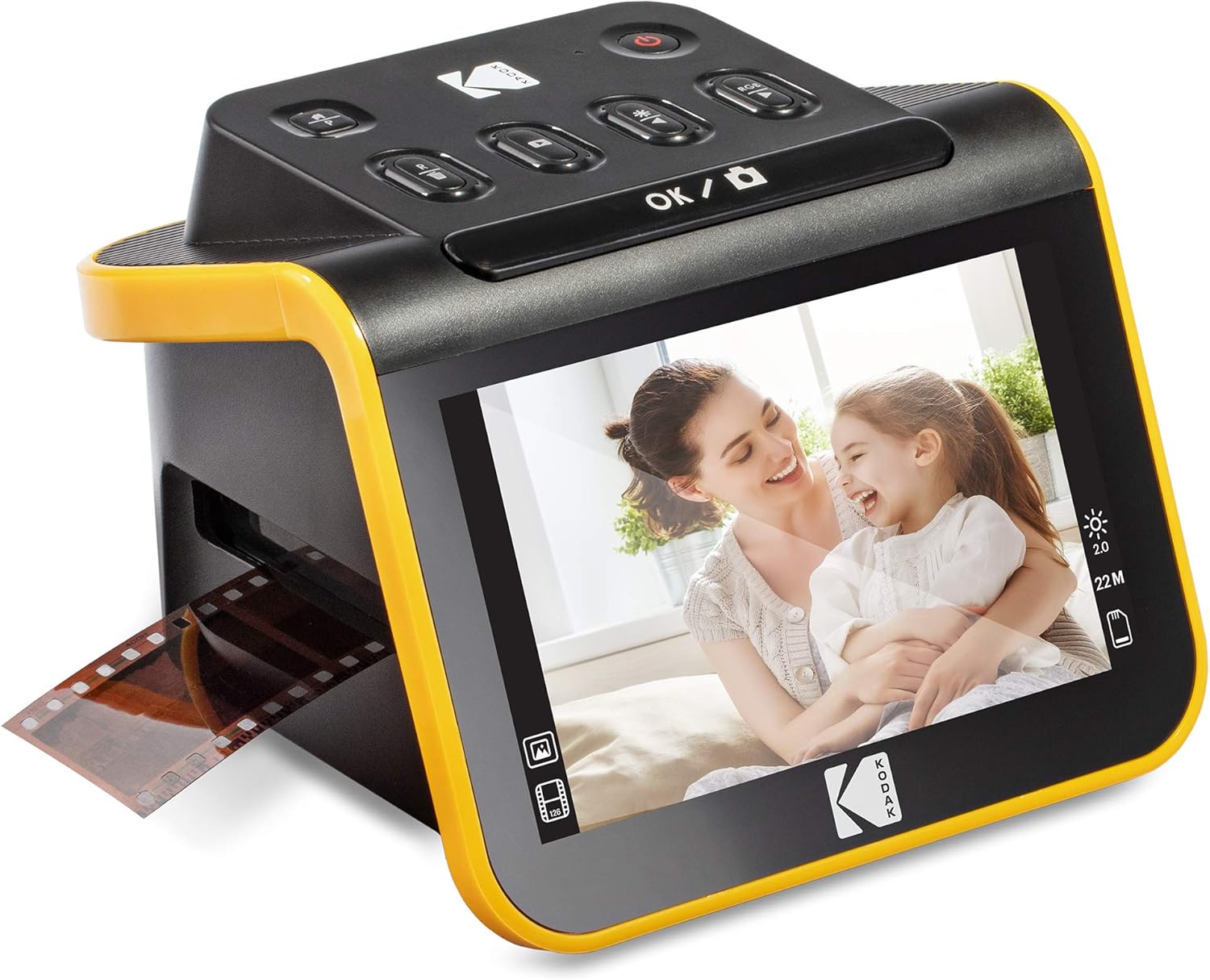
| Supported formats | 35mm, 110, 126 negatives; 50mm slides |
|---|---|
| Image sensor | 13MP CMOS (22MP interpolation) |
| Display | 5" LCD screen |
| Storage | Saves to SD/SDHC up to 32GB |
| Connections | USB Type-C and HDMI |
The KODAK Slide N Scan is a purpose-built film and slide scanner designed for straightforward, no-fuss digitizing of old negatives and slides. You load strips or individual slides into the easy-load tray, preview images on the large 5" LCD, then press Scan to save JPEGs directly to an SD/SDHC card or transfer via USB to a PC or Mac. It uses a 13MP sensor with an optional interpolation mode up to 22MP, supports color and black-and-white film, and includes adapters for 135, 110 and 126 formats plus a 50mm slide holder. The HDMI output and gallery mode make it convenient for sharing or using as a small digital frame. Practical benefits include simple one-touch editing controls for color/brightness and date stamping, continuous-feeding for faster batches, and bundled cables and a cleaning brush. Limitations are the reliance on an SD card (not included), interpolation for the higher 22MP setting rather than native optical resolution, and more basic image control compared with software-driven flatbed workflows. For buyers who want an easy, largely automated way to convert family slides without learning complex software, it performs well.
Best for: Buyers who prioritize an easy, mostly automated workflow to digitize family slides and negatives quickly, with visible previews and minimal software setup, will appreciate this unit.
Less Ideal for: Photographers chasing the highest native optical resolution, extensive manual image correction, or raw capture for professional archival work should consider higher-end film or flatbed scanners instead.
- Large 5" LCD for easy previewing and basic on-device editing
- Quick-feeding tray and included adapters for 135, 110, 126 films and 50mm slides
- Saves JPEGs directly to SD/SDHC card or transfers via USB and offers HDMI output for TV preview
- One-touch capture with simple color and brightness adjustments for fast batch scanning
- Includes cleaning brush, USB and HDMI cables for immediate setup
- 22MP is achieved via digital interpolation rather than higher native optical resolution
- Requires an SD card to operate and the card is not included
- Does not offer the fine-grain control or raw capture available from professional flatbed scanners
Verdict: A user-friendly, all-in-one film and slide scanner that makes quick, fuss-free digitizing and previewing of family memories simple and accessible.
Plustek ePhoto Z300

| Scanner Type | Document, Photo |
|---|---|
| Connection Type | USB |
| Resolution | 600 dpi x 600 dpi, 300 dpi x 300dpi |
| Optical Sensor Technology | CCD |
The Plustek ePhoto Z300 is a compact photo scanner that feeds single photos through a gentle roller to scan 3×5 up to 8×10 prints and standard letter/A4 documents. It uses a CCD sensor for better color accuracy and dynamic range than typical CIS-based sheet scanners, and offers 300 and 600 dpi optical resolution options for file sizes and detail needs. Scanning is fast: a 4×6 photo scans in about 2 seconds at 300 dpi, and the software provides auto crop, auto deskew, batch naming, red-eye removal, and basic color restoration to revive faded prints. The roller feed makes it much more efficient than a flatbed when you have stacks of loose photos, and it can handle slightly thicker items up to about 0.76 mm such as some Polaroids. Limitations include its simplex feed only (no duplex), a single-sheet capacity so you must load photos one at a time, and dependence on bundled software for advanced restoration rather than in-scanner hardware. The unit is USB-powered and works with Mac and Windows, making it a practical choice for home users digitizing family archives rather than professional studio work.
Best for: Buyers who want a safe, easy way to preserve family photos and quickly convert hundreds of loose prints into digital files with minimal fuss and reliable color reproduction.
Less Ideal for: People who need flatbed work for books, oversized originals, or high-end archival capture with professional-grade restoration tools should choose a different scanner.
- CCD sensor for improved color accuracy and dynamic range compared with CIS scanners
- Fast single-photo feed: ~2 seconds for a 4×6 at 300 dpi for quick batch digitizing
- Auto crop, auto deskew, and basic image restoration and red-eye removal in bundled software
- Supports multiple photo sizes including 3×5, 4×6, 5×7, 8×10 and letter/A4 documents
- Can scan thicker items up to about 0.76 mm such as some Polaroids
- Simplex single-sheet feed only, no duplex scanning
- Relies on bundled software for most image correction functions rather than in-hardware processing
- Not intended as a flatbed replacement for bound pages or oversized originals
Verdict: Choose the ePhoto Z300 when you want a fast, gentle, and color-accurate way to digitize large stacks of loose family photos.
Choosing the Right Photo Scanner: Key Factors to Consider
Optical Resolution and Detail
Higher optical resolution preserves fine detail in prints, slides, and negatives. Optical resolution determines how much real detail the scanner captures rather than interpolating pixels, which matters when you plan to crop, enlarge, or restore old photos.
When evaluating resolution numbers, focus on optical specs rather than interpolated claims. For slides and negatives, a higher native resolution helps capture grain structure and small details. Optical resolution also interacts with lens quality and sensor size, so look for consistent performance across the scan area rather than peak numbers on small test scans.
Color Accuracy and Bit Depth
Accurate color reproduction and sufficient bit depth are essential for faithful archival scans and for any post-scan editing. Scanners that capture more bits per channel retain subtle color gradations and reduce banding when adjusting exposure or color balance.
Calibration options, built-in color correction, and supported color profiles influence how closely a scan matches the original. If you are digitizing older or faded prints, look for tools that include or support color restoration workflows and offer manual control as well as automatic correction.
Scan Speed and Batch Workflow
Throughput is a crucial practical consideration when digitizing large albums or many slides. Scan speed per item and the ability to process batches with minimal intervention can drastically reduce project time.
Consider whether the scanner uses a feeder for multiple prints, a slide/negative tray for batch film scans, or individual flatbed scanning. Also evaluate how much post-scan adjustment each image typically needs, because time spent in software can negate hardware speed advantages.
Software Features and File Flexibility
Good software streamlines the digitization process and can make the difference between a tedious project and a smooth workflow. Important software features include automatic cropping, dust and scratch removal options, color restoration presets, and the ability to save in common archival formats such as TIFF as well as JPEG.
Workflow integrations like direct exports to image editors, batch naming, and metadata support also matter for organizing scanned archives. A scanner with limited software may still produce high-quality results, but you should factor in the time and additional tools required for finishing scans.
Handling, Safety, and Build Quality
Scanners should handle fragile vintage prints and film gently; feeding mechanisms, trays, and glass surfaces all affect safety and consistent results. Robust build reduces the risk of misfeeds, scratches, or uneven contact that hurt image quality.
Consider whether the device supports non-contact scanning for delicate originals, whether film holders align reliably, and how easy it is to clean glass and trays. A stable build also helps maintain calibration over time, which is important for long-term archival projects.
Connectivity and File Management
How you get scans off the device impacts day-to-day convenience. USB connections are common, but networked or wireless scanning can simplify multi-user workflows or setups without a dedicated workstation.
File management features, such as direct save locations, naming templates, and batch export, reduce manual steps after scanning. Also check supported formats and whether the scanner can output high-bit-depth files for archival use or smaller JPEGs for quick sharing.
Types of Photo Scanners Explained
Photo scanners are built around different use cases: dedicated film/slide scanners for high-resolution film capture, flatbed photo scanners that handle prints and occasional film with mounts, and sheet-fed units designed for fast print digitizing. Each design trades off freedom of media types, speed, and the level of control over the final image.
If you mainly have loose prints, a flatbed or sheet-fed scanner may be the most convenient. For slides and negatives where fine detail matters, a dedicated film scanner or a high-resolution flatbed with film holders will usually yield better results.
- Flatbed: Versatile for prints and occasional film, good for fragile originals.
- Dedicated film/slide: Best for high-detail film captures and archival work.
- Sheet-fed: Fast for many loose prints but less suitable for fragile or irregular items.
Preparing Originals for Scanning
Careful preparation improves final results and reduces time spent fixing issues in software. Remove dust and lint with a soft brush or air blower, and handle prints by the edges to avoid fingerprints. For film, use lint-free gloves and a compressed-air source meant for delicate optics.
Organize items into logical batches by size, condition, or project priority. Label batches to preserve context and speed up metadata entry during or after scanning. If items are stuck together, do not force them; consult conservation guidance or separate them slowly to avoid damage.
- Clean surfaces gently before scanning.
- Group similar items for consistent settings.
- Handle film with gloves and use proper holders.
Workflow Tips to Save Time
Establish consistent naming and folder structures before you start scanning. Batch renaming tools and metadata templates save time and make archives searchable. Use presets for common corrections to apply consistent color and exposure adjustments across similar items.
Scan at a resolution appropriate to your end use. For web or small prints, moderate resolution is fine. For archival or future enlargements, choose higher optical resolution and save master files in a lossless format to preserve editability.
- Set naming conventions first to avoid rework.
- Use scan presets for similar batches.
- Save master files in lossless formats and keep smaller derivatives for sharing.
Restoring Faded or Damaged Photos
Many scanners include automatic dust, scratch, and color restoration features, but manual editing still plays a major role for heavily faded or damaged images. Start with a good quality scan that preserves as much tonal range as possible, then use dedicated photo-editing tools for targeted restoration.
Capture scans with maximum usable bit depth when you plan major corrections. Higher bit depth provides more room for tonal manipulation without amplifying banding or posterization during edits.
- Use automatic cleanup carefully and review results.
- Capture high-bit-depth masters for intensive restorations.
Archival Storage and File Formats
Decide on a long-term file strategy before digitizing large collections. TIFF is commonly recommended for archival masters because it can store high bit-depth and avoid compression artifacts, while JPEG or PNG are convenient for sharing and everyday use.
Include descriptive filenames and metadata with each master file to preserve context. Back up scanned archives across multiple physical and cloud locations to protect against data loss.
- Keep master files in lossless formats.
- Add metadata and descriptive filenames.
- Maintain multiple backups in different locations.
How We Chose the Best Photo Scanner
We focused on tools that are purpose-built for digitizing prints, slides, and negatives and that deliver reliable, repeatable results for home and small-office projects. Primary evaluation criteria included optical resolution and true color depth to ensure fine detail and accurate tones; scanning speed and batch handling to measure practical throughput for large projects; software and workflow flexibility to judge ease of use, file format options, and color correction capabilities; and build quality and feeding mechanisms to assess long-run reliability and safe handling of fragile originals. We also considered connectivity and output options such as USB and network support, plus compatibility with common image-editing formats. Units that required extensive manual correction, lacked calibration options, or were clearly intended for one-off consumer use were excluded. The final selection emphasizes balanced combinations of image fidelity, speed, and software that matter most to people digitizing family archives and small collections.
Our full evaluation process is outlined in our review methodology.
FAQ
What resolution should I use for scanning family photos?
For typical prints intended for viewing or small enlargements, 300 to 600 dpi is usually sufficient. For archival masters or when you plan significant cropping or large enlargements, aim for higher optical resolution supported by the scanner.
Can I scan slides and negatives with any photo scanner?
Not all scanners handle film equally. Some flatbed scanners have film holders that accept slides and negatives, while dedicated film scanners provide higher-resolution captures and better detail recovery. Check whether the device supports the film formats you have.
How do I deal with dust and scratches on old prints?
Start by cleaning originals gently before scanning. Many scanning software packages offer dust and scratch removal or image restoration tools, but severe damage may require manual retouching in an image editor for the best results.
Should I save scans as TIFF or JPEG?
Save archival masters as TIFF or another lossless format to preserve full image data. Use JPEGs for smaller, shareable copies where file size matters, but avoid relying solely on compressed files for long-term preservation.
How do I maintain color accuracy over a large scan project?
Use consistent scanner settings, calibrate the device if calibration tools are available, and scan a color reference target periodically. Batch processing with presets helps keep color handling consistent across similar items.
Final Verdict
When choosing a photo scanner, prioritize optical resolution and color depth if you need archival-quality captures or plan significant edits. If you have large volumes of loose prints, throughput and batch workflow will matter more than the absolute highest resolution. Also factor in software, handling of fragile originals, and connectivity options to match how you will organize and process the scans. Balance the tradeoffs between speed and detail based on your main use cases, and keep master files in a lossless format for future-proofing. With those priorities in mind, you can pick a scanner that preserves images accurately while fitting your project workflow.