
Note: This article contains affiliate links. If you click on these links and make a purchase, we may earn a small commission at no extra cost to you. This helps support our research and content. Read our full affiliate disclosure here.
If you need a dependable printer without overspending, picking the right home printer matters for weekly homework, occasional photos, and household paperwork. A budget-focused choice can still deliver crisp text, decent photo output, and affordable supplies if you know which features matter. This guide shortlists the top budget printers and explains the tradeoffs between upfront cost, ongoing ink or toner expense, and connectivity options. Read on for our top picks and the evaluation criteria we used to narrow the field.
Top Picks at a Glance
| Best Overall The best all-around choice for most situations | Epson EcoTank ET-2400 |  |
| Best Quality Built to a higher standard if you want something more solid | Epson WorkForce Pro WF-3823 |  |
| Best Value The sweet spot between price and what you get | HP DeskJet 2955 All-in-One |  |
| Best Budget The cheapest option that still gets the job done reliably | Canon PIXMA TS203 |  |
| Top Rated A top-rated pick with lots of positive feedback | Canon PIXMA TR4720 |  |
| Most Popular A crowd favorite that many people choose with confidence | HP DeskJet 2855e All-in-One Printer |  |
| Best Seller A high-volume bestseller chosen again and again | TATTMUSE A285M Portable Thermal Printer |  |
Epson EcoTank ET-2400

| Printer Type | Inkjet |
|---|---|
| Printer Connectivity Type | USB, Wi-Fi |
| Maximum Media Size | 8.5 x 14 inch |
| Maximum print Resolution Color | 5760 x 1440 dpi |
| B&W Pages per Minute | 10 pages_per_minute |
The Epson EcoTank ET-2400 replaces cartridges with high-capacity refillable ink tanks so you can print large runs at home without frequent replacements. It prints, scans and copies with a flatbed scanner and connects via Wi-Fi or USB, and the rear-feed tray holds up to 100 sheets for longer uninterrupted jobs. Print quality is strong for text and basic color photos thanks to Epson Micro Piezo technology and a high maximum resolution, though color speed is modest at about 5 ppm while black prints at up to 10 ppm. Setup includes bottles of black, cyan, magenta and yellow ink in the box, which can cover months of typical household printing and reduces cartridge waste. There is no automatic duplexing so double-sided printing is manual, and the unit lacks an ADF or advanced display controls, which matters if you scan many multi-page documents. For budget-conscious home users who value low running costs and solid print quality, the ET-2400 is a practical cartridge-free choice.
Best for: Home users looking to minimize ongoing ink costs and print frequently without the hassle of replacing cartridges, while prioritizing good print quality over fastest color speed.
Less Ideal for: Offices or users who need fast color throughput, built-in duplexing, or frequent multi-page scanning should consider models with ADFs and automatic duplex features.
- Cartridge-free EcoTank system greatly reduces frequency of ink replacement
- Includes starter ink bottles that cover large page counts out of the box
- Wireless and USB connectivity for flexible home use
- High maximum print resolution for sharp text and good color detail
- Rear-feed 100-sheet tray supports longer print jobs without frequent refills
- No automatic duplexing; double-sided printing must be done manually
- Slower color print speed compared with monochrome and some competitors
- No automatic document feeder for multi-page scans or copies
Verdict: Buy this if you want very low running costs and reliable home printing through cartridge-free EcoTank ink tanks.
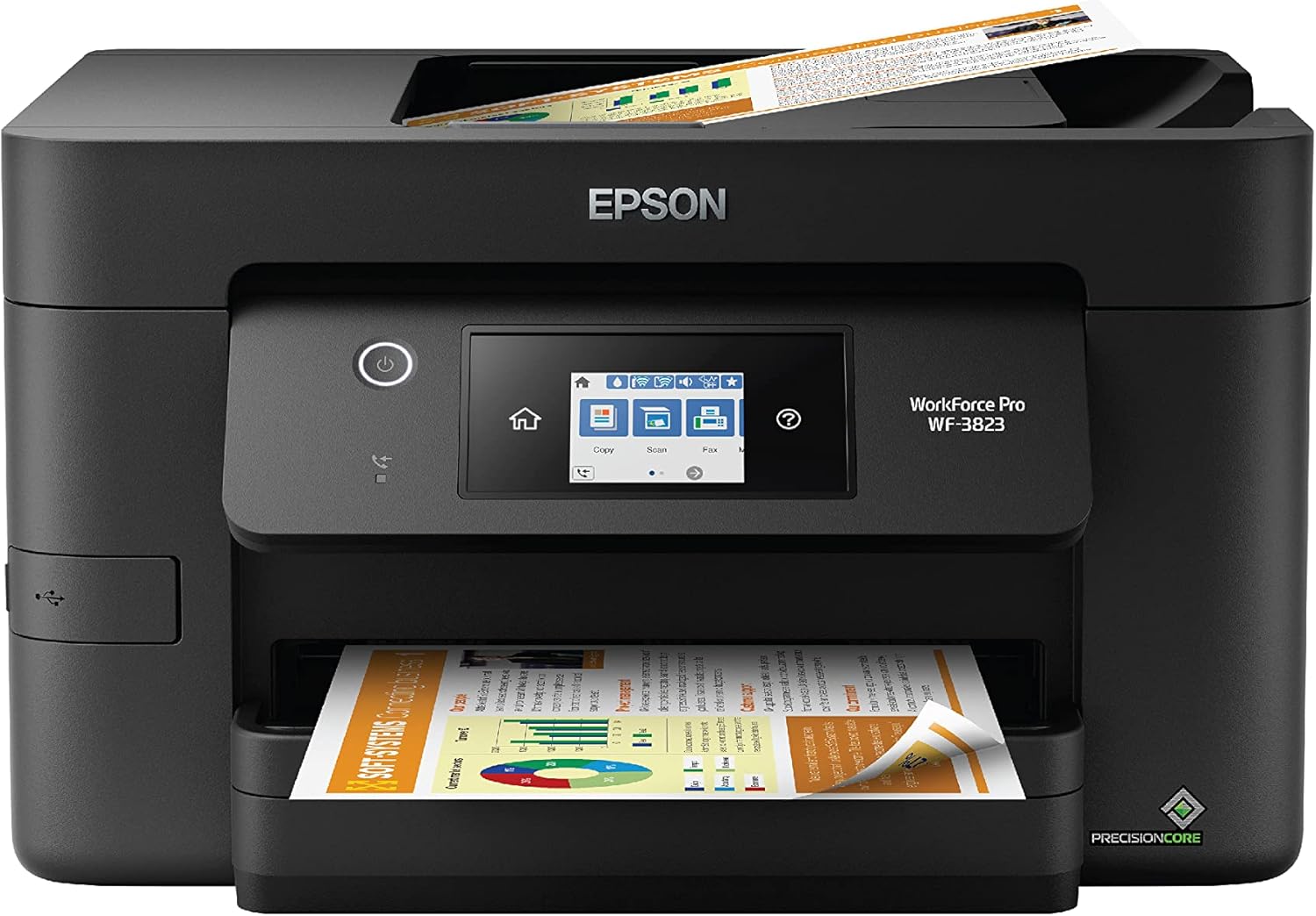
Epson WorkForce Pro WF-3823
| Printer Type | Inkjet |
|---|---|
| Print Speed (B&W) | 21 pages_per_minute |
| Print Speed (Color) | 11 pages_per_minute |
| Maximum Sheet Capacity | 250 |
| Duplex | Automatic |
The Epson WorkForce Pro WF-3823 is a compact all-in-one inkjet that focuses on speed and reliable daily use for busy home offices. It delivers up to 21 ppm in black and 11 ppm in color using PrecisionCore heat-free print technology and DURABrite Ultra pigment inks for sharp text and durable color output. Practical features include a 250-sheet paper tray, automatic two-sided printing, a 35-sheet ADF for multi-page scanning or copying, and a 2.7" color touchscreen plus wireless, Wi-Fi Direct and Ethernet for flexible connectivity. The printer works with the Epson Smart Panel app for setup and mobile printing, and includes basic security controls for small-network use. Downsides are the reliance on Epson T822 cartridges only and modest color photo speed, so running costs and cartridge availability are a factor for heavy photo printing. For users who need fast, dependable document output and scanner convenience in a home environment, the WF-3823 provides a solid balance of performance and features.
Best for: Home users who prioritize fast, reliable document printing and need scanning/ADF convenience for occasional high-volume jobs.
Less Ideal for: Buyers who primarily print high volumes of color photos or who want the lowest possible cost-per-page should consider other solutions.
- Fast black and color ISO speeds (21 ppm black, 11 ppm color) for quick document runs
- Automatic duplex printing and 250-sheet tray reduce paper handling and refills
- 35-sheet ADF and flatbed scanner simplify multi-page scanning and copying
- Multiple connectivity options including wireless, Wi-Fi Direct, Ethernet, and mobile app control
- Uses only Epson T822 cartridges which can raise ongoing ink costs
- Color photo printing is slower than dedicated photo printers
Verdict: Choose the WF-3823 if you want a fast, feature-rich all-in-one that keeps home office document workflows moving efficiently.
HP DeskJet 2955 All-in-One

| Printer Type | HP Thermal Inkjet |
|---|---|
| Maximum Media Size | 8.5 x 11.69 in |
| Maximum Sheet Capacity | 60 |
| Color Pages per Minute | 5.5 pages_per_minute |
| B&W Pages per Minute | 7.5 pages_per_minute |
The HP DeskJet 2955 is a budget-friendly all-in-one that covers everyday home printing, scanning, and copying. It connects via Wi‑Fi, USB, AirPrint and Mopria, and works with the HP app for printing directly from a smartphone. The 60-sheet input tray and flatbed scanner make it suitable for occasional photo scans, recipes, homework, and simple document jobs, while HP AI formatting helps remove unwanted webpage content before printing. Print speeds are modest—up to about 7.5 ppm black and 5.5 ppm color—so it is not ideal for large batches, but the compact footprint and low power draw suit small spaces. It ships with setup cartridges and includes a three-month trial of Instant Ink for automated cartridge delivery. Duplexing is manual through driver support, and color/photo quality is typical for entry-level inkjet models rather than photo-grade. For buyers who want an inexpensive, easy-to-use home printer with basic scanning and mobile printing, the DeskJet 2955 delivers straightforward value.
Best for: Buyers who want an inexpensive, space-saving printer for light daily tasks like homework, recipes, and occasional document scanning and who prefer easy mobile printing and set-and-forget ink delivery.
Less Ideal for: People who need fast, high-volume printing, professional photo quality, or automatic double-sided printing should look at higher-end or office-focused models.
- Compact all-in-one design fits small home desks or counters
- Multiple connectivity options including dual-band Wi‑Fi, AirPrint, USB, and wireless direct printing
- Includes 3-month Instant Ink trial for automated cartridge delivery
- Simple mobile printing and scanning via the HP app
- Slow print speeds for high-volume jobs compared with faster office models
- No automatic duplex; double-sided printing requires manual paper flipping
Verdict: A compact, budget-minded all-in-one that delivers simple, reliable home printing and scanning with easy mobile support and optional Instant Ink delivery.
Canon PIXMA TS203

| Printer Type | Inkjet |
|---|---|
| Maximum Media Size | A4 |
| Print Resolution | 600 dpi |
| Printer Connectivity Type | USB |
| Color Pages per Minute | 4 pages_per_minute |
The Canon PIXMA TS203 is a compact, print-only inkjet built for simple, low-cost home use. It connects via USB and handles A4/Letter media from a rear feed tray, producing sharp black text with pigment black ink and acceptable color prints at up to 600 dpi. With modest sheet capacity and simplex-only printing, it is meant for occasional documents, photo postcards, and basic color pages rather than high-volume jobs. Setup and operation are straightforward and the single-USB interface keeps things simple but prevents wireless or mobile printing. Print speeds are modest — about 7.7 ppm for black and roughly 4 ppm for color — so bulky print runs will feel slow. Compatibility lists include common Windows and macOS releases and the printer uses Canon BC-346XL/BC-345XL cartridges for replacements. If you want a small, no-frills device that produces crisp text and can handle occasional photos, this model is a practical pick; if you need duplexing, network printing, or fast throughput look elsewhere.
Best for: Buyers prioritizing a low-cost, space-saving printer for occasional home documents and photo postcards who value sharp text over network features.
Less Ideal for: Users who need wireless printing, fast output, or regular high-volume printing should consider a different model with duplex and network capabilities.
- Compact footprint fits small desks or home offices
- Pigment black ink yields crisp, high-contrast text
- Supports A4/Letter media and borderless printing for photos and postcards
- Uses widely available Canon replacement cartridges (BC-346XL/BC-345XL)
- Simple USB connection and straightforward setup
- No Wi-Fi or mobile printing support — USB only
- No automatic duplexing so two-sided jobs require manual paper turning
- Low paper capacity and modest print speeds make it unsuitable for high-volume use
Verdict: A small, budget-friendly printer that delivers crisp black text and basic color prints for occasional home use.
Canon PIXMA TR4720

| Printer Type | Inkjet |
|---|---|
| Printer Connectivity Type | Wi-Fi |
| Duplex | Automatic |
| Compatible Cartridge | PG-275, CL-276 |
| Maximum Media Size | A4/Letter |
The Canon PIXMA TR4720 is a budget-friendly all-in-one inkjet designed for everyday home tasks like printing homework, scanning bills, and sending occasional faxes. Setup is straightforward using the Canon PRINT app and Wi-Fi, and the automatic duplex printing plus an auto document feeder make multi-page jobs easier. Print resolution tops out at 4800 x 1200 dpi for color, so photos and graphics look reasonably detailed for the price, while starter PG-275 and CL-276 cartridges are included for immediate use. The machine is compact and fits easily on a small desk or shelf, and the LCD and app control simplify routine tasks. Expect modest monthly running costs typical of consumer inkjets and slower speeds compared with laser models, so it is best for light to moderate home use rather than heavy office throughput. Paper capacity is limited, so frequent refills are likely for regular multi-page printing. Overall the TR4720 delivers dependable basic performance and useful automation in a small footprint for budget-conscious households.
Best for: Home buyers who prioritize a reliable, compact all-in-one for light to moderate everyday printing, scanning, and occasional faxing at an entry-level price point.
Less Ideal for: Users who need high-volume, fast printing or the lowest long-term cost per page should consider a laser printer or a larger-capacity model instead.
- All-in-one functions: print, scan, copy, and fax in one compact unit
- Wi‑Fi and Canon PRINT app make wireless setup and mobile printing simple
- Automatic duplex printing and an auto document feeder speed up multi-page jobs
- High maximum color resolution (4800 x 1200 dpi) for better-looking color prints
- Small paper capacity requires frequent refills for larger print batches
- Inkjet cost per page can be higher than comparable monochrome laser printers
Verdict: A reliable, compact all-in-one that covers home printing, scanning, and faxing needs on a budget with simple wireless setup and useful automation features.
HP DeskJet 2855e All-in-One Printer

| Printer Type | Inkjet |
|---|---|
| Print Resolution Color | 4800 x 1200 dpi |
| Color Pages per Minute | 5.5 pages_per_minute |
| B&W Pages per Minute | 7.5 pages_per_minute |
| Printer Connectivity Type | single band wi-fi (2.4ghz only) |
The HP DeskJet 2855e is an entry-level all-in-one designed for basic home tasks like homework, recipes, bills, and occasional photos. It connects over single-band 2.4 GHz Wi-Fi or USB 2.0 and is controlled via the HP app for direct mobile printing and scanning. Print quality is reasonable for everyday documents with up to 4800 x 1200 dpi color resolution and modest speeds (about 5.5 ppm color, 7.5 ppm black). The flatbed scanner and copy function add useful versatility for a small household. The 60-sheet input tray and manual duplexing keep the footprint small but mean you will refill paper more often and flip pages yourself for two-sided jobs. HP+ activation offers three months of Instant Ink, which can lower running costs if you keep the subscription after the trial, but that also ties you into HP's ink program. This printer is affordable and simple to set up, though power users or homes with heavy printing needs will find its speed, paper capacity, and 2.4 GHz-only Wi-Fi limiting.
Best for: Buyers wanting an affordable, easy-to-use home printer for light daily tasks who value straightforward mobile printing and low upfront cost with an ink subscription option.
Less Ideal for: Households that print large volumes, need fast two-sided printing, or require 5 GHz Wi-Fi and larger paper capacity should consider a higher-capacity model.
- All-in-one functionality with print, scan, and copy in a compact footprint
- Good color print resolution for text and casual photo prints (up to 4800 x 1200 dpi)
- Simple wireless setup and mobile control via the HP app
- Includes a 3-month Instant Ink trial to reduce initial ink costs
- Small 60-sheet tray keeps desktop footprint compact
- Manual duplex printing requires flipping pages by hand
- Single-band 2.4 GHz Wi-Fi only, no 5 GHz support
- Limited input capacity and modest print speeds compared with higher-volume models
Verdict: A compact, budget-friendly all-in-one that handles everyday home printing and scanning with decent color quality and low upfront cost thanks to a 3-month Instant Ink trial.
TATTMUSE A285M Portable Thermal Printer

| Printer Type | Thermal |
|---|---|
| Printer Connectivity Type | Bluetooth, USB |
| Maximum Media Size | 8.5 x 11 inch |
| B&W Pages per Minute | 7 |
| Maximum Print Resolution Black and White | 203 dots_per_inch |
The TATTMUSE A285M is a small, battery-powered thermal printer built for on-the-go or light home use where quick black-and-white prints are needed. It prints on thermal paper only, supporting multiple widths including US Letter and A4, and pairs with phones and tablets over Bluetooth while requiring a USB-C connection and driver for laptops. Setup is app-driven for mobile devices and the unit arrives with a roll of paper and a USB-C cable, making it convenient to start printing receipts, invoices, short documents, boarding passes, and simple lists without ink. At about 7 pages per minute and roughly 203 dpi effective resolution, output is clear enough for text and basic graphics but not intended for high-detail photos. The inkless thermal design eliminates ink or toner costs, though you must buy compatible thermal paper and accept monochrome output only. Battery life and driver installation for computers are practical considerations for less technical users, and manual duplexing is required for double-sided pages.
Best for: Home buyers who prioritize low operating costs and simple mobile printing for receipts, lists, and occasional documents and who want a portable, easy-to-store unit.
Less Ideal for: Anyone who needs color printing, photo-quality output, heavy daily document volumes, or frequent desktop printing without installing drivers should consider a different machine.
- Inkless thermal printing removes ongoing ink or toner purchases
- Bluetooth support for phones and tablets enables quick mobile printing
- Supports large media sizes up to 8.5 x 11 inches including A4
- Compact, lightweight design and included USB-C cable and starter paper make it travel-friendly
- Prints only in black and on thermal paper, not regular copy paper
- Laptops and desktops require a USB connection plus driver installation
- Battery life and charging performance depend on usage and charger constraints
Verdict: Choose the A285M if you want a compact, inkless mobile printer that cuts ink costs and handles occasional US Letter/A4 monochrome prints from your phone.
Choosing the Right Printer for Home on a Budget: Key Factors to Consider
Print Quality
Print quality determines how legible documents and how pleasing photos will look. For home use, sharp black text and acceptable color gradients for occasional photos are usually sufficient. Look at resolution specs and real-world sample results, because manufacturers sometimes list high resolutions that do not translate to perceptible improvements at normal viewing distances.
Print quality also ties into ink technology. Pigment-based black inks typically render crisper text and resist smudging, while dye-based color inks can produce more saturated photos. Consider which output you prioritize and whether the model's default settings favor text or photo fidelity.
Cost Per Page
A low initial price can be offset by high consumable costs, so cost per page often matters more than the sticker price. Calculate expected cost per black-and-white and color page using the printer's standard-yield cartridges or recommended refill options.
Also check whether the printer supports high-yield cartridges, refillable tanks, or subscription refill programs. These options can lower running cost but may require larger upfront investment or a different maintenance routine.
Connectivity and Setup
How easily a printer connects to your home network affects daily convenience. Wired USB is simple for a single PC, but Wi-Fi and Wi-Fi Direct enable printing from laptops, phones, and tablets without cables. Look for reliable app support and standard network protocols like AirPrint or Mopria if you use mobile devices.
Setup complexity and driver support matter too. Choose a model with clear setup instructions and current driver updates for your operating systems. A printer that integrates easily with your devices will reduce frustration and lost productivity.
Ink and Toner Yield
Yield refers to how many pages a cartridge or tank will print before replacement. Higher-yield cartridges or refillable ink tanks can dramatically lower ongoing costs, especially if you print regularly. Check the stated yields for both black and color consumables and consider typical monthly page counts to estimate replacement intervals.
Also consider the availability of genuine or compatible cartridges in your area and whether refilling or third-party supplies affect warranty conditions. Longer intervals between changes are more convenient for many households.
Paper Handling and Media Support
Paper handling covers input tray capacity, output stacking, duplexing, and support for different paper sizes. For home use, a modest tray that holds 100 sheets is often fine, but duplex printing saves paper if you print two-sided documents frequently. If you plan to print photos, confirm support for photo paper sizes and a dedicated tray or manual feed option.
Reliable paper handling reduces jams and maintenance. Look for straightforward paper-size guides and clear access to the paper path for clearing misfeeds when they occur.
Multifunction Features and Ease of Use
Multifunction capabilities such as scanning and copying add versatility without requiring a separate device. Check scan resolution and whether the scanner supports automatic document feeding if you copy multipage documents often. Simple control panels and intuitive mobile apps make common tasks like scanning to email and printing from cloud services easier.
Balance extra features against added complexity and potential points of failure. For many budget buyers, a basic multifunction unit that covers everyday scanning and copying is preferable to feature-rich models with little practical benefit.
Which Printer Type Is Best on a Tight Budget
Inkjet and laser printers each have strengths for budget buyers. Inkjet models tend to have lower upfront costs and better photo output, while monochrome laser units often offer lower cost per page for text-heavy printing. Consider your mix of documents and photos before settling on a technology.
Refillable-tank inkjets have become popular for homes that print frequently because they reduce long-term ink expense despite a slightly higher initial price. If you print only occasionally, cheap cartridge-based inkjets or small monochrome lasers may be more economical overall.
- Inkjet: good for mixed documents and occasional photos
- Monochrome laser: cheapest for mostly black-and-white text
- Refillable tanks: lowest cost per page with regular use
Evaluating Running Costs Over Time
Estimate monthly printing volume and use published cartridge yields to project monthly consumable spend. Factor in both black and color usage. Don't forget to include occasional photo printing, which can consume color ink quickly.
Also account for replacement parts like maintenance kits or fusers on laser printers for owners who print dozens of pages monthly. For infrequent printers, ink drying and head clogs can be a hidden cost with some inkjet designs.
- Calculate cost per page using standard-yield consumables
- Multiply by expected monthly pages to estimate monthly costs
- Factor in periodic maintenance parts for laser printers
Connectivity Features That Matter at Home
Look for straightforward wireless setup, strong mobile printing support, and a web or app-based interface for common tasks. Integration with cloud services and simple scanning-to-email options add convenience for household users.
Security is also worth a quick check. Basic protections like password-protected wireless setup and the ability to disable remote management reduce the chances of unauthorized access on a home network.
- Wi-Fi and app support for printing from phones
- AirPrint or standard mobile printing protocols
- Basic network security options
Maintenance and Longevity for Home Use
Budget printers are designed for light to moderate use. If you anticipate steady monthly output, choose units with higher-rated monthly duty cycles and easy-to-replace consumables. Frequent paper jams or difficult access to ink compartments can make a cheap printer costly in time and frustration.
Routine maintenance tasks include replacing cartridges, cleaning print heads, and clearing paper jams. Models with user-serviceable access and clear on-device instructions simplify these chores for nontechnical users.
- Check rated monthly duty cycle and recommended page volumes
- Prefer models with clear access to consumables
- Consider manufacturer support options and driver availability
Photo Printing on a Budget
If you want occasional snapshots, favor inkjets that support photo paper and have good color reproduction. Look for printers with dedicated photo trays or manual feed options to minimize handling and smudging. Expect higher per-photo costs than professional labs, but reasonable quality for small prints is achievable on many budget models.
Adjust image size and quality settings when printing at home to balance ink use and output quality. Use manufacturer-recommended paper for the best color and longevity.
- Use dedicated photo paper for best results
- Adjust print settings to control ink use
- Expect higher per-photo costs than lab prints
How We Chose the Best Printer for Home on a Budget
We started by focusing on printers that offer the strongest combination of low upfront cost and reasonable long-term operating expense for everyday home use. Key evaluation criteria included print quality at default settings, cost per page using commonly available consumables, connectivity and setup simplicity for household networks, and the durability of moving parts for light-to-moderate monthly workloads. We also considered multifunction features such as scanning and copying when they added practical value without large price premiums. Paper handling and supported media sizes were checked to ensure basic photo printing and document needs are covered. We excluded specialty models aimed primarily at high-volume office use, professional photo labs, or industrial printing where different performance expectations and consumable profiles apply. Final selections emphasize balanced performance for typical home tasks, predictable running costs, and straightforward setup and maintenance.
Our full evaluation process is outlined in our review methodology.
FAQ
How much should I budget for ink or toner each month?
It depends on your monthly page count and whether you use high-yield cartridges or refillable tanks. Light users might spend only a few dollars monthly, while moderate users who print photos or color documents will see higher costs. Estimate by multiplying the printer's cost-per-page numbers by your expected pages.
Are refillable ink tanks worth it for home use?
Refillable tanks usually lower the cost per page significantly if you print regularly. They require less frequent cartridge changes but may have a higher initial purchase price. For occasional printers, tanks can sit idle and still offer limited savings compared with low-cost cartridge models.
Can I use third-party cartridges to save money?
Third-party cartridges can reduce upfront costs but quality and reliability vary. Some compatible cartridges work well, while others cause poor print quality or trigger warnings. Check whether using non-genuine supplies affects warranty coverage for your chosen model.
Is wireless printing secure for a home network?
Wireless printing is generally secure when your home network uses a strong Wi-Fi password and up-to-date router firmware. Enable any built-in security features the printer offers, and avoid exposing administrative interfaces to the internet. For sensitive documents, consider wired connections or secure file transfer methods.
How often should I print to avoid inkjet head clogs?
Printing a few pages or running a short nozzle check every week helps keep nozzles clear for most inkjets. Long periods of inactivity increase the chance of dried ink and clogged heads, which may require cleaning cycles that consume extra ink.
Final Verdict
For home buyers on a budget, prioritize the right balance between upfront cost and ongoing consumable expense. If you mostly print text, a monochrome laser or low-cost inkjet with high-yield black cartridges will minimize cost per page. If you need occasional photos and color documents, choose an inkjet with good color reproduction and reasonable cartridge yields. Consider connectivity, ease of maintenance, and paper handling to avoid frustration. Focus on practical tradeoffs and pick the model whose recurring costs and features best match your typical monthly printing habits.