
Note: This article contains affiliate links. If you click on these links and make a purchase, we may earn a small commission at no extra cost to you. This helps support our research and content. Read our full affiliate disclosure here.
Choosing the right printer for home matters because it affects how smoothly you handle documents, photos, and school or home-office tasks. A well-matched home printer reduces frustration from maintenance, delivers the output quality you need, and keeps ongoing costs manageable. This guide presents seven shortlisted printers for home use that balance print quality, ease of use, and operating cost. We evaluated each option against practical home-use criteria so you can quickly find the right fit for everyday printing needs. Read on to see the top picks and the factors that should shape your decision.
Top Picks at a Glance
| Best Overall The best all-around choice for most situations | Canon PIXMA TS6520 |  |
| Best Quality Built to a higher standard if you want something more solid | Epson EcoTank ET-2720 |  |
| Best Value The sweet spot between price and what you get | Brother Work Smart 1360 MFC-J1360DW |  |
| Best Budget The cheapest option that still gets the job done reliably | Canon PIXMA TS3720 | 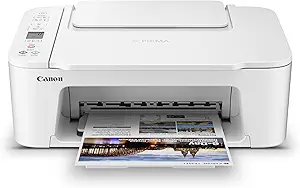 |
| Top Rated A top-rated pick with lots of positive feedback | HP LaserJet Pro MFP 3101sdw |  |
| Most Popular A crowd favorite that many people choose with confidence | HP OfficeJet 3830 All-in-One |  |
| Best Seller A high-volume bestseller chosen again and again | Epson EcoTank ET-2800 |  |
Canon PIXMA TS6520

| Printer Type | Inkjet |
|---|---|
| Duplex | Automatic |
| Printer Connectivity Type | USB, Wi-Fi |
| Display Type | OLED |
| Compatible Cartridge | PG-295 BK & CL-286 |
The Canon PIXMA TS6520 is a compact home all‑in‑one that handles everyday documents and photos with sensible features for a small household. It uses a 2‑cartridge hybrid ink system to produce sharp black text and vibrant color prints, and the printer supports borderless photo printing up to letter size. Setup and mobile printing are straightforward via Wi‑Fi, the Canon PRINT app, AirPrint, or Mopria, and the 1.42-inch OLED makes status and ink-level checks quick. Automatic two-sided printing saves paper, while the flatbed scanner covers occasional scanning and copying needs. Where it compromises is in throughput and paper handling: the single-sheet capacity and modest print speeds mean it is best for light to moderate use rather than high-volume jobs, and there is no automatic document feeder. The TS6520 fits neatly on a desk and delivers reliable, good-looking output for schoolwork, recipes, letters, and occasional photos without unnecessary complexity.
Best for: Buyers who want a simple, space-saving all‑in‑one for light to moderate home use and value easy mobile printing and good mixed document/photo quality.
Less Ideal for: Users who need high-volume daily printing, large paper trays, or frequent multi-page scans and copies should look at larger office-oriented models.
- Compact footprint good for small desks or home offices
- Automatic duplex printing reduces paper use
- Reliable wireless and mobile printing with Canon PRINT, AirPrint, and Mopria support
- Hybrid 2‑cartridge ink system produces sharp text and vivid color photos
- Small input capacity and modest print speeds limit volume printing
- No automatic document feeder for multi-page scanning or copying
Verdict: A compact, user-friendly all‑in‑one that delivers reliable print and photo quality for light home use with helpful wireless and duplex features.
Epson EcoTank ET-2720

| Printer Type | Inkjet |
|---|---|
| Print Resolution | 5760 x 1440 dpi |
| B&W Pages per Minute | 10 pages_per_minute |
| Color Pages per Minute | 5 pages_per_minute |
| Printer Connectivity Type | Wi-Fi |
The Epson EcoTank ET-2720 is a compact all-in-one designed for high-volume home use without recurring cartridge costs. It prints, scans, and copies while using large refillable ink tanks that come with starter bottles and replacement bottles that yield many pages, so you can run months between refills. Setup and daily use are straightforward: Wi-Fi and voice-activated printing let you send jobs from phones or tablets, and the flatbed scanner and LCD make quick copies and scans easy. Print quality is strong for text and decent for color graphics thanks to Epson's MicroPiezo inkjet technology and high maximum resolution, though photo output will not match dedicated photo printers. Paper handling is basic with a single tray and simplex printing only, and the ET-2720 favors moderate-speed home workflows rather than fast office bursts. Where it shines is low cost per page and low waste versus cartridges, making it a practical pick if you prioritize long-term running costs over top-tier photo speed.
Best for: Home users who print regularly and want to minimize ongoing ink cost and waste while retaining scanning and copying capability, and who value simple wireless and voice-enabled setup.
Less Ideal for: People who need fastest possible color throughput, heavy two-sided printing, or studio-level photo quality should consider other specialized printers.
- Refillable EcoTank bottles provide very high page yields and low cost per page
- Wireless and voice-activated printing for easy mobile and hands-free use
- Accurate text and good color graphics reproduction from MicroPiezo printhead
- Compact footprint suitable for home desks and small workspaces
- No automatic duplex printing limits two-sided workflow
- Slower color print speeds compared with some laser or higher-end inkjet models
Verdict: Choose the ET-2720 if you want a compact home all-in-one that dramatically lowers ink costs with refillable tanks while offering solid everyday print, scan, and copy functionality.
Brother Work Smart 1360 MFC-J1360DW

| Printer Type | Inkjet |
|---|---|
| Functions | Print, Copy, Scan |
| Duplex | Automatic |
| Maximum Sheet Capacity | 150 |
| Printer Connectivity Type | USB, Wi-Fi |
The Brother Work Smart 1360 is a compact all-in-one inkjet designed for home and small home-office tasks like documents, schoolwork, and occasional photo prints. It prints, copies, and scans, and includes a 20-sheet single-sided automatic document feeder, automatic two-sided printing, and a 150-sheet input tray so you can batch jobs without constant intervention. Connectivity includes Wi-Fi and USB with AirPrint and Mopria support, and the Brother Mobile Connect app makes mobile setup, printing, and scan-to-cloud tasks straightforward. Print speeds are practical for home use — up to 16 ppm mono and 9 ppm color — and Page Gauge monitoring plus compatibility with Brother LC501 ink (including high-yield options) helps manage running costs. The 1.8-inch color display is simple but not large, so advanced menu navigation happens mostly in the app. Image quality and resolution are good for text and casual color projects, though ink costs may be noticeable if you print high volumes frequently. For buyers who want a space-saving, feature-complete home printer, the 1360 balances convenience and capability well.
Best for: Buyers who want a compact, practical all-in-one for everyday home and small home-office printing that prioritizes reliable wireless and easy mobile/cloud workflows.
Less Ideal for: Users who need high-volume, commercial-grade printing or a large touchscreen interface for on-device control should consider a higher-capacity office model.
- Automatic duplexing saves time and paper for two-sided documents.
- 20-sheet automatic document feeder for faster multi-page scanning and copying.
- Wi-Fi, AirPrint, and Mopria support make mobile and cloud printing simple.
- 150-sheet tray reduces how often you refill paper for home workloads.
- Works with Brother Genuine LC501 ink including high-yield options for lower per-page cost when needed.
- Small 1.8-inch display limits on-device menu control compared with larger touchscreens.
- Standard ink yields are modest, so frequent heavy color printing can drive running costs.
Verdict: A space-saving, user-friendly all-in-one that delivers sensible home-focused features like automatic duplex, ADF, and mobile/cloud printing for practical everyday use.
Canon PIXMA TS3720

| Printer Type | Inkjet |
|---|---|
| Maximum print Resolution Color | 4800 x 1200 dots_per_inch |
| B&W Pages per Minute | 7.7 pages_per_minute |
| Printer Connectivity Type | USB, Wi-Fi |
| Compatible Cartridge | Canon CL-276, Canon PG-275 |
The Canon PIXMA TS3720 is a budget-focused all-in-one inkjet that handles everyday home printing, scanning and copying in a compact footprint. It uses a two-cartridge hybrid ink system with pigment black for sharp text and dye-based color for photos, and supports borderless prints and a range of media including envelopes and small photo sizes. Setup is straightforward via USB or Dual Band Wi-Fi and you can print from phones or Chromebooks using the Canon PRINT app, AirPrint, or Mopria. Practical benefits include a small rear paper tray that holds up to 60 sheets, simple single-sided printing, and a 1.5-inch LCD for basic job control. Limitations to consider are modest color print speed and single-sided printing only, plus the two-cartridge system can be less economical than high-yield multi-cartridge alternatives for heavy photo use. For light home use, schoolwork and occasional photo prints the TS3720 offers a sensible mix of features at a low entry cost.
Best for: Buyers looking for an inexpensive, space-saving home printer for everyday documents, schoolwork, and occasional photos who value simple wireless setup and low upfront cost.
Less Ideal for: Homes that print large volumes, need automatic duplexing, or want the lowest long-term ink cost for frequent color/photo printing should consider higher-capacity or multi-cartridge models.
- Compact all-in-one design fits small home desks or shelves
- Dual Band Wi-Fi and mobile printing support for easy wireless setup
- Hybrid ink system produces sharp black text and vibrant color photos
- Rear tray accepts up to 60 sheets and a variety of media types
- Prints single-sided only with no automatic duplexing
- Color print speed and throughput are modest for heavier workloads
Verdict: A compact, budget-friendly all-in-one that delivers reliable wireless home printing and decent photo quality for light use.
HP LaserJet Pro MFP 3101sdw

| Printer Type | Laser |
|---|---|
| Maximum Print Resolution Black and White | Up to 1200 x 1200 dpi |
| B&W Pages per Minute | 40 |
| Maximum Sheet Capacity | 250 |
| Scanner Type | ADF, flatbed |
The HP LaserJet Pro MFP 3101sdw is a monochrome all-in-one laser that handles printing, scanning and copying for a small home office or light business use. It prints quickly—up to 35–40 pages per minute depending on the spec cited—and wakes to the first page in roughly seven seconds, so it keeps short jobs moving. The 250-sheet input tray and 50-sheet automatic document feeder make batch jobs and multi-page scans practical without frequent refills, while automatic duplex printing saves time and paper. Connectivity covers USB, Ethernet, Wi‑Fi and mobile printing via AirPrint and Mopria, and the HP app lets you manage jobs from a phone. Print resolution tops out at 1200 x 1200 dpi, which yields crisp black-and-white text and basic graphics. Expect standard laser trade-offs: no color printing and a larger footprint than compact inkjets, plus firmware restrictions that enforce use of HP-chipped cartridges. For buyers who want dependable, fast monochrome output and straightforward network management, this is a solid choice for a home office.
Best for: Buyers who prioritize reliable, high-speed black-and-white printing for a home office or small team and need simple network management and dependable duty performance.
Less Ideal for: Users who need color printing, a compact footprint for tight spaces, or who prefer unrestricted third-party consumable use.
- Fast monochrome printing suitable for high-volume text jobs
- 250-sheet input tray and 50-sheet ADF reduce manual paper handling
- Automatic duplex printing saves paper and time
- Wide connectivity including Wi‑Fi, Ethernet, USB and mobile printing
- 1200 x 1200 dpi resolution for sharp black-and-white text
- Monochrome only so it cannot print color documents or photos
- Firmware enforces use of HP-chipped cartridges
- Physically larger and heavier than compact home inkjet models
Verdict: Choose this LaserJet when you need a dependable, high-speed monochrome all-in-one for a home office that prioritizes reliability and throughput.
HP OfficeJet 3830 All-in-One

| Printer Type | Inkjet |
|---|---|
| Functions | Print, Scan, Copy, Fax |
| Connectivity | USB, Wi‑Fi |
| ADF capacity | 35‑sheet |
| Color print resolution | 4800 x 1200 dpi |
The HP OfficeJet 3830 is a small all‑in‑one inkjet aimed at home and home‑office users who need printing, scanning, copying, and faxing in a single compact unit. It supports Wi‑Fi and USB connections and makes mobile printing straightforward via HP apps and AirPrint, while a 2.2‑inch display and a 35‑page automatic document feeder speed up multi‑page tasks. Print quality is strong for photos and color documents thanks to a high color resolution, and optional high‑yield cartridges or HP Instant Ink can reduce per‑page cost. The printer is quiet in optional quiet mode and handles a range of media including envelopes and glossy photo paper. Limitations are manual duplexing rather than automatic two‑sided printing and modest paper input capacity compared with larger home office models, so it is best for moderate daily use rather than heavy duty workloads.
Best for: Buyers who want a compact, reliable all‑in‑one for everyday home and small home‑office tasks and who value easy mobile printing and proven user feedback.
Less Ideal for: Users who need heavy daily printing, large paper trays, or automatic two‑sided printing for high‑volume office workflows should look at larger office models.
- All‑in‑one functions: print, scan, copy, and fax in one compact machine.
- Wireless and mobile printing with AirPrint and HP mobile apps for easy smartphone/tablet use.
- 35‑sheet automatic document feeder for faster multi‑page scanning and copying.
- High color print resolution for good photo and color document quality.
- Supports high‑yield cartridges and HP Instant Ink to lower running costs.
- Duplex printing is manual rather than automatic.
- Paper input and output capacity are modest compared with larger home office printers.
Verdict: A compact, feature‑complete all‑in‑one that delivers reliable mobile printing and good color quality for everyday home use.
Epson EcoTank ET-2800

| Printer Type | Inkjet |
|---|---|
| Print Resolution | 5760 x 1440 dpi |
| Print Speed (B&W) | 10 pages_per_minute |
| Connectivity | USB, Wi-Fi |
| Maximum Media Size | 8.5 x 14 inch |
The Epson EcoTank ET-2800 is a home-focused all-in-one inkjet that replaces cartridges with refillable high-capacity ink tanks, so you can print long runs without frequent ink changes. It prints, copies, and scans using Epson's PrecisionCore Micro Piezo heat-free printhead for sharp text and good color photos, with rated speeds up to 10 pages per minute for black and 5 ppm for color. Connectivity includes Wi-Fi and USB plus app and voice printing for easy mobile workflows, and the flatbed scanner handles basic scanning and copying tasks. The refillable EcoFit bottles are keyed for easier filling and the package claims enough starter ink to cut replacement frequency dramatically, which lowers operating cost and landfill waste. Limitations to consider are the simplex-only printing (no automatic duplex) and a modest paper capacity, so heavy duplex or high-volume office workflows will be less convenient. Photo enthusiasts should also note this is optimized for home documents and snapshots rather than professional photo labs.
Best for: Buyers who want low running costs and fuss-free home printing with reliable mobile connectivity and prefer avoiding frequent cartridge replacements.
Less Ideal for: Users who need built-in automatic two-sided printing or very large unattended paper capacity for heavy office workloads should consider different models.
- Cartridge-free EcoTank system cuts frequency of ink replacement
- High-capacity ink bottles included to print thousands of pages before refilling
- Wireless, app and voice printing for convenient mobile workflows
- PrecisionCore Micro Piezo print technology for sharp text and good color output
- All-in-one functionality with flatbed scanner for basic home scanning and copying
- No automatic duplex printing, so two-sided jobs require manual flipping
- Paper tray capacity is modest for sustained large jobs
Verdict: Choose the ET-2800 if you want a simple, cartridge-free home all-in-one that dramatically reduces how often you replace ink.
Choosing the Right Printer for Home: Key Factors to Consider
Print Quality
Print quality determines whether your documents and photos look crisp and professional. For home use that includes invoices, school handouts, and occasional photo prints, look for printers with sufficient DPI and color accuracy. Photo-quality prints require finer droplet control and better color management, while everyday documents rely more on crisp text rendering.
Higher print quality often means larger file processing and slightly slower print speeds, so decide whether you need premium photo output or mainly sharp text and basic color graphics. Consider sample prints or manufacturer specifications for resolution and color gamut when assessing models.
Operating Cost
Operating cost is the recurring expense of ink or toner and often dwarfs the initial purchase price over the device lifetime. Evaluate cartridge yield, cost per page estimates, and whether high-yield or subscription-style refill options are supported. For heavy home printing, laser toner or high-capacity ink systems can offer lower cost per page.
Also consider whether the printer supports third-party or refillable cartridges without voiding service terms, and how often you will need to replace consumables based on your expected monthly page volume.
Connectivity And Compatibility
Connectivity options determine how easily you can print from phones, tablets, laptops, or a home network. Common features include Wi-Fi, Ethernet, USB, and direct mobile printing protocols. Reliable wireless connectivity and a straightforward setup process are important for multi-device households.
Check for supported mobile printing standards and whether the printer includes an app with helpful features such as scan-to-cloud or remote status monitoring. If you plan to print from multiple operating systems, confirm cross-platform compatibility.
Size, Placement, And Energy Use
Physical footprint matters in tight home spaces. Measure available shelf or desk space and consider paper trays and output paths to avoid blocked placements. Some printers have vertical designs or fold-out trays that reduce the installed footprint.
Energy use affects long-term running cost and environmental impact. Look at power consumption in idle and sleep modes, and whether the model supports quick wake from sleep to avoid long warm-up times for occasional use.
Multifunction Features
Many home users benefit from all-in-one features such as scanning, copying, or faxing. Consider duplex scanning and automatic document feeders if you often digitize multipage documents. Flatbed scanners are better for photos and thick originals.
Decide which features you will use regularly because multifunction units can add cost and size. If you rarely scan or copy, a single-function printer might be more economical and compact.
Maintenance And Reliability
Maintenance requirements and long-term reliability affect how much hassle a printer will be over its life. Frequent head cleaning, paper jams, or finicky cartridge contacts are common pain points in home printers. Look for user-serviceable parts like easily accessible paper paths and simple cartridge replacement.
Check duty cycle figures to ensure the device is designed for your monthly page volume. A model rated for much more than your needs usually runs cooler and lasts longer under light home use.
Deciding Between Inkjet And Laser
Inkjet and laser technologies suit different home priorities. Inkjet printers generally offer better color photo reproduction and lower upfront cost, while laser printers excel at producing dense, fast black text and can have lower cost per page for monochrome-heavy use.
If you print mostly photos and occasional color documents, an inkjet with high-capacity ink options or dedicated photo modes is sensible. For households printing large volumes of text, a monochrome laser or color laser with efficient toner yield can be more practical.
- Inkjet: superior photo quality, potential nozzle maintenance.
- Laser: fast text, lower frequent-use maintenance.
- Consider hybrid features like pigment inks for long-lasting documents.
Paper Handling And Media Support
Examine tray capacity, supported paper sizes, and specialty media handling if you print photos, labels, or envelopes. A generous input tray reduces reloading frequency, and a straight-through path helps with thicker media.
Check whether the printer supports borderless photo printing and what paper weights it accepts. If you frequently print different sizes, look for adjustable trays and easy manual-feed options.
- Tray capacity affects convenience for households with varied print loads.
- Manual feed or rear tray helps with heavy or specialty paper.
- Borderless support is useful for photo printing.
Mobile Printing And Cloud Features
Mobile printing support matters for households where smartphones and tablets are primary devices. Look for reliable Wi-Fi performance and native support for mobile print protocols or a vendor app that simplifies tasks like scanning to cloud services.
Cloud and app features can speed routine tasks such as scanning receipts to email or printing photos directly from cloud storage. Prioritize models with intuitive apps and straightforward account linking if you use cloud workflows frequently.
- Verify app reliability and frequency of updates.
- Look for easy scan-to-email and scan-to-cloud workflows.
- Check whether guest or secure printing options are available for visitors.
Physical Setup And Ongoing Upkeep
Consider how much time you want to spend on setup and maintenance. Printers with guided setup apps, clear LED indicators, and accessible consumable bays reduce frustration. Routine tasks like aligning heads, updating firmware, and replacing cartridges should be simple.
Regular firmware updates and a responsive support channel can reduce long-term friction. Also plan for occasional cleaning to prevent clogging or paper dust buildup if you live in a dusty environment.
- Look for front-facing cartridge access and simple paper-path clearing.
- Check warranty coverage and support options.
- Prefer models with robust firmware update processes.
Choosing Features Based On Use Patterns
Match features to how you actually print. If you print a few pages per week, a compact, low-energy printer with longer cartridge shelf life is preferable. For families or home offices printing dozens of pages monthly, look for high-yield consumables and faster first-page times.
Plan for future needs such as occasional photo projects or increased home-office workload. Choosing a slightly more capable model up front can avoid replacing the device prematurely.
- Low-volume users: prioritize low standby power and long cartridge shelf life.
- Moderate-volume users: prioritize high-yield cartridges and duplexing.
- Photo enthusiasts: prioritize color accuracy and borderless printing.
How We Chose the Best Printer for Home
Our selection focused on real-world home use cases and measurable product attributes. We prioritized print quality for both text and photos, reliable connectivity and setup, and the total cost of ownership including ink or toner yield. Usability factors such as speed on common home tasks, mobile printing support, and routine maintenance requirements were included because they determine daily convenience. We also assessed build and long-term reliability indicators like duty cycles and warranty terms, as well as feature sets that matter at home such as scanning, copying, duplexing, and paper handling. Energy efficiency and footprint were considered for tight spaces. We excluded specialty office-centric devices with very high duty cycles or industrial features that add unnecessary complexity for most households. In short, the shortlist favors printers that balance output quality, low operating costs, straightforward connectivity, and minimal upkeep. Products were filtered out if they lacked basic home-use features, required frequent cartridge changes with poor yield, or had consistently reported reliability problems in home-use scenarios.
Our full evaluation process is outlined in our review methodology.
FAQ
How do I estimate monthly operating costs for a home printer?
Estimate monthly page volume and multiply by the cost per page provided in cartridge specs or manufacturer estimates. Include occasional color pages or photo runs. Also factor in replacement parts and potential paper waste from test prints or maintenance cycles.
Is wireless printing reliable for a home network?
Wireless printing is usually reliable if your Wi-Fi is stable and the printer is within good range. Using a 2.4 GHz band often improves range for older devices. For consistent heavy use, a wired connection can reduce intermittent dropouts.
Can I use third-party ink or toner to save money?
Third-party consumables can lower operating costs but results vary. Some third-party cartridges work well, while others cause print defects or trigger alerts. Consider the tradeoff between savings and potential risks to print quality or warranty conditions.
How often should I print to keep an inkjet healthy?
Printing a few pages once or twice a week helps prevent nozzle clogging by keeping ink flowing. For infrequent use, run a quick nozzle check and small color print occasionally to maintain head health and detect issues early.
Do multifunction printers compromise on scan or copy quality?
Multifunction units vary, but many offer scanning quality suitable for document archiving and casual photo scanning. If high-end photo scanning is important, evaluate scanner resolution and color depth rather than assuming all multifunction devices match dedicated scanners.
Final Verdict
Prioritize the features that match how you print at home: choose inkjet models with strong color handling for photos and laser devices for heavy text workloads. Balance upfront cost against operating cost by examining cartridge yields and supported high-yield consumables. Focus on reliable connectivity, sensible paper handling, and low-maintenance designs to minimize everyday hassle. Use the evaluation criteria above to narrow choices, and opt for the model that best matches your monthly volume and required output quality for a confident home printing solution.