
Note: This article contains affiliate links. If you click on these links and make a purchase, we may earn a small commission at no extra cost to you. This helps support our research and content. Read our full affiliate disclosure here.
Finding the right printer on a tight budget matters because a low upfront cost can still mean high ongoing expenses or poor output. Whether you need crisp text for work, decent photos for family albums, or reliable scanning for occasional documents, the best printers under $150 can deliver usable results without breaking the bank. This guide highlights our shortlisted picks across common user needs and explains the practical tradeoffs you should expect. We evaluate speed, operating cost, print quality, connectivity, and ease of upkeep to help you choose the best fit for typical home and small-office tasks. Read on to see which models made the list and why they stand out for value and everyday performance.
Top Picks at a Glance
| Best Overall The best all-around choice for most situations | HP OfficeJet Pro 8135e |  |
| Best Quality Built to a higher standard if you want something more solid | Brother HL-L2405W Laser Printer |  |
| Best Value The sweet spot between price and what you get | Canon PIXMA TS4320 |  |
| Best Budget The cheapest option that still gets the job done reliably | HP DeskJet 2955 All-in-One |  |
| Top Rated A top-rated pick with lots of positive feedback | Epson Expression Premium XP-7100 |  |
| Most Popular A crowd favorite that many people choose with confidence | Canon PIXMA TR4720 |  |
| Best Seller A high-volume bestseller chosen again and again | Brother DCP-L2640DW |  |
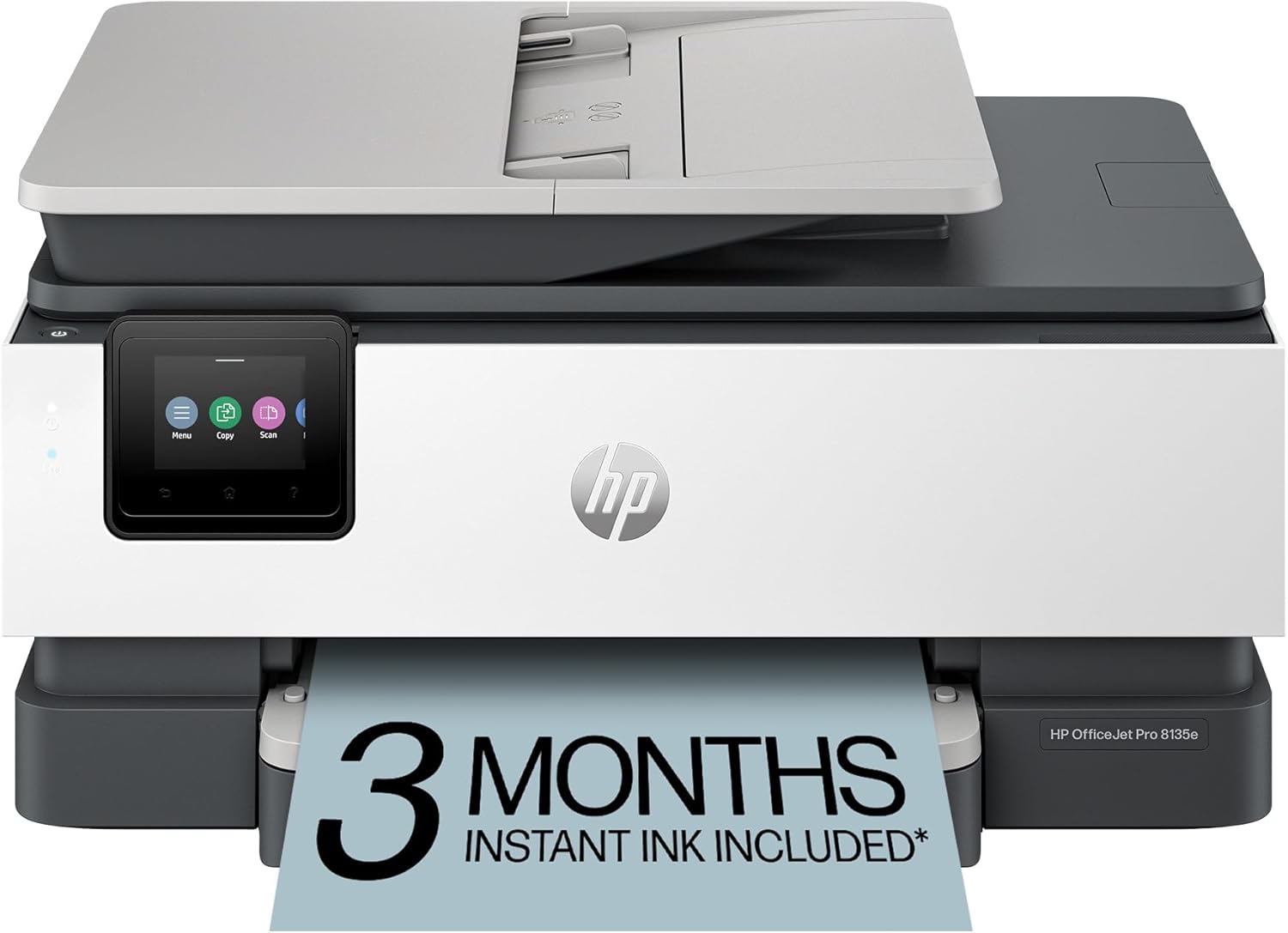
HP OfficeJet Pro 8135e
| Printer Type | Inkjet |
|---|---|
| Printer Connectivity Type | Ethernet, USB, Wireless |
| Maximum Sheet Capacity | 225 |
| Duplex | Automatic (standard) |
| Color Pages per Minute | 10 pages_per_minute |
The HP OfficeJet Pro 8135e is a compact all-in-one inkjet aimed at home offices that need color documents and multifunction convenience. It handles print, scan, copy and fax tasks, and the 225-sheet tray plus automatic document feeder make it useful for moderate-volume jobs. Print speeds are reasonable for the class at about 10 ppm in color and 20 ppm black, and automatic two-sided printing saves paper for multipage documents. The 2.7-inch color touchscreen and HP app simplify setup and mobile printing, while dual-band Wi-Fi and basic security features help keep the device connected and protected. Photo resolution and fine text are supported by high optimized dpi numbers, though color photo output on standard paper will still reflect typical inkjet limits. The printer uses original HP cartridges with chips and is tied to HP Instant Ink subscription options if you want automatic supplies. For buyers prioritizing a balance of features, the 8135e offers practical speed, decent paper handling and easy mobile workflows, but it is not designed for heavy-duty office workloads or the lowest-cost-per-page without subscribing to HP ink plans.
Best for: Buyers who want a balanced, feature-rich home office printer that handles everyday color documents, moderate batch jobs, and easy mobile workflows without specialist printing needs.
Less Ideal for: People who need very high monthly page counts, the cheapest long-term ink costs, or a printer optimized for professional photo production.
- All-in-one functionality with scan, copy, fax and ADF for multitasking
- 225-sheet input and 60-sheet output capacity for longer print runs between refills
- Automatic duplex printing to save paper on multipage jobs
- 2.7-inch color touchscreen and HP app for easy setup and mobile printing
- Dual-band Wi-Fi and basic security features for reliable networked use
- Requires original HP cartridges with chips which can limit third-party options
- Not intended for heavy commercial print volumes or the lowest cost-per-page without subscription ink
Verdict: A well-rounded all-in-one that packs useful paper handling, duplexing and mobile features for balanced home office use under $150.
Brother HL-L2405W Laser Printer

| Printer Type | Laser |
|---|---|
| Printer Output Type | Monochrome |
| B&W Pages per Minute | 30 pages_per_minute |
| Maximum Print Resolution Black and White | 1200 x 1200 dots_per_inch |
| Maximum Sheet Capacity | 250 |
The Brother HL-L2405W is a compact monochrome laser printer built for straightforward, high-volume black-and-white printing in homes and small offices. It prints up to 30 pages per minute with a 1200 x 1200 dpi resolution, so single-sided documents, reports, and labels come out sharp and quickly. Dual-band Wi-Fi and a USB 2.0 port let you print from phones, tablets, and computers, and the Brother Mobile Connect app adds basic remote management and supply ordering. A 250-sheet tray reduces how often you reload paper and a manual feed handles envelopes and specialty stock. Important limitations are that the unit only prints single-sided by default (manual duplex), it does not scan or copy, and the in-box toner is a standard yield cartridge so frequent heavy printing will raise running costs unless you upgrade to high-yield toner.
Best for: Buyers who prioritize fast, reliable black-and-white output for documents and want a compact, connected printer for a home office or small workgroup.
Less Ideal for: Users who need scanning, copying, automatic duplexing, or a color printer should consider multifunction or color alternatives instead.
- Fast black-and-white print speed up to 30 ppm
- Sharp 1200 x 1200 dpi monochrome output for readable text and line art
- Dual-band Wi-Fi plus USB connectivity and mobile app support
- 250-sheet input tray reduces refills and supports envelopes via manual feed
- No automatic duplexing or multi-function features like scan/copy
- Standard in-box toner is modest yield, increasing replacement frequency for heavy users
Verdict: Choose the HL-L2405W if you need a compact, fast monochrome laser printer that delivers sharp, high-speed B&W prints for home or small-office use.
Canon PIXMA TS4320

| Printer Type | Inkjet |
|---|---|
| Duplex | Automatic |
| Print Resolution (Color) | 1200 x 1200 dpi |
| Connectivity | USB, Wi-Fi |
| Maximum Sheet Capacity | 100 |
The Canon PIXMA TS4320 is a budget-friendly all-in-one inkjet that targets light home use: printing documents, schoolwork, and casual photo prints. It connects over USB or dual-band Wi‑Fi for mobile and computer printing via the Canon PRINT app, AirPrint, or Mopria, and its compact footprint makes it easy to tuck onto a desk or shelf. Notable features include automatic duplex printing to save paper, a flatbed scanner for scans and copies, and a two-cartridge hybrid ink system that balances sharp black text with reasonably vibrant color photos. Print speeds are modest — about 14 ppm black and 9 ppm color — and the initial page prints in roughly 9.5 seconds, so it handles intermittent tasks quickly but is not built for heavy duty daily volume. The unit lacks an ADF and an integrated display, so multi-page scanning and advanced on-device controls are limited. Overall it delivers straightforward, economical printing and scanning for households that need reliable basic performance without advanced office features.
Best for: Buyers who want an inexpensive, space-saving all-in-one for occasional home printing, photos, and school or household documents and who prioritize simple setup and low upfront cost.
Less Ideal for: People who need heavy daily printing, fast throughput, or frequent multi-page scans should choose a higher-volume office machine with an ADF and stronger paper handling.
- Automatic two-sided printing reduces paper use and is convenient for documents.
- Dual-band Wi‑Fi plus USB allows flexible mobile and desktop printing.
- Compact design fits small desks and home workspaces.
- Flatbed scanner provides simple scanning and copying without extra equipment.
- Hybrid two-cartridge ink system delivers clear text and decent color photos for casual use.
- No automatic document feeder, so multi-page scanning requires manual page placement.
- No built-in display limits on-device control and status feedback.
- Not suitable for high-volume or fast production printing due to modest speed and small paper capacity.
Verdict: A compact, budget-minded all-in-one that delivers reliable basic printing, scanning, and auto two-sided printing for cost-conscious home users.
HP DeskJet 2955 All-in-One

| Printer Type | HP Thermal Inkjet |
|---|---|
| Printer Connectivity Type | Apple AirPrint; USB; Wireless (Wi‑Fi); Wireless direct printing; Mopria |
| Maximum Sheet Capacity | 60 |
| Color Pages per Minute | 5.5 pages_per_minute |
| B&W Pages per Minute | 7.5 pages_per_minute |
The HP DeskJet 2955 is a compact all-in-one designed for basic home printing tasks like letters, school worksheets, and occasional photos. It prints in color, scans on a flatbed, and copies up to nine pages per run, using HP 68 cartridges and a 60-sheet input tray. Setup and mobile printing are straightforward thanks to AirPrint, Mopria, USB and HP's app, and the printer includes a three-month Instant Ink trial to simplify ink replacement. Print speeds are modest—around 7.5 ppm black and 5.5 ppm color—and duplexing is manual, so it is best for light, intermittent use rather than heavy office workloads. The unit emphasizes convenience features like an icon LCD and dual-band Wi-Fi with connection troubleshooting, and its small footprint and low power draw make it easy to tuck into a home workspace. If you need simple, affordable printing with easy mobile support and low upfront cost, this does the job, but buyers should expect slower output and manual two-sided printing compared with higher-end models.
Best for: Buyers looking for an inexpensive, space-saving home printer for occasional color documents, schoolwork, and mobile-first printing who prioritize low upfront cost and ease of use.
Less Ideal for: Users who print large volumes, need fast output or automatic duplexing, or require heavy-duty duty-cycle reliability should pick a more robust model.
- Compact all-in-one design good for tight spaces
- Wireless mobile printing support including AirPrint and Mopria
- Includes 3-month Instant Ink trial for easier ink management
- Simple control with icon LCD and HP app
- Made with recycled plastics and low power consumption
- Slow print speeds compared with office printers
- No automatic duplex; two-sided printing is manual
Verdict: A budget-friendly, compact all-in-one that delivers simple wireless home printing and scanning with low upfront cost.
Epson Expression Premium XP-7100

| Printer Type | Inkjet |
|---|---|
| Maximum print Resolution Color | 4800 dpi |
| Maximum Copies Per Run | 60 |
| Printer Connectivity Type | Wireless |
| Duplex | Automatic |
The Epson Expression Premium XP-7100 is a compact all-in-one inkjet that handles everyday documents and photo projects with a mix of convenience and decent image quality. It prints, scans and copies, offers a 30-page auto document feeder for batch jobs, automatic two-sided printing to save paper, and a 4.3-inch touchscreen plus SD and USB card slots for printing without a computer. Photo output supports borderless printing up to 8 x 10 inches and a high maximum resolution for detailed images, while wireless and Ethernet connectivity let you print from phones or tablets and use Wi-Fi Direct when needed. Practical benefits include fast black-and-white document speeds and multiple media feeds for specialty paper or CDs, making it useful for family projects and light home-office use. Limitations to weigh are modest color page throughput and dependence on Epson Genuine cartridges for proper operation, which can increase ongoing ink costs compared with generic options.
Best for: Buyers who want a reliable, compact all-in-one for home documents and occasional high-quality photos and who value straightforward features like an ADF, duplexing, and easy mobile printing.
Less Ideal for: Users who print large volumes of color documents regularly or who prioritize the lowest possible ink costs should consider higher-capacity or business-oriented models instead.
- 30-page auto document feeder speeds multi-page scanning and copying
- Automatic duplex printing reduces paper use for double-sided documents
- 4.3-inch touchscreen and card/USB slots allow printing without a computer
- Supports borderless photos up to 8 x 10 inches with high maximum resolution
- Wireless, Ethernet, and Wi-Fi Direct give flexible connectivity options
- Color print throughput is relatively slow compared with document speeds
- Requires Epson Genuine cartridges which can raise operating costs
Verdict: A compact, feature-rich home all-in-one that balances photo-capable output with useful productivity features like ADF and automatic duplexing.
Canon PIXMA TR4720

| Printer Type | Inkjet |
|---|---|
| Functions | Print, Copy, Scan, Fax |
| Print Speed B&W | 8.8 pages_per_minute |
| Print Speed Color | 4.4 pages_per_minute |
| Connectivity | USB, Wi-Fi |
The Canon PIXMA TR4720 is a space-conscious 4-in-1 inkjet aimed at home and small-office users who need basic multifunction capability without a large footprint. It prints both color and black-and-white pages, scans on a flatbed, copies, and sends faxes, and the built-in 100-sheet front tray plus auto document feeder make batch jobs easier. Wireless and USB connectivity work with smartphones via the Canon Print app for simple mobile printing, and automatic duplexing saves paper for two-sided letter documents. Photo quality is decent for casual borderless prints up to 8.5 x 11 and the hybrid ink system keeps text sharp. Expect modest speeds—about 8.8 ppm black and 4.4 ppm color—so it is best for light to moderate daily use rather than heavy volume. The interface is basic with a two-line LCD, and true photo or office-grade speed and robustness are limited compared with higher-end models. For buyers who want a reliable, affordable all-in-one under a tight budget, this covers the essentials well.
Best for: Buyers seeking an inexpensive, space-saving multifunction printer for home or small-office tasks who value straightforward wireless mobile printing and proven brand reliability.
Less Ideal for: Users who need fast, high-volume printing or advanced on-device controls and features should consider a higher-end office model instead.
- 4-in-1 functionality: print, copy, scan and fax in one compact unit
- Automatic duplex printing and 100-sheet front paper tray reduce manual handling and paper use
- Wireless printing and Canon Print app support direct mobile/cloud printing
- Auto document feeder speeds multi-page scanning and copying
- Modest print speeds make it less suitable for heavy or time-sensitive workloads
- Basic 2-line LCD and controls limit on-device convenience compared with touch-screen models
Verdict: A compact, reliable all-in-one that delivers essential home and small-office printing features at a budget-friendly level.
Brother DCP-L2640DW

| Printer Type | Laser |
|---|---|
| Printer Output Type | Monochrome |
| B&W Pages per Minute | 36 pages_per_minute |
| Automatic Duplex | Yes |
| Printer Connectivity Type | Ethernet, USB, Wi-Fi |
The Brother DCP-L2640DW is a compact black-and-white laser multifunction printer built for steady home or small office use. It prints up to 36 ppm, supports automatic duplex printing, and includes a 50-page automatic document feeder and a 250-sheet tray to reduce interruptions during larger jobs. Connectivity covers dual-band Wi-Fi, Ethernet, and USB so you can print from phones, tablets, or PCs and manage the device with the Brother Mobile Connect app. Practical features include Toner Save Mode to stretch cartridges and automatic duplexing to cut paper waste. As a renewed unit, it can be a cost-effective choice but buyers should confirm condition and included consumables since supplies and any subscription trials for toner are handled separately. Print quality and speed are strong for text-heavy work, while color output is not supported because it is monochrome only.
Best for: Buyers who want a reliable, risk-averse replacement for home or small office printing that prioritizes fast, economical black-and-white output and straightforward network connectivity.
Less Ideal for: Anyone who needs color printing, photo-quality output, or a new-in-box warranty and full manufacturer packaging should look at other options.
- Fast monochrome printing up to 36 pages per minute for high-volume text jobs
- 50-page auto document feeder and 250-sheet tray reduce manual feeding for multi-page tasks
- Automatic duplex printing saves paper and supports two-sided workflows
- Multiple connectivity options including dual-band Wi-Fi, Ethernet, and USB for flexible device access
- Monochrome-only output means no color printing capability
- Renewed condition requires checking included toner and return/support specifics
Verdict: A dependable, fast monochrome multifunction laser printer that delivers efficient two-sided printing and flexible connectivity for cautious buyers focused on value and reliability.
Choosing the Right Printer: Key Factors to Consider
Print Speed And Duty Cycle
How fast a printer produces pages affects daily productivity. For typical home and small-office users, higher pages-per-minute ratings mean less waiting for multi-page documents and smoother handling of unexpected print tasks.
Duty cycle is the manufacturer-rated monthly maximum the device can handle. On budget models this number is often conservative, but it still gives a sense of whether a printer is suited to light home use or heavier small-office workloads. Choose a model whose duty cycle comfortably exceeds your expected monthly pages to avoid accelerated wear.
Operating Cost And Cartridge Options
Upfront price is only part of the cost. Consider how much replacement ink or toner cartridges cost and how many pages those cartridges produce. A lower cost-per-page can save money over time even if the printer itself costs slightly more.
Also check whether the model supports high-yield cartridges or third-party refill options. Some inexpensive printers use specialized cartridges with small capacities, which raises long-term costs. Knowing the estimated cost per photo and per black-and-white page helps you compare real ownership expenses.
Print Quality For Text And Images
Text clarity and photo reproduction are different demands. For documents, sharp, dark text and consistent margins matter most. For casual photos, look for models that handle color gradients and skin tones without obvious banding.
Low-cost printers will not match high-end photo printers, but some budget models still produce acceptable snapshots and graphics for home use. If you need occasional photos, prioritize models with better color handling and dedicated photo paper settings.
Connectivity And Mobile Printing
Modern home printing often relies on Wi-Fi, mobile printing, and easy network setup. Models without reliable wireless features can be inconvenient if you rely on smartphones, tablets, or multiple computers.
Look for clear support for mobile printing protocols or a well-rated app for printing and scanning. Also consider Ethernet if you want a wired office setup, and evaluate whether the printer supports guest or secure network options if privacy is a concern.
Size, Placement, And Paper Handling
Physical footprint matters for small desks or crowded home offices. Check the closed and open dimensions to ensure the unit fits the intended space, and verify paper tray capacity so you do not need to refill frequently.
Also consider supported paper sizes and whether the tray can handle envelopes or heavier media. For irregular-sized printing like labels or small photos, a flexible tray and manual feed can be useful. Noise level during printing may also factor into placement decisions.
Ease Of Setup And Maintenance
A simple setup process and accessible maintenance reduce frustration. Clear front-panel controls, straightforward cartridge replacement, and good documentation are especially valuable with budget models.
Also consider how easy it is to clear jams, perform firmware updates, or access manufacturer support channels. Printers that are simple to maintain mean less downtime and fewer hidden hassles over the device lifetime.
Which Print Technologies Are Best Under $150
Budget printers most often use inkjet or basic monochrome laser technologies. Inkjets tend to offer lower entry prices and better color photo handling, while compact monochrome lasers provide faster text output, lower maintenance, and typically lower cost per black-and-white page.
- Inkjet: Good for mixed use and occasional photos, but watch cartridge yields.
- Monochrome laser: Fast, reliable text with generally lower running costs for documents.
- All-in-one models: Add scanning and copying but may trade off speed and increase footprint.
Tips To Lower Long-Term Printing Costs
Several habits reduce operating expenses regardless of which budget printer you choose. Use draft or economy print modes for internal documents, and reserve high-quality settings for final copies or photos. Print in black-and-white when color is unnecessary and preview before printing to avoid wasting pages.
Buy higher-yield cartridges when available and consider setting up automatic low-ink alerts so you can replace supplies proactively. If you print photos occasionally, use specialized photo paper only for the best results and avoid continuous borderless printing, which consumes more ink.
- Enable duplex printing to save paper when supported.
- Use local or cloud-based scan workflows to reduce unnecessary prints.
- Store cartridges properly and avoid letting ink sit unused for long periods.
Setting Up A Shared Home Printer
When multiple household members need access, choose a printer with reliable Wi-Fi setup and a straightforward user account or guest printing feature. Position the printer where the wireless signal is strong and within reach of power and table space, and consider a small shelf if desk space is limited.
If privacy is a concern, create a separate guest network for shared printing or use password-protected features where available. Regularly update printer firmware to keep network interfaces secure and maintain compatibility with mobile printing apps.
- Label consumables and store extras nearby for quick swaps.
- Use a surge protector to protect the unit from power spikes.
When To Choose A Compact Laser Over An Inkjet
Choose a compact monochrome laser if your primary need is frequent black-and-white document printing. Lasers warm up quickly and generally sustain higher volume without the nozzle clogging or ink drying issues that affect idle inkjets. Toner cartridges also tend to last longer, which reduces visits to the supply store.
If you occasionally need color, but mostly print text, weigh the importance of color against ongoing ink costs. For pure document-heavy use, the reliability and speed of a laser often justify selecting a monochrome-only model within a tight budget.
- Lasers excel at sharp text and crisp line art.
- Inkjets remain the better choice for casual color and photo tasks.
Paper And Media Handling For Home Projects
Budget printers vary in how they handle different paper types. If you plan to print labels, envelopes, or thicker photo paper, confirm the manual feed path and any maximum weight limits. Cheap models sometimes misfeed heavier stock or cannot produce borderless prints reliably.
Also check the input tray capacity. A larger tray reduces how often you need to refill paper when printing multipage documents. For occasional photo printing, a rear tray or manual feed path designed for thicker media is preferable.
- Verify supported paper sizes and maximum media weight.
- Use manufacturer-recommended paper types for best results.
How We Chose the Best Printer
We focused on real-world value for buyers seeking dependable printers under $150. Our selection process prioritized measurable, buyer-relevant attributes: print speed for everyday productivity, cost per page for long-term affordability, and output quality for both text and casual photo needs. We also evaluated connectivity options that matter at home, such as Wi-Fi and mobile printing support, plus ease of setup and routine maintenance tasks like replacing cartridges or clearing paper jams. Products were excluded if they required unusual consumables, had consistently poor user feedback on reliability, or lacked essential connectivity for modern devices. The final shortlist balances initial affordability with predictable operating costs and straightforward upkeep. Each candidate on the list met minimum standards for acceptable text sharpness, reliable feeding, and clear menu or app controls so buyers are less likely to run into frustrating surprises after purchase.
Our full evaluation process is outlined in our review methodology.
FAQ
How often should I replace ink or toner cartridges?
Replacement frequency depends on how much you print and the cartridge yield. For light home use, cartridges may last several months; heavy users will replace them more often. Look at the estimated pages per cartridge and your monthly print volume to estimate replacement intervals.
Can I use third-party ink to save money?
Third-party inks are available and can reduce costs, but quality and reliability vary. Some aftermarket supplies work well, while others can cause poor print quality or clog nozzles. Weigh the savings against potential service issues and check return or warranty policies before using them.
Is wireless printing secure enough for home use?
Wireless printing can be secure if you use protected Wi-Fi, firmware updates, and strong passwords. For extra caution, set up a guest network for shared printing or disable open printing features. Most home setups are secure when basic network hygiene is followed.
Should I choose an all-in-one printer if I only need printing?
An all-in-one adds scanning and copying with modest additional cost and footprint. If you rarely scan or copy, a single-function printer may be slightly smaller and simpler, but an all-in-one provides flexibility for occasional document digitization or photo rescanning.
Why does my inkjet produce streaks after sitting unused?
Inkjet nozzles can dry out if left idle, causing streaks or missing colors. Running a nozzle check and printhead cleaning cycle usually restores normal output, though it uses additional ink. Regular occasional printing helps keep nozzles primed.
Final Verdict
When choosing a printer under $150, prioritize the features that match how you actually print. If most of your work is text, favor faster monochrome options and low cost per page. If you want occasional photos and color graphics, pick an inkjet with better color handling and reasonable cartridge yields. Balance upfront cost against likely operating expenses and pay attention to connectivity and maintenance ease. After assessing speed, running cost, and media handling, you can confidently select a budget printer that meets your daily needs without surprising long-term costs.