
Note: This article contains affiliate links. If you click on these links and make a purchase, we may earn a small commission at no extra cost to you. This helps support our research and content. Read our full affiliate disclosure here.
Picking the right duplex printer matters if you frequently print multi-page documents, manuals, or double-sided reports. A good duplex printer saves paper, reduces manual page flipping, and speeds up repetitive jobs so you can focus on higher-value work. Whether you need a compact model for a home office or a robust unit for a small team, the right choice affects print speed, paper handling, and long-term reliability. This guide shortlists the top duplex printers across common use cases and evaluates each pick on the criteria that matter most to everyday users. Read on to see which units excel at speed, feed reliability, and total cost of ownership.
Top Picks at a Glance
| Best Overall The best all-around choice for most situations | HP OfficeJet Pro 8125e | 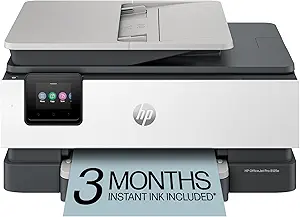 |
| Best Quality Built to a higher standard if you want something more solid | Canon imageCLASS MF753Cdw II |  |
| Best Budget The cheapest option that still gets the job done reliably | Epson Expression Home XP-5200 |  |
| Top Rated A top-rated pick with lots of positive feedback | HP LaserJet Pro MFP 3101sdw |  |
| Most Popular A crowd favorite that many people choose with confidence | Canon PIXMA TR4720 |  |
| Best Seller A high-volume bestseller chosen again and again | Brother DCP-L2640DW Laser MFP |  |
HP OfficeJet Pro 8125e

| Printer Type | HP Thermal Inkjet |
|---|---|
| Color Pages per Minute | 10 ppm |
| B&W Pages per Minute | 20 ppm |
| Maximum Sheet Capacity | 225 |
| Duplex | Automatic (standard) |
The HP OfficeJet Pro 8125e is a compact multifunction inkjet that targets small offices and home users who need fast, formatted color output and everyday scanning and copying. It prints up to 10 ppm in color and 20 ppm in black, supports automatic two-sided printing, and includes a 1-sided automatic document feeder for batch scanning and copying. The printer is AI-enabled to clean up web pages and emails before printing and connects via dual-band Wi‑Fi, USB or Ethernet, with mobile support through Apple AirPrint and the HP app. A 225-sheet input and 60-sheet output capacity reduce trips to the tray, and HP+ features such as Instant Ink trials and security updates are included when activated. Practical trade-offs include reliance on HP 923-series inks which can be costly over time if you do high-volume color printing, and some features require enrollment in HP+ services. For buyers who want easy mobile printing, automatic duplexing, and modest volume capability in a single compact unit, the 8125e delivers a balanced mix of speed and convenience.
Best for: Buyers who want a reliable, feature-rich all-in-one for a home or small office that prioritizes automatic duplexing, mobile printing, and a substantial paper capacity without needing heavy commercial throughput.
Less Ideal for: High-volume print environments or users wanting the lowest long-term ink cost should consider laser alternatives or larger-capacity commercial ink systems.
- Automatic two-sided printing for shorter jobs and reduced paper use
- 225-sheet input tray lowers how often you reload paper
- Dual-band Wi‑Fi plus Ethernet and USB give flexible connectivity options
- AI formatting and HP app integration simplify printing from web pages and mobile devices
- Uses HP 923-series cartridges which can be expensive for sustained color printing
- Some AI and subscription features require activation of HP+ and enrollment in Instant Ink
Verdict: Choose the OfficeJet Pro 8125e if you want a compact all-in-one that combines automatic duplexing, solid print speeds, and easy mobile connectivity for balanced home or small-office use.
Canon imageCLASS MF753Cdw II

| Printer Type | Laser |
|---|---|
| Print Speed | 35 pages_per_minute |
| Maximum Print Resolution Color | 1200 x 1200 dpi |
| Printer Connectivity Type | Ethernet, USB, Wi-Fi |
| Duplex | Automatic |
The Canon imageCLASS MF753Cdw II is a color laser all‑in‑one built around speed and office convenience. It prints, scans, copies and faxes, uses a 50‑sheet duplex automatic document feeder for two‑sided scanning, and delivers up to 35 pages per minute for both color and black‑and‑white jobs. Setup and daily use are straightforward thanks to wireless and Ethernet support, a customizable 5" color touchscreen, and mobile printing via the Canon PRINT app. Paper handling is practical for small offices with a 250‑sheet standard cassette plus a multipurpose tray and optional expansion to higher capacity. Image quality is strong at up to 1200 x 1200 dpi and it runs on Canon Genuine Toner 069 supplies. Tradeoffs include a relatively heavy chassis and modest initial toner yields in the starter cartridges, so expect regular toner replacements under heavy monthly volumes. The unit is Energy Star rated and backed by a three‑year limited warranty, which helps for business reliability and service coverage.
Best for: Buyers who prioritize speedy duplex printing and reliable multifunction performance for small office or hybrid work environments where high throughput matters.
Less Ideal for: Those who need a lightweight, ultra‑compact home printer or extremely low monthly running costs should consider smaller inkjet models or lower‑volume printers instead.
- Fast 35 ppm color and black print speed suitable for busy small offices
- Automatic duplex ADF for two‑sided scanning and reduced manual feeding
- 1200 x 1200 dpi resolution for crisp color and B/W output
- Multiple connectivity options including Wi‑Fi, Ethernet and USB for flexible placement
- Customizable 5" color touchscreen simplifies common tasks and workflows
- Starter toner yields are limited so replacements may be needed quickly under heavy use
- Large and heavy unit that can be cumbersome to move or fit in tight workspaces
Verdict: Choose this Canon if you need a fast, duplex capable color multifunction laser built for busy small offices that value speed and image quality.
Epson Expression Home XP-5200

| Printer Type | Inkjet |
|---|---|
| Duplex | Automatic |
| Maximum print Resolution Color | 4800 x 1200 dots_per_inch |
| B&W Pages per Minute | 14 pages_per_minute |
| Printer Connectivity Type | USB, Wi-Fi |
The Epson Expression Home XP-5200 is a budget-friendly all-in-one inkjet aimed at everyday home printing and occasional photo jobs. It prints up to 14 ppm in black and 7.5 ppm in color, supports automatic duplex printing to save paper, and produces high-resolution output (4800 x 1200 dpi) for borderless photos and sharper documents. Setup and operation are straightforward via the 2.4" color display or the Epson Smart Panel mobile app, and wireless and USB connectivity plus voice printing add convenience for smartphone-based workflows. The 150-sheet tray reduces the need for frequent refills, and individual Claria 222 ink cartridges mean you only replace the color that runs out. On the downside, it is a basic home model without features like an automatic document feeder or high-capacity trays, and color speed is noticeably slower than mono. For buyers focused on low upfront cost and reliable duplex printing at home, this model delivers the essentials without extras.
Best for: Buyers who want an affordable, easy-to-use all-in-one for home documents and occasional photo printing and who prioritize automatic two-sided printing and low upfront cost.
Less Ideal for: Users who need heavy daily office throughput, large paper capacity, or multi-page automatic scanning should consider more robust business-class models.
- Automatic duplex printing saves paper and is handy for two-sided documents
- High maximum print resolution (4800 x 1200 dpi) for detailed photos and graphics
- Wireless and USB connectivity with mobile printing support and voice control
- 150-sheet input tray reduces refill frequency for typical home use
- Uses individual ink cartridges so you replace only the color that is empty
- No automatic document feeder, limiting multi-page scanning and copying
- Color print speed is modest compared with black-and-white throughput
- Designed for home use so it lacks higher-capacity trays and advanced office features
Verdict: A budget-oriented all-in-one that brings reliable automatic two-sided printing and high-resolution photo output for home users who want basic duplex capability without office-level features.
HP LaserJet Pro MFP 3101sdw

| Printer Type | Laser |
|---|---|
| Print Output | Monochrome |
| Print Speed (B&W) | 40 pages per minute |
| ADF Capacity | 50-sheet |
| Input Tray Capacity | 250 |
The HP LaserJet Pro MFP 3101sdw is a business-oriented monochrome laser multifunction printer designed for fast, reliable document workflows. It prints, scans (flatbed plus 50-sheet ADF), copies and supports automatic two-sided printing, making it useful for routine office tasks like reports, invoices, and multi-page scanning. Notable features include up to 40 B&W pages per minute and a 250-sheet input tray that reduce frequent refilling, plus Ethernet, USB, AirPrint and Wi‑Fi connectivity for flexible placement and mobile printing. The LED control and HP app controls simplify setup and remote management, and HP includes an introductory toner cartridge to get you started. Trade-offs to consider are the monochrome-only output if color is needed, and the product is intended to work with cartridges that include HP chips which restrict use of third-party chips; also the printer is fairly large and draws notable power during operation. For teams that prioritize dependable duplex throughput and integrated scanning, this model balances speed and practical office features.
Best for: Buyers who need a dependable, workhorse monochrome MFP for a small office or team and prioritize consistent duplex printing, reliable daily throughput, and easy remote management.
Less Ideal for: Heavy color printing tasks or users who need unrestricted use of third-party toner cartridges should consider a different model.
- Fast black-and-white printing up to 40 ppm for high-volume jobs
- Automatic duplex printing cuts paper and manual work
- 50-sheet automatic document feeder speeds multi-page scanning and copying
- 250-sheet input tray reduces how often you reload paper
- Multiple connectivity options including Ethernet, Wi‑Fi and AirPrint for flexible placement
- Monochrome output only, no color printing capability
- Firmware enforces use of toner cartridges with HP chips which limits third-party cartridge use
Verdict: Choose this HP LaserJet Pro MFP 3101sdw when you want a fast, reliable monochrome duplex MFP that keeps small-team workflows moving.
Canon PIXMA TR4720

| Printer Type | Inkjet |
|---|---|
| Functions | Print, Scan, Copy, Fax |
| Auto Duplex | Automatic |
| Paper Capacity | 100-sheet front tray |
| Connectivity | USB, Wi-Fi |
The PIXMA TR4720 is a small, budget-friendly 4-in-1 inkjet designed for home or small office use. It prints, scans, copies, and faxes, and its automatic duplex printing and 100-sheet front tray make routine double-sided document jobs simple without manual page flipping. The built-in auto document feeder helps with multi-page scans and copies, while Canon's hybrid ink system produces sharp black text and acceptable color photo prints up to letter size. Setup and mobile printing via the Canon Print app are straightforward and it supports USB and Wi-Fi connections for smartphones and PCs. Expect modest speeds—about 8.8 ipm black and 4.4 ipm color—so it is not optimized for heavy throughput, and photo/color output is good for casual use but not for professional photo work. The unit is compact and energy efficient, but it uses Canon CL-276/PG-275 cartridges which can be a recurring cost factor if you print frequently.
Best for: Buyers who want an affordable, space-saving all-in-one that handles everyday double-sided documents and occasional photo printing with simple mobile setup and app control.
Less Ideal for: Users who need fast, high-volume color production or professional-quality photo prints should choose a higher-end or dedicated photo printer instead.
- Automatic duplex printing for two-sided documents
- 100-sheet front paper tray plus auto document feeder for multi-page jobs
- Wireless mobile printing via Canon Print app and USB connectivity
- Compact footprint and low power consumption (7 watts)
- Relatively slow color print speed (approx. 4.4 ipm) compared with higher-end models
- Ink cartridges (CL-276/PG-275) can be costly with frequent use
Verdict: A compact, budget all-in-one that makes duplex document tasks easy for home and small-office users who prioritize convenience over high-speed color output.
Brother DCP-L2640DW Laser MFP

| Printer Type | Laser |
|---|---|
| Print Speed | 36 pages_per_minute |
| Auto Document Feeder | 50 pages |
| Paper Capacity | 250 sheets |
| Connectivity | Ethernet, USB, Wi-Fi |
The Brother DCP-L2640DW is a small-footprint monochrome laser multifunction printer built for steady office use, combining print, copy, and scan in one unit. It delivers fast black-and-white output up to 36 ppm and a 250-sheet tray to reduce refills, while the 50-page automatic document feeder speeds multi-page scans and copies. Connectivity covers dual-band Wi-Fi, Ethernet, and USB, plus mobile printing through Brother Mobile Connect for remote management. Eco-minded features include automatic duplexing and a toner save mode to stretch consumables, and Brother Genuine TN830/TN830XL toners and a Refresh subscription are available for predictable supply restocking. Important limits are the monochrome-only output and modest onboard display and resolution aimed at text and office documents rather than photo work; setup and advanced features rely on the app for the smoothest experience. For buyers who need reliable, high-volume black-and-white duplex printing with straightforward network options, this model is a practical choice.
Best for: Buyers who prioritize dependable, high-volume black-and-white printing and want a compact duplex MFP with simple network setup and predictable supply options.
Less Ideal for: Users who need color printing, photo-quality output, or a full-featured touchscreen interface should consider a different model.
- Fast monochrome printing up to 36 ppm for high-throughput tasks
- 50-page auto document feeder simplifies multi-page scanning and copying
- Automatic duplex printing reduces paper use and manual work
- Multiple connectivity options including dual-band Wi‑Fi, Ethernet, and USB
- Supports Brother Mobile Connect app for remote printing and supply management
- Monochrome only, not suitable for color documents or photos
- Basic LCD and control interface compared with touchscreen models
- Initial in-box toner yield is modest relative to high-yield options
Verdict: A dependable compact monochrome duplex MFP that delivers fast, business-ready black-and-white printing and straightforward network connectivity.
Choosing the Right Duplex Printer: Key Factors to Consider
Duplex Mechanism and Speed
Automatic duplex capability is the defining feature of this category. Check whether the printer offers true automatic duplexing rather than manual two-sided printing, and note the specified duplex pages-per-minute figures. Duplex speeds are often lower than simplex rates, so verify real-world throughput for mixed single- and double-sided jobs.
Faster duplex throughput matters when you routinely produce multi-page handouts or reports because it reduces wait time and keeps workflows smooth. If you primarily print color graphics or photos on both sides, factor in the extra processing time the printer may need for color calibration and drying.
Paper Handling and Tray Capacity
Look at input tray size, multipurpose tray options, and whether the printer supports different paper weights and sizes when duplexing. A larger main tray reduces refill frequency for busy workgroups, while a manual feed or rear tray can simplify printing to heavier media without risking jams.
Robust paper-path design and sensors reduce the chance of misfeeds during duplex jobs. For frequent duplex printing, prefer models that explicitly list support for heavier media and have a solid sheet path to prevent curling and double-feeds.
Toner or Ink Yield and Cost Per Page
Running cost per page becomes more important once you start printing on both sides. Compare typical yield estimates for cartridges or toner and the manufacturer-stated coverage used to calculate cost per page. High-yield consumables and efficient toner or ink usage can substantially lower operating expenses for dense duplex documents.
Also consider whether the printer supports third-party or high-capacity cartridges and how easy cartridge swaps are during multi-day printing cycles. Energy consumption during long duplex runs can also affect total cost, though consumable cost is usually the larger factor.
Connectivity and Driver Support
Reliable network connectivity is essential when multiple users need duplex printing. Check for wired Ethernet, robust Wi-Fi, and mobile-printing protocols such as AirPrint or Mopria. Secure printing features and user authentication can be helpful in shared environments to prevent unauthorized duplex jobs.
Driver and OS support influences setup and ongoing compatibility. Ensure the printer offers up-to-date drivers for your primary operating systems and includes cloud or mobile options if you print from smartphones or tablets.
Duty Cycle and Reliability
Duty cycle ratings indicate the monthly maximum the manufacturer expects the device to handle. For regular duplex work, choose a printer with a duty cycle comfortably above your typical monthly page count to avoid premature wear. Reliability also ties to build quality, warranty terms, and how easy the unit is to service.
Consider user-serviceable parts and the availability of replacement rollers or maintenance kits. A model that is easy to clean and clear paper jams will save time and reduce downtime during heavy duplex printing periods.
Form Factor and Noise
Physical size and noise level matter depending on where you will use the printer. Compact duplex printers fit well in a home office or a small desk area, while larger floor-standing models better serve busy team environments.
Noise during duplex runs can be disruptive in quiet spaces. If your printing is near workstations, choose a model with documented noise ratings or user feedback indicating quieter operation during double-sided jobs.
Why Duplex Printing Saves Time and Paper
Automatic double-sided printing eliminates the manual step of flipping pages when producing booklets, reports, or multi-page contracts. That saves hands-on time and lowers the amount of paper used, which is beneficial both for cost control and for environmental considerations.
For teams that print high volumes of text-based documents, duplexing halves the stack height and can simplify filing and distribution. Choosing a reliable duplex printer reduces interruptions from jams and misfeeds that often occur with manual double-sided workflows.
- Reduces paper consumption and storage needs
- Speeds up multi-page production without manual intervention
- Improves document organization for binding and finishing
Duplex Printing with Specialty Media
Printing double-sided on heavier paper, envelopes, or coated stock introduces additional feeding and drying challenges. Not every duplex-capable unit can handle these media reliably, so consult supported media weight ranges before attempting specialty duplex jobs.
When you plan to print double-sided labels or cardstock, look for a printer with a straight-through or user-selectable paper path. These features keep the media flatter and reduce the chance of toner smearing or paper jams during the second pass.
- Check supported paper weights for duplex jobs
- Prefer straight-through paper paths for heavy media
- Allow drying time for coated or high-coverage color prints
Network and Mobile Duplex Workflows
Modern duplex printers commonly include wireless and mobile printing to accommodate laptops, tablets, and phones. For shared offices, wired Ethernet with DHCP and static-address options provides reliable connectivity and easier management for multiple users.
Secure printing features that hold jobs at the device until released can reduce waste from accidental prints and ensure confidentiality. Mobile apps often expose duplex toggles directly, making it easier for nontechnical users to select two-sided printing from their device.
- Ensure drivers and apps expose duplex controls
- Use secure or pull printing to reduce accidental double-sided jobs
- Test wireless stability during larger duplex batches
Space Planning and Placement
Duplex printers come in a range of footprints. Consider both the installed depth with trays extended and required clearance for paper removal and maintenance. Small desks may only fit compact units, while team areas may accommodate larger devices with high-capacity trays.
Place the printer on a stable surface and allow access to rear panels for jam clearing. Good placement reduces the time to fix paper path issues, which are more disruptive during high-volume duplex runs.
- Measure with trays open to ensure fit
- Allow clearance behind the device for maintenance
- Consider proximity to primary users to minimize network issues
Maintenance Tips for Reliable Duplex Performance
Regular cleaning of feed rollers and keeping the internal paper path free of dust and debris preserves duplex reliability. Replace rollers and maintenance kits on schedule if the manufacturer provides suggested intervals.
Use manufacturer-recommended media and avoid curled or damp paper, which increases misfeeds during the second pass. If you encounter repeated duplex jams, try reducing print speed for duplex jobs or using lower-weight stock when feasible.
- Clean rollers periodically to prevent misfeeds
- Store paper in low-humidity conditions to avoid curling
- Follow maintenance kit intervals to maintain consistent duplexing
How We Chose the Best Duplex Printer
We prioritized features and performance metrics that directly affect day-to-day duplex printing in home and small office settings. Key evaluation criteria included print speed for both simplex and duplex jobs, reliability of the automatic duplex feed and paper path, monthly duty cycle and recommended workload, and the total printing cost per page based on realistic ink or toner yields. We also weighed connectivity and mobile printing options because modern workflows often require wireless or cloud-enabled printing. Additional practical filters included physical footprint and ease of routine maintenance such as replacing consumables and clearing paper jams. Units that lacked a true automatic duplex mechanism, had poor paper-handling features for heavier media, or offered only limited connectivity were excluded. The resulting shortlist focuses on models that balance fast, consistent double-sided output with predictable running costs and straightforward upkeep.
Our full evaluation process is outlined in our review methodology.
FAQ
Does automatic duplex increase print time significantly?
Duplexing often reduces pages-per-minute compared with simplex mode, so duplex jobs can take longer per page. The actual difference depends on the model and whether color processing or heavier media are involved.
Can I duplex print from a smartphone or tablet?
Many modern printers support mobile printing and expose duplex options through their apps or standard protocols. Compatibility depends on the device OS and the printer's mobile features, so check driver or app capabilities.
Will duplexing cause more jams than single-sided printing?
Duplexing introduces an extra paper pass, which can increase the chance of jams if the paper is curled, damp, or outside the supported weight range. Models with a robust paper path and good sensors tend to handle duplexing reliably.
Is duplex printing more expensive because of ink or toner usage?
Duplex printing does not inherently use more ink or toner per page; you simply print on both sides so the cost per finished two-sided sheet may be higher than a single side. Overall paper savings usually offset the unchanged consumable usage per printed side.
How do I set duplex as the default on my computer?
Duplex default settings are typically available in the printer driver preferences or the print dialog of your application. Set the two-sided option as the default in system printer properties so users do not need to enable it each time.
Final Verdict
When choosing a duplex printer, prioritize the duplex mechanism, reliable paper handling, and the running cost per page. Match the printer's duty cycle and tray capacities to your average monthly pages to avoid premature wear or frequent refills. Also factor in connectivity, maintenance accessibility, and the physical footprint to ensure the unit fits your workspace and workflow. Balance speed against reliability and operating cost. For most home and small office users, a model with a solid automatic duplex feed, moderate duty cycle, and accessible consumables will deliver the best combination of convenience and long-term value.