
Note: This article contains affiliate links. If you click on these links and make a purchase, we may earn a small commission at no extra cost to you. This helps support our research and content. Read our full affiliate disclosure here.
Choosing the right printer under $300 matters because a poor choice slows your work, costs more in consumables, and creates setup headaches. Whether you print documents, occasional photos, or need a dependable all-in-one for a small office, this guide narrows the field to the most practical options. We evaluated shortlists that focus on dependable print quality, affordable running costs, and easy connectivity. Below are our top picks for printers under $300, along with the decision factors that matter when you buy and maintain one.
Top Picks at a Glance
| Best Overall The best all-around choice for most situations | HP OfficeJet Pro 8125 |  |
| Best Quality Built to a higher standard if you want something more solid | Canon PIXMA TS9520 |  |
| Best Value The sweet spot between price and what you get | Epson EcoTank ET-2400 |  |
| Best Budget The cheapest option that still gets the job done reliably | Canon PIXMA TS3720 | 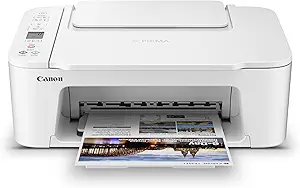 |
| Most Popular A crowd favorite that many people choose with confidence | HP DeskJet 2855e |  |
| Best Seller A high-volume bestseller chosen again and again | Brother DCP-L2640DW |  |
HP OfficeJet Pro 8125
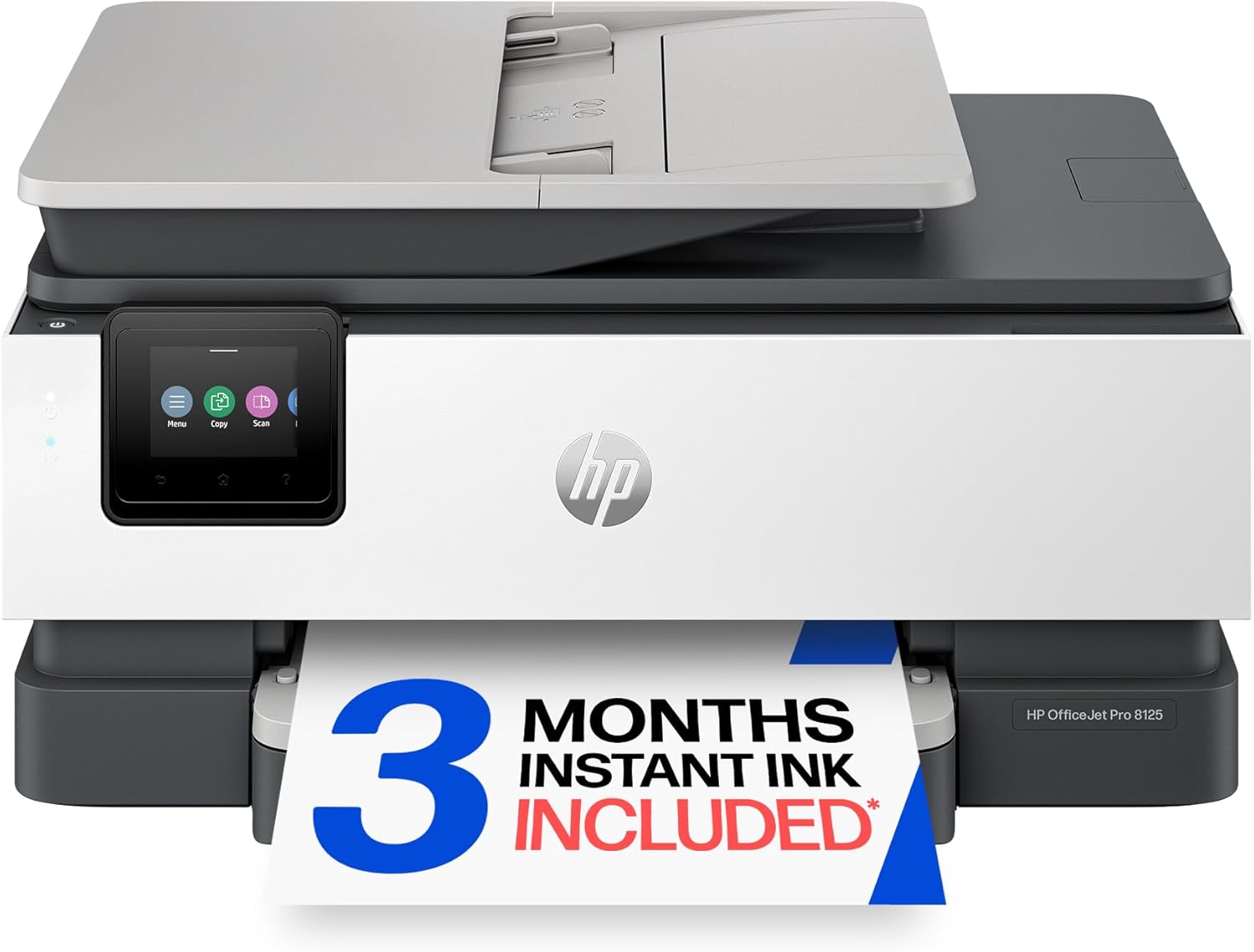
| Printer Type | HP Thermal Inkjet |
|---|---|
| Maximum Sheet Capacity | 225 |
| Duplex | Automatic (standard) |
| Color Pages per Minute | 10 pages_per_minute |
| Printer Connectivity Type | Apple AirPrint; Ethernet networking; USB; Wireless (Wi-Fi); Wireless direct printing |
The HP OfficeJet Pro 8125 is a compact all-in-one inkjet made for home and small office use, combining single-pass scanning, automatic duplex printing, and a 225-sheet input tray to handle everyday document workflows. It prints at up to 20 ppm in black and 10 ppm in color and produces high-resolution color output suitable for reports, presentations, and occasional photos, while HP AI formatting and the HP app make printing from phones and cleaning up web content straightforward. The 2.7-inch touchscreen and quiet mode simplify day-to-day operation, and the built-in ADF speeds multi-page scans and copies. Connectivity options include dual-band Wi-Fi, Ethernet, AirPrint, and USB, so it fits mixed laptop and mobile environments. Expect ongoing dependence on HP 923 cartridges and occasional firmware-driven cartridge compatibility enforcement, and color print speed lags the black speed. For buyers who need reliable, feature-rich printing under $300, this balances good performance and convenience with the usual manufacturer cartridge ecosystem constraints.
Best for: A budget-conscious home or small office user who needs a capable all-in-one that handles regular document printing, scanning, and moderate paper volumes with easy mobile connectivity.
Less Ideal for: Users who print very large monthly volumes or who want the lowest ongoing ink costs and freedom to use third-party cartridges should consider alternative solutions.
- All-in-one functionality with flatbed scanner, one-sided ADF, and auto duplex for multi-page workflows
- Fast black printing up to 20 ppm and respectable color output with high optimized resolution
- 225-sheet paper capacity reduces refill frequency for moderate home office use
- Multiple connectivity options including dual-band Wi-Fi, Ethernet, AirPrint, and USB
- 2.7-inch color touchscreen and HP app make setup and mobile printing straightforward
- Requires original HP 923 cartridges and may block non-HP cartridges via firmware
- Color print speed is noticeably slower than black printing
Verdict: A versatile, budget-friendly all-in-one that delivers solid everyday print, scan, and mobile workflow features for home offices under $300.
Canon PIXMA TS9520

| Printer Type | Inkjet |
|---|---|
| Maximum Media Size | 11 x 17 inch |
| Maximum print Resolution Color | 4800 x 1200 dpi |
| Duplex | Automatic |
| Printer Connectivity Type | Bluetooth, Wi-Fi |
The Canon PIXMA TS9520 is a versatile all-in-one inkjet aimed at users who need both document and photo capabilities. It prints color and black-and-white pages at roughly 10 and 15 ppm, offers a 4.3" touch LCD for easy on-device control, and includes an auto document feeder and flatbed scanner for multi-page copying and scanning. The five individual ink system means you only replace the color that runs out, which helps keep running costs lower than multi-color cartridges. It supports wireless options including Wi-Fi, Bluetooth, AirPrint and Mopria plus a built-in SD card slot for direct photo printing, and it can handle up to 11"x17" paper for larger documents or creative projects. Important limits are typical for consumer inkjets: photo and high-volume text costs depend on ink choice and yield, and the printer is moderately bulky for tight workspaces. For buyers focused on performance under a $300 cap, the TS9520 balances feature breadth, respectable print quality, and flexible media handling, though heavy-duty office fleets will need higher-capacity business models.
Best for: Buyers who want an affordable, feature-rich printer that handles photos, 11×17 layouts, and occasional multi-page office work while keeping flexible mobile printing options.
Less Ideal for: Users who need very high monthly page volumes or the lowest possible per-page operating cost should consider higher-capacity business printers or laser models.
- Supports up to 11×17 borderless printing for larger documents and projects
- Five individual ink tanks let you replace only the depleted color
- Built-in ADF plus flatbed scanner enables multi-page copying and scanning
- Multiple wireless options including Wi‑Fi, Bluetooth, AirPrint and Mopria for easy mobile printing
- Ink costs and cartridge yields can be high for frequent photo or heavy volume printing
- Relatively large footprint compared with compact home printers
Verdict: If you want a versatile all‑in‑one that prints high-quality photos and oversized 11×17 documents while staying under $300, the TS9520 is a strong, well-rounded choice.
Epson EcoTank ET-2400

| Printer Type | Inkjet |
|---|---|
| Print Speed (B&W) | 10 pages_per_minute |
| Print Speed (Color) | 5 pages_per_minute |
| Connectivity | USB, Wi-Fi |
| Maximum Print Resolution | 5760 x 1440 dpi |
The Epson EcoTank ET-2400 replaces disposable cartridges with high-capacity refillable ink tanks, making it a practical choice for home users who want low running costs and less maintenance. It connects over Wi-Fi or USB and supports mobile printing and app control, while a flatbed scanner and copy function handle basic document tasks. The rear-feed tray holds up to 100 sheets and the printer delivers up to 10 ppm for black and 5 ppm for color, so it handles everyday homework, bills, and occasional photos without frequent interruptions. Print resolution is high, so text and photos look sharp for an ink-tank model, and the included set of ink bottles is rated for large page yields to reduce replacement frequency. Expect manual duplexing only, no auto 2-sided printing, and modest color speed compared with faster office machines. Setup and refilling are straightforward thanks to keyed EcoFit bottles, but buyers should stick with genuine Epson ink to maintain print quality and warranty coverage.
Best for: Buyers who want to minimize ongoing ink costs and waste while covering everyday home printing, scanning, and copying with a simple, reliable machine.
Less Ideal for: Those needing fast, high-volume office throughput or built-in automatic duplexing and advanced finishing features should consider higher-end office models instead.
- Cartridge-free EcoTank system with high-capacity refill bottles reduces ink waste and lowers long-term cost
- Wireless and USB connectivity with mobile app control for flexible home printing
- Includes starter ink set large enough for many months of typical home use
- High maximum print resolution for sharp text and photos
- Rear-feed 100-sheet input tray lets you queue larger print jobs
- No automatic duplexing; double-sided printing is manual
- Color print speed and overall throughput are modest compared with faster office-oriented models
Verdict: Choose the ET-2400 if you prioritize cartridge-free printing and low long-term ink costs in a compact home all-in-one under $300.
Canon PIXMA TS3720

| Printer Type | Inkjet |
|---|---|
| Compatible Cartridge | Canon CL-276, Canon PG-275 |
| Printer Connectivity Type | USB, Wi-Fi |
| Maximum Media Size | 8.5 x 14 inch |
| Maximum print Resolution Color | 4800 x 1200 dots_per_inch |
The Canon PIXMA TS3720 is a compact all-in-one inkjet aimed at home users who need simple document and photo printing plus basic scanning and copying. It uses a two-cartridge hybrid FINE ink system with pigment black for sharp text and dye color for photos, and supports borderless photo printing up to 5 x 7 and documents up to 8.5 x 14. Setup is straightforward using the Canon PRINT app, AirPrint, or direct USB, and the rear tray holds up to 60 sheets for light household workloads. Print speed is modest at about 7.7 ppm black and 4 ppm color, so it is better suited to occasional jobs than heavy daily volumes. The 1.5-inch LCD and simple controls make basic tasks quick, but the printer only supports single-sided printing and has limited paper capacity and fewer advanced features compared with higher-end models. For buyers on a budget who want reliable, easy wireless printing and decent photo quality in a small footprint, the TS3720 delivers a sensible balance of cost and capability.
Best for: Buyers on a tight budget who need a compact, easy-to-use home printer for occasional documents, schoolwork, and photo printing with reliable wireless mobile connectivity.
Less Ideal for: Users who print large volumes, require automatic duplexing, or need advanced office features like high-capacity trays and fast production speeds.
- Compact footprint fits small home desks or counters
- Simple wireless setup and mobile printing via Canon PRINT, AirPrint, and Mopria
- Hybrid two-cartridge ink system produces sharp black text and vivid color photos
- Supports borderless photo printing and multiple media types including envelopes and banners
- Single-sided printing only (no automatic duplex)
- Low paper capacity (60-sheet tray) not suited for high-volume use
Verdict: A budget-friendly, compact all-in-one that delivers easy wireless printing and good photo quality for light home use.
HP DeskJet 2855e

| Printer Type | Inkjet |
|---|---|
| Print Resolution (Color) | 4800 x 1200 dpi |
| Color Pages per Minute | 5.5 pages_per_minute |
| B&W Pages per Minute | 7.5 pages_per_minute |
| Printer Connectivity Type | single band wi-fi (2.4ghz only) |
The HP DeskJet 2855e is a compact home-focused all-in-one inkjet that handles everyday printing, copying, and flatbed scanning. It connects via single-band 2.4 GHz Wi-Fi or USB 2.0 and is controlled comfortably from the HP app on smartphones and tablets. Print quality is decent for text and casual color documents with a maximum color resolution of 4800 x 1200 dpi and modest speeds of about 5.5 ppm color and 7.5 ppm black. A 60-sheet input tray and manual duplexing keep the footprint small while covering basic paper handling needs. HP AI formatting in the app can trim unwanted web content and help avoid wasted pages, and the printer ships with a three-month Instant Ink trial if you enable HP+, which simplifies ink replenishment for light to moderate users. Trade-offs include limited connectivity (2.4 GHz only), manual duplex instead of automatic double-sided printing, and relatively slow throughput for high-volume jobs, so it is best suited to households that need an affordable, space-saving multifunction device rather than a fast office workhorse.
Best for: Buyers seeking an affordable, compact all-in-one for home use who value easy mobile setup, simple ink subscription options, and decent everyday print quality backed by broad user adoption.
Less Ideal for: Users who need fast, high-volume printing, automatic duplexing, or dual-band Wi-Fi and advanced office features should consider more robust models.
- Compact all-in-one design with print, scan, and copy functions
- Easy smartphone control and HP app features including AI formatting
- Includes 3 months of Instant Ink with HP+ activation for simplified ink delivery
- Decent color resolution (4800 x 1200 dpi) for photos and documents
- Only supports single-band 2.4 GHz Wi-Fi, no 5 GHz
- Manual duplexing rather than automatic double-sided printing
- Slower print speeds not ideal for high-volume printing
Verdict: A budget-friendly, compact all-in-one best for home users who want easy mobile printing and low-effort ink replenishment rather than high-speed, heavy-duty output.
Brother DCP-L2640DW

| Printer Type | Laser |
|---|---|
| B&W Pages per Minute | 36 pages_per_minute |
| Maximum Print Resolution Black and White | 1200 x 1200 dots_per_inch |
| Maximum Sheet Capacity | 250 |
| Printer Connectivity Type | Ethernet, USB, Wi-Fi |
The Brother DCP-L2640DW is a compact black-and-white laser multifunction printer designed for small offices and home businesses that need reliable, high-volume mono output. It prints up to 36 ppm and offers automatic duplexing, a 250-sheet tray, and a 50-page auto document feeder to keep batch print, copy, and scan jobs moving without constant refills. You can connect via dual-band Wi-Fi, Ethernet, or USB and manage tasks from mobile devices with the Brother Mobile Connect app. Practical features include toner-saver mode to stretch supplies and compatibility with standard and high-yield TN830 cartridges or Brother's Refresh subscription if you want automated supply delivery. Trade-offs are inherent to monochrome lasers: no color printing and a larger footprint than small inkjets, and initial toner yields are modest compared with some high-yield alternatives, so ongoing toner costs matter for very heavy users. For buyers who prioritize dependable, fast black-and-white output and straightforward networked setup, the DCP-L2640DW is a sensible, low-risk choice under $300.
Best for: Buyers who want a dependable, business‑oriented monochrome printer for frequent black-and-white documents and prefer a well-supported, easy-to-network device with predictable performance.
Less Ideal for: Users who need color printing, very occasional home printing where an inkjet would be cheaper, or those with strict space constraints needing a smaller, lighter unit.
- Fast monochrome printing up to 36 pages per minute for quick document production
- Automatic duplex printing and a 250-sheet tray reduce paper handling and refills
- 50-page auto document feeder speeds multi-page scan and copy jobs
- Multiple connectivity options including dual-band Wi‑Fi, Ethernet, and USB for flexible setup
- Supported by Brother Mobile Connect app and eligible for Brother Refresh supply subscription
- Monochrome only, so it cannot produce color documents or photos
- Initial in-box toner yield is relatively low compared with some high-yield alternatives
- Larger and heavier than compact inkjet models, requiring more desk space
Verdict: A fast, network-ready monochrome laser MFP that delivers reliable, business-ready black-and-white printing under $300.
Choosing the Right Printer: Key Factors to Consider
Print Quality
Print quality determines how professional documents and basic graphics appear. For typical home and small-office use, sharp black text is the priority because it affects readability for invoices, letters, and forms. Color output matters for presentations and light photo printing, but high-end photo fidelity is uncommon under $300.
Look at manufacturer specs for resolution and consider sample prints if possible. In practical terms, choose a printer with proven crisp text reproduction and stable color handling so mixed jobs come out clearly without frequent reprints.
Running Cost
Ongoing consumable costs often exceed the initial purchase price over time. Evaluate how many pages a standard ink or toner cartridge yields and how much replacement cartridges cost. Some printers offer high-yield cartridges or refillable ink systems that lower cost per page, which can be especially important if you print frequently.
Also account for color printing needs. Even occasional color jobs can drive ink usage if the device performs internal maintenance cycles that use extra ink. Compare estimated cost per black-and-white page and color page to estimate monthly spend based on your expected print volume.
Connectivity
Modern printers should integrate easily with your devices and network. Wireless printing via Wi-Fi and support for mobile protocols is essential for households and small offices where multiple users and devices connect. Wired Ethernet is helpful in shared office spaces for stable connections, while USB is useful for direct single-device setups.
Check for reliable mobile app printing, AirPrint or similar protocols, and how the printer handles network drops or re-authentication. A printer with simple setup and stable connectivity reduces interruptions and support time.
Paper Handling
Paper handling affects convenience. Consider input tray capacity, whether the printer supports multiple paper sizes, and any duplex (two-sided) printing capability. A larger input tray reduces the need to reload paper for higher-volume tasks, and automatic duplexing saves paper and time.
Also note specialty paper support for envelopes, labels, and heavier media if you plan to print those items. For many buyers under $300, a modest tray capacity with duplexing and a straight or rear feed for thicker paper provides the best balance of versatility and reliability.
Speed and Daily Throughput
Print speed is more than a number; it affects workflow when you run frequent short jobs. Look at published pages-per-minute figures for black and color, but temper expectations because real-world speed depends on document complexity and connection type. Faster devices reduce wait time for common tasks but may sacrifice raw quality at aggressive settings.
Consider whether the printer will handle bursts of printing without frequent warmup delays, and whether it can sustain modest monthly page counts without overheating or slowing down.
Ease of Maintenance
Maintenance covers replacing consumables, clearing paper jams, and performing routine cleaning. For a practical ownership experience, choose a printer with accessible cartridges or toner, clear service alerts, and straightforward instructions for common fixes. Some models require more frequent manual maintenance or have awkward cartridge access that increases downtime.
Also evaluate software tools for status monitoring and firmware updates. A device with good user-facing diagnostics and easy cartridge ordering paths keeps upkeep simple and predictable.
Choosing Between Inkjet and Laser
Inkjet and laser technologies each have practical advantages under a $300 budget. Inkjet printers tend to offer better color gradients and photo-friendly output at lower upfront cost, while laser printers deliver more consistent, sharp black text and higher page yields per cartridge.
Select an inkjet if you need occasional color photos and versatile media handling. Choose a laser if your primary need is high-volume black-and-white documents with lower per-page toner costs. Many buyers find hybrid needs met by modern inkjets with high-yield or refillable systems.
- Inkjet: better color, flexible media, potentially higher ink costs
- Laser: reliable black text, lower running cost for monochrome, faster for text-heavy jobs
How to Estimate Monthly Printing Costs
Estimate monthly costs by multiplying your expected monthly page count by the printer's estimated cost per page. Include both black and color usage and account for occasional maintenance cycles which can consume extra ink in some designs.
If a printer offers high-yield cartridges or third-party refill options, calculate scenarios for typical and heavy usage. Keep in mind that very low initial device cost can be offset by expensive consumables over a year.
- Track your current monthly page usage to form a baseline
- Compare manufacturer yield figures for cartridges to get cost per page
- Factor in occasional color prints and maintenance cycles
Paper and Media Tips for Best Results
Match paper weight and type to the print job. Standard plain paper is fine for most documents, but glossy or matte photo paper produces much better color prints. Use the printer's manual feed or rear tray for thicker stocks to avoid jams.
Store paper in a cool, dry place to prevent curling and feed issues. When printing important documents, choose higher quality or heavier stock and adjust print settings to the appropriate paper type for sharper output.
- Use manual feed for envelopes and heavy paper
- Select correct paper type in driver settings to optimize ink deposition
- Keep spare paper and basic cleaning supplies on hand
Network Setup and Security Basics
Secure network setup is important even for home printers. Change default admin passwords and apply firmware updates when available. Place the printer on the same secure network as your devices or on a guest network if you want to limit direct access.
Enable wireless encryption and use the official mobile app or standard protocols for printing. For small offices, consider wired Ethernet if the printer will be accessed by multiple users frequently, to reduce interference and authentication hiccups.
- Use WPA2 or WPA3 wireless encryption
- Change default credentials and enable automatic firmware updates when possible
- Consider Ethernet for stable multi-user environments
Environmental and Long-Term Considerations
Think beyond the immediate purchase. Energy usage, consumable recyclability, and parts availability matter over the life of the device. Look for models with energy-saving modes and clear recycling options for cartridges or toner to minimize environmental impact and disposal hassle.
Consider the company support policy for supplies and firmware updates. A printer that receives regular updates and has accessible replacement parts tends to provide a smoother long-term ownership experience.
- Check for energy-saving settings and low standby power
- Prefer devices with cartridge recycling programs
- Verify availability of replacement supplies before committing
How We Chose the Best Printer
We shortlisted printers that deliver the core capabilities buyers expect at this price point: consistent print quality for text and basic graphics, affordable ongoing operating costs, and stable connectivity across common home and small-office networks. We prioritized devices with straightforward setup, robust mobile and wireless printing options, and sensible paper handling for typical household and small-business tasks. Concrete evaluation criteria included measured print quality for black text and color graphics, the effective cost per page based on standard cartridges or tanks, network and mobile printing reliability, speed for everyday jobs, and ease of maintenance and replacement supplies. We excluded specialty photo-focused devices with very high ink costs and commercial-grade machines engineered for heavy production beyond this price range. The result is a curated list of printers that balance purchase price with real-world ongoing costs and user experience. Models that lacked reliable wireless performance, had unusually high consumable expenses, or offered only minimal support for common paper sizes were not included.
Our full evaluation process is outlined in our review methodology.
FAQ
How many pages per month should I expect a budget printer under $300 to handle reliably?
Most budget printers are designed for light to moderate monthly use, typically a few hundred pages per month. If you consistently print several hundred pages each month, choose a model with high-yield consumables or a higher suggested monthly duty cycle.
Is duplex printing common in printers under $300?
Automatic duplex printing is available in many models under $300, but not universal. Duplex saves paper and is valuable for two-sided documents, so check the specifications if two-sided printing is important.
Can I use third-party ink or toner to save money?
Third-party consumables can lower costs but quality and reliability vary. Using third-party cartridges may affect print consistency and could trigger more maintenance. Balance potential savings against possible extra upkeep and verify return or warranty terms.
How important is mobile printing support?
Mobile printing is helpful for homes and small offices with multiple devices. Support for standard protocols and a straightforward mobile app simplifies printing from phones and tablets. If you frequently print from mobile devices, prioritize reliable mobile and wireless options.
What should I do if my printer keeps jamming?
Paper jams are often caused by incorrect paper type, overfilled trays, or worn rollers. Use the recommended paper weights, avoid folding or curled sheets, check tray alignment, and clean feed rollers periodically. Persistent jamming may indicate a hardware issue that needs service.
Final Verdict
When choosing a printer under $300, prioritize the features that match your daily workflow. If you print mostly text, choose a machine with strong monochrome output and low per-page cost. If you need occasional color or photo prints, favor an inkjet with sensible running costs or refill options. Balance print quality, ongoing consumable expenses, and connectivity when making a decision. Focus on models that make routine maintenance simple and provide reliable wireless or wired networking. With those tradeoffs in mind, you can select a printer that delivers dependable results without surprise costs over time.