
Note: This article contains affiliate links. If you click on these links and make a purchase, we may earn a small commission at no extra cost to you. This helps support our research and content. Read our full affiliate disclosure here.
A smart hub with a screen brings voice control together with visual feedback, live video, and on-screen controls that make daily home routines faster and more intuitive. If you want easier video calls, glanceable device controls, or visual confirmations for automations, choosing the right hub changes how smoothly your smart home runs. This guide shortlists the top smart hubs with screens that balance display clarity, voice responsiveness, and ecosystem support. We evaluated each pick on usability, compatibility with common smart devices, and how well the display improves everyday tasks. Read on to find the hub that fits your living spaces and control style.
Top Picks at a Glance
| Best Overall The best all-around choice for most situations | Google Nest Hub Max |  |
| Best Quality Built to a higher standard if you want something more solid | Qolsys IQ4 Hub IQPH054 |  |
| Best Value The sweet spot between price and what you get | SwitchBot Hub 3 |  |
| Best Budget The cheapest option that still gets the job done reliably | Herncptar 10.1" Digital Calendar |  |
| Top Rated A top-rated pick with lots of positive feedback | Cotoala 15.6" Digital Calendar |  |
| Most Popular A crowd favorite that many people choose with confidence | Amazon Echo Show 8 (newest model) |  |
| Best Seller A high-volume bestseller chosen again and again | Amazon Echo Show 15 |  |
Google Nest Hub Max

| Screen Size | 10 inches |
|---|---|
| Display Resolution Maximum | 1280 x 800 pixels |
| Video Capture Resolution | 1080p |
| RAM Size | 4 GB |
| Speaker Description | Stereo speaker system with a 30W subwoofer, total power output of 50W |
The Google Nest Hub Max is a 10-inch smart display designed to act as a central control point for a Google-centric smart home while also serving as a media and communication device. It pairs the Google Assistant voice platform with a touchscreen, a 6.5 MP front camera capable of 1080p video, and a stereo speaker array with a 30W subwoofer for fuller sound. Use it on a kitchen counter, living-room shelf, or bedside table to view video feeds, make video calls, follow recipes, control compatible smart devices, and stream music or video. The display is a 1280 x 800 LCD at 60 Hz, which is sharp enough for video chats and photo albums but not a true high-resolution tablet panel. The camera adds convenience for video calls and quick face-based features, though some users may prefer manual privacy controls. Bluetooth connectivity and integrated Android-based software make setup and media casting straightforward, and the device benefits from Google Assistant's broad service integrations. Its strengths are usability and ecosystem integration rather than cutting-edge display or camera performance.
Best for: Buyers who want an all-around smart display that combines easy voice control, decent video calling, and stronger audio for shared living spaces while leaning into Google services.
Less Ideal for: Users who prioritize the highest display fidelity or who need a screenless hub for minimal privacy exposure should consider other options.
- Built-in Google Assistant with touchscreen for easy voice and tap control
- 6.5 MP front camera with 1080p video for video calls and smart camera features
- Stereo speaker system with a 30W subwoofer and 50W total output for robust audio
- Wide smart-home compatibility and straightforward casting from Android devices
- Display is 1280 x 800 LCD rather than a higher-resolution or OLED panel
- Facial recognition features may raise privacy concerns for some users
Verdict: A versatile Google-centric smart display that blends voice control, decent video calling, and stronger-than-average audio for everyday smart-home and media use.
Qolsys IQ4 Hub IQPH054

| Power Source | Corded Electric |
|---|---|
| Connectivity Technology | Wireless |
| Compatible Devices | Smartphone |
| Control Method | Touch |
The Qolsys IQ4 Hub IQPH054 is a whole-home security controller built around a 7-inch touchscreen and an 8-core processor to run alarm, automation, and video tasks locally. It supports PowerG wireless sensors and offers LTE plus Wi‑Fi dual-path connectivity for more reliable alarm signaling, while the on-screen Live View and Live Answer let you see and respond to compatible cameras and doorbells from the hub. The system also includes automation support for Z-Wave 800 devices so you can control lights, locks, thermostats, and garage doors from the panel, and setup is simplified by the SmartMount, install wizard, and on-screen diagnostics. Practical benefits include fast local processing, clear touchscreen control, and touchless Bluetooth disarming for convenient entry. Limitations are that it is a corded unit requiring mains power and it ships without a manufacturer warranty listed, so buyers should confirm warranty and professional monitoring or cellular activation requirements before purchase.
Best for: Buyers who prioritize responsive local control, reliable alarm signaling, and expandable automation will value this hub as the center of a performance-focused smart security setup.
Less Ideal for: People seeking a battery-backed or fully wireless primary hub, or those who want a hub sold with a clear factory warranty and included monitoring service, should look elsewhere.
- 7-inch touchscreen for local control and Live View camera interaction
- PowerG radio support for long-range, secure sensor connections
- LTE and Wi‑Fi dual-path connectivity for redundant alarm signaling
- Z-Wave 800 automation support to control locks, lights, thermostats and garage doors
- On-screen setup tools and diagnostics to simplify installation
- Requires mains power; not battery-operated for standalone use
- No manufacturer warranty listed in the product details
Verdict: Choose this hub if you want a high-performance touchscreen controller with PowerG support and dual-path LTE/Wi‑Fi reliability for a serious smart security system.
SwitchBot Hub 3
| Screen | 2.4" IPS |
|---|---|
| Connectivity | Wi‑Fi (2.4GHz), Bluetooth, Matter bridge |
| Built-in sensors | Temperature & humidity (±0.2°C) |
| IR control | Supports 100,000+ infrared appliances |
| Matter device limit | Up to 30 Matter devices |
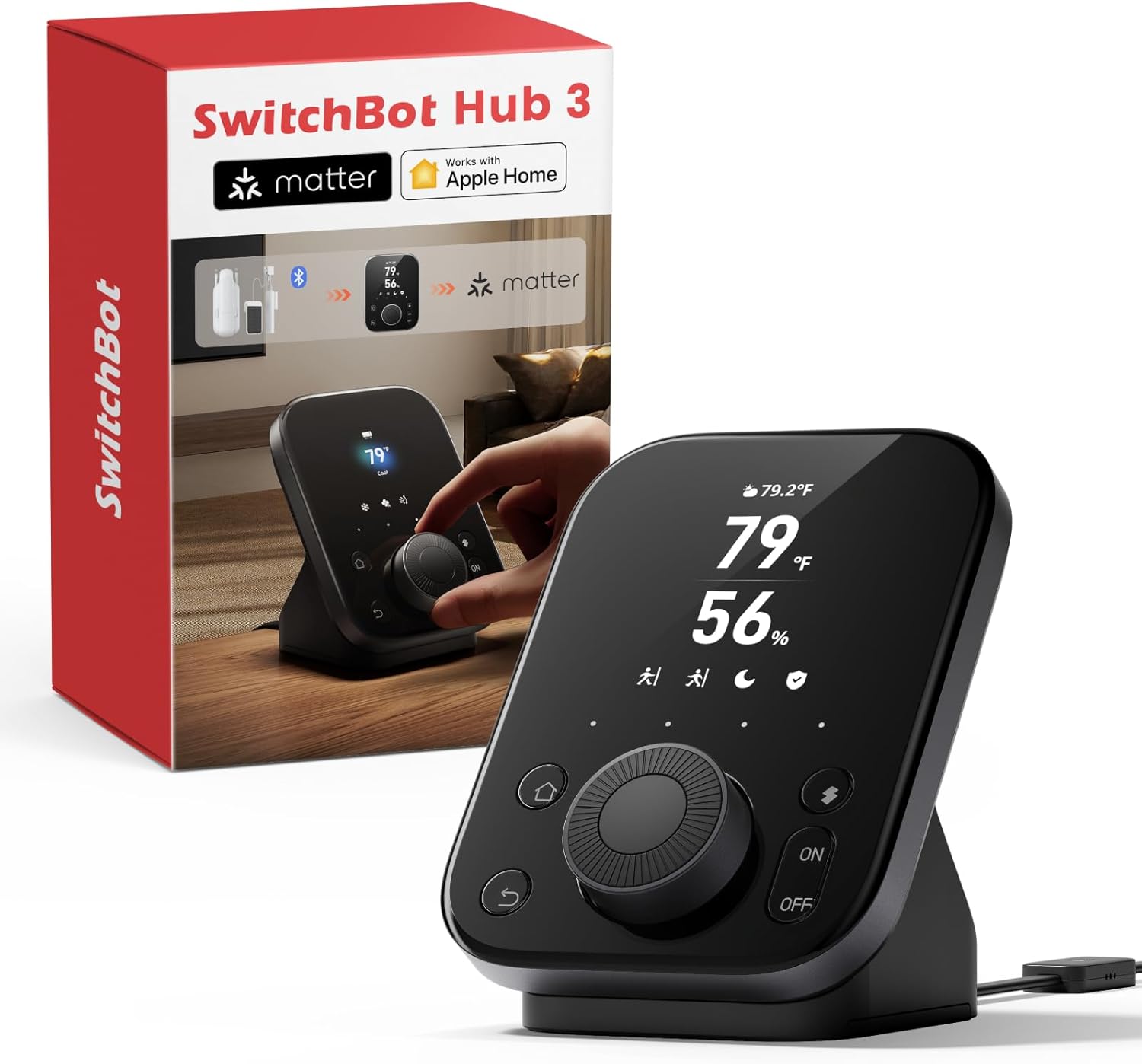
The SwitchBot Hub 3 centralizes control for infrared appliances and SwitchBot devices while adding a small touchscreen and a tactile dial for quick adjustments. You can pair TVs, air conditioners, and other IR gear plus SwitchBot accessories, then control them from the 2.4" IPS display, the app, voice assistants, or the rotary knob and scene buttons. Built-in temperature and humidity sensing (±0.2°C) and weather/CO2 status on the screen let the hub act as a local status panel and trigger automations like starting the AC when a set temperature is reached. It also functions as a Matter bridge so you can expose supported SwitchBot devices to Apple Home and control up to 30 Matter devices via the ecosystem. Expect straightforward setup on a 2.4 GHz network and strong convenience for households that want physical controls for common scenes. Limitations include IR-only control (no RF support) and the need to ensure your Wi-Fi and Home hubs are on the same 2.4 GHz network for Matter pairing.
Best for: Buyers who want a practical, screen-equipped hub that doubles as a local control panel and automation trigger for IR appliances and SwitchBot gear, prioritizing easy daily use and physical controls.
Less Ideal for: Users who need native RF device support or who want a hub that operates independently of a 2.4 GHz Wi-Fi network for pairing and Matter setup.
- Built-in 2.4" IPS screen provides at-a-glance home status and manual control.
- Physical rotary knob and four customizable scene buttons for quick tactile control.
- Integrated temperature and humidity sensor with high precision for automated triggers.
- Matter bridge support to expose devices to Apple Home, Alexa, and Google ecosystems.
- Broad IR learning/control for TVs, ACs, and other infrared appliances.
- Only supports infrared for appliances so RF devices like garage openers and some fans are not compatible.
- Requires a 2.4 GHz Wi-Fi connection which may complicate pairing on dual-band routers.
Verdict: If you want a practical smart hub with a screen and physical dial for everyday control of IR appliances and Matter-compatible SwitchBot devices, the Hub 3 is a convenient, hands-on choice.
Herncptar 10.1" Digital Calendar

| Format | Desk Calendar |
|---|---|
| Calendar Type | Yearly |
| Paper Size | 10.1inch |
| Cover Material | Plastic |
This 10.1-inch Herncptar digital calendar is a touchscreen smart hub aimed at keeping families organized while doubling as a photo frame. It connects to Apple and Google calendars, color-codes family schedules, and lets you assign chores, maintain meal plans, and share lists through the companion app. Setup is straightforward and the adjustable desk stand and auto sleep/photo slideshow mode make it usable on a kitchen counter or home office desk. Practical benefits include remote sharing and a built-in task manager so households can move away from paper planners, and the photo-frame mode provides a low-friction decorative use when idle. Expect basic smart-hub features rather than an advanced tablet experience: the device is centered on calendar and family-organization tools and may rely on the vendor app for cloud syncing and paid upgrades for advanced functions. If you want a simple, screen-based hub focused on schedules and chores rather than a full smart-display assistant, this unit delivers solid value.
Best for: Buyers wanting an inexpensive, screen-based family organizer that prioritizes shared calendars, chores and meal planning over full smart-display features.
Less Ideal for: Users seeking a full smart assistant with broad third-party app support, voice assistant integration, or high-end multimedia features should consider a different smart display.
- 10.1-inch responsive touchscreen with adjustable stand for desk or countertop placement
- Syncs with Apple and Google calendars and color-codes family schedules
- Built-in chore chart, task manager, meal planner, grocery and to-do lists
- Auto sleep mode that converts the display into a photo slideshow when idle
- Core functionality depends on the companion app and some advanced tools require paid upgrades
- Not a full-feature smart display so it may lack broader smart assistant integrations and advanced apps
Verdict: A budget-friendly touchscreen hub that simplifies family scheduling and chores while doubling as a digital photo frame.
Cotoala 15.6" Digital Calendar

| Screen size | 15.6" |
|---|---|
| Resolution | 1080P Full HD |
| Storage | 32GB built-in |
| Sync | Google, iCloud, Outlook, Cozi, Yahoo, TeamSnap |
The Cotoala 15.6" Digital Calendar is a dedicated family hub that combines a full HD touch calendar, photo frame, and art display in one compact unit. It syncs Google, iCloud, Outlook, Cozi, Yahoo and TeamSnap in real time and supports up to 20 family members with color-coded tasks, chore tracking, meal plans, reminders and simple tap-to-create event entry. Setup is straightforward with a tool-free thumb nut mount and auto-rotate display for wall or desk placement, and offline options let you add photos via USB or SD card to the 32GB built-in storage. Practical extras include voice event creation, templates for common routines, and a companion app for remote updates. The device emphasizes simplicity and no recurring fees, but it is a single-purpose appliance so it lacks broader smart-home integrations and advanced voice assistant features found in multi-function smart displays. For those who want a reliable, always-visible family organizer and photo display without subscription locks, this is a strong, easy-to-use choice.
Best for: Buyers who prioritize a dependable, always-on family organizer that syncs calendars and displays photos without recurring fees and with minimal setup.
Less Ideal for: People wanting a full smart-display hub with deep voice assistant features, third-party apps, or broad smart-home control should consider a general-purpose smart display instead.
- Syncs multiple calendar services in real time for shared family scheduling
- Tool-free mount and auto-rotate display make wall or desk placement quick
- Built-in 32GB storage plus USB/SD support for local photo and video display
- No subscription required and companion app lets you update remotely
- Limited smart-home integration compared with full-featured smart displays
- Focus on calendar and media means fewer third-party apps and assistant features
Verdict: A simple, reliable family hub that keeps shared calendars and photos in one always-visible, subscription-free display.
Amazon Echo Show 8 (newest model)

| Display | 8.7-inch HD touchscreen |
|---|---|
| Audio | Spatial audio with enhanced bass |
| Chip | AZ3 Pro |
| Camera | Auto-framing camera with 3.3x zoom |
The Echo Show 8 (newest model) is a mid-size smart display built around an 8.7-inch HD touchscreen and upgraded audio for everyday smart-home and media use. It acts as a hub for voice and touch control of compatible lights, cameras, and thermostats while also streaming music and video from common services; the AZ3 Pro chip and Omnisense tech power faster responses and more personalized routines. The camera offers auto-framing and 3.3x zoom for clearer video calls and live view monitoring, and the device can display photo slideshows when idle. Privacy is addressed with dedicated mic and camera disable controls and in-app camera settings. Practical benefits include stronger bass and wider sound stage than prior Echo Show 8 models, simplified smart-home setup without a separate hub, and hands-free Alexa+ features like recipe search and shopping. Limitations to consider are that advanced Alexa+ features require enrollment in Amazon services and that some streaming app availability can vary by region or account.
Best for: Buyers who want a reliable, mid-size smart display that functions as a central smart-home controller and makes video calls and media playback simple, while valuing clearer audio and privacy controls.
Less Ideal for: Users who need an always-free set of advanced voice assistant features without any service enrollments or those wanting the largest possible screen for shared living-room viewing.
- 8.7-inch HD touchscreen with 15% more viewing area than previous Echo Show 8
- Improved spatial audio and up to twice the bass of the prior Echo Show 8 model
- Built-in smart home hub for direct pairing and control of many devices
- Auto-framing camera with 3.3x zoom for clearer video calls and live view
- Multiple privacy controls including physical mic and camera disable buttons
- Some Alexa+ features and premium services require separate enrollment or subscriptions
- Certain streaming apps and features may vary by region or account
Verdict: A balanced smart display that doubles as a capable smart-home hub with improved sound, camera framing, and privacy controls for everyday use.
Amazon Echo Show 15
| Display | 15.6" Full HD (1080p) |
|---|---|
| Built-in | Fire TV |
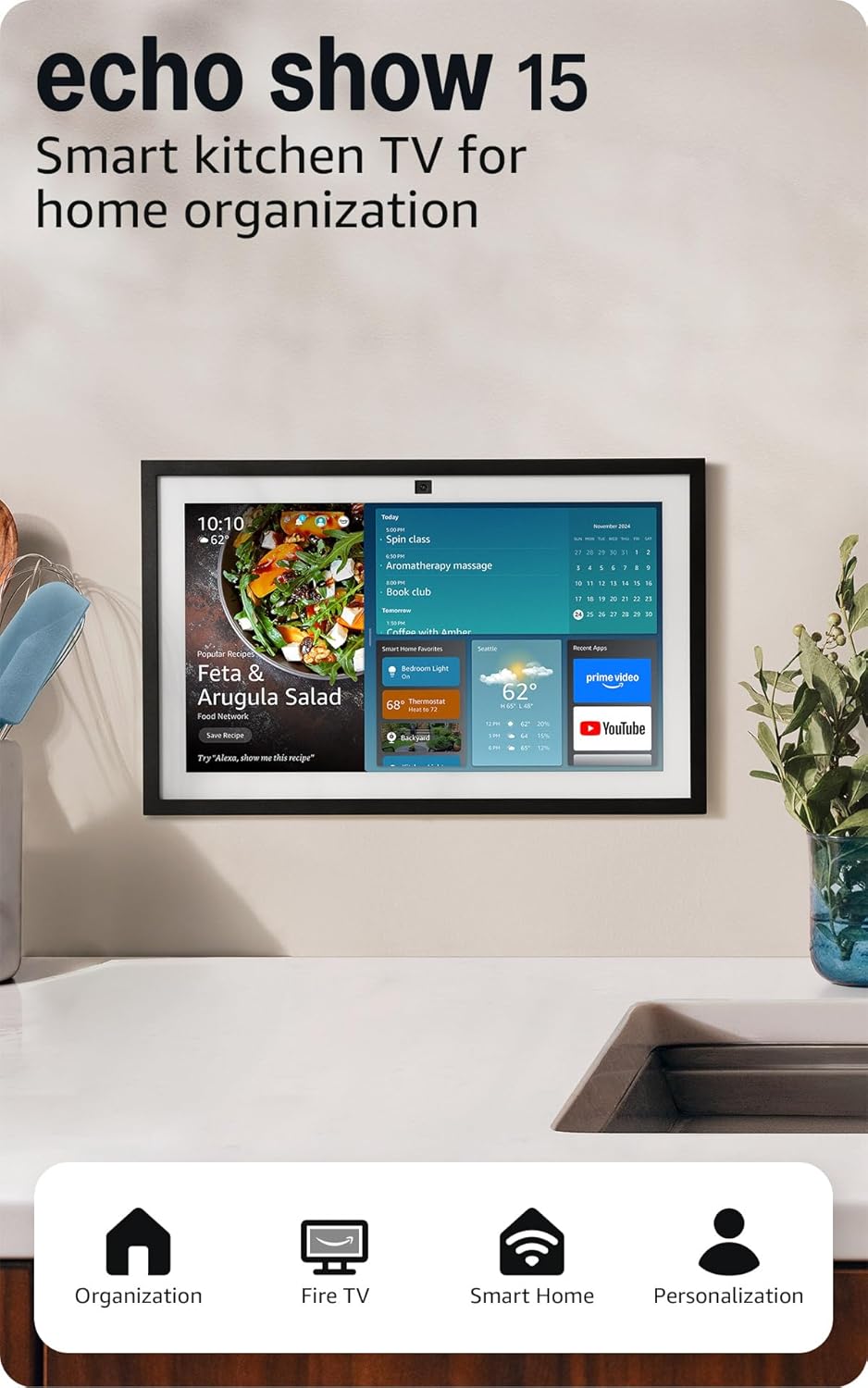
The Echo Show 15 is a large 15.6" Full HD smart display intended as a kitchen or family wall hub that combines widgets for calendars, to-do lists, and smart‑home controls with entertainment via built-in Fire TV. You can pin and customize widgets on the home screen to keep family schedules, shopping lists, and camera feeds visible at a glance, and the display doubles as a photo slideshow for shared images. Video calling benefits from an auto-framing camera with wide field of view, zoom and noise reduction, while the speaker delivers fuller sound than smaller Echo Show models. Privacy features include a physical camera shutter and a mic/camera-off button. Expect easy Alexa voice control of lights and routines plus the convenience of the Fire TV remote for streaming, but note the product is sized for tabletop or wall placement and is aimed at households that want a central visible hub rather than a compact bedside display.
Best for: Buyers who want a visible household command center to keep schedules, lists, and smart‑home controls in one place and prefer a reliable, familiar ecosystem for streaming and voice control.
Less Ideal for: Those seeking a compact bedside or highly portable smart display or users who need a minimal, single-purpose device rather than a family hub should look elsewhere.
- Large 15.6" Full HD screen ideal for shared family info and photo slideshows
- Built-in Fire TV provides access to streaming apps with included remote
- Smart home dashboard and Alexa voice control centralize device management
- Auto-framing camera and noise reduction improve video call quality
- Physical camera shutter and mic/camera-off button for privacy control
- Large footprint makes it less suitable for small countertops or bedrooms
- Focused on visible family hub features rather than portability
Verdict: Choose the Echo Show 15 when you want a large, reliable family hub that puts calendars, camera feeds, streaming, and smart‑home control on one prominent screen.
Choosing the Right Smart Hub with a Screen: Key Factors to Consider
Display Readability and Size
A hub's screen should be large enough to show controls, notifications, and video feeds clearly from typical viewing distances. Higher resolution and good contrast make text and video easier to parse, while automatic brightness or a robust night mode prevents the display from being too bright in low light.
Screen size also affects placement options. A compact display is convenient on a nightstand or kitchen counter but may be harder to use for group video calls or shared control at a common hub location.
Voice Control Accuracy
Microphone quality and wake-word recognition determine how reliably the hub responds when you call for it. Clear voice pickup from across a room and the ability to filter ambient noise reduce frustration during hands-free use. Latency between voice command and action also matters, since slower responses feel less seamless.
If you rely on voice for routine tasks like setting timers, changing music, or controlling lights, choose a hub with proven voice accuracy and consistent response times.
Smart-Home Compatibility
A screen-equipped hub is only useful if it works with the smart devices you already own. Broad compatibility with common standards and popular device types—such as lighting, thermostats, locks, and switches—means fewer integration headaches. Support for scenes and grouped commands simplifies daily routines.
Also consider whether the hub supports local control or requires cloud connectivity for every command. Local control improves reliability during internet outages, while cloud-only systems can introduce delays or dependency on external services.
Video Calling and Camera Features
Many screen-equipped hubs double as video-call devices or home monitoring stations. Camera resolution, field of view, and privacy features like physical covers or mute switches affect how comfortable you will be using the hub for calls and monitoring. Software features such as automatic framing and adjustable exposure improve video quality in varied lighting.
Think about who will use the hub for calls and whether you need tilt or pan capabilities. For privacy-conscious households, look for clear camera disable options and strong local privacy controls.
Mounting, Placement, and Design
How and where you place a hub changes its usefulness. A hub with a flexible stand, wall-mounting options, or a small footprint adapts better to kitchens, bedrooms, and living rooms. Design choices such as tilt angle and base stability affect glanceability when placed on counters or desks.
Power requirements and cord management matter too. If the hub must sit near an outlet, plan for cable routing so the screen remains at a comfortable viewing height and angle.
Privacy and Security Controls
Screened hubs often include cameras, microphones, and cloud services, so privacy settings and security practices are important. Look for easy ways to disable microphones and cameras, simple audit logs or activity history, and clear settings for data retention. Strong passcode or voice-match options can prevent unauthorized access to sensitive features like video feeds or personal calendars.
Regular firmware updates and transparent privacy policies further protect your home network and the personal content displayed on the hub.
How a Screen Changes Everyday Use
A visual interface shifts many voice-only interactions into faster glanceable tasks. Instead of asking for status confirmations, you can read the current thermostat temperature or see a live camera feed. This reduces back-and-forth and makes short tasks like checking timers or viewing incoming visitor snapshots quicker.
Screens also enable richer media controls, album art display, video snippets, and visual routines that combine voice commands with on-screen prompts. For households that use video calling, a central display simplifies family check-ins without relying on a laptop or phone.
- Faster status checks via on-screen information
- Visual prompts for multi-step routines
- Integrated video calling and media playback controls
Placement Tips by Room
Place a kitchen hub where the screen is visible from the main prep areas but away from splashes and heat. A slightly elevated position reduces glare from countertops and allows easier interaction while cooking.
In living rooms, choose a hub location that serves multiple seating areas. You want the display to be readable from sofas and chairs for shared controls and group video calls. On nightstands, favor a smaller screen with low-brightness night modes and do-not-disturb scheduling to avoid sleep disruption.
- Kitchen: elevated, splash-resistant area
- Living room: central, viewable from seating
- Bedroom: small footprint, night mode enabled
Security and Privacy Best Practices
Treat the hub like any other connected camera or microphone. Use built-in privacy switches where available and set strong account passwords. Disable features you do not use, such as automatic video recording or continuous voice history.
Place hubs away from areas where sensitive information is displayed or discussed. Regularly review privacy settings and update firmware to ensure security patches are applied. If multiple household members use the device, configure separate voice profiles or user accounts when supported.
- Enable hardware camera covers or mute switches
- Use unique passwords and enable two-factor authentication if available
- Limit data retention and clear voice or video history periodically
Network and Bandwidth Considerations
Screen-based features such as video calls and live camera feeds consume more bandwidth than voice-only hubs. Ensure your home network has sufficient upload speed for the number of simultaneous video streams you expect. A dedicated Wi-Fi band or mesh nodes in areas where you keep hubs can improve stability.
If your internet connection is unreliable, prefer hubs that offer local control for basic commands. Local processing reduces latency and ensures lights and switches remain controllable during brief outages.
- Check upload speeds for group video calling
- Use dual-band Wi-Fi or wired backhaul where possible
- Favor local control for mission-critical automations
Integrating Hubs with Routines and Scenes
Use the hub's screen to create and trigger routines that include visual cues. For example, a morning routine can display the weather, show calendar events, and turn on lights with a single tap. Visual confirmations reduce accidental trigger failures and speed up complex sequences.
Consider the user interface for routine editing. Simpler drag-and-drop or template-based routines are easier for family members to use and edit without needing a separate phone app.
- Display-driven routines provide visual confirmations
- In-hub routine editing makes quick adjustments easier
- Templates and presets lower the learning curve for guests
How We Chose the Best Smart Hub with a Screen
We focused on real-world usability and integration when selecting smart hubs with screens. Our first filter was display usability: we prioritized devices with readable screens, sensible brightness controls, and interfaces designed for quick glanceability. Voice responsiveness and microphone quality were next, since uninterrupted voice control is central to the hub experience. We also evaluated ecosystem compatibility, looking for broad support for common smart lights, thermostats, and locks as well as standard casting and video call protocols. Camera and video features were weighed for owners who plan to use the hub for calls or home monitoring. Finally, we considered daily convenience features such as mounting and placement flexibility, night modes, and local control options. We excluded hubs that lacked a visual interface or had screens too small for practical use. We also removed devices with severely limited ecosystem support or those that required proprietary hardware for basic functions. The resulting shortlist balances display quality, voice and video performance, integration breadth, and real-world convenience.
Our full evaluation process is outlined in our review methodology.
FAQ
Do smart hubs with screens need constant internet?
They often rely on internet connectivity for cloud-based voice processing, video calls, and some integrations. However, many hubs support basic local control for lights and switches so core functions can work during short outages.
Can I use a hub screen for video calls?
Yes, most screened hubs support video calling, though call quality depends on the hub camera and your network upload speed. Consider privacy features and whether the hub provides a physical camera cover if you plan frequent calls.
How do I protect privacy on a screen-equipped hub?
Use hardware camera covers or mute buttons when available, enable account security features like strong passwords and two-factor authentication, and regularly review and clear stored voice or video history.
Will a hub with a screen work with my existing smart devices?
Compatibility varies by ecosystem, but screened hubs typically support common device types such as smart lights, thermostats, and locks. Verify support for your device categories and whether local control is available if network independence is important.
Where is the best place to put a smart hub with a screen?
Choose a location where the display is readable from the primary use area, such as a kitchen counter for recipe and timer use or a living-room shelf for shared control. Avoid spots with direct glare or high humidity.
Final Verdict
A smart hub with a screen can simplify daily routines by combining voice control with glanceable visuals, video calling, and on-screen automation controls. Prioritize display readability, voice accuracy, and compatibility with your existing devices, and weigh privacy and mounting needs based on where you will use the hub. Balance the tradeoffs between screen size and placement flexibility to choose a hub that fits both your household layout and interaction style. With those priorities in mind, you can confidently pick a hub that makes home control faster and more intuitive.