
Note: This article contains affiliate links. If you click on these links and make a purchase, we may earn a small commission at no extra cost to you. This helps support our research and content. Read our full affiliate disclosure here.
Picking the right thermal printer makes a big difference for labeling, receipts, and small-format printing tasks. You want dependable output, minimal downtime, and a straightforward setup so printing fits smoothly into point-of-sale, shipping, or office workflows. This guide shortlists the top thermal printers across common use cases and evaluates them on factors that matter to real users: print speed, media handling, connectivity, and ease of maintenance. Below you will find our top selections and the criteria we used to evaluate them, so you can match a printer to the demands of your workflow.
Top Picks at a Glance
| Best Overall The best all-around choice for most situations | MUNBYN RealWriter 941 |  |
| Best Quality Built to a higher standard if you want something more solid | Brother QL-800 Label Printer |  |
| Best Value The sweet spot between price and what you get | Nelko PL70E Bluetooth Label Printer | 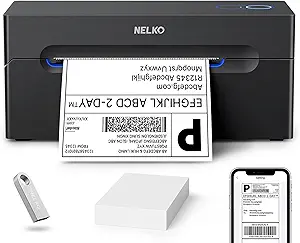 |
| Best Budget The cheapest option that still gets the job done reliably | Labeer Y43BT Thermal Label Printer |  |
| Top Rated A top-rated pick with lots of positive feedback | Rollo USB Shipping Label Printer X1038 |  |
| Most Popular A crowd favorite that many people choose with confidence | JADENS Thermal Label Printer JD268BT |  |
| Best Seller A high-volume bestseller chosen again and again | KNAON Y813BT Thermal Label Printer |  |
MUNBYN RealWriter 941

| Printer Type | Thermal |
|---|---|
| Print Resolution | 203 x 203 DPI |
| Maximum Media Size | 4 x 6 inch |
| Printer Connectivity Type | USB |
| Power Consumption | 60 watts |
The MUNBYN RealWriter 941 is a compact direct-thermal 4×6 label printer built for routine shipping and inventory tasks. It connects over USB to Windows and macOS systems and uses a 203 dpi thermal print head to produce barcodes, addresses, and simple graphics without ink or toner. Setup is straightforward with a Chrome-friendly editor and automatic label detection that feeds and sizes labels from 1.57" to 4.3" wide, which makes batch printing 4×6 shipping labels quick. The unit claims fast throughput driven by a Japanese ROHM print head and includes basic controls like a feed button and app-based control; it also ships with necessary cables and starter labels. Trade-offs are its USB-only connectivity for this variant, so no built-in Wi-Fi or Bluetooth, and its 203 dpi resolution is adequate for shipping but not for fine graphic labels. For sellers who need a compact, low-maintenance printer for frequent shipping labels, the 941 delivers reliable, ink-free output; buyers needing wireless convenience or higher-resolution label printing should look elsewhere.
Best for: Small business sellers and home shippers who want a reliable, low-maintenance desktop printer for high-volume 4×6 shipping labels and straightforward batch printing workflows.
Less Ideal for: Design-heavy label users who need higher print resolution or teams that require wireless printing and mobile device printing options.
- Inkless thermal printing eliminates ink and toner costs and maintenance
- Automatic label detection and simple feed/button calibration speeds setup and reduces waste
- Compatible with major shipping platforms and supports common label sizes including 4×6
- Compact desktop footprint with included cables and starter labels makes it easy to deploy
- This USB-only version lacks built-in Wi-Fi or Bluetooth for wireless printing
- 203 dpi resolution is fine for shipping labels but not ideal for detailed graphics or small-font receipts
Verdict: Choose the MUNBYN RealWriter 941 if you need a compact, ink-free USB label printer that reliably churns out 4×6 shipping labels for a busy small business.
Brother QL-800 Label Printer

| Printer Type | Thermal |
|---|---|
| Resolution | 300 dpi |
| Print Speed | Up to 93 labels per minute |
| Printer Connectivity Type | USB |
The Brother QL-800 is a performance-focused desktop thermal label printer designed for high-volume business use. It prints up to 93 labels per minute at 300 dpi, supports both monochrome and black/red output using Brother DK rolls, and includes an automatic cutter for clean, ready-to-apply labels. Setup is straightforward with the included USB cable and Brother P-touch editor or direct Plug & Label integration with common Windows and Mac applications, letting you print from Word, Excel, or Outlook. The printer handles continuous rolls and pre-sized labels, making it useful for shipping labels, file folders, name badges, and signage; dual-color printing adds emphasis for alerts or branding. Because it uses direct thermal technology there is no ink or toner to replace, but it does require Brother genuine DK media for best results and warranty compliance. The unit is compact and fast, but connectivity is limited to USB and it is optimized for desktop business workflows rather than mobile or networked environments.
Best for: Small business or office users who need a fast, reliable desktop label printer for bulk shipping labels, file organization, badges, and other routine labeling tasks and who prioritize print speed and quality.
Less Ideal for: Users who need wireless or networked printing, mobile label printing in the field, or who want to use third-party thermal media without potential compatibility concerns.
- Very fast label output up to 93 labels per minute for high-volume tasks
- Sharp 300 dpi resolution suitable for barcodes, address labels, and name badges
- Dual-color black and red printing for emphasis and branding
- Built-in automatic cutter and support for continuous and pre-sized DK rolls
- Direct thermal design eliminates need for ink or toner
- Connectivity limited to USB with no built-in Wi-Fi or Ethernet
- Optimal performance depends on using Brother genuine DK labels
Verdict: Choose the QL-800 when you need a fast, high-resolution desktop label printer that delivers heavy-duty throughput and clear dual-color labels for business labeling tasks.
Nelko PL70E Bluetooth Label Printer

| Printer Type | Thermal |
|---|---|
| Resolution | 203 x 203 DPI |
| Maximum Media Size | 4 x 6 inch |
| Printer Connectivity Type | Bluetooth, USB |
| Maximum Copies Per Run | 500 |
The Nelko PL70E is a small desktop thermal label printer designed for fast, no-ink printing of shipping and barcode labels. It accepts 4×6 and several other common label widths and uses direct thermal technology so you only need adhesive thermal labels rather than ink or toner. Setup supports Bluetooth printing from the Nelko mobile app for iOS and Android as well as USB for Windows, macOS and Chrome OS, and the included bundle has cables and 50 4×6 labels to get started. In real use the printer delivers crisp 203 x 203 dpi output and high throughput — Nelko claims up to 72 4×6 labels per minute — which makes batch shipping runs and inventory labeling quick. The unit is compact and app-driven, which simplifies mobile printing but means some workflows require saving labels to PDF and importing them into the app first. Heat-based printing also limits longevity of printed labels compared with thermal-transfer options, and advanced users may find macOS Bluetooth support limited. For sellers or small operations wanting an affordable, speedy thermal printer for routine shipping and barcode tasks, this covers the essentials well.
Best for: Buyers who want an affordable, space-saving thermal printer to speed up shipping and inventory labeling with minimal ongoing supplies and straightforward mobile or PC setup.
Less Ideal for: Users who need archival-quality labels, very high-resolution graphics, or a fully native macOS Bluetooth workflow should consider other printer technologies or models.
- Direct thermal printing eliminates ink and toner for lower running cost
- Bluetooth and USB connectivity for mobile and desktop printing
- Supports standard 4×6 shipping labels plus multiple smaller sizes
- Compact desktop footprint with included cables and starter labels
- Relatively fast output for batch label printing (high ppm)
- 203 x 203 dpi resolution is adequate but not as sharp as higher-resolution thermal-transfer printers
- Direct thermal prints can fade over time or with heat exposure
- Some macOS Bluetooth printing requires using USB or the Nelko app workflow
Verdict: A compact, cost-efficient thermal printer that speeds up shipping and barcode labeling with simple Bluetooth and USB printing.
Labeer Y43BT Thermal Label Printer

| Printer Type | Thermal |
|---|---|
| Maximum Media Size | 4×6 inches |
| Resolution | 203 x 203 dpi |
| Printer Connectivity Type | Bluetooth |
| Maximum Sheet Capacity | 50 |
The Labeer Y43BT is a small direct-thermal label printer aimed at basic shipping, inventory, and organization tasks. It connects via Bluetooth (with a USB interface option) and prints common label sizes including standard 4×6 shipping labels using 203 dpi thermal technology, so you do not need ink, toner, or ribbons. Setup includes driver files on a included USB and the unit supports Windows, macOS, ChromeOS, iOS and Android, which makes it handy for a laptop or phone-driven workflow. The printer handles automatic duplexing and accepts a variety of label widths from about 1.57 to 4.41 inches, and it can hold up to 50 sheets of media. Practical strengths are low operating cost, simple mobile printing, and a compact footprint that fits a small business or home office. Limitations are modest print resolution and consumer-grade speed compared with higher-end desktop thermal units, and the bundled media is small so you will want to buy larger label rolls for regular use.
Best for: Buyers looking for an affordable, no-frills label printer to handle shipping labels and basic barcode or inventory tags from phones or laptops.
Less Ideal for: Those who need industrial speeds, higher-than-203 dpi print quality, or heavy continuous-duty printing should consider more robust commercial models.
- Direct thermal printing requires no ink or toner, lowering ongoing costs.
- Bluetooth and USB connectivity for printing from phones, tablets, and computers.
- Supports standard 4×6 and multiple other label sizes useful for shipping and barcodes.
- Compact, lightweight design fits tight workspaces and home offices.
- Includes driver and sample labels to get started quickly.
- 203 dpi resolution is basic and may not suit very small barcode or high-detail label needs.
- Bundled label quantity is small so additional rolls are needed for frequent printing.
Verdict: A budget-friendly, compact thermal printer that reliably produces standard 4×6 shipping and barcode labels from mobile devices without ink or toner.
Rollo USB Shipping Label Printer X1038

| Printer Type | Thermal |
|---|---|
| Print Resolution | 203 x 203 DPI |
| Maximum Media Size | 4.1 Inch Width |
| Printer Connectivity Type | wired |
| Hardware Interface | USB |
The Rollo USB Shipping Label Printer is a commercial-grade direct thermal printer built to churn out 4×6 shipping and barcode labels quickly without ink or toner. It connects over USB to Windows and Mac machines and is commonly used at home offices and small warehouses to print courier-compatible shipping labels, product barcodes, and custom stickers. Notable features include automatic label detection, a 203 dpi print head for clear scannable output, and support for label widths from about 1.57 to 4.1 inches. In practice it feeds fan-fold or roll media reliably and can sustain continuous runs for high-volume days since it relies on thermal printheads rather than cartridges. The trade-offs are its wired-only USB connectivity on this model and the simplex output, so you cannot print two-sided or use wireless printing without upgrading to another model, and print quality is limited to monochrome thermal resolution. For users who prioritize steady, maintenance-light label printing, the Rollo delivers a robust, fast solution that minimizes consumable costs and setup friction.
Best for: Buyers who need a dependable, low-maintenance label printer for frequent shipping and inventory tasks and who prioritize uptime and low consumable overhead.
Less Ideal for: People who require wireless or mobile printing from phones without a networked print server or who need color printing for branding and promotional labels.
- Direct thermal inkless printing eliminates cartridges and reduces running costs
- Automatic label detection simplifies loading different label formats
- High print speed suitable for moderate to high daily label volumes
- 203 dpi resolution produces clear, scannable barcodes and address labels
- USB-only wired connection on this model prevents direct wireless printing
- Prints in monochrome only, not suitable for color labels
Verdict: Choose the Rollo USB when you want a fast, reliable inkless 4×6 label printer that keeps consumable costs and maintenance minimal.
JADENS Thermal Label Printer JD268BT

| Printer Type | Thermal |
|---|---|
| Resolution | 203 x 203 DPI |
| Maximum Media Size | 4 x 6 inches |
| Connectivity | Bluetooth, USB |
| Print media | Labels |
The JADENS JD268BT is a compact thermal label printer built for small shipping workflows and light office use. It prints 4×6 and other common label sizes without ink or toner using a 203 x 203 DPI thermal print head, and supports both roll and fanfold media. You can connect wirelessly via Bluetooth or by USB to Windows and Mac machines, and mobile printing is supported through the vendor app on Android and iOS. Practical benefits include fast monochrome output, a small footprint that fits on a desk, and a starter pack of labels and cables in the box so you can print right away. Setup is straightforward with supplied drivers and calibration via the feed button when changing media. Limitations to expect are modest resolution compared with high-end label printers and Bluetooth mobile printing requires the specific app rather than native phone printing, which can add a step for some workflows. For sellers who need a simple, inkless 4×6 solution, this model covers the basics reliably.
Best for: Small online sellers and office users who want an affordable, compact 4×6 label printer that prints directly from desktop and mobile devices with minimal setup and no ink to buy.
Less Ideal for: High-volume shipping operations or users who need advanced label layout, higher resolution graphics, or native mobile printing without a vendor app should consider more feature-rich commercial models.
- Inkless thermal printing with 203 x 203 DPI for clean monochrome labels
- Supports common label sizes including 4×6, 3×3, 3×2, and 2×1 inches
- Bluetooth and USB connectivity for mobile and desktop use
- Includes starter accessories: power cord, USB cable and 50 test labels
- Mobile Bluetooth printing requires the JADENS app rather than native phone printing
- Print resolution and advanced features are limited compared with higher-end commercial label printers
Verdict: Choose this compact, inkless 4×6 thermal printer if you need a straightforward, desk-friendly label printer for small-batch shipping and office labeling.
KNAON Y813BT Thermal Label Printer
| Printer Type | Thermal |
|---|---|
| Maximum Media Size | 4.2 inches |
| Printer Connectivity Type | Bluetooth |
| Maximum Print Resolution Black and White | 203 dpi |
| B&W Pages per Minute | 60 pages_per_minute |
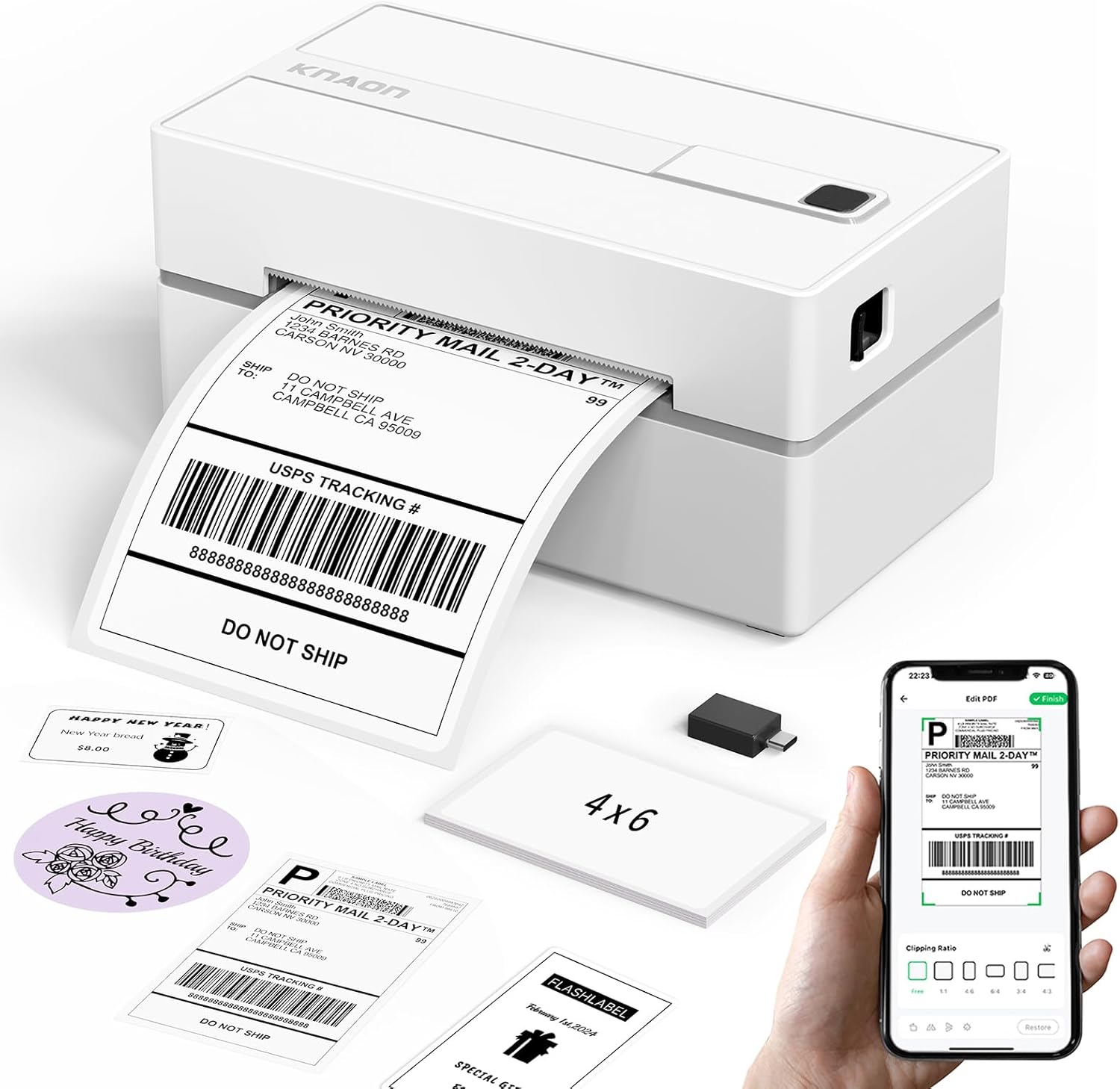
The KNAON Y813BT is a small, portable thermal label printer aimed at home offices and small businesses that need quick shipping and barcode labels. It connects over Bluetooth or USB and works with the vendor app (FlashLabel Pro) on iPhone, Android, Windows, macOS, ChromeOS, and Linux with supplied drivers and tutorials. The machine prints monochrome thermal labels up to roughly 4.2 inches wide at a reported speed around 60 ppm (or up to 180 mm/s per marketing) and uses thermal media so there is no ink to replace. The app offers many templates, icons, and fonts for DIY shipping, barcode, and price tags, and the unit ships with sample label rolls and cables to get started. Expect straightforward, portable printing with low ongoing cost because it is inkless, but note setup relies on the FlashLabel Pro workflow and some shipping platforms require exporting PDFs into the app rather than native one-step printing. Also the print resolution is modest at 203 dpi, so extremely fine graphics or very small text may not be as crisp as on higher-resolution units.
Best for: Buyers who want a simple, low-maintenance label printer for regular shipping, inventory, or small-business labeling and who prefer a device that is ready to use with supplied drivers and sample media.
Less Ideal for: Users who need high-resolution photo-quality labels, enterprise-scale printing workflows, or native one-step printing from every shipping platform without exporting files first should look elsewhere.
- Bluetooth and USB connectivity for mobile phones and computers
- Inkless thermal printing reduces consumable costs and maintenance
- Includes drivers, tutorial media, and sample label papers to simplify setup
- App provides thousands of templates, icons, and fonts for flexible label design
- Compact, portable footprint suitable for small workspaces and shipping stations
- Requires use of the FlashLabel Pro app for Bluetooth printing which adds a setup step
- 203 dpi resolution is adequate for text and barcodes but not for very fine graphics
Verdict: A compact, inkless label printer that makes reliable shipping and barcode labels fast and inexpensive for small businesses and home offices.
Choosing the Right Thermal Printer: Key Factors to Consider
Print Speed and Throughput
Print speed matters when you are producing large numbers of receipts or shipping labels. A faster printer reduces queue times at point-of-sale counters and packing stations, which improves operational efficiency and customer flow.
Consider both the rated maximum speed and real-world throughput under continuous jobs. Some printers hit top speeds in short bursts but throttle under heavy loads. If your workflow includes long, continuous print runs, prioritize sustained throughput and a higher duty cycle.
Media Compatibility and Roll Handling
Thermal printers support a range of media types and widths, including direct thermal receipts, adhesive labels, and tag stock. Ensuring the printer accepts the specific media widths and core sizes you use avoids wasted time and potentially costly adaptations.
Look at whether the printer supports common label widths out of the box and whether it can handle different roll diameters. Features like center-alignment guides, adjustable sensors, and gap or black-mark sensing improve reliability with mixed media types.
Connectivity and Driver Support
A printer that does not connect cleanly to your point-of-sale system or network creates friction. USB is common for single-station setups, while Ethernet and Wi-Fi are helpful for shared or mobile deployments. Some environments also need Bluetooth for tablets.
Confirm that the printer has drivers or protocols compatible with your software stack. Support for common printer command languages and straightforward network configuration can save setup time and reduce integration headaches.
Duty Cycle and Durability
Duty cycle indicates the monthly volume a printer is rated to handle and is a proxy for expected longevity in a given role. For retail and shipping stations that see heavy traffic, choose models with higher duty cycles and robust construction.
Durability also includes how well the device handles heat and dust, the quality of internal mechanics such as rollers and gears, and the availability of replaceable parts. A sturdier build reduces maintenance interruptions and extends usable life.
Ease of Maintenance and Consumables
Routine tasks like replacing label rolls, cleaning printheads, and swapping worn parts should be quick and intuitive. Printers with tool-free access panels and clearly marked consumable paths minimize downtime.
Also consider how easy it is to source compatible media and replacement components. Clear labeling for sensors and simple cleaning procedures help keep print quality consistent without specialized service.
Print Quality and Resolution
Print resolution affects barcode readability and the clarity of small text. For shipping labels and receipt printing, reliable barcode scanning is often more important than photographic detail, so choose a resolution that ensures barcode scanners consistently read codes.
Higher resolution units can produce crisper text and denser barcodes but may print more slowly. Balance the need for sharp output against speed and the types of barcodes or fonts you use.
Common Use Cases and Matching Printers to Tasks
Different workflows place different demands on thermal printers. For retail point-of-sale use, prioritizing fast receipt printing, simple roll changes, and compact footprint helps keep counters uncluttered and lines moving. Shipping and warehouse applications often require wider label support and higher duty cycles to handle long runs of packing labels.
Back-office inventory labeling and kiosk applications tend to value connectivity flexibility and quiet operation. When you map intended daily volume and label formats to a printer's specifications, you can avoid overspending on unnecessary features or ending up with a device that cannot meet peak demand.
- Retail receipts: compact printers with quick roll swaps and reliable barcode output
- Shipping labels: wider media support and higher duty cycle for long runs
- Inventory tags: flexible media sensing and moderate speed
- Kiosk/tablet integration: Bluetooth or wireless connectivity and slim footprint
Setting Up and Integrating a Thermal Printer
Preparation reduces setup time. Identify the interface you will use and confirm driver availability for your operating system or point-of-sale software. For networked deployments, reserve an IP address or configure DHCP with a predictable hostname to simplify device discovery.
Mounting and placement matter, especially where staff need quick access to labels. Ensure the printer has ventilation clearance and is positioned to avoid frequent dust exposure. Verify label orientation and test a few sample prints to check alignment and barcode readability before full deployment.
- Verify driver compatibility and firmware updates
- Test with the exact label stock you will use
- Assign static IPs for shared network printers where possible
Maintenance Tips to Extend Service Life
Regular cleaning and timely consumable replacement reduce print errors and extend the life of heat-sensitive printheads. Use manufacturer-recommended cleaning pens or isopropyl wipes for the printhead and remove adhesive buildup from rollers periodically.
Establish a maintenance schedule based on duty cycle and environment. In dusty or high-adhesive environments, clean more frequently. Keep a small cache of spare rollers and a replacement printhead if your workflow cannot tolerate extended downtime.
- Clean printheads every time you change a roll in high-use environments
- Store label rolls in a dry, temperature-stable area to prevent adhesive migration
- Document uptime and error frequency to spot emerging hardware issues
Troubleshooting Common Print Problems
If printouts are faint or uneven, check the printhead for residue and verify that you are using the correct type of thermal media. Incorrect media or dirty heads often cause streaks and poor barcode contrast.
Connectivity problems frequently stem from driver mismatches, incorrect port settings, or network issues. Confirm the correct interface, test with a direct USB connection for diagnostics, and update firmware when persistent communication problems occur.
- Faint prints: clean the printhead and confirm media compatibility
- Skewed printing: check roll alignment and sensor calibration
- Intermittent connection: test alternate cables and verify driver settings
Security and Network Considerations
Networked thermal printers can be entry points to a local network if left on default settings. Change default passwords, limit management interfaces to trusted subnets, and apply firmware updates that patch known vulnerabilities.
For sensitive operations, consider segmenting printers on a separate VLAN or using access control lists to minimize exposure. Secure printing protocols and monitor logs for unexpected reboots or configuration changes to detect tampering early.
- Change default administrative credentials on networked printers
- Apply firmware updates during maintenance windows
- Use network segmentation for high-security installations
How We Chose the Best Thermal Printer
We evaluated candidates against concrete, real-world needs for small-format thermal printing. Primary criteria included print speed and throughput, because high-volume environments require printers that keep up without frequent queuing. Media compatibility and roll handling were essential to ensure the printer accepts the widths and label types commonly used in retail, shipping, and inventory workflows. Connectivity and driver support were assessed to confirm reliable integration with common point-of-sale systems and network environments, including USB, Ethernet, and wireless options. Durability and duty cycle were examined to understand expected life under typical daily loads. Ease of maintenance and consumables replacement rounded out the criteria, since quick media changes and simple troubleshooting reduce downtime. We excluded devices intended primarily for photo-quality dye-sublimation or large-format thermal transfer systems outside small-label and receipt use. We also filtered out models that lack basic connectivity or have unusually restrictive media options. Our selection favors printers that balance speed, compatibility, and long-term reliability for mainstream commercial and office workflows.
Our full evaluation process is outlined in our review methodology.
FAQ
How long do thermal printheads typically last?
Printhead life varies by model and usage but often ranges from hundreds of kilometers of printed material to several years in moderate use. Regular cleaning and using recommended media extend lifespan, while abrasive or dirty labels accelerate wear.
Can a thermal printer handle different label widths?
Many thermal printers support multiple widths via adjustable guides and sensor configurations. Confirm the minimum and maximum media widths a printer accepts and whether it has configurable sensors for gap, notch, or black-mark detection.
Is direct thermal or thermal transfer better for durable labels?
Direct thermal is simpler and fine for short-term receipts and shipping labels but can fade with heat or sunlight. Thermal transfer uses a ribbon to produce more durable, long-lasting labels suitable for archival or outdoor use.
What connectivity should I prioritize for shared printers?
For shared environments, wired Ethernet provides consistent performance and easier centralized management. Wi-Fi is suitable for flexible placement, and Bluetooth works well for single-station mobile setups; choose based on your network reliability and security needs.
How can I ensure barcode readability from prints?
Use the correct resolution and print darkness settings for your barcode type and test with your scanners. Regularly clean the printhead and verify that media and print density produce adequate contrast for reliable scanning.
Final Verdict
Focus on the workloads and media types your operation requires when choosing a thermal printer. Prioritize print speed and duty cycle for high-volume tasks, media compatibility for label variety, and robust connectivity for smooth integration. Account for maintenance needs and available consumables to minimize downtime. With those tradeoffs in mind, select the model that best matches your daily volume and integration needs to achieve dependable, long-term performance.