
Note: This article contains affiliate links. If you click on these links and make a purchase, we may earn a small commission at no extra cost to you. This helps support our research and content. Read our full affiliate disclosure here.
Picking the right Wi-Fi all-in-one printer for home matters because your household printing needs can range from homework and bills to photo projects and occasional scanning. A dependable home printer saves time, reduces frustration with connectivity, and lets you complete tasks without juggling cables or devices. This guide shortlists the top Wi-Fi all-in-one printers for home use, focusing on models that deliver strong print quality, straightforward wireless setup, and sensible running costs. Below we summarize each pick and the evaluation criteria used so you can quickly find a home-friendly printer that fits your workflow and space. Scroll to the sections that matter most to your use case for practical buying guidance.
Top Picks at a Glance
| Best Overall The best all-around choice for most situations | Brother Work Smart 1360 |  |
| Best Quality Built to a higher standard if you want something more solid | Epson EcoTank ET-2800 |  |
| Best Value The sweet spot between price and what you get | Epson EcoTank ET-2400 |  |
| Best Budget The cheapest option that still gets the job done reliably | Canon PIXMA TS3720 | 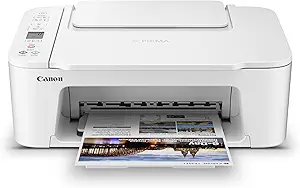 |
| Top Rated A top-rated pick with lots of positive feedback | HP LaserJet Pro MFP 3101sdw |  |
| Most Popular A crowd favorite that many people choose with confidence | Canon PIXMA TR4720 |  |
| Best Seller A high-volume bestseller chosen again and again | Brother DCP-L2640DW Laser Printer |  |
Brother Work Smart 1360

| Printer Type | Inkjet |
|---|---|
| Duplex | Automatic |
| Maximum Sheet Capacity | 150 |
| ADF Capacity | 20 sheets |
| Connectivity | USB, Wi-Fi |
The Brother Work Smart 1360 is a compact Wi-Fi all-in-one inkjet designed for home and small home-office use. It handles everyday tasks—printing documents, copying, and scanning—while saving space on a desk. Setup and phone-based printing are straightforward with Brother Mobile Connect and support for AirPrint and Mopria, and the 1.8" color display provides simple on-device controls. Productivity features include a 20-sheet single-sided automatic document feeder, a 150-sheet input tray, and automatic two-sided printing to reduce paper handling. Print speeds are competitive for the class at up to 16 ppm black and 9 ppm color, and resolution specs indicate capable color output for reports and basic graphics. Practical conveniences include Page Gauge ink monitoring and eligibility for Brother Refresh auto-reorder. Limitations to note are modest initial ink yields from starter cartridges and a smaller color display and ADF capacity than larger office models, so it is not aimed at heavy-volume users. For balanced home use the model covers core needs without taking much space.
Best for: Buyers who want a space-saving, feature-rich Wi-Fi all-in-one for everyday home and light home-office printing, scanning, and copying with easy mobile printing.
Less Ideal for: Users who need high-volume daily printing, large batch scanning, or advanced color photo output should consider larger office-oriented models.
- Wireless printing with AirPrint, Mopria, Wi-Fi Direct and Brother Mobile Connect app for easy mobile setup and printing
- Automatic duplex (two-sided) printing and a 20-sheet ADF for multi-page jobs
- 150-sheet input tray reduces how often you refill paper for typical home use
- Respectable print speeds up to 16 ppm black and 9 ppm color for fast home-office output
- Starter ink cartridges have limited yields compared with high-yield replacements
- Small 1.8" color display and modest ADF capacity limit on-device navigation and large batch scanning
Verdict: A compact, well-rounded Wi-Fi all-in-one that delivers fast everyday printing and mobile-friendly features for home and light home-office use.
Epson EcoTank ET-2800

| Printer Type | Inkjet |
|---|---|
| Printer Connectivity Type | USB, Wi‑Fi |
| Maximum print Resolution Color | 5760 x 1440 dpi |
| B&W Pages per Minute | 10 |
| Maximum Sheet Capacity | 100 |
The Epson EcoTank ET-2800 is a cartridge-free all-in-one aimed at everyday home use and light office tasks. It uses high-capacity refillable ink tanks and includes enough starter ink to cover many months of typical printing, which cuts the need for frequent cartridge swaps. Setup supports Wi-Fi and mobile printing plus voice-activated commands, and the machine offers a flatbed scanner and a simple color LCD for local control. Print quality is strong for text and decent for photos thanks to Epson's PrecisionCore Micro Piezo technology and high maximum resolution, while ISO print speed reaches about 10 ppm for black and 5 ppm for color. Practical benefits include low ongoing ink costs, reduced plastic waste, and a modest footprint that fits a home desk. Limitations are the lack of automatic duplexing and only one USB port, so users who need reliable two-sided printing or extensive wired connectivity may find it restrictive; photo enthusiasts might prefer a higher-end photo printer for gallery-quality prints. Overall the ET-2800 is a cost-efficient, straightforward Wi-Fi AIO for routine document and casual photo printing at home.
Best for: Buyers prioritizing low running costs and reliable everyday output who want a Wi-Fi all-in-one that minimizes ink maintenance and handles regular document and casual photo printing at home.
Less Ideal for: Users who require automatic two-sided printing, multiple wired ports, or professional-grade photo output should consider other models with duplexing and expanded connectivity.
- Cartridge-free EcoTank system with high-capacity refillable ink tanks reduces frequent replacements
- Wireless, mobile and voice-activated printing for convenient home use
- High maximum print resolution for sharp text and improved photo detail
- Flatbed scanner and copy functions add basic all-in-one versatility
- Starter ink set yields thousands of pages, lowering long-term ink cost
- No automatic duplex (two-sided) printing
- Only a single USB hardware interface for wired connections
Verdict: Choose the ET-2800 if you want a Wi‑Fi all-in-one that delivers low long-term ink costs and reliable everyday print quality for home use.
Epson EcoTank ET-2400

| Printer Type | Inkjet |
|---|---|
| Printer Connectivity Type | USB, Wi-Fi |
| Maximum Sheet Capacity | 100 |
| B&W Pages per Minute | 10 pages_per_minute |
| Color Pages per Minute | 5 pages_per_minute |
The Epson EcoTank ET-2400 replaces disposable cartridges with supersized, refillable ink tanks so you can print many pages before needing replacement ink, which is handy for steady home use. It connects via Wi-Fi or USB and supports app control and mobile printing, while the flatbed scanner and copy function handle everyday document and photo tasks. The rear tray holds up to 100 sheets and the printer delivers up to 10 ppm for black and 5 ppm for color, with a high maximum resolution for sharp text and photos. The included set of ink bottles is sized to last up to around two years of typical home printing, reducing interruptions and cartridge waste. Expect manual duplexing only and a modest output tray capacity, so it is not optimized for heavy duplex office workflows or high-volume departmental use. Setup and app control make routine printing straightforward, and genuine Epson ink and keyed bottles simplify refills and reduce spills.
Best for: Buyers who want a low-maintenance, cost-efficient home all-in-one that reduces cartridge waste and keeps frequent household printing running without constant ink changes.
Less Ideal for: Users who need fast duplexing, very high monthly volumes, or large shared office workflows should consider more fully featured office printers instead.
- Cartridge-free EcoTank system greatly reduces frequency of ink replacements
- Wireless and USB connectivity with app control for easy mobile printing
- High-resolution output suitable for sharp text and photo prints
- Large rear-feed input tray holds up to 100 sheets for longer unattended runs
- No automatic duplexing; manual two-sided printing only
- Limited output capacity and modest color print speed compared with faster office models
Verdict: Choose the ET-2400 if you prioritize cartridge-free printing and low ongoing ink cost for steady home use with reliable wireless convenience.
Canon PIXMA TS3720

| Printer Type | Inkjet |
|---|---|
| Connectivity | USB, Wi-Fi |
| Compatible Cartridge | Canon CL-276, Canon PG-275 |
| Maximum Media Size | 8.5 x 14 inch |
| Color Pages per Minute | 4 pages_per_minute |
The Canon PIXMA TS3720 is a small Wi‑Fi all‑in‑one inkjet built for straightforward home tasks like documents and photos. It uses a two‑cartridge hybrid ink system that pairs pigment black for sharp text with dye‑based color for better photos, and it supports borderless prints up to 5×7 and documents up to 8.5×14. Setup is simple and fast via the Canon PRINT app, AirPrint, or Mopria, and the rear tray holds up to 60 plain sheets. Print speeds are modest — about 7.7 ppm black and 4 ppm color — which is fine for occasional home use but not for heavy batching. The 1.5-inch LCD and app controls make basic copying and scanning easy, and the printer offers both USB and dual‑band Wi‑Fi connectivity. Expect decent photo quality for casual prints but higher running costs than larger models and no automatic duplexing since it prints single‑sided only. For a compact, affordable home Wi‑Fi AIO that handles occasional photos and schoolwork, the TS3720 covers the essentials reliably.
Best for: Buyers who need an inexpensive, easy‑to‑use Wi‑Fi all‑in‑one for occasional home documents, schoolwork, and casual photo prints and value simple setup over advanced features.
Less Ideal for: People who print large volumes, need fast color throughput, or require built‑in automatic duplexing for heavy double‑sided jobs.
- Compact footprint and easy setup via Canon PRINT app, AirPrint, and Mopria
- Hybrid two‑cartridge ink system for sharp black text and vivid color photos
- Dual‑band Wi‑Fi plus USB connectivity for reliable mobile and computer printing
- Supports borderless photo printing and a variety of media up to 8.5 x 14 inches
- Single‑sided printing only with no automatic duplexing
- Relatively slow color print speed compared with higher‑end home printers
Verdict: A budget-friendly, compact Wi‑Fi all‑in‑one that delivers easy setup and solid everyday print and photo quality for typical home use.
HP LaserJet Pro MFP 3101sdw

| Printer Type | Laser |
|---|---|
| Scanner Type | ADF, flatbed |
| Maximum Sheet Capacity | 250 |
| B&W Pages per Minute | 40 |
| Maximum Print Resolution Black and White | Up to 1200 x 1200 dpi |
The HP LaserJet Pro MFP 3101sdw is a compact monochrome all-in-one laser built for steady office-style workloads at home. It prints sharp black-and-white documents at up to 35–40 ppm and delivers first pages in seconds, while a 50-sheet automatic document feeder and flatbed scanner handle multipage scans and copies without constant babysitting. The 250-sheet input tray and automatic two-sided printing reduce paper trips, and connectivity covers Wi‑Fi, AirPrint, Ethernet and USB so you can print from laptops and phones or manage devices across locations via HP app. Its 1200 x 1200 dpi resolution produces crisp text and business-ready output, and HP includes an introductory toner cartridge to get started. Expect a proven, reliability-first experience, though it is monochrome only and uses HP-chipped cartridges that will reject non‑HP toner. The unit is best when you need steady, fast black-and-white printing with easy mobile and network setup rather than color or photo printing.
Best for: Home office users who prioritize dependable, high-volume black-and-white printing with reliable network and mobile connectivity and minimal upkeep.
Less Ideal for: Anyone who needs color printing, photo-quality output, or an inexpensive third-party toner workflow should look elsewhere.
- Fast monochrome print speeds up to 35–40 ppm for quick document throughput
- 50-sheet ADF plus flatbed scanner for unattended multipage scanning and copying
- 250-sheet input tray and automatic duplex cut down on refill and manual duplexing
- Multiple connectivity options including Wi‑Fi, AirPrint and Ethernet for flexible mobile and network printing
- 1200 x 1200 dpi resolution yields crisp, professional-looking text and line art
- Monochrome output only so no color or photo printing
- Requires HP-chipped toner cartridges which limits use of third-party consumables
Verdict: Buy this if you want a reliable, fast monochrome all‑in‑one with strong network and mobile printing for a busy home office.
Canon PIXMA TR4720

| Printer Type | Inkjet |
|---|---|
| Print Resolution | 4800 x 1200 |
| Print Speed B&W | 8.8 pages_per_minute |
| Print Speed Color | 4.4 pages_per_minute |
| Connectivity | USB, Wi-Fi |
The Canon PIXMA TR4720 is a small, Wi‑Fi–capable 4‑in‑1 inkjet aimed at home or small-office use. It handles everyday document printing, scanning, copying and faxing, and its front 100‑sheet tray plus automatic duplexing reduce trips to the paper drawer for typical letter-size tasks. The built‑in auto document feeder makes short multi‑page scans and copies straightforward, and Canon's Hybrid Ink system produces reasonably sharp black text and decent color photos up to 8.5 x 11 inches. Setup and mobile printing are handled through the Canon Print app, and USB is available when you want a direct connection. Expect modest speeds — about 8.8 ipm black and 4.4 ipm color — so this works best for intermittent home workloads rather than heavy daily volumes. Cartridge compatibility is with Canon CL‑276 and PG‑275 series, and power draw is low at 7 watts. If you need fast production, large paper capacity, or lower ongoing ink cost, there are better choices, but for a compact, feature‑complete home Wi‑Fi AIO the TR4720 covers the essentials neatly.
Best for: A buyer who wants a compact, easy‑to‑use home Wi‑Fi all‑in‑one for occasional to moderate document and photo tasks and who values simple setup and mobile printing.
Less Ideal for: Users who print large volumes, need fast office throughput, or want the lowest long‑term ink costs should consider higher‑capacity or dedicated laser models instead.
- Wireless printing and mobile app support for printing and scanning from phones and cloud services
- Auto duplex printing and 100‑sheet front tray reduce paper handling and save paper
- Automatic document feeder simplifies multi‑page scanning and copying
- Hybrid Ink system supports borderless photo printing up to 8.5 x 11 inches
- Relatively slow color print speed compared with faster home models
- Not designed for high monthly volumes so ink costs can add up with frequent use
Verdict: Choose the PIXMA TR4720 if you want a compact, Wi‑Fi all‑in‑one that handles home printing, scanning and faxing with easy mobile setup and duplexing.
Brother DCP-L2640DW Laser Printer

| Printer Type | Laser |
|---|---|
| Printer Output Type | Monochrome |
| B&W Pages per Minute | 36 pages_per_minute |
| Auto Document Feeder | 50 pages |
| Standard Tray Capacity | 250 |
The Brother DCP-L2640DW is a compact black-and-white laser multifunction designed for home and small office use. It prints up to 36 ppm and includes a 50-page auto document feeder and a 250-sheet tray to handle multi-page jobs with fewer interruptions, while automatic duplexing reduces paper use on two-sided documents. Connectivity covers dual-band Wi‑Fi, Ethernet, and USB so you can print from phones, tablets, laptops, or a wired network, and the Brother Mobile Connect app adds basic remote printing and scan management. Print quality is sharp for text thanks to 1200 x 1200 dpi maximum output, and a starter toner and drum are included for immediate setup. Expect straightforward daily operation and modest energy use thanks to Toner Save Mode and ENERGY STAR compliance, but remember it only prints in monochrome and color scanning speed is lower than its black-and-white scan rate. Toner replacement and drum maintenance are ongoing costs typical of laser MFPs. For buyers wanting reliable, fast monochrome prints and familiar connectivity in a small footprint, this covers the essentials well.
Best for: Buyers who prioritize reliable, fast black-and-white printing with straightforward wireless and app-based management for home or small office workflows.
Less Ideal for: Users who need color printing or photo-quality color output, or those who want the lowest possible cost per page without regular toner replacements.
- Fast monochrome printing up to 36 pages per minute.
- 50-page auto document feeder speeds multi-page scans and copies.
- Dual-band Wi‑Fi plus Ethernet and USB for flexible connectivity.
- Automatic duplexing and Toner Save Mode help reduce operating costs and paper waste.
- Prints only in black and white, no color printing capability.
- Running costs include periodic toner and drum replacements like other laser MFPs.
Verdict: A dependable, fast monochrome all-in-one that delivers solid home and small office Wi‑Fi printing with minimal fuss.
Choosing the Right Wi-Fi All-in-One Printer for Home: Key Factors to Consider
Print and Photo Quality
Print and photo quality determines whether a home printer is good enough for school projects, household documents, and occasional photo prints. Look at print resolution and color handling because sharper text and accurate colors improve legibility and the look of photos. For photos, color depth and halftone handling affect skin tones and gradients. If you plan to print labels, recipes, or craft projects, edge-to-edge and borderless options matter.
Quality also influences how often you will reprint or edit documents. Higher native resolution and better color management mean fewer wasted pages and less time spent troubleshooting output that looks faded or banded.
Wireless Setup and Network Stability
A home Wi-Fi all-in-one printer must connect reliably to your router and mobile devices without frequent drops. Consider printers with straightforward Wi-Fi setup methods, such as app-guided enrollment and support for modern network security standards. Dual-band Wi-Fi or support for both 2.4 GHz and 5 GHz can improve placement flexibility and minimize interference in busy households.
Network stability affects how often you can print from smartphones, tablets, or laptops without reconfiguring. Look for features like automatic reconnection after power cycles and WPS or Wi-Fi Direct options for quick local connections when the main network is unavailable.
Ink or Toner Efficiency and Operating Cost
Operating cost is a major ongoing factor for home printers because ink or toner expenses can exceed the initial purchase price over time. Check how many pages a standard cartridge yields and whether high-capacity or subscription options are available. Some printers use individual color cartridges so you only replace the empty color, while others use multi-color cartridges which can be less efficient.
Also consider how the printer reports low-ink levels and whether it supports refillable tank systems. Efficient printers reduce the frequency of replacements and lower the per-page cost for frequent household printing.
Multifunction Performance: Scanning and Copying
All-in-one printers are expected to scan and copy as well as print. Pay attention to scanner resolution and speed, automatic document feeder capacity for multi-page scans, and the presence of duplex scanning if you regularly scan two-sided documents. Flatbed quality matters for scanning photos or bound materials.
Good copying features include clear text reproduction, scaling options, and time-saving presets. If you often digitize receipts, schoolwork, or archival photos, better scanning hardware and easy software integration will make the printer far more useful.
Ease of Use and Mobile App Support
A home printer should be easy to operate for everyone in the household. Look for intuitive control panels, simple paper loading, and clear status indicators. Mobile app support is important for printing directly from phones and tablets, and a well-designed app can streamline setup, maintenance, and troubleshooting. Check for common features like printing from cloud services, email printing, and app-based scanning.
Ease-of-use reduces the time spent on maintenance and lowers the chance that less-technical family members will encounter problems when they need to print or scan quickly.
Size, Placement, and Paper Handling
Home printers must fit your space and handle the paper sizes you plan to use. Consider the printer's footprint and whether it is compact enough for a desk, shelf, or a dedicated home office area. Paper tray capacity affects how often you need to reload; small trays mean more frequent topping up for families that print a lot.
Also review supported media types and sizes, such as photo paper, envelopes, and heavier stock for craft projects. Duplex printing capability and multiple trays help streamline common home workflows and reduce manual paper handling.
Setting Up a Home Wi-Fi Printer Without Hassle
Simplifying wireless setup starts with placing the printer within good range of your router and avoiding physical obstructions. Many home networks perform best when devices are on the same frequency band; if you have a separate guest network or an isolated 5 GHz network for certain devices, confirm the printer will join the intended network.
Use the manufacturer app or built-in setup wizard to follow step-by-step instructions. The app often handles Wi-Fi credentials and firmware updates, which reduces manual menu navigation. If you have intermittent connectivity, try assigning a static IP or reserving an address in the router to keep the printer discoverable on the network.
- Place the printer centrally to reduce Wi-Fi interference.
- Use the app for guided setup and firmware updates.
- Reserve a static IP to improve discoverability on some routers.
Mobile Printing and Cloud Integration
Mobile printing is a frequent requirement for home users. Look for printers that support direct printing from phones and tablets, native cloud printing, and scanning to cloud storage. These features let you print photos or documents without transferring files through a computer.
Check the supported cloud services and whether the printer app provides straightforward options for scanning and sharing. Some printers offer email-to-print or printing via shared links which can be handy for family members who are less tech-savvy.
- Confirm app compatibility with your phone operating system.
- Use cloud scan features to automatically archive important documents.
- Enable secure printing options if privacy is a concern.
Managing Consumables and Reducing Waste
To keep running costs reasonable, plan for consumable management. Opt for printers that offer high-yield cartridges or tank systems if you print frequently. Track usage through the printer app to anticipate replacements before you run out.
Recycle used cartridges and consider refillable options where available. Proper handling of ink and toner reduces waste and saves money over the long term.
- Choose high-yield cartridges for heavy household printing.
- Check for cartridge recycling programs.
- Monitor usage in the printer app to avoid surprises.
Troubleshooting Common Home Network Issues
If your printer becomes unreachable, start by restarting the printer and router, then check that the printer is connected to the correct SSID. Firmware updates can fix connectivity bugs, so keep the device current through the app or web interface.
Interference from other devices or network congestion can cause print jobs to stall. Move the printer away from cordless phones and microwave ovens, or change the router channel to minimize interference. When all else fails, reconnect the printer to the network using the guided setup to refresh credentials.
- Restart router and printer as a first step.
- Keep printer firmware updated to address connectivity fixes.
- Avoid high-interference areas when placing the printer.
Organizing Your Home Printing Workflow
Establish a simple workflow to reduce wasted prints and confusion. Create clear default settings for black-and-white versus color printing to save ink, and set draft mode for internal documents. Use folders or labels in your scanning app to keep digital copies organized.
If multiple household members share the printer, set expectations about paper type and tray usage so the device remains ready when needed. For regular tasks like school handouts, create print presets to speed up common jobs.
- Create print presets for common tasks.
- Set defaults to draft or black-and-white for routine documents.
- Use folder rules in scanning apps to automate organization.
How We Chose the Best Wi-Fi All-in-One Printer for Home
We selected printers for this list using filters tailored to home use and wireless convenience. Our primary evaluation criteria were print and photo quality, wireless reliability and setup, operating cost and consumable availability, ease of use including mobile printing and app support, and multifunction performance for scanning and copying. We prioritized models that reliably maintain a Wi-Fi connection in a typical home network and offer clear mobile printing workflows for phones and tablets. Excluded from consideration were print-only or non-wifi-focused machines, commercial or enterprise-grade devices intended for heavy duty office use, and printers lacking basic scanning capability. We also filtered out models with unusually high consumable costs or poor availability of replacement ink. The final shortlist reflects a balance of dependable wireless performance, straightforward user experience, and practical operating costs for everyday household tasks.
Our full evaluation process is outlined in our review methodology.
FAQ
How do I connect a Wi-Fi all-in-one printer to my phone?
Most printers offer a mobile app that walks you through connecting to your home Wi-Fi and adding the printer to your phone. Alternatively, use Wi-Fi Direct for a direct connection without the router. Ensure your phone and printer are on the same network band if standard network printing is used.
What is the simplest way to reduce ink costs at home?
Use draft or economy print modes for everyday documents, and opt for high-yield cartridges or refillable tank systems if you print frequently. Also replace only the empty color cartridge when possible instead of multi-color packs.
Can a home Wi-Fi printer scan directly to cloud storage?
Many all-in-one printers include app-based or onboard options to scan directly to cloud services or email. App integration varies by model, so choose a printer with the cloud destinations you use most often.
Why does my printer lose connection after a power outage?
After a power outage, the router or printer may come back online with different timing, causing temporary network discovery issues. Assigning a reserved IP address or enabling automatic reconnection settings can reduce this problem.
Is a 5 GHz Wi-Fi connection better for printers?
5 GHz offers faster throughput and less interference but shorter range than 2.4 GHz. For printers placed far from the router, 2.4 GHz may be more reliable. Dual-band support provides flexibility depending on placement and network congestion.
Final Verdict
When choosing a Wi-Fi all-in-one printer for home, prioritize reliable wireless setup, sensible consumable costs, and the print and scan capabilities that match your everyday tasks. Expect tradeoffs between compact size and paper capacity, and between lower purchase price and higher long-term ink costs. Focus on the combination of wireless stability, reasonable operating expenses, and user-friendly mobile features to pick a home printer that fits your household routines with minimal hassle.