
Note: This article contains affiliate links. If you click on these links and make a purchase, we may earn a small commission at no extra cost to you. This helps support our research and content. Read our full affiliate disclosure here.
If you need a compact printer that fits a tight desk or shared living area, choosing the right small wireless printer for home matters. The right model balances size, print quality, and reliable wireless connectivity so you can print documents, schoolwork, and occasional photos without a bulky all-in-one setup. This guide shortlists seven top-performing compact printers across the small wireless category and evaluates them against real-world needs like print sharpness, mobile printing, and ongoing maintenance costs. Read on to understand how these picks differ and which performance factors matter most for typical home use.
Top Picks at a Glance
| Best Overall The best all-around choice for most situations | HP OfficeJet Pro 8125e | 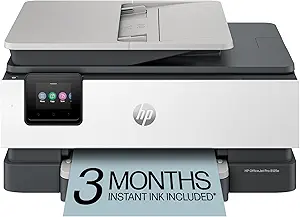 |
| Best Quality Built to a higher standard if you want something more solid | Brother Work Smart 1360 |  |
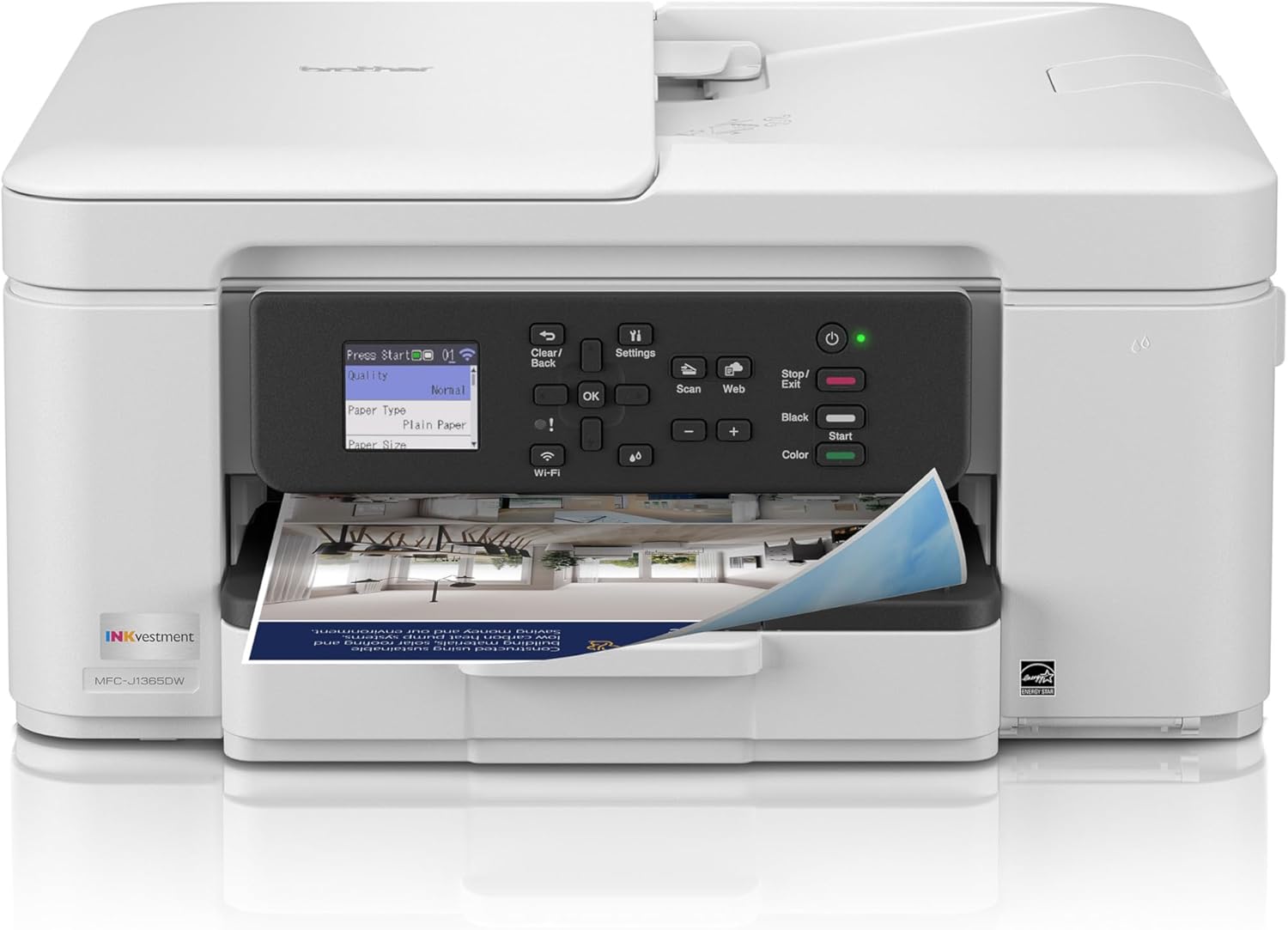
| Best Value The sweet spot between price and what you get | Brother INKvestment MFC-J1365DW |  |
| Best Budget The cheapest option that still gets the job done reliably | Canon PIXMA TS3720 | 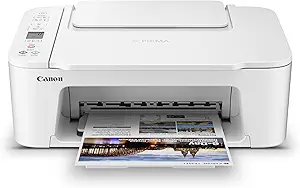 |
| Top Rated A top-rated pick with lots of positive feedback | Canon PIXMA TS6520 |  |
| Most Popular A crowd favorite that many people choose with confidence | HP DeskJet 2855e |  |
| Best Seller A high-volume bestseller chosen again and again | Epson EcoTank ET-2800 |  |
HP OfficeJet Pro 8125e

| Printer Type | HP Thermal Inkjet |
|---|---|
| Maximum Sheet Capacity | 225 |
| Duplex | Automatic (standard) |
| Connectivity | Apple AirPrint; Ethernet; USB; Wireless (Wi-Fi); Wireless direct printing |
| Print Resolution | 4800 x 1200 |
The HP OfficeJet Pro 8125e is a compact all-in-one inkjet that targets small home offices by combining reasonably fast printing with everyday scanning and copying. It prints color documents at up to 10 ppm and black at up to 20 ppm, supports automatic two-sided printing and a 225-sheet input tray so you can run larger jobs without constant refills. The built-in 1-sided ADF and touchscreen make multi-page scans and copies straightforward, and dual-band Wi‑Fi plus AirPrint, USB and Ethernet give flexible connectivity for laptops and mobile devices. HP bundles an initial set of setup cartridges and offers Instant Ink subscription options to simplify replacing supplies. The printer also includes AI-driven formatting features to avoid wasted pages and energy-efficient certifications for lower idle power use. On the downside, color photo quality is typical of inkjets rather than photo-lab grade and ongoing costs depend on ink usage and any subscription plan, so running costs should be considered for heavy color printing.
Best for: Buyers who want a compact, versatile home or small home-office printer that handles everyday color and black documents, multi-page scanning, and occasional larger print runs without complex setup.
Less Ideal for: Photographers or users who need gallery-quality photos or very low per-page color costs for heavy color printing should consider a dedicated photo printer or high-yield business model instead.
- All-in-one functionality with flatbed scanner and 1-sided ADF for easy multi-page scans and copies
- Automatic duplex printing and 225-sheet input capacity reduce paper handling for medium workloads
- Multiple connectivity options including dual-band Wi‑Fi, AirPrint, Ethernet and USB for flexible setup
- AI formatting features help trim wasted pages and improve print layout from web and email
- Color photo output is not photo-lab quality compared with dedicated photo printers
- Long-term ink costs depend on usage and may require an Instant Ink subscription to keep replacement simple
Verdict: A compact, connected all-in-one that balances speed, everyday scanning and flexible connectivity for typical home and small home-office printing needs.
Brother Work Smart 1360

| Printer Type | Inkjet |
|---|---|
| Functions | Print, Copy, Scan |
| Duplex | Automatic |
| Maximum Sheet Capacity | 150 |
| Connectivity | USB, Wi-Fi |
The Brother Work Smart 1360 is a small all-in-one inkjet aimed at home and home-office use, combining wireless connectivity with practical productivity features. It prints in color and black-and-white, supports duplex (two-sided) printing, and includes a 20-sheet automatic document feeder plus a flatbed scanner for typical multi-page tasks. Setup and mobile printing are straightforward using the Brother Mobile Connect app, AirPrint, and Mopria support, while the 1.8" color display and Page Gauge ink monitor help keep routine jobs moving. Print speed is competitive for the class at up to 16 ppm black and 9 ppm color, and resolution specs promise crisp output for documents and basic graphics. The printer uses Brother LC501 ink series with standard and high-yield options and a 150-sheet tray that reduces refills for moderate workloads. Downsides are the modest ADF capacity and small display for advanced menu navigation, and ink costs will be a consideration if you print high volumes of color graphics. For buyers who need a compact, capable wireless printer that balances speed and features for home productivity, the 1360 is a sensible choice.
Best for: Buyers who prioritize speedy, practical print performance in a compact wireless all-in-one for home or home‑office tasks and want easy mobile printing and duplex capability.
Less Ideal for: Users who print large monthly volumes, need a large ADF or advanced touchscreen controls, or who rely heavily on high-resolution photo printing.
- Automatic duplex printing saves paper on two-sided jobs
- Wireless, Wi‑Fi Direct, AirPrint and Mopria support enable easy mobile printing
- Relatively fast ISO-rated speeds (up to 16 ppm B&W, 9 ppm color) for a compact home printer
- 150-sheet tray and ADF plus flatbed scanner handle typical home office workflows
- Page Gauge and Brother Mobile Connect app make ink monitoring and mobile setup convenient
- 20-sheet ADF and small 1.8" display limit efficiency and ease of use on heavier multi-page workflows
- Ink costs can add up for frequent color printing despite high-yield cartridge options
Verdict: A compact wireless all‑in‑one that delivers fast, practical printing with duplex and mobile printing for performance-focused home users.
Brother INKvestment MFC-J1365DW
| Printer Type | Inkjet |
|---|---|
| Duplex | Automatic |
| Maximum Sheet Capacity | 150 |
| ADF Capacity | 20 sheets |
| Connectivity | USB, Wi-Fi |
The Brother INKvestment MFC-J1365DW is a space-conscious all-in-one aimed at home and small home-office use, combining wireless and USB connectivity with straightforward mobile printing via the Brother Mobile Connect app. It handles everyday documents and occasional color prints, offering automatic two-sided printing, a 20-sheet single-sided ADF for quick multi-page scans or copies, and a 150-sheet main tray so you do fewer refills. Print speeds are geared to practicality rather than speed demons, with up to 16 ppm black and 9 ppm color, and the printer ships with in-box starter cartridges that give a useful initial page supply. The 1.8" color display and app integration make setup and basic tasks simple, and Brother promotes its genuine LC504 inks plus a Refresh subscription option for automated reordering. Expect solid text quality and decent color for documents and photos, but this is not a photo-lab replacement and running costs depend on cartridge choices and usage patterns.
Best for: Buyers who want a practical, space-saving multifunction printer that handles everyday documents and occasional color printing with easy mobile setup and management.
Less Ideal for: Users who need fast, high-volume production or professional-quality photo printing should consider higher-end or dedicated photo/printer models instead.
- Compact all-in-one that fits small home or home office spaces
- Automatic duplex printing and 20-sheet ADF streamline multi-page jobs
- Wireless and USB connectivity plus Mobile Connect app for easy mobile printing
- Comes with starter ink cartridges that provide an initial page yield
- Color photo quality and speed are modest compared with dedicated photo printers
Verdict: A compact, practical all-in-one that simplifies everyday home printing with automatic duplex, ADF, and easy mobile setup.
Canon PIXMA TS3720

| Printer Type | Inkjet |
|---|---|
| Print Resolution | 4800 x 1200 dpi |
| Print Speed B&W | 7.7 ppm |
| Print Speed Color | 4 ppm |
| Connectivity | USB, Wi-Fi |
The Canon PIXMA TS3720 is a small, budget-focused all-in-one inkjet for home use that handles documents and casual photo printing. It connects via USB or Wi‑Fi and works with the Canon PRINT app, AirPrint, and Mopria, so printing from phones, tablets, and Chromebooks is straightforward. The two-cartridge FINE hybrid ink system uses pigment black for sharper text and dye-based color for photos, and the printer supports borderless photos up to 5 x 7 inches and paper up to legal size. Setup is simple and the 1.5 inch LCD and rear paper tray make basic tasks intuitive. Expect modest speeds—about 7.7 ppm black and 4 ppm color—and single-sided printing only, so it is not optimized for heavy office throughput or automatic duplex jobs. Paper capacity is small at 60 sheets, and higher-volume users will need more frequent refills and cartridge changes. For casual home printing, schoolwork, and occasional photos, the TS3720 delivers competent print quality and easy wireless operation at a low cost of ownership.
Best for: Buyers seeking an inexpensive, easy-to-use printer for light home tasks like school assignments, receipts, and occasional photos who prioritize small size and simple wireless setup.
Less Ideal for: Users who print large volumes, need automatic double‑sided printing, or require professional photo-grade color accuracy should look at higher-end or office-focused models.
- Compact footprint suitable for small desks or apartments
- Wireless printing from mobile devices via Canon PRINT, AirPrint, and Mopria
- Hybrid two-cartridge ink system for sharp black text and decent color photos
- Supports borderless 5”x7” photos and a variety of media types
- Simple setup and a basic LCD for quick control
- Single-sided printing only with no automatic duplex
- Small 60-sheet paper capacity limits continuous print jobs
- Modest color print speed and not intended for high-volume use
Verdict: A compact, budget-friendly all-in-one that gives reliable wireless home printing and decent photo support for light everyday use.
Canon PIXMA TS6520

| Printer Type | Inkjet |
|---|---|
| Printer Connectivity Type | USB, Wi‑Fi |
| Duplex | Automatic |
| Display Type | OLED |
| Compatible Cartridge | PG-295 & CL-286 |
The PIXMA TS6520 is a small, straightforward all‑in‑one inkjet designed for everyday home tasks like schoolwork, recipes, and occasional photo printing. Setup is simple via the Canon PRINT app, AirPrint, or Mopria and the printer supports dual‑band Wi‑Fi for consistent wireless connections. Its two‑cartridge hybrid ink system balances sharp pigment black text with dye‑based color for reasonably vivid photos, and the 1.42-inch OLED gives quick status feedback and ink monitoring. Auto duplexing saves paper and the flatbed scanner covers basic scanning and copying needs. The machine is compact and quiet, so it fits easily in tight workspaces. Limitations include a single paper tray with low sheet capacity and no automatic document feeder, so heavy multi‑page scanning or large print runs will be inconvenient; the two‑cartridge system also means separate color inks are combined rather than individual color tanks, which may increase long‑term ink cost for frequent color printing.
Best for: Buyers who prioritize a dependable, easy‑to‑use home printer that handles occasional photo and document tasks with consistent wireless performance and low setup fuss.
Less Ideal for: Those who need high monthly page volumes, frequent multi‑page scanning, or enterprise‑grade paper handling should look at larger multifunction models with ADFs and bigger trays.
- Compact footprint fits small home workspaces
- Dual‑band Wi‑Fi and mobile printing support for reliable wireless use
- Automatic duplex printing reduces paper use
- Hybrid two‑cartridge ink delivers sharp black text and good color photos
- Easy setup and a clear OLED status display
- Single low‑capacity paper tray not suited to high‑volume jobs
- No automatic document feeder for multi‑page scanning or copying
Verdict: A compact, reliable all‑in‑one that delivers consistent wireless printing and good everyday output for home users who value dependability.
HP DeskJet 2855e

| Printer Type | Inkjet |
|---|---|
| Maximum print Resolution Color | 4800 x 1200 dpi |
| B&W Pages per Minute | 7.5 pages_per_minute |
| Printer Connectivity Type | single band wi-fi (2.4ghz only) |
| Compatible Cartridge | HP 67 |
The HP DeskJet 2855e is a small, budget-focused all-in-one designed for home users who need occasional color prints, scans, and copies. It connects over single-band 2.4 GHz Wi‑Fi or USB 2.0 and is controlled via the HP mobile app, which also enables HP+ features and a three-month Instant Ink trial when activated. Print quality is reasonable for documents and casual photos thanks to a high color resolution claim, and the 60-sheet input tray keeps desk footprint low while reducing trips to reload paper. Copy and scan use the flatbed scanner for documents and photos, and manual duplexing is supported if you need two-sided pages. Limitations include modest print speeds and single-band Wi‑Fi only, which can complicate home networks that prefer 5 GHz, and ongoing cost depends on replacement HP 67 cartridges or an Instant Ink subscription. For light home use the DeskJet 2855e delivers straightforward setup and app-based control, but buyers who need fast volumes, two-sided auto duplex, or 5 GHz Wi‑Fi should consider higher-tier models.
Best for: Home users who want an inexpensive, compact all-in-one for occasional documents, schoolwork, and casual photos and who value easy app setup and subscription ink options.
Less Ideal for: People who print large volumes, require fast business-grade speeds, automatic duplexing, or need a 5 GHz Wi‑Fi connection for their home network.
- Compact all-in-one design with print, scan, and copy in a small footprint
- 60-sheet input tray suitable for light home printing without frequent reloading
- Easy mobile control and setup via the HP app with HP+ features and Instant Ink trial
- Reasonable color print resolution for documents and casual photo prints
- Single-band 2.4 GHz Wi‑Fi only, no 5 GHz support
- Manual duplex rather than automatic two-sided printing
Verdict: A compact, app-driven all‑in‑one that is a practical, low-cost choice for light home printing with easy setup and Instant Ink support.
Epson EcoTank ET-2800

| Printer Type | Inkjet |
|---|---|
| Printer Connectivity Type | USB, Wi-Fi |
| Maximum print Resolution Color | 5760 x 1440 dpi |
| B&W Pages per Minute | 10 |
| Duplex | Simplex |
The Epson EcoTank ET-2800 is a home-focused all-in-one inkjet that replaces cartridges with refillable high-capacity ink tanks, so you print many pages before needing replacements. It prints up to about 10 black pages per minute (5 ppm color) and handles photos and documents using PrecisionCore heat-free print technology for sharp text and decent color output. Setup is typical for a compact home printer: fill the tanks using keyed EcoFit bottles, connect via Wi-Fi or USB, and use the app for mobile and voice-activated printing. The flatbed scanner and basic LCD make copying and scanning straightforward for homework, bills, and occasional photos. Key practical benefits are very low running costs thanks to bundled ink and reduced cartridge waste, plus a modest footprint suitable for small home workspaces. Limitations include simplex-only printing (no auto duplex) and modest color photo speed and output compared with higher-end photo printers, and Epson recommends genuine ink to maintain performance and warranty coverage.
Best for: Buyers who want a low-maintenance, low-running-cost home printer that handles everyday documents, occasional photos, and light scanning without frequent cartridge changes.
Less Ideal for: Photography enthusiasts or small offices that need fast duplexing, professional photo quality, or heavier daily print volumes should consider a different model.
- Cartridge-free refillable ink tanks for far fewer replacements
- Includes high-capacity ink that yields many pages before refill
- Wireless and mobile printing with app and voice support
- Compact all-in-one design with flatbed scanner for home tasks
- Does not offer automatic two-sided (duplex) printing
- Color print speed and photo quality are modest compared with dedicated photo printers
Verdict: Choose the ET-2800 if you want a compact home all-in-one that cuts cartridge hassle and running costs with refillable EcoTank inks.
Choosing the Right Small Wireless Printer for Home: Key Factors to Consider
Print Quality and Resolution
Sharp text and accurate color rendering matter for everyday home tasks like homework, bills, and reference documents. Higher resolution and good driver software reduce banding and improve legibility, which is important when printing dense pages or small fonts. For photos and color-heavy documents, color accuracy and halftoning influence how natural images look on standard home paper.
Assess how the printer handles both black-and-white text and simple color output. Devices that advertise higher dpi can still differ in perceived sharpness due to printhead technology and ink formulation, so check sample prints or reviews focused on real-world documents.
Wireless Connectivity and Reliability
A small wireless printer for home must join your Wi-Fi and stay connected with minimal fuss. Look for models that support modern network standards, have clear setup flows, and include mobile printing protocols such as AirPrint or Mopria if you use phones or tablets. Poor wireless reliability leads to dropped jobs and extra troubleshooting, which defeats the convenience of a wireless device.
Consider how the unit handles multiple devices on the same network, guest access, and whether it supports both 2.4 GHz and 5 GHz bands. Features like a straightforward web interface, Wi-Fi setup button, or WPS can simplify initial installation and future network changes.
Operating Cost and Consumable Availability
Ongoing cost per page is one of the biggest long-term considerations. Inkjet cartridges and toner vary widely in yield and cost, and some compact printers use proprietary shaped cartridges that are more expensive. Check estimated yields for black and color cartridges and whether high-yield or third-party options are available if you want to lower running costs.
Also factor in how easy it is to replace cartridges and whether the machine supports ink pack systems, refillable tanks, or single-cartridge color solutions. Lower purchase price can be offset by high consumable costs, so match expected monthly print volume to estimated page costs.
Physical Size and Placement
True small wireless printers are designed to fit on narrow shelves, small desks, or alongside a home office setup. Measure the footprint and factor in paper trays and any required clearance for access. A compact footprint often means tradeoffs in paper capacity, output stacking, or fewer integrated features.
Think about where you will place the device: whether it needs to sit under a shelf, in a shared living area, or tucked next to a laptop. Weight and build quality also matter if you plan to move the unit between rooms.
Speed and Daily Productivity
Print speed affects how disruptive a device is when you need several pages quickly. Manufacturers list pages per minute for black and color, but real-world speed varies by print complexity and print mode. For light home use, moderate speeds are often acceptable, but heavier households or small home offices benefit from faster first-page-out times and consistent throughput.
Consider how the printer manages queued jobs and whether simple tasks like single-page printing finish quickly. Duplexing performance also impacts productivity if you often print double-sided documents.
Setup, Software, and Mobile Integration
Ease of initial installation and ongoing use determines how much time you spend maintaining the device. Look for straightforward setup wizards, clear on-device controls, and companion apps that offer scanning, driver updates, and cartridge status. Mobile integration matters if you print from phones or tablets; native support for platform print standards eliminates the need for extra apps.
Driver support for common operating systems and timely firmware updates improve long-term usability. Also consider whether the scanner functions are accessible through the mobile app or require a PC.
Small Footprint, Big Convenience
Small wireless printers are popular because they reduce clutter without sacrificing essential features. A well-designed compact unit can produce sharp documents, fit a student desk, and remain largely unobtrusive in a shared living space.
When selecting placement, plan for paper input and output access and the occasional maintenance task like cartridge replacement. Compact printers that prioritize easy access panels and front paper trays are simpler to live with in tight quarters.
- Measure depth and height including open trays
- Prefer front-loading paper trays for narrow spaces
- Look for models with simple top or front cartridge access
Mobile Printing and App Features
Printing from a phone or tablet should be a smooth experience. Native support for mobile print standards removes the need to install separate drivers for every device and lets guests print with minimal setup.
Companion apps can extend functionality by offering scan-to-cloud, photo layout tools, and ink monitoring. If you rely on scanning or frequent wireless printing, test whether the app supports your typical workflows.
- AirPrint or Mopria support for quick mobile printing
- Apps that provide status alerts and cartridge monitoring
- Ability to scan directly to cloud services or email
Paper Handling and Duplexing in Compact Models
Many small printers reduce size by limiting input capacity and omitting automatic document feeders. If you print occasional single documents, lower capacity is workable, but household users who print weekly statements or school packets may prefer higher tray capacity.
Automatic duplexing is a valuable feature for saving paper and is sometimes available even in compact models. Check whether automatic two-sided printing is supported and how it affects speed.
- Standard tray sizes versus expandable options
- Duplexing availability and impact on print speed
- Manual feed or rear feed for specialty media
Scanning and All-in-One Tradeoffs
Some small wireless printers include scanning and copying functions, but compact all-in-ones often have smaller flatbed areas or slower scan speeds. Evaluate how frequently you scan documents and whether a smaller scanner surface will meet your needs.
If your home relies heavily on scanning receipts, forms, or occasional photos, confirm scan resolution and whether the device handles multi-page scanning efficiently through the app or a PC.
- Flatbed size limits for scanning books or larger documents
- Scan resolution and color depth for photo scanning
- App or software features for multi-page document assembly
Noise, Power, and Environmental Considerations
Noise level during printing may matter if the printer sits near work or living areas. Compact printers can be quieter but may produce higher-frequency sounds. Check user reports for real-world noise impressions if quiet operation is important.
Power consumption for small devices is generally low, but look for energy-saving modes that reduce standby drain. Environmental factors like recyclable cartridge programs and duplex printing can lower paper and waste footprint over time.
- Look for energy-saving or sleep modes
- Check user feedback on operational noise
- Consider cartridge recycling or refill systems
How We Chose the Best Small Wireless Printer for Home
We narrowed the field by prioritizing features that directly affect day-to-day home printing. First, we measured print quality expectations for text and basic color graphics by looking at resolution capabilities and driver handling of common document types. Second, we evaluated wireless connectivity options and reliability, including Wi-Fi stability, mobile printing standards, and ease of network setup. Third, we considered operating cost factors such as ink or toner yield, cartridge accessibility, and whether the device supports high-yield consumables. Fourth, we examined physical footprint and design to ensure units truly qualify as small and suit crowded desks or shelves. Fifth, we checked feature set tradeoffs: duplexing, scanning or ADF presence, and how these impact a small form factor. We excluded large-format or enterprise-oriented models and any devices lacking mainstream wireless printing support. The resulting shortlist emphasizes compact size, dependable wireless performance, practical running costs, and straightforward home-focused features.
Our full evaluation process is outlined in our review methodology.
FAQ
Can a small wireless printer handle occasional photo printing?
Often yes. Many compact printers can produce acceptable 4×6 and 5×7 photos on standard photo paper, but they may not match the color depth and dynamic range of larger photo-focused printers. For occasional casual photos the results are typically adequate.
How easy is it to set up a small wireless printer on a home Wi-Fi network?
Setup is usually straightforward, with guided wizards, Wi-Fi setup buttons, or mobile app assistance. The process can vary depending on network settings, and you may need to enter your Wi-Fi password or use a temporary USB connection for initial configuration.
What should I expect for ongoing ink or toner costs?
Costs vary based on cartridge yield and how much color printing you do. Compact models sometimes use smaller cartridges, which raises cost per page. Look at estimated page yields and support for high-yield or refillable options to estimate running costs.
Is duplex printing common in small wireless printers?
Automatic duplexing is available in many small models, but not universal. When included, duplexing may slow print speed slightly. If double-sided printing is important, confirm that the model offers automatic duplex rather than manual page flipping.
Will a small wireless printer work with my phone or tablet?
Usually yes, provided the printer supports common mobile standards or has a companion app. Support for AirPrint or Mopria simplifies printing from iOS and Android devices without additional drivers.
Final Verdict
Choose a small wireless printer by balancing print quality, running costs, and wireless reliability against the physical space you have available. If you primarily print text and occasional color pages, prioritize sharp text reproduction, low-cost black cartridges, and solid Wi-Fi setup. If you also need frequent color prints or scanning, look for compact all-in-one designs that include decent scan resolution and mobile app support. Ultimately, prioritize the features that match your household printing patterns: small footprint and quiet operation for shared spaces, lower cost per page for heavier use, and straightforward wireless integration if you print from phones and tablets. Those tradeoffs will lead you to the best compact option for everyday home printing.