
Note: This article contains affiliate links. If you click on these links and make a purchase, we may earn a small commission at no extra cost to you. This helps support our research and content. Read our full affiliate disclosure here.
Picking the right Wi‑Fi all‑in‑one printer matters because it affects everyday tasks like homework, contracts, and occasional photos. A misfit unit can cause slow prints, flaky wireless connections, or frequent paper jams that interrupt workflows. This guide narrows the field to the top shortlisted Wi‑Fi all‑in‑one printers so you can focus on models that perform well in real home and small‑office scenarios. We evaluated units for core concerns buyers have—print speed and quality, wireless reliability, and ongoing operating convenience. Below are the best options selected for dependable network printing and practical day‑to‑day use, followed by clear buying guidance to match a printer to your routine.
Top Picks at a Glance
| Best Overall The best all-around choice for most situations | HP OfficeJet Pro 8125e | 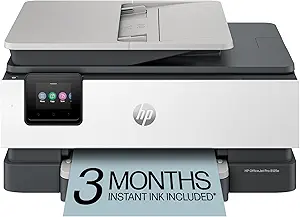 |
| Best Quality Built to a higher standard if you want something more solid | Canon imageCLASS MF753Cdw II |  |
| Best Value The sweet spot between price and what you get | Epson EcoTank ET-2400 |  |
| Top Rated A top-rated pick with lots of positive feedback | HP LaserJet Pro MFP 3101sdw |  |
| Most Popular A crowd favorite that many people choose with confidence | Canon PIXMA TR4720 |  |
| Best Seller A high-volume bestseller chosen again and again | Epson EcoTank ET-2800 | 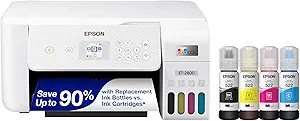 |
HP OfficeJet Pro 8125e

| Printer Type | HP Thermal Inkjet |
|---|---|
| Maximum print Resolution Color | Up to 4800 x 1200 dpi |
| Maximum Sheet Capacity | 225 |
| Duplex | Automatic (standard) |
| Printer Connectivity Type | Apple AirPrint; Ethernet; USB; Wi‑Fi; Wireless direct |
The HP OfficeJet Pro 8125e is a Wi-Fi enabled all-in-one inkjet that targets home offices that need reasonably fast color output plus scanning and copying. It prints up to 10 ppm in color and 20 ppm in black, supports automatic two-sided printing, and includes a flatbed scanner with a 1-sided automatic document feeder for multi-page workflows. The printer is AI-enabled to help format web pages and remove unwanted content, and it works with the HP app for phone-based printing and scanning. Paper handling is strong for the class with a 225-sheet input and 60-sheet output capacity, and connectivity covers AirPrint, Ethernet, USB, and wireless direct printing. Practical benefits include solid photo-capable resolution for documents and convenient features like touchscreen controls and quiet mode. Limitations to note are reliance on HP 923 cartridges and the Instant Ink promotion tied to HP+ activation for the included trial, which may mean subscription decisions after the trial ends.
Best for: Buyers who want a connected, feature-rich all-in-one for a home or small office that balances speed, solid paper handling, and smartphone-friendly workflows.
Less Ideal for: Users who prefer low-cost third-party inks or want a strictly subscription-free setup with no manufacturer service activation.
- Wi-Fi, AirPrint, Ethernet and USB connectivity for flexible network or direct printing
- Automatic duplex printing and 1-sided ADF speed routine multi-page jobs
- 225-sheet input capacity reduces how often you refill paper for medium-volume use
- HP app and AI formatting tools simplify printing from smartphones and clean up web content
- Uses HP 923-series cartridges which can be costly without Instant Ink subscription
- Some advanced features require activation of HP+ and associated service terms
Verdict: If you want a capable, connected all-in-one for a busy home office that balances speed, paper capacity, and smartphone-friendly features, this OfficeJet Pro is a strong choice.
Canon imageCLASS MF753Cdw II

| Print speed | 35 ppm (color & B&W) |
|---|---|
| Print resolution | 1200 x 1200 dpi |
| ADF capacity | 50-sheet duplex |
| Connectivity | Ethernet, USB, Wi-Fi |
| Paper capacity | 250-sheet standard cassette |
The Canon imageCLASS MF753Cdw II is a fast, Wi-Fi capable color laser all-in-one that handles printing, copying, scanning and faxing for small or hybrid offices. It prints at up to 35 ppm in color and black, wakes and delivers a first page in about 7 seconds, and uses Canon Genuine Toner 069 for sharp 1200 x 1200 dpi output. The unit includes a 50-sheet duplex single-pass ADF and a customizable 5" color touchscreen that speeds common tasks, while the dual paper trays and multipurpose feed let you keep letter and special media loaded. Wireless, Ethernet and USB connectivity plus mobile printing apps make it straightforward to print from laptops and phones. Practical trade-offs include its relatively heavy, desktop footprint and reliance on genuine Canon toner for the best results, which affects running costs. For users who need fast, reliable color output, an integrated ADF, and easy mobile printing, the MF753Cdw II delivers consistent performance in a business setting.
Best for: Buyers who prioritize fast, reliable color output and integrated scanning/faxing for a small office or hybrid work setup and who value easy mobile and network printing.
Less Ideal for: Users needing a compact, lightweight home printer for occasional photo printing or those looking for the lowest possible consumable costs.
- Fast color and mono print speed up to 35 pages per minute
- High print resolution (1200 x 1200 dpi) for crisp documents and graphics
- Built-in Wi-Fi, Ethernet and mobile app support for easy wireless printing
- 50-sheet duplex single-pass ADF and 2 paper trays for efficient multi-page workflows
- Large and heavy for a desktop environment, limiting placement options
- Running costs depend on Canon Genuine Toner which can be more expensive than third-party options
Verdict: Choose the MF753Cdw II when you need fast, high‑quality color printing and full ADF scanning on a networked Wi‑Fi all‑in‑one for a small office.
Epson EcoTank ET-2400

| Printer Type | Inkjet |
|---|---|
| Printer Connectivity Type | USB, Wi-Fi |
| Maximum print Resolution Color | 5760 x 1440 dpi |
| B&W Pages per Minute | 10 pages_per_minute |
| Color Pages per Minute | 5 pages_per_minute |
The ET-2400 replaces cartridges with large refillable EcoFit ink tanks so you can print many pages between refills, making it a practical choice for everyday home use. It connects via Wi-Fi or USB and supports mobile printing and basic app control, which makes sending documents from phones, tablets, or laptops straightforward. The printer handles standard copy and flatbed scan jobs and accepts up to 8.5 x 14 inch media with a 100-sheet rear-feed input for longer runs. Print quality is strong for text and casual photo work thanks to Epson Micro Piezo technology and a high maximum resolution, though color speed is moderate at about 5 ppm while black runs faster at 10 ppm. Duplexing is manual, so automatic two-sided workflows are not supported. The included starter ink set and the low running costs per page are the biggest practical benefits, but users who need fast color throughput or automatic duplexing should consider models with those features built in.
Best for: Buyers who want a low-running-cost, reliable Wi-Fi all-in-one for everyday home or small-business printing and prioritize long intervals between ink refills.
Less Ideal for: Users who need high-volume, fast color printing or built-in automatic duplexing and advanced office workflows should look at higher-end models.
- Cartridge-free EcoTank system greatly reduces frequency of ink replacements
- Wireless and USB connectivity with app control for mobile printing
- High-resolution printing for sharp text and detailed photos
- Generous 100-sheet rear-feed input for longer print jobs
- Manual duplexing only, no automatic two-sided printing
- Color print speed is modest compared with faster office models
Verdict: Choose the ET-2400 if you want a Wi-Fi all-in-one that slashes ink replacement frequency and running costs while delivering solid everyday print quality.
HP LaserJet Pro MFP 3101sdw

| Printer Type | Laser |
|---|---|
| Printer Output Type | Monochrome |
| Maximum Print Resolution Black and White | Up to 1200 x 1200 dpi |
| B&W Pages per Minute | 40 |
| Maximum Sheet Capacity | 250 |
The HP LaserJet Pro MFP 3101sdw is a business-focused monochrome laser all-in-one that handles everyday office workflows: fast single-color printing, an automatic document feeder for multi-page scans and a flatbed for single-sheet scanning. It delivers quick first pages and sustained throughput suitable for small teams thanks to up to 35–40 ppm and a 250-sheet input tray, and automatic two-sided printing saves time and paper on long jobs. Connectivity is broad with Ethernet, USB, Wi‑Fi and mobile printing (AirPrint and Mopria), plus app-based control for remote management. The 50-sheet ADF and duplex scanning/printing make it practical for multi-page contracts and reports, and HP supplies an introductory toner for initial setup. Downsides to note are that it prints only in black-and-white and uses HP-chipped cartridges only, which limits third-party cartridge options, and its power draw is higher than consumer ink models. For teams prioritizing fast, reliable monochrome output and networked management, this is a solid choice.
Best for: Buyers who need a dependable, networked monochrome MFP for small-team document workflows and value consistent uptime and straightforward remote management.
Less Ideal for: Users who need color printing, photo-quality output, or those who prefer to use generic third-party toner supplies.
- Fast monochrome printing suitable for small office volumes
- 250-sheet input tray and 50-sheet ADF streamline multi-page jobs
- Automatic duplex printing reduces paper use and manual work
- Multiple connectivity options including Ethernet, Wi‑Fi and mobile printing support networked workflows
- No color printing capability
- Restricted to cartridges with HP chips, limiting third-party toner options
Verdict: Choose this MFP when you need fast, network-ready monochrome printing and scanning that reliably handles small-team office workloads.
Canon PIXMA TR4720

| Printer Type | Inkjet |
|---|---|
| Functions | Print, Copy, Scan, Fax |
| Auto Document Feeder | Yes |
| Duplex | Automatic |
| Connectivity | USB, Wi-Fi |
The Canon PIXMA TR4720 is a compact Wi‑Fi enabled 4‑in‑1 inkjet that handles everyday home printing, scanning, copying and faxing. It uses a hybrid ink system to produce sharp black text and decent color prints and can create borderless photos up to letter size. The front-loading 100-sheet tray and automatic document feeder make multi-page jobs straightforward, while automatic duplex printing helps reduce paper use. Setup and mobile printing are handled through the Canon Print app and typical wireless options, and the 2-line LCD keeps basic controls simple. Expect modest speeds—about 8.8 ipm monochrome and 4.4 ipm color—so this is best for light to medium home or home-office workloads rather than heavy daily volume. Power consumption is low and the unit is compact enough for limited desk space, but photo-quality results will not match higher-end photo printers and ink costs can add up with frequent color printing. For buyers who want a small, full-featured Wi‑Fi AIO for basic document and occasional photo tasks, the TR4720 covers the essentials without extra complexity.
Best for: Buyers who want a simple, space-saving Wi‑Fi all-in-one for home or small home-office use with easy mobile printing and occasional photo capability and who prefer products with significant user feedback.
Less Ideal for: Users who need high-volume daily printing, fast color/photo output, or the lowest ongoing cost per page should consider more robust or business-focused models instead.
- Wireless printing and mobile app support for printing and scanning from smartphones
- Auto document feeder and automatic two-sided printing for easier multi-page workflows
- Front 100-sheet tray and compact footprint suitable for limited desk space
- Hybrid ink system that produces sharp black text and borderless photo printing up to 8.5 x 11 inches
- Relatively slow color print speed compared with higher-end models
- Ink costs can be high with frequent color or photo printing
Verdict: A compact, user-friendly Wi‑Fi all-in-one that covers home document tasks and occasional photos with straightforward mobile setup and strong real-world user feedback.
Epson EcoTank ET-2800

| Printer Type | Inkjet |
|---|---|
| Printer Connectivity Type | wired, wireless |
| B&W Pages per Minute | 10 |
| Color Pages per Minute | 5 |
| Maximum print Resolution Color | 5760 x 1440 dots_per_inch |
The Epson EcoTank ET-2800 is a compact all-in-one inkjet that replaces cartridges with refillable high-capacity ink tanks, letting you print many pages before needing replacement bottles. It connects via wired or wireless networks and supports mobile and voice-activated printing for easy setup from laptops and phones. The printer handles color and black-and-white documents, offers a flatbed scanner and copy functions, and produces sharp text and vivid photos using Epson's Micro Piezo heat-free print technology and high maximum resolution. Paper handling is straightforward with support for standard sizes up to 8.5 x 14 inches and a 100-sheet input capacity, while duplex printing is manual. The main benefits are much lower ongoing ink costs and reduced cartridge waste, plus an easy-to-fill bottle system included in the box. Limitations include modest color print speed and manual two-sided printing, so it is less ideal for heavy duplex workflows or users who need the fastest photo throughput.
Best for: Buyers who want low ongoing ink costs and a simple, reliable home all-in-one with easy mobile connectivity and minimal maintenance fuss.
Less Ideal for: Users who routinely need automatic two-sided printing, very high monthly page volumes, or the fastest color/photo throughput should consider a more feature-rich office model.
- Cartridge-free refillable ink tanks reduce frequency of replacements and plastic waste
- Includes starter ink bottles that cover a large initial page yield
- Wireless, mobile, and voice-activated printing for convenient home use
- Flatbed scanner and copy functions add basic all-in-one versatility
- High maximum print resolution for sharp text and detailed color prints
- Duplex printing is manual rather than automatic
- Color print speed is relatively slow compared with faster office models
Verdict: Choose the ET-2800 if you want a dependable Wi-Fi all-in-one that slashes ink costs with refillable EcoTank bottles while providing easy mobile printing for home use.
Choosing the Right Wi-Fi All-in-One Printer: Key Factors to Consider
Print Speed and Duty Cycle
Print speed determines how quickly single pages and multi‑page jobs finish. For many home and small office users, faster first‑page times and higher pages‑per‑minute cut down wait times during busy tasks like report prep or school projects.
Duty cycle is the manufacturer's suggested monthly page limit and indicates how robust a unit is for sustained use. If you print dozens to hundreds of pages monthly, choose a printer with a higher duty cycle to avoid premature wear or more frequent maintenance.
Wireless Connectivity and Network Stability
A Wi‑Fi all‑in‑one printer must maintain a stable connection to your router and the devices that print to it. Look for printers that support dual‑band Wi‑Fi and common mobile printing standards to reduce dropouts and simplify pairing.
Network features such as automatic reconnection after power cycles, easy Wi‑Fi Protected Setup, and reliable driver support influence day‑to‑day reliability. Poor wireless performance forces fallback to USB or repeated troubleshooting, which undermines the convenience of a wireless device.
Print Quality for Text and Images
Text clarity affects readability for documents, while color and photo quality matter when you print images or marketing materials. Resolution, ink formulation or toner technology, and color management features determine how faithfully the output matches expectations.
For mixed use, prioritize models that deliver crisp black text and acceptably rich color without needing specialty photo paper for everyday graphics and school photos.
Paper Handling and Duplex Printing
Paper feeding options, tray capacity, and automatic duplexing impact how often you refill paper and whether you can produce two‑sided documents efficiently. Larger input trays reduce interruptions for routine office printing, and automatic duplexing saves paper and time on multi‑page jobs.
Consider whether the printer supports multiple paper sizes and has a reliable feed mechanism. Feed reliability prevents jams and misfeeds that cost time and can damage documents during critical prints.
Mobile Printing and Ecosystem Compatibility
Mobile printing support matters if you print from phones or tablets. Compatibility with common mobile printing standards, easy setup through apps, and clear on‑device instructions make wireless printing straightforward.
Also factor in how the printer integrates with the operating systems you use most often. Native drivers and app features that let you monitor ink levels, run maintenance, and manage scans remotely improve long‑term usability.
Operating Cost and Maintenance
Ongoing consumable expense—ink or toner yield and replacement cost—often exceeds the initial purchase price over a printer's life. Look at estimated page yields and whether high‑yield cartridges or subscription replacement programs are available.
Maintenance tasks such as replacing cartridges, clearing jams, and cleaning printheads should be straightforward. Printers with modular cartridges and clear guides reduce the time and hassle of upkeep.
Setting Up a Wi‑Fi Printer on a Home Network
Preparing the router and printer before setup smooths the process. Place the printer within reliable range of the router and avoid Wi‑Fi extenders that can complicate discovery. If your router supports dual‑band Wi‑Fi, choose the band that gives better signal strength for your printing devices.
Use the printer's built‑in setup wizard or vendor app to join the network. Many models support both WPS and manual entry of the network SSID and password. For the greatest reliability, assign a static IP to the printer in your router's DHCP settings so devices find it consistently.
- Place printer within direct line of sight of the router when possible
- Use the same SSID and band for your primary printing devices
- Consider assigning a static IP to avoid discovery issues
Optimizing Print Quality Without Specialty Paper
Adjust print settings for the job type to save ink and improve output. Use draft or economy modes for internal documents and higher quality settings for final copies or photos. Selecting the correct paper type in the driver prevents smearing and improves color accuracy.
For occasional photo printing, choose heavier coated papers only when necessary. Calibrate color using the printer's built‑in profiles or the app's color options to get more consistent results on standard home papers.
- Use draft mode for quick internal prints
- Match paper type in driver to the actual media
- Reserve photo paper for high‑quality images
Managing Ink and Toner to Lower Long‑Term Cost
Monitor cartridge yield and replace only the depleted cartridges when the printer allows separate color replacement. High‑yield cartridges or economy modes can significantly reduce cost per page for frequent users. If the printer supports third‑party or refillable systems, evaluate reliability and warranty implications before using them.
Regularly check for firmware updates that can improve efficiency and fix bugs. Run periodic test prints to detect clogged nozzles early and use the printer's maintenance utilities to keep printheads aligned and clean.
- Prefer separate color cartridges for partial replacements
- Consider high‑yield cartridges if monthly print volumes are high
- Run maintenance utilities to avoid print quality issues
Scanning and Copying Features to Look For
All‑in‑one printers vary in scanning resolution, automatic document feeder capacity, and software features. If you scan or copy multi‑page documents frequently, prioritize models with a reliable ADF and duplex scanning capability to speed workflows.
Software features such as searchable PDF creation, cloud upload, and scan‑to‑email functions are useful for home offices. Ensure the scanner's resolution and color reproduction meet your needs for archiving or document sharing.
- Choose an ADF with enough capacity for your typical jobs
- Look for duplex scanning if you handle two‑sided originals
- Prefer scanner software that supports searchable PDFs
Troubleshooting Common Wireless Printing Problems
Typical issues include intermittent connectivity, slow discovery, and print jobs stuck in spoolers. Start with the basics: reboot the router and printer, verify the printer is on the correct network, and confirm device drivers are up to date. Clearing the print queue and restarting the printing service on your computer often releases stuck jobs.
If the printer repeatedly drops connection, check for interference on the Wi‑Fi channel and consider moving the printer or router. Using a wired connection temporarily can confirm whether the issue is network related or device related.
- Reboot router and printer to reset connections
- Ensure devices are on the same Wi‑Fi band and SSID
- Use a wired test to isolate network problems
How We Chose the Best Wi-Fi All-in-One Printer
We prioritized real‑world performance metrics and features that matter most for everyday Wi‑Fi printing. Key evaluation criteria included print speed at typical consumer settings, wireless connectivity stability with home routers, and print quality for both documents and occasional color images. We also considered duplex capability and paper handling since these affect workflow efficiency for home and small office tasks. Usability factors such as touchscreen clarity, mobile printing support, and driver/software reliability were assessed to gauge setup and daily operation friction. Finally, we checked operating considerations like ink or toner yield and how easy routine maintenance tasks are. Excluded from consideration were specialty high‑volume commercial models and devices that rely exclusively on wired connections. We also filtered out printers that lacked mainstream mobile printing standards or that did not provide reasonable duplex or paper‑handling features. The resulting shortlist focuses on balanced choices that meet the needs of typical home and small‑office users for wireless, all‑in‑one functionality.
Our full evaluation process is outlined in our review methodology.
FAQ
Do Wi‑Fi all‑in‑one printers work with smartphones and tablets?
Yes, many models support mobile printing standards and vendor apps that let you print directly from phones and tablets. Compatibility depends on the operating system and whether the printer supports the required mobile printing protocols.
How often should I replace ink or toner cartridges?
Frequency depends on your monthly page volume and the cartridge yield. Casual users may replace cartridges every few months, while heavy users may need replacements monthly. Choosing high‑yield options reduces replacement frequency.
Can I share a Wi‑Fi printer with multiple users in a home?
Yes, a Wi‑Fi all‑in‑one printer can be shared by multiple devices on the same network. For stable access, give the printer a consistent network presence by assigning a static IP or name in the router settings.
Is automatic duplex printing standard on Wi‑Fi all‑in‑one printers?
Many models include automatic duplexing, but not all do. If two‑sided printing is important, check that the specific model supports automatic duplex for both printing and scanning.
What causes frequent paper jams and how can I prevent them?
Paper jams are usually caused by incorrect paper loading, mixed paper sizes, worn feed rollers, or improper humidity. Use the correct paper size and orientation, keep paper in a dry place, and follow the manufacturer's loading instructions to reduce jams.
Final Verdict
Choose a Wi‑Fi all‑in‑one printer by balancing print speed, wireless reliability, and operating cost against how you use the device day to day. Prioritize reliable connectivity and straightforward mobile support if you print from phones and tablets, and favor duplexing and sufficient tray capacity for higher volume needs. For occasional photo work, check color quality and paper handling. Weigh the tradeoffs between low upfront cost and long‑term consumable expense. Focus on the scoring criteria above to match a model to your workflow so you get dependable wireless printing without frequent interruptions.