
Note: This article contains affiliate links. If you click on these links and make a purchase, we may earn a small commission at no extra cost to you. This helps support our research and content. Read our full affiliate disclosure here.
Picking the right printer for student life means balancing upfront cost with ongoing expenses and practical features you will actually use. Whether you need a compact machine for dorm-room study or a slightly larger unit for group projects, the right choice makes assignments, lab reports, and project handouts less of a hassle. This guide highlights the shortlist of top picks that fit tight budgets while offering acceptable print quality, low running costs, and useful connectivity for laptops and phones. Below you'll find our evaluation criteria and the top models that meet those needs, followed by guidance to help you pick the best option for your specific study routine.
Top Picks at a Glance
| Best Overall The best all-around choice for most situations | Brother Work Smart 1360 | 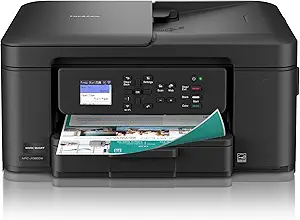 |
| Best Quality Built to a higher standard if you want something more solid | Epson WorkForce Pro WF-3823 |  |
| Best Value The sweet spot between price and what you get | Brother HL-L2460DW Laser Printer |  |
| Best Budget The cheapest option that still gets the job done reliably | HP DeskJet 2955 All-in-One Printer |  |
| Top Rated A top-rated pick with lots of positive feedback | Canon PIXMA TS6520 |  |
| Most Popular A crowd favorite that many people choose with confidence | Canon PIXMA TR4720 |  |
| Best Seller A high-volume bestseller chosen again and again | HP DeskJet 2855e |  |
Brother Work Smart 1360

| Printer Type | Inkjet |
|---|---|
| Functions | Print, Copy, Scan |
| Duplex | Automatic |
| Maximum Sheet Capacity | 150 |
| Connectivity | USB, Wi-Fi |
The Brother Work Smart 1360 is a small all-in-one inkjet designed for home and home-office use, offering printing, copying, and scanning in a compact footprint. It connects via Wi‑Fi or USB and supports mobile printing through AirPrint and Mopria, plus the Brother Mobile Connect app for setup and on-the-go printing. Practical features for students include automatic two-sided printing to save paper, a 20-sheet single-sided ADF for scanning or copying multi-page documents, and a 150-sheet paper tray so you do not refill constantly. Print speeds are reasonable for the class at up to 16 ppm black and 9 ppm color, and Page Gauge helps monitor ink levels. The printer uses Brother LC501 inks with standard and high-yield options, which keeps running costs manageable if you choose higher-yield cartridges. Limitations to consider are that it is an inkjet so text-heavy bulk printing will be slower and potentially more costly than laser options, and the small 1.8" display means some menu tasks are less convenient than larger touchscreen models.
Best for: Students needing an affordable multifunction printer that handles occasional to moderate homework, reports, and scans while offering wireless convenience and duplexing to reduce paper use.
Less Ideal for: Those who regularly print large volumes of black-and-white pages or need the lowest per-page cost should consider a dedicated monochrome laser instead.
- Automatic duplex printing saves paper for double-sided assignments
- Wireless and mobile printing support with Brother Mobile Connect, AirPrint, and Mopria
- 20-sheet ADF and flatbed scanner handle multi-page scanning and copying
- 150-sheet input tray reduces how often you need to refill paper
- Inkjet printing can be slower and costlier for large black-and-white print volumes compared with laser printers
- Small 1.8" color display limits on-device navigation and settings visibility
Verdict: A compact, budget-friendly all-in-one that gives students duplexing, wireless mobile printing, and a usable paper capacity for everyday schoolwork.
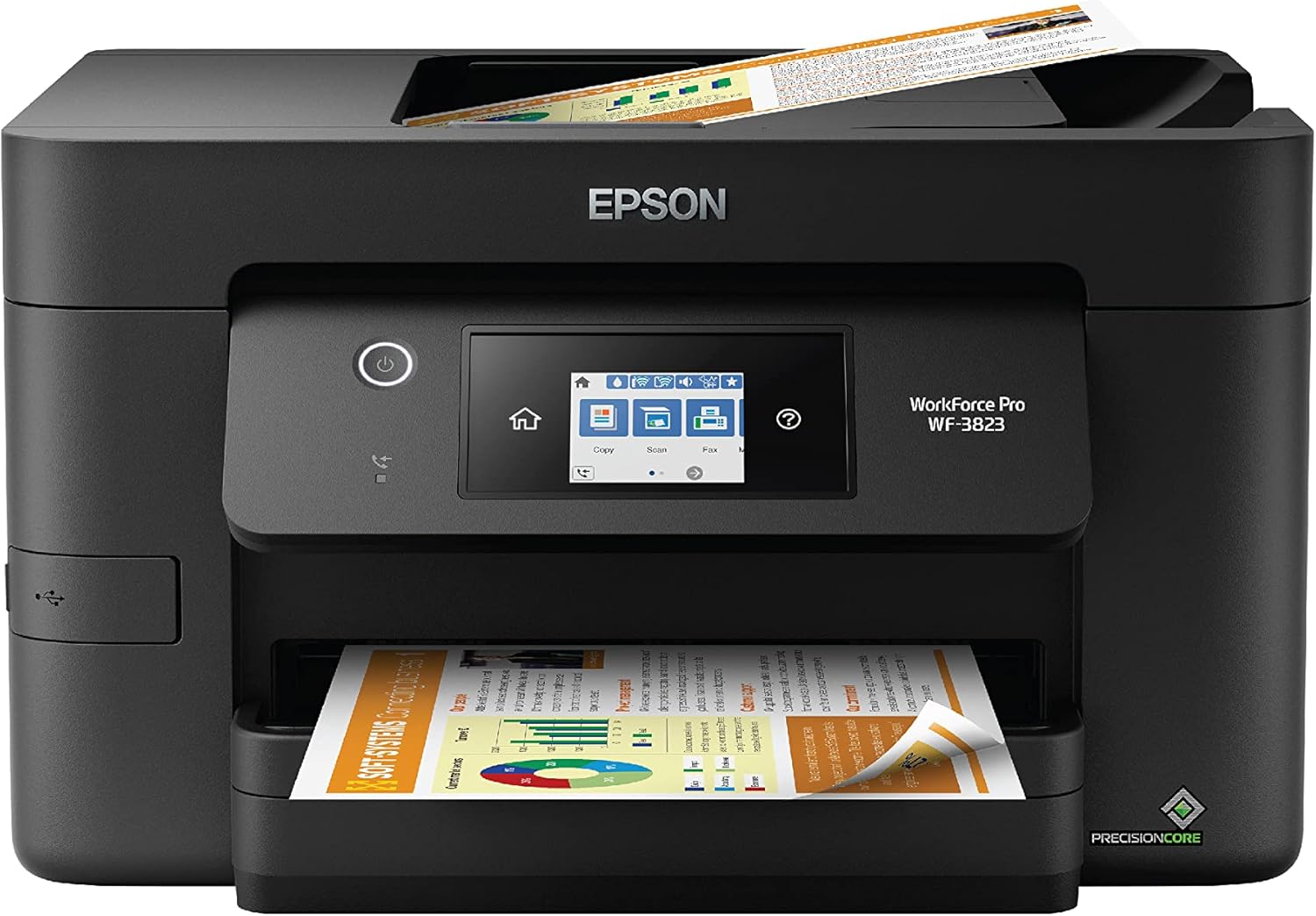
Epson WorkForce Pro WF-3823
| Printer Type | Inkjet |
|---|---|
| B&W Pages per Minute | 21 pages_per_minute |
| Color Pages per Minute | 11 pages_per_minute |
| Maximum Sheet Capacity | 250 |
| Compatible Cartridge | T822 |
The Epson WorkForce Pro WF-3823 is a compact all-in-one inkjet built for busy home or small office users who need fast text printing and everyday scanning. It prints up to 21 ppm black and 11 ppm color, supports automatic two-sided printing, and includes a 35-sheet ADF plus a 250-sheet tray to keep runs moving without frequent refills. Epson's PrecisionCore heat-free printhead and DURABrite Ultra pigment inks deliver sharp text, reliable first-page-out times, and good-looking color for occasional photo or handout printing. Connectivity is flexible with built-in Wi-Fi, Wi‑Fi Direct, Ethernet and an app for mobile setup and job management, and the 2.7-inch color touchscreen makes local operation straightforward. Practical limitations for students include the ongoing cost and requirement for genuine T822 cartridges and a larger physical footprint than compact home printers. For those who prioritize speed, duty cycle, and duplex scanning/copying over the lowest initial cost, this model offers a strong combination of productivity features.
Best for: Students who need a reliable, productivity-focused printer for frequent text printing, duplex assignments, and scanned submissions and who prioritize speed and features over the lowest purchase price.
Less Ideal for: Students who only print occasionally, need a very small or ultra-portable device, or who want to minimize long-term ink spend from the outset.
- Fast black-and-white print speed up to 21 ISO ppm for quick document runs
- Automatic duplex printing plus 35-sheet ADF for efficient multi-page scanning and copying
- Large 250-sheet tray reduces how often paper needs refilling
- Multiple connectivity options including Wi-Fi, Wi‑Fi Direct, Ethernet and a mobile app
- Requires genuine T822 cartridges which can increase ongoing ink costs
- Larger footprint and heavier than basic student-focused compact printers
Verdict: Choose this model if you want fast, reliable document printing and office-style features on a budget-minded student setup where speed and duplex scanning matter most.
Brother HL-L2460DW Laser Printer

| Printer Type | Laser |
|---|---|
| Printer Output Type | Monochrome |
| B&W Pages per Minute | 36 pages_per_minute |
| Maximum Print Resolution Black and White | 1200 x 1200 dots_per_inch |
| Printer Connectivity Type | Ethernet, USB, Wi-Fi |
The Brother HL-L2460DW is a compact monochrome laser printer designed for steady, affordable document printing in a small home or student workspace. It prints up to 36 pages per minute and produces sharp 1200 x 1200 dpi black-and-white output, making it well suited for essays, study guides, and handouts. A 250-sheet tray and automatic duplexing reduce trips to refill paper and save on paper use, while a manual feed handles envelopes and specialty media. Connectivity is flexible with dual-band Wi‑Fi, Ethernet, and USB so you can print from laptops, phones, or tablets using the Brother Mobile Connect app. Energy Star and EPEAT Silver ratings help keep operating costs and environmental impact lower. Limitations include its single-function design—no scanner or copier—and the ongoing cost of genuine Brother toner, which buyers should factor into long-term cost-per-page calculations. The printer's compact footprint and reliable speed make it a practical choice for students who prioritize dependable, high-volume black-and-white printing over multi-function features.
Best for: Students and budget-conscious home office users who need a reliable, fast monochrome printer for high-volume text printing and value low hassle and compact footprint.
Less Ideal for: Users who need an all-in-one device with scanning or color printing or those who require ultra-low cost per page without using OEM toner.
- Fast 36 ppm black-and-white print speed for quick document output
- Automatic duplexing and 250-sheet tray reduce paper refills and save paper
- Multiple connectivity options including dual-band Wi‑Fi, Ethernet, and USB for flexible printing
- High 1200 x 1200 dpi resolution produces crisp, readable text for essays and reports
- Compatible with Brother Mobile Connect app for remote print management and supply ordering
- Single-function printer with no scanning or copying capability
- Requires Brother genuine toner which affects ongoing running costs
Verdict: A fast, compact monochrome laser that gives students dependable, high-volume black-and-white printing with automatic duplexing and flexible connectivity.
HP DeskJet 2955 All-in-One Printer

| Printer Type | HP Thermal Inkjet |
|---|---|
| Print media | Envelopes, Unknown |
| Maximum Sheet Capacity | 60 |
| Color Pages per Minute | 5.5 pages_per_minute |
| B&W Pages per Minute | 7.5 pages_per_minute |
The HP DeskJet 2955 is an entry-level all-in-one designed for basic home and student use, offering color printing, a flatbed scanner, and copying in a compact footprint. Typical use is printing study materials, assignments, web pages and occasional photos from a phone or laptop using Wi‑Fi, AirPrint, Mopria or USB. Notable features include HP AI print formatting to clean up web pages and an icon LCD for simple control, plus a 3-month Instant Ink trial that simplifies ink replacement. The printer is quiet and energy efficient and its 60-sheet input tray keeps a small desk setup tidy, but print speeds are modest (around 7.5 ppm black, 5.5 ppm color) and duplex is manual, so heavy double-sided workloads require extra handling. Print quality is fine for text and classroom graphics; expect slower photo printing and modest ongoing ink costs once the trial ends. Setup and mobile printing via the HP app are straightforward, making it an easy budget pick for light, everyday student tasks.
Best for: Students or budget-minded buyers who need a compact, easy-to-set-up printer for occasional homework, web pages, and basic color prints with straightforward mobile printing.
Less Ideal for: People who regularly print large volumes, need fast duplexing, or require professional-quality photo prints should look at higher-capacity or faster models.
- Compact footprint fits small dorm or study spaces
- Wireless printing with AirPrint, Mopria and HP app for easy phone and laptop printing
- Includes 3-month Instant Ink trial to simplify ink replacement
- Simple control with icon LCD and HP AI formatting to reduce wasted pages
- Manual duplex only, so double-sided printing requires extra steps
- Modest print speeds not ideal for high-volume printing
Verdict: A compact, budget-friendly all-in-one that gives students reliable wireless printing and easy mobile setup for everyday school tasks.
Canon PIXMA TS6520

| Printer Type | Inkjet |
|---|---|
| Display Type | 1.42" OLED |
| Connectivity | USB, Wi-Fi (2.4/5GHz) |
| Duplex | Automatic |
| Compatible Cartridge | PG-295 & CL-286 |
The Canon PIXMA TS6520 is a small, budget-minded all‑in‑one aimed at home and student use. It handles everyday document and photo printing, flatbed scanning, and copying, with automatic two‑sided printing to save paper. Setup is straightforward using the Canon PRINT app, AirPrint, or Mopria over 2.4/5GHz Wi‑Fi, and the 1.42" OLED display makes status and ink checks quick. Print quality is strong for text and casual photo jobs thanks to Canon's two‑cartridge hybrid ink system, and print speeds are reasonable for home tasks. On the downside it lacks an automatic document feeder, so multi‑page scanning or copying is manual, and the paper capacity is minimal which means frequent reloads for larger jobs. The PIXMA's compact footprint and reliable wireless performance make it an easy choice for dorm rooms, study spaces, or small apartments where occasional color prints and scans are needed without advanced office features.
Best for: Students and budget-minded home users who need a reliable, space-saving all‑in‑one for occasional color prints, scans, and schoolwork and prioritize dependable wireless setup and operation.
Less Ideal for: People who regularly scan or copy large multi‑page documents, run high monthly print volumes, or need a high‑capacity paper tray and advanced office features.
- Automatic duplexing reduces paper use for assignments and handouts
- Compact design fits small desks and dorm rooms
- Reliable Wi‑Fi with mobile printing via Canon PRINT, AirPrint, and Mopria
- Good text and casual photo quality from the two‑cartridge hybrid ink system
- No automatic document feeder for multi‑page scanning or copying
- Very small paper tray capacity requires frequent reloading
Verdict: A compact, dependable all‑in‑one that gives students reliable wireless printing and good everyday print quality on a tight budget.
Canon PIXMA TR4720

| Printer Type | Inkjet |
|---|---|
| Functions | Print, Copy, Scan, Fax |
| Paper Capacity | 100 sheets |
| Connectivity | USB, Wi-Fi |
| Duplex | Automatic |
The Canon PIXMA TR4720 is a small, straightforward all-in-one inkjet designed for home and student use. It connects via Wi‑Fi or USB and works with Canon's mobile app for printing and scanning from phones, which makes it convenient for dorms or shared study spaces. Notable features include a 100-sheet front paper tray, automatic two-sided printing to save paper, a flatbed scanner plus an auto document feeder for multi-page scans, and decent photo/document resolution up to 4800 x 1200 dpi. Print speeds favor text over color (about 8.8 ipm black, 4.4 ipm color), so it handles essays and handouts acceptably but is slower for color-heavy jobs. The two-line LCD and simple controls keep setup and daily use easy, while ENERGY STAR power consumption helps on utility-conscious budgets. Expect standard ink cartridge compatibility (PG-275/CL-276) and modest running costs typical of small inkjets. If you need high-volume, fast color printing or the lowest cost per page, a laser or high-yield ink system will be a better long-term choice.
Best for: A budget-conscious student or shared-house user who needs a compact, easy-to-set-up all‑in‑one for essays, scans, and occasional photos and prefers wireless mobile printing.
Less Ideal for: Not a great choice for users who print large volumes of color documents or need the lowest long-term cost per page, where a laser or high-yield ink system would be preferable.
- Wireless and USB connectivity with mobile app support for easy printing from phones
- Auto duplex printing and 100-sheet front tray reduce paper handling and refill frequency
- Auto document feeder and flatbed scanner simplify multi-page scanning and copying
- High nominal print resolution (4800 x 1200 dpi) for sharp text and decent photo prints
- Color print speed and photo throughput are relatively slow compared with faster models
- Uses standard cartridges rather than high-yield ink tanks, so ongoing ink costs can add up
Verdict: A compact, easy-to-use all‑in‑one that gives students reliable wireless printing, scanning and auto duplexing without unnecessary complexity.
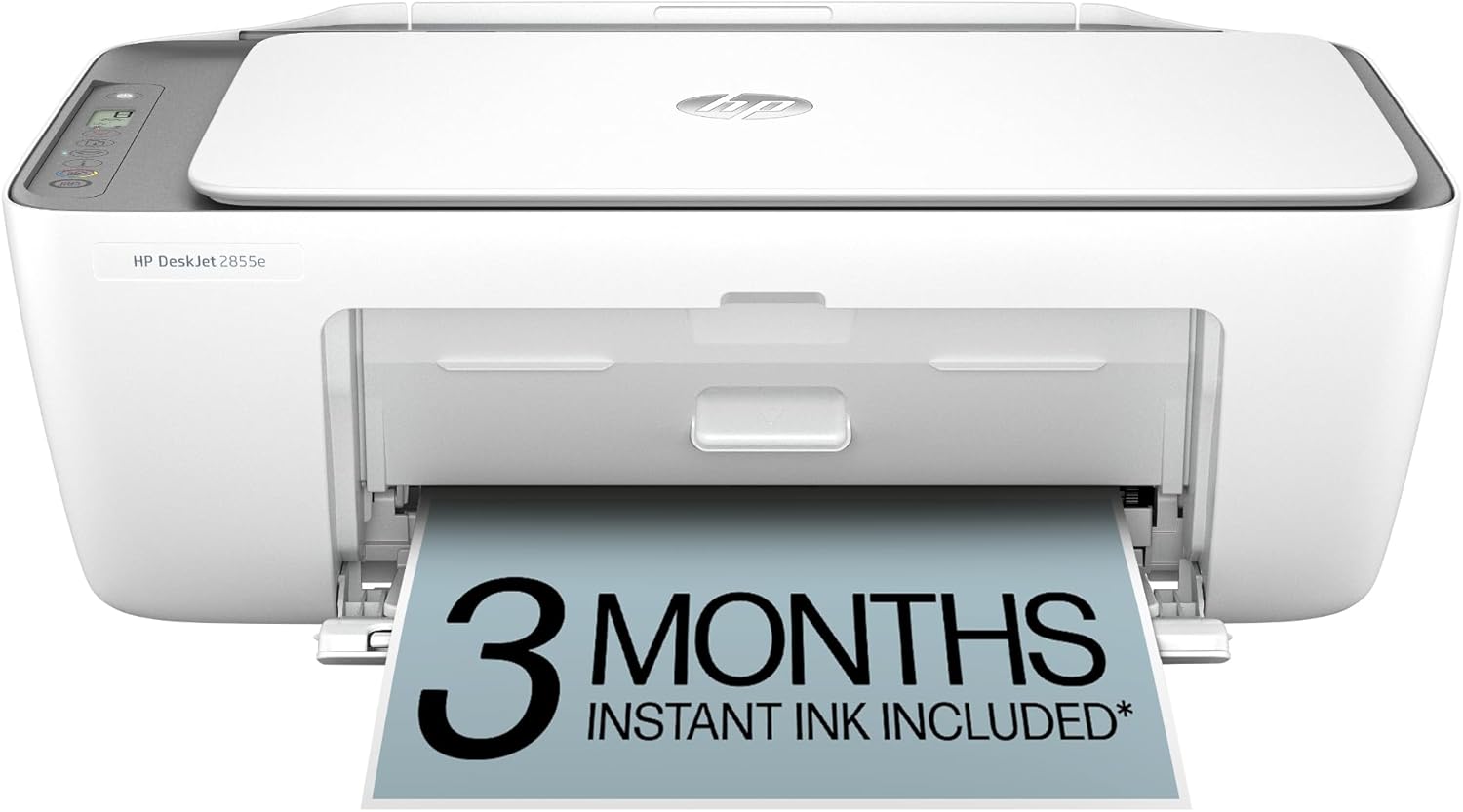
HP DeskJet 2855e
| Printer Type | Inkjet |
|---|---|
| Scanner Type | Flatbed |
| Maximum print Resolution Color | 4800 x 1200 dpi |
| B&W Pages per Minute | 7.5 pages_per_minute |
| Printer Connectivity Type | single band wi-fi (2.4ghz only) |
The HP DeskJet 2855e is an entry-level all-in-one inkjet that handles everyday student tasks like printing assignments, scanning pages, and making copies. It connects via single-band 2.4 GHz Wi-Fi and the HP app, so setup and mobile printing are straightforward for users who prefer phone-first workflows. The printer includes a 60-sheet input tray and a flatbed scanner, and HP AI formatting helps remove clutter from web pages and emails before printing, which reduces wasted sheets. Print quality is reasonable for text and occasional color documents, with advertised resolutions up to 4800 x 1200 dpi for color and modest speeds around 5.5 ppm color and 7.5 ppm black. Notable limitations are the manual duplexing and the single USB port, and running costs depend on HP 67 cartridges or the Instant Ink subscription after the included trial. For students needing a small, simple, app-driven device for classwork, it covers the essentials without advanced features.
Best for: Students or budget-focused buyers who want a small, easy-to-use all-in-one for occasional class printing and scanning with straightforward mobile app control.
Less Ideal for: Heavy users, small study groups, or buyers who need fast duplex printing, multiple wired ports, or low-cost high-volume printing.
- Compact all-in-one design with print, scan, and copy in a small footprint
- Easy wireless setup and mobile printing via HP app
- 60-sheet input tray suitable for light home or dorm use
- HP AI formatting reduces wasted pages when printing web content
- Includes a 3-month Instant Ink trial with HP+ activation
- Only supports single-band 2.4 GHz Wi-Fi and manual duplex printing
- Modest print speeds that may feel slow for higher-volume use
- Uses HP 67 cartridges which can make ink costs higher without a subscription
Verdict: A compact, app-driven all-in-one that gives budget-minded students dependable basic printing and scanning with simple wireless setup.
Choosing the Right Printer for Students on a Budget: Key Factors to Consider
Total Cost of Ownership
Upfront price is only part of the equation. For students, the ongoing cost from replacement ink or toner and how many pages a cartridge yields directly affects monthly expenses.
Look at manufacturer yield estimates and the availability of high-yield or third-party consumables. Machines that support duplex printing or high-yield cartridges usually reduce cost per page. Consider how often you print typical assignments and factor in seasonal spikes such as midterms and finals when estimating yearly consumable needs.
Print Quality for Coursework
Most student printing is text-focused, so sharp, legible black-and-white output is essential for essays, lab reports, and citations.
If you also print charts, posters, or occasional color handouts, evaluate basic color fidelity for graphs and images. Higher resolution may improve small-font clarity and chart detail but often increases cost and size. Prioritize crisp text reproduction over photo-grade color unless your coursework requires visual accuracy.
Connectivity and Mobile Printing
Students move between devices and locations, so reliable Wi-Fi, easy setup, and mobile printing from phones and tablets matter. Features like Wi-Fi Direct, AirPrint, and standard printing protocols reduce friction when submitting assignments from a laptop or phone.
Consider whether the printer supports both secure campus networks and simple local connections for home. An intuitive app or web interface speeds tasks like scanning to email or cloud services and reduces time spent troubleshooting.
Size, Noise, and Dorm-Friendly Design
Space is at a premium in dorms and small apartments. A compact footprint and lightweight design make a printer easier to store when not in use. Noise matters during late-night study sessions, so quieter mechanisms or lower-volume modes are preferable.
Look for models with flatbed scanners if you need to digitize pages, but balance that against depth and height constraints. Removable trays or fold-flat designs help when you need to tuck the unit away between semesters or store it in a closet.
Speed and Daily Throughput
Print speed affects productivity, especially when printing multi-page packets or group materials. For students, a moderate first-page-out time and consistent multi-page throughput keep workflows moving without long waits.
Also consider the device's monthly duty cycle relative to typical student use. A higher duty cycle offers breathing room during busy periods but often comes with larger size or higher cost. Match expected daily print volumes to the printer's rated capability to avoid wear and downtime.
Setup, Maintenance, and Usability
Students benefit from straightforward setup and minimal maintenance. Clear instructions, a responsive app, and easy cartridge replacement reduce time spent on technical issues during study hours.
Features like self-cleaning heads, easily accessible cartridges, and visible ink-level reporting help keep the printer operational. Also consider support resources and warranty terms when making a decision, since slower or complex servicing can be disruptive during a semester.
Which Printing Technology Works Best for Students
Inkjet and laser technologies each have tradeoffs for budget-conscious students. Inkjet machines are usually more affordable upfront and handle color graphics well, making them suitable for occasional color handouts or small posters. Laser printers excel at sharp black text and typically cost less per page over time for heavy text workloads, but they can be larger and more expensive initially.
For most students who print essays and occasional color pages, a compact inkjet with refill options or support for high-yield cartridges offers a good balance. If your coursework demands frequent monochrome bulk printing, a small monochrome laser unit can be more economical in the long run.
- Inkjet: lower upfront cost, better color, variable ink costs
- Laser: sharper text, lower running cost for heavy monochrome use
- Consider duplex printing to save paper and reduce trips to refill supplies
Dorm and Apartment Placement Tips
Choose a location with adequate ventilation and a stable flat surface. Avoid cramped closets or direct sunlight. If space is limited, consider placing the printer on a narrow shelf or a small rolling cart that can double as storage for paper and supplies.
Keep extras such as paper, replacement cartridges, and a USB cable within easy reach. If noise is a concern during late-night study sessions, place the printer on a rubber mat or use a location where mechanical sounds are less disruptive.
- Measure the area before buying to ensure a comfortable fit
- Store consumables in a cool, dry spot to prolong shelf life
- Use surge protection for shared power outlets in dorm rooms
Saving Money on Ink and Toner
To reduce costs, look for compatible high-yield cartridges or refillable systems that lower the cost per page. Enrolling in a subscription for replacement cartridges can help manage expenses, but evaluate whether the program offers genuinely lower running costs.
Also use print settings to conserve supplies: draft mode for internal documents, duplex printing to halve paper use, and selective color printing only when necessary. Regularly check ink-level warnings and perform small maintenance tasks like head alignment to avoid wasted pages.
- Use draft mode for non-final documents
- Prefer black-and-white for most assignments unless color is required
- Evaluate third-party cartridges carefully for compatibility and yield
Essential Mobile and Cloud Workflows
Students increasingly print from phones and cloud storage. Ensure the printer supports standard cloud printing options or has a reliable manufacturer app with scanning and cloud upload functions. This simplifies sending files from class notes, group chat apps, or cloud drives directly to the printer.
For scanning and submitting assignments, choose a unit with a flatbed scanner and straightforward scanning software that can convert pages to PDF. Simple connectivity reduces friction when deadlines are tight.
- Confirm support for AirPrint, Mopria, or equivalent mobile standards
- Look for apps that allow scanning to email or cloud services
- Verify easy network setup for campus or home Wi-Fi
Common Mistakes Students Make When Buying
The top mistake is focusing only on sticker price and overlooking long-term consumable costs. Another common issue is buying a model with limited network features that complicates printing from multiple devices. Finally, underestimating physical space or noise can lead to frustration once the printer is in daily use.
Avoid these pitfalls by cross-checking cartridge yields, confirming mobile compatibility, and measuring the intended setup area. If you expect heavier printing months, ensure the chosen model can handle bursts without excessive maintenance.
- Do not assume lowest upfront cost equals lowest overall cost
- Check wireless compatibility with campus network policies
- Plan for storage of extra paper and cartridges
How We Chose the Best Printer for Students on a Budget
We focused on attributes that matter most to students working with limited budgets and varied printing needs. Key evaluation points included cost-per-page and consumable availability, because long-term ink or toner expense typically outweighs the initial purchase price. We tested connectivity and mobile printing features on representative networks to ensure seamless wireless printing from laptops, phones, and tablets. Print quality for monochrome text and basic color graphics was inspected at common student resolutions, while speed was measured using everyday print tasks such as single-page essays and multi-page handouts. We also evaluated device footprint and noise, since dorm rooms and shared apartments often have tight spaces and quiet study hours. Products were excluded if they lacked replaceable low-cost consumables, had poor wireless support, or required proprietary supplies that dramatically raise lifetime cost. Our selections prioritize machines that pair low total cost of ownership with dependable text quality, straightforward mobile workflows, and a compact form factor suitable for student living spaces.
Our full evaluation process is outlined in our review methodology.
FAQ
Is an inkjet or laser printer better for student use?
It depends on your printing mix. Inkjet printers are cheaper upfront and better for occasional color, while monochrome laser printers typically cost less per page for heavy text printing.
How can I keep printing costs low during a semester?
Use draft mode for non-final documents, enable duplex printing, buy high-yield cartridges when available, and keep an eye on ink or toner yields to avoid last-minute replacements.
Can I print from my phone and cloud storage easily?
Most modern budget printers support mobile printing standards or have apps for cloud and mobile workflows. Confirm support for common protocols like AirPrint or equivalent and test setup on your network.
Will a compact printer be loud in a dorm room?
Noise varies by model. Compact units tend to be quieter but can still produce noticeable sound during warm-up or high-speed printing. Look for models with explicit low-noise modes or quieter mechanical designs.
How often should I replace cartridges during a school year?
Replacement frequency depends on your print volume and cartridge yield. Light users may only need replacements a few times a year, while heavy users should budget for more frequent changes, especially during midterms and finals.
Final Verdict
For students on a budget, prioritize machines with low total cost of ownership, dependable text quality, and the connectivity features you will actually use. Balance upfront cost against cartridge yield and consider size and noise for dorm or apartment life. By focusing on cost per page, mobile printing support, and a compact footprint, you can choose a printer that meets academic needs without creating recurring expense headaches.