
Note: This article contains affiliate links. If you click on these links and make a purchase, we may earn a small commission at no extra cost to you. This helps support our research and content. Read our full affiliate disclosure here.
Choosing the right all-in-one printer for a small office affects daily productivity, document quality, and long-term operating cost. You need a device that handles moderate print volumes, produces clear copies and scans, and integrates cleanly with your network and workflow. This guide shortlists the top options that balance speed, duty cycle, and running costs for small-business use. Each pick was evaluated for the features that matter most to offices, including print and scan performance, connectivity, and total cost of ownership. Read on to see the criteria we used and which machine fits different small-office workflows.
Top Picks at a Glance
| Best Overall The best all-around choice for most situations | Epson WorkForce Pro WF-4830 |  |
| Best Quality Built to a higher standard if you want something more solid | Brother MFC-L8930CDW |  |
| Best Value The sweet spot between price and what you get | Epson EcoTank ET-2800 |  |
| Best Budget The cheapest option that still gets the job done reliably | Canon PIXMA TS3720 | 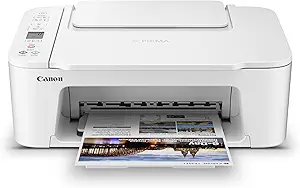 |
| Top Rated A top-rated pick with lots of positive feedback | Xerox C245 Color Multifunction Printer |  |
| Most Popular A crowd favorite that many people choose with confidence | Canon PIXMA TR4720 |  |
| Best Seller A high-volume bestseller chosen again and again | Brother DCP-L2640DW |  |
Epson WorkForce Pro WF-4830

| Printer Type | Inkjet |
|---|---|
| Color Pages per Minute | 12 pages_per_minute |
| B&W Pages per Minute | 25 pages_per_minute |
| Duplex | auto |
| Maximum print Resolution Color | 4800 x 2400 |
The WF-4830 is a productive small-office AIO that combines fast black printing with color capability and a decent paper capacity. It uses PrecisionCore heat-free printhead technology and DURABrite Ultra pigment inks to deliver sharp documents and photo-quality color at manufacturer-rated speeds of up to 25 ISO ppm black and 12 ppm color. The machine includes a 50-sheet auto document feeder, duplex print/copy/scan/fax, two paper trays that together hold up to 500 sheets, and a 4.3-inch color touchscreen for local control. Connectivity covers Wi-Fi, Ethernet, USB and mobile printing through the Epson Smart Panel app, making it easy to place on a small office network and send jobs from phones or PCs. Practical benefits include lower downtime from high-capacity trays and fast first-page-out, plus pigment inks that resist smudging on business documents. Limits to expect are typical of inkjets: color photo throughput is slower than mono, genuine Epson cartridges are required for guaranteed performance, and size and weight make it less convenient for cramped desks.
Best for: Small offices and workgroups that need fast black document printing, reliable two-sided workflows, and flexible networked connectivity in a single multifunction device.
Less Ideal for: Users who prioritize the fastest color photo printing or need an ultra-compact desktop printer for very tight workspaces should consider alternatives.
- Fast black print speed up to 25 ISO ppm for quick document output
- Auto duplex for two-sided print, copy, scan and fax to save paper
- Large combined paper capacity with two trays (500-sheet total) for less frequent refills
- 50-sheet ADF and 4.3-inch color touchscreen streamline multi-page workflows
- Multiple connectivity options including Wi-Fi, Ethernet, USB and mobile app control
- Color printing is noticeably slower than black and may lag on photo-heavy jobs
- Relies on genuine Epson DURABrite cartridges for full compatibility and performance
Verdict: Choose the WF-4830 when you need a networked, high-capacity all-in-one that prioritizes fast black document output and reliable two-sided office workflows.
Brother MFC-L8930CDW

| Printer Type | Laser |
|---|---|
| Print Speed (B&W/Color) | 33 ppm / 33 ppm |
| Maximum Print Resolution | 2400 x 600 dpi |
| Connectivity | Ethernet, USB, Wi-Fi |
| ADF Capacity | 80 pages |
The Brother MFC-L8930CDW is built for busy small offices that need fast, reliable color laser output plus scanning and copying in one machine. It prints at up to 33 ppm in color and black, delivers 2400 x 600 dpi resolution for sharp text and graphics, and includes an 80-sheet single-pass automatic document feeder for two-sided scanning to cloud or email. The 7-inch color touchscreen and customizable shortcuts simplify repetitive workflows, while dual-band Wi-Fi and Gigabit Ethernet make network setup and mobile printing straightforward. Brother includes standard-yield toner in-box and supports high- and super-high-yield replacement cartridges to lower per-page costs for heavy use, and optional lower trays let you expand paper capacity to handle larger jobs. Security features such as triple-layer protections and an integrated NFC card reader help control access and protect documents on a network. The unit is large and consumes substantial power compared with small desktop ink models, and its footprint and weight make it more suitable for office floor or dedicated counter placement than cramped desks.
Best for: Teams and small offices that prioritize fast, professional color output, heavy monthly volumes, and secure networked workflows over minimal desk footprint.
Less Ideal for: Home users or solo workers who need a compact, low-power printer with occasional light printing and minimal maintenance.
- Fast 33 ppm color and black printing suitable for high-volume office tasks
- High 2400 x 600 dpi resolution for crisp text and professional-looking graphics
- 80-sheet single-pass duplex ADF enabling quick two-sided scanning to cloud or email
- Flexible networking with dual-band Wi-Fi, Gigabit Ethernet, and mobile printing
- Supports high- and super-high-yield Brother toners to reduce long-term cost per page
- Large, heavy unit that requires a dedicated space and is not ideal for tight workstations
- Higher power draw compared with compact inkjets, increasing operating power use
Verdict: Choose this Brother all-in-one when you need fast, secure, and cost-efficient color laser performance for a small office environment.
Epson EcoTank ET-2800

| Printer Type | Inkjet |
|---|---|
| Printer Connectivity Type | USB, Wi-Fi |
| Maximum print Resolution Color | 5760 x 1440 dpi |
| B&W Pages per Minute | 10 |
| Maximum Sheet Capacity | 100 |
The Epson EcoTank ET-2800 is a compact all-in-one inkjet that replaces cartridges with large refillable ink tanks, making it well suited for steady document and occasional photo printing. It prints, copies, and scans using PrecisionCore Micro Piezo heat-free tech for crisp text and decent color output, and supports wireless printing plus voice-activated commands and app control for easy mobile workflows. The included ink bottle set yields many pages before refilling, so running costs are significantly lower than cartridge models and maintenance trips are reduced. A simple LCD, flatbed scanner, and a 100-sheet maximum paper capacity keep basic office tasks efficient, though it lacks automatic duplexing and more advanced paper handling. Print speed is modest at up to 10 ppm black and 5 ppm color, so it handles daily prints but is slower for heavy batch jobs. Overall its strengths are low ongoing ink cost and straightforward wireless setup, while limits are single-tray capacity and basic feature set compared with larger small-office MFPs.
Best for: A practical small-office buyer who prioritizes low ongoing ink cost and simple wireless mobile printing for routine documents and occasional photos.
Less Ideal for: Not the best choice for offices that need fast high-volume color throughput, advanced paper handling, or built-in duplexing for heavy two-sided workloads.
- Cartridge-free EcoTank system with high-capacity refillable ink bottles reduces ongoing ink expense
- Wireless printing with app and voice control for convenient mobile workflows
- PrecisionCore Micro Piezo print technology yields sharp text and good photo detail
- All-in-one functions include flatbed scanning and copying for basic office tasks
- Compact footprint with easy-to-fill, keyed ink tanks minimizes maintenance hassle
- No automatic duplex (two-sided) printing
- Relatively modest print speeds for color and larger print jobs
Verdict: Choose the ET-2800 when you want a compact all-in-one that cuts ink costs dramatically and simplifies mobile printing for a small office with moderate volume.
Canon PIXMA TS3720

| Printer Type | Inkjet |
|---|---|
| Maximum print Resolution Color | 4800 x 1200 dots_per_inch |
| B&W Pages per Minute | 7.7 pages_per_minute |
| Printer Connectivity Type | USB, Wi-Fi |
| Maximum Sheet Capacity | 60 |
The Canon PIXMA TS3720 is a compact all-in-one inkjet designed for basic home and small-office tasks, offering print, copy, and flatbed scan functions in a space-saving footprint. It uses a two-cartridge hybrid ink system with pigment black for sharp text and dye-based color inks for photo printing, and it supports borderless photos up to 5 x 7 inches and document sizes up to 8.5 x 14. Setup is straightforward via USB or dual-band Wi-Fi and mobile printing through the Canon PRINT app, AirPrint, and Mopria. The printer delivers reasonable speed for light office use, about 7.7 ppm for black and 4 ppm for color, and holds up to 60 sheets in the rear tray. Notable compromises are single-sided printing only and reliance on two small cartridges that can raise running costs under heavier volumes. The small LCD and simple controls make everyday tasks easy, but the modest paper capacity and lack of duplex mean frequent refill and manual double-sided printing for multi-page jobs.
Best for: Cost-aware small office users who need a compact, easy-to-set-up multifunction printer for occasional document and photo printing and mobile device support.
Less Ideal for: Offices that require high-volume daily printing, automatic duplexing, or a large paper capacity should consider more robust business-focused MFPs.
- Compact footprint fits small desks or tight office spaces
- Dual-band Wi-Fi plus USB and mobile printing support for easy connectivity
- Hybrid two-cartridge ink system produces sharp text and vivid photos
- Borderless photo printing and support for varied media sizes up to 8.5 x 14 inches
- Single-sided (simplex) printing only, no automatic duplex
- Modest 60-sheet paper capacity, requiring frequent refills in busier use
Verdict: A compact, budget-friendly all-in-one that delivers reliable basic print, copy, and scan functionality with easy wireless setup for small offices with light to moderate printing needs.
Xerox C245 Color Multifunction Printer

| Printer Type | Laser |
|---|---|
| Color Pages per Minute | 26 pages_per_minute |
| Printer Connectivity Type | Ethernet, USB, Wi-Fi |
| Duplex | Automatic |
| Maximum print Resolution Color | 2400×600 dots_per_inch |
The Xerox C245 is a compact color laser all-in-one aimed at small offices and home professionals who need reliable daily printing, scanning, and copying. It delivers up to 26 pages per minute in color and black and white, automatic two-sided printing, and a 50-sheet document feeder for short to moderate job batches. Connectivity includes Ethernet, USB, and dual-band Wi‑Fi with mobile support like Apple AirPrint and Mopria, and setup is simplified with the Xerox Easy Assist app and a 2.8-inch color touchscreen. Image quality is strong for business documents, with a maximum resolution of 2400×600 dpi and support for varied media such as envelopes and glossy paper. Practical benefits include energy-saving modes, EPEAT and Energy Star certifications, and compatibility with high-yield toners to reduce running costs. Expect a relatively compact footprint for a laser MFP, but note the 50-sheet input and 50-sheet maximum sheet capacity mean very high-volume offices will need a larger device; the unit is also heavier than many consumer printers, which affects portability.
Best for: Buyers who prioritize dependable, business-quality performance in a compact MFP for a small office or home professional setup and want straightforward mobile setup and management.
Less Ideal for: Large workgroups or offices with continuous high-volume print demands should choose a higher-capacity production device instead.
- Fast 26 ppm print speed for both color and black-and-white workflows
- Automatic duplexing and 50-sheet document feeder streamline two-sided jobs
- Wi‑Fi, Ethernet, USB and mobile printing support enable flexible connectivity
- High maximum print resolution (2400×600 dpi) for crisp text and color graphics
- Energy Star and EPEAT certifications plus high-yield toner options help lower operating costs
- 50-sheet input capacity limits sustained high-volume printing
- Relatively heavy unit compared with smaller desktop printers
Verdict: Choose the Xerox C245 when you need a compact, business-grade color laser MFP that reliably handles everyday small-office print, scan, and copy tasks.
Canon PIXMA TR4720

| Printer Type | Inkjet |
|---|---|
| Functions | Print, Scan, Copy, Fax |
| Compatible Cartridge | Canon CL-276, Canon PG-275 |
| Connectivity | USB, Wi-Fi |
| Resolution | 4800 x 1200 |
The Canon PIXMA TR4720 is a compact 4-in-1 inkjet designed for home or small office use, combining print, scan, copy and fax in a space-saving chassis. It uses Canon CL-276 / PG-275 cartridges and a hybrid ink system to produce sharp black text and reasonably vibrant color prints and borderless photos up to letter size. The front 100-sheet tray and automatic document feeder make short runs and multi-page scanning easier, while automatic duplex printing helps reduce paper use. Connectivity includes USB and Wi‑Fi plus mobile printing via the Canon app, so printing from smartphones and cloud services is straightforward. Print speeds are modest (about 8.8 ipm black, 4.4 ipm color), so it is better suited to intermittent office tasks rather than heavy daily volumes. The 2-line LCD and simple controls keep operation basic, and power consumption is low. Buyers should expect average cartridge yield and typical inkjet photo quality rather than high-end photo output, but for a small office needing fax and copying in a compact, easy-to-set-up package this model covers the essentials reliably.
Best for: Small office or home-office users who want a compact, easy-to-set-up multifunction printer that handles occasional multi-page jobs, mobile printing and fax without complex administration.
Less Ideal for: Workplaces with high monthly page volumes or teams that need fast, low-cost monochrome printing should consider a business laser or higher-volume MFP instead.
- All-in-one functionality with print, scan, copy and built-in fax
- Automatic duplex printing and 100-sheet front paper tray reduce manual handling and paper use
- Auto document feeder simplifies multi-page scanning and copying
- Wi‑Fi and Canon Print app support easy mobile and cloud printing
- Compact footprint fits small office spaces and uses low power
- Modest print speeds and likely average ink running costs compared with business-class laser printers
- Photo and color print quality is good for casual use but not professional-grade
Verdict: A compact, easy-to-use multifunction inkjet that gives small offices faxing, duplexing and mobile printing in a space-saving package.
Brother DCP-L2640DW

| Printer Type | Laser |
|---|---|
| Printer Output Type | Monochrome |
| B&W Pages per Minute | 36 pages_per_minute |
| Maximum Print Resolution Black and White | 1200 x 1200 dots_per_inch |
| Printer Connectivity Type | Ethernet, USB, Wi-Fi |
The Brother DCP-L2640DW is a small-office oriented monochrome laser all-in-one that focuses on fast, reliable document production. It prints up to 36 ppm and delivers sharp 1200 x 1200 dpi black-and-white output for text and business documents, while a 50-sheet auto document feeder and flatbed scanner speed up multi-page copy and scan jobs. Connectivity is flexible with dual-band Wi-Fi, Ethernet, and USB so multiple users can connect from desktops or mobile devices using the Brother Mobile Connect app. Practical features include automatic duplexing to save paper, a 250-sheet paper tray to reduce refills, and toner-save modes to stretch consumables. Trade-offs are its single-function color limitation—no color printing—and the unit is relatively heavy for a desktop device, which can affect placement. For offices that prioritize dependable mono output, simple network setup, and moderate to high monthly volumes, this model delivers predictable performance without a lot of complexity.
Best for: Small office managers or teams who need a dependable, no-frills monochrome MFP for high-volume text and document workflows and who prefer straightforward network setup and vendor support.
Less Ideal for: Buyers who need color printing, a very lightweight portable unit, or photo-quality color output should consider color or dedicated photo/printer alternatives.
- Fast monochrome printing up to 36 pages per minute for quick document turnaround
- 50-sheet auto document feeder and flatbed scanner for efficient multi-page scanning and copying
- Dual-band Wi-Fi, Ethernet, and USB connectivity plus mobile app support for easy networked and remote printing
- Automatic duplex printing and toner-save mode help reduce paper and consumable costs
- 250-sheet input tray lowers how often you need to reload paper
- Prints only in black and white, so it cannot produce color documents
- Relatively heavy and bulkier than some compact desktop models
Verdict: Choose the DCP-L2640DW when you need a robust, fast monochrome all-in-one that reliably handles heavy document workloads for a small office.
Choosing the Right All-in-One Printer for Small Offices: Key Factors to Consider
Print Speed and First-Page Timing
Print speed affects how quickly routine tasks complete and how long staff wait for documents. Faster pages per minute reduce bottlenecks during busy periods, especially when multiple users queue jobs. First-page-out time matters for single-page prints and urgent handouts where total wait time is dominated by warm-up and processing. Consider advertised ipm figures as a starting point but expect differences between color and black-and-white output. If you regularly print multi-page reports, prioritize faster sustained throughput over peak burst performance.
Monthly Duty Cycle and Recommended Volume
Duty cycle is the manufacturer's maximum number of pages the printer can handle per month, while recommended monthly volume indicates a comfortable operating range. Choosing a machine with a higher duty cycle than your typical monthly prints reduces the risk of frequent failures or shortened lifespan. Under-specifying capacity can lead to increased downtime, service needs, and higher total cost of ownership. For growing small offices, leave headroom so occasional spikes or ramped-up workload do not overload the device.
Operating Cost and Consumable Yield
Long-term expenses hinge on consumables: toner or ink cartridges, drum units, and maintenance kits. Cost per page is the best single figure for comparing ongoing expense; it factors cartridge yield and street consumable prices. Also consider whether the model supports high-yield or XL cartridges and whether third-party refill options are reliable. Some printers bundle maintenance cycles into consumable changes, while others require separate parts. Factor in the frequency of replacements and the ease of swapping cartridges to estimate realistic operating costs.
Scan Features and Document Handling
Scans are a core function in small offices that convert paper to searchable digital records. Look at optical resolution, duplex scanning capability, and automatic document feeder capacity. An ADF that handles 50 to 100 pages is useful for batch processing invoices or contracts. Duplex scanning saves time and reduces manual intervention for two-sided documents. Also evaluate whether the scanner supports OCR and produces searchable PDFs, which speeds indexing and retrieval in shared drives or document management systems.
Network Connectivity and Security
Small-office printers need reliable network access and basic security controls. Evaluate wired ethernet and dual-band Wi-Fi support for stable connections, and check for mobile printing protocols like AirPrint or Mopria if staff use phones and tablets. Important security features include secure boot or firmware validation, device authentication, and encrypted data transfer. Consider administrative controls that allow user quotas, job accounting, or access restrictions to prevent unauthorized use and manage costs.
Maintenance, Support, and Ease of Use
Ease of routine maintenance reduces downtime and the need for technician visits. Look for features like user-accessible paper paths, clear front-loading consumable bays, and straightforward error messages. Availability of firmware updates and straightforward remote management tools helps keep devices secure and functioning. Consider the local support ecosystem: whether technicians can be dispatched quickly and whether user manuals and online resources are clear. Simpler interfaces save staff time during daily operation and troubleshooting.
Choosing Between Laser and Ink Technologies
The technology inside the printer affects print quality, speed, and running cost. Laser devices typically offer faster black-and-white throughput, higher duty cycles, and lower cost per page for heavy text printing. Ink-based all-in-ones often provide better color photo output and can be more affordable up front, but their per-page cost may be higher for high-volume text.
- Laser: better for high-volume text, faster warm-up, longer-lasting cartridges.
- Ink: better color gradients and photos, sometimes quieter, lower initial cost.
Setting Up for Networked Office Use
Proper setup determines whether the printer becomes a seamless part of the office or a recurring source of friction. Place the device on a reliable network segment, ideally using wired ethernet for consistent throughput if multiple users print large files. Configure static IP or DHCP reservations to avoid connectivity loss and enable secure protocols such as IPPS or TLS for encrypted communications.
Enable mobile printing support if staff need to print from phones or tablets, and register the device with your directory services if your environment uses centralized authentication. Test scan-to-email and network share workflows during setup to confirm permissions and deliverability.
- Prefer wired connections for high-traffic offices.
- Use secure protocols and authentication.
- Validate scan-to-email and network destination settings.
Optimizing Consumable Management
Track toner or ink levels and set a replacement schedule that avoids emergency changes. Use high-yield cartridges where available to lower replacement frequency and cost per page. Keep spare cartridges on hand based on your monthly volume to prevent workflow interruptions.
Implement simple logging or accounting for print usage to identify heavy users and reduce waste. Duplex printing and draft modes can significantly lower consumable use for internal documents.
- Stock at least one spare set of consumables for critical devices.
- Enable duplex and draft presets for internal print jobs.
- Monitor yields to forecast reorder points.
Common Office Workflows and Feature Mapping
Match features to the specific workflows you run most. If you frequently scan multi-page contracts, prioritize an ADF with higher capacity and duplex scanning. For receipts or occasional color flyers, focus on color fidelity and media handling. If the printer will sit in a common area, choose models with quiet operation and simple front access for clearing paper jams.
Consider the physical footprint and paper-tray capacities so refills do not interrupt peak hours. Some units offer multiple trays or expandable paper capacity which reduces the need for daily attention.
- High-volume scanning: larger ADF and reliable duplexing.
- Frequent color output: good color management and ink quality.
- Shared locations: quiet operation and easy access to trays.
Integrating with Document Management
If your office relies on a document management system or cloud storage, check whether the printer can scan directly to network folders, FTP, or supported cloud services. OCR and searchable PDF output speeds up indexing and makes shared documents more useful. Ensure user permissions and destination paths are configured to prevent accidental exposure of sensitive documents.
Automatic file naming and workflow templates reduce manual steps when scanning recurring document types such as invoices or client forms.
- Enable OCR for searchable PDFs.
- Configure destination templates for recurring scans.
- Secure network shares and cloud connections with proper permissions.
How We Chose the Best All-in-One Printer for Small Offices
We evaluated candidates based on practical small-office requirements to create a shortlist that fits typical day-to-day workflows. First, we prioritized print speed and first-page-out time because small offices often need quick turnaround on meeting materials and client handouts. Second, we considered duty cycle and recommended monthly volume to ensure the device can handle consistent workloads without premature wear. Third, running cost and consumable yield were measured in terms of cost per page and replacement cartridge availability. Fourth, we assessed scan and copy functionality, including automatic document feeder capacity and duplex scanning, since many offices digitize documents regularly. Fifth, connectivity and integration were reviewed, covering wired and wireless networking, mobile printing, and basic security features such as user authentication or network encryption. Finally, we checked ease of setup and everyday maintenance, including access to consumables and firmware update support. Exclusions: devices intended solely for home use, very low-volume portable units, and specialty photo printers were excluded because they do not meet typical small-office demands.
Our full evaluation process is outlined in our review methodology.
FAQ
What monthly print volume is ideal for a small-office all-in-one printer?
Ideal monthly volume depends on office size and workload, but aim for a model whose recommended monthly volume exceeds your typical usage by at least 25 to 50 percent. This headroom helps accommodate occasional spikes without overtaxing the device.
How important is duplex printing for small offices?
Duplex printing is usually valuable because it halves paper usage for two-sided documents and reduces manual intervention. It also speeds workflows for multi-page materials and lowers long-term operating costs.
Can a small-office all-in-one handle heavy scanning needs?
Yes, many all-in-ones include automatic document feeders and duplex scanning that support batch digitization. For very high-volume scanning, prioritize ADF capacity and reliable paper handling to minimize jams and manual handling.
How do I estimate cost per page for budgeting?
Estimate cost per page by dividing the cartridge or toner cost by its rated yield, and include pro-rated costs for drums or maintenance kits if applicable. Factor in paper and occasional service costs for a realistic per-page figure.
Is wired networking necessary for a small office printer?
Wired ethernet is recommended when multiple users share the printer or when large files are common, because it offers more stable throughput and simpler management. Wireless is acceptable for small teams with lighter workloads or where cabling is impractical.
Final Verdict
Prioritize print speed, duty cycle, and operating cost when selecting an all-in-one printer for a small office. Match scan and ADF capabilities to your document workflows, and choose connectivity and security features that fit your network environment. Leave capacity headroom to accommodate growth and occasional peaks. With these tradeoffs in mind, you can select a machine that balances productivity, reliability, and manageable running costs for your office.