
Note: This article contains affiliate links. If you click on these links and make a purchase, we may earn a small commission at no extra cost to you. This helps support our research and content. Read our full affiliate disclosure here.
Picking the right All-in-One Wireless Printer matters because it affects everyday productivity, document quality, and how smoothly your devices communicate. Whether you print occasional school forms or run a small home office, a capable all-in-one saves time by combining printing, scanning, copying, and wireless setup in one footprint. This guide highlights seven shortlisted All-in-One Wireless Printers that cover a range of use cases, from high-volume document tasks to occasional color photos. We evaluated units across practical criteria like print speed, wireless reliability, print quality, and running costs to help you find the best fit quickly. Read on for the key considerations that shaped our selections and details to help you decide which model belongs in your workspace.
Top Picks at a Glance
| Best Overall The best all-around choice for most situations | Brother Work Smart 1360 |  |
| Best Quality Built to a higher standard if you want something more solid | Epson EcoTank Pro ET-5800 |  |
| Best Value The sweet spot between price and what you get | Canon MegaTank G3270 |  |
| Best Budget The cheapest option that still gets the job done reliably | Canon PIXMA TS3720 | 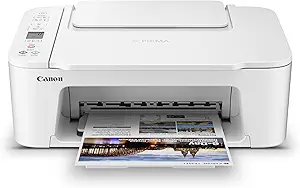 |
| Top Rated A top-rated pick with lots of positive feedback | HP LaserJet Pro MFP 3101sdw |  |
| Most Popular A crowd favorite that many people choose with confidence | HP OfficeJet 3830 |  |
| Best Seller A high-volume bestseller chosen again and again | Epson EcoTank ET-2800 |  |
Brother Work Smart 1360

| Printer Type | Inkjet |
|---|---|
| Duplex | Automatic |
| Maximum Sheet Capacity | 150 |
| Automatic Document Feeder | 20 sheets (single‑side) |
| Connectivity | USB, Wi‑Fi |
The Brother Work Smart 1360 is a budget-friendly all‑in‑one inkjet aimed at home and small home‑office use. It prints both color and black documents, copies, and scans using a flatbed plus a 20‑sheet single‑side automatic document feeder, and supports wireless printing via Wi‑Fi, Wi‑Fi Direct, AirPrint, and Mopria. Notable features include automatic two‑sided printing, a 150‑sheet input capacity, and a simple 1.8" color display with Brother Mobile Connect app integration for setup and mobile printing. Print speeds are modest but usable for everyday tasks — up to 16 ppm black and 9 ppm color — and the Page Gauge helps track ink levels; Brother genuine LC501 cartridges and higher‑yield options are available. The printer is compact and energy efficient, but it is not designed for heavy duty office volumes and color photo quality will not match a dedicated photo printer. Setup is straightforward, though advanced settings and large batch scanning are limited by the small ADF and basic control surface.
Best for: Buyers who want a compact, easy to use all‑in‑one for everyday home or small home‑office printing, scanning, and copying with reliable wireless and mobile workflows.
Less Ideal for: Users who need heavy continuous printing, professional photo quality, or large multi‑page scanning jobs should pick a higher‑capacity or dedicated device instead.
- Built‑in automatic duplex printing for two‑sided documents
- Wireless printing with Wi‑Fi, Wi‑Fi Direct, AirPrint and Mopria support
- 20‑sheet automatic document feeder plus flatbed scanner for mixed tasks
- 150‑sheet paper tray reduces frequent refills for typical home use
- Mobile app integration (Brother Mobile Connect) simplifies setup and remote printing
- Not intended for high‑volume office use due to modest ADF capacity and ink yields
- Color photo output and advanced print options are limited compared with higher‑end models
Verdict: A compact, feature‑balanced wireless all‑in‑one that handles typical home and small home‑office print, copy, and scan needs with straightforward mobile integration.
Epson EcoTank Pro ET-5800

| Printer Type | Inkjet |
|---|---|
| Print Resolution | 4800 x 2400 |
| Print Speed (B&W) | 23 pages_per_minute |
| Printer Connectivity Type | Wi‑Fi |
| Duplex | Automatic |
The Epson EcoTank Pro ET-5800 is a high-capacity all-in-one inkjet that combines refillable supersized ink tanks with Ethernet and Wi‑Fi connectivity, a 4.3-inch color touchscreen, ADF scanner, fax and automatic duplexing. It is built for heavy printing: two 250-sheet front trays plus a rear specialty feed deliver a combined 500-sheet capacity, and the included ink bottles eliminate cartridges and dramatically lower running costs compared with standard toner. PrecisionCore Heat-Free print engine and DURABrite pigment inks produce sharp text and vivid color output up to 4800 x 2400 dpi, and voice-activated printing adds a convenient hands-free option. Real-world benefits are lower cost per page, fewer interruptions to refill, and fast black print speeds suitable for office workflows. Expect a large footprint and business-oriented setup, and factor in that some advanced IT features such as PCL/PostScript support vary across EcoTank Pro models; also genuine Epson pigment ink is recommended to avoid warranty issues. For buyers focused on throughput and low running cost, the ET-5800 prioritizes reliability and economy over compactness.
Best for: Buyers who need a fast, high-throughput all‑in‑one for office or home‑office use and prioritize low ongoing ink cost and reliable, print‑shop quality output.
Less Ideal for: If you need a compact, lightweight printer for occasional home use or want to run third‑party dye inks, choose a smaller consumer model or a different ink technology.
- Very low running cost with supersized refillable ink tanks and included starter ink bottles
- High paper capacity with two front trays plus rear specialty feed for up to 500 sheets total
- PrecisionCore Heat-Free engine and DURABrite pigment ink for sharp text and high-resolution color prints
- Built-in ADF, automatic duplexing, Ethernet and Wi‑Fi for busy office workflows
- Large footprint and heavier unit not suited to small desks
- Requires genuine pigment ink to maintain warranty and optimum results
Verdict: Choose the ET-5800 when you want a workhorse all-in-one that cuts per-page costs while delivering fast, professional-quality prints for high-volume office use.
Canon MegaTank G3270

| Printer Type | Inkjet |
|---|---|
| Printer Connectivity Type | USB, Wi-Fi |
| Maximum print Resolution Color | 4800 x 1200 dots_per_inch |
| Color Pages per Minute | 6 |
| B&W Pages per Minute | 11 |
The Canon MegaTank G3270 is a wireless all-in-one inkjet designed for low-cost, high-yield home and small-office use. It uses integrated refillable ink tanks and ships with a full set of bottles claimed to print thousands of pages, which keeps running costs very low compared with cartridge printers. You get standard AIO features — flatbed scanner, copy, borderless photo printing and a 1.35" LCD for basic status and menus — plus Wi-Fi and USB connectivity for printing from phones and tablets. Print speed is modest (about 11 ppm black, 6 ppm color) and duplexing is manual only, so it is better suited to occasional bulk printing than high-speed office workflows. Paper handling tops out at 100 sheets in the tray and it supports a wide range of media sizes up to legal and long roll lengths, which is handy for specialty prints. Setup and refill operations are straightforward, and power draw is low. If you prioritize very low cost per page and reliable everyday printing for a home or small office, this model does that efficiently.
Best for: Buyers wanting a practical, low-operating-cost all-in-one for home or home-office use who prioritize long ink life and straightforward wireless printing.
Less Ideal for: Workplaces that need fast duplex output or heavy-volume, high-speed production printing should consider more office-focused laser or duplex-capable models.
- Refillable MegaTank system ships with bottles that provide very high page yield and low cost per page
- Wireless and USB connectivity with mobile device compatibility for phone and tablet printing
- Includes flatbed scanner and copy functions for basic all-in-one use
- Supports borderless printing and multiple media sizes up to legal/long lengths
- No automatic duplex printing; only single-sided (simplex) out of the box
- Print speeds are modest, especially for color documents
Verdict: Choose the Canon MegaTank G3270 if you want a wireless all-in-one that slashes ink costs with refillable tanks while handling everyday home and small-office printing, scanning, and copying needs.
Canon PIXMA TS3720

| Printer Type | Inkjet |
|---|---|
| Maximum print Resolution Color | 4800 x 1200 dots_per_inch |
| Color Pages per Minute | 4 pages_per_minute |
| B&W Pages per Minute | 7.7 pages_per_minute |
| Printer Connectivity Type | USB, Wi-Fi |
The Canon PIXMA TS3720 is a small, budget-oriented all-in-one inkjet designed for everyday home tasks like printing documents, occasional photos, scanning and copying. Setup is straightforward using the Canon PRINT app or USB, and its dual-band Wi-Fi supports printing from phones and Chromebooks without a computer. The two-cartridge hybrid ink system uses a pigment black for sharp text and dye-based color inks for photos, producing a high maximum print resolution and borderless photos up to 5 x 7 inches. The rear paper tray holds up to 60 sheets and accepts multiple media types including envelopes and labels. Print speeds are modest — about 7.7 ppm black and 4 ppm color — and it prints single-sided only, so heavy duplex workloads will require manual page flipping or a different model. The small LCD and simple controls keep operation minimal, and compatible Canon CL-276/PG-275 cartridges are easy to replace. For a low-cost home AIO with solid print quality for documents and occasional photos, the TS3720 covers the basics well.
Best for: Buyers seeking an inexpensive, space-saving all-in-one for routine home documents, schoolwork, and occasional photo printing who prioritize ease of setup and wireless mobile printing.
Less Ideal for: Those who need high-volume, double-sided office printing or fast photo throughput should consider a larger, faster AIO with automatic duplexing instead.
- Compact all-in-one design fits small home workspaces
- Dual-band Wi-Fi and mobile app support for easy wireless printing
- Two-cartridge hybrid ink system yields sharp text and vivid photos
- Supports borderless photos and a variety of media types
- Print speeds are modest, especially for color jobs
- Single-sided printing only, no automatic duplexing
Verdict: A no-frills, affordable all-in-one that delivers reliable wireless home printing and good photo/document quality in a compact footprint.
HP LaserJet Pro MFP 3101sdw

| Printer Type | Laser |
|---|---|
| Print Output | Monochrome |
| Print Speed | 40 B&W ppm |
| Input Capacity | 250 sheets |
| ADF Capacity | 50 sheets |
The HP LaserJet Pro MFP 3101sdw is a business-focused monochrome all-in-one that handles high-volume black-and-white printing, scanning and copying. It is typically used by small teams or home offices that need fast, reliable document workflows; its 250-sheet input tray and 50-sheet ADF reduce hands-on paper handling for multi-page jobs. Print speeds up to 35–40 ppm and a 7-second first page time keep short runs moving, and automatic duplexing saves paper on two-sided documents. Connectivity options include Wi‑Fi, Ethernet and USB plus mobile printing via AirPrint and Mopria, and HP's app control helps remote job management. The package includes an introductory toner yielding about 1,000 pages, but ongoing operating cost depends on replacement toner choices. The printer is strictly monochrome and focuses on text and office graphics rather than photo or color work, and it enforces use of cartridges with HP chips which can limit third-party toner alternatives. For buyers prioritizing dependable, fast black-and-white output and straightforward network management, this MFP strikes a practical balance between speed and everyday reliability.
Best for: Buyers who need a dependable, no-nonsense monochrome MFP for steady office workflows and want fast networked printing with minimal maintenance overhead.
Less Ideal for: Those who require color printing, photo-quality output, or prefer unrestricted use of third-party toner solutions.
- High black-and-white speeds (up to 35–40 ppm) for fast document throughput
- 250-sheet input tray plus 50-sheet ADF reduces frequent refills for medium-volume printing
- Automatic duplexing for two-sided printing and paper savings
- Multiple connectivity options including Wi‑Fi, Ethernet, USB and mobile printing for flexible setup
- Monochrome-only output, not suitable for color documents or photos
- Requires HP-chipped cartridges which limits third-party toner options
Verdict: Choose this MFP when you want fast, dependable monochrome printing and simple networked management for small teams.
HP OfficeJet 3830

| Printer Type | Inkjet |
|---|---|
| Functions | Print, Scan, Copy, Fax |
| Auto Document Feeder | 35-sheet |
| Connectivity | USB, Wi-Fi |
| Color Print Resolution | 4800 x 1200 dpi |
The HP OfficeJet 3830 is a compact wireless all-in-one designed for home and small-office tasks, offering printing, scanning, copying, and faxing in a single footprint. It connects via Wi-Fi or USB and supports mobile printing through AirPrint and the HP mobile app, making it easy to print from a smartphone or tablet. The unit includes a 35-sheet automatic document feeder for multipage scans and copies and a 2.2-inch display for basic control. Print quality for photos and color documents is good thanks to a high color print resolution, while black text prints at a faster pace; color prints are slower but acceptable for casual use. It is Instant Ink eligible and supports optional high-yield cartridges, which can lower running costs for frequent users, though the built-in starter cartridges yield only a modest page count. The printer lacks automatic duplexing, so manual two-sided printing is required, and the small monochrome display and modest paper capacity limit heavy office workflows. For buyers who want a space-saving, networked all-in-one with mobile convenience and low ongoing ink options, this model covers core needs without enterprise features.
Best for: Buyers looking for a space-saving, budget-friendly all-in-one that handles everyday home or small-office printing, scanning, and copying with easy mobile printing and lower-cost ink options.
Less Ideal for: Users who need fast, heavy-volume printing, automated two-sided workflows, or a larger paper capacity for sustained office use.
- Wireless and mobile printing via Wi‑Fi, AirPrint, and HP mobile app
- 35-sheet automatic document feeder for quick multipage scanning and copying
- Instant Ink eligible and supports high-yield cartridges to reduce ink costs
- Compact footprint suitable for small desks or home offices
- No automatic duplexing, so two-sided printing must be done manually
- Starter ink cartridges have limited page yields compared with full-size cartridges
Verdict: A compact, networked all-in-one that delivers solid print and mobile convenience for home and small-office users while keeping running costs lower through Instant Ink eligibility.
Epson EcoTank ET-2800

| Printer Type | Inkjet |
|---|---|
| Printer Connectivity Type | USB, Wi-Fi |
| Maximum print Resolution Color | 5760 x 1440 dpi |
| B&W Pages per Minute | 10 |
| Power Consumption | 12 watts |
The Epson EcoTank ET-2800 is a home-focused all-in-one that replaces cartridges with large refillable ink tanks so you can print many pages between refills. It handles printing, copying, and flatbed scanning with wireless and USB connectivity and supports mobile and voice-activated printing for simple setup from phones or smart assistants. Print quality is strong for documents and color photos thanks to Epson PrecisionCore and a high maximum resolution, and the included starter ink claims to cover long runs so you spend less time swapping consumables. Practical benefits include a compact footprint for a supertank, an LCD for basic control, and relatively low power draw. Important limitations are modest color photo speeds and the lack of automatic duplexing, so you will manually flip pages for two-sided jobs, and Epson recommends using genuine ink to avoid performance or warranty issues. For buyers who want reliable, low-running-cost home printing and straightforward wireless features, the ET-2800 covers core needs without complex extras.
Best for: A cautious buyer who values low running costs, reliable everyday printing, and simple wireless/multi-device printing for a household or home office.
Less Ideal for: Users who need fast duplex printing, heavy office throughput, or advanced business features like an automatic document feeder or Ethernet connectivity.
- Cartridge-free EcoTank design with high-capacity refillable ink tanks reduces frequent cartridge changes
- Wireless and mobile printing with voice-activation for convenient setup and remote print jobs
- High maximum print resolution for detailed photos and documents
- Includes flatbed scanner and copy functions for basic all-in-one needs
- Low power consumption (12 watts) compared with many home printers
- No automatic duplex (two-sided) printing; manual flipping required
- Color print speed is relatively slow compared with faster office models
Verdict: Choose the ET-2800 if you want a reliable, cartridge-free home all-in-one that cuts ink swaps and lowers running costs while keeping wireless convenience.
Choosing the Right All-in-One Wireless Printer: Key Factors to Consider
Print Speed and Duty Cycle
Print speed determines how long you wait for documents and directly affects productivity if you print frequently. Manufacturers publish pages-per-minute figures that are useful for comparison, but look for realistic measured speeds for common tasks like black-and-white document output and mixed color jobs.
Duty cycle and recommended monthly volume indicate how much work the printer can handle without accelerated wear. If you expect to print dozens to hundreds of pages per month, choose a unit rated for that workload to avoid premature maintenance and downtime.
Wireless Connectivity and Mobile Printing
A stable wireless connection is essential for an all-in-one wireless printer because it removes the need for a dedicated cable and makes printing from multiple devices simpler. Check support for dual-band Wi-Fi, Wi-Fi Direct, and standard mobile printing protocols so phones and tablets can connect without complex setup.
Ease of initial setup and reliability of network reconnection after router changes matter for less technical users. Printers that offer clear on-device setup controls, a companion app, or WPS support reduce friction when adding devices or troubleshooting intermittent wireless issues.
Print Quality for Documents and Graphics
Print quality affects readability of small text, the clarity of line art, and the vibrancy of color graphics. For predominantly text-based use, sharp black output and good toner or ink distribution are most important. For occasional photos or marketing materials, color gamut and halftone handling influence the results.
Look at recommended print resolutions and sample outputs when possible. Higher resolution does not always equal better perceived quality if ink handling or driver color management is poor, so real-world reviews and sample pages are useful to gauge expected results.
Operating Cost and Consumables
Long-term cost often outweighs initial purchase price, especially if you print regularly. Consider cartridge yields, cost per page, and whether high-yield or third-party cartridges are available. Laser printers and inkjet printers have different cost profiles, so match the technology to your typical usage pattern to minimize expenses.
Also consider how easy it is to check remaining consumable levels and whether ink or toner replacement is straightforward. Printers that use individual color cartridges let you replace only the empty color, which can be more efficient than multi-color sealed cartridges.
Multifunction Capabilities and Scan Quality
A good all-in-one should handle basic office tasks beyond printing. Pay attention to scan resolution, automatic document feeder capacity, and whether the scanner supports duplex scanning. These features determine how well the device performs for digitizing multi-page documents, archives, or two-sided originals.
Copying speed and quality also matter for everyday tasks. If you frequently scan or copy, prioritize models with higher ADF capacities and clear on-device controls for common functions to streamline workflow.
Footprint, Usability, and Maintenance
Physical size and placement flexibility influence where the printer can live in your home or office. Consider the overall footprint, paper tray access, and whether the output bin blocks frequently used areas. A compact design can be important in shared workspaces or home desks.
Usability features such as a responsive control panel, a helpful companion app, and straightforward paper-loading paths reduce frustration. Also evaluate how easy it is to clear paper jams, align cartridges, and perform routine maintenance tasks without tools or service visits.
Wireless Setup Tips and Best Practices
Get the basics right to avoid connectivity headaches. Place the printer within good range of your router and avoid metal obstructions or devices that emit heavy radio interference. If your router supports dual-band Wi-Fi, connect the printer to the same band your devices normally use to minimize cross-network issues.
Use the manufacturer's companion app or the printer control panel for initial setup. These tools often walk through network credentials and mobile printing registration. If you experience drops, assign a static IP address on the router for the printer to keep it reachable by name on your network.
- Place the printer centrally if many devices will connect.
- Prefer 5 GHz Wi-Fi for faster local transfers when in range.
- Consider Wi-Fi Direct for guest or occasional device printing.
- Assign a static IP to reduce intermittent discovery failures.
Choosing Between Inkjet and Laser Technologies
Inkjet and laser technologies each have strengths. Inkjet printers tend to produce better color photos and handle glossy media, while laser printers deliver crisp black text and generally lower cost per page for high-volume document printing.
For mixed-use homes that print occasional photos and documents, modern inkjets with pigment black inks offer a good compromise. For primarily text-heavy workflows and high monthly volume, laser-based all-in-ones typically offer faster dry times and more economical long-term operation.
- Inkjet: better on color photos, glossy paper, and photo media.
- Laser: sharper black text, faster first page out, lower page cost at scale.
- Consider hybrid needs and expected monthly volume before choosing.
Paper Handling and Media Flexibility
Think about the types and sizes of media you will use. Standard office tasks usually require reliable letter or A4 handling and a decent input tray capacity. If you plan to print labels, envelopes, or heavier cardstock, check the printer's supported media weights and manual-feed options.
A larger input tray reduces the need to reload paper for recurring jobs. For frequent double-sided printing, ensure the model supports automatic duplexing and that duplex output remains neat without frequent jams.
- Check input tray capacity against your typical weekly page count.
- Verify support for envelopes, cardstock, and label sheets if needed.
- Automatic duplexing saves time and paper for two-sided jobs.
Maintaining Print Quality Over Time
Regular maintenance keeps output consistent. For inkjets that sit idle for long periods, occasional nozzle checks and short head-clean cycles prevent clogs. For laser units, periodic cleaning of the paper path and sensor areas prevents smudges and paper dust buildup.
Store replacement cartridges in original packaging until needed and follow manufacturer recommendations for handling and installation. Routine firmware updates can also address driver issues and improve color rendering or connectivity stability.
- Run occasional nozzle checks for inkjets to avoid clogs.
- Keep paper stored dry to prevent feeding problems.
- Install firmware updates when available to maintain compatibility.
Optimizing Scans and Digital Workflows
Scan settings can make a big difference in file size and legibility. Use grayscale or black-and-white modes for text-only documents to keep file sizes small. For archival or photo scans, choose higher DPI and use color correction tools sparingly to preserve detail.
Integrate the scanner into your digital workflow with OCR-capable software if you need editable text. Automating multi-page scans with the automatic document feeder saves time, but validate scanned pages for misfeeds or skew before relying on automated OCR output.
- Use lower DPI for routine text scans, higher DPI for photos.
- Enable OCR for searchable documents when needed.
- Preview multi-page scans to ensure correct order and orientation.
How We Chose the Best All-in-One Wireless Printer
We prioritized features and performance metrics that directly affect day-to-day use of all-in-one wireless printers. First, we looked at print speed under typical office document loads because responsiveness matters for frequent printing. Second, we evaluated wireless connectivity options and setup simplicity, including support for common Wi-Fi standards and mobile printing protocols, since a flaky connection undermines convenience. Third, we compared print quality for text and color graphics to ensure legible documents and acceptable photos. Fourth, we assessed running cost factors such as typical ink or toner yield and cartridge availability because ongoing costs quickly outpace the purchase price. Fifth, we considered multifunction abilities like scan resolution and duplex scanning, which affect archival and copy workflows. We also took into account physical footprint and ease of daily maintenance, especially for smaller desks or shared workspaces. Excluded from our list were highly specialized production printers and single-function devices that do not include scanning or copying. We focused on mainstream all-in-one designs suitable for home and small-office users. The selections reflect a balance of measurable specs, user-facing reliability, and practical operating cost considerations.
Our full evaluation process is outlined in our review methodology.
FAQ
How do I connect an all-in-one wireless printer to multiple devices?
Most all-in-one wireless printers connect via your home Wi-Fi network so any device on the same network can print. Many models also support Wi-Fi Direct or a companion mobile app for direct connections when the network is unavailable.
What is a reasonable monthly page volume for a home all-in-one printer?
A typical home all-in-one often handles 100 to 500 pages per month comfortably. If you expect more than that regularly, choose a model with a higher duty cycle and larger consumable yields to avoid frequent replacements or maintenance.
Can I scan double-sided documents automatically?
Some all-in-one printers include a duplex automatic document feeder that scans both sides in a single pass. If you scan two-sided originals frequently, prioritize models that explicitly list duplex ADF capability to save time.
How do I keep inkjet print heads from clogging during idle periods?
Use the printer occasionally and run a short nozzle check and head-clean cycle if you notice missing lines. Storing the printer in a stable, moderate-humidity environment and avoiding prolonged inactivity reduces the likelihood of clogs.
Are replacement cartridges easy to check and replace?
Most all-in-one models report estimated cartridge levels through the control panel or companion app. Replacing cartridges is usually a tool-free task, but designs vary, so check for front-loading access and clear guides to reduce accidental spills or misalignment.
Final Verdict
Prioritize the factors that match how you use the device: choose higher print speeds and a robust duty cycle for heavy document workloads, or favor superior color handling and media flexibility for occasional photo and creative printing. Wireless reliability and reasonable running costs are essential for everyday convenience and long-term satisfaction. Balance the tradeoffs between upfront features and ongoing consumable expenses, and pick the model whose connectivity, multifunction features, and operating profile best align with your daily tasks. That approach yields a dependable all-in-one wireless printer that fits your home or small-office routine.