
Note: This article contains affiliate links. If you click on these links and make a purchase, we may earn a small commission at no extra cost to you. This helps support our research and content. Read our full affiliate disclosure here.
If you want to print photos at home without overspending, choosing the right budget photo printer matters more than brand hype. A capable, affordable photo printer affects print quality, per-page cost, and how easy it is to produce photos that look good framed or in an album. This guide shortlists the top compact photo printers on a budget and explains the practical tradeoffs you should expect, from cartridge yield to color accuracy and paper handling. Read on for straightforward evaluation criteria and the best picks for different home-printing priorities.
Top Picks at a Glance
| Best Overall The best all-around choice for most situations | Canon PIXMA TS6520 |  |
| Best Value The sweet spot between price and what you get | KODAK Dock Plus PD460 |  |
| Best Budget The cheapest option that still gets the job done reliably | Nelko PP01 Photo Printer |  |
| Top Rated A top-rated pick with lots of positive feedback | Fujifilm INSTAX Mini Link 2 |  |
| Most Popular A crowd favorite that many people choose with confidence | KODAK Step Instant Photo Printer |  |
Canon PIXMA TS6520

| Printer Type | Inkjet |
|---|---|
| Duplex | Automatic |
| Printer Connectivity Type | USB, Wi-Fi |
| Display Type | OLED |
| Color | white |
The Canon PIXMA TS6520 is a compact home all-in-one that delivers balanced performance for everyday documents and casual photo printing. It uses a two-cartridge hybrid ink system (pigment black and dye color) to produce sharp text and reasonably vibrant photos up to letter size, and supports borderless printing for simple photo projects. Setup and mobile printing are straightforward via the Canon PRINT app, AirPrint, or Mopria, while Wi-Fi dual-band support helps keep connections stable. The 1.42-inch OLED gives basic status and ink-level info without clutter, and automatic two-sided printing helps save paper for regular document use. It lacks an automatic document feeder, so multi-page scanning or copying requires manual pages, and the small sheet capacity means heavier users will refill paper more often. Print speeds are modest, better suited to occasional photo and document jobs than high-volume office work. For buyers wanting a compact, easy-to-use printer that produces decent photos on a budget, the TS6520 hits a good middle ground between capability and simplicity.
Best for: Buyers who want an affordable, easy-to-use all-in-one that produces decent photos and everyday documents without advanced office features.
Less Ideal for: Users who need high-volume printing, fast throughput, or batch scanning features should look at more robust models with larger trays and an ADF.
- Two-cartridge hybrid ink system for sharp text and vivid color prints
- Built-in Wi-Fi with mobile printing support (Canon PRINT, AirPrint, Mopria)
- Automatic duplex printing reduces paper use
- Compact footprint and simple OLED display make it easy to fit and operate
- No automatic document feeder for multi-page scanning or copying
- Small paper tray capacity requires frequent refills for heavier use
Verdict: A compact, budget-friendly all-in-one that balances photo-capable color output with simple, reliable wireless printing for home and student use.
KODAK Dock Plus PD460

| Printer Type | 4PASS Dye Sublimation |
|---|---|
| Maximum Media Size | 4×6 inches |
| Maximum Sheet Capacity | 10 |
| Connectivity | wired, wireless (Bluetooth) |
The KODAK Dock Plus PD460 is a home-focused 4×6 photo printer that turns smartphone images into laminated 4×6 prints using 4PASS dye sublimation. Setup is simple: place a compatible iPhone or Android on the dock or pair via Bluetooth, edit in the KODAK Photo Printer app, and print borderless photos designed to resist water, fingerprints, and fading. Each print takes roughly a minute and the all-in-one cartridge and paper cassette reduce handling during refills. The dock also charges your phone while printing, which is convenient for longer print sessions. On the downside the unit is built strictly for 4×6 output and holds only about 10 sheets, so it is better for occasional batches rather than high-volume jobs, and print speed is modest at about one page per minute. Image quality is strong for a consumer desktop printer thanks to the laminated finish, but professionals needing larger sizes or faster throughput should look elsewhere.
Best for: Buyers who want an easy, reliable way to make gift-quality 4×6 prints from a smartphone without fuss and who value print longevity and simple operation over speed or larger sizes.
Less Ideal for: Users who need fast high-volume printing, larger print formats, or a multi-function office printer should consider other options.
- Durable 4PASS dye-sublimation prints with laminated protection against water and fingerprints
- Integrated phone dock that charges the device while printing for stable smartphone connection
- Simple Bluetooth app workflow with in-app editing before printing
- Borderless 4×6 output that is ready for framing or albums
- All-in-one cartridge system simplifies media and ink replacement
- Limited to 4×6 prints and a small 10-sheet paper capacity
- Relatively slow print speed at about one print per minute
Verdict: If you want an affordable, plug-and-play desktop printer that reliably produces long-lasting 4×6 photos straight from your phone, the KODAK Dock Plus is a practical pick.
Nelko PP01 Photo Printer

| Printer Type | Inkjet |
|---|---|
| Print media | Glossy photo paper |
| Print Resolution | 600 x 600 |
| Printer Connectivity Type | Bluetooth |
| Color | White |
The Nelko PP01 is a compact Bluetooth inkjet designed for quick 2×3 sticky-back prints from iOS and Android phones using the Nelko app. Set up is straightforward: load the 2×3 photo paper, install the single color cartridge, pair over Bluetooth and send edited images from the app; prints finish in under 90 seconds. The printer uses 600 DPI resolution and four-color ink for reasonably detailed, vibrant small prints that work well for scrapbooks, party favors, and travel journaling. Its portability and included USB charging cable make it easy to carry to events or trips, and the app provides basic editing, frames, and stickers so you can personalize prints before sending. Expect modest throughput—roughly one color page per minute—and occasional maintenance like running cleaning cycles or wiping cartridge contacts to avoid clogs. Paper capacity is limited and prints reserve a blank margin at the bottom, so it is best for casual, creative use rather than large-volume photo labs.
Best for: Buyers wanting an inexpensive, portable way to make small adhesive photos for scrapbooks, travel journals, parties, or casual gifting and who prioritize mobility and app-based editing over speed.
Less Ideal for: People who need fast, high-volume photo production, larger print sizes, or studio-grade color accuracy should look at larger desktop photo printers instead.
- Pocket-sized and lightweight for easy portability
- Bluetooth smartphone printing with an app that includes editing and templates
- 600 DPI color prints on adhesive, smudge- and water-resistant paper
- Includes starter ink cartridge and 20 sheets of photo paper
- Slow single-sheet print speed and small paper capacity not suited for high-volume printing
- Requires regular maintenance (cleaning cycles or wiping contacts) to prevent cartridge recognition or clog issues
Verdict: A budget-friendly, highly portable 2×3 inkjet that delivers adhesive, customizable photos from your phone when you need small, on-the-go prints.
Fujifilm INSTAX Mini Link 2

| Print media | Glossy film |
|---|---|
| Maximum Media Size | 2 x 3 inches |
| Maximum Sheet Capacity | 10 |
| Printer Connectivity Type | Bluetooth, USB |
| Maximum print Resolution Color | 800 x 600 dpi |
The Fujifilm INSTAX Mini Link 2 is a pocketable smartphone printer that pairs over Bluetooth to the INSTAX Mini Link app for quick 2 x 3 inch instant prints. You pick an image or a video frame on your phone, optionally add filters, frames or text in the app, then swipe to print; the device also offers playful features like INSTAXAiR motion doodling and Match Test compatibility prints. It prints directly onto Fujifilm INSTAX MINI instant film and holds up to about 10 sheets, with USB charging and a simple LCD for basic feedback. The unit is lightweight and designed for social, on-the-go use rather than high-volume photo production, so printing is fast and convenient but tied to proprietary film and a small output size. If you want a compact, fun printer for parties, trips, or handing out physical mementos, it delivers reliable, consistent prints; if you need larger prints, lower cost per print, or office-style throughput, a different photo printer will suit better.
Best for: Buyers who want a reliable, easy-to-use instant printer for social events, trips, and gifting physical photos quickly from a smartphone without fuss.
Less Ideal for: Not a good fit for users who need larger prints, low per-print cost, or high-throughput office-style photo printing.
- Truly portable and lightweight for easy transport
- Simple Bluetooth pairing and app workflow for quick prints from smartphone photos or video frames
- Creative app features including INSTAXAiR doodling, filters and Match Test for social use
- Produces consistent, true instant-film prints with Fujifilm INSTAX MINI film
- Uses proprietary INSTAX MINI film which raises ongoing per-print costs
- Small 2 x 3 inch print size limits framing or larger display use
Verdict: Choose the INSTAX Mini Link 2 if you want a compact, dependable smartphone printer that reliably makes shareable 2 x 3 instant prints with playful app features.
KODAK Step Instant Photo Printer
| Print media | Glossy photo paper |
|---|---|
| Maximum Media Size | 2×3 |
| Maximum Sheet Capacity | 10 |
| Printer Connectivity Type | Bluetooth, NFC |
| Battery life (prints per charge) | Up to 25 prints |
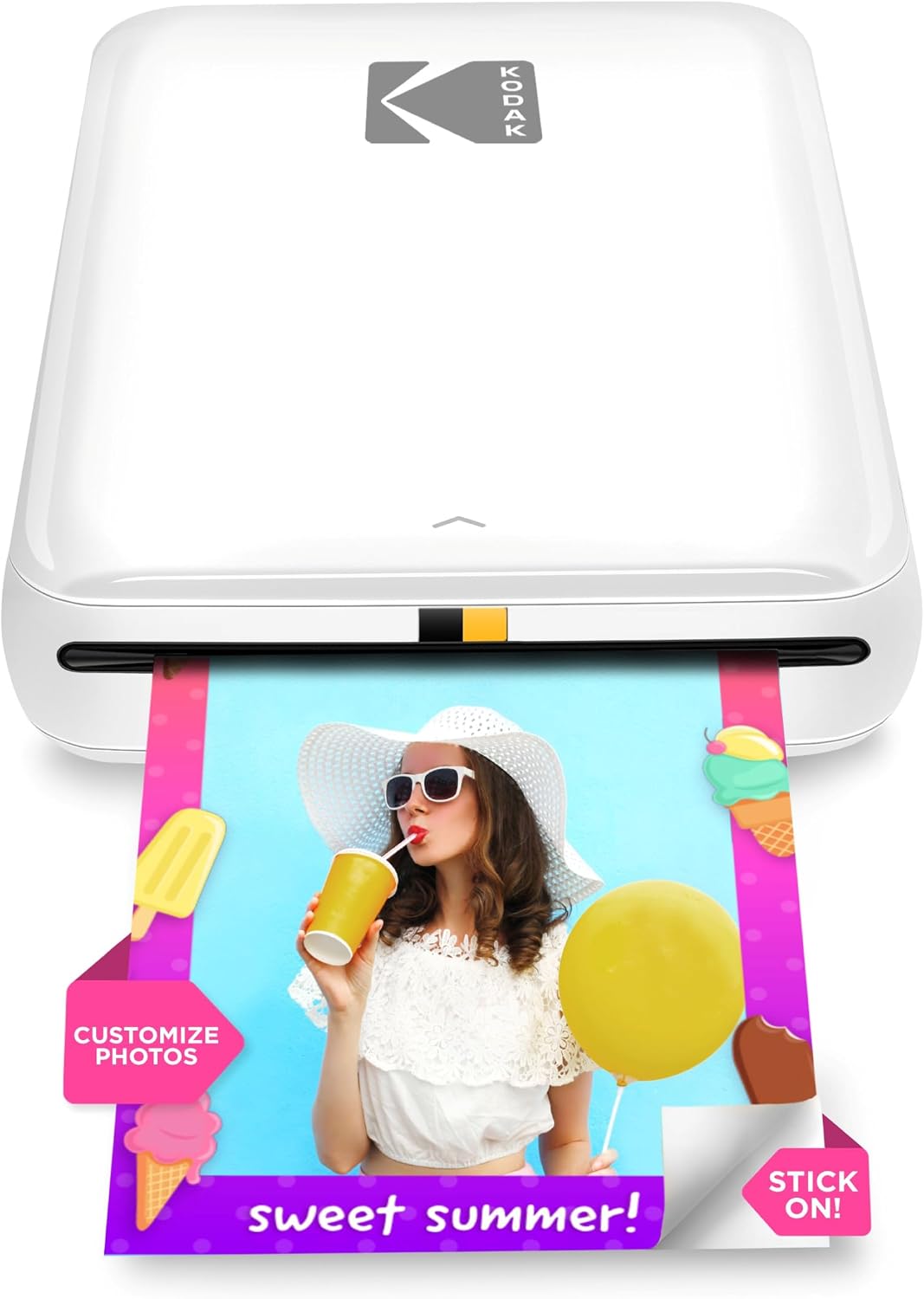
The KODAK Step is a compact, battery-powered mobile printer designed to turn smartphone photos into 2×3 sticky-backed prints without ink. You connect via Bluetooth or NFC, use the free KODAK STEP PRINTS app to crop, add filters, stickers or collages, then print a protected 2×3 photo in about a minute. ZINK zero-ink paper eliminates cartridges and keeps the device maintenance-free, and the built-in battery lets you print roughly 25 photos per charge. Image quality is good for instant snapshots and social posts, with manufacturer-listed color resolution up to 313 x 400 dpi, but expect limitations compared with lab or larger printers—prints are small and detail/tonal range is modest. The paper comes with a protective coating for smudge and water resistance, but ongoing cost and availability of KODAK ZINK paper is the main ongoing expense. Its tiny footprint and simple app workflow make it ideal for parties, crafting, and on-the-go printing, while slower single-print speed and small output size limit use for photo-heavy, high-resolution projects.
Best for: Buyers who want an easy, social-ready way to turn smartphone photos into fun, peel-and-stick keepsakes for parties, scrapbooks, and casual sharing and who value portability and a simple app-driven workflow backed by many user reviews.
Less Ideal for: Photographers who need large, lab-quality or high-resolution prints for professional portfolios or anyone who prints large volumes frequently should look at higher-capacity or desktop photo printers instead.
- Truly portable with built-in rechargeable battery for cordless printing on the go
- Zero-ink ZINK paper means no cartridges or messy replacements
- Simple wireless pairing via Bluetooth or NFC and an editing app for quick customization
- Prints are sticky-backed and have a protective coating for smudge and water resistance
- Prints are limited to 2×3 size with modest detail compared with larger photo printers
- Approximately 25 prints per charge can be restrictive for larger gatherings
Verdict: If you want a pocketable, no-ink printer for quick, sticky-backed smartphone snapshots and social sharing, the KODAK Step is an easy, proven choice.
Choosing the Right Photo Printer on a Budget: Key Factors to Consider
Print Quality on Photo Paper
Sharpness, color accuracy, and gradation determine how pleasing a photo looks when printed. On budget photo printers, pay attention to how the device renders skin tones, subtle highlights, and shadow detail because inexpensive machines often exaggerate saturation or lose detail in dark areas. Testing or sample printouts are valuable when possible.
Paper choice amplifies or hides printer limitations. Higher-grade glossy or luster photo papers will generally produce better-looking results, while cheap papers can make even good printers appear muddy. Consider whether the printer supports the paper finishes and sizes you plan to use.
Ink Efficiency And Ongoing Cost
Initial machine price is only part of the expense. Replacement ink cartridges or photo ink packs can drive long-term ownership costs, especially if you print frequently. Evaluate the page yield of color and black cartridges and whether the printer uses individual color tanks or combined cartridges, since individual tanks let you replace only the depleted color.
Some budget models offer ink-subscription services or high-capacity cartridges that lower per-photo costs. Also consider the availability of third-party ink and how that affects warranty and print consistency.
Paper Size Support And Handling
Budget photo printers vary in the sizes they accept and how they feed paper. Check whether the printer handles 4×6, 5×7, and larger sizes without manual cutting or awkward trimming. Duplex printing is rarely useful for photos but may be handy if you also use the printer for documents.
Paper trays, rear feeds, and dedicated photo slots affect the convenience of switching between plain paper and photo stock. If you plan to print batches of photos, look for models with reliable tray capacity and straightforward paper selection.
Connectivity And Ease Of Use
Simple connectivity and a user-friendly interface matter more on budget printers because they are often used in casual home environments. Wireless printing from phones and tablets, direct memory-card slots, or easy USB setup reduce friction when producing casual prints from social apps or camera files.
Mobile printing apps vary in feature sets and image correction options. A printer with basic, well-designed apps and clear on-device controls will save time and frustration compared with one that hides settings behind complex menus.
Speed And Reliability For Casual Use
Budget photo printers are optimized for occasional to moderate use, not studio throughput. Consider print speed for single photos and small batches, because slow machines lead to delays when printing multiple images for an album or event. Reliability also matters: look for printers with straightforward maintenance routines to avoid clogged nozzles and wasted ink.
Regular, moderate use typically keeps ink systems healthy. If you expect long idle periods between print sessions, prioritize models with good nozzle maintenance features or low-cost cleaning cycles.
Which Paper Finishes Work Best on Budget Photo Printers
Glossy, luster, and matte finishes all have roles depending on the look you want. Glossy papers maximize perceived sharpness and color pop, which helps casual snapshots and portraits look vibrant. Luster offers a balance by reducing fingerprints while preserving much of the color depth of glossy paper. Matte papers are useful for portrait prints with reduced glare and for framed displays with nonreflective glass.
When choosing paper, match the weight and finish to the printer's recommended media. Heavier or textured papers may not feed well through some compact budget models, so test a single sheet before buying large quantities.
- Glossy: highest color impact, visible reflections
- Luster: good color, fewer fingerprints
- Matte: low glare, softer look for portraits
Managing Color And Exposure Without Advanced Tools
Budget printers often include simple color correction options in their mobile apps or desktop drivers. Learn how to adjust saturation, contrast, and brightness to compensate for overly punchy default output. Small tweaks in the app or editing software before sending a file to print can produce a noticeable improvement in skin tones and shadow detail.
If you are not color-calibrating, print a set of test images that include skin tones, greens, and neutral grays to see how the printer renders common colors. Use those results to create quick presets in your phone or editing software.
- Use simple saturation/contrast adjustments to mitigate oversaturation
- Print test images to build quick printer-specific presets
Setting Up A Home Photo Printing Workflow
Design a basic workflow that minimizes handling and maximizes consistency. Start by selecting a default paper type and size, then create a folder or album of images sized to that target. Batch-edit images for exposure and color so each print uses consistent settings. When possible, print using a direct app that preserves dimensions and avoids automatic scaling to fit paper.
Store photo paper flat in a cool, dry place to prevent curling or humidity-related issues. Keep spare ink and a small cleaning kit on hand for routine nozzle checks so you can address quality issues quickly without interrupting a print run.
- Prepare images to the target paper size before printing
- Store paper flat and keep spare ink and cleaning tools accessible
When To Prioritize Low Ink Costs Over Top-End Color
If you plan to print many casual snapshots or everyday photos, per-photo ink cost quickly becomes the biggest expense. Prioritize models with high-yield cartridges or individual color tanks to reduce long-term costs. This approach benefits families and hobbyists who print frequently and are less concerned with perfect gallery-grade color.
If you need museum-quality color accuracy for client work or gallery prints, a budget photo printer is not the right tool. For most home users, accepting slightly less precise color in exchange for lower ongoing costs is a practical tradeoff.
- High-yield cartridges lower per-photo cost for frequent printing
- Individual color tanks avoid wasting ink when only one color runs out
Common Maintenance Tasks To Extend Printer Life
Regular head-clean cycles and occasional nozzle checks reduce clogs and inconsistent color output. Run the printer's automatic maintenance routines according to the manual and perform a manual nozzle check if prints show streaks or missing colors. Use the recommended cleaning solutions and avoid improvised methods that can damage components.
Keep the paper path clean and free of dust or leftover paper bits. If the printer will be unused for extended periods, run a short test print every few weeks to keep ink flowing and identify problems early.
- Run routine head-clean and nozzle-check procedures
- Print a short test image periodically during long idle periods
How We Chose the Best Photo Printer on a Budget
We focused on practical performance and real-world economics for home photo printing. Our selection criteria prioritized measurable print output and user experience: print quality on photo papers, ink efficiency and ongoing cost, paper handling and supported sizes, speed for casual photo batches, and ease of setup and ongoing maintenance. We favored devices that reliably produce sharp color and skin tones on common photo sizes while keeping replacement-ink costs low for frequent use. Excluded from consideration were specialty wide-format printers, dye-sublimation kiosks, and multi-thousand-dollar studio equipment that do not match the budget scope. We also excluded models with persistent reliability issues or unclear ink ecosystem information. The result is a list of compact photo printers that balance image results, consumable economics, and simple operation for home users who want good-looking prints without a high total cost of ownership.
Our full evaluation process is outlined in our review methodology.
FAQ
Can budget photo printers produce display-quality prints?
Budget photo printers can produce attractive display prints for home framing and albums, especially on higher-grade photo papers. However, they usually do not match the color fidelity and longevity of professional studio printers.
How much does ink cost per 4×6 photo on a budget printer?
Per-photo ink costs vary widely depending on cartridge yield and paper choice. Expect lower per-photo costs from models with high-yield cartridges or individual color tanks, while combined cartridges often raise costs when a single color runs out.
Is dye-sublimation better than inkjet for home photo printing on a budget?
Dye-sublimation can produce smooth color gradations and fast single-sheet output, but compact dye-sub kiosks are a different product class. Budget inkjet photo printers offer more flexible media support and lower initial cost for users who also need document printing.
How often should I do maintenance if I print photos infrequently?
If you print sporadically, run a short test print every few weeks and allow the printer to perform automatic maintenance. This helps prevent nozzle clogging and preserves consistent color output.
Can I print directly from my phone or camera memory card?
Many modern budget photo printers support wireless printing from phones and tablets, and some models include memory-card slots or USB options. Check the printer's connectivity features to match how you typically transfer photos.
Final Verdict
Choosing a photo printer on a budget comes down to balancing image results with ongoing costs and convenience. Prioritize print quality and paper support if you value framed photos and portraits. If you print frequently, ink efficiency and individual color tanks will save money over time. Consider connectivity and maintenance needs based on how often you will print, and accept modest tradeoffs in absolute color fidelity to stay within a budget. With those priorities in mind, you can confidently pick a compact photo printer that meets your home-printing goals.