
Note: This article contains affiliate links. If you click on these links and make a purchase, we may earn a small commission at no extra cost to you. This helps support our research and content. Read our full affiliate disclosure here.
Choosing the right color printer for your home office affects productivity, costs, and how professional your documents look. You want dependable color accuracy for client-facing materials, fast enough print speeds for daily tasks, and reasonable ongoing expenses for ink or toner. This guide shortlists the top options that meet those needs and explains the practical tradeoffs to expect. Below you will find our curated picks and a clear explanation of how we evaluated print quality, operating cost, connectivity, and maintenance to help you pick the best fit.
Top Picks at a Glance
| Best Overall The best all-around choice for most situations | HP OfficeJet Pro 8125e | 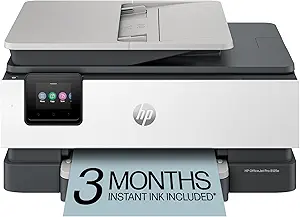 |
| Best Quality Built to a higher standard if you want something more solid | Brother HL-L3220CDW Color Laser Printer |  |
| Best Value The sweet spot between price and what you get | Epson EcoTank ET-2400 |  |
| Best Budget The cheapest option that still gets the job done reliably | Canon PIXMA TS4320 |  |
| Top Rated A top-rated pick with lots of positive feedback | Epson EcoTank ET-2800 |  |
| Most Popular A crowd favorite that many people choose with confidence | HP DeskJet 2855e |  |
| Best Seller A high-volume bestseller chosen again and again | Canon PIXMA TS6520 |  |
HP OfficeJet Pro 8125e

| Printer Type | HP Thermal Inkjet |
|---|---|
| Printer Output Type | Color |
| Maximum Sheet Capacity | 225 |
| Duplex | Automatic (standard) |
| Printer Connectivity Type | Apple AirPrint; Ethernet networking; USB; Wireless (Wi-Fi); Wireless direct printing |
The HP OfficeJet Pro 8125e is an all-in-one inkjet built for home-office workflows that need reliable color output and basic scanning and copying. It prints up to 10 ppm in color and 20 ppm in black, supports automatic two-sided printing and includes a single-sheet flatbed plus a 1-sided automatic document feeder for multi-page scans. Connectivity covers dual-band Wi‑Fi, AirPrint, Ethernet and USB, and the HP app lets you print and scan from mobile devices. Notable extras include AI-driven formatting that trims unwanted web content, a touchscreen control, quiet mode, and support for HP Instant Ink trials. The 225-sheet input and 60-sheet output capacity keep longer print runs from interrupting work, but this is still an inkjet so running costs depend on cartridge use and Instant Ink subscription choices. Setup and security features are oriented to users who accept HP+ enrollment for certain benefits. For balanced home-office use this printer covers most needs without specialty photo or heavy-duty office features.
Best for: Buyers who want a balanced, easy-to-use home-office printer that handles documents, occasional color graphics and multi-page scanning without complex admin.
Less Ideal for: Users who need a dedicated photo printer with studio-quality color output or those who require heavy commercial print volumes and the lowest possible per-page cost.
- All-in-one functionality with scan, copy and 1-sided ADF for everyday office tasks
- Automatic duplex printing and 225-sheet input capacity reduce manual intervention
- Wide connectivity including dual-band Wi‑Fi, Ethernet, AirPrint and USB for flexible setup
- AI formatting and HP app streamline printing from web pages and mobile devices
- Energy Star and recycled-plastic construction show environmental considerations
- Ink costs depend on cartridge use and Instant Ink subscription decisions
- Not optimized for high-volume commercial photo printing
Verdict: A well-rounded home-office all‑in‑one that balances fast everyday color printing, convenient mobile connectivity and automated features for straightforward small-business workflows.
Brother HL-L3220CDW Color Laser Printer

| Print speed | 19 ppm |
|---|---|
| Paper capacity | 250 sheets |
| Connectivity | USB, Wi-Fi |
| Resolution | 2400 x 600 dpi |
| Duplex | Automatic |
The Brother HL-L3220CDW is a compact color laser printer aimed at home-office users who need dependable, professional-looking color and black-and-white output. It prints at up to 19 pages per minute and reaches a first page in under 15 seconds, which keeps short to medium print jobs moving. The 250-sheet tray and manual feed let you run higher-volume jobs and handle envelopes or labels without constant refills. Built-in wireless and mobile printing support plus an LCD and app control make it easy to print from laptops, tablets, and phones, and automatic duplexing cuts paper use for two-sided documents. Print quality is strong for text and business graphics thanks to a 2400 x 600 dpi resolution, and Brother supplies and high-yield toner options help control operating costs. Drawbacks are typical of compact color lasers: it lacks scanning/copying functions, has a single tray design, and uses toner that is more expensive upfront than inkjets, so it is best where fast, durable prints and color graphics matter more than multifunction convenience or the lowest consumable price per page.
Best for: Buyers who prioritize fast, reliable color output and professional-looking documents for a home office and value a compact, networked printer that keeps print jobs moving.
Less Ideal for: Users who need an all‑in‑one scanner/copier or who print primarily photos and want the lowest possible consumable cost per page should consider other options.
- Consistent 19 ppm print speed for color and mono keeps small office workflows moving
- Automatic duplexing reduces paper use and speeds two-sided document production
- 250-sheet main tray lowers refill frequency for higher-volume jobs
- 2400 x 600 dpi resolution produces sharp text and clean business graphics
- Wireless and mobile printing plus app control enable printing from phones and tablets
- Print-only design with no scan or copy functions
- Uses replaceable toner cartridges that have higher upfront cost than ink-based printers
- Single tray limits paper source options without add-on feeders
Verdict: A fast, compact color laser built for home offices that need professional, durable color and reliable throughput.
Epson EcoTank ET-2400

| Printer Type | Inkjet |
|---|---|
| Printer Connectivity Type | USB, Wi-Fi |
| Maximum Media Size | 8.5 x 14 inch |
| Maximum print Resolution Color | 5760 x 1440 dpi |
| B&W Pages per Minute | 10 pages_per_minute |
The Epson EcoTank ET-2400 replaces disposable cartridges with large refillable ink tanks, making it a practical choice for steady home-office color printing. It prints, scans and copies, connects via USB or Wi‑Fi, and supports mobile printing through the Epson app and voice commands. The included starter bottles are marketed to cover a long initial run so you refill far less often than with cartridge models, and the rear-feed tray holds up to 100 sheets for longer uninterrupted jobs. Print quality is strong for text and photos thanks to Epson's Micro Piezo technology and a high maximum resolution, though color speed is modest at about 5 ppm while black prints faster at 10 ppm. Duplex printing is manual only, so two-sided jobs require flipping pages yourself. The ET-2400 is compact and energy efficient, but if you need fast color output, auto duplexing, or an ADF for large multi-page scanning, a higher-tier model would be more suitable.
Best for: A buyer looking to minimize running costs and refill frequency who prints moderate volumes of documents and occasional photos from a home office and values simple wireless setup and app control.
Less Ideal for: Users who need fast color throughput, built-in automatic two-sided printing, or frequent high-volume multi-page scanning should choose a more feature-rich office model.
- Cartridge-free EcoTank system greatly reduces frequency of ink replacements
- Includes starter ink bottles that yield many pages before first refill
- Wireless and USB connectivity with mobile app control and voice printing
- High maximum print resolution for sharp text and photo-quality color
- Color print speed is relatively slow compared with higher-end models
- No automatic duplex or automatic document feeder for two-sided or multi-page jobs
Verdict: Choose the ET-2400 if you want a low-maintenance, cartridge-free color all-in-one that cuts ongoing ink costs for steady home-office printing.
Canon PIXMA TS4320

| Printer Type | Inkjet |
|---|---|
| Duplex | Automatic |
| Compatible Cartridge | PG-295/CL-286 |
| Printer Connectivity Type | USB, Wi-Fi |
| Maximum print Resolution Color | 1200 x 1200 dots_per_inch |
The Canon PIXMA TS4320 is a budget-friendly all-in-one inkjet that handles printing, scanning, and copying for light home office needs. It connects via USB or dual-band Wi-Fi and supports mobile printing through Canon PRINT, AirPrint, and Mopria, making it easy to print from phones and laptops. The hybrid two-cartridge ink system produces sharp text and vibrant photos up to letter size, with a reported color print resolution up to 1200 x 1200 dpi and automatic two-sided printing to save paper. Setup is straightforward and the compact footprint fits small desks or shelves. Expect modest speeds — roughly 9 color and 14 black pages per minute — and a 100-sheet input capacity, so it is best for moderate daily use rather than heavy office workloads. The unit lacks an ADF and advanced display features found on higher-end models, and it uses Canon PG-295/CL-286 cartridges, which are typical for entry-level machines but can add to running costs over time.
Best for: Home users or hybrid workers seeking an affordable, space-saving color all-in-one for occasional document and photo printing with easy wireless connectivity.
Less Ideal for: Those who print large volumes, need fast professional throughput, or require multi-page scanning and copying features like an automatic document feeder.
- Automatic two-sided (duplex) printing reduces paper use
- Dual-band Wi-Fi and mobile printing support for easy wireless setup
- Good photo and document quality for an entry-level hybrid two-cartridge system
- Compact design fits small home office spaces
- Modest input capacity and print speeds limit throughput for heavier workloads
- No automatic document feeder or advanced display, reducing multi-page scanning convenience
Verdict: A compact, budget-focused color all-in-one that delivers good-looking photos and basic office prints with easy wireless setup, ideal for light home office use.
Epson EcoTank ET-2800

| Printer Type | Inkjet |
|---|---|
| Print Resolution | 5760 x 1440 dpi |
| Print Speed B&W | 10 pages_per_minute |
| Connectivity | USB, Wi-Fi |
| Ink Color | Black, Cyan, Magenta, Yellow |
The Epson EcoTank ET-2800 is a cartridge-free all-in-one inkjet that replaces cartridges with refillable high-capacity ink tanks so you can print many pages between refills. It handles everyday home-office tasks: printing documents and photos, scanning on the flatbed, and making copies, with wireless and USB connectivity plus app and voice-activated printing for convenient mobile workflows. The PrecisionCore-based Micro Piezo print engine delivers high-resolution output and sharp text at up to 10 ISO ppm for black and 5 ppm for color, and the built-in color display and simple ink-filling bottles make setup and maintenance straightforward. Practical benefits include very low running costs compared with cartridge models and reduced plastic waste from fewer disposable cartridges. Limitations include simplex-only printing (no automatic duplex) and modest paper handling suited to light to moderate workloads rather than heavy office use, and color photo speeds are relatively slow compared with more expensive models.
Best for: Buyers who prioritize long-term reliability and low operating cost for a home office will appreciate a cartridge-free design and straightforward wireless setup for everyday document and photo printing.
Less Ideal for: This is not the best choice for users needing heavy-duty, high-volume office printing, automatic two-sided workflows, or advanced paper handling features.
- Cartridge-free EcoTank system with high-capacity refillable ink tanks for much lower running costs
- Wireless, app and voice printing for easy mobile and home-office workflows
- High print resolution (up to 5760 x 1440 dpi) for detailed documents and photos
- Simple, keyed ink bottles and a clear color display make refilling and basic operation user-friendly
- No automatic duplexing so two-sided prints must be manually flipped
- Paper handling is limited to a single tray and modest sheet capacity, not ideal for heavy batch jobs
Verdict: Choose the ET-2800 if you want a reliable, low-cost-to-run home color printer that eliminates cartridges and simplifies everyday printing.
HP DeskJet 2855e

| Printer Type | Inkjet |
|---|---|
| Print Resolution | 4800 x 1200 dpi (color) |
| Print Speed B&W | 7.5 pages_per_minute |
| Print Speed Color | 5.5 pages_per_minute |
| Compatible Cartridge | HP 67 |
The HP DeskJet 2855e is a small all-in-one inkjet designed for basic home office tasks like letters, web pages, recipes, and occasional photos. It offers color printing, a flatbed scanner, and copying with a 60-sheet input tray and manual duplexing, and it connects via single-band 2.4 GHz Wi-Fi or USB 2.0. HP AI formatting and the mobile HP app simplify printing from phones and can remove unwanted web content before printing, which reduces wasted pages. Print speeds are modest at about 7.5 ppm black and 5.5 ppm color, and print resolution tops out at 4800 x 1200 dpi for color. The printer ships with setup cartridges and includes a 3-month Instant Ink trial when you activate HP+, which is handy for light but regular users. Be aware it is limited to 2.4 GHz Wi-Fi, has a small paper capacity, and requires manual two-sided printing, so it is best for users with light to moderate monthly volume rather than heavy-duty office needs.
Best for: Buyers who want an affordable, space-saving all-in-one for everyday home office printing, scanning, and copying and who value easy setup and smartphone integration backed by broad user feedback.
Less Ideal for: Users who need fast duplex printing, large monthly page capacity, or dual-band Wi-Fi reliability for heavier office workloads should consider a higher-capacity model.
- All-in-one: print, scan, and copy in a compact footprint
- Includes HP AI formatting and mobile app control for easier smartphone printing
- Ships with starter cartridges and offers a 3-month Instant Ink trial with activation
- High color print resolution (4800 x 1200 dpi) for sharper photo and color document output
- Only supports single-band 2.4 GHz Wi-Fi and one USB 2.0 port
- 60-sheet input tray and manual duplexing make it less suitable for high-volume use
Verdict: A compact, user-friendly all-in-one that delivers good color quality and easy mobile printing for light to moderate home office use.
Canon PIXMA TS6520

| Printer Type | Inkjet |
|---|---|
| Duplex | Automatic |
| Printer Connectivity Type | USB, Wi-Fi |
| Display Type | OLED |
| Color Pages per Minute | 9 pages_per_minute |
The Canon PIXMA TS6520 is a small, budget-friendly all-in-one designed for home office and family use. It uses a two-cartridge hybrid ink system to deliver sharp text and reasonably vibrant color prints while the flatbed scanner handles occasional scanning and copying tasks. Setup is straightforward with the Canon PRINT app, AirPrint, or Mopria and dual-band Wi-Fi keeps mobile printing reliable. The automatic two-sided printing and borderless photo support help save paper and let you produce simple photos and documents without fuss. The 1.42 inch OLED display and basic control panel make status checks and simple jobs quick, but the unit lacks an ADF and has a single paper tray so heavy scanning or high-volume printing will be slow and require frequent paper reloads. Print speeds are modest for color jobs, and replacement ink is the usual ongoing cost for inkjet machines. For steady, low-to-moderate home office use where reliable connectivity and compact size matter, the TS6520 covers the essentials well.
Best for: Buyers who want a dependable, easy-to-use color all-in-one for occasional to moderate home office printing and basic photo tasks without needing advanced features.
Less Ideal for: People who regularly scan or copy multi-page documents, or who need high monthly page volumes and large paper capacity should consider more business-focused models.
- Compact footprint that fits small home office spaces
- Automatic two-sided printing reduces paper use
- Reliable wireless printing with dual-band Wi-Fi and mobile app support
- Good text quality and decent color/photo output from hybrid two-cartridge system
- No automatic document feeder for multi-page scanning or copying
- Single input tray limits paper capacity for heavier workloads
Verdict: A compact, easy-to-use color all-in-one that delivers reliable wireless printing and duplex capability for low-to-moderate home office workloads.
Choosing the Right Color Printer for Home Office: Key Factors to Consider
Print Quality and Color Accuracy
Color fidelity matters when you produce client documents, marketing materials, or color-coded reports. Look for printers that deliver consistent color across the page and maintain sharp text alongside saturated graphics. Paper type and print resolution will influence the result, so confirm the printer supports the media you plan to use and offers adjustable color or quality settings.
High-quality photos and fine gradients require more advanced color handling, while everyday charts and flyers need reliable, repeatable color that does not smear. If your work demands brand-accurate colors, seek devices that offer manual color controls or ICC profile support to tune output.
Operating Cost and Consumables
Long-term cost is often dominated by ink or toner. Evaluate typical cartridge yields and how many pages you can expect between replacements. Some models use individual color cartridges so you only replace the depleted color, while others require multi-color replacements that increase waste and cost.
Also consider high-yield or subscription refill options if you print frequently. For infrequent printing, check for cartridge maintenance behaviors that waste ink during cleaning cycles. Balancing upfront price against per-page cost will reveal the true expense of running the printer in a home office.
Connectivity and Mobile Workflow
Home offices benefit from flexible connectivity. Ensure the printer supports the network types you need, such as reliable dual-band Wi-Fi and wired Ethernet for stable shared use. Native mobile printing protocols, USB support, and cloud printing capabilities simplify sending jobs from phones and tablets.
Also confirm driver availability and compatibility with your operating system. Easy setup and robust drivers reduce friction when adding the device to an existing home network or when multiple users share the printer.
Paper Handling and Media Flexibility
Consider the types and sizes of media you will print on. A versatile paper path and a dedicated tray for letter or legal sizes can save time for mixed jobs. If you plan to print envelopes, labels, or heavier stock for brochures, check the supported weight range and any manual feed options.
Automatic duplex printing is a useful efficiency feature for two-sided documents. Also pay attention to input capacity, as small trays may require frequent refilling when producing larger batches of materials.
Speed and Everyday Productivity
Print speed matters when you need quick turnarounds on multi-page documents. Look beyond peak ppm numbers and consider how fast the first page prints and how the device handles mixed-color jobs. Warm-up times, spooler behavior for complex files, and the ability to prioritize small vs large jobs all influence day-to-day productivity.
If you often print short runs of highly formatted pages or large color spreads, choose a model with consistent throughput rather than just a high headline speed.
Maintenance, Reliability, and Support
Routine maintenance tasks such as cartridge replacement, printhead cleaning, and jam clearance should be straightforward. Printers with clear access panels and tool-free consumable swaps save time and reduce downtime.
Also consider the device's expected duty cycle relative to your monthly volume; exceeded duty recommendations may increase failures. Availability of clear online documentation and responsive customer support can be important for fixing issues without lengthy interruptions.
Choosing Between Inkjet and Laser Color Printers
Inkjet printers generally excel at photo quality and nuanced color gradients, making them a good fit for marketing collateral and occasional photo prints. They tend to handle a wider variety of paper types and heavier stocks, but may have higher ongoing ink costs if you print frequently.
Color laser printers typically offer faster text printing, lower cost per page for high-volume document jobs, and less susceptibility to ink drying when idle. For home offices that prioritize speed and long-term running cost over photo fidelity, laser devices often deliver more predictable operating budgets.
- Inkjet: better photo and mixed-media support
- Laser: faster text throughput and lower per-page cost for heavy printing
- Consider your typical print mix when choosing technology
Managing Consumables and Reducing Waste
Plan how you will manage ink or toner replacements to lower interruptions and reduce waste. Using individual color cartridges or high-capacity consumables reduces the frequency of full-cartridge swaps and can save money per page. Keep spare cartridges on hand if you have time-sensitive printing needs to avoid downtime.
For infrequent users, look for printers that minimize cleaning cycles and have good ink-preservation features. Regularly running a small test page every few weeks prevents clogs and ensures consistent output without excessive waste.
- Buy compatible high-yield cartridges when available
- Store consumables per manufacturer guidelines to prolong life
- Run occasional test prints to prevent clogs
Optimizing File Preparation for Best Output
Prepare files with correct color spaces and resolution to get predictable results. For office documents and charts, standard sRGB color space and 300 dpi images are usually sufficient. For marketing materials or high-quality prints, check if the printer supports alternative color profiles and consider exporting at higher resolution with embedded profiles.
Use PDF or printer-friendly formats to preserve layout and fonts when printing from different devices. Flatten complex layers in design files to avoid unexpected font substitutions or layout shifts during printing.
- Use sRGB for standard office color work
- Export to PDF for consistent layout preservation
- Embed fonts and flatten layers for complex documents
Setting Up a Home Network Printer Securely
When connecting a color printer to your home network, place it on the primary secure network or a dedicated device VLAN if your router supports it. Enable strong Wi-Fi encryption and change default administrative passwords during setup. Disable unnecessary services such as unsecured FTP or Telnet if present.
Consider guest network segmentation for visitors to prevent access to shared files. Keep the printer firmware updated to apply security patches that protect against network vulnerabilities.
- Use WPA2/WPA3 with a strong password
- Change default admin credentials
- Keep firmware current to address security issues
When to Prioritize Speed Over Image Fidelity
If your daily workflow is dominated by multi-page contracts, invoices, or reports, prioritize a model with faster mixed-document throughput and robust duplexing. High print speeds reduce bottlenecks and free you to handle other tasks in your workflow.
If occasional color graphics are important but not mission-critical, pick a printer that offers a quick draft mode for internal copies and a higher-quality mode for final client deliverables. This approach balances speed and image fidelity without committing to a higher-end photo-focused machine.
- Choose faster engines for heavy document loads
- Use draft modes for internal prints to save consumables
- Reserve high-quality settings for client-facing outputs
How We Chose the Best Color Printer for Home Office
We focused on real-world home office needs when selecting the shortlist of printers. Primary evaluation criteria included print quality for both text and color graphics, measured by color accuracy, sharpness, and consistent saturation at common office resolutions. Operating cost was assessed by typical page yields and replacement consumable cost to reflect monthly expenses for a small-business workload. Connectivity and workflow compatibility were judged by the availability of wired and wireless options, mobile printing support, and ease of driver setup across common desktop and laptop systems. Daily usability and maintenance were evaluated via paper handling, supported media sizes, print speed for mixed documents, and how straightforward routine tasks like replacing cartridges or clearing jams are. We also considered durability signals such as recommended monthly duty cycle and design features that reduce misfeeds. Exclusions: we excluded specialty photo-only devices, industrial production presses, and single-function devices lacking color output. Final choices balance image quality, total cost of ownership, and features that matter in a typical home office.
Our full evaluation process is outlined in our review methodology.
FAQ
How do I estimate monthly printing costs for a home office?
Estimate monthly cost by multiplying your average monthly pages by the printer's cost per page, which you can derive from cartridge yields and replacement cost. Include occasional maintenance charges and factor higher costs for color-heavy jobs compared with monochrome text.
Is duplex printing necessary for a home office?
Automatic duplexing saves paper and presents a more professional finished document. It is especially useful for multi-page reports and reduces storage needs. If you rarely print multi-page documents, it is a nice-to-have rather than essential.
Will an inkjet printer waste ink if used infrequently?
Infrequent use can lead to ink drying and nozzle clogs on many inkjets, which triggers cleaning cycles that consume ink. To avoid this, run small test prints intermittently or choose models with ink-preservation features designed for low-volume users.
What connectivity options should a home office printer support?
At minimum, look for reliable Wi-Fi and USB connectivity, with optional Ethernet if you plan to share the printer across a wired network. Mobile printing support and common driver compatibility simplify printing from phones, tablets, and multiple computers.
How important is support for heavier paper stocks?
If you produce flyers, brochures, or business cards, support for heavier stocks and a straight-through manual feed reduces jams and produces better results. Check the printer's supported paper weight range and manual feed options before choosing.
Final Verdict
Selecting a color printer for a home office comes down to balancing image needs with ongoing cost and workflow fit. Prioritize print quality if you deliver client-facing materials and choose efficient consumable options if you print in volume. Ensure the model you pick supports the media, connectivity, and maintenance expectations of your daily workflow. With clear priorities on color fidelity, operating cost, and usability, you can choose a printer that reliably supports your home office tasks.