
Note: This article contains affiliate links. If you click on these links and make a purchase, we may earn a small commission at no extra cost to you. This helps support our research and content. Read our full affiliate disclosure here.
Picking the right color printer for home use affects everything from school projects to family photos and home-office documents. You want accurate color, reliable Wi-Fi printing, and reasonable running costs without taking up the whole desk. This guide covers seven shortlisted color printers for home environments chosen for their mix of photo capability, footprint, and operating cost. Below you will find concise evaluations based on real buyer priorities: print quality, usability, and total cost to run. Use the quick sections that follow to match features to your typical printing habits.
Top Picks at a Glance
| Best Overall The best all-around choice for most situations | HP OfficeJet Pro 8125e | 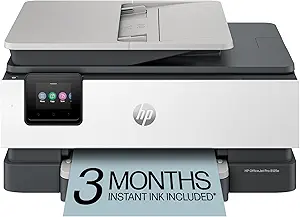 |
| Best Quality Built to a higher standard if you want something more solid | Epson Expression Photo HD XP-15000 |  |
| Best Value The sweet spot between price and what you get | Brother Work Smart 1360 MFC-J1360DW |  |
| Best Budget The cheapest option that still gets the job done reliably | Canon PIXMA TS4320 |  |
| Top Rated A top-rated pick with lots of positive feedback | Canon PIXMA TR4720 |  |
| Most Popular A crowd favorite that many people choose with confidence | HP DeskJet 2855e |  |
| Best Seller A high-volume bestseller chosen again and again | Epson EcoTank ET-2800 | 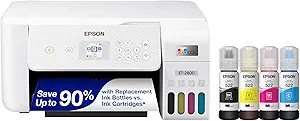 |
HP OfficeJet Pro 8125e

| Printer Type | HP Thermal Inkjet |
|---|---|
| Print Output Type | Color |
| Maximum Sheet Capacity | 225 |
| Duplex | Automatic (standard) |
| Connectivity | Apple AirPrint; Ethernet; USB; Wireless (Wi‑Fi); Wireless direct printing |
The HP OfficeJet Pro 8125e is a compact all-in-one inkjet aimed at home and home-office use, offering color printing, scanning and copying with a built-in automatic document feeder and automatic two-sided printing. It connects via dual-band Wi-Fi, Ethernet, USB or AirPrint and integrates with the HP app for mobile printing and scanning. Notable features include HP AI formatting to clean up web pages and emails before printing, a 225-sheet input capacity for longer print runs, and ENERGY STAR and EPEAT registration for lower power use. The 4800 x 1200 optimized color resolution supports sharp graphics and photos on suitable paper, while the printer ships with starter HP 923 setup cartridges and supports HP 923/923e cartridges and Instant Ink subscription. Trade-offs are typical for inkjets: color speeds are modest (about 10 ppm) and photo output depends heavily on paper choice, and ongoing ink costs will affect total ownership. For someone who needs reliable networked color printing with decent throughput and useful mobile features, the 8125e covers the essentials without taking much space.
Best for: Buyers who want a compact, networked color all-in-one that handles everyday home office tasks and occasional photo or color document printing while emphasizing convenience and mobile workflow.
Less Ideal for: Users who need very high-volume, enterprise-class throughput or the lowest per-page color cost should consider larger workgroup printers or laser color alternatives.
- All-in-one functionality with flatbed scanner plus 1-sided ADF for batch scans
- Automatic duplex printing and a 225-sheet input capacity reduce manual tasks
- Multiple connectivity options including dual-band Wi-Fi, Ethernet, USB and AirPrint
- High optimized color resolution for sharper graphics and better-looking color documents
- HP app and AI print formatting simplify mobile printing and reduce wasted pages
- Color print speed is moderate compared with faster office models
- Ongoing ink or Instant Ink subscription costs can be significant for heavy color use
Verdict: A compact, connected color all-in-one that balances print quality, convenience, and features for home offices looking for reliable everyday color printing.
Epson Expression Photo HD XP-15000

| Maximum print Resolution Color | 5760 x 1440 dpi |
|---|---|
| Maximum Media Size | 13 x 19 inch |
| Printer Connectivity Type | wired, wireless |
| Duplex | Automatic |
The Epson Expression Photo HD XP-15000 is a wide-format inkjet built for home photographers and small studios that need high-quality, borderless photos up to 13 x 19 inches. It uses six individual Claria Photo HD inks, including red and gray, to extend the color gamut and improve black-and-white detail, and it achieves very high optical resolution (5760 x 1440 dpi) for fine photo output. The printer supports a 50-sheet rear specialty tray for cardstock and a 200-sheet front tray for document jobs, plus automatic duplexing for two-sided documents. Connectivity covers wired Ethernet, USB and wireless printing from phones and tablets, and a 2.4-inch color LCD helps with setup and basic controls. On the downside it is a desktop-sized wide-format unit that requires genuine Epson inks and firmware updates may affect third-party cartridge compatibility, so running costs lean toward OEM supplies. Print speeds for documents are moderate compared with dedicated office lasers but are competitive for a photo-focused inkjet.
Best for: Buyers who prioritize photo quality and wide-format capability at home or in a small studio and want a single machine that handles borderless photos and occasional document jobs.
Less Ideal for: Users who need the lowest cost per page for high-volume document printing or who prefer open compatibility with third-party ink systems.
- Six individual Claria Photo HD inks (including red and gray) for a wide color gamut and improved black-and-white prints
- Borderless wide-format printing up to 13 x 19 inches for pro-style photos and projects
- Automatic duplexing plus separate rear specialty tray for cardstock and media versatility
- Multiple connectivity options including wireless, Ethernet and USB for phone, tablet and PC printing
- High maximum optical resolution (5760 x 1440 dpi) for detailed photo output
- Designed to work with genuine Epson cartridges only, which increases ongoing ink costs
- Not as fast as office laser printers for bulk document printing
Verdict: Choose the XP-15000 if you want a compact home printer that delivers wide-format, gallery-quality photo prints using a six-color ink set.
Brother Work Smart 1360 MFC-J1360DW

| Printer Type | Inkjet |
|---|---|
| Functions | Print, Copy, Scan |
| Duplex | Automatic |
| Maximum Sheet Capacity | 150 |
| Printer Connectivity Type | USB, Wi-Fi |
The Brother Work Smart 1360 is a compact all-in-one inkjet designed for home and home-office use. It handles everyday tasks—color and black-and-white printing, flatbed scanning, and copying—while offering convenience features such as automatic two-sided printing, a 20-sheet single-sided automatic document feeder, and wireless connectivity including Wi-Fi Direct, AirPrint, and Mopria. Setup and mobile printing are simplified by the Brother Mobile Connect app and the 1.8-inch color display, and the 150-sheet tray plus Page Gauge ink monitoring help reduce interruptions. Print speeds are geared toward typical home workloads, rated up to 16 ppm black and 9 ppm color, and print quality benefits from high-resolution output on Windows. Trade-offs are its modest ADF capacity and basic display size, so power users who need heavy monthly volume or larger touchscreens may find it limiting, and color photo enthusiasts may prefer a photo-focused model. For routine document work and occasional color prints, it balances compact footprint, usable feature set, and easy mobile integration well.
Best for: Buyers who prioritize a compact, reliable multifunction printer for everyday home or small office document work and want straightforward mobile printing and ink monitoring.
Less Ideal for: Not a good fit for users who need heavy monthly page volumes, large touchscreens, or a dedicated high-end photo printer for frequent photo-quality prints.
- Automatic duplexing for two-sided prints reduces paper use and manual flipping
- Wireless printing with Wi‑Fi Direct, AirPrint, and Mopria for easy mobile and laptop printing
- 20-sheet ADF and 150-sheet tray help with short batch jobs and moderate daily use
- High maximum print resolution on Windows for sharp text and detailed color output
- Page Gauge ink monitoring and compatibility with genuine Brother LC501 cartridges and subscription options
- ADF is single-sided only and holds only 20 sheets, limiting multi-page scanning speed
- Small 1.8-inch color display offers limited on-device navigation and preview capability
Verdict: A compact, easy-to-use all-in-one that delivers dependable home-office color and document printing with practical mobile features and automatic duplexing.
Canon PIXMA TS4320

| Printer Type | Inkjet |
|---|---|
| Duplex | Automatic |
| Connectivity | USB, Wi-Fi |
| Maximum print Resolution Color | 1200 x 1200 dots_per_inch |
| Maximum Sheet Capacity | 100 |
The Canon PIXMA TS4320 is a compact, budget-minded all-in-one inkjet that covers everyday home tasks like homework, recipes, and occasional photo prints. It connects via Wi‑Fi or USB, supports mobile printing through the Canon app, Apple AirPrint and Mopria, and includes a flatbed scanner for copying and scanning jobs. The hybrid two-cartridge ink system produces crisp text and reasonably vivid color photos up to letter size, and automatic two-sided printing helps save paper. Setup is straightforward and the small footprint fits easily on a shelf or desk. Limits are typical for an entry-level model: print speeds are moderate, there is no automatic document feeder or touchscreen, and the starter ink is small so replacement cartridges will be a recurring cost for frequent photo printing. Still, for light household use and occasional photo projects this printer delivers solid print quality and reliable wireless performance without unnecessary extras.
Best for: Buyers who want an affordable, easy-to-use color all-in-one for light home tasks and occasional photo printing and prioritize simplicity and space savings over advanced features.
Less Ideal for: Users who need high-volume printing, an automatic document feeder, fast throughput, or advanced office features should consider larger multifunction or office-focused printers instead.
- Compact footprint suitable for small desks or counters
- Automatic two-sided printing reduces paper use
- Wireless printing with Canon app, AirPrint and Mopria for easy mobile printing
- Hybrid two-cartridge ink system that produces sharp text and good color photos
- Includes flatbed scanner for copying and simple scanning tasks
- No automatic document feeder or touchscreen controls
- Starter inks are small so replacement cartridges may be needed sooner with heavy use
- Print speeds are modest compared with higher-end models
Verdict: A compact, budget-friendly color all-in-one that delivers reliable wireless printing and good photo-capable output for light home use.
Canon PIXMA TR4720

| Printer Type | Inkjet |
|---|---|
| Compatible Cartridge | PG-275, CL-276 |
| Printer Connectivity Type | Wi-Fi |
| Duplex | Automatic |
| Maximum print Resolution Color | 4800 x 1200 dpi |
The Canon PIXMA TR4720 is a small, home-focused all-in-one inkjet that handles printing, copying, scanning and faxing while offering wireless mobile printing and automatic duplex. Setup is straightforward via the Canon PRINT app and the unit ships with starter PG-275 black and CL-276 color cartridges, making it ready for basic home tasks. The built-in auto document feeder and automatic duplex printing make multipage jobs and two-sided prints easier without manual intervention, and Wi‑Fi connectivity supports printing from smartphones and other devices. Print resolution is strong for its class at up to 4800 x 1200 dpi for color, so photos and graphics look better than typical budget inkjets. Practical limits include modest paper capacity and starter cartridges that are not long-lasting, so frequent heavy printing will drive replacement costs higher than laser alternatives. For everyday home use—schoolwork, documents, occasional photos—the TR4720 balances features and simplicity in a compact footprint.
Best for: Home users who prioritize a reliable, easy-to-use all-in-one for everyday documents, occasional photos, and multipage tasks and who value simple wireless setup and operation.
Less Ideal for: Households that need high-volume, low-cost page yields or fast office-grade print speeds should consider a laser or higher-capacity ink solution instead.
- All-in-one functionality: print, copy, scan and fax in one compact unit
- Automatic duplex printing and auto document feeder streamline multipage jobs
- Wi‑Fi and mobile app support for easy printing from smartphones
- High color print resolution up to 4800 x 1200 dpi for better photo and graphic quality
- Starter ink cartridges are small and will require replacement with regular use
- Modest paper capacity limits large print runs without frequent refills
Verdict: A compact, dependable all-in-one inkjet for home users who want easy wireless printing and useful features like an ADF and automatic duplexing.
HP DeskJet 2855e

| Printer Type | Inkjet |
|---|---|
| Print Resolution | 4800 x 1200 dpi (color) / 600 dpi (B&W) |
| Paper Capacity | 60 sheets |
| Connectivity | Single band Wi‑Fi (2.4 GHz), USB 2.0 |
| Compatible Cartridge | HP 67 |
The HP DeskJet 2855e is a small, app‑driven all‑in‑one designed for everyday home printing, scanning, and copying. It connects over 2.4 GHz Wi‑Fi or USB and is managed through the HP app, which also enables HP+ features like a three‑month Instant Ink trial when activated. Print quality is decent for documents and occasional photos, with a quoted color resolution up to 4800 x 1200 dpi and typical speeds of about 5.5 ppm in color and 7.5 ppm in black. The 60‑sheet input tray and flatbed scanner make it useful for bills, schoolwork, and recipes, while manual duplexing keeps the design simple. Expect modest power draw and basic controls via an LCD. Important limits are its entry‑level speed and single‑band 2.4 GHz Wi‑Fi only, so it is not built for heavy duty or high‑volume office tasks, and HP+ activation is required to get the Instant Ink trial. For light home use it balances compact size, app convenience, and multifunction capability.
Best for: Buyers who want a compact, app‑managed multifunction printer for household documents, schoolwork, and occasional photos and value easy setup and ink delivery options.
Less Ideal for: People who need fast, high‑volume printing, automatic duplexing, or dual‑band Wi‑Fi performance should look at more robust models.
- Compact all‑in‑one design with print, scan, and copy functions
- Works with HP app for smartphone printing and setup including HP+ features
- Included 3‑month Instant Ink trial with activation simplifies ink replenishment
- Decent print resolution for document and occasional photo printing
- 60‑sheet input tray fits typical home printing needs
- Only supports single‑band 2.4 GHz Wi‑Fi, no 5 GHz support
- Manual duplexing rather than automatic double‑sided printing
- Not intended for high‑volume or high‑speed office workloads
Verdict: A compact, app‑centric all‑in‑one that suits light home printing and easy ink replenishment via HP+.
Epson EcoTank ET-2800

| Printer Type | Inkjet |
|---|---|
| Print Output Type | Color |
| Maximum Sheet Capacity | 100 |
| B&W Pages per Minute | 10 |
| Printer Connectivity Type | wired, wireless |
The Epson EcoTank ET-2800 is a cartridge-free color inkjet all‑in‑one that focuses on low running costs and straightforward home printing. It uses high-capacity refillable ink tanks and ships with bottles that Epson rates for years of typical home use, which greatly reduces how often you need replacement ink compared with cartridge printers. The ET-2800 prints color and black documents and photos, scans on a flatbed, and copies; it supports wireless and USB connections and basic app and voice printing for convenient mobile jobs. Print quality is good for everyday documents and photos thanks to Epson's Micro Piezo technology and high resolution settings, while speeds reach about 10 ppm for black and 5 ppm for color. Notable limitations include manual duplexing and a modest paper input capacity, so heavy duplexed or high-volume office workflows will be slower than on larger models. Setup and refilling are straightforward but buyers should use genuine Epson ink to maintain performance and warranty coverage.
Best for: Someone who prioritizes low ongoing ink costs and reliable, simple home printing with occasional photo or document scanning and mobile printing convenience.
Less Ideal for: Buyers who need fast automatic double-sided printing or very high daily page volumes should consider a larger office-focused model instead.
- Cartridge-free EcoTank system greatly reduces frequency of ink replacements
- Includes high-capacity ink bottles that can print thousands of pages before refill
- Wireless, app, and voice printing make mobile printing simple
- Flatbed scanner and copy functions add basic all-in-one convenience
- High maximum print resolution for sharp text and detailed color prints
- Duplex printing is manual rather than automatic
- Paper input capacity is limited compared with larger home office models
Verdict: Pick this if you want a home color all‑in‑one that slashes ink refill frequency and running costs while delivering reliable everyday print and scan performance.
Choosing the Right Color Printer for Home: Key Factors to Consider
Print Quality and Color Accuracy
Print quality determines how sharp text looks and how true colors appear in photos. For home use you may print everything from homework and flyers to family photos. Higher resolution and better color management matter when you want images to look natural and skin tones to be accurate.
Look for printers that produce smooth gradients and fine detail without banding or oversaturation. If you plan to print photos regularly, a model with multiple color cartridges or a dedicated photo mode will typically produce better results than basic tri-color systems.
Running Cost and Ink or Toner Lifespan
Initial purchase price is only part of the total cost of ownership for a home color printer. Ink and toner replacement frequency and the cost per page can quickly outweigh savings from a low upfront price. Consider the availability of high-yield cartridges, refillable or continuous-ink systems, and estimated page yields.
Assess how many monochrome and color pages you print monthly and use that to compare cost-per-page. Machines with separate color cartridges let you replace only the color that runs out, which can be more economical than combo cartridges for mixed-use households.
Connectivity and Mobile Printing
A home printer must integrate smoothly with phones, tablets, laptops, and home networks. Built-in Wi-Fi and solid mobile printing support let you send documents and photos directly from your device without intermediate steps. Wireless Direct or peer-to-peer options are useful when guests need to print without joining your network.
Also evaluate setup complexity and compatibility with common mobile ecosystems. Reliable connection performance reduces the number of failed prints and the frustration of repeated retries, especially when printing photos from handheld devices.
Physical Size and Placement
Space is at a premium in many homes, so the printer footprint matters. Consider both the device's closed dimensions and how much clearance it needs for paper trays and output bins. Some photo-capable printers have flip-out trays or rear feed paths that require extra depth.
Think about where you will place the printer: on a desk, a shelf, or a dedicated stand. A compact printer with a small footprint is easier to tuck away, but very small models sometimes compromise on paper capacity or duplexing.
Paper Handling and Media Support
Home users often print a range of media from plain paper to glossy photo paper and envelopes. Check the supported media sizes and whether the printer offers a dedicated photo tray or rear feed for thicker stock. Automatic duplexing is handy for two-sided documents and can save paper.
Paper capacity also affects how often you need to reload the tray. If you switch between media types frequently, a flexible paper path and easy manual-feed options will make the experience smoother.
Maintenance and Reliability
Routine maintenance affects how much time you spend troubleshooting prints. Features like automatic printhead alignment, straightforward cartridge access, and clear maintenance alerts reduce hassle. Consider how often the manufacturer recommends head cleaning and whether that process uses significant extra ink.
Reliable printers for home use should wake from sleep quickly, handle short print bursts without frequent jams, and offer easy access to firmware and driver updates to maintain compatibility with your devices.
Photo Printing Tips for Home
For the best home photo prints, start with high-resolution image files and choose the paper type to match the printer profile. Glossy paper often produces punchier colors, while matte stocks can be better for subdued, natural tones. Set your print software to the correct paper type and quality preset to avoid washed-out or overly dark results.
If you do occasional photo editing, use basic color correction and soft sharpening before printing. Avoid automated heavy contrast boosts unless you are aiming for a stylized look. Let the printer warm up and perform any recommended maintenance routines before a large photo batch.
- Use the correct paper setting in the driver
- Avoid resizing images to very small dimensions
- Let prints dry fully before stacking to prevent smudging
Setting Up a Home Printing Workflow
Design a simple workflow that matches how your household prints. If most printing comes from phones, prioritize models with robust mobile apps and AirPrint or Mopria support. For mixed-device homes, ensure the printer can be added to the home Wi-Fi and that drivers are available for each computer.
Keep a dedicated small supply of commonly used paper and spare cartridges or a refill kit in a known location. Labeling which paper is for photos and which is for everyday documents prevents accidental runs that waste ink or produce poor results.
- Connect via Wi-Fi for convenience; use USB for troubleshooting
- Store spare cartridges in a cool, dry place
- Create a default printer profile for standard home documents
Managing Ink Waste and Printhead Care
Inkjet printers sometimes perform automatic maintenance cycles that use extra ink to prevent nozzle clogging. If you print infrequently, perform a short test print weekly to keep nozzles clear rather than relying on long, ink-consuming cleans. Keep the printer in a ventilated area with moderate temperature to reduce drying.
If a head-clean is needed, follow the device's recommended process and run nozzle checks afterward. For longer periods of inactivity, store cartridges in the printer if recommended by the manufacturer or follow any provided storage guidance to avoid premature drying.
- Run a short print weekly to prevent clogs
- Use genuine or manufacturer-recommended cartridges for best head health
- Avoid leaving half-used cartridges unused for many months
When to Choose Laser Versus Inkjet for Home Use
Home buyers often wonder whether to pick a color laser or an inkjet. Color laser printers excel at durable, quick text and graphics and can be more cost-effective on a pages-per-cartridge basis for document-heavy households. Inkjets typically offer better photo color and smoother gradients, making them preferable if family photos and occasional art prints are priorities.
Consider your monthly print volume. If you print mostly documents and need fast single-sided pages, color laser might suit you. If you want higher-quality photos and occasional borderless printing, an inkjet will typically be the better choice.
- Inkjet: better photo quality, flexible media
- Laser: faster text, possibly lower per-page cost for lots of documents
- Match your choice to the dominant print tasks in your home
Space-Saving Placement Ideas
Maximize small-area usability by choosing a location with easy power and network access and enough clearance for paper trays. Consider vertical shelving, a compact printer stand, or a small cabinet with a hole for cables. If you use the printer daily, place it within easy reach; for occasional use, a tucked-away shelf may be acceptable.
Keep ventilation in mind and avoid enclosed cabinets that trap heat during long print jobs. Organize a small supply caddy next to the printer to store paper stacks and spare cartridges, which keeps the area tidy and reduces the time spent searching for replacements.
- Allow front and rear access for paper handling
- Avoid stacking heavy objects on top of the printer
- Keep replacement ink within arm's reach in a nearby drawer
How We Chose the Best Color Printer for Home
Our shortlist focuses on printers suited to everyday home use, balancing image quality with convenience and long-term operating cost. We prioritized compact units that fit typical home desks and counters while still delivering dependable color output for photos and documents. Crucial evaluation criteria included photographic color accuracy and resolution for photo prints; print speed and page throughput for mixed documents; connectivity and setup ease to support phones, tablets, and laptops on a home network; and ink or toner efficiency to gauge ongoing cost per page. We also considered usability features such as automatic duplexing, paper handling for both plain and photo paper, and the quality of mobile and desktop drivers. Durability and basic maintenance demands were evaluated to estimate how hassle-free each unit will be in routine home use. Units that required specialized commercial service, oversized footprints, or were clearly aimed at heavy office workloads were excluded. The result is a set of options that suit casual photo printing, homework, and light home-office tasks while keeping running costs and space requirements reasonable.
Our full evaluation process is outlined in our review methodology.
FAQ
How often should I print to keep an inkjet in good condition?
Printing a few pages or a short photo once a week helps keep nozzles from drying out. Frequency depends on climate and the ink formulation, but regular light use reduces the need for deep cleaning cycles.
Can I use third-party ink to save money?
Third-party ink is available, and it can lower costs, but quality and reliability vary. Third-party supplies may increase the risk of clogging or inconsistent color, so weigh potential savings against maintenance tradeoffs.
What is the best paper for home photo printing?
Choose a paper designed for photo printing that matches your desired finish. Glossy papers give vibrant colors, while satin or luster stocks balance reflection and detail. Make sure to select the corresponding driver setting for optimal results.
Is duplex printing important for home users?
Automatic duplexing is useful for saving paper on double-sided documents and creating booklets. If your printing is mostly single-page photos, duplexing is less critical, but it is a helpful convenience for everyday document printing.
How do I calculate the ongoing cost per page?
Estimate cost per page by dividing the cartridge or toner cost by its rated page yield. For color pages, include proportional usage of color cartridges if they are separate. Compare yields using the same coverage assumptions to get a realistic figure for your use case.
Final Verdict
For home printing, prioritize the features that align with how you actually print: choose better photo-focused machines if you print images often, or favor efficiency and speed if you mostly print documents. Balance print quality against ongoing ink or toner costs and consider connectivity and footprint to fit your living space. Decide which tradeoffs matter most and pick a model that matches your monthly volume and media needs. With the right balance of print quality, running cost, and usability, you can find a color printer that reliably handles both family photos and everyday documents.