
Note: This article contains affiliate links. If you click on these links and make a purchase, we may earn a small commission at no extra cost to you. This helps support our research and content. Read our full affiliate disclosure here.
When living spaces are tight, a full-size office printer is overkill. A compact printer for home can save counter space while still handling school worksheets, occasional photos, and everyday documents. Choosing the right small printer matters because it affects print speed, connectivity, and how often you need to refill consumables. This guide covers seven shortlisted compact printers for home use. Each pick was chosen for practicality and real-world performance, and we evaluate them on the criteria that matter to home users, including print speed, connectivity, and ongoing operating cost. Read on to find the best fit for your setup.
Top Picks at a Glance
| Best Overall The best all-around choice for most situations | Epson WorkForce Pro 3823 |  |
| Best Quality Built to a higher standard if you want something more solid | Epson EcoTank ET-2800 |  |
| Best Value The sweet spot between price and what you get | Canon PIXMA TS3720 | 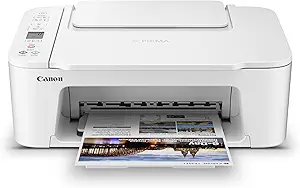 |
| Best Budget The cheapest option that still gets the job done reliably | HP DeskJet 2955 All-in-One |  |
| Top Rated A top-rated pick with lots of positive feedback | Canon PIXMA TR150 |  |
| Most Popular A crowd favorite that many people choose with confidence | HP DeskJet 2855e |  |
| Best Seller A high-volume bestseller chosen again and again | Brother DCP-L2640DW Printer |  |
Epson WorkForce Pro 3823
| Print speed (B&W) | 21 ppm |
|---|---|
| Print speed (Color) | 11 ppm |
| Paper capacity | 250 sheets |
| ADF capacity | 35 sheets |
| Resolution | 4800 x 2400 dpi |
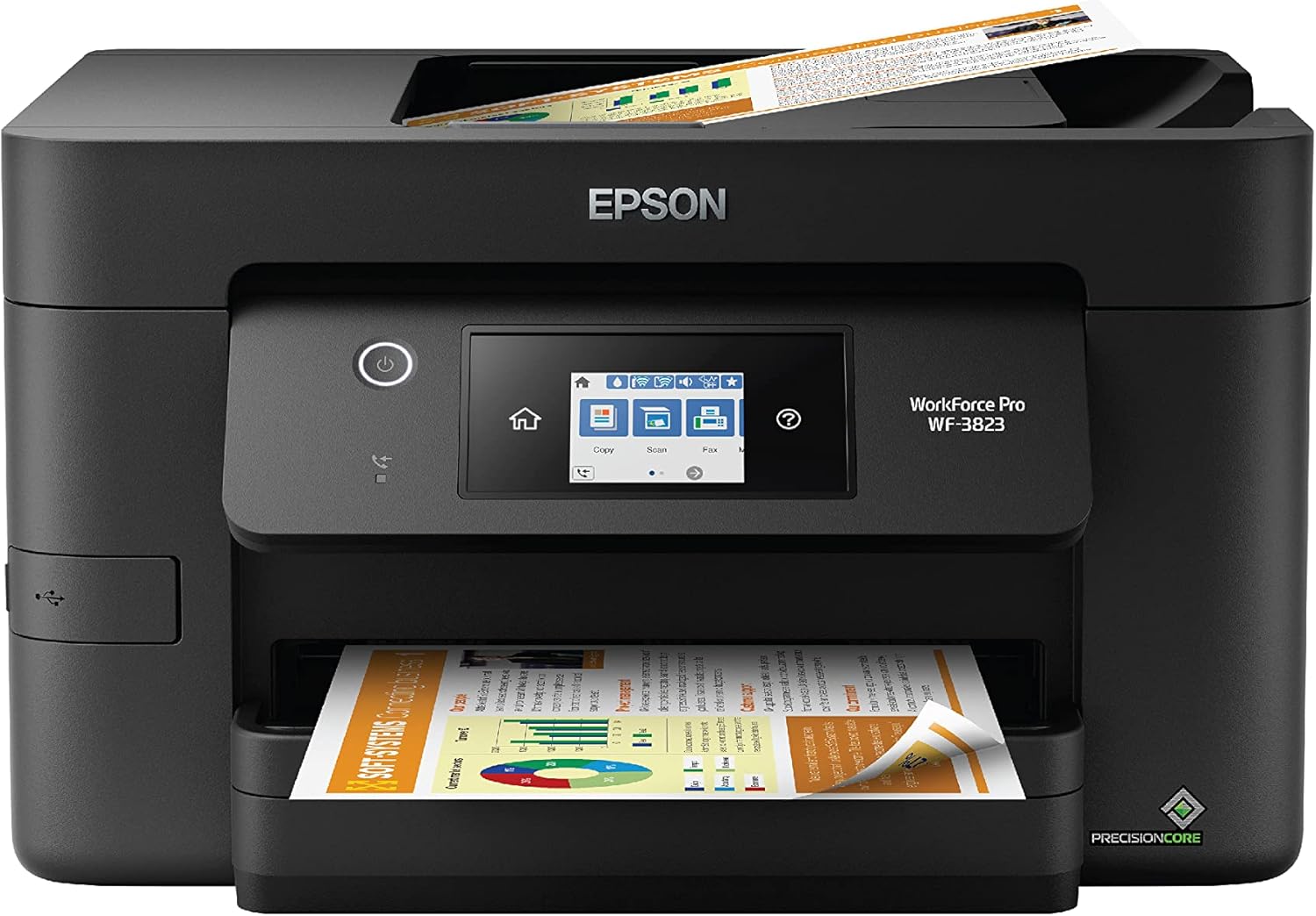
The Epson WorkForce Pro 3823 is a compact multifunction inkjet that prioritizes speed and everyday productivity for home and small office use. It prints up to 21 ppm black and 11 ppm color, offers automatic two-sided printing, and includes a 35-sheet automatic document feeder and a 250-sheet tray to reduce how often you reload paper. PrecisionCore heat-free printhead technology and DURABrite Ultra pigment inks deliver sharp text and vivid color for documents and occasional photos, while a 2.7" color touchscreen and the Epson Smart Panel app make setup and mobile printing straightforward. Built-in wired and wireless network options plus Ethernet give flexible connectivity. Practical limits include reliance on genuine Epson T822 cartridges and the typical ink costs of pigment-based systems, and the unit is larger than ultra-compact home photo printers. For buyers who need a small but full-featured AIO that handles moderate volume, it balances speed, quality, and convenience well.
Best for: Buyers who want a compact all‑in‑one that can handle regular home or small‑office document workflows with reliable speed and straightforward mobile setup.
Less Ideal for: Those seeking a tiny photo-only printer or the lowest possible upfront and ongoing ink costs should consider simpler or refillable-ink models instead.
- Fast black printing up to 21 ISO ppm for quick document throughput
- Automatic two-sided printing and 35-sheet ADF streamline multi-page jobs
- 250-sheet paper tray reduces refill frequency for moderate volume use
- PrecisionCore heat-free technology and DURABrite Ultra inks produce sharp text and durable color
- Multiple connectivity options including Wi‑Fi, Wi‑Fi Direct, Ethernet and mobile app control
- Requires genuine Epson T822 cartridges which can raise ongoing ink costs
- Not the smallest footprint compared with very compact home printers
Verdict: Choose the WorkForce Pro 3823 when you need a compact, full‑featured AIO that delivers fast, reliable document printing and easy mobile connectivity.
Epson EcoTank ET-2800

| Printer Type | Inkjet |
|---|---|
| Functions | Print, Copy, Scan |
| Connectivity | USB, Wi-Fi |
| Print Speed B&W | 10 pages_per_minute |
| Maximum Print Resolution Color | 5760 x 1440 dpi |
The EcoTank ET-2800 replaces cartridges with refillable ink tanks, making it a strong choice for home users who run moderate to heavy print volumes. It prints, scans and copies, delivers up to 10 ISO pages per minute for black-and-white jobs and uses PrecisionCore Micro Piezo heat-free technology for sharp text and good color photo detail at high resolution. Connectivity includes USB and Wi-Fi plus mobile and voice-activated printing, and the front-facing color LCD and app control make everyday tasks straightforward. The large refillable tanks mean far fewer interruptions for ink replacement and much lower ongoing ink cost compared with cartridge-based machines, and Epson bundles a substantial amount of ink with the printer. Limitations to consider are the lack of automatic duplexing and a modest paper capacity, which make it less convenient for heavy duplexed office workflows, and photo speed and color output will not match higher-end photo printers. For a compact home-focused AIO that minimizes ink fuss and delivers solid everyday performance, the ET-2800 is practical and economical.
Best for: Buyers who prioritize low operating cost and consistent everyday performance at home and want a compact all-in-one that minimizes ink changes.
Less Ideal for: Users who need built-in automatic two-sided printing, large sheet capacity, or professional photo-grade color output should consider different models.
- Cartridge-free EcoTank system with high-capacity refillable ink tanks for long runs
- Good text and photo detail thanks to PrecisionCore Micro Piezo print technology and high resolution
- Wireless, mobile and voice printing plus app control for easy home setup and remote printing
- Bundled ink yields many pages before first refill, reducing ongoing ink expense
- No automatic duplex printing which requires manual page flipping for two-sided jobs
- Paper capacity and tray size are modest compared with larger home office models
Verdict: Choose the ET-2800 if you want a compact home all-in-one that dramatically cuts ink replacement frequency and ongoing cost while delivering reliable everyday printing.
Canon PIXMA TS3720

| Printer Type | Inkjet |
|---|---|
| Print Resolution | 4800 x 1200 dpi |
| Print Speed B&W | 7.7 pages_per_minute |
| Print Speed Color | 4 pages_per_minute |
| Connectivity | USB, Wi-Fi |
The Canon PIXMA TS3720 is a small all-in-one inkjet aimed at everyday home use, offering print, copy, and flatbed scan functions in a space-saving footprint. It uses a two-cartridge hybrid ink system with a pigment black for sharp text and dye color inks for photos, and it supports borderless printing up to 5 x 7 inches and document sizes to 8.5 x 14 inches. Setup is straightforward via the Canon PRINT app, AirPrint, or USB, and the rear tray holds up to 60 plain sheets for occasional household jobs. Print speeds are modest — about 7.7 ppm black and 4 ppm color — so it handles schoolwork, bills, and occasional photos without being fast enough for heavy-volume users. The 1.5 inch LCD and simple controls keep operations easy, but printing is simplex only and there is no automatic duplex. For buyers who want a compact, low-cost home printer with decent photo quality and reliable wireless mobile printing, the TS3720 is a practical choice; those needing high throughput, automatic double-sided printing, or advanced finishing features should look elsewhere.
Best for: Buyers who want a compact, easy-to-use home printer that handles occasional documents and photos and prioritizes space savings and straightforward mobile printing.
Less Ideal for: People who print large volumes, need automatic double-sided printing, or require professional photo lab quality and high throughput.
- Compact all-in-one design saves desk space and handles print, copy, and scan tasks
- Hybrid ink system produces sharp black text and vivid color photos, including borderless prints
- Wireless and USB connectivity with Canon PRINT app, AirPrint, and Mopria support for easy mobile printing
- Simple setup and controls with a 1.5 inch LCD and rear paper tray that holds up to 60 sheets
- Single-sided printing only, no automatic duplex
- Relatively slow color print speed for larger photo or document batches
Verdict: A space-saving, easy-to-set-up home all-in-one that delivers good text and casual photo prints with reliable mobile connectivity.
HP DeskJet 2955 All-in-One

| Printer Type | HP Thermal Inkjet |
|---|---|
| Print Speed (B&W) | 7.5 pages_per_minute |
| Print Speed (Color) | 5.5 pages_per_minute |
| Maximum Print Resolution Color | Up to 4800 x 1200 optimized dpi |
| Connectivity | AirPrint, USB, Wi‑Fi, Wireless direct, Mopria |
The HP DeskJet 2955 is a compact all-in-one inkjet built for simple home tasks like printing letters, school assignments, recipes, and occasional photos. It prints, scans on a flatbed, and copies, and connects via USB, AirPrint, Mopria, or Wi-Fi for direct mobile printing through the HP app. A 60-sheet input tray and manual duplex support cover light batch jobs and two-sided pages if you flip them, while HP AI print formatting can help remove unwanted web content before printing. Print speeds are modest — roughly 7.5 ppm black and 5.5 ppm color — so it is best for intermittent use rather than heavy daily workloads. The printer ships with setup cartridges and includes a three-month Instant Ink trial to simplify ink replacement. Its strengths are the small footprint, straightforward setup, and mobile-friendly connectivity, while expectations should be tempered for speed, paper capacity, and advanced office features.
Best for: Buyers looking for an affordable, space-saving home printer that handles occasional color and black-and-white documents and integrates with smartphones and simple scan/copy tasks.
Less Ideal for: Families or small home offices that need frequent, high-volume printing, fast page throughput, or large paper capacity should consider a higher-capacity model.
- Compact footprint suited to small home spaces
- Wireless and mobile printing support including AirPrint and HP app
- Includes flatbed scanner and copy functionality
- 60-sheet input tray and manual duplex available for two-sided printing
- Three-month Instant Ink trial simplifies ink replenishment
- Modest print speeds and limited paper capacity not ideal for high-volume printing
- Manual duplex requires user intervention to flip pages
Verdict: A budget-friendly, compact all-in-one that delivers basic wireless printing, scanning, and copying for light home use.
Canon PIXMA TR150

| Printer Type | Inkjet |
|---|---|
| Maximum print Resolution Color | 4800 x 1200 dpi |
| B&W Pages per Minute | 9 pages_per_minute |
| Color Pages per Minute | 5.5 pages_per_minute |
| Printer Connectivity Type | USB, Wi-Fi |
The Canon PIXMA TR150 is a lightweight portable inkjet built for printing documents and borderless photos when space or mobility matter. It connects via Wi‑Fi or USB and supports mobile printing services so you can print directly from laptops, smartphones, or tablets; an OLED display and saved template function make recurring jobs quick without reloading files. Print quality is strong for text and photos thanks to a 4800 x 1200 dpi resolution and five-color ink system, and automatic duplexing helps with two-sided documents. With the optional LK-72 battery you can print on the go — Canon claims up to 330 pages on a full charge — and a 50-sheet capacity handles short runs. Expect modest speeds (around 9 ppm black, 5.5 ppm color) so it suits light to moderate home use rather than heavy daily volume. This model favors portability and image quality over high-capacity trays or enterprise throughput, so maintenance like occasional ink replacement and careful handling while mobile are part of ownership.
Best for: Buyers who need a dependable, portable printer for home use and value reliable print quality and straightforward wireless mobile workflows.
Less Ideal for: Users who regularly print large volumes, need fast office-grade throughput, or prefer big-capacity paper handling should consider larger desktop models instead.
- Truly portable, lightweight design with optional battery for printing away from outlets
- High optical resolution (4800 x 1200 dpi) for sharp text and borderless photos
- Wireless and USB connectivity with mobile printing and saved templates for quick repeat jobs
- Automatic duplex printing and a 50-sheet capacity suitable for short home print runs
- Not designed for high-volume daily use due to modest page-per-minute speeds and small tray capacity
- Requires optional battery accessory for untethered mobile printing since it is sold separately
Verdict: A compact, reliable portable printer that delivers high-quality documents and photos for home users who prioritize mobility and dependable print results.
HP DeskJet 2855e

| Printer Type | Inkjet |
|---|---|
| Scanner Type | Flatbed |
| Compatible Cartridge | HP 67 |
| Maximum Print Resolution Color | 4800 x 1200 dpi |
| Printer Connectivity Type | single band wi-fi (2.4ghz only) |
The HP DeskJet 2855e is a compact all-in-one inkjet designed for basic home tasks like letters, recipes, schoolwork, and occasional photos. It prints color and black-and-white documents, scans via a flatbed platen, and copies without extra software; setup and day-to-day control are handled through the HP app and a simple LCD. The printer accepts HP 67 cartridges and has a 60-sheet input tray, so it sits neatly on a desk or shelf and does not demand much space. Print speeds are modest at about 7.5 ppm black and 5.5 ppm color, and duplexing is manual, so it is best for light to moderate workloads rather than heavy daily printing. The unit is Wi-Fi 2.4 GHz only and includes a 3-month Instant Ink trial with HP+ activation for lower-cost ink delivery initially. If you want an inexpensive, space-saving MFP for typical home printing and scanning needs, the DeskJet 2855e is a practical choice, but expect limited speed, single-band Wi-Fi, and manual two-sided printing.
Best for: Home users who need a small, no-frills all-in-one for occasional color prints, scans, and copies and who value space savings and simple app-based control.
Less Ideal for: People who print large volumes, need fast duplexing, or require dual-band Wi-Fi and advanced networking features should look at more robust models.
- Compact all-in-one design fits small home desks or shelves
- Simple smartphone control through the HP app and LCD
- Includes 3-month Instant Ink trial with HP+ activation
- Supports color printing and flatbed scanning for basic photo or document needs
- Print speeds are modest compared with higher-end home printers
- Wireless connectivity limited to single-band 2.4 GHz Wi-Fi
Verdict: A compact, app-friendly all-in-one that suits light home printing and scanning while prioritizing space and simplicity.
Brother DCP-L2640DW Printer

| Printer Type | Laser |
|---|---|
| Print Speed (B&W) | 36 ppm |
| Auto Document Feeder | 50 pages |
| Paper Tray Capacity | 250 sheets |
| Connectivity | Ethernet, USB, Wi-Fi |
The Brother DCP-L2640DW is a compact black-and-white laser all-in-one designed for home and small office use, delivering fast text printing and straightforward copy/scan functionality. It prints up to 36 ppm and supports automatic duplexing and a 50-page auto document feeder, which makes handling multi-page jobs quick without frequent intervention. Connectivity includes dual-band Wi-Fi, Ethernet, and USB, plus a mobile app for printing and scanning from phones and tablets, so it integrates easily into mixed device households. The 250-sheet tray and toner options (standard and high-yield) reduce refill frequency for typical home workloads, and toner-save and energy-star compliance help keep running costs and power use reasonable. Image resolution is tuned for crisp monochrome documents rather than photos, and color scanning is limited by its monochrome print focus. If you need color printing, photo-quality output, or the smallest possible footprint, a dedicated inkjet might be a better choice, but for reliable, fast black-and-white printing with simple network setup this model is a practical, conservative pick.
Best for: Buyers who prioritize reliable, high-speed black-and-white printing and want a compact, network-ready multifunction that is easy to set up and maintain.
Less Ideal for: Users who need color printing, photo-quality output, or the absolute smallest desktop footprint should look at inkjet or dedicated photo printers instead.
- Fast monochrome printing up to 36 pages per minute for quick document production
- Automatic duplex and 50-page auto document feeder streamline multi-page jobs
- Multiple connectivity options including dual-band Wi-Fi, Ethernet, and USB
- 250-sheet input tray and high-yield toner options reduce refill frequency
- Monochrome only, so it cannot print color documents or photos
- Print resolution and scan capability are optimized for text rather than high-detail images
Verdict: A dependable compact monochrome laser multifunction that delivers fast, networked document printing and simple maintenance for cautious buyers.
Choosing the Right Compact Printer for Home: Key Factors to Consider
Print Speed and Daily Throughput
Print speed matters because it affects how long you wait for homework, boarding passes, or multiple-page documents. Measured in pages per minute, higher speed is useful if you print several pages at a time or have multiple household members needing prints. For casual single-page prints, very high speed is less important, but burst performance and warm-up time still impact convenience.
Also consider the printer's rated monthly duty cycle versus your expected usage. A compact printer with moderate speed can still be a good fit if your weekly print volume is low. If you regularly print dozens of pages in a sitting, prioritize models with better throughput to avoid long waits and frequent paper handling.
Connectivity and Mobile Printing
How a compact printer connects will determine how seamlessly it fits into your home. Wireless Wi-Fi is essential for most households to support printing from laptops, tablets, and phones without physical connection. Look for reliable wireless performance, clear support for mobile-print apps, and compatibility with common operating systems.
Also check for USB or Ethernet options if you need a direct connection for specific devices. Built-in support for AirPrint, Mopria, or vendor mobile apps simplifies printing from smartphones. Consider whether you need Bluetooth or direct wireless-AP (Wi-Fi Direct) printing for occasional guest or travel device use.
Operating Cost and Consumables
The initial purchase is only part of ownership cost. For inkjet compact printers, ink cartridge yield and the availability of high-yield or subscription plans strongly influence long-term expense. For compact laser machines, toner yield and drum longevity determine cost per page. Lower operating cost often means choosing models with optional high-capacity cartridges or refillable solutions.
Also consider how easy cartridges are to replace and whether the printer warns you reliably about low supplies. If you print photos or color documents occasionally, factor in color cartridge replacement frequency versus black-only workloads.
Physical Size and Placement
A primary reason to choose a compact printer is space savings. Check the printer's footprint, including paper trays and any forward-opening panels, to make sure it fits the intended shelf or desk. Depth matters if placing the unit on a narrow counter; some compact printers have tall but shallow profiles while others are low and wide.
Also consider access space for changing cartridges and the clearance needed to pull out paper trays or open the scanner lid. If you plan to tuck the unit into a cabinet, ensure ventilation and access for wireless signals and cable routing.
Print Quality for Documents and Photos
Quality expectations vary with use. For text-heavy home printing like school assignments and forms, sharp, dark text and consistent margins are most important. For occasional photos, look for printers that handle color balance and detail without producing excessive grain or banding.
Some compact printers prioritize document crispness over photo fidelity. If you expect to print family snapshots or craft projects, check that the printer supports appropriate paper sizes and offers a photo-oriented print mode for better color rendering.
Ease of Setup and Daily Use
A compact printer should be simple to set up and maintain. Clear on-device controls, straightforward Wi-Fi setup steps, and reliable driver or app support reduce frustration. Look for models that include helpful setup guides and friendly mobile apps for scanning or remote printing.
Daily use considerations include how the printer handles paper jams, the visibility of status lights or screens, and whether routine tasks like cleaning or firmware updates are user-friendly. A model that is easy to troubleshoot at home will save time over ownership.
Where Compact Printers Fit in a Home Setup
Compact printers are designed to balance functionality with small footprints. They are best suited for users who prioritize counter or desk space and do not need heavy daily office workloads.
Expect most compact models to handle standard letter or A4 paper, basic photo printing, and occasional scans or copies if the unit is a multifunction. They can be ideal for apartments, dorms, or home offices with limited room.
- Ideal for low-to-moderate monthly page volumes
- Good fit for single-person households or small families
- Work well as a secondary or dedicated home device
Setting Up Wireless Printing at Home
Place the printer within stable Wi-Fi coverage to avoid intermittent connections. Follow the manufacturer's mobile app or on-device prompts for first-time network setup to ensure the device is configured for both 2.4 GHz and 5 GHz networks when supported.
If your home network has guest or captive portals, use Wi-Fi Direct or temporary USB setup to connect devices. Register the printer with phone printing standards like AirPrint or Mopria to simplify printing from tablets and phones.
- Keep firmware updated for security and performance
- Use the mobile app for scanning and remote management when available
Choosing Paper and Media Types
Compact printers can support a range of media but may have stricter limitations on heavy photo paper or specialty sizes. Check maximum supported paper weight and whether the tray accepts small photo sheets or envelopes without manual feeding.
Use manufacturer-recommended paper for critical photo prints, and store paper in a dry environment to avoid curl or feeding issues. For everyday documents, standard 20 lb copy paper is usually best for reliable feeding and print sharpness.
- Confirm input tray capacity to reduce refills
- Look for dedicated photo or manual feed slots for specialty media
Maintenance Tips to Extend Lifespan
Regularly run any built-in cleaning cycles to keep nozzles clear on inkjets and to maintain fuser health on laser units. Avoid leaving cartridges empty for long periods to prevent drying or damage.
Keep the printer dust-free and avoid exposing it to direct sunlight or extreme humidity. For infrequent use, print a test page every few weeks to prevent clogging and to detect issues early.
- Store spare cartridges properly to maintain shelf life
- Follow recommended cleaning intervals in the user guide
When to Consider a Multifunction Compact Unit
A compact multifunction unit adds scanning and copying without significantly increasing footprint in many designs. This is useful for households that need to digitize documents, scan receipts, or make occasional copies.
If scanning quality is important, verify the scanner resolution and any software features for OCR or color correction. For basic document scanning and occasional copying, a compact multifunction is often the most practical choice.
- Check scan glass size for larger documents
- Ensure copying speed meets occasional household needs
How We Chose the Best Compact Printer for Home
We focused on everyday home use and selected compact printers that strike a practical balance between size and capability. Priorities included reliable print speed for mixed document loads, straightforward wireless and mobile connectivity for phones and tablets, and low-to-reasonable ongoing ink or toner costs. We also considered physical footprint and how easily a unit fits on small desks, shelves, or kitchen counters. Other concrete filters: only compact models with true desktop footprints were included; large multifunction office machines and single-function specialty units were excluded. We looked for printers offering easy setup, clear mobile printing support, and basic photo capability when possible. Durability and ease of maintenance were weighed through available serviceability and user-facing supply-replacement features. Finally, we prioritized models that offered intuitive controls and consistent output quality for typical home tasks.
Our full evaluation process is outlined in our review methodology.
FAQ
How much space do compact printers typically need?
Compact printers vary, but most require only a few square feet of counter space. Account for extra clearance to open trays and access consumable bays. Measure the intended spot and compare with the printer's listed footprint and open dimensions.
Are compact inkjet printers good for photo printing?
Many compact inkjets can produce decent casual photo prints, but they usually lack advanced color management and large paper handling found in larger photo printers. For occasional family snapshots they are suitable, but expect limitations on color fidelity and paper size.
How often will I need to replace ink or toner in a home setting?
Replacement frequency depends on your print volume and whether you print color or photos frequently. Low-volume users may go months between replacements, while households printing schoolwork or photos regularly will need cartridges more often. Choosing high-yield options can extend intervals between changes.
Can I connect a compact printer to multiple devices?
Yes. Most compact printers support multiple-device connections via Wi-Fi or network sharing. Mobile printing standards and vendor apps usually allow smartphones and tablets to print without direct USB connections.
Is a compact laser better than an inkjet for home use?
It depends on needs. Compact lasers typically produce sharp black text and lower cost per page for mostly monochrome printing. Inkjets handle color and photos better. Consider typical print types and operating cost when choosing between them.
Final Verdict
Choose a compact printer by prioritizing the features that match how you print at home. If you mainly print documents, prioritize speed, text quality, and low black-ink or toner cost. If you print photos or color documents occasionally, balance color handling and media support against footprint and supply cost. Weigh tradeoffs between connectivity, consumable expense, and physical size to find the most practical compact printer for your space. Focus on the metrics discussed here to choose confidently for your home setup.