
Note: This article contains affiliate links. If you click on these links and make a purchase, we may earn a small commission at no extra cost to you. This helps support our research and content. Read our full affiliate disclosure here.
Picking the right printer for a small business affects productivity, ongoing costs, and everyday workflow. You need a device that handles your typical monthly volume, delivers acceptable speed, and keeps consumable expenses predictable. This guide shortlists the top printers for small businesses across common office needs, from basic document printing to mixed-use work that includes occasional color and scanning. Below you will find our top picks, each evaluated for speed, cost to operate, and ease of use so you can quickly find a machine that fits your office routines and budget. Continue to the product list for model-level details and the evaluation summary that explains our approach.
Top Picks at a Glance
| Best Overall The best all-around choice for most situations | HP LaserJet Pro MFP 3101sdw |  |
| Best Quality Built to a higher standard if you want something more solid | Brother MFC-L5915DW Laser All-in-One |  |
| Best Value The sweet spot between price and what you get | Epson EcoTank ET-2400 |  |
| Best Budget The cheapest option that still gets the job done reliably | Canon PIXMA TR4720 |  |
| Top Rated A top-rated pick with lots of positive feedback | SVANTTO ST425 4×6 Label Printer |  |
| Most Popular A crowd favorite that many people choose with confidence | Epson EcoTank ET-2800 |  |
| Best Seller A high-volume bestseller chosen again and again | Canon PIXMA TS6520 |  |
HP LaserJet Pro MFP 3101sdw

| Printer Type | Laser |
|---|---|
| Print Output | Monochrome |
| Maximum Print Resolution | Up to 1200 x 1200 dpi |
| Paper Capacity | 250 sheet maximum sheet capacity |
| ADF Capacity | 50-sheet auto document feeder |
The HP LaserJet Pro MFP 3101sdw is a business-focused monochrome laser all-in-one that handles printing, scanning and copying for small teams. It delivers fast output—up to roughly 35–40 pages per minute with a 7 second first page—while an automatic duplexer and 250-sheet tray reduce manual intervention for everyday office jobs. The built-in 50-sheet ADF and flatbed scanner make batch scanning and multipage copying straightforward, and the printer supports wired Ethernet, USB, AirPrint, Mopria and HP mobile printing for flexible setups. An LED display and HP app control simplify day-to-day management and remote printing, and HP includes an introductory toner cartridge for initial use. Important limitations are that it prints only in black and white and uses HP-chipped cartridges only, which may affect third-party toner use, and its power draw can be notable under heavy use. For small business workflows that prioritize speed, reliability and networked management, this model is a practical choice.
Best for: Small business buyers who need reliable, fast black-and-white printing plus scanning and networked management for shared office use.
Less Ideal for: Teams that require color printing, photo output, or want to use non‑HP toner solutions should consider other options.
- Fast monochrome print speeds suitable for high-volume office documents
- Automatic duplexing and 250-sheet input reduce paper handling
- 50-sheet ADF plus flatbed scanner streamlines multipage scanning and copying
- Multiple connectivity options including Ethernet, Wi‑Fi, AirPrint and USB for flexible deployment
- Monochrome only so no color printing capability
- Requires HP-chipped cartridges which blocks some third-party toner options
Verdict: A fast, network-ready monochrome MFP built for small teams that need dependable, high-volume black-and-white printing and scanning.
Brother MFC-L5915DW Laser All-in-One

| Print speed (B&W) | 50 ppm |
|---|---|
| ADF capacity | 70 pages |
| Resolution | 1200 x 1200 dpi |
| Connectivity | Gigabit Ethernet, Wi-Fi, USB |
| In-box toner yield | 3,000 pages (black) |
The Brother MFC-L5915DW is a workhorse monochrome laser all-in-one built for busy small offices and workgroups. It prints and copies up to 50 pages per minute and wakes to the first page in under 7 seconds, so high-volume jobs finish quickly. The 70-page auto document feeder supports duplex scanning and single-pass two-sided scans to cloud services, and the 5-inch color touchscreen lets you create shortcuts for common workflows. Connectivity includes Gigabit Ethernet and dual-band Wi-Fi plus USB host support and mobile printing, making it easy to share on a network or print from phones and tablets. Paper handling is flexible out of the box with a 250-sheet tray plus a multipurpose tray and optional lower trays to scale to larger capacities. Brother Genuine high-yield toner options dramatically lower running costs for heavy monthly volumes. Trade-offs are typical for a business mono device: no color printing and a substantial physical footprint and power draw compared with small desktop inkjets, so it is geared toward high-volume black-and-white output rather than occasional home use.
Best for: Buyers who prioritize sustained high-speed black-and-white output, frequent duplex scanning to cloud workflows, and low running costs for a small business or busy workgroup.
Less Ideal for: Those who need color printing, have limited office space, or only print occasionally and prefer a compact low-power home printer.
- Very fast monochrome print and copy speed up to 50 ppm for high-volume jobs
- 70-page auto document feeder with duplex single-pass scanning to cloud destinations
- Gigabit Ethernet and dual-band Wi-Fi plus mobile and USB host printing for flexible connectivity
- Expandable paper capacity with optional lower trays to support growing workloads
- Supports ultra high-yield Genuine TN920 toner to reduce operating cost for heavy use
- No color printing capability limits use to black-and-white documents
- Large footprint and higher power consumption compared with consumer inkjet models
Verdict: Choose this Brother if you need a fast, networked monochrome AIO that keeps operating costs low for high monthly print volumes.
Epson EcoTank ET-2400

| Printer Type | Inkjet |
|---|---|
| Connectivity | USB, Wi-Fi |
| Maximum Print Resolution | 5760 x 1440 dpi |
| Black Pages per Minute | 10 ppm |
| Color Pages per Minute | 5 ppm |
The Epson EcoTank ET-2400 is a cartridge-free all-in-one that prints, scans, and copies using large refillable ink tanks instead of cartridges. It connects via Wi‑Fi or USB and is controlled by an app for easy mobile printing, making it convenient for shared small-office setups. The included ink bottles supply the tanks for long runs—Epson rates the replacement set as equivalent to many standard cartridges—so you can print hundreds to thousands of pages between refills and avoid frequent cartridge orders. Print quality is strong for text and everyday color graphics thanks to Epson Micro Piezo technology and a 5760 x 1440 dpi maximum resolution, while the flatbed scanner handles occasional document scanning. Speed is modest at around 10 ppm black and 5 ppm color, and duplex printing is manual, so high-volume two-sided jobs require extra handling. Paper handling is straightforward with a 100-sheet rear feed and a 30-sheet output. For cost-conscious small-business users who value low running costs and dependable color output, the ET-2400 delivers practical, cartridge-free printing with a few compromises in speed and automatic duplexing.
Best for: Buyers who prioritize low ongoing ink cost, minimal interruptions for refills, and dependable color/text quality for everyday small-business printing.
Less Ideal for: Businesses that need fast, high-volume production, automatic duplexing, or advanced finishing and network features should consider higher-end office printers.
- Cartridge-free EcoTank system cuts frequency of replacement and reduces cartridge waste
- High-capacity ink bottles provide large page yields per refill
- Wireless and USB connectivity with app control for easy mobile printing
- High maximum print resolution for sharp text and good color graphics
- Rear-feed 100-sheet capacity supports longer unattended print runs
- No automatic duplexing; two-sided prints must be flipped manually
- Relatively slow color print speed compared with business-class models
Verdict: Choose the ET-2400 if you want a low-running-cost, cartridge-free all-in-one that keeps small-business printing simple and inexpensive.
Canon PIXMA TR4720

| Printer Type | Inkjet |
|---|---|
| Print Resolution | 4800 x 1200 |
| B&W Pages per Minute | 8.8 |
| Color Pages per Minute | 4.4 |
| Printer Connectivity Type | USB, Wi-Fi |
The Canon PIXMA TR4720 is a compact 4‑in‑1 inkjet aimed at home and small office use. It handles everyday documents, borderless photos up to letter size, and multi‑page scanning via the built‑in auto document feeder, while automatic two‑sided printing helps reduce paper use. Setup and mobile printing are straightforward with the Canon Print app and Wi‑Fi connectivity, and the front 100‑sheet tray keeps the unit small and easy to place. Print quality is good for sharp black text and decent color output thanks to Canon's hybrid ink system, though color photo speed is modest compared with higher‑end office machines. The TR4720 also includes fax capability and a simple 2‑line LCD for quick jobs, but it is not designed for heavy volume work and its page-per-minute color speed is relatively slow. Overall, it offers a useful mix of features for light to moderate business printing where footprint, app convenience, and duplex/ADF functionality matter more than production speed or high monthly duty cycles.
Best for: Small business buyers who need a compact, budget‑minded all‑in‑one that handles occasional multi‑page scans, duplex documents and mobile printing without taking much desk space.
Less Ideal for: Businesses that require fast, high‑volume production or heavy daily print loads should choose a dedicated office laser or higher‑capacity inkjet instead.
- All‑in‑one functionality with print, scan, copy and fax in a compact footprint
- Automatic duplex printing and an auto document feeder for two‑sided multi‑page jobs
- Wi‑Fi and Canon Print app support for easy mobile and cloud printing
- Front 100‑sheet tray keeps paper loading simple and conserves desk space
- Hybrid ink system delivers sharp black text and borderless photo printing up to letter size
- Relatively slow color print speed compared with business‑class models
- Not intended for high monthly volumes or heavy continuous use
Verdict: A compact, budget‑friendly all‑in‑one that gives small businesses duplexing, an ADF and mobile printing in a space‑saving package.
SVANTTO ST425 4×6 Label Printer
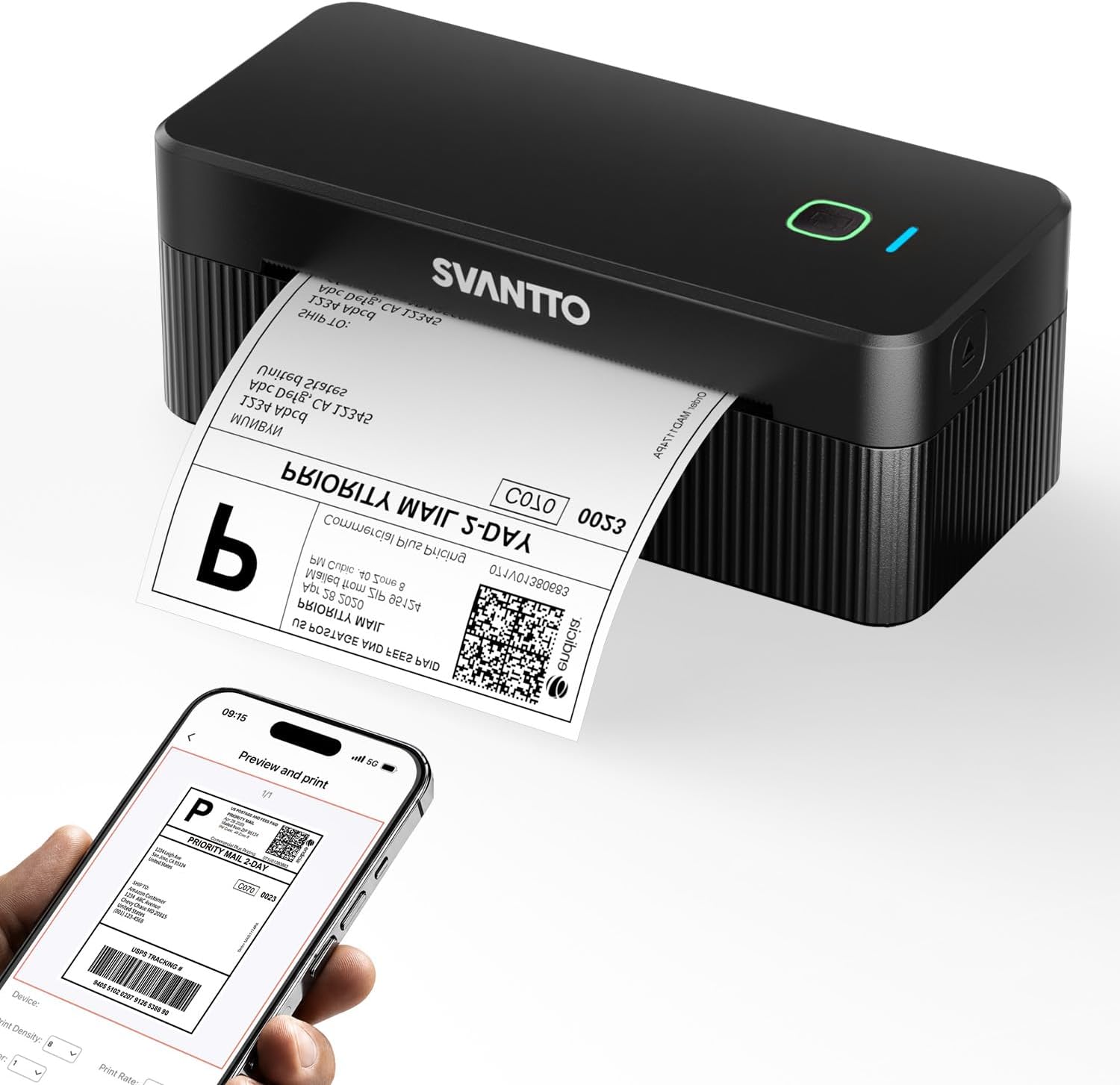
| Printer Type | Thermal |
|---|---|
| Maximum Media Size | 4×6 |
| Print Resolution | 203 x 203 dpi |
| Printer Connectivity Type | Bluetooth, USB |
| B&W Pages per Minute | 150 pages_per_minute |
The SVANTTO ST425 is a straightforward 4×6 thermal label printer built for frequent shipping and small business use. It connects via Bluetooth 4.0 or USB and prints 4×6 labels at up to 203 dpi and high speed, making short work of bulk label runs. Setup is app-driven for iPhone, Android, Mac, and Windows, and the paper path and auto-label detection reduce jams while accepting fanfold, roll, and black-mark media from 1.5 to 4.2 inches so you are not tied to proprietary labels. The 180 mm/s rated speed and a claimed durable printhead (long life) mean it will handle busy shipping stations, and the bundle includes power and USB-C cables plus a small sample of labels to get started. Expect a no-frills, durable tool without advanced finishing features like color printing or an integrated cutter; occasional users may find the bundled label count minimal. For shops that prioritize reliable, fast black-and-white label printing, this printer focuses on dependability and compatibility rather than extras.
Best for: Small business sellers and shipping-focused teams who need a dependable, fast thermal printer that integrates with phones and PCs and accepts third-party labels to keep running costs low.
Less Ideal for: Retail or production environments that need color labels, integrated finishing (cutting or peeling), or heavy-duty industrial printers with advanced workflow automation.
- Fast thermal printing speed suitable for high-volume label runs
- Bluetooth 4.0 and USB connectivity for flexible setup with phones and computers
- Accepts a wide range of label types and sizes so you can use third-party labels
- 203 dpi resolution produces clear, scannable barcodes and addresses
- Includes necessary cables and a small starter pack of 4×6 labels
- No color printing or advanced finishing options like an auto-cutter or dispenser
- Bundle includes only a small number of starter labels
- Limited bundled software feature detail beyond basic app control
Verdict: Choose the ST425 if you want a fast, no-nonsense thermal label printer built for reliable, high-volume shipping and third-party label compatibility.
Epson EcoTank ET-2800

| Printer Type | Inkjet |
|---|---|
| Printer Connectivity Type | USB, Wi-Fi |
| Maximum print Resolution Color | 5760 x 1440 dpi |
| B&W Pages per Minute | 10 |
| Duplex | Simplex |
The Epson EcoTank ET-2800 is a compact all-in-one inkjet that replaces cartridges with refillable high-capacity ink tanks to cut running costs and reduce waste. It prints, scans and copies, supports Wi‑Fi and USB connectivity, and offers basic app and voice printing so you can send jobs from a phone or smart assistant. Print quality is strong for documents and casual photos thanks to Epson's PrecisionCore/Micro Piezo technology and high color resolution, while the scanner is a standard flatbed for occasional copies. The 10 ppm black speed handles light office bursts, and the 100-sheet tray keeps small stacks ready. Key benefits are long intervals between ink replacements and lower per-page cost, but it is simplex only and lacks advanced office features like automatic duplexing or a large paper feed. For a small team or home office that prioritizes low ink expense and dependable everyday printing, the ET-2800 is practical; for heavier commercial workloads or heavy photo production, a higher-capacity office model would be a better fit.
Best for: Buyers who want to lower long-term ink costs and prefer proven, mainstream equipment backed by many user reviews for everyday small‑office or home‑office printing.
Less Ideal for: Businesses that need fast duplexing, high monthly duty cycles, or large paper capacity should choose a higher-end office printer instead.
- Cartridge-free EcoTank design dramatically reduces how often you need to replace ink
- Wireless and app-enabled printing with voice support for easy mobile workflows
- High maximum print resolution for sharp text and decent color photos
- Compact all-in-one form that scans and copies without extra modules
- No automatic duplex printing which means manual two-sided jobs
- Single 100-sheet tray limits capacity for busy office use
Verdict: Choose the ET-2800 if you want a compact, cartridge-free all-in-one that cuts ink costs and handles everyday small‑office printing reliably.
Canon PIXMA TS6520

| Printer Type | Inkjet |
|---|---|
| Duplex | Automatic |
| Printer Connectivity Type | USB, Wi-Fi |
| Color Pages per Minute | 9 pages_per_minute |
| B&W Pages per Minute | 14 pages_per_minute |
The PIXMA TS6520 aims to be a simple, reliable home/office all-in-one for everyday document and photo tasks. It uses a two-cartridge hybrid ink system (pigment black and dye color) to produce crisp text and vibrant color prints, and supports borderless photos up to letter size. Setup and mobile printing are straightforward via Canon PRINT, AirPrint, or Mopria, and dual-band Wi‑Fi helps maintain a stable connection. The 1.42-inch OLED display and intuitive control panel make basic operations and status checks quick, while automatic two-sided printing saves paper for routine office use. Scanning and flatbed copying are adequate for occasional digitization but the unit lacks an automatic document feeder, which slows batch scanning or copying. Paper capacity and tray size are limited, so high-volume offices will need a more robust machine. For small teams or solo business owners who print intermittently, this printer balances quality, footprint, and ease of use; heavy print shops or users needing fast, high-capacity workflows should look elsewhere.
Best for: Small business owners or solo operators who prioritize a reliable, easy-to-use all-in-one for occasional to moderate printing, scanning, and photo tasks and who value a compact footprint.
Less Ideal for: Businesses that require fast, high-volume printing, large paper capacity, or frequent multi-page scanning and copying should choose a higher-capacity office printer instead.
- Compact footprint fits small workspaces
- Automatic duplex printing reduces paper use
- Dual-band Wi‑Fi and mobile printing support simplify connectivity
- Hybrid ink system delivers sharp text and good color photos
- Simple OLED display and intuitive controls make operation easy
- No automatic document feeder for multi-page scanning or copying
- Low sheet capacity limits high-volume printing
Verdict: Choose the PIXMA TS6520 when you need a compact, easy-to-use all-in-one that delivers good print and photo quality for light to moderate small-business printing.
Choosing the Right Printer for Small Businesses: Key Factors to Consider
Print Volume and Duty Cycle
Estimate your monthly page needs and compare them with each printer's recommended duty cycle. A machine rated below your typical output will wear faster, require more maintenance, and likely incur downtime.
Buying a printer with a comfortably higher duty rating than your current volume gives headroom for growth and reduces the risk of frequent failures. For small businesses, modest overcapacity is often more cost-effective than replacing an undersized unit after a year.
Running Costs and Consumables
Consumable expenses drive long-term cost of ownership. Check both cartridge or toner yield and the street price of replacements to calculate a realistic cost per page. High-yield consumables and the option for third-party or bulk supplies can lower ongoing expenses, but verify compatibility and warranty implications.
Consider bundled consumable offerings, subscription options, or devices with refillable tanks when evaluating lifetime costs. For color printing, be aware that color pages can be significantly more expensive than black-and-white, and plan accordingly based on how often you need color output.
Print Quality and Media Support
Print quality matters for invoices, proposals, and marketing materials. Check manufacturer specifications for resolution and sample output for text and color graphics. Some business printers prioritize crisp monochrome text over photo-quality color; match the device to the type of materials you produce.
Media handling is also important. If you print envelopes, labels, or thicker stock, verify tray specifications, manual-feed support, and maximum media weight to avoid jams and poor feed performance.
Connectivity and Mobile Printing
A business printer must integrate cleanly with your network and devices. Look for wired Ethernet for reliable office connections plus robust Wi-Fi for mobile use. Native support for printing from smartphones and tablets, as well as cloud print integrations, will speed workflows when team members need to print from a variety of devices.
Administrative features such as user authentication, secure printing release, and remote management reduce waste and help maintain control in a multi-user environment.
Multifunction Features and Scanning Needs
Many small offices benefit from multifunction printers that include duplex scanning, automatic document feeders, and reasonable scan resolution. Scanning speed and OCR accuracy matter if you routinely digitize invoices or client documents.
Consider whether you need two-sided copying and networked scanning to a shared folder or email. Multifunction capability can reduce the number of devices in your office and simplify document workflows.
Reliability and Serviceability
Reliability reduces disruption. Look for service documentation, easy access to replacement parts, and a clear support policy. A machine that is easy to service by in-house staff or a local technician shortens downtime and often lowers repair costs.
Check user-replaceable parts like transfer belts and pickup rollers and whether maintenance kits are readily available. For businesses, predictable serviceability is as important as initial performance.
Choosing Between Monochrome and Color
Decide if you really need color. Monochrome laser printers usually offer lower cost per page for text documents and faster black-and-white output, which is ideal for invoice printing, reports, and general office use. Color machines add flexibility for marketing materials, client-facing documents, and occasional graphics but increase consumable expenses.
If color is occasional, you may prefer outsourcing high-quality color prints and keeping an internal monochrome device for routine tasks. If you produce frequent full-color materials in-house, prioritize color accuracy, color cartridge yields, and color management settings.
- Monochrome: typically lower running cost and higher black print speed
- Color: useful for client-facing materials and in-house marketing
- Consider outsourcing high-volume color work to control costs
Network Setup and Security Best Practices
For a shared office printer, prioritize wired Ethernet connections where possible to reduce interruptions. Configure static IPs or DHCP reservations to keep the device address stable and easy to manage. Use administrative features to restrict access when necessary and to track usage.
Enable built-in security measures such as firmware updates, secure printing options, and user authentication. Isolate guest printing on a separate VLAN or guest network to prevent unauthorized access to internal resources. Regularly apply firmware patches to protect against vulnerabilities.
- Prefer wired Ethernet for high-reliability office connections
- Use secure printing and user authentication for sensitive documents
- Isolate guest access to protect internal network
Paper Handling and Finishing Options
Consider standard tray capacity and available paper sizes. A larger standard tray reduces the frequency of refills in busier offices. Look for automatic duplexing to save paper and produce professional double-sided documents without manual intervention.
Finishing options such as stapling, hole punching, or multi-bin output are useful if you prepare multi-page handouts or packets in-house. If finishing options are important, check whether they are built-in or available as optional accessories and whether they add significant maintenance complexity.
- Automatic duplexing saves paper and improves document presentation
- Higher tray capacity reduces user interruptions
- Optional finishers add convenience but may increase service needs
Managing Consumables and Inventory
Set up a simple inventory process for toner or ink so you do not run out unexpectedly. Track average monthly consumption and keep one spare set of consumables on hand for critical devices. For high-usage printers, evaluate subscription or bulk-purchase options offered by suppliers to stabilize supply and cost.
Label consumables with purchase date and expected yield to anticipate replacement timing. Training staff on low-toner warnings and proper cartridge installation reduces waste and mishandling that can lead to service calls.
- Keep at least one spare cartridge or toner set for critical printers
- Monitor monthly usage to forecast consumable needs
- Train staff on proper handling to reduce faults
When to Consider External Print Services
For occasional high-quality color output, large-format prints, or specialty media, external print services can be more cost-effective than owning a high-end color machine. Use local or online providers for marketing collateral, large runs, or unusual paper stocks.
Balance the convenience of in-house printing against the per-page cost and complexity of maintaining a higher-end device. If your business needs spike seasonally, outsourcing during high-demand periods may be the smarter option.
- Outsource large color or specialty jobs to control capital and operating expenses
- Keep in-house devices focused on routine office tasks
- Use external services for occasional large runs or specialty media
How We Chose the Best Printer for Small Businesses
We evaluated candidates based on practical, business-focused criteria that reflect everyday office demands. Primary factors included sustained print speed at realistic duty cycles, total cost of ownership measured by yield and consumable price, and connection and workflow features that reduce hands-on time. Reliability and recommended monthly page volume were used to screen out devices unlikely to survive typical small-business use. We also checked scan and copy capabilities when multifunction features are relevant to small offices. Usability factors such as mobile printing support, network setup, and control-panel clarity influenced rankings because they determine how quickly staff can adopt a device. Excluded from consideration were personal or low-duty hobby printers that cannot sustain moderate business workloads, and any devices with unclear consumable pricing or unsupported network features. Together, these filters produced a shortlist focused on office-appropriate printers that balance throughput, operating cost, and real-world convenience.
Our full evaluation process is outlined in our review methodology.
FAQ
How do I calculate the real cost per page for a printer?
Divide the price of replacement consumables by the stated yield to get a base cost per page, then add expected service and energy costs per page for a fuller picture. Compare figures across models using realistic yields rather than promotional sample yields.
Is a multifunction printer necessary for a small office?
Often a multifunction device provides good value because it consolidates scanning, copying, and printing into one machine. If your office rarely scans physical documents, a dedicated printer might suffice, but multifunction units usually save space and simplify workflows.
What print speed should I look for in a small-business printer?
Aim for a print speed that matches your busiest staffing periods. For many small offices, 20 to 40 pages per minute is a practical range, but choose a faster device if you regularly print large batches or time-sensitive materials.
Are ink tank printers a good option for small businesses?
Ink tank systems can offer low cost per page for color and high-yield printing, making them attractive for users with moderate color needs. Consider whether the tank refill process and print durability match your office routines before choosing this type.
How important is duplex printing for business documents?
Automatic duplexing is valuable for saving paper and creating professional-looking double-sided documents without manual effort. It also reduces mailing volume and storage space, so it is a recommended feature for most offices.
Final Verdict
Prioritize printers that match your sustained monthly volume and deliver predictable running costs. Decide early whether color and multifunction features are essential, because they have the largest impact on consumable costs and workflow. Balance speed, connectivity, and serviceability against operating expenses. Choose a device with slightly more capacity than your current needs to accommodate growth and avoid premature replacement.