
Note: This article contains affiliate links. If you click on these links and make a purchase, we may earn a small commission at no extra cost to you. This helps support our research and content. Read our full affiliate disclosure here.
An inkjet printer is often the most versatile choice for home users who need both sharp text and vibrant color images. Whether you print occasional photos, school projects, or everyday documents, the right inkjet can save time and reduce frustration while delivering the image quality you expect. This guide shortlists the top-performing inkjet printers across common home and small-office use cases and explains the features that matter most. Below we highlight each shortlisted option and evaluate them on print quality, speed, and ongoing operating cost so you can pick the best fit for your workflow.
Top Picks at a Glance
| Best Overall The best all-around choice for most situations | Brother Work Smart 1360 MFC-J1360DW |  |
| Best Quality Built to a higher standard if you want something more solid | Epson Expression Photo HD XP-15000 |  |
| Best Value The sweet spot between price and what you get | HP DeskJet 2955 All-in-One Printer |  |
| Best Budget The cheapest option that still gets the job done reliably | Canon PIXMA TS203 |  |
| Top Rated A top-rated pick with lots of positive feedback | Canon PIXMA TS6520 |  |
| Most Popular A crowd favorite that many people choose with confidence | HP DeskJet 2855e |  |
| Best Seller A high-volume bestseller chosen again and again | Epson EcoTank ET-2800 | 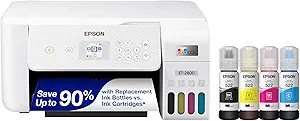 |
Brother Work Smart 1360 MFC-J1360DW

| Printer Type | Inkjet |
|---|---|
| Duplex | Automatic |
| Maximum Sheet Capacity | 150 |
| Automatic Document Feeder | 20 sheets |
| Printer Connectivity Type | USB, Wi‑Fi |
The Brother Work Smart 1360 is a compact all‑in‑one inkjet that handles printing, copying and scanning for a home or small office. It connects via Wi‑Fi or USB and supports mobile printing standards like AirPrint and Mopria, making it easy to send jobs from phones or tablets; the Brother Mobile Connect app also simplifies setup and scanning to cloud services. The 20‑sheet ADF and automatic duplexing speed routine tasks, while a 150‑sheet tray keeps you from refilling constantly. Print speeds are competitive for the class (up to 16 ppm mono, 9 ppm color) and the printer produces vibrant color and solid black text at good resolution. Practical conveniences include a small 1.8" color display for on‑device controls and Page Gauge ink monitoring. Expect standard yield LC501 ink cartridges and optional higher‑yield packs or subscription ordering for lower running costs. Limits to consider are modest paper capacity and average duty cycle typical of home models, and color photo quality will not match a dedicated photo printer or higher‑end color lasers.
Best for: Buyers who want a space‑efficient, easy‑to‑use color all‑in‑one for everyday home and small office tasks and who value wireless/mobile printing and simple cloud scanning.
Less Ideal for: Workplaces that require heavy monthly print volumes, enterprise features, or professional photo printing should choose a larger office or dedicated photo model instead.
- All‑in‑one functions: print, copy and scan in a compact footprint.
- Automatic duplex printing and 20‑sheet ADF speed multitask jobs.
- Wireless, Wi‑Fi Direct and USB connectivity with mobile printing support.
- 150‑sheet input tray reduces refills and Page Gauge helps monitor ink levels.
- Compatible with Brother Genuine LC501 cartridges and optional high‑yield packs or subscription service.
- Not designed for high volume office duty cycles or heavy multi‑user environments.
- Photo output quality and paper handling are more limited than dedicated photo printers.
Verdict: A compact, feature‑balanced all‑in‑one that delivers wireless convenience, duplexing and decent speeds for home and small office users who want straightforward, reliable color printing.
Epson Expression Photo HD XP-15000

| Maximum Media Size | 13 x 19 inch |
|---|---|
| Resolution | 5760 x 1440 dpi |
| Printer Connectivity Type | wired, wireless |
| Duplex | Automatic |
| Maximum Sheet Capacity | 200 |
The Epson Expression Photo HD XP-15000 is a wide-format inkjet aimed at photographers and power users who need borderless prints up to 13 x 19 inches. It uses individual six-color Claria Photo HD inks, including red and gray, which broaden the gamut and improve black-and-white prints, and delivers very high resolution up to 5760 x 1440 dpi for detailed photos. The printer supports both wireless and Ethernet connectivity, has a 200-sheet front tray plus a 50-sheet rear specialty tray for cardstock and specialty media, and offers automatic two-sided printing for document workloads. Print speeds are modest for documents but reasonable for photo work, and the unit is compact for a wide-format model. Practical limitations include reliance on genuine Epson cartridges and possible firmware behavior that can affect third-party inks, and it is a single-function printer so scanning or copying is not onboard. For photographers or studios that prioritize image quality and wide-format capability, this printer balances pro-quality color and a desktop footprint, but budget-conscious buyers should factor in OEM ink use.
Best for: Photographers, hobbyists, and small studios that need high-resolution, wide-format photo printing and prioritize color fidelity and borderless output.
Less Ideal for: Users who need an all-in-one (scan/copy) device or who want to use third-party inks to reduce long-term running costs.
- Six-color Claria Photo HD ink set (includes Red and Gray) for wider color gamut and improved B&W prints
- Supports borderless wide-format prints up to 13 x 19 inches
- Automatic two-sided printing plus large 200-sheet front tray and 50-sheet rear specialty tray
- Wired Ethernet and wireless connectivity for flexible networked printing
- High maximum print resolution of 5760 x 1440 dpi for detailed photo output
- Designed to require genuine Epson cartridges which limits third-party ink options
- Single-function printer with no scanner or copier included
Verdict: Choose the XP-15000 when you need pro-quality, wide-format photo prints from a compact desktop printer that emphasizes color accuracy and borderless output.
HP DeskJet 2955 All-in-One Printer

| Printer Type | HP Thermal Inkjet |
|---|---|
| Maximum Sheet Capacity | 60 |
| Print Resolution (Color) | Up to 4800 x 1200 optimized dpi color |
| Print Speed (B&W) | 7.5 pages_per_minute |
| Connectivity | Apple AirPrint; USB; Wireless (Wi-Fi); Wireless direct printing; Mopria |
The HP DeskJet 2955 is a budget-focused all-in-one designed for basic home printing, scanning, and copying. It handles everyday color documents and photos with up to 4800 x 1200 optimized dpi for color and manual duplex support via driver. Setup is straightforward using the HP app and the printer supports wireless standards including AirPrint, Mopria, and Wi‑Fi Direct, which makes printing from phones and tablets convenient. The 60-sheet input tray and included 3-month Instant Ink trial reduce frequent trips for supplies, and the compact footprint and low power draw suit small desks and infrequent use. Expect modest speeds—around 7.5 ppm black and 5.5 ppm color—and scan/copy resolution capped at 300 x 300 dpi, so this is best for documents and occasional color prints rather than heavy photo or office workloads. Manual duplex and single tray limit throughput, and replacement supplies use HP 68 series cartridges. For buyers who want simple wireless printing in a small, eco-minded package, the DeskJet 2955 delivers predictable, no-frills performance.
Best for: Buyers who prioritize a compact, budget-friendly printer for occasional home document and color printing and who value easy mobile connectivity and low ongoing hassle.
Less Ideal for: Users who need fast, high-volume printing, automatic duplexing, or professional photo-quality output should consider higher-end models with automatic duplex and faster throughput.
- Compact all-in-one design fits small home desks
- Wireless printing with AirPrint, Mopria, and Wi‑Fi Direct for easy mobile printing
- Included 3-month Instant Ink trial and 60-sheet tray reduce supply hassle
- High optimized color resolution for decent-looking color prints on photo papers
- Low power consumption and use of recycled plastics for a greener footprint
- Print speeds are modest compared with larger home or office printers
- Duplex printing is manual which slows two-sided jobs
Verdict: A compact, no-frills all-in-one that delivers reliable wireless printing and simple home use with low hassle and a small footprint.
Canon PIXMA TS203

| Printer Type | Inkjet |
|---|---|
| Printer Connectivity Type | USB |
| Maximum Media Size | A4 |
| Maximum print Resolution Color | 600 dpi |
| Power Consumption | 25 watts |
The Canon PIXMA TS203 is a no-frills, compact inkjet that handles everyday color and black-and-white printing from a single rear feed tray via USB. It uses a four-color hybrid ink set with a pigmented black for sharper text and supports A4 and postcard sizes with borderless printing on compatible media. Setup and day-to-day use are straightforward for a wired connection to a PC or laptop, and the small footprint saves desk space. Print speeds are modest at about 7.7 ppm for black and 4 ppm for color, so it is best for light workloads rather than high-volume jobs. It lacks duplexing, scanning, copying, or wireless connectivity, so every page must be loaded manually and printed one-sided via USB. Paper capacity is limited to a 60-sheet maximum, which means frequent refills in busier environments. For buyers focused on a simple, low-cost printer that produces decent text and photo-capable borderless prints, the TS203 delivers the essentials with minimal complexity.
Best for: Buyers seeking an inexpensive, space-saving printer for occasional home or small office document and photo printing who value simplicity over extra features.
Less Ideal for: Users who need wireless printing, built-in scanning or copying, fast high-volume throughput, or larger paper handling capacity should consider more fully featured models.
- Compact footprint fits small desks or tight home office spaces
- Pigmented black ink for crisp, high-contrast text
- Borderless printing and A4 support for basic photo and document prints
- Simple USB connection keeps setup and use straightforward
- No wireless connectivity or mobile printing support
- Does not support automatic duplex printing or scanning/copying
- Limited paper capacity suitable only for low-volume use
Verdict: A compact, budget-friendly inkjet that delivers sharp text and basic borderless prints for light home or small office use.
Canon PIXMA TS6520

| Printer Type | Inkjet |
|---|---|
| Duplex | Automatic |
| Connectivity | USB, Wi-Fi |
| Display Type | OLED |
| Print Speed (B&W) | 14 pages_per_minute |
The Canon PIXMA TS6520 is a budget-minded all-in-one inkjet designed for home and light office use. It uses a two-cartridge hybrid ink system to deliver sharp black text and reasonably vivid color prints, and the flatbed scanner handles occasional scanning and copying tasks. Setup and daily use are straightforward thanks to dual-band Wi-Fi, mobile printing support (Canon PRINT, AirPrint, Mopria), and a clear 1.42-inch OLED status display. Automatic two-sided printing and borderless photo support help reduce paper use and make the printer versatile for documents and photos up to letter size. Its compact footprint fits small workspaces, but the single paper tray and modest sheet capacity mean it is best for low to moderate monthly volumes rather than heavy-duty batching. Print speeds are typical for this class, and the starter ink tanks will need replacement sooner with frequent photo printing. For buyers who want reliable, simple printing and wireless convenience without advanced office features like an ADF, the TS6520 covers the essentials well.
Best for: Buyers who prioritize dependable, easy-to-use printing for home, students, or small households and want straightforward wireless setup and reliable daily performance.
Less Ideal for: Users who need high-volume printing, frequent multi-page scanning, or advanced office features should consider larger models with higher capacity and an ADF.
- Compact all-in-one design fits small desks
- Automatic two-sided printing saves paper
- Dual-band Wi-Fi and mobile printing for easy wireless use
- 1.42-inch OLED display simplifies status checks and basic controls
- Single paper tray with very small sheet capacity
- No automatic document feeder for multi-page scanning/copying
Verdict: A compact, reliable all-in-one that delivers simple wireless printing and automatic duplexing for everyday home and student needs.
HP DeskJet 2855e

| Printer Type | Inkjet |
|---|---|
| Print Output Type | Color |
| Compatible Cartridge | HP 67 |
| Maximum print Resolution Color | 4800 x 1200 dpi |
| Printer Connectivity Type | single band wi-fi (2.4ghz only) |
The HP DeskJet 2855e is a small-format all-in-one inkjet designed for basic home printing, scanning, and copying tasks. It connects over 2.4 GHz Wi‑Fi or USB and uses HP 67 cartridges, and includes a 60-sheet input tray and a flatbed scanner for documents and photos. Print speeds are modest at about 7.5 ppm black and 5.5 ppm color, with photo-capable resolution up to 4800 x 1200 dpi for color prints and 600 dpi for black text. The printer works with the HP app for mobile printing and offers AI formatting tools to trim web pages and remove unwanted elements before printing. Practical strengths are its compact footprint, simple app-led setup, and a three-month Instant Ink trial with HP+ activation for convenient cartridge replacement. Trade-offs are the single-band 2.4 GHz Wi‑Fi only (no 5 GHz), manual duplexing, limited 60-sheet capacity, and average speeds that make it better for occasional home use than heavy daily workloads.
Best for: Buyers who want an affordable, compact all-in-one for occasional home printing, scanning, and copying and who value easy app setup and subscription ink delivery.
Less Ideal for: Users who need fast, high-volume printing, automatic duplexing, or a robust multiuser office printer should look at larger, faster models.
- Compact all-in-one design with scanning and copying in a small footprint
- Supports mobile printing and app control for easy setup and remote jobs
- Includes three months of Instant Ink with HP+ activation for easy ink replenishment
- High color print resolution up to 4800 x 1200 dpi for better photo and graphic detail
- Only single-band 2.4 GHz Wi‑Fi with no 5 GHz support
- Manual duplexing and a modest 60-sheet input capacity limit batch productivity
Verdict: A space-saving, app-friendly all-in-one that fits light home use and users who prefer easy ink subscription management.
Epson EcoTank ET-2800

| Printer Type | Inkjet |
|---|---|
| Print Output Type | Color |
| B&W Pages per Minute | 10 |
| Color Pages per Minute | 5 |
| Printer Connectivity Type | wired, wireless |
The Epson EcoTank ET-2800 is a cartridge-free color inkjet all-in-one designed for everyday home printing, copying and scanning. It uses large refillable ink tanks and ships with enough ink to handle thousands of pages, which cuts the need for frequent cartridge swaps and lowers ongoing ink costs. The printer offers wireless and USB connectivity plus app and voice printing for easy mobile workflows, and a flatbed scanner and simple LCD make copying and scanning straightforward. Print quality is strong for documents and decent for photos thanks to Epson's Micro Piezo heat-free precision, and the ET-2800 delivers up to 10 ISO ppm for black and 5 ppm for color for typical home jobs. Expect manual duplexing rather than automatic two-sided printing and a single 100-sheet input tray, so heavy users may need more frequent paper handling. The setup and refill bottles are keyed to reduce mess, but Epson recommends genuine ink to maintain performance and warranty coverage. For buyers who want low ink fuss and consistent everyday output, the ET-2800 is a practical choice with clear cost-savings over cartridge printers.
Best for: Buyers who prefer a low-maintenance home printer that minimizes ongoing ink purchases and favors reliable, straightforward daily printing and mobile convenience.
Less Ideal for: Users who need automatic duplexing, large paper capacity, or faster professional photo production should consider higher-end models with those specific features.
- Cartridge-free design with high-capacity refillable ink tanks reduces frequency of replacements.
- Includes enough starter ink bottles to print thousands of pages, lowering running costs.
- Wireless, app and voice printing make mobile workflows easy.
- Flatbed scanner and LCD provide basic copy and scan functionality in one unit.
- No automatic duplex unit; two-sided printing is manual.
- Single 100-sheet input tray limits paper capacity for heavier print volumes.
Verdict: Choose the ET-2800 if you want a reliable, cartridge-free home all-in-one that dramatically cuts ink hassle and cost.
Choosing the Right Inkjet Printer: Key Factors to Consider
Print Quality
Print quality determines how usable output looks for both documents and photos. For text work, crisp, dark letterforms and consistent toner or ink coverage produce professional-looking pages. For photos, look at color accuracy, tonal range, and fine-detail rendering because these affect how lifelike images will appear.
Different inkjet technologies and ink sets produce different results. Dye-based inks tend to produce vivid color on glossy paper but can be less durable over time than pigment inks. Consider the primary types of prints you produce most often and choose an ink set and print resolution that match those needs.
Running Cost and Ink Efficiency
Ongoing ink and consumable costs are often the largest long-term expense of inkjet ownership. Look beyond the initial purchase price to the cost per page for both color and black-and-white printing. Pages-per-cartridge estimates and the availability of high-yield or refillable cartridges can dramatically lower operating costs.
If you print frequently, factor in how often you will replace cartridges and whether the printer supports economy modes or subscription plans that reduce per-page prices. Also consider whether maintenance cycles or printhead servicing add hidden costs over time.
Speed and Duty Cycle
Print speed affects how productive you can be, especially if you print multi-page documents regularly. Manufacturers publish pages-per-minute for text and draft modes; choose a model with speeds that match your typical workload to avoid long waits.
Duty cycle and recommended monthly volume indicate how well a printer handles sustained use. If you only print occasionally, a slower home-oriented model may be fine. For heavier use, select a printer designed for higher monthly volumes to reduce wear and maintenance needs.
Connectivity and Workflow Integration
Modern inkjet printers offer a variety of connectivity options that influence convenience. Wireless printing, support for mobile printing standards, and a usable companion app can simplify everyday tasks like printing from phones or cloud services. Wired Ethernet remains useful in shared small-office setups for reliable network access.
Also check support for common document formats, scanning and copying features if multifunction capability is important, and whether driver and firmware updates are delivered regularly. A straightforward setup and clear app controls reduce friction, particularly for users who are not technically inclined.
Paper Handling and Media Support
Paper capacity and the range of supported media affect how versatile the printer is. A reputable tray capacity keeps you from refilling paper constantly for typical home use, while a dedicated photo tray or manual feed helps when printing specialty media like heavyweight cardstock or glossy photo paper.
If you plan to print photos, confirm support for borderless printing and the specific paper sizes you use. Also consider duplex printing capability if you frequently produce two-sided documents to save paper.
Maintenance and Supportability
Ease of maintenance influences both lifetime cost and uptime. Simple cartridge access, clear low-ink alerts, and user-serviceable parts reduce frustration. Consider whether the printer has easily replaceable consumables and whether routine maintenance tasks such as printhead cleaning are automated or manual.
Reliable customer support and clear documentation matter when troubleshooting. A model that minimizes false clogging events or provides effective cleaning cycles will require less intervention and keep printing interruptions to a minimum.
Which Ink Type Is Right: Dye Versus Pigment
Choosing between dye-based and pigment-based inks is one of the first technical decisions. Dye inks often deliver more vivid colors and smoother gradients on glossy photo paper, making them attractive for image-focused use. Pigment inks typically offer better longevity and darker, crisper text on plain paper.
If you print a mix of photos and documents, consider a printer that balances both ink types or uses pigment-based black with dye color inks. That arrangement provides durable text and reasonable photo color without forcing a compromise on common office tasks.
- Dye ink: vibrant color, better on glossy photo papers
- Pigment ink: durable prints, superior text reproduction
- Hybrid approaches: pigment black with dye color for balanced results
Multifunction Features: When Scanning and Copying Matter
Many inkjet printers include scanner and copier functions. For home offices or family use, an integrated scanner saves space and keeps paperwork workflows simple. Look at scan resolution and whether the unit supports duplex scanning for multi-page documents.
If you frequently digitize receipts, schoolwork, or photos, choose a model with reliable scan software and straightforward physical controls. Automatic document feeders speed up batch scanning but add mechanical complexity that can require occasional maintenance.
- Flatbed scanning for photos and delicate originals
- Automatic document feeder for multi-page scanning
- Software options for OCR and direct-to-cloud uploads
Paper Handling Tips for Better Results
Proper paper selection and handling make a big difference in print results. Use paper recommended for the type of print job: heavier, coated stock for photos and standard multipurpose paper for text. Avoid mixing paper types in the main tray to prevent jams and feed errors.
Store unused paper in a cool, dry place to prevent curling and moisture-related print issues. When printing photos, allow prints to dry fully before stacking to avoid smudging.
- Match paper type to the print job
- Keep separate trays or manual feeds for specialty media
- Allow photos to dry before stacking
Setting Up Reliable Wireless Printing
Wireless printing is convenient but depends on a stable network and good signal strength. Place the printer where it gets reliable Wi-Fi coverage and avoid crowded wireless channels if possible. For multi-user households, configure user access and any required passwords during initial setup.
Also check whether the printer supports direct-to-device features such as Wi-Fi Direct or Bluetooth for quick prints without joining a network. These options simplify ad-hoc printing from phones or tablets but consider security implications if the printer is in a shared environment.
- Position printer for strong Wi-Fi reception
- Use Wi-Fi Direct for ad-hoc mobile printing
- Update firmware to maintain network compatibility
Photo Printing Best Practices
For high-quality photo prints, use manufacturer-recommended paper and select the correct media type in print settings. Calibrating color profiles and using the correct printer profile for your paper helps achieve accurate color rendering. Avoid low-quality paper or draft print modes when output quality matters.
Keep ink cartridges topped up and run occasional nozzle checks and maintenance cycles to prevent banding and color shifts. Proper handling and storage of finished prints will preserve color and finish over time.
- Select the correct paper profile in print settings
- Use high-resolution images for best results
- Perform nozzle checks before important photo jobs
How We Chose the Best Inkjet Printer
We focused on practical, measurable factors that affect real-world ownership of inkjet printers. Primary evaluation criteria included print quality for photos and text, measured by resolution and color fidelity; ongoing ink and consumable cost per page; print speed for typical document and photo jobs; connectivity and software convenience including wireless printing and mobile app support; and reliability plus ease of maintenance such as cartridge swaps and printhead care. We excluded models that target only specialty tasks such as large-format poster printing or commercial production presses, and we did not consider printers that rely exclusively on proprietary subscription programs without transparent running-cost data. Our short list favors devices that deliver a balance of high-quality output, sensible operating costs, and straightforward day-to-day use. We also considered user-facing factors like setup simplicity and the breadth of supported paper types, since those directly affect how useful a printer will be in a typical home or small-office setting.
Our full evaluation process is outlined in our review methodology.
FAQ
How long do inkjet prints last?
Lifespan depends on ink type and storage conditions. Pigment inks on archive-grade paper can last many years, while dye inks are more prone to fading unless displayed or stored properly. Proper framing and avoiding direct sunlight extend longevity.
Can I leave an inkjet printer unused for long periods?
You can, but long idle periods increase the risk of nozzle clogging and may require cleaning cycles when you return to printing. If you print infrequently, run a small test page every few weeks or use economy print modes to keep ink flowing.
Are third-party or remanufactured cartridges a good option?
Third-party cartridges often lower short-term costs but quality and reliability vary. They can work well if sourced from reputable suppliers, yet some may affect printhead performance or color accuracy. Factor in potential tradeoffs in warranty and long-term reliability.
Do inkjet printers require special maintenance?
Routine maintenance is typically limited to occasional printhead cleaning, replacing cartridges, and keeping paper paths clear. Multifunction units with ADFs may need extra attention. Follow the manufacturer's maintenance prompts to minimize issues.
What is the best way to save on ink costs?
Print in draft mode for non-critical documents, use grayscale or black-only printing when color is unnecessary, and buy high-yield cartridges if you print frequently. Also consider models that offer refillable tanks or economical cartridge options to lower per-page costs.
Final Verdict
Prioritize the features that match how you use an inkjet printer: pick models with stronger photo capabilities if images are the priority, or favor pigment-based black and efficient cartridges for frequent document work. Balance print quality, running cost, and convenience factors such as connectivity and paper handling to find a device that fits your routine. By focusing on those tradeoffs you can select an inkjet that delivers reliable output and predictable operating costs for years of home or small-office use.