
Note: This article contains affiliate links. If you click on these links and make a purchase, we may earn a small commission at no extra cost to you. This helps support our research and content. Read our full affiliate disclosure here.
Picking the right photo printer for photographers matters because print output is the final expression of your work. The wrong device can misrepresent colors, lose detail in highlights or shadows, or slow you down when producing client work. This guide highlights seven carefully shortlisted photo printers that suit a range of studio and on-location workflows. We evaluated each option on the aspects that most affect photographic results and productivity, including color accuracy, print detail, media handling, and workflow speed. Read on to find the printers that match your output goals and working style.
Top Picks at a Glance
| Best Overall The best all-around choice for most situations | Epson Expression Photo HD XP-15000 |  |
| Best Quality Built to a higher standard if you want something more solid | Epson SureColor P900 |  |
| Best Value The sweet spot between price and what you get | Canon PIXMA G620 MegaTank Photo Printer |  |
| Best Budget The cheapest option that still gets the job done reliably | KODAK Mini 2 Retro |  |
| Top Rated A top-rated pick with lots of positive feedback | Canon imagePROGRAF PRO-1100 |  |
| Most Popular A crowd favorite that many people choose with confidence | KODAK Dock Plus PD460 |  |
| Best Seller A high-volume bestseller chosen again and again | Liene 4×6 Photo Printer DHP513 |  |
Epson Expression Photo HD XP-15000

| Maximum Media Size | 13 x 19 inch |
|---|---|
| Resolution | 5760 x 1440 dpi |
| Printer Connectivity Type | wired, wireless |
| Duplex | Automatic |
| Maximum Sheet Capacity | 200 |
The Epson Expression Photo HD XP-15000 is a wide-format inkjet aimed at photographers and serious hobbyists who need borderless prints up to 13 x 19 inches. It uses a six-color Claria Photo HD ink set, including red and gray inks, to extend color gamut and improve black-and-white tones, and it supports high-resolution output up to 5760 x 1440 dpi. Practical touches include a rear specialty tray for cardstock and specialty media, a 200-sheet front tray for document jobs, automatic two-sided printing, and both wireless and Ethernet connectivity so you can print from computers and mobile devices. Photo quality and color range are the main strengths, and the included starter inks let you start printing right away. Expect the printer to be larger and heavier than basic desktop models, and running costs depend on using genuine Epson cartridges as the printer is designed for Epson ink; third-party cartridges may not work reliably. The unit balances pro-level image quality with straightforward setup and convenient paper handling, making it a solid choice for home studios that print occasional large-format photos and regular documents.
Best for: Photographers and home studio users who want pro-quality, wide-format borderless prints and a straightforward printer that also handles document work.
Less Ideal for: Casual users who only need occasional 4 x 6 or letter prints and want the lowest possible purchase and ink costs or a compact desktop unit.
- Six-color Claria Photo HD inks (including red and gray) for a wider color gamut and improved monochrome prints
- Supports borderless wide-format prints up to 13 x 19 inches for pro-style photo projects
- Automatic duplex and large front tray make it usable for both photo and document jobs
- Wired Ethernet plus wireless and mobile printing options for flexible connectivity
- Rear specialty tray accepts cardstock and other media for creative projects
- Designed to work with genuine Epson cartridges which can raise ongoing ink costs
- Physically larger and heavier than typical home inkjets, requiring dedicated desk space
Verdict: Choose the XP-15000 when you need true wide-format, pro-level photo prints from a single compact home-studio printer.
Epson SureColor P900
| Printer Type | Inkjet |
|---|---|
| Maximum print Resolution Color | 5760 x 1440 dpi |
| Printer Connectivity Type | Wi-Fi |
| Maximum Media Size | 11 x 17 inch |
| Display Type | LED |
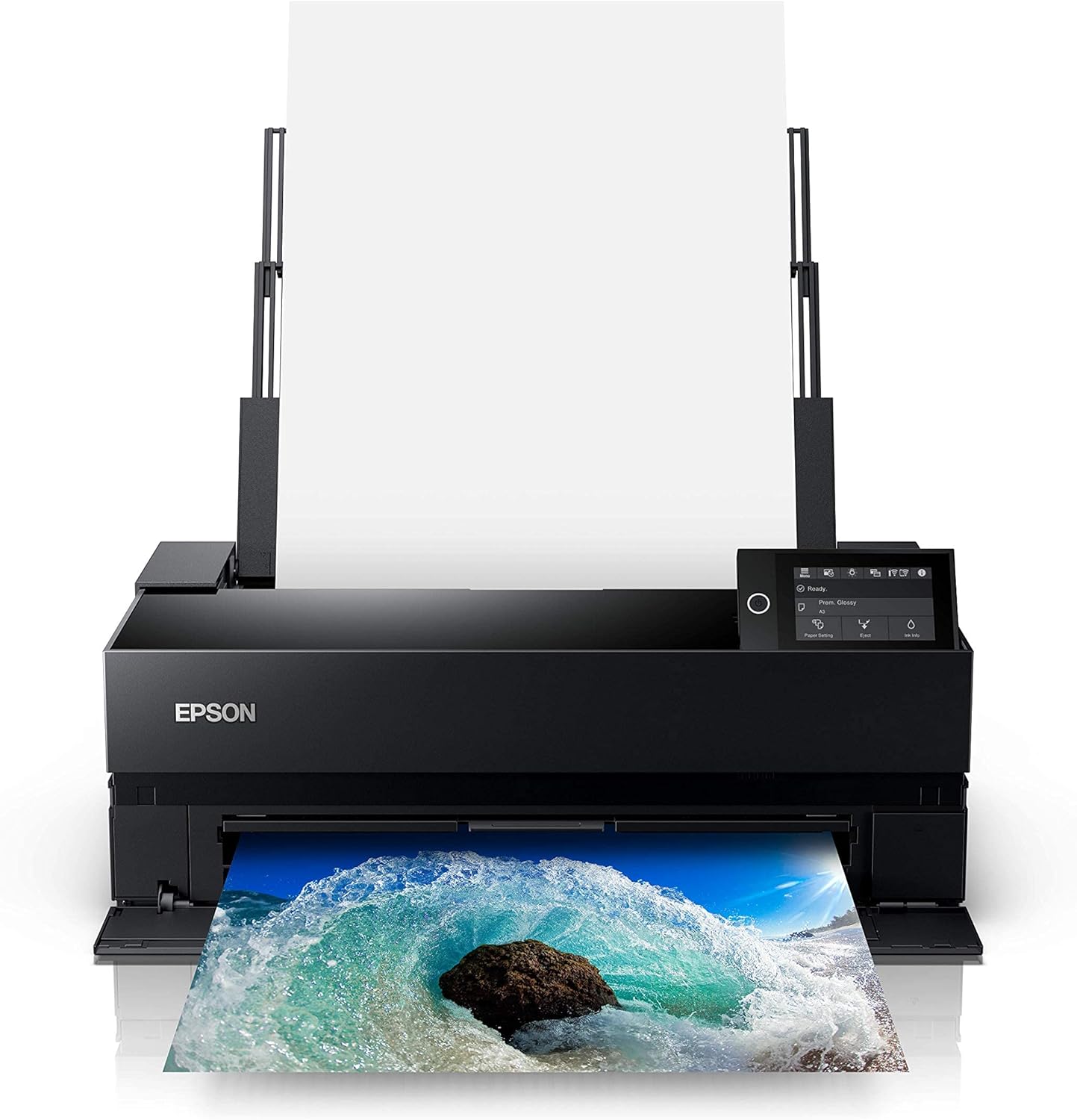
The Epson SureColor P900 is a desktop 17-inch inkjet designed for photographers who need gallery-quality prints from a compact footprint. It uses UltraChrome PRO10 pigment inks with a dedicated violet channel and separate matte and photo black nozzles to deliver a wide color gamut, deep Dmax on glossy media, and smooth black-and-white tonality. The 10-channel MicroPiezo AMC printhead and Carbon Black Driver mode help produce consistent fine detail and denser blacks, while the 4.3-inch touchscreen, wireless connectivity and iOS color-managed printing make it straightforward to run full-resolution jobs from a studio workflow. Media handling supports sheets up to 1.5 mm thick and optional roll printing for longer prints, and the internal LED light and dual trays simplify previewing and batch work. Expect modest speed — rated around 1 ppm for full-quality color — and the printer is built to use genuine Epson cartridges only, so ongoing ink costs and cartridge availability are important considerations for heavy users. For photographers prioritizing image quality over throughput, the P900 is a strong desktop choice.
Best for: Photographers and advanced hobbyists who prioritize ultimate print quality and archival performance for exhibition or portfolio work and accept slower throughput.
Less Ideal for: Users who need fast, high-volume production or the lowest possible operating costs should consider production-oriented printers or alternatives with cheaper consumables.
- UltraChrome PRO10 pigment inks with violet channel for a wide color gamut
- Dedicated nozzles for matte and photo black for deep Dmax and smooth B&W
- 10-channel MicroPiezo AMC printhead for consistent fine detail
- 4.3-inch touchscreen and wireless iOS color-managed printing for easy workflow
- Supports thick media up to 1.5 mm and optional roll media for versatility
- Relatively slow rated print speed for full-quality color output
- Requires genuine Epson cartridges which can raise running costs
Verdict: Buy this if you want a compact desktop printer that prioritizes exhibition-level color and black-and-white print quality for professional photo work.
Canon PIXMA G620 MegaTank Photo Printer

| Print Resolution | 4800 x 1200 dpi |
|---|---|
| Printer Connectivity Type | USB, Wi-Fi |
| Maximum Media Size | 8.5 x 14 inch |
| Maximum Sheet Capacity | 50 |
| Color Pages per Minute | 3.9 pages_per_minute |
The Canon PIXMA G620 is a MegaTank photo all‑in‑one that focuses on low cost per print and expanded color for photographers who print frequently. It uses a 6-color dye ink set (including red and gray) to deliver a wider gamut for vivid 4×6 and larger photo prints, and Canon quotes up to 3,800 4×6 prints per full set of bottles. Setup and connectivity are straightforward with USB or Wi‑Fi and mobile printing and the unit supports app control and Alexa notifications for low-ink alerts. Paper handling covers common photo sizes and a 50-sheet input/output capacity keeps small batches compact. Print resolution is high (4800 x 1200 dpi) and the printer supports automatic duplexing for document work, though photo throughput is modest at about 3.9 ppm. For photographers the main practical benefits are the very low per‑print cost and improved color range for images, while limitations include slower speed for large runs and a modest sheet capacity compared with dedicated photo-lab workflows.
Best for: Photographers who prioritize low long‑term printing costs and color fidelity for frequent consumer-size photo prints and who prefer an all‑in‑one that is easy to run at home or in a small studio.
Less Ideal for: Photographers who need fast, high-volume throughput or large unattended print runs should consider pro lab services or faster dedicated photo printers instead.
- Very low cost per print thanks to MegaTank bottles and high page yield
- 6-color dye ink system (adds red and gray) for a wider color gamut on photos
- High maximum print resolution (4800 x 1200 dpi) for detailed photo output
- Wireless and USB connectivity with app control and Alexa integration for convenient mobile printing
- Print speed is relatively slow at about 3.9 pages per minute, so large jobs take time
- 50-sheet input/output capacity limits unattended batch printing
Verdict: Buy this if you want a compact, low‑cost‑per‑print MegaTank photo printer that boosts color range for frequent home or small‑studio photo printing.
KODAK Mini 2 Retro

| Printer Type | Dye Sublimation |
|---|---|
| Printer Connectivity Type | Bluetooth |
| Maximum print Resolution Color | 300 dots_per_inch |
| Paper Size | 2.1 x 3.4 inches |
| Maximum Sheet Capacity | 15 |
The KODAK Mini 2 Retro is a pocketable dye-sublimation photo printer that connects to iOS and Android phones over Bluetooth and prints credit-card–size photos on glossy paper. It uses KODAK 4PASS technology to lay down three color layers plus a clear protective lamination, producing smudge-, water-, and fade-resistant prints in roughly 55 seconds each. Setup is straightforward through the KODAK Photo Printer app where you can crop and apply simple edits before sending jobs. The unit ships with cartridges and 38 sheets so you can start printing immediately, and a USB-C port handles charging. Practical benefits include true dye-sub output that feels more durable than Zink prints and a very small footprint that makes it convenient for travel, parties, and physical portfolios of small contact prints. Limitations to note are the small 2.1 x 3.4 inch paper size and modest sheet capacity, which make it unsuitable when you need larger prints or high-volume production, and Bluetooth-only connectivity can slow workflows compared with Wi-Fi or direct USB tethering in studio settings.
Best for: Photographers who want a low-cost, portable way to produce durable small prints for client previews, scrapbooks, or events and prioritize convenience over large-format output.
Less Ideal for: Photographers who need larger prints, fast high-volume output, or wired/Wi‑Fi tethered studio workflows should consider other printers that support bigger media and faster throughput.
- Dye-sublimation 4PASS printing for durable, laminated photos
- Simple Bluetooth setup and control via KODAK Photo Printer app
- Very compact and portable for on-the-go printing
- Includes cartridges and 38 sheets to start printing out of the box
- Prints only 2.1 x 3.4 inch credit-card–size photos
- Limited sheet capacity makes batch printing slower
Verdict: Buy this when you want an affordable, truly portable dye-sub printer for durable credit-card–size prints on the go.
Canon imagePROGRAF PRO-1100
| Printer Type | Inkjet |
|---|---|
| Maximum Media Size | 17 X 22 Inch |
| Resolution | 4800 x 2400 |
| Printer Connectivity Type | USB, Wi-Fi |
| Duplex | Automatic |
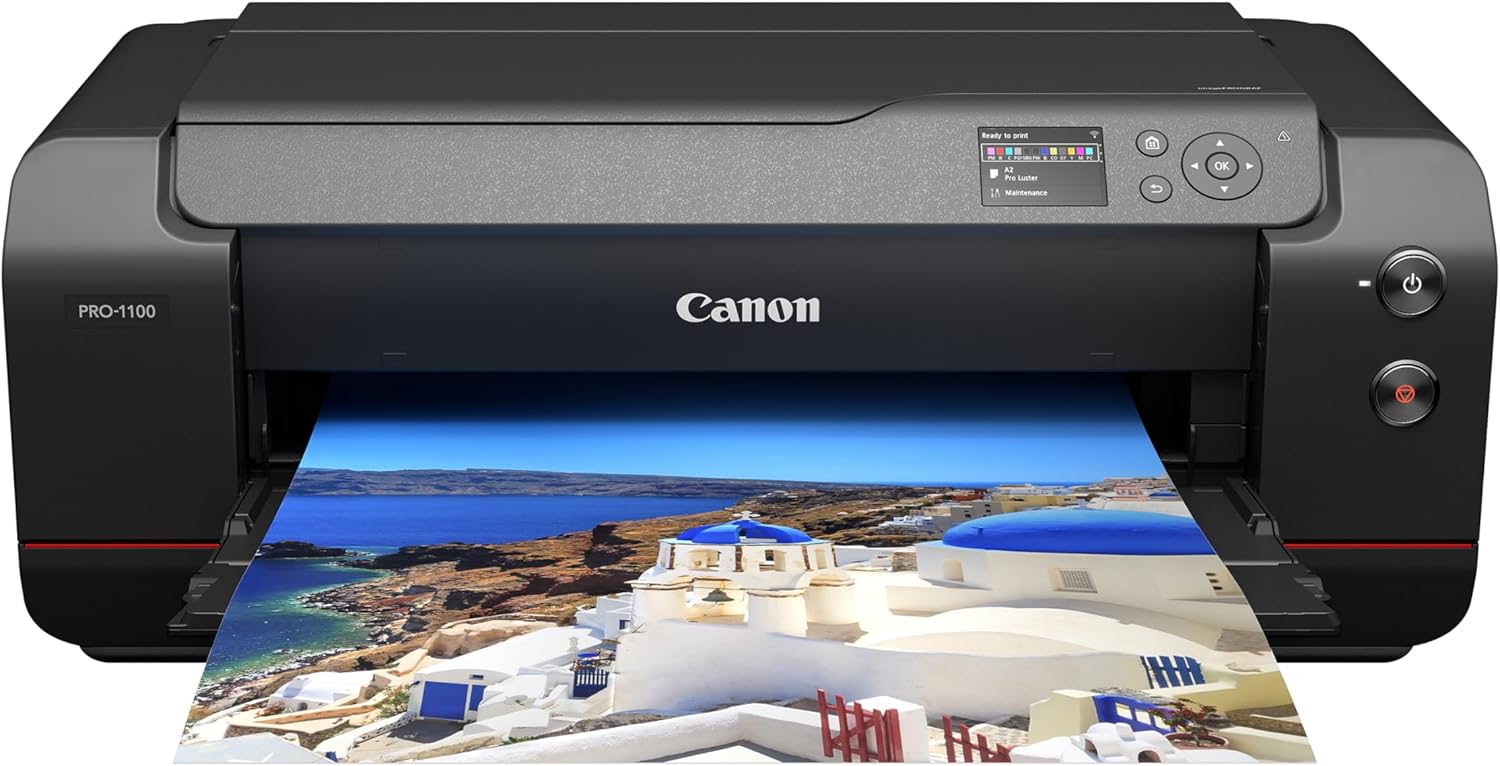
The Canon imagePROGRAF PRO-1100 is a 17-inch wide-format photo printer built for high-fidelity photographic output and dependable studio use. It uses an 11-pigment ink set plus Chroma Optimizer to deliver a wide color gamut, improved gloss uniformity, and strong black-and-white reproduction, and the LUCIA PRO II inks and L-COA PRO processing engine speed image handling for complex jobs. Practical features for photographers include automatic duplexing, a paper feed system that reduces skewing, borderless printing, and professional print/layout software with color calibration and management tools. The printer accepts large media up to 17 x 22 inches and holds up to 250 sheets, making it suitable for batch runs and gallery-size prints. Because it is a precision pigment-based system with anti-clogging tech and dedicated inks, it is optimized for long-term reliability and consistent color over time, though print speed is modest at roughly one page per minute for high-quality outputs and it is a large, heavyweight desktop unit that needs a dedicated workspace. For photographers prioritizing color accuracy, gloss control, and stable long-run performance, the PRO-1100 is a studio-grade choice.
Best for: Photographers and studios that need dependable, color-accurate, gallery-quality prints and prioritize consistent long-term output.
Less Ideal for: Casual home users or those needing fast, low-volume document printing or a compact, lightweight device.
- 11-pigment ink system with Chroma Optimizer for wide gamut and uniform gloss
- Professional color management and calibration tools for consistent results
- Air feeding and anti-skew systems that improve paper handling accuracy
- Supports large media up to 17 x 22 inches and 250-sheet capacity for batch printing
- Print speed is slow for high-quality photo prints at about one page per minute
- Large and heavy unit requiring significant studio space
Verdict: Choose the PRO-1100 if you want a studio-grade, pigment-ink printer that delivers reliable, color-accurate large-format photo prints.
KODAK Dock Plus PD460

| Printer Type | 4PASS Dye Sublimation |
|---|---|
| Maximum Media Size | 4 x 6 inches |
| Print Resolution | 300 dpi |
| Printer Connectivity Type | Bluetooth, Docking |
| Hardware Interface | USB Type C |
The KODAK Dock Plus is a compact desktop photo printer that uses 4PASS dye-sublimation to produce borderless 4×6 prints with a laminated protective coating. It is designed to work with the KODAK Photo Printer app over Bluetooth or by placing a compatible smartphone in the integrated dock, which also charges the phone while printing. Setup is straightforward: install the all-in-one cartridge and paper, connect via the app, edit and print—each color print takes about 55 seconds. The laminated finish resists fingerprints, water, and fading, so prints are suitable for albums, frames, and gifts. Limitations include a single-sheet copy capacity per run and modest throughput at roughly one 4×6 print per minute, so it is best for small batches rather than high-volume studio output. Connectivity is focused on Bluetooth and the dock with a USB-C port, so users who need wired network or higher-resolution large-format prints will need a different solution.
Best for: Photographers who prioritize easy, durable 4×6 prints for client proofs, portfolios, or gift-quality prints and who value simple smartphone-driven workflows and reliable print longevity.
Less Ideal for: Photographers who need high-volume studio printing, larger formats, networked workflow, or higher resolution output should choose a dedicated lab printer or larger dye-sub model.
- 4PASS dye-sublimation with laminated protective layer for durable, water- and fingerprint-resistant 4×6 prints
- Integrated smartphone dock that charges the device and stabilizes connection during printing
- Simple app-based workflow for iOS and Android with basic editing before print
- Borderless 4×6 output tailored for albums, frames, and small-format physical keepsakes
- Print speed and sheet capacity are low, about one 4×6 print per minute and small media tray capacity
- Limited to 4×6 prints and not suitable for larger or batch professional production
Verdict: Buy this if you want a small, phone-first desktop printer that makes durable, borderless 4×6 prints with minimal setup.
Liene 4×6 Photo Printer DHP513

| Printer Type | Dye Sublimation |
|---|---|
| Maximum Media Size | 4 x 6 inch |
| Maximum Sheet Capacity | 20 |
| Connectivity | USB, Wi-Fi |
| Resolution | 300 x 300 dpi |
The Liene DHP513 is a compact 4×6 dye-sublimation photo printer designed for quick, high-quality color prints from smartphones and computers. You load glossy 4×6 paper into the cassette, install the proprietary cartridge, and use the Liene app or a direct Wi‑Fi/USB connection to print; the unit also creates its own hotspot so you can print without a home network. Dye-sublimation output produces laminated, water- and fingerprint-resistant photos with rich colors at a modest 300 x 300 dpi, and single-page prints come in about a minute. The printer is clearly aimed at home or small-office use with a 20-sheet tray and support for up to five simultaneous device connections, making it convenient for family events or quick proof prints. Limitations include relatively slow throughput for bulk work and dependency on Liene proprietary cartridges and paper, which matters if you expect heavy commercial use or want third-party supplies. The minimal controls and app-based workflow keep operation simple but reduce advanced print tuning for critical photographic adjustments.
Best for: Photographers or hobbyists who want a reliable, easy-to-use desktop printer for quick 4×6 proofs and durable keepsake prints without network setup hassles.
Less Ideal for: Professional studios or high-volume photographers who need faster throughput, larger sheet sizes, or compatibility with third-party inks and papers.
- Dye-sublimation printing yields laminated, durable 4×6 photos resistant to water and fingerprints.
- Built-in Wi‑Fi hotspot plus USB Type-C lets phones and computers print without a separate network.
- Simple app-driven workflow and quick one-minute initial prints make it easy for casual users to get results.
- Compact desktop footprint and included starter pack of cartridges and photo paper let you print right away.
- Limited paper capacity (20 sheets) and about 1 minute per print make it slow for high-volume tasks.
- Requires proprietary Liene cartridges and paper, which restricts third-party supply options.
Verdict: Buy this if you need a compact, user-friendly dye-sublimation printer that reliably produces durable 4×6 color prints from phones or PCs.
Choosing the Right Photo Printer for Photographers: Key Factors to Consider
Color Accuracy and Color Management
Accurate color reproduction is critical because photographic prints must match the colors you see on calibrated screens or the intended artistic vision. Look for printers that support wide color gamuts and multiple colorant channels, and that work with ICC profiles. A printer that accepts custom profiles reduces guesswork and avoids repeated test prints.
Good color management affects client satisfaction, exhibition readiness, and archival consistency. If you shoot in a specific color workflow, confirm the printer integrates with your color-management tools and can produce consistent results across multiple print runs.
Print Resolution and Fine Detail
Resolution and how a printer lays down ink determine how well it renders fine texture, hair, and subtle tonal transitions. Higher DPI specifications and technologies that reduce dot visibility will produce smoother gradients and sharper detail, which matters especially for large prints and close-viewing work.
Consider how the printer handles shadow detail and highlight roll-off. Some devices produce excellent color but struggle with deep blacks or blown highlights. Test prints or manufacturer sample prints can reveal how a printer treats subtle separations in midtones and extremes.
Media Support and Paper Handling
Photographers use a broad range of media: glossy, luster, matte, baryta, and fine-art rag papers, plus different weights and sizes. A printer that accepts thick fine-art stocks, supports cut-sheet sizes and roll media, and offers edge-to-edge or borderless printing gives you creative flexibility.
Reliable paper handling reduces jams and wasted prints. Look for adjustable feed paths, dedicated fine-art trays, and whether the printer can handle fine-art textured surfaces without smudging or feeding errors. Media profiles for the papers you use are also important for predictable output.
Workflow Integration and Connectivity
How a printer fits into your workflow affects daily efficiency. Photographers benefit from robust driver options, dedicated print-queue utilities, and compatibility with common editing software and color-management tools. Network features, USB connections, and direct-printing options from cameras or mobile devices can be useful depending on setup.
Also consider software support for batch printing, previewing color-managed layouts, and managing color profiles. Good workflow tools reduce the time between final edit and finished print, which matters when producing client orders or exhibition runs.
Speed and Productivity
Printing speed matters differently depending on use. For occasional fine-art prints, speed may be less important than quality. For client galleries, event photography, or high-volume orders, throughput and quick warm-up times can be decisive. Evaluate measured print times for common sizes and typical job stacks.
Faster printers can raise operating costs due to higher ink consumption or require more frequent maintenance. Balance speed needs with quality expectations to find a printer that fits your production cadence.
Operating Costs and Maintenance
Long-term costs include ink consumption, cost per print, and routine maintenance tasks such as head alignments and cleaning cycles. Printers with larger-capacity cartridges or refillable tanks may lower cost per print, but check whether those systems risk clogs or require more frequent maintenance.
Maintenance requirements also affect studio uptime. A printer that needs frequent service interrupts production. Consider vendor support policies and how easy routine servicing is, as well as whether consumables are easy to source to avoid downtime.
Understanding Printer Color Systems
Photo printers use different colorant combinations and ink sets to achieve a wide gamut and smooth tonal transitions. Models intended for photographers often include additional color channels beyond standard CMYK to capture expanded reds, greens, and neutrals. Knowing the ink configuration helps you anticipate how well a printer will reproduce skin tones and saturated colors.
Look for printers that support ICC profiling and have a predictable rendering intent. Some workflows benefit from printers that include a dedicated black or matte black channel for deeper neutrals and better black-and-white prints.
- Extra color channels can reduce metamerism and improve smoothness
- Dedicated matte blacks improve shadow detail on textured papers
- ICC profile support is essential for consistent color across devices
Paper Choices and Finish Effects
Paper choice strongly affects the final look of a photograph. Glossy and luster papers produce vibrant colors and strong contrast, while matte and fine-art papers offer subtler tones and more tactile presentation. Consider how a paper's texture, base color, and coating interact with your images' aesthetic.
Some printers handle very thick fine-art stocks better than others. If you plan to mount prints or use heavyweight rag papers, verify the maximum paper weight and feeding method supported by the printer.
- Gloss and luster for color punch and depth
- Matte and rag for subtle, gallery-style presentation
- Baryta papers mimic darkroom prints with increased depth
Setting Up a Color-Managed Workflow
A reliable color-managed workflow starts with calibrating your monitor and using profiles for both your editing environment and target paper/printer combination. Soft-proofing in your editing software with the correct ICC profile helps anticipate how colors and contrast will shift in print.
Regularly updated profiles for your paper and ink combination reduce guesswork. If you produce prints professionally, consider making test targets and measuring them to create custom profiles tailored to your specific printer and studio conditions.
- Calibrate and profile monitors for predictable editing
- Soft-proof images before printing to reduce wasted prints
- Create custom ICC profiles when using non-standard papers
Preparing Image Files for Print
Prepare files at the proper resolution and color space for the intended print size. For most photographic prints, 240 to 300 PPI at final output dimensions is a safe target to retain detail without unnecessarily large files. Use a high-bit-depth color space while editing, then convert to the printer-recommended color space when exporting.
Sharpening should be tailored to the output size and paper type. Some papers mute perceived sharpness, requiring slightly higher output sharpening. Keep an archive copy of your high-resolution master files to generate different print sizes without resizing from an already-sharpened image.
- Export at target dimensions and a recommended color space
- Apply output sharpening specific to paper type and size
- Keep master files for future resizing and reprints
Studio Setup and Print Finishing
Plan your studio layout so a printer is accessible for routine maintenance and has adequate ventilation if required. Allow space for storing multiple paper types and a flat area for drying prints, especially for pigment-based inks that may take time to fully cure.
Finishing steps influence presentation and longevity. Consider edge trimming, mounting, and protective sprays or laminates appropriate to the paper and ink chemistry. Proper handling reduces the risk of fingerprints, scuffs, and curl.
- Provide room for drying and stacking freshly printed sheets
- Store paper in a humidity-controlled environment
- Use finishing techniques appropriate to archival needs
How We Chose the Best Photo Printer for Photographers
We prioritized criteria that directly affect photographic outcomes and professional workflows. Color accuracy and gamut were primary considerations because faithful tonal and hue reproduction is essential for client and exhibition work. Print resolution and fine-detail rendering were included to ensure textures and small details remain crisp at print sizes photographers commonly use. We also evaluated media support and handling since photographers often print on a variety of papers and sizes; robust sheet and roll handling increases versatility. Workflow and connectivity mattered as well, including driver support, color-management compatibility, and printing speed for batch jobs. Long-term operating considerations such as ink yield and maintenance routines were factored into selection to reflect total ownership effort. We excluded consumer-grade casual printers with limited color sets and devices that lack professional color-management features. Items on the list are capable of supporting photographic prints at gallery or client quality. Our filters emphasized measurable specs and usability features photographers rely on rather than marketing claims.
Our full evaluation process is outlined in our review methodology.
FAQ
What color space should I use when printing photos?
It often depends on the printer and paper. Many photo printers produce the best results from a wide color space such as Adobe RGB or ProPhoto during editing, then convert to the printer-recommended space or use ICC profiles at export. Soft-proofing helps anticipate changes.
How do I know which paper finish to choose for my prints?
Finish choice depends on the desired visual effect and viewing conditions. Gloss and luster increase color saturation and contrast, while matte and fine-art papers give a softer look and tactile surface. Test prints on your preferred papers to judge the final appearance.
Is pigment ink better than dye ink for photographic prints?
Pigment inks typically offer superior longevity and resistance to fading, which benefits archival and gallery prints. Dye inks can produce more vibrant colors in some cases but may fade faster. The best choice depends on your longevity needs and the printer's specific ink chemistry.
How often should I perform maintenance on a photo printer?
Maintenance frequency depends on usage. Regular users should follow the manufacturer's recommended maintenance schedule, including printhead checks and cleaning cycles. Infrequent use can increase the need for automated cleaning to keep nozzles clear.
Can I use third-party papers and inks with a photo printer?
You can often use third-party papers and inks, but results may vary. Third-party supplies may lack manufacturer ICC profiles and could affect color accuracy or longevity. Test carefully and, when possible, create custom profiles for non-standard materials.
Final Verdict
Choosing the right photo printer for photographers means balancing color fidelity, media flexibility, and operating practicality. Prioritize devices that integrate well with your color-management workflow and handle the paper types you prefer. Consider throughput and maintenance needs relative to your production volume. Focus on the factors that most influence your output goals—accurate color and reliable detail for exhibition prints, or faster throughput and lower operating effort for higher-volume jobs. With those priorities in mind, you can select a printer that delivers consistent, professional results.