
Note: This article contains affiliate links. If you click on these links and make a purchase, we may earn a small commission at no extra cost to you. This helps support our research and content. Read our full affiliate disclosure here.
If you work from home, the right printer makes routine tasks smoother and reduces daily friction. A reliable home-office printer affects how quickly you can produce reports, client-ready documents, and training materials while controlling ongoing ink or toner costs. This guide highlights our top shortlisted printers for home office use and explains the tradeoffs between speed, media flexibility, and operating expense. Below you will find focused picks that suit different workflow needs along with the evaluation criteria we used, so you can match a model to your printing habits and space constraints.
Top Picks at a Glance
| Best Overall The best all-around choice for most situations | HP OfficeJet Pro 8125 |  |
| Best Quality Built to a higher standard if you want something more solid | Epson EcoTank ET-4950 |  |
| Best Value The sweet spot between price and what you get | Epson EcoTank ET-2800 |  |
| Best Budget The cheapest option that still gets the job done reliably | Canon PIXMA TS4320 |  |
| Top Rated A top-rated pick with lots of positive feedback | HP LaserJet Pro MFP 3101sdw |  |
| Most Popular A crowd favorite that many people choose with confidence | Canon PIXMA TR4720 |  |
| Best Seller A high-volume bestseller chosen again and again | Brother DCP-L2640DW Laser MFP |  |
HP OfficeJet Pro 8125
| Printer Type | HP Thermal Inkjet |
|---|---|
| Maximum Sheet Capacity | 225 |
| Duplex | Automatic (standard) |
| Color Pages per Minute | 10 pages_per_minute |
| Printer Connectivity Type | Apple AirPrint; Ethernet networking; USB; Wireless (Wi-Fi); Wireless direct printing |
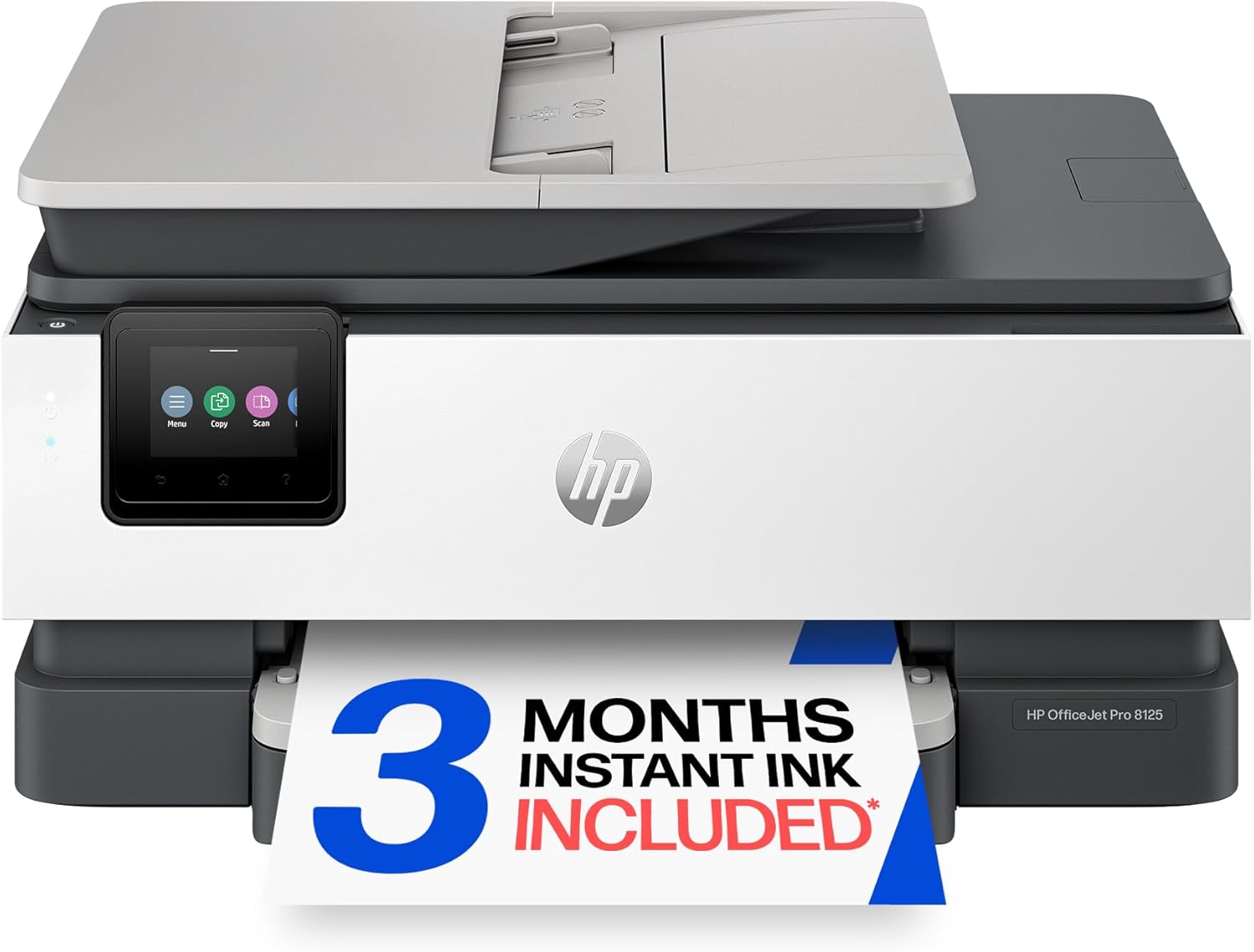
The HP OfficeJet Pro 8125 is a compact all-in-one inkjet aimed at home offices that need fast everyday color and black-and-white output plus scanning and copying. It handles typical tasks from single-sheet printing to multi-page scans using the automatic document feeder, and the 2.7-inch color touchscreen and HP app make setup and mobile printing straightforward. Notable features include automatic two-sided printing, a 225-sheet input capacity for longer runs, and HP AI print formatting that trims unwanted web or email content to reduce wasted pages. Connectivity options are broad, with dual-band Wi-Fi, Ethernet, AirPrint, USB, and wireless direct. Photo and document quality is good for business documents and occasional photos thanks to high optimized color dpi, though heavy photo labs or high-volume office environments may prefer laser alternatives for lower running costs. The printer is designed to work with HP original cartridges and includes a three-month Instant Ink trial to simplify supplies, but that also ties you into HP's cartridge ecosystem for full functionality.
Best for: Buyers who want a capable, feature-rich all-in-one for a home office that balances speed, mobile convenience, and good color output without needing enterprise-level duty cycles.
Less Ideal for: Users who print very large monthly volumes or want the lowest possible cost per page should consider a monochrome laser or a business-class device instead.
- All-in-one functionality with flatbed scanner and one-sided ADF for multi-page scanning
- Automatic duplex printing and 225-sheet capacity reduce manual handling for longer jobs
- Wide connectivity: dual-band Wi-Fi, Ethernet, AirPrint, USB and wireless direct
- 2.7-inch color touchscreen and HP app make mobile operation and setup simple
- High optimized color resolution for sharp business documents and occasional photos
- Designed to require original HP cartridges, limiting third-party ink options
- Not the lowest long-term cost per page compared with monochrome lasers for heavy B&W volumes
Verdict: A balanced all-in-one for home offices that need reliable wireless printing, scanning, and duplex capability with good color quality and straightforward mobile operation.
Epson EcoTank ET-4950

| Printer Type | Inkjet |
|---|---|
| Print Speed (B&W) | 18 pages_per_minute |
| Print Speed (Color) | 9 pages_per_minute |
| Maximum Print Resolution | 4800 x 1200 dots_per_inch |
| Connectivity | Ethernet, USB, Wi-Fi |
The Epson EcoTank ET-4950 is a cartridge-free all-in-one inkjet aimed at productive home offices that need frequent color and black-and-white printing. It uses large refillable ink tanks with included bottles that Epson says will cover years of typical document printing, which cuts the ongoing cost and interruptions from cartridge swaps. The ET-4950 handles printing, copying, scanning, and faxing, and adds a 250-sheet tray, automatic duplex printing and an ADF for batch scanning or multi-page copying. Connectivity includes Wi-Fi, Ethernet and USB plus the Epson Smart Panel app for mobile printing. Print quality is high for documents and decent for photos thanks to a 4800 x 1200 dpi engine, and ISO speeds of 18 ppm black and 9 ppm color keep short jobs moving. Expect a larger footprint and initial ink setup compared with cartridge printers, and photo-heavy users may still prefer a dedicated photo printer for top-tier color photos. For a home office focused on volume, convenience and lower ink costs, the ET-4950 is a strong practical choice.
Best for: Buyers who run a busy home office and prioritize reliable, lower-cost printing for high page volumes and multi-page workflows.
Less Ideal for: Users who only print infrequently and want a compact, ultra-low upfront-cost printer or photographers who need top-tier dedicated photo printing.
- Refillable high-capacity EcoTank system reduces frequent cartridge changes and lowers long-term ink cost
- Automatic duplex and 250-sheet tray support higher-volume home office workflows
- 18 ppm black / 9 ppm color ISO speeds keep document jobs moving
- Networked connectivity with Wi-Fi and Ethernet plus a mobile app for remote printing
- High maximum print resolution (4800 x 1200 dpi) for sharp text and good photo detail
- Larger initial setup and ink priming compared with cartridge-based printers
- Not optimized as a dedicated photo printer for the highest-end photo color accuracy
Verdict: Choose the ET-4950 if you need a multi-function home office printer that cuts ink headaches and cost with high-capacity refillable tanks and solid productivity features.
Epson EcoTank ET-2800

| Printer Type | Inkjet |
|---|---|
| Printer Connectivity Type | USB, Wi-Fi |
| Maximum print Resolution Color | 5760 x 1440 dpi |
| B&W Pages per Minute | 10 |
| Maximum Sheet Capacity | 100 |
The Epson EcoTank ET-2800 is a compact all-in-one inkjet that replaces cartridges with large refillable ink tanks, making it well suited to regular home-office printing. It prints, scans and copies, connects over Wi-Fi or USB, and supports mobile and voice-activated printing for hands-free jobs. The included ink bottle set is sized to handle thousands of pages, so you will refill far less often than with cartridge machines, and PrecisionCore Micro Piezo print technology delivers sharp text and respectable photo detail at up to 5760 x 1440 dpi. Paper handling is basic: a single 100-sheet tray and simplex-only printing keep the unit small and simple, and print speeds are modest at about 10 ppm black and 5 ppm color. The ET-2800 is practical to set up and economical to run if you stick with genuine Epson ink, but it lacks auto-duplex and a large paper feeder, so it is best for everyday documents and occasional photos rather than high-volume office workflows or heavy duplex jobs.
Best for: Buyers who prioritize low ongoing ink costs and simple, reliable home-office printing will appreciate this printer for everyday documents, schoolwork, and occasional photo prints.
Less Ideal for: Not a good fit for users who need automatic duplexing, large paper capacity, or faster production speeds for heavy office workloads.
- Cartridge-free refillable ink tanks that greatly reduce cartridge replacements
- High-yield ink set included for thousands of pages, lowering running costs
- Wireless and mobile printing with voice-activated support for convenient remote printing
- High optical resolution (5760 x 1440 dpi) for detailed prints and photos
- No automatic duplex (two-sided) printing
- Single 100-sheet tray limits paper capacity for larger print jobs
Verdict: Choose the ET-2800 if you want a compact home-office all-in-one that cuts ink costs with refillable tanks while delivering reliable everyday printing.
Canon PIXMA TS4320

| Printer Type | Inkjet |
|---|---|
| Duplex | Automatic |
| Maximum print Resolution Color | 1200 x 1200 dots_per_inch |
| Printer Connectivity Type | USB, Wi‑Fi |
| Maximum Sheet Capacity | 100 |
The Canon PIXMA TS4320 is a budget-friendly all‑in‑one aimed at light home office tasks like documents, school projects, and occasional photos. It prints in color using a two‑cartridge hybrid ink system, scans on a flatbed, and supports automatic duplex to save paper. Setup and mobile printing are straightforward via the Canon app, AirPrint, Mopria, or USB, and dual‑band Wi‑Fi helps maintain a reliable connection across the home. The printer supports a variety of media up to letter size and holds about 100 sheets in its tray, which is adequate for infrequent to moderate home use. Print quality is good for text and decorations and the 1200 dpi color resolution gives decent photo prints for casual needs. Expect modest speeds compared with office machines and higher running costs per page due to the small starter ink set; it also lacks an automatic document feeder and a display screen found on larger models. For a compact, easy to use home printer that keeps upfront cost low, the TS4320 is practical and dependable.
Best for: Buyers seeking an inexpensive, space-saving all-in-one for occasional home office printing, simple scanning, and casual photo prints who prioritize low upfront cost and easy mobile setup.
Less Ideal for: Users who print large volumes, need fast business-grade throughput, or require multi-page scanning and touchscreen controls should consider more feature-rich office models instead.
- Automatic duplex printing saves paper and supports two-sided workflows
- Dual‑band Wi‑Fi plus USB and app support make mobile and wireless printing easy
- Compact footprint fits small home office spaces
- Good print resolution (up to 1200 x 1200 dpi) for sharp text and decent photo output
- Uses a small starter ink set so replacement ink costs and per‑page expense can be relatively high
- No automatic document feeder or integrated display for multi-page scans and advanced control
Verdict: A compact, budget-focused all‑in‑one that delivers reliable wireless printing and duplex capability for light home office use.
HP LaserJet Pro MFP 3101sdw

| Printer Type | Laser |
|---|---|
| Print Speed (B&W) | 40 ppm |
| Resolution | Up to 1200 x 1200 dpi |
| Maximum Sheet Capacity | 250 |
| Scanner Type | ADF, flatbed |
The HP LaserJet Pro MFP 3101sdw is a business‑oriented monochrome laser all‑in‑one that focuses on speed and dependable daily performance. It prints up to 35–40 pages per minute with 1200 x 1200 dpi resolution, supports automatic duplexing, and includes a 250‑sheet input tray plus a 50‑sheet ADF for batch scanning and copying. Connectivity covers Wi‑Fi, Ethernet, USB and mobile printing standards like AirPrint and Mopria, and the HP app provides remote control and management. In practice this printer handles typical home‑office workloads—reports, invoices and multipage scans—quickly and with consistent text quality, while the ADF speeds up repetitive scan/copy jobs. Expect straightforward setup and stable network behavior that suits a reliability‑focused environment, though it prints only in black and white and uses HP‑chip cartridges only. Power draw is higher than small inkjets, and color printing is not available, so it is best used where fast, durable monochrome output is the priority.
Best for: Someone who needs a durable, business‑grade monochrome printer for frequent document printing and organized scanning workflows in a home office where uptime and consistent output matter.
Less Ideal for: Buyers who need color printing for graphics or photos or those who prefer lower upfront power consumption and cheaper color-capable inkjets.
- Fast monochrome printing up to 35–40 ppm for quick document throughput
- Automatic duplex printing and 250‑sheet tray reduce hands‑on time for large jobs
- 50‑sheet ADF and flatbed scanner make multipage scanning and copying efficient
- Multiple connectivity options including Wi‑Fi, Ethernet, USB and mobile printing support centralized or remote use
- Monochrome only, so no color printing capability
- Requires HP cartridges with chips and will block non‑HP cartridges
Verdict: Buy this if you want a fast, reliable monochrome all‑in‑one that handles heavy home‑office document workloads with minimal fuss.
Canon PIXMA TR4720

| Printer Type | Inkjet |
|---|---|
| Print Resolution | 4800 x 1200 |
| Print Speed B&W | 8.8 ipm |
| Print Speed Color | 4.4 ipm |
| Connectivity | USB, Wi-Fi |
The Canon PIXMA TR4720 is a space-conscious 4-in-1 inkjet designed for everyday home office tasks. It handles single- and two-sided document printing, a small auto document feeder for multi-page scans and copies, and flatbed scanning for photos and pages. Setup is straightforward via the Canon Print app or standard USB/Wi-Fi connections, and the front-loading 100-sheet tray makes paper handling simple. Print quality is solid for text and casual color prints thanks to Canon's hybrid ink system, and it supports borderless photos up to letter size. Practical benefits include automatic duplexing to save paper and mobile/cloud printing for quick jobs from a phone. Limits to consider are modest speed and photo throughput—black text prints near 8.8 ipm and color around 4.4 ipm—so it is not ideal for large print runs, and ink costs on single-cartridge systems can add up with heavy use. The small LCD and simple controls keep operation basic rather than feature-heavy for power users.
Best for: Buyers who want a reliable, easy-to-set-up all-in-one for occasional to moderate home office printing and value compact footprint and mobile printing features.
Less Ideal for: Heavy users or small businesses that need fast, high-volume output or the lowest ongoing ink cost should choose a higher-capacity office printer.
- Compact all-in-one design handles printing, scanning, copying and faxing in a small footprint
- Automatic duplex printing reduces paper use for two-sided documents
- 100-sheet front paper tray simplifies loading and supports common paper sizes
- Mobile and Wi-Fi connectivity plus Canon Print app enable printing from phones and cloud services
- Borderless photo printing up to 8.5" x 11" for occasional photo needs
- Relatively slow color print speed compared with faster office models
- Not built for high-volume printing so ink replacement may be frequent under heavy use
Verdict: A compact, easy-to-use wireless all-in-one that suits home office users who need basic printing, scanning and duplexing in a small footprint.
Brother DCP-L2640DW Laser MFP

| Print speed (B&W) | 36 ppm |
|---|---|
| Max print resolution (B&W) | 1200 x 1200 dpi |
| ADF capacity | 50 pages |
| Standard tray capacity | 250 sheets |
| Connectivity | Ethernet, USB, Wi-Fi |
The Brother DCP-L2640DW is a compact black-and-white laser multifunction printer built for busy home offices and small businesses. It prints up to 36 ppm and delivers sharp 1200 x 1200 dpi black-and-white output while a 50-sheet auto document feeder and 250-sheet tray make multi-page copying and scanning less hands-on. Connectivity is flexible with dual-band Wi-Fi, Ethernet, and USB, and Brother Mobile Connect provides basic remote printing and scan management from a phone. Practical features include automatic two-sided printing to save paper, a flatbed plus sheetfed scanner for mixed originals, and support for Brother TN830/TN830XL toners. Expect reliable, fast daily performance and lower running frustration if you stick with Brother genuine toner and consider the Refresh subscription for automatic supply delivery. Trade-offs are that it is monochrome only and the initial in-box toner yield is modest compared with specialized high-yield office models, so large-volume users should plan toner costs.
Best for: Buyers who prioritize reliable, fast black-and-white output and low-maintenance operation for a home office or small business and who prefer proven, factory-quality supplies and support.
Less Ideal for: People who need color printing, photo-quality output, or those who want the lowest possible ink cost per page for very high monthly volumes should consider other options.
- Fast monochrome printing up to 36 pages per minute for quick document throughput
- 50-page auto document feeder speeds multi-page scanning and copying
- 250-sheet input tray reduces how often you refill paper
- Multiple connectivity options including dual-band Wi-Fi, Ethernet, and USB for flexible setup
- Automatic duplexing and toner save mode help lower paper and toner use
- Monochrome only so it cannot print color documents or photos
- In-box toner yield is limited so replacement toners may be needed sooner for heavy use
- No fax capability and control panel is basic compared with touchscreen models
Verdict: A dependable, fast monochrome MFP that delivers high daily productivity and simple connectivity for risk-averse home office users.
Choosing the Right Printer for Home Office: Key Factors to Consider
Print Speed and Duty Cycle
How quickly a printer produces pages matters when you regularly print multi-page reports or client packets. Print speed is usually measured in pages per minute for black and white and color output. A faster printer reduces wait time during heavy sessions and helps maintain workflow momentum.
Duty cycle is the manufacturer-stated monthly maximum workload the unit can handle. For home-office buyers, compare the duty cycle to your expected monthly page volume. Selecting a model with a comfortably higher duty cycle than your average monthly usage improves longevity and reduces the chance of performance issues from overuse.
Operating Cost and Consumables
Consumable costs—ink or toner and sometimes drum units—drive the long-term expense of ownership. Look beyond the initial purchase price to yield-per-cartridge figures and cost-per-page estimates. High-yield cartridges or ink tank systems typically lower per-page costs for users who print frequently.
Also consider the availability and transparency of replacement supplies. Units with easy-to-find cartridges or refillable tanks reduce downtime and often have lower overall running expenses compared with niche or proprietary consumable ecosystems.
Connectivity and Mobile Printing
Modern home-office printers need to integrate with laptops, tablets, and phones. Built-in Ethernet or reliable Wi-Fi makes shared use simple, while Bluetooth or direct wireless options help with quick one-off prints from a mobile device. Look for printers that support standard mobile print protocols and have intuitive driver or app ecosystems.
Security features for networked printing are also relevant for home offices that handle sensitive information. Basic protections such as password-protected Wi-Fi setup and firmware update mechanisms reduce exposure to vulnerabilities.
Paper Handling and Media Support
Your typical print jobs determine what paper handling features you need. A single multipurpose tray is fine for occasional printing, but dedicated paper trays, a manual-feed slot, or an envelope feeder are useful if you print different sizes or heavier media regularly. Duplex printing (automatic double-sided) saves paper and creates professional-looking booklets.
Consider maximum sheet capacity and how frequently you want to reload paper. Larger input trays are convenient for batch jobs, while smaller footprints might require more frequent refills but save desk space.
Print Quality for Documents and Graphics
Text clarity is the primary concern for most home-office users because legible, sharp documents reflect professionalism. DPI and print engine type influence crispness. If your work occasionally includes charts, color diagrams, or client-facing materials, color accuracy and gradient handling become more important.
Photo-grade color reproduction is not necessary for most office uses, but look for models that balance accurate color for graphs and images with strong monochrome text quality.
Setup, Maintenance, and Reliability
A streamlined setup process reduces frustration during initial installation. Look for units with clear setup guides, a straightforward control panel, or companion apps that guide wireless setup and driver installation. Maintenance tasks such as replacing cartridges, cleaning printheads, and clearing paper jams should be simple and well documented.
Reliability for a home-office printer means consistent performance over months of moderate use. Components like user-replaceable rollers and accessible paper paths make small maintenance tasks easier and keep downtime to a minimum.
Choosing Between Inkjet and Laser
Inkjet and laser technologies each have clear strengths for home-office environments. Inkjet printers often deliver better color saturation at lower upfront cost and are flexible with media types. Laser printers excel at high-volume black-and-white printing and usually offer lower cost per page for text-heavy workloads.
Match the technology to your primary use case. If your printing is mostly documents and you need fast, economical monochrome output, a laser-style engine is typically the right fit. If you produce occasional color materials, charts, or need printable labels and heavier media, an inkjet with a robust paper path may be better.
- Inkjet: good color, media flexibility, lower initial cost
- Laser: faster text printing, lower long-term cost for heavy monochrome jobs
- Consider hybrid needs carefully, especially if you require reliable duplexing and larger input trays
Network Setup and Sharing in a Home Office
Reliable connectivity is essential when multiple devices need access. Wired Ethernet provides stable, interference-free connections for home offices with a fixed workstation. Wi-Fi offers flexibility for laptops and mobile devices but check for dual-band support and solid signal strength where the printer will live.
Make sure the printer supports common mobile printing standards and offers an easy-to-use companion app for installing drivers and initiating scans. If others in the household need access, look for user management features or straightforward sharing settings to avoid accidental use.
- Prefer Ethernet for single-desk permanent setups
- Use Wi-Fi with good signal placement for flexible access
- Look for apps and mobile printing support for tablets and phones
Managing Supplies and Reducing Waste
Plan for consumable replacement so you do not run out during critical printing tasks. Consider buying higher-yield cartridges or using refillable ink tank systems if your monthly pages are above average. Recycling programs and refillable options can reduce environmental impact and lower lifetime cost.
Also factor in how easy it is to check remaining ink or toner levels and whether the unit provides alerts for low supplies. Clear feedback prevents surprises and keeps your workflow uninterrupted.
- High-yield consumables reduce trips to restock
- Refillable tanks cut long-term cost and waste
- Look for clear supply-level indicators and alerts
Space, Noise, and Physical Footprint
Home-office space is often limited, so consider the printer's footprint and where it will sit. Compact models save desk area but may have smaller paper trays and fewer features. If noise is a concern during calls or recordings, check for quieter operation modes and quieter rated output.
Think about long-term placement including access for maintenance. Units with front-access paper trays and cartridges are easier to service in tight spaces than models that require rear access.
- Measure available space before selecting a model
- Choose front-access cartridges for tight placements
- Check noise ratings if you share space with calls or recordings
Scanning and Multifunction Options
Many home-office users benefit from multifunction printers that combine printing, scanning, copying, and sometimes fax capability. Built-in scanners with automatic document feeders simplify digitizing multi-page contracts, expense reports, or client paperwork.
If you frequently scan double-sided documents, choose a unit with duplex scanning or a single-pass ADF to speed processing. Consider scan resolution and color fidelity if you archive documents or capture photographic material.
- ADF speeds multi-page scanning and copying
- Single-pass duplex scanning halves scan time for double-sided documents
- Check scan resolution for clarity on archived material
How We Chose the Best Printer for Home Office
We focused on traits that matter to people who use a printer as a daily work tool rather than an occasional home appliance. Our selection process prioritized print speed for common office tasks, cost per page and long-term running expense, ease of connectivity with laptops and mobile devices, and reliability in moderate monthly duty cycles. Media handling was another key filter: we looked for models that accept common paper sizes, handle envelopes and labels without frequent jams, and offer manual-feed options for special media. We excluded basic photo-centric or purely hobby printers that lack network connectivity or have very low recommended monthly volumes. Printers designed strictly for commercial print shops or heavy-production environments were also filtered out. We emphasized models with clear documentation for supplies, straightforward maintenance, and widely available consumables. The result is a set of options that balance speed, operating cost, connectivity, and real-world durability for home-office workloads.
Our full evaluation process is outlined in our review methodology.
FAQ
How much should I expect to print each month for a home office?
Monthly printing volume varies widely but many home offices fall in the 50 to 500 pages per month range. Estimate your typical monthly page count, including occasional heavy months, then choose a printer with a duty cycle comfortably above that number.
Are refillable ink tanks a better choice than cartridges?
Refillable ink tanks lower per-page costs if you print frequently and make supply management simpler. They require occasional bulk ink purchases but reduce cartridge waste. For low-volume users, standard cartridges may be more convenient.
Do I need duplex printing for a home office?
Duplex printing is useful for saving paper and producing professional two-sided documents. It is especially valuable for reports and manuals. If you rarely print multi-page documents, duplexing is nice to have but not essential.
What connectivity features matter most for home-office printers?
Stable Wi-Fi or wired Ethernet is important for reliable printing. Mobile printing support and a helpful setup app make connecting phones and tablets easier. Security features like secure Wi-Fi setup and firmware updates are also worth considering.
How can I reduce long-term printing costs?
Reduce costs by choosing higher-yield consumables, using draft mode for internal documents, and enabling duplex printing to cut paper use. Monitoring actual cost-per-page and selecting a model with transparent yield information helps predict expenses.
Final Verdict
Prioritize the factors that most affect your daily workflow: print speed and duty cycle for heavy users, operating cost and consumable availability for frequent printing, and connectivity for a multi-device setup. Balance paper handling and multifunction needs against the space you have available. Focus on the tradeoffs between upfront features and long-term running costs. Choose a home-office printer that matches your monthly volume and media needs, and you will have a dependable machine that keeps work moving smoothly.