
Note: This article contains affiliate links. If you click on these links and make a purchase, we may earn a small commission at no extra cost to you. This helps support our research and content. Read our full affiliate disclosure here.
If you produce art prints, the printer you choose determines how faithfully your work translates from screen to paper. A dedicated printer for art prints affects color accuracy, tonal gradation, and how long a print will retain its appearance. In this guide we shortlist the top options that suit artists and small studios, focusing on color fidelity, archival pigment options, media handling, and workflow convenience. Each pick was chosen for attributes that matter to printmakers and illustrators. Read on for performance notes and practical evaluation criteria to help you match a machine to your workflow.
Top Picks at a Glance
| Best Overall The best all-around choice for most situations | HP DesignJet T210 24-inch |  |
| Best Quality Built to a higher standard if you want something more solid | Epson EcoTank Photo ET-8550 |  |
| Best Value The sweet spot between price and what you get | HP Smart Tank 5003 |  |
| Best Budget The cheapest option that still gets the job done reliably | Canon PIXMA TS4320 |  |
| Top Rated A top-rated pick with lots of positive feedback | Canon imagePROGRAF PRO-2100 |  |
| Most Popular A crowd favorite that many people choose with confidence | Epson Expression Photo HD XP-15000 |  |
| Best Seller A high-volume bestseller chosen again and again | KODAK Dock Plus PD460 |  |
HP DesignJet T210 24-inch

| Maximum print resolution | 2400 x 1200 dpi |
|---|---|
| Maximum media size | Up to 24-inch wide paper |
| Print speed | 45 seconds per A1/D page |
| Connectivity | Ethernet, USB, Wi‑Fi |
| Warranty | 2-year Extended Warranty |
The HP DesignJet T210 is a compact 24-inch large-format inkjet plotter aimed at small offices and creative studios that need accurate line work and poster-quality color. It prints up to 24-inch-wide media from rolls or sheets, and ships with starter inks, a spindle, and HP Click software for simple drag-and-drop job submission and preview. The printer delivers high-resolution output (2400 x 1200 dpi) and uses HP Bright Office inks for improved line accuracy and color gamut, while hardware features like an automatic horizontal cutter and auto error checking cut waste and save setup time. Connectivity includes Gigabit Ethernet, USB, and Wi-Fi plus mobile printing via the HP Smart app, and 500 MB of onboard memory helps with larger jobs. Print speeds are moderate—about 45 seconds for an A1/D page—so it balances quality and throughput rather than chasing production-level volumes. The included 2-year onsite care pack is a strong convenience for businesses that want support and quick service. Expect ongoing costs from OEM cartridges and modest throughput if you need high daily page counts.
Best for: Buyers who want a compact, accurate wide-format printer for studio-quality posters, CAD drawings, and occasional art prints and who value easy setup and vendor support.
Less Ideal for: Users needing high daily print volumes or production throughput should consider larger production-focused plotters or dedicated production printers.
- High maximum print resolution (2400 x 1200 dpi) suitable for crisp line art and detailed posters
- Supports up to 24-inch roll media with automatic sheet/roll switching and horizontal cutter
- Includes HP Click software and mobile app support for easy job submission and previewing
- 500 MB onboard memory and multiple connectivity options (Ethernet, USB, Wi‑Fi)
- Two-year HP Care Pack with onsite support for faster service and parts
- Not a high-volume production printer—moderate speed (~45 seconds per A1/D) limits heavy throughput
- Starter ink cartridges are trial size so you will likely need replacement inks soon
Verdict: A compact 24-inch DesignJet that delivers high-resolution, color-accurate posters and CAD prints with user-friendly software and two-year onsite support, ideal for studios and small offices producing art-quality prints.
Epson EcoTank Photo ET-8550

| Printer Type | Inkjet |
|---|---|
| Maximum Media Size | 13 x 19 inch |
| Color | 6-color Claria ET Premium |
| Maximum print Resolution Color | 1440 dots_per_inch |
| Duplex | auto |
The Epson EcoTank Photo ET-8550 is a wide-format inkjet all-in-one built for photo and creative work, using a 6-color refillable ink tank system to deliver high-resolution, lab-quality prints. It prints up to 13 x 19 inches borderless, accepts heavyweight media up to about 1.3 mm, and produces fine detail with a maximum color resolution of 1440 dpi and a high black/mono nozzle resolution listed at 5760 x 1440. The refillable bottles greatly lower running costs versus cartridges and the included inks are sized to keep you printing for months, which is helpful for frequent art printing. Connectivity and control are straightforward with USB plus mobile app and a color touch display for on-device scanning and copying. Speed is moderate for a photo-focused machine at roughly 12 color ppm and 16 mono ppm, so expect slower throughput when printing large borderless photos or high-resolution graphics. Color-critical studios should stick with genuine Claria ET inks to preserve longevity and warranty coverage. The ET-8550 balances image quality, wide media support, and low operating cost, making it a strong option for creators who print fine art and photographic work in-house.
Best for: Photographers, illustrators, and small studio creatives who prioritize print quality, wide media support, and low ongoing ink costs for in-house art and photo printing.
Less Ideal for: Users who need fastest possible page-per-minute throughput for heavy text document workloads or who prefer dye-sublimation dedicated photo printers for certain lab-style finishes.
- True wide-format printing up to 13 x 19 inches for large photos and artwork.
- Six-color Claria ET ink set yields richer color gradations and improved photo detail.
- Refillable EcoTank bottles cut running costs and reduce cartridge waste for high-volume printing.
- Supports a variety of photo media including cardstock and glossy papers up to 1.3 mm thick.
- Built-in scanner and app/touch control simplify scanning, copying and mobile printing.
- Not the fastest printer for high-volume document runs—photo mode and large prints take longer.
- Official recommendation to use genuine inks limits flexibility with third-party bottles or refill mixes.
Verdict: Choose the ET-8550 if you want wide-format, high-quality photo and art prints with very low long-term ink costs.
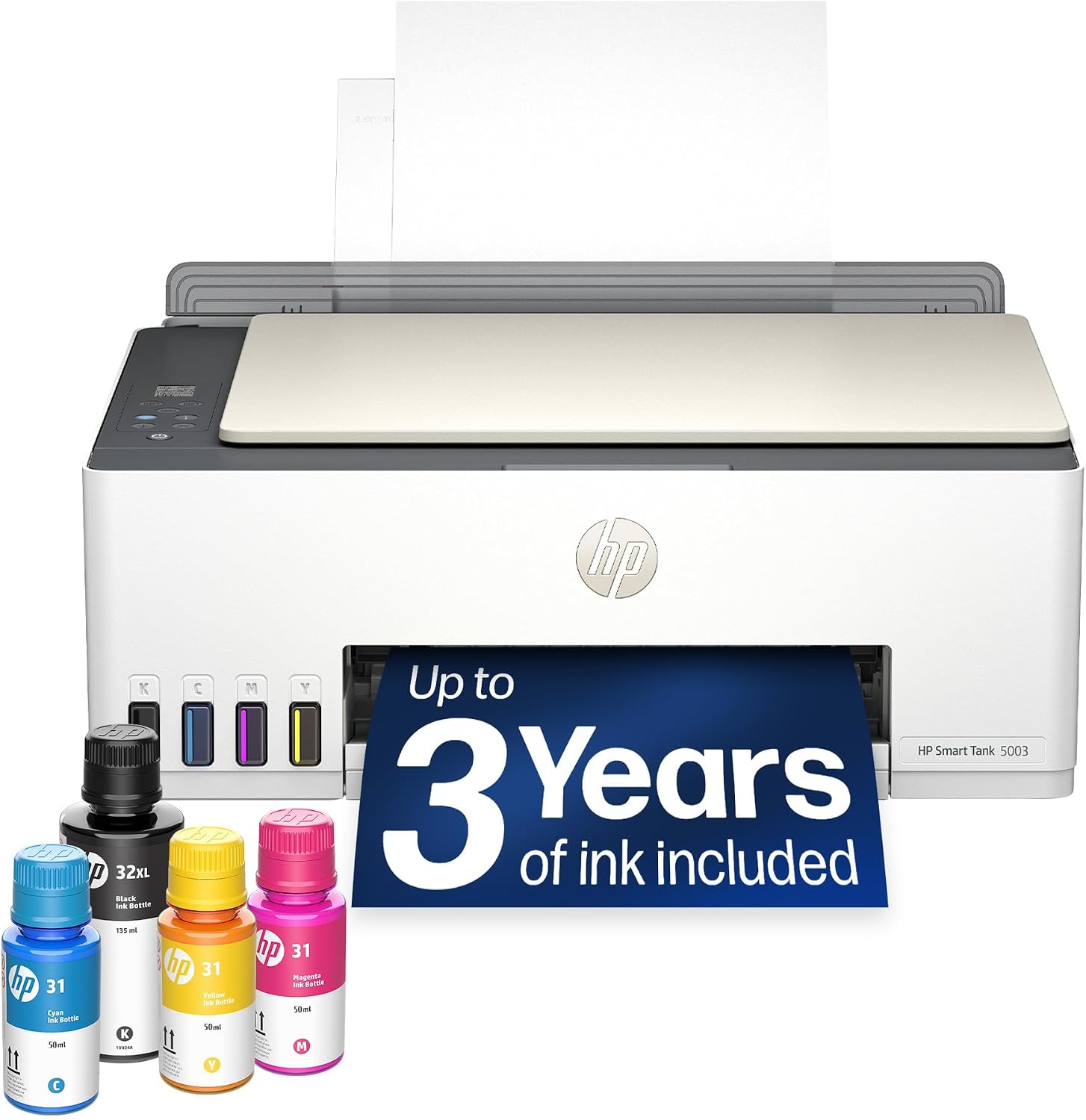
HP Smart Tank 5003
| Printer Type | HP Thermal Inkjet |
|---|---|
| Print Output Type | Color |
| Scanner Type | Flatbed only |
| Maximum Sheet Capacity | 100 |
| Printer Connectivity Type | Apple AirPrint; HP ePrint; Mopria; USB; Wireless (Wi-Fi); Print Anywhere |
The HP Smart Tank 5003 is a refillable ink tank all-in-one that handles printing, copying and flatbed scanning for home users who print frequently. It ships with multiple ink bottles that HP rates for up to three years of ink, and the front-facing refill system makes top-ups straightforward and low‑mess compared with cartridges. Print quality is good for everyday color documents and photos thanks to high optimized color resolution and up to 1200 dpi black output, though fine art photographers should note it is tuned toward general color prints rather than specialist archival pigment output. The 100-sheet tray and wireless options including AirPrint and HP ePrint make it easy to print from phones and laptops, and manual duplex support keeps costs down when you need two‑sided pages. Speeds are modest—about 5 ppm color and 10 ppm black—so expect typical home throughput rather than fast office performance. For someone prioritizing low running costs and straightforward refills, it delivers practical, reliable everyday color printing with built‑in scanning.
Best for: Buyers who want low running costs and easy, high-volume home color printing with simple wireless setup and minimal maintenance.
Less Ideal for: Artists or photographers who need archival-grade pigment prints, precise color management, or very high photo throughput should consider a dedicated photo printer instead.
- Cartridge-free refillable ink tank with included ink bottles for long initial yield
- Wireless printing support including AirPrint, HP ePrint and Mopria for mobile convenience
- High optimized color resolution suitable for vivid document and casual photo prints
- Large 100-sheet tray for higher-capacity home printing
- Not optimized for archival pigment or museum-quality fine art prints compared with dedicated photo printers
- Manual duplex only, so two-sided printing requires extra user steps
Verdict: Choose this refillable Smart Tank if you want low-cost, easy-to-maintain color printing for high-volume home use with simple wireless convenience.
Canon PIXMA TS4320

| Printer Type | Inkjet |
|---|---|
| Duplex | Automatic |
| Connectivity | USB, Wi-Fi |
| Compatible Cartridge | PG-295/CL-286 |
| Maximum print Resolution Color | 1200 x 1200 dots_per_inch |
The PIXMA TS4320 is a small, affordable all-in-one inkjet aimed at home users who need occasional documents and photo prints. It connects over USB or dual-band Wi‑Fi and works with the Canon PRINT app, AirPrint, and Mopria for easy mobile printing. The two-cartridge hybrid ink system produces sharp text and reasonably vibrant color photos up to letter size, and automatic duplexing helps save paper during everyday use. Setup is straightforward and the unit's compact footprint fits on a desk or shelf. Scanning is handled by a flatbed scanner suitable for documents and single photos, though there is no automatic document feeder or touchscreen display. Print speeds are modest, and higher-resolution photo or professional art prints will show the limits of a two-cartridge consumer ink system, but for budget-minded users who want simple photo prints, school projects, or recipe pages the TS4320 delivers solid value.
Best for: Buyers prioritizing a low-cost, easy-to-use all-in-one for occasional photos, school projects, and home documents who need wireless mobile printing and a small footprint.
Less Ideal for: Photographers or artists who need gallery-quality art prints, wide color gamut, or large-format printing should choose a dedicated photo printer with more color cartridges and higher-resolution output.
- Compact footprint that fits small desks and shelves
- Dual-band Wi‑Fi plus USB and mobile printing support for easy setup
- Automatic two-sided printing reduces paper use
- Starter ink included so you can print right away
- Simple flatbed scanner for occasional scans and copies
- Two-cartridge hybrid ink limits color gamut and fine-detail photo quality compared with pigment photo printers
- No automatic document feeder or built-in display for advanced workflows
Verdict: A compact, budget-friendly all-in-one that gives easy wireless printing and decent casual photo output for home users who want value over pro-level print quality.
Canon imagePROGRAF PRO-2100

| Printer Type | Inkjet |
|---|---|
| Maximum print Resolution Color | 2400 x 1200 dpi |
| Maximum Media Size | 24 x 59 inches |
| Ink Color | LUCIA PRO 12-color + Chroma Optimizer |
| Power Consumption | 93 watts |
The Canon imagePROGRAF PRO-2100 is a professional 24-inch wide-format inkjet built for artists, photographers, and studios that need consistent, gallery-quality output. It uses a 12-channel PF-10 print head together with the LUCIA PRO ink set and a Chroma Optimizer to deliver rich color depth and smooth gradations at up to 2400 x 1200 dpi. Media handling is geared toward long prints and roll media with intelligent loading and a built-in multifunction roll system, and the printer supports large media up to 24 x 59 inches. Practical workflow features include an LCD control panel, USB connectivity, app control, and a rotary cutter for finishing. Power consumption is relatively modest for its class at 93 watts. Limits to be aware of are manual duplexing and a single USB port for connection, so advanced network setups may require additional hardware, and it is designed to run Canon ink cartridges only. For studios prioritizing color accuracy and archival fine art output, the PRO-2100 delivers predictable, professional-grade prints with robust media handling.
Best for: Serious artists, photographers, and print studios that need reliable, repeatable, gallery-quality color prints and robust media handling for large-format work.
Less Ideal for: Casual home users or small offices that need compact, low-cost printers or automated duplex/network features out of the box.
- High 2400 x 1200 dpi resolution for detailed art and photo prints
- LUCIA PRO 12-color ink set plus Chroma Optimizer for improved color accuracy and tonal smoothness
- Intelligent media handling with roll system and rotary cutter for long or borderless prints
- Built-in high-precision print head and L-COA PRO image processor for a balance of speed and quality
- No built-in Ethernet or multiple USB/network ports listed for flexible connectivity
- Duplex printing is manual rather than automatic
Verdict: Buy this if you need a reliable, professional 24-inch printer that prioritizes color accuracy and fine art print quality.
Epson Expression Photo HD XP-15000

| Maximum Media Size | 13 x 19 inch |
|---|---|
| Resolution | 5760 x 1440 dpi |
| Printer Connectivity Type | wired, wireless |
| Duplex | Automatic |
| Maximum Sheet Capacity | 200 |
The Epson Expression Photo HD XP-15000 is a wide-format inkjet aimed at photographers and home studios that need large, high-resolution prints. It uses six individual Claria Photo HD inks, including red and gray, to expand color gamut and improve black-and-white tones, and it can produce borderless output up to 13 x 19 inches. Typical use covers pro-style photo projects, cardstock and specialty media via a 50-sheet rear tray, plus document stacks from the 200-sheet front tray. It offers automatic duplexing, Ethernet and wireless printing, and a small color LCD for basic navigation. Print resolution tops out at 5760 x 1440 dpi, delivering detailed images, though photo prints are slower than fast document modes and large prints consume ink quickly. The printer is designed to work with genuine Epson cartridges and firmware updates may affect third-party ink compatibility, so expect ongoing OEM ink purchases. For artists wanting large, color-accurate prints on varied media, the XP-15000 balances image quality and desktop footprint but carries recurring ink costs and moderate speed limitations for high-volume photo runs.
Best for: Photographers and small-studio artists who prioritize color accuracy and the ability to print large borderless art prints from a compact desktop unit, and who prefer a proven OEM ink workflow.
Less Ideal for: Users who need the fastest output for high-volume photo jobs or who want to avoid ongoing OEM ink purchases should consider other models or production printers.
- Six individual Claria Photo HD inks including red and gray for wider gamut and improved monochrome tones
- Borderless wide-format printing up to 13 x 19 inches for large photo and art prints
- Dedicated rear specialty tray supports cardstock and other media finishes
- Automatic duplexing and a 200-sheet front tray make document tasks straightforward
- Wired Ethernet and wireless connectivity plus mobile printing support
- Requires genuine Epson Claria cartridges and firmware can block third-party inks
- Large photo prints are slower and consume significant ink for frequent use
Verdict: Choose the XP-15000 when you want pro-quality, large borderless art prints from a compact desktop printer and are prepared to use Epson’s genuine inks.
KODAK Dock Plus PD460

| Printer Type | 4PASS Dye Sublimation |
|---|---|
| Maximum Media Size | 4 x 6 inches |
| Resolution | 300 |
| Connectivity | Bluetooth, Docking |
| Hardware Interface | USB Type C |
The KODAK Dock Plus is a small desktop photo printer built to produce 4×6 prints directly from smartphones using Bluetooth or the integrated dock. It uses 4PASS dye-sublimation with a clear laminate layer, so prints come out smooth, water- and fingerprint-resistant, and meant to hold color over time. Setup is simple: place a compatible phone on the dock or pair over Bluetooth, edit in the Kodak Photo Printer app, and print without complex drivers. The unit charges a phone while printing and accepts USB-C for a wired connection. Practical benefits include consistent, borderless 4×6 output, easy cartridge and paper installs, and a compact footprint for home use or small studios. Limitations for art-print-focused buyers are the fixed 4×6 maximum media size and modest 300 dpi resolution, which constrains detail and larger format output; this printer is not suited for gallery-sized or high-resolution fine art reproductions. Print speed and sheet capacity are modest, so it is best for small runs and instant keepsakes rather than batch production.
Best for: Buyers who want an easy, reliable way to make archival-feeling 4×6 photo keepsakes from smartphones for home display, albums, or small gift prints and who prioritize simplicity and dependable results over large-format capability.
Less Ideal for: Photographers or artists who need gallery-size reproductions, very high-resolution fine art prints, or efficient bulk production should choose a dedicated wide-format or high-resolution photo printer instead.
- Produces laminated, water- and fingerprint-resistant 4×6 prints using 4PASS dye-sublimation
- Integrated smartphone dock that charges the phone for stable connection during printing
- Simple wireless workflow via Kodak Photo Printer app for quick edits and prints
- Compact desktop design that fits home studios and event setups
- Limited to 4×6 media and a 300 dpi maximum resolution, so it cannot produce larger or ultra-high-detail art prints
- Modest sheet capacity and print speed, making it less efficient for larger print runs
Verdict: If you want a worry-free, user-friendly way to produce durable 4×6 smartphone prints at home, the KODAK Dock Plus delivers consistent, easy results.
Choosing the Right Printer for Art Prints: Key Factors to Consider
Color Accuracy and Gamut
Accurate color reproduction is essential for art prints because small shifts in hue or saturation can change the emotional impact of a piece. Look for printers with wide-gamut ink sets and multiple black or gray cartridges to render neutral tones and shadow detail. Robust color management features, including support for ICC profiles and device links, help match the printer to your calibrated monitor and paper choice.
Testing with soft-proofing and using high-quality profiling targets improves predictability. For artists, the goal is not necessarily the most saturated color but faithful rendering across the entire tonal range.
Ink Permanence and Archival Quality
Ink chemistry determines how long a print will remain true under typical display conditions. Pigment-based inks generally offer superior lightfastness and resistance to humidity compared with dye inks, which can fade more quickly. Consider the availability of archival pigment sets and whether the printer supports extended black or chroma-boosting inks for increased longevity.
Also factor in how inks interact with your chosen fine-art papers. Some combinations yield better absorption and coating adhesion, affecting both color and permanence.
Media Handling and Paper Support
Fine-art papers vary in weight, texture, and surface sizing, so media handling is crucial. Check the printer's supported paper weights, feed paths, and whether it allows single-sheet manual feed for heavy or textured stocks. Wide-format support may be necessary if you plan to sell larger prints or gallery canvases.
Reliable paper transport reduces the risk of cockling, misfeeds, or surface scuffs during printing. If you use deckled-edge, cold-press, or rag papers, ensure the machine can accept thicker substrates without damaging the surface.
Resolution and Tonal Gradation
High nominal resolution helps, but more important is how the printer reproduces subtle tonal transitions and fine detail. Machines that employ multi-level droplet technology or additional gray inks produce smoother gradients and reduce banding. Evaluate how well a printer handles delicate highlights and deep shadows since many art pieces depend on nuanced contrast.
Consider also the influence of print head precision and dithering algorithms, which together determine the quality of texture reproduction and micro-detail.
Color-Management and Workflow Features
A predictable workflow saves time and reduces waste. Look for printers with built-in support for ICC profiles, custom paper profiles, and accurate soft-proofing in standard design or photo software. Advanced control panels, linearization tools, and the ability to disable automatic color correction are useful for professionals.
Connectivity options that integrate with your studio setup, such as network printing, USB, and RIP software compatibility, also affect how easily you can manage batches and maintain consistent results.
Choosing Paper for Best Results
Paper choice changes the look and feel of every art print. Natural-fiber rag papers absorb pigmented inks differently than coated photo papers, often providing a matte, textured finish favored for fine art. Coated papers can enhance chroma and produce more vibrant colors, which works well for colorful illustrations but may reduce the tactile quality of the print.
- Match paper weight to the printer's supported range to avoid jams.
- Test small samples of your target paper with your chosen ink set before committing to large runs.
- Consider surface texture and whether you want a matte, satin, or gloss finish.
Setting Up Color Management
Accurate color begins with a calibrated monitor and continues with correct profiling for each paper and ink combination. Use spectrophotometers or professional profiling services to generate ICC profiles tailored to your setup. When possible, disable automatic color adjustments in print drivers and let the ICC profile handle rendering for the most predictable results.
- Use software soft-proofing to preview how a print will look on specific paper.
- Create and store profiles for each commonly used paper to speed repeat jobs.
- Keep notes about ink levels and environmental conditions that can influence color over time.
Preparing Files for Print
Prepare high-resolution files with appropriate color space settings. Many artists use Adobe RGB or ProPhoto RGB during editing, then convert to the printer profile during export. Embed the correct profile in flattened files or supply layered files with clear instructions if sending work to another production environment.
- Maintain a minimum of 300 ppi at the final print size when possible.
- Flatten transparencies and convert spot colors to process equivalents if the printer does not support spot inks.
- Include a 1:1 proof or small calibrated test print when color fidelity is critical.
Studio Workflow Tips for Batch Printing
When producing multiple copies, maintain consistent environmental conditions such as temperature and humidity to reduce paper expansion or contraction. Schedule head cleaning and maintenance during downtime to avoid interruptions, and print a color check strip at the start of each run to confirm stability. Keep spare ink cartridges and a stock of the same paper lot to avoid color shifts between batches.
- Label paper lots and record profile metadata with each batch.
- Print and store a control print for future color reference.
- Rotate files and inputs to minimize repetitive head wear during long runs.
Finishing and Handling Prints
Handling prints correctly after they exit the printer preserves surface quality. Allow adequate drying time, especially for heavy ink coverage or coated media. Use clean, lint-free gloves when stacking or trimming prints to avoid fingerprints. When finishing with varnish or lamination, test compatibility on a sample to ensure the coating does not alter color or cause cracking.
- Air-dry prints flat in a dust-free area before trimming.
- Use archival mounts and mats to prevent acid migration over time.
- Avoid stacking wet prints; use interleaving sheets if necessary.
How We Chose the Best Printer for Art Prints
We evaluated machines using criteria that reflect the priorities of fine-art printmakers, illustrators, and photographers producing gallery-quality reproductions. First, color accuracy and gamut coverage were weighted heavily because faithful reproduction of original artwork is the primary goal. Second, archival output and ink permanence were assessed, focusing on pigment-based ink sets and resistance to light and humidity. Third, media handling and size support were reviewed to ensure compatibility with common fine-art papers and larger formats up to wide-format sizes. Fourth, print resolution and tonal gradation were considered for capturing subtle textures and gradients in artwork. We also considered workflow features such as color-management support, paper-feed reliability, and driver/software control. Finally, we excluded machines that prioritize speed over quality, dye-only consumer photo printers, or devices lacking robust color-management options. The resulting shortlist emphasizes long-term print stability and fidelity rather than fast throughput.
Our full evaluation process is outlined in our review methodology.
FAQ
What ink type is best for museum-quality art prints?
Pigment-based inks are typically best for museum-quality prints because they offer superior lightfastness and resistance to environmental factors. They usually provide better long-term color stability than dye-based inks.
Do I need a wide-format printer for gallery work?
It depends on the sizes you plan to sell or exhibit. Wide-format printers are necessary for larger pieces beyond standard paper sizes. If you only produce small to medium prints, a high-quality desktop professional printer may suffice.
How should I store prints to maximize longevity?
Store prints flat or loosely rolled in acid-free, archival sleeves or tubes in a cool, dry environment. Avoid direct sunlight and high humidity, and use archival matting and backing when framing.
Can I use third-party papers and still get accurate color?
Yes, but accurate color requires profiling each paper and ink combination. Third-party papers can perform well if you create or obtain a matching ICC profile and test before large print runs.
How often should I clean the print heads?
Cleaning frequency depends on usage. For regular production, perform routine maintenance checks weekly and run cleaning cycles if you notice banding or color shifts. Follow manufacturer-recommended maintenance for best results.
Final Verdict
Selecting the right printer for art prints means balancing color fidelity, archival permanence, and media versatility. Prioritize machines that support pigment inks, robust color-management, and the paper types you plan to use most. Consider workflow features and maintenance needs relative to your expected print volume. Focus on consistent profiling, controlled studio conditions, and test prints to confirm expectations. With these priorities in mind, you can choose a printer that reliably reproduces your work with the longevity and finish your audience expects.