
Note: This article contains affiliate links. If you click on these links and make a purchase, we may earn a small commission at no extra cost to you. This helps support our research and content. Read our full affiliate disclosure here.
Picking the right sublimation printer for beginners matters because it sets the tone for learning, reduces frustration, and determines how quickly you can create sellable or gift-ready items. Beginners need a machine that balances straightforward setup, predictable color output, and affordable consumables. This guide highlights six shortlisted sublimation printers that fit a beginner-friendly profile and explains the practical tradeoffs you should expect. You will find picks chosen for simple setup, consistent color, and manageable upkeep. Below we outline the selection criteria and useful buying considerations so you can pick a starter printer that matches your workflow and materials.
Top Picks at a Glance
| Best Overall The best all-around choice for most situations | Sawgrass SG1000 Sublimation Printer |  |
| Best Quality Built to a higher standard if you want something more solid | Sawgrass SG500 Sublimation Printer |  |
| Best Value The sweet spot between price and what you get | Pinckney Super-Tank Sublimation Printer |  |
| Best Budget The cheapest option that still gets the job done reliably | GENERIC Sublimation Printer |  |
| Top Rated A top-rated pick with lots of positive feedback | Epson SureColor F170 |  |
| Most Popular A crowd favorite that many people choose with confidence | Brother SP-1 Sublimation Printer |  |
Sawgrass SG1000 Sublimation Printer
| Printer Type | Dye Sublimation |
|---|---|
| Maximum Media Size | 11 x 17 inch |
| Print Resolution | 4800 x 1200 dpi |
| Printer Connectivity Type | Wi-Fi |
| Ink Color | Cyan, Magenta, Yellow, Black |
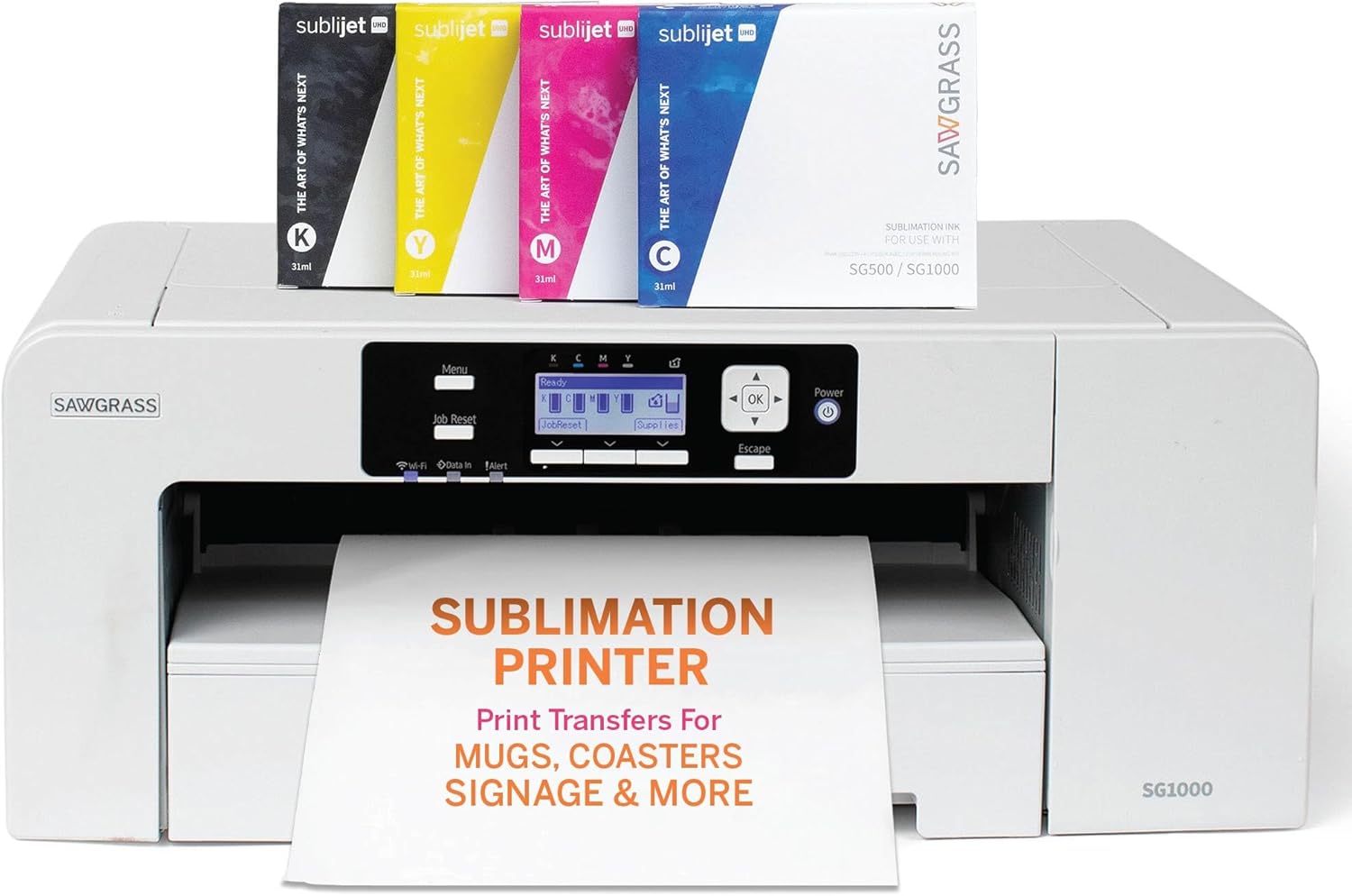
The Sawgrass SG1000 is a desktop dye sublimation printer aimed at makers and small businesses who want larger-format, reliable sublimation output. It prints color pages at up to 10 ppm and supports media up to 11 x 17 inches, so you can produce banners, apparel transfers, panels, and other promotional items without needing a separate wide-format device. The printer includes factory-formulated 31 mL SubliJet UHD inks and TruePix paper and integrates with Sawgrass software tools for color management and workflow, which helps new users get predictable, vivid results. Network-ready connectivity and USB make setup flexible in a small workshop, and automatic maintenance routines minimize clogging if the machine sits idle. Expect professional-quality resolution up to 4800 x 1200 dpi, but keep in mind this is a print-only device so you will need separate finishing equipment for heat transfer steps and some learning curve on color profiling and substrates. For beginners who plan to grow into consistent production, the SG1000 balances print quality and practical features without requiring industrial space.
Best for: Beginners who want a reliable, business-capable sublimation printer that grows with their needs and prioritizes image quality and larger-format prints over a turnkey all-in-one workflow.
Less Ideal for: Users who need scanning, copying, or all-in-one office functions or those who require instant turnkey finished products without separate heat-press equipment.
- Prints up to 11 x 17 inches allowing larger transfers and banners
- Includes 31 mL SubliJet UHD inks and TruePix paper for a ready-to-run starter bundle
- High maximum print resolution (4800 x 1200 dpi) for sharp, vibrant output
- Network-ready Wi-Fi and USB connectivity for flexible placement
- Automatic maintenance routines reduce head clogging after idle periods
- Print-only device so heat press or other finishing equipment is required
- Learning curve for color management and substrate preparation to get consistent transfers
Verdict: Choose the SG1000 if you are a beginner ready to invest in a dependable sublimation printer that delivers pro-level color and supports larger 11 x 17 transfers.
Sawgrass SG500 Sublimation Printer

| Printer Type | Dye Sublimation |
|---|---|
| Resolution | 1200 x 1200 |
| Color Pages per Minute | 10 |
| Printer Connectivity Type | Wi-Fi |
| Maximum Media Size | 8.5 x 14 inch |
The Sawgrass SG500 is a compact desktop dye sublimation printer built for makers and small businesses that need vivid, high-resolution transfers. It uses a CMYK SubliJet UHD inkset and supports media up to 8.5 x 14 inches (with a bypass option for longer pieces), so it handles common apparel and hard-goods workflows without a commercial footprint. Setup is straightforward and the MySawgrass design platform plus Sawgrass Print Utility give preset color controls and simple file handling, which helps beginners get predictable color results. The printer is network-ready with Wi‑Fi and USB connectivity and includes print-head maintenance routines to reduce clogging during intermittent use. Practical limits are its desktop media size and simplex output only, so very large or high-volume shops will find it constraining; also the unit is optimized for Sawgrass inks and consumables to maintain color stability. For hobbyists and new sellers the SG500 balances image quality, compact size, and software guidance to produce ready-to-sublimate prints with minimal fuss.
Best for: A beginner or small-business creator who prioritizes reliable color accuracy and professional-looking sublimation results while keeping equipment small and easy to manage.
Less Ideal for: High-volume production shops or users who need wide-format printing or a printer that freely accepts aftermarket ink systems.
- Professional-grade 1200 dpi print resolution for sharp, detailed sublimation prints.
- Includes SubliJet UHD CMYK inks and paper so you can start printing right away.
- Wi‑Fi and USB connectivity for flexible placement and simple network printing.
- Integrated software ecosystem (MySawgrass and Sawgrass Print Utility) that simplifies color presets and workflow for beginners.
- Limited to simplex printing and desktop media sizes, so not suited for large-format production.
- Designed to work with Sawgrass consumables for best results, which narrows third-party ink options.
Verdict: Choose the SG500 if you want a compact, beginner-friendly sublimation printer that delivers reliable, high-resolution color for small-batch apparel and gift production.
Pinckney Super-Tank Sublimation Printer

| Printer Type | Dye Sublimation |
|---|---|
| Maximum Print Resolution Color | 5760 x 1440 dpi |
| Ink Contents | Black 127mL; Magenta 85mL; Cyan 85mL; Yellow 85mL |
| Printer Connectivity Type | Wi-Fi |
| Maximum Media Size | 8.5 x 11 inch |
This Pinckney bundle converts an EcoTank-style all-in-one into a cartridge-free dye sublimation printer aimed at hobbyists and small craft shops. It prints up to 5760 x 1440 dpi and uses large refill bottles (Black 127 mL, Magenta/Cyan/Yellow 85 mL) with an easy-fill nozzle so you can run longer print sessions without frequent cartridge swaps. The unit includes a flatbed scanner and copier and supports Wi-Fi and USB 2.0 for straightforward setup from a laptop or phone, while paper handling fits letter/A4 sizes and a modest 100-sheet capacity. Print speed is moderate at about 5 color ppm, which is fine for sample runs and small orders but not high-volume production. Because it is designed for sublimation you should expect transfers to look more vivid after heat pressing, and occasional maintenance like nozzle checks and head alignment will help prevent clogging. For beginners the bundle simplifies supplies and filling, but users should be comfortable with heat-transfer workflows and basic printer upkeep.
Best for: Beginners and hobbyists who want a turnkey sublimation setup that minimizes cartridge swaps and delivers high-resolution prints for heat-transfer projects.
Less Ideal for: Shops that need fast, high-volume output or turnkey commercial production should consider higher-speed, production-focused sublimation systems instead.
- Large refillable ink bottles reduce frequent cartridge changes
- High maximum print resolution (5760 x 1440 dpi) for detailed transfers
- Includes scanner and copier for simple all-in-one workflow
- Wi-Fi and USB connectivity allow printing from computers and mobile devices
- Relatively slow color print speed (about 5 ppm) for larger batches
- Requires regular maintenance tasks like nozzle checks and head alignment
Verdict: A practical, beginner-friendly sublimation all-in-one that cuts refill hassle with large tanks while delivering high-resolution prints for small-scale heat-transfer projects.
GENERIC Sublimation Printer
| Printer Type | Inkjet |
|---|---|
| Built-In Media | Ink Bottles |
| Color Pages per Minute | 17.5 pages_per_minute |
| B&W Pages per Minute | 20.5 pages_per_minute |
| Printer Connectivity Type | USB WIFI |
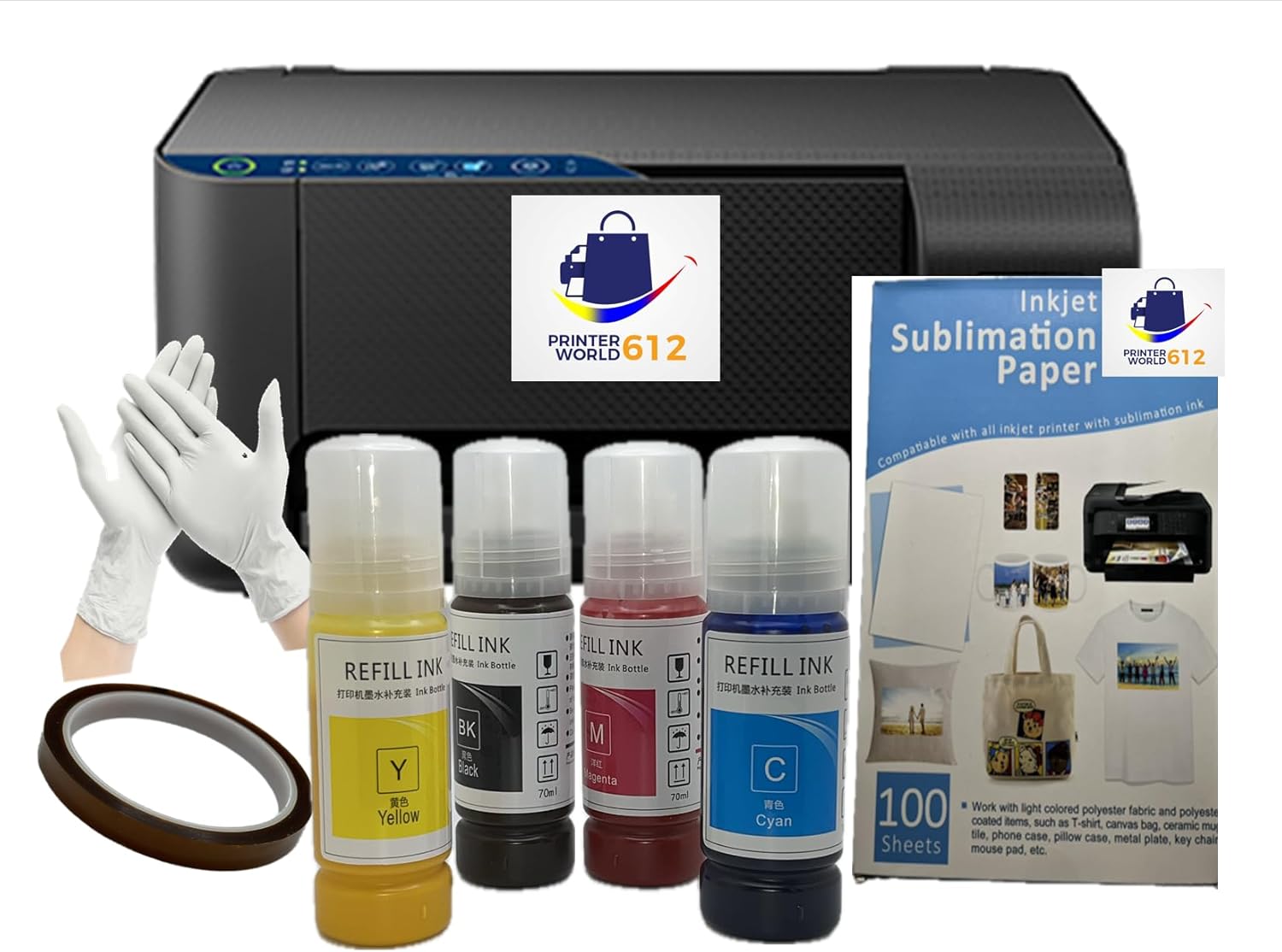
This all-in-one refillable-tank inkjet is packaged as a sublimation-ready conversion bundle aimed at hobbyists and small sellers starting with dye-sublimation transfers. It functions as a printer, copier, and flatbed scanner and connects over USB or Wi-Fi, and the included 70 ml CMYK sublimation bottles, heat tape, and paper make it usable from day one. High-capacity ink bottles mean fewer interruptions than cartridge-based printers, and the printer supports standard letter media up to 8.5 x 11 inches so it fits typical T-shirt and small-goods workflows. Print speeds are modest but acceptable for hobby runs, and simplex printing means you will manually flip paper for duplex needs. Practical downsides are a limited warranty and the generic branding, which may mean fewer official support resources, and the unit is a conversion-style solution rather than a factory-branded sublimation model so drivers and long-term reliability can vary. For budget-minded beginners who want a near-complete starter kit for custom apparel and small items, this provides an inexpensive way to start without buying separate inks and accessories.
Best for: Beginners and budget-minded makers who want a low-cost, ready-to-use sublimation kit to start printing transfers for T-shirts and small custom items without sourcing ink and supplies separately.
Less Ideal for: Users who need a factory-branded, commercially supported production printer or those planning high-volume, professional runs that require robust warranty and service options.
- Comes with 70 ml CMYK sublimation ink bottles and paper so you can start printing immediately
- Refillable high-capacity ink tanks reduce the need for frequent cartridge changes
- All-in-one functions (print, copy, scan) and USB/Wi-Fi connectivity fit basic workshop workflows
- Includes heat tape and protective gloves useful for transfer work
- Generic conversion kit with limited warranty and potentially limited manufacturer support
- Simplex-only printing requires manual duplexing for two-sided jobs
Verdict: A bargain-ready sublimation conversion kit that bundles inks and supplies so beginners can start printing transfers quickly and affordably.
Epson SureColor F170

| Printer Type | Dye Sublimation |
|---|---|
| Maximum print Resolution Color | 5760 x 1440 Optimized DPI |
| Maximum Sheet Capacity | 150 |
| Printer Connectivity Type | Wireless, USB, Ethernet |
| Paper Size | 8.5 inches |
The Epson SureColor F170 is a turnkey dye-sublimation printer aimed at hobbyists and small businesses that need reliable, high-quality transfers on items like mugs, mousepads, and apparel. It uses PrecisionCore printhead technology and OEM dye-sublimation inks to produce sharp, consistent color at an optimized 5760 x 1440 dpi resolution, and arrives with a 150-sheet auto-feed tray to reduce paper handling. Connectivity includes wireless, USB, and Ethernet so it fits into home studios or small workshop networks, and the compact footprint keeps it easy to place on a workbench. Practical benefits include factory-supplied ink bottles with auto-stop refill to cut downtime and mess, and Epson backing for service and support. Limitations to consider are modest print speed at about one page per minute for full-color output and simplex-only printing, which means it is not built for high-volume production; also it is optimized for 8.5 inch width media, so larger-format projects are not supported. For beginners prioritizing dependable, color-accurate sublimation on small items, the F170 simplifies setup and daily use.
Best for: Buyers who want an out-of-the-box, low-maintenance sublimation solution for small-format projects and value consistent, factory-backed performance.
Less Ideal for: People who need fast, high-volume production, larger-format printing, or duplex capabilities should consider more production-oriented models.
- High-quality print resolution (5760 x 1440 optimized DPI) for sharp sublimation transfers
- Includes genuine Epson dye-sublimation ink and auto-stop refill bottles to reduce mess and refill frequency
- 150-sheet auto-feed tray and closed paper feed for cleaner handling and less prep
- Multiple connectivity options (Wireless, USB, Ethernet) make it easy to integrate into small studios
- Compact, space-saving design with manufacturer support for reliability
- Slow color print speed (about 1 page per minute) compared with general-purpose printers
- Limited to 8.5 inch media width and simplex printing, so not suitable for larger or duplex jobs
Verdict: The F170 is the reliable, compact starter sublimation printer for beginners who want consistent, factory-quality color on small-format projects.
Brother SP-1 Sublimation Printer

| Printer Type | Dye Sublimation |
|---|---|
| Maximum print Resolution Color | 1440 x 1440 dpi |
| Maximum Media Size | 8.5×11 |
| Printer Connectivity Type | Wi-Fi |
| Built-In Media | Includes starter sublimation paper and four ink cartridges |
The Brother SP-1 is a small-footprint dye sublimation printer aimed at crafters who want to produce vibrant transfers for shirts, mugs, tumblers, coasters, and other polyester or polymer-coated items. It prints from 8.5×11 sublimation paper and works with the Brother Artspira app for wireless design selection and transfer, or via a desktop driver for traditional PC printing. Brother includes four genuine sublimation ink cartridges and a starter pack of sublimation paper, and the printer offers high color resolution (up to 1440 x 1440 dpi) for detailed, photo-like transfers. Connectivity options include Wi-Fi plus Ethernet and USB for a mix of mobile and wired workflows. The unit is compact and suitable for a craft table, but it requires a separate heat press to complete transfers and is limited to single-sheet, 8.5×11 output rather than roll media or larger formats. For someone prioritizing quick setup and reliable color when starting with sublimation, the SP-1 delivers a straightforward, app-driven experience, though businesses needing high throughput or larger media will find its sheet size and capacity restrictive.
Best for: Beginners and hobby crafters who want an easy-to-use, app-connected sublimation printer to make small-batch custom apparel and gifts with reliable color and minimal setup fuss.
Less Ideal for: Users seeking large-format printing, continuous roll media, or high-volume commercial production should consider larger desktop or commercial sublimation systems instead.
- Includes four Brother Genuine sublimation inks and a starter pack of sublimation paper for out-of-box projects
- High color print resolution up to 1440 x 1440 dpi for detailed, vibrant transfers
- Wi-Fi support with Artspira app plus Ethernet and USB give flexible connection options
- Compact footprint fits on a craft table or small workspace
- Limited to 8.5×11 media size so larger or roll printing is not supported
- Requires a separate heat press to transfer prints, which is sold separately
- Not intended for high-volume commercial production due to sheet capacity and single-sheet workflow
Verdict: A compact, beginner-friendly sublimation printer that pairs app-driven design with factory inks to make vibrant small-batch transfers quickly.
Choosing the Right Sublimation Printer for Beginners: Key Factors to Consider
Print Quality and Color Accuracy
Sublimation depends on precise color transfer so print quality is the primary factor. Look for printers that produce smooth gradations, accurate color profiles, and fine detail reproduction. For beginners, consistent color from run to run matters more than achieving perfect industry-grade color matching right away.
Color accuracy affects final results after heat transfer, which can shift hues and saturation. Check whether the printer can accept custom color profiles or has easily applied ICC profiles. Machines that output predictable, repeatable color reduce waste and learning time.
Ease of Setup and Learning Curve
A gentle learning curve helps new users reach production quickly. Consider how the printer is set up from unboxing, whether drivers and software are straightforward to install, and if start-to-finish workflows are documented. Printers with clear step-by-step guides, starter templates, or active user communities shorten the ramp-up period.
Also evaluate the complexity of changing from standard ink to sublimation ink if relevant. Machines that require minimal tweaking for sublimation use are preferable for beginners.
Consumables and Running Costs
Sublimation supplies include specialized inks, transfer paper, and sometimes replacement parts that influence ongoing cost. For beginners, predictability and availability of consumables are important. Choose printers that use widely available sublimation inks and standard paper sizes to avoid stocking obscure supplies.
Early projects can generate waste while learning color management and heat settings, so machines that minimize expensive waste or that support smaller, trial-sized consumables help manage costs.
Maintenance and Reliability
Routine maintenance impacts both uptime and print consistency. Consider how often the printer requires head cleanings, the accessibility of maintenance tasks, and whether common troubleshooting steps are user-friendly. Printers with fewer maintenance demands reduce unexpected downtime and frustration for beginners.
Look for machines with straightforward error indicators and accessible service documentation. Durability of parts that see frequent use, such as ink feed components and print heads, should be considered when projecting longer-term reliability.
Software Compatibility and Workflow
Sublimation workflows involve image preparation, color management, and printer setup. Assess whether the printer works with common design software and whether it supports ICC profiles or proprietary color management tools. Ease of sending correctly sized, mirrored prints to the device is a practical concern.
For beginners, bundled or recommended software and simple templates reduce the time required to prepare transfers. Integration with common file formats and predictable print scaling helps avoid wasted transfers.
Getting Started: What You Need in the Box
When unboxing a beginner-friendly sublimation printer, expect a simple set of essentials: the printer, power cable, starter ink or ink set, and basic setup guides. Some packages include trial sublimation paper or a small ink sample to test the workflow immediately. Confirm that the included documentation explains initial ink priming, driver installation, and test image printing.
Also verify the connectivity options provided. USB is the most straightforward for a single workstation. Network or wireless options add convenience but can introduce extra setup steps that may be unnecessary for a first-time user.
- Starter ink or sample prints included
- Clear quick-start guide
- Basic connectivity: USB or wired network
- Instructions for mirroring and color profile use
Workspace and Ventilation Considerations
Sublimation printing and heat transfer require a stable workspace and adequate ventilation. While the printing step itself is not hazardous, fumes can be produced during heat pressing. Allocate a separate area for heat-transfer operations and ensure good airflow around the printer to prevent heat buildup.
Also account for flat, level surfaces and enough clearance for paper handling. A cramped setup increases the chance of jams or accidental smudging when handling freshly printed sheets.
- Allow clearance for loading/unloading paper
- Use a dedicated area for heat transfer
- Ensure good airflow and temperature stability
Common Rookie Mistakes and How to Avoid Them
New users often misjudge color shifts that occur during the heat transfer. To avoid this, run small test prints and keep a log of settings and results. Adjust color profiles incrementally rather than making large corrections that complicate troubleshooting.
Another frequent error is improper paper handling. Always use the correct side of sublimation paper and allow prints to cool briefly before pressing. Following the recommended pressure and dwell time on the heat press reduces ghosting, blurring, and premature wear on both paper and heat platen.
- Run small incremental test prints
- Document settings and results
- Handle paper carefully and mirror images before printing
- Follow heat press temperature, pressure, and time guidelines
Sizing and Template Tips for Consistent Transfers
Consistent sizing is vital for professional-looking transfers. Create or use templates sized to your most common products so you can place artwork precisely and avoid misaligned prints. Many beginners benefit from establishing a few go-to sizes for popular items and keeping standardized files ready to print.
When preparing art, include bleed margins and keep critical elements away from edges. Mirroring images before printing is usually required for many transfer workflows, so confirm your software and printer driver settings to avoid wasted transfers.
- Use templates for repeatable sizing
- Include bleed and safe areas in artwork
- Mirror images when required by your transfer method
- Keep frequently used templates accessible
Scaling Up: When to Move Beyond a Beginner Setup
As demand grows, you may need to prioritize faster throughput, larger media handling, or lower per-print consumable costs. Consider upgrades when you consistently outgrow your starter machine's print size, speed, or maintenance limits. The transition is often driven by order volume rather than a single missing feature.
Before upgrading, optimize current workflows and document common failure points. This helps identify whether the limitation is the printer itself or related elements such as heat-press capacity, artwork preparation, or inventory management.
- Track throughput and maintenance frequency
- Identify bottlenecks in pre- and post-print steps
- Upgrade when volume or print size consistently exceed capacity
How We Chose the Best Sublimation Printer for Beginners
We focused on machines that lower the learning curve while delivering repeatable print results. Selection began by screening for printers designed or commonly adapted for sublimation use, with clear manufacturer support or community guidance for first-time users. We prioritized straightforward setup steps, reliable color consistency, and accessible maintenance routines that beginners can manage without advanced tools. Key evaluation criteria included print output quality and color consistency, since accurate color replication is central to successful sublimation projects; ease of setup and initial configuration, including driver/install complexity and workflow simplicity; consumable handling and operating cost, covering how easy it is to load ink and the clarity of cost expectations; and maintenance and reliability, focusing on routine tasks like head cleaning and common troubleshooting. We also considered software compatibility and the availability of clear documentation or tutorials that shorten ramp-up time. Products that required advanced modifications, heavy technical knowledge, or extensive tuning were excluded. The final list favors machines that get a beginner from unboxing to first transfer with minimal roadblocks.
Our full evaluation process is outlined in our review methodology.
FAQ
Do I need special software to use a sublimation printer for beginners?
Often you can start with common image editors and printer drivers, but software that supports ICC profiles and precise sizing improves results. Beginners usually benefit from bundled templates or free design tools to handle mirroring and color adjustments.
Can I use regular ink in a sublimation printer?
Regular dye or pigment inks will not sublimate correctly. For successful heat transfers you must use sublimation-formulated inks. Trying to use standard inks typically yields poor transfers and can damage certain printer systems.
How much maintenance does a beginner sublimation printer need?
Maintenance varies, but expect routine tasks like periodic head cleaning, ink cartridge checks, and occasional nozzle checks. Machines with straightforward maintenance procedures are easier for beginners to keep consistent print quality.
What paper should I use with a starter sublimation printer?
Use dedicated sublimation transfer paper sized for your projects. Paper weight and coating affect ink release and sharpness. For testing, smaller sheets reduce waste while you dial in heat and color settings.
How do I avoid color shifts between print and final transfer?
Run test swatches and create a reference chart that records printer settings and heat-press parameters. Use ICC profiles when available and adjust colors gradually. Consistent paper, ink batch, and press settings help minimize variability.
Final Verdict
For beginners, prioritize machines that simplify setup and produce repeatable color so you can learn quickly without avoidable waste. Balance print quality, consumable handling, and straightforward maintenance when choosing a starter sublimation printer. Start with small tests, document your settings, and scale up when throughput or print size needs justify a more advanced machine. Focusing on predictable color, easy-to-follow workflows, and accessible consumables will get you faster to reliable transfers and better final products.