
Note: This article contains affiliate links. If you click on these links and make a purchase, we may earn a small commission at no extra cost to you. This helps support our research and content. Read our full affiliate disclosure here.
If you need crisp text, accurate color, and reliable handling of thick card stock, choosing the right printer for business cards matters. A printer that can manage heavier paper, register colors consistently, and maintain small-font clarity makes the difference between a professional impression and a disappointing first contact. This guide shortlists the top printers for business cards that suit small businesses, freelancers, and in-house marketing teams. We evaluated options based on print quality, media support, and long-term running characteristics to surface dependable choices for producing business cards on demand. Read on to see the evaluation criteria we used and which features matter most when producing repeatable, high-quality cards.
Top Picks at a Glance
| Best Overall The best all-around choice for most situations | Epson WorkForce Pro WF-7310 |  |
| Best Quality Built to a higher standard if you want something more solid | Zebra Zxp7 Card Printer |  |
| Best Value The sweet spot between price and what you get | Epson EcoTank ET-2400 |  |
| Best Budget The cheapest option that still gets the job done reliably | Canon PIXMA TS4320 |  |
| Top Rated A top-rated pick with lots of positive feedback | Bodno Seaory S25 ID Card Printer |  |
| Most Popular A crowd favorite that many people choose with confidence | Canon PIXMA TS6520 |  |
| Best Seller A high-volume bestseller chosen again and again | Brother DCP-L2640DW Laser Printer |  |
Epson WorkForce Pro WF-7310

| Printer Type | Inkjet |
|---|---|
| Maximum Media Size | 13 x 19 inch |
| Maximum Sheet Capacity | 500 |
| Color Pages per Minute | 12 pages_per_minute |
| B&W Pages per Minute | 25 pages_per_minute |
The Epson WorkForce Pro WF-7310 is a wide-format all-in-one inkjet built for busy offices that need fast, print-shop quality output on a variety of media sizes. It uses PrecisionCore Heat-Free Technology and DURABrite Ultra pigment inks to deliver sharp text and vivid color at ISO speeds of 25 ppm black and 12 ppm color, and it can handle media up to 13 x 19 inches for larger layouts or edge-to-edge 11 x 17 prints. Paper handling is strong: two 250-sheet trays plus a rear feed give a 500-sheet capacity that keeps long jobs running, and automatic duplexing, USB, Ethernet and Wi-Fi 5 (with Wi-Fi Direct) make networked work straightforward. The printer is controlled via a 2.4-inch color display or the Epson Smart Panel app for mobile workflows. Important practical limits are that it is designed to use genuine Epson DURABrite cartridges and its pigment inks, which affects ongoing consumable choices, and the unit is sized and weighted for a dedicated office space rather than occasional home use. For business-card tasks it can print crisp, durable text and color, though card stock handling should be tested for heavier stocks.
Best for: Buyers who need a reliable, fast office all-in-one that produces sharp, durable prints and can handle mixed high-volume jobs and larger media formats while fitting into a business workflow.
Less Ideal for: Home users who print infrequently or need a compact, lightweight desktop printer should consider smaller models instead.
- High ISO print speeds (25 ppm black, 12 ppm color) for fast job turnaround
- Wide-format support up to 13 x 19 inches and borderless printing to 11 x 17
- 500-sheet capacity with two 250-sheet trays and rear feed for heavy workloads
- PrecisionCore engine with DURABrite pigment inks yields sharp text and vibrant color
- Multiple connectivity options including Wi-Fi 5, Wi-Fi Direct, Ethernet and USB
- Requires genuine Epson DURABrite cartridges which limits third-party ink options
- Large footprint and weight make it less suitable for small desks or occasional home use
Verdict: Choose the WF-7310 when you need a fast, wide-format office all-in-one that delivers print-shop quality and handles high-volume workflows.
Zebra Zxp7 Card Printer

| Printer Type | Thermal |
|---|---|
| Printer Output Type | Color |
| Resolution | 1200 x 1200 |
| Printer Connectivity Type | Ethernet, USB |
| Maximum Sheet Capacity | 200 |
The Zebra ZXP7 is a heavy-duty thermal card printer built for high-volume, professional card production. It prints sharp, vivid full-color and monochrome cards at up to 1200 x 1200 resolution and supports automatic duplex (dual-sided) printing, making it well suited for business cards, ID badges, and membership cards. Typical use is inline card production in an office or card bureau where reliable throughput and consistent color control matter; the unit automatically adjusts to card thickness and offers easy ribbon loading and a clear LCD for basic control. Connectivity includes Ethernet and a USB hardware interface for integration into existing networks and workflows. The printer accepts standard card media and holds up to 200 cards, and it can be optioned for lamination or additional security and encoding if needed. The trade-offs are size and weight for a desktop environment and the expectation of consumable costs for ribbons and optional laminates, so it fits organizations that need volume and durability rather than casual occasional printing.
Best for: Buyers who prioritize fast, consistent, high-quality card output for business or institutional use and need a network-capable printer that handles sustained daily volumes.
Less Ideal for: Casual or low-volume users who only print occasional business cards or who need a compact, lightweight desktop device.
- High-quality color and monochrome printing at up to 1200 x 1200 resolution
- Automatic duplex printing for two-sided business cards
- Ethernet and USB connectivity for networked office workflows
- Adjusts automatically to card thickness and has user-friendly ribbon loading
- Large and heavy for a typical desktop footprint
- Consumable ribbons and optional laminates add ongoing operating costs
Verdict: Choose the ZXP7 when you need a rugged, networked card printer that delivers high-resolution, high-volume two-sided business card printing.
Epson EcoTank ET-2400

| Printer Type | Inkjet |
|---|---|
| Printer Connectivity Type | USB, Wi-Fi |
| Maximum Media Size | 8.5 x 14 inch |
| Maximum print Resolution Color | 5760 x 1440 dpi |
| B&W Pages per Minute | 10 pages_per_minute |
The Epson EcoTank ET-2400 replaces disposable cartridges with large refillable ink tanks so you can print many pages between refills, and it doubles as a scanner and copier. Setup is straightforward using the app or USB, and the rear 100-sheet tray and 30-sheet output let you load longer print runs without constant tending. Print quality is good for text and casual color graphics thanks to Epson Micro Piezo technology and a high maximum resolution, though photo-grade color accuracy is limited compared with dedicated photo printers. Speeds are modest at about 10 ppm black and 5 ppm color, and duplexing is manual rather than automatic. For business-card projects you can expect crisp text and reasonable color on cardstock within the printer's supported media sizes, but you will need to feed small card stock manually and adjust paper settings. The key appeal is low running cost and reduced waste from EcoFit bottles, balanced against slower color speed and no automatic duplexing for two-sided cards.
Best for: Buyers prioritizing low ongoing ink costs and reliable everyday color printing who want an all-in-one that handles moderate runs without frequent cartridge changes.
Less Ideal for: Those who need fast professional photo-quality color or built-in automatic duplexing for high-volume two-sided business card production should consider specialty or higher-end models instead.
- Cartridge-free EcoTank system greatly reduces frequency of ink replacements
- High maximum print resolution for sharp text and decent color graphics
- Wireless and USB connectivity for flexible setup and mobile printing
- Generous 100-sheet rear feed supports longer print runs between refills
- No automatic duplexing; two-sided prints require manual flipping
- Not optimized for postcard/photo-grade color accuracy compared with dedicated photo printers
Verdict: Choose the ET-2400 if you want a low-cost, cartridge-free all-in-one that delivers sharp text and reliable color for moderate business-card batches with minimal refill hassle.
Canon PIXMA TS4320

| Printer Type | Inkjet |
|---|---|
| Duplex | Automatic |
| Compatible Cartridge | PG-295/CL-286 |
| Connectivity | USB, Wi-Fi |
| Maximum print Resolution Color | 1200 x 1200 dots_per_inch |
The Canon PIXMA TS4320 is an entry-level all-in-one inkjet designed for light home and small-office tasks like documents, photos, and occasional business card runs. It uses a 2-cartridge hybrid ink system (black plus color) and delivers sharp text and vivid color prints up to letter size, with a maximum color resolution of 1200 x 1200 dpi for finer detail. Setup is straightforward via the Canon PRINT app, AirPrint, or Wi‑Fi and the unit supports automatic duplexing to save paper. The flatbed scanner covers basic scanning and copying needs, and the single 100-sheet tray keeps the body compact. Trade-offs for the low price include modest daily speed and a simple control scheme with no ADF or touchscreen, and the two-cartridge system can be less economical for heavy photo or high-volume specialty printing compared with printers that use separate pigment/photographic inks. For occasional custom business cards printed on cardstock or glossy media, it gives good color and reasonable edge-to-edge support, but users should plan for manual handling and small batch jobs.
Best for: A budget-minded buyer who needs a compact, easy-to-use all-in-one for occasional document, photo, and small-batch business card printing and values straightforward wireless setup and low upfront cost.
Less Ideal for: Professionals who require high-volume card production, fast throughput, or advanced color management for print-for-pay work should consider a higher-end or dedicated photo/label printer instead.
- Affordable entry-level all-in-one that covers print, scan, and copy
- Automatic duplex printing saves paper and speeds two-sided jobs
- Wireless printing via Canon PRINT, AirPrint, and Wi‑Fi for easy mobile workflows
- 1200 x 1200 dpi color resolution yields good detail for small graphics and photos
- Compact footprint fits tight desks and home offices
- Uses a 2-cartridge ink system that can be less cost-efficient for high-volume or photo-heavy printing
- No automatic document feeder or touchscreen for streamlined multi-page scanning or copying
Verdict: A compact, low-cost all-in-one that delivers good color and duplexing for occasional business card and small-batch printing needs.
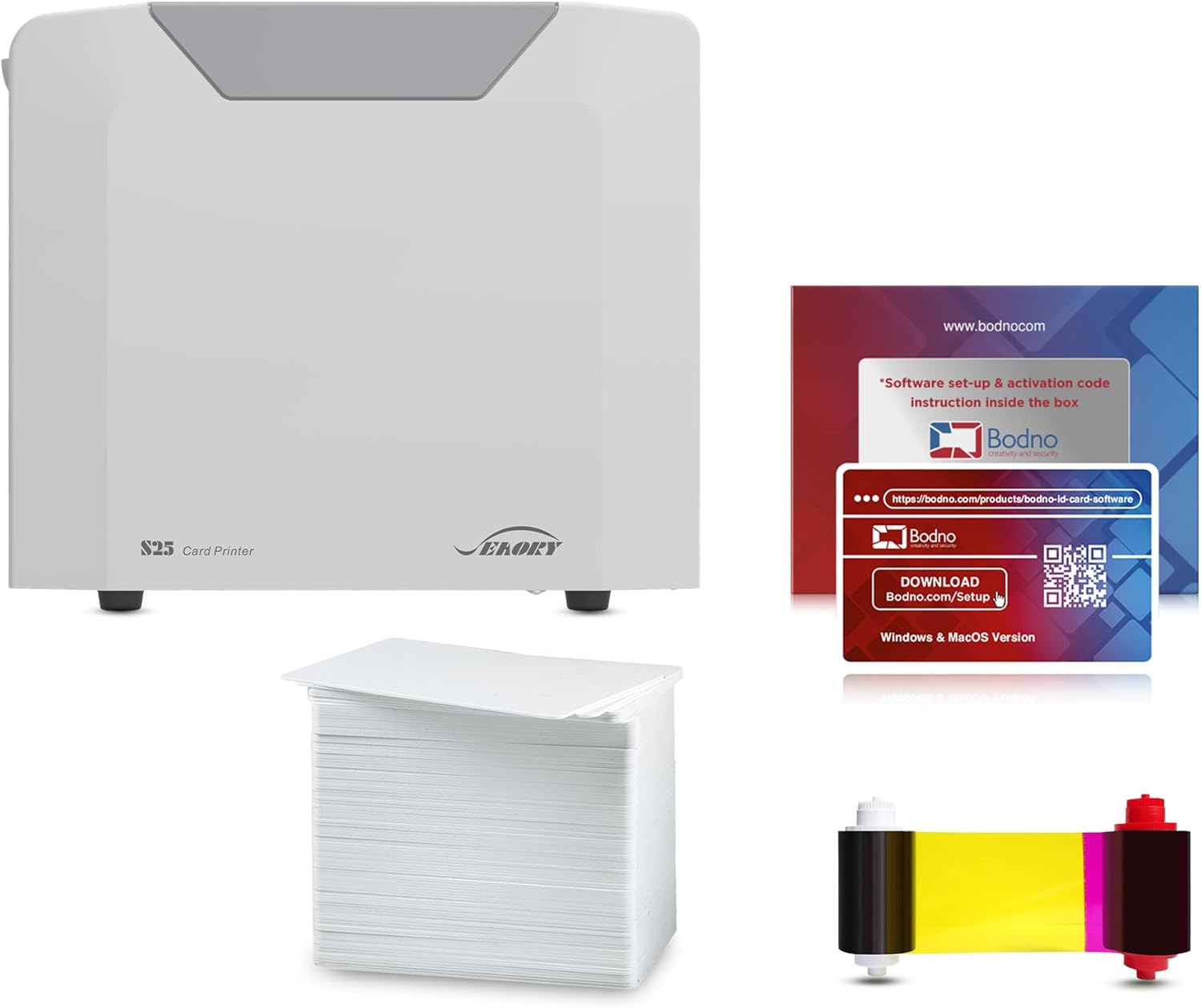
Bodno Seaory S25 ID Card Printer
| Printer Type | Direct To Card |
|---|---|
| Resolution | 300 x 300 |
| Ink Color | YMCKO |
| Printer Connectivity Type | USB |
| Power Consumption | 30 watts |
The Bodno Seaory S25 is a direct-to-card ID printer designed for one-at-a-time, low-volume business card and badge printing. It ships as a complete package with a 100-print color ribbon and Bodno Bronze edition software that includes templates and a lifetime license, so you can design and print without hunting for extra supplies or software. The manual feed system and touch control make it easy to load PVC cards and confirm each print, which fits small offices, events, or reception desks that need high-quality single-card output. Print quality is factory-standard 300 x 300 dpi and the unit prints color cards quickly from a cold start, though throughput is limited by its manual feed and 30-sheet output capacity. Connectivity is straightforward via USB and there is an Ethernet port for networked setups, but the S25 is primarily aimed at simple, local use rather than heavy batch jobs. Power draw is modest at 30 watts and the bundled supplies and two-year warranty help reduce ongoing downtime risk.
Best for: Small offices, schools, or event teams that need reliable, easy-to-set-up card printing with bundled supplies and software and value consistent, dependable output over high throughput.
Less Ideal for: Organizations that require fast, large-volume production runs or advanced lamination and security features should choose a higher-capacity, production-focused card printer instead.
- Complete out-of-box kit including color ribbon and design software with lifetime license
- Manual feed and touch controls allow precise single-card printing
- Factory print resolution of 300 x 300 dpi for clear color cards
- Simple USB connectivity with an Ethernet port for basic network use
- Low power consumption at 30 watts
- Manual feed and limited output capacity make it slow for high-volume batch printing
- Print resolution and speed are modest compared with higher-end card printers
Verdict: Buy this if you want a dependable, ready-to-use ID card printer with bundled supplies and software for low-volume business card or badge printing.
Canon PIXMA TS6520

| Printer Type | Inkjet |
|---|---|
| Duplex | Automatic |
| Printer Connectivity Type | USB, Wi-Fi |
| Display Type | OLED |
| Compatible Cartridge | PG-295 & CL-286 |
The Canon PIXMA TS6520 is a compact home/office all-in-one that handles everyday documents and photos with a two-cartridge hybrid ink system and built-in flatbed scanner. Typical use is light to moderate printing from laptops or mobile devices via Wi-Fi or USB, plus occasional scanning and copying on the flatbed. Notable features include automatic two-sided printing, a 1.42-inch OLED status display, and support for mobile printing services like AirPrint and the Canon PRINT app, which make setup and daily operation straightforward. Print quality is strong for text and casual color prints thanks to the pigment black and dye color inks, and its borderless photo support lets you print small photos without trimming. The main limitations are a single paper tray with low sheet capacity and no automatic document feeder, so high-volume or multi-page scanning and copying require manual feeding and more frequent paper handling. For buyers focused on reliability and simple wireless printing, it offers a balanced mix of ease and image quality without advanced business features.
Best for: Buyers who want a dependable, easy-to-use printer for home or small office tasks and who value wireless convenience and good everyday print quality backed by solid customer feedback.
Less Ideal for: Businesses or users who need high-volume printing, frequent multi-page scanning, or an automated workflow for copying large document sets.
- Automatic duplex printing saves paper and simplifies two-sided documents
- Wi-Fi and USB connectivity with mobile printing support for easy setup and remote printing
- Two-cartridge hybrid ink system produces sharp text and vibrant casual color prints
- Compact footprint with an intuitive 1.42-inch OLED display for quick status checks
- Single low-capacity paper tray requires frequent refills for larger jobs
- No automatic document feeder, making multi-page scanning or copying manual and slower
Verdict: Choose the PIXMA TS6520 if you need a compact, reliable wireless all-in-one that delivers good text and photo prints for low- to moderate-volume use.
Brother DCP-L2640DW Laser Printer

| Printer Type | Laser |
|---|---|
| Printer Output Type | Monochrome |
| B&W Pages per Minute | 36 pages_per_minute |
| Auto Document Feeder | 50-page |
| Printer Connectivity Type | Ethernet, USB, Wi-Fi |
The Brother DCP-L2640DW is a compact black-and-white laser multifunction designed for small offices that need fast, reliable document workflows rather than color jobs. It prints up to 36 ppm, supports automatic duplexing, and includes a 50-page auto document feeder plus a 250-sheet tray so you can batch print, scan, and copy without constant refills. Connectivity covers dual-band Wi-Fi, Ethernet, and USB, and the Brother Mobile Connect app lets you print or scan from phones and tablets. For business-card printing this model can handle card stock up to standard media sizes but is limited to monochrome output and does not produce color or photo-quality prints, so it is best for simple black-and-white card designs, drafts, or backs of cards. Notable benefits are fast first-page time, automatic duplexing to save paper, and compatibility with Brother Genuine TN830/TN830XL toners and the Refresh subscription for supply management. Trade-offs include no color printing and the typical laser finish on heavy card stock may lack the visual polish of a dedicated card press or color inkjet.
Best for: Buyers who prioritize dependable, fast black-and-white output and simple, repeatable card or draft printing for a small office and want predictable supply management.
Less Ideal for: Users who need full-color, high-fidelity business cards or specialty finishes should choose a color inkjet or professional print service instead.
- Fast monochrome printing up to 36 pages per minute for quick batch runs
- 50-page auto document feeder and 250-sheet tray reduce manual handling
- Dual-band Wi-Fi, Ethernet, and USB provide flexible, secure connectivity
- Automatic duplex printing saves paper and speeds two-sided card backs printing
- Compatible with Brother Genuine TN830/TN830XL toners and Refresh subscription for predictable supplies
- Monochrome only, so it cannot produce color business cards
- Not optimized for premium photo or glossy card finishes
- Limited to standard media size handling rather than specialty card stock options
Verdict: A fast, reliable monochrome multifunction that is a safe, low-risk choice for high-volume black-and-white business-card runs or draft printing in small offices.
Choosing the Right Printer for Business Cards: Key Factors to Consider
Print Resolution and Dot Placement
High resolution and precise dot placement matter because business cards often include small fonts, fine lines, and small logos. Higher native DPI and finer droplet control allow sharper edges and more legible tiny text, which makes designs look professional rather than smeared.
When evaluating resolution, consider both the nominal DPI and real-world rendering of type and vector art. Some printers upscale images but do a poor job with small text or halftone patterns. Look for evidence of crisp text reproduction and minimal banding at the sizes you plan to print.
Color Accuracy and Ink Technology
Accurate, consistent color reproduction is critical if your cards include brand colors or photographic elements. Different ink sets and color management capabilities affect how closely print colors match on-screen proofs. Consider whether a printer supports additional color cartridges beyond standard cyan, magenta, yellow, and black when you need broader gamut or better spot-color matches.
Also factor in color stability over time and between print runs. Businesses printing multiple batches over weeks need machines that reproduce the same color profile without frequent manual recalibration.
Media Thickness and Feed Options
Business cards require heavier card stock than standard office paper, so a printer must accept thicker media without jamming or misfeeding. Check the spec for supported card or cardstock weight, but also assess whether the machine has a straight-through or manual feed designed for heavy stock. A short paper path increases the risk of curl or jams with thick sheets.
If you plan to print on pre-cut cards or coated stocks, ensure the printer can handle the finished card dimensions and surface finish. Feed trays with adjustable guides and a manual bypass tray are especially valuable for occasional cardstock jobs.
Feed Reliability and Registration
Consistent feeding and tight registration are important when printing two-sided cards or designs that need accurate edge alignment. Poor registration causes colors or graphics to shift between sides, producing an amateur look. Feed reliability also affects yield: frequent misfeeds mean reprints and wasted stock.
Look for printers with dedicated manual feed paths, roller strength appropriate for heavier media, and reputation for even feeding. Features like single-sheet manual feeding and anti-jam sensors help when running short batches of cards.
Durability and Duty Cycle
Even if you only print business cards occasionally, the printer should tolerate periodic short runs without premature failure. Duty cycle indicates how many pages a device can handle monthly before it risks accelerated wear. A higher duty cycle provides a buffer for periodic bulk printing and reduces the chance of mechanical issues when you push the device.
Consider build quality and warranty coverage when selecting a printer for recurring card production. A slightly more robust machine can reduce downtime and maintenance costs over time.
Operating Costs and Consumables
Ink or toner consumption, cartridge capacity, and the cost of specialty inks influence the long-term expense of printing business cards. High-capacity cartridges lower per-card cost, but some machines require expensive specialty cartridges for wide gamuts. Also factor in the cost and frequency of replacement maintenance parts like rollers if you plan frequent heavy-stock runs.
Estimate consumable costs based on expected monthly card volumes. Machines with efficient ink usage or user-replaceable high-capacity toner can be more economical for sustained production.
Choosing the Right Card Stock
Card stock choice affects not only feel but how a printer handles the job. Thicker, coated stocks produce a premium look but demand a printer with compatible feed paths and sufficient roller pressure. Uncoated stocks absorb more ink and can look different than proofs unless you compensate with color adjustments.
Consider finished dimensions and whether you will print on full sheets to be cut later or on pre-cut cards. Full-sheet printing followed by a dedicated cutter can yield tighter registration, while pre-cut cards require precise feeding and margin control.
- Pick a card weight the printer supports and test one sheet before a full run.
- For glossy finishes, allow for ink drying time to avoid smudging.
- If cutting after printing, design with crop and bleed margins in mind.
Two-Sided Printing and Registration Tips
Double-sided cards look more professional but require accurate registration. When printing both sides in-house, use printers with strong mechanical registration or consider printing one side at a time and using alignment marks during finishing.
If your printer's duplex path does not guarantee perfect alignment on thick stock, manual duplex with guided re-feeding or a jig can improve results. Always run a small test batch to confirm alignment before committing to a full print run.
- Design for slight misregistration by keeping critical elements away from the edge.
- Use alignment marks and confirm orientation on test prints.
- Consider printing a few extras to allow for trimming or small misfeeds.
Color Management and Proofing Workflow
A predictable color workflow reduces surprises when matching brand colors. Calibrating your monitor, using ICC profiles for your printer and stock, and printing calibrated proofs helps ensure closer matches. Some printers accept custom profiles or allow user calibration for better consistency.
When exact color matching is critical, print a small test run with the intended stock and adjust ink levels or color profiles as needed. Keep a record of successful profile settings for repeat jobs to maintain consistency across batches.
- Use ICC profiles tailored to your paper type when available.
- Keep a sample proof for future reference to check color drift.
- Adjust for dot gain and drying differences between coated and uncoated stocks.
Finishing Options: Coating, Foil, and Cut Considerations
Finishing elevates business cards but interacts with the printing method. UV coating, aqueous coats, and lamination protect prints and add sheen, but coated surfaces can cause ink adhesion or drying issues if the print process is not compatible. If you plan to apply coatings in-house, verify the printed ink is compatible with your finishing process.
Special finishes like foil or embossing typically require separate equipment. If you use external finishing services, plan your print files to accommodate their bleed and registration requirements. When cutting cards, allow enough margin for mechanical tolerances to avoid chopping critical artwork.
- Test the intended finishing method on the same stock before full production.
- Leave extra bleed for trimming and alignment tolerance.
- Verify ink cure or drying time before coating or laminating.
Workflow for Small Batch and On-Demand Printing
For businesses printing cards in small batches on demand, ease of use and quick setup matter as much as raw print quality. Features like single-sheet manual feed, configurable trays, and simple driver controls speed up short runs. Reliable first-print accuracy reduces waste during frequent, small jobs.
Establish a simple template and print settings for common jobs to reduce setup time. Keep one ready sample and standard driver presets for typical stocks to ensure consistent output across different sessions.
- Create and save printer presets for each stock and job type.
- Label trays or keep a dedicated feed path for card stock to avoid mix-ups.
- Store a physical proof with the matching print settings for quick reference.
How We Chose the Best Printer for Business Cards
We focused on technical and practical criteria that directly affect printing business cards. Key evaluation points included print resolution and color consistency because small text and logo details demand precise droplet placement and accurate color reproduction. Media thickness support and feed reliability were essential since business cards are typically printed on heavier stocks that can jam in printers not designed for them. Paper handling versatility and adjustable trays mattered for users who may switch between standard paper and card stock frequently. Speed and duty cycle were considered to ensure a printer can handle occasional bulk runs without overheating or failing prematurely. Finally, operating cost and consumable availability were reviewed to estimate ongoing maintenance and ink or toner replacement cadence. We excluded devices intended only for standard office paper or label-only printers, and we did not consider industrial commercial presses since this list targets buyers looking for in-house printing solutions. Selection prioritized machines that combine professional print characteristics with practical media handling and maintenance profiles.
Our full evaluation process is outlined in our review methodology.
FAQ
Can a standard office printer handle business card stock?
Often it depends on the printer. Many standard office machines accept light card stock but struggle with heavier or coated cards. Check the manufacturer's maximum media weight and whether the unit has a straight-through or manual feed option for thicker sheets.
What is the best paper weight for business cards?
Common business card weights range from 250 to 400 gsm or 80 to 110 lb cover, depending on regional paper measures. Heavier stocks feel more premium but require a printer capable of handling their thickness without jamming.
Do I need specialty inks for durable business cards?
Not always. Standard pigment or dye inks produce good-looking cards, but pigment inks offer better water resistance and longevity. If you plan to apply coatings or heavy handling, test ink adhesion and drying first.
How do I ensure consistent color between print runs?
Use ICC profiles, standardize the stock and driver settings, and keep a printed proof as a reference. Regularly calibrating the workflow and using consistent consumables will reduce drift between runs.
Is it better to print on full sheets and cut, or use pre-cut cards?
Both approaches work. Printing full sheets then cutting can yield better registration and flexibility for layouts, but it requires a cutter and careful setup. Pre-cut cards are convenient but demand precise feeding and can be more prone to feed issues.
Final Verdict
When choosing a printer for business cards, prioritize media handling and print resolution alongside color management. A machine that reliably accepts the card weight you plan to use and produces precise dot placement will save time and waste during production. Balance operating costs and duty cycle against expected print volumes to avoid surprises over time. Focus on a setup that fits your typical batch size and finishing needs so you can produce professional-looking cards consistently.