
Note: This article contains affiliate links. If you click on these links and make a purchase, we may earn a small commission at no extra cost to you. This helps support our research and content. Read our full affiliate disclosure here.
Picking the right printer for crafting shapes how your projects look and how much time you spend prepping materials. A craft-focused printer must balance reliable color reproduction with the ability to handle heavier papers, vinyl, and other specialty media without frequent jams or manual tweaks. This guide presents five carefully shortlisted printers for crafting, chosen for their print quality, media handling, and workflow features. Below we summarize the practical strengths of each option and explain the technical criteria we used to evaluate them so you can match a model to the types of projects you make. Read on to see which printers made the cut and why.
Top Picks at a Glance
| Best Overall The best all-around choice for most situations | Liene PixCut S1 DHP700 |  |
| Best Quality Built to a higher standard if you want something more solid | Epson EcoTank Photo ET-8550 |  |
| Best Budget The cheapest option that still gets the job done reliably | Canon PIXMA TS3720 | 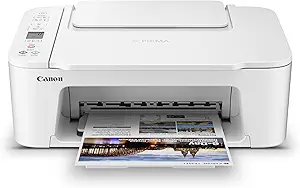 |
| Top Rated A top-rated pick with lots of positive feedback | Epson SureColor F170 |  |
| Most Popular A crowd favorite that many people choose with confidence | Canon PIXMA TR4720 |  |
Liene PixCut S1 DHP700

| Printer Type | Thermal Dye Sublimation |
|---|---|
| Maximum print Resolution Color | 300 dpi |
| Print media | 4×6 and 4×7 inch photo/sticker paper |
| Printer Connectivity Type | Bluetooth |
| Control Method | App |
The Liene PixCut S1 combines a 300 dpi thermal dye-sublimation photo printer with an integrated cutter so you can design, print, laminate, and die-cut stickers in one short workflow. It pairs to phones, tablets, or laptops over Bluetooth and uses the Liene app to extract subjects with AI, apply templates or styles, then print and precisely cut shapes without manual trimming. The built-in four-layer dye-sublimation process laminates prints as they are produced, producing waterproof, scratch-resistant stickers and labels sized for 4×6 and 4×7 media. Setup is straightforward and the unit ships with starter paper, a blade, and an ink cartridge so hobbyists can start projects quickly. Expect modest throughput—around one page per minute—so it fits small-batch crafting, school projects, and personalized gifts rather than high-volume production. Note that it requires Liene-compatible paper and cartridges and works simplex only, so supply choice is limited and duplex printing is not supported.
Best for: Crafting hobbyists and small-scale creators who want an all-in-one device to design, print, and cut custom stickers and labels with minimal setup and strong color quality.
Less Ideal for: People who need high-speed or high-volume printing for business production or those who prefer open media choices and duplex output.
- Prints and die-cuts in one integrated step to save time and keep edges precise
- Thermal dye-sublimation output with automatic lamination produces durable, waterproof stickers
- AI image extraction and app templates simplify design for users without graphic skills
- Includes starter media, blade, and cartridge so you can begin crafting immediately
- Slow throughput at roughly one page per minute, unsuitable for large batches
- Locked to Liene-compatible paper and cartridge formats, limiting third-party options
Verdict: Buy this if you want a compact, app-driven printer that makes ready-to-use, laminated stickers and labels with built-in precision cutting for small-batch craft projects.
Epson EcoTank Photo ET-8550

| Printer Type | Inkjet |
|---|---|
| Printer Output Type | Color |
| Maximum Media Size | 13 x 19 inch |
| Color Pages per Minute | 12 pages_per_minute |
| Maximum print Resolution Color | 1440 dots_per_inch |
The Epson EcoTank Photo ET-8550 is a wide-format all‑in‑one inkjet designed for creators who need lab-quality color prints without frequent cartridge changes. It uses a 6-color Claria ET Premium ink tank system and a high-accuracy printhead to produce sharp, high-resolution photos up to 13 x 19 inches and can print borderless images and media up to 1.3 mm thick. The refillable ink bottles deliver a very low cost per photo and long intervals between replacements, which is helpful for heavy photo and craft projects. Connectivity includes USB and mobile printing support, and the unit offers scanning and copying along with automatic duplex for document tasks. Expect good color depth and fine detail at the cost of a larger footprint and modest print speeds compared with fast document printers. This model is tailored to hobbyists and small studios that prioritize print quality and low running costs over compact size or fast office throughput.
Best for: Craft-focused photographers and home studio creators who prioritize high-quality, wide-format photo output and low long-term ink costs when producing prints and craft projects.
Less Ideal for: Users who need a compact, fast document printer for high-volume office throughput or those who rarely print photos and prefer a smaller device.
- Cartridge-free EcoTank system greatly reduces ink cost and frequency of replacements
- Six-color ink set improves color accuracy and smooth gradations for photos
- Supports wide-format media up to 13 x 19 inches and thick media up to 1.3 mm
- Includes scanner and copier functions plus automatic duplexing for mixed workflows
- Larger physical footprint that needs dedicated workspace
- Print speeds are moderate, so large photo batches take time
Verdict: Buy this if you want wide-format, lab-quality color prints with very low running costs for serious crafting and photo projects.
Canon PIXMA TS3720

| Printer Type | Inkjet |
|---|---|
| Maximum print Resolution Color | 4800 x 1200 dots_per_inch |
| Printer Connectivity Type | USB, Wi-Fi |
| Maximum Sheet Capacity | 60 |
| Compatible Cartridge | Canon CL-276, Canon PG-275 |
The Canon PIXMA TS3720 is a compact all-in-one inkjet that handles everyday documents and small photo projects for home crafters on a budget. It uses a two-cartridge hybrid ink system with pigment black for sharp text and dye-based color for photos, supports borderless printing up to 5 x 7 inches, and accepts a variety of media including envelopes, labels, and square photo sizes useful for crafts. Setup is straightforward via the Canon PRINT app, AirPrint, or USB, and the rear paper tray holds up to 60 sheets. Print speeds are modest at about 7.7 ppm black and 4 ppm color, so it is best suited to intermittent batches rather than heavy-duty runs. The 1.5-inch LCD and simple controls keep operation easy, but it only prints single-sided and does not have advanced finishing features. For makers who need an inexpensive, space-saving printer for cards, labels, and photo-sized prints, the TS3720 delivers reasonable quality and reliable wireless connectivity without a steep price or complicated setup.
Best for: Crafters looking for an affordable, compact all-in-one to print cards, labels, and small photos who prioritize ease of setup and wireless printing over high-volume throughput.
Less Ideal for: Users who need fast, double-sided printing or high-volume production for large crafting runs should consider higher-end printers designed for heavier workloads.
- Compact footprint with simple setup via Canon PRINT app, AirPrint, or USB
- Hybrid two-cartridge ink system that produces sharp text and vivid photos
- Supports borderless and multiple small photo sizes useful for craft projects
- Rear paper tray with 60-sheet capacity and stable dual-band Wi‑Fi connectivity
- Single-sided (simplex) printing only, no automatic duplexing
- Relatively slow color print speed compared with faster photo-capable printers
Verdict: A budget-friendly, compact all-in-one that makes printing small photos, cards, and labels easy for home crafters who want wireless convenience without complexity.
Epson SureColor F170

| Printer Type | Dye Sublimation |
|---|---|
| Maximum print Resolution Color | 5760 x 1440 Optimized DPI |
| Maximum Media Size | 8.5" Width |
| Maximum Sheet Capacity | 150 |
| Printer Connectivity Type | Wireless, USB, Ethernet |
The Epson SureColor F170 is a turnkey dye‑sublimation printer aimed at hobbyists and small craft businesses that need reliable, high‑quality transfers for mugs, mousepads, apparel and other small items. It uses Epson PrecisionCore technology and ships with a full set of genuine Epson sublimation inks and Mac/Windows software, so you can start printing right away. The closed 150‑sheet auto‑feed tray and compact footprint make it easy to fit into a workshop while protecting media from dust, and the included high‑capacity ink bottles with auto‑stop cut down refill mess and downtime. Connectivity options include wireless, USB and Ethernet for flexible workflows. Expect excellent image clarity from the 5760 x 1440 optimized DPI resolution, but plan for modest throughput since print speed is geared toward quality rather than volume. Also note the unit is simplex only and optimized for 8.5-inch media, so larger-format printing requires a different model. For reliability‑minded crafters this printer emphasizes factory-quality consumables and serviceable features over fast production speeds.
Best for: Crafters and small-business makers who prioritize consistent, factory-quality sublimation output and dependable support for small-format personalized products.
Less Ideal for: Users who need high-volume, wide-format, or duplex sublimation production should consider larger production printers instead.
- Includes full set of genuine Epson dye-sublimation inks for consistent color and vendor-backed support
- High optimized print resolution (5760 x 1440) for sharp, detailed transfers
- 150-sheet closed auto-feed tray protects media and reduces prep time
- Multiple connectivity options (Wireless, USB, Ethernet) for flexible setup
- Compact, space-saving design suited to small workshops
- Slow printed pages per minute because the unit prioritizes print quality over speed
- Limited to 8.5-inch maximum media width and simplex printing only
Verdict: Buy this if you want a compact, factory-backed dye-sublimation printer that delivers reliable, high-detail transfers for small-format craft and personalization work.
Canon PIXMA TR4720

| Printer Type | Inkjet |
|---|---|
| Resolution | 4800 x 1200 |
| B&W Pages per Minute | 8.8 |
| Color Pages per Minute | 4.4 |
| Printer Connectivity Type | USB, Wi-Fi |
The Canon PIXMA TR4720 is a small wireless 4-in-1 inkjet aimed at home and light office use where space and convenience matter. It handles everyday document tasks plus borderless photo printing up to letter size, and the hybrid ink system produces clear black text and reasonable color photos for craft projects. Setup and mobile printing are straightforward via the Canon Print app or Wi-Fi, and the front 100-sheet tray plus an automatic document feeder simplify multi-page scanning and copying. Auto duplexing helps save paper for multi-page craft instructions or templates. Expect modest color print speeds and basic photo quality compared with dedicated photo printers, and ink costs can add up if you print lots of high-resolution images. The two-line LCD and simple controls make it easy to use without a learning curve, and compatibility with standard Canon CL-276 and PG-275 cartridges keeps supplies easy to source.
Best for: Crafters who want a compact, easy-to-use all-in-one that handles occasional borderless photo prints and multi-page scanning without a steep learning curve or complex setup.
Less Ideal for: People who need lab-quality photo output or plan heavy color/photo printing, or those who prioritize the lowest long-term ink cost over convenience.
- All-in-one functions: print, copy, scan and fax in a compact body
- Auto document feeder and automatic duplexing for efficient multi-page jobs
- Wireless and mobile printing via Canon Print app for easy craft workflow
- Front 100-sheet tray and borderless printing up to 8.5 x 11 inches
- Color print speed and photo output are modest compared with higher-end photo printers
- Ink consumption and running costs can be high for frequent color/photo printing
Verdict: A space-saving wireless all-in-one that is a practical choice for crafters who need straightforward printing, scanning and occasional borderless photos without complexity.
Choosing the Right Printer for Crafting: Key Factors to Consider
Color Accuracy and Gamut
Color accuracy determines how closely printed output matches your intended hues. For crafting, small shifts in saturation or hue can change skin tones in photographic prints, the vibrancy of card designs, or the match between printed swatches and other materials.
Look for printers with multiple color channels or good profile support so you can achieve reliable results across different file types. Drivers that offer color calibration or ICC profile usage help when consistent color is essential for repeat projects.
Media Compatibility and Thickness
Craft projects often use heavier cardstock, textured papers, transfer sheets, and thin vinyl. The printer needs a feed path and tray options that accept these substrates without bending, curling, or feeding errors.
Check maximum supported paper weight and whether the printer offers a rear or straight-through feed for thick media. Machines with adjustable pressure or platen gaps reduce the risk of smudging and allow thicker stocks to pass cleanly through the mechanism.
Print Resolution and Detail
High resolution matters for fine line art, intricate sticker designs, and small text used on labels. Resolution interacts with ink technology and media to determine apparent sharpness and edge quality.
While higher DPI does not automatically equal better craft output, printers that reproduce crisp edges and smooth gradients without heavy grain or banding will yield more professional-looking projects, especially at small scales or when printing detailed vector artwork.
Ink System and Running Costs
Ink system design affects both the flexibility of color management and the ongoing expense of making crafts. Options that let you replace individual color cartridges or use high-capacity tanks can reduce waste and cost for frequent printing.
Consider how easy the printer makes ink replacement and whether third-party refill options or dye vs pigment choices suit your needs. For work that requires longevity or water resistance, ink chemistry can influence durability and finish.
Feed Reliability and Jams
Paper jams or misfeeds waste expensive cardstock and break workflow momentum. Craft printers should minimize pinch points and provide clear manual-feed paths for nonstandard sizes.
Design features like straight-through paper paths, dedicated manual-feed slots, and robust rollers help reduce jams. Also evaluate how easily users can clear a jam and whether the printer reports precise error diagnostics.
Connectivity and Workflow Features
Good connectivity reduces friction between your design software and the printer. Wireless printing, direct USB, and mobile printing options speed small-run jobs and make it easier to print from tablets or phones.
Advanced workflow features such as borderless printing, custom paper-size presets, and accessible driver controls for color adjustments and lightening/darkening prints make iterative crafting faster and cut down on wasted test prints.
Types of Crafting Projects and Printer Needs
Different craft projects place distinct demands on a printer. Photo-based crafts require accurate color and smooth gradients, while sticker and decal production benefit from precise edge definition and the ability to print on adhesive-backed media. Card and invitation printing prioritizes reliable feeding of heavier stocks and consistent ink absorption to avoid pooling or cockling.
Match the printer to your most-common project types. If you mostly print photos, prioritize color gamut and resolution. If you create cuttable stickers, media handling and borderless printing deserve more weight. Knowing the typical runs and materials you use will simplify the decision.
- Photos and prints: prioritize color accuracy and smooth gradients
- Stickers and decals: require vinyl compatibility and precision printing
- Cards and invitations: need heavy-paper feeding and consistent ink drying
Preparing Files for Optimal Craft Printing
Preparing files correctly cuts down on surprises. Work at the native resolution the printer supports and export using the correct color profile when available. For vector art, ensure stroke weights and text are outlined or embedded to avoid font substitution issues.
Include bleed where a design runs to the edge and keep critical elements a safe distance from cut lines. When color matching is crucial, print a small test swatch and adjust profiles or driver settings before running a full batch.
- Use correct DPI and export profiles
- Add bleed and keep safe margins
- Print test swatches for color-critical runs
Maintenance Tips to Keep Prints Consistent
Regular maintenance extends a printer's useful life and preserves print quality. Perform recommended head-clean cycles only when needed, and keep the platen and feed rollers free of dust and adhesive residue. For printers used with sticky-backed materials, clean feeding paths more often to avoid buildup.
Store consumables and paper in a dry environment to prevent curling and moisture-related feeding problems. Replace worn rollers or pads as indicated in maintenance alerts to maintain consistent feeding and registration.
- Run head checks and clean sparingly to avoid waste
- Wipe rollers and paths after using adhesive media
- Store paper flat and in a moisture-controlled area
Finishes and Post-Printing Treatments
Post-print steps can significantly affect the final look and durability of craft projects. Consider laminating or using a spray sealer to protect prints that will be handled frequently, exposed to moisture, or cut into stickers. The compatibility of ink and coating matters for adhesion and finish uniformity.
For projects intended to be heat-transferred or exposed to direct sunlight, choose inks and topcoats that resist fading and won't smear under heat. Test a small run to confirm that your finishing method does not cause discoloration or bleed.
- Use lamination for high-handling items
- Test sealers for compatibility with your ink type
- Choose coatings based on intended exposure and handling
Workflow Strategies for Small-Batch Craft Production
Organize templates, color presets, and paper-size profiles so you can repeat jobs without reconfiguring the printer each time. Batch similar jobs to reduce paper swaps and minimize the number of head-clean cycles triggered by long idle periods.
Label ink cartridges or tanks by project type when you use specialized inks. Keep a small stock of commonly used paper weights to avoid downtime during active crafting sessions.
- Save presets for common paper sizes and finishes
- Batch jobs to reduce material changes
- Maintain a small inventory of frequent consumables
How We Chose the Best Printer for Crafting
We focused on characteristics that directly affect hobbyists and small-scale makers who use a printer for crafting. Key evaluation criteria included color accuracy and ink system flexibility, because faithful color and the ability to replace or refill inks economically matter when you produce stickers, cards, and decals. Media handling and feed reliability were assessed to ensure consistent performance with cardstock, specialty papers, and thin vinyl. Usability and workflow features such as wireless connectivity, print speed in draft and high-quality modes, and available driver controls were included because an intuitive setup reduces prep time and wasted materials. Durability and maintenance needs were considered next, emphasizing easy head-cleaning routines and accessible consumables. We also evaluated versatility for craft-specific tasks like borderless printing and custom-size input. We excluded general office-only models that cannot accept heavy or textured stock, and machines without any user-adjustable color controls. Our selection favors printers that strike a practical balance between print fidelity, media compatibility, and everyday reliability for makers and crafters.
Our full evaluation process is outlined in our review methodology.
FAQ
Can a regular home printer handle heavy cardstock for invitations?
Often, home printers can handle moderate-weight cardstock if they specify the supported paper weight. Look for machines with a rear or straight-through feed and check maximum weight specifications. Very heavy or textured stock may still require a printer designed for thicker media.
Should I choose dye or pigment inks for crafting?
It depends on the project. Dye inks usually offer more vibrant colors and smoother gradients, which are good for photos and bright graphics. Pigment inks are generally more fade resistant and water tolerant, better for items that need longevity or resistance to handling.
How do I prevent prints from smudging on specialty papers?
Use a paper type and ink combination that suit each other and allow adequate drying time. Adjust driver settings for lower ink density or use a slower, higher-quality print mode. If necessary, apply a compatible sealer after testing to ensure the finish does not alter colors.
Is borderless printing necessary for craft projects?
Borderless printing is useful for edge-to-edge designs like photos and some cards, but it is not essential for all projects. If you plan to cut precisely or mount prints, a small white margin can actually simplify trimming and alignment.
How often should I run maintenance cycles on a craft printer?
Run maintenance when print quality declines or when the machine indicates a problem. For frequent use with specialty media, inspect and clean feed paths weekly to prevent buildup. Excessive automatic head cleans waste ink, so rely on targeted maintenance when possible.
Final Verdict
Prioritize the factors that most directly affect the projects you make. If accurate color and fine detail are critical, focus on color accuracy and resolution. If you work with heavier or specialty stocks, emphasize media compatibility and a reliable feed path. Consider ink system flexibility and maintenance needs to balance ongoing costs and uptime. Choosing a printer for crafting comes down to matching a model to your typical materials and workflow. Decide which tradeoffs you can accept and use the evaluation criteria above to choose a machine that minimizes wasted materials and keeps your projects looking their best.