
Note: This article contains affiliate links. If you click on these links and make a purchase, we may earn a small commission at no extra cost to you. This helps support our research and content. Read our full affiliate disclosure here.
If you send business mail, invitations, or high-volume statements, picking a printer that handles envelopes cleanly can save time and frustration. A printer that misfeeds, smudges ink, or prints off-center creates reprints and delays. This guide gathers the top printers for envelopes and focuses on the factors that matter when printing directly onto envelopes, including feeding reliability, print alignment, and ink or toner durability. Below are our shortlisted picks for the best envelope-capable printers, followed by the practical buying criteria we used to evaluate them and guidance to help you pick the right unit for your workflow.
Top Picks at a Glance
| Best Overall The best all-around choice for most situations | Brother HL-L2405W Laser Printer |  |
| Best Quality Built to a higher standard if you want something more solid | Formax AP2 Address Printer |  |
| Best Value The sweet spot between price and what you get | Epson EcoTank ET-2800 | 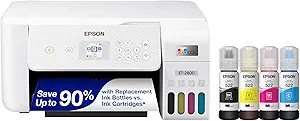 |
| Best Budget The cheapest option that still gets the job done reliably | HP DeskJet 2855e |  |
| Top Rated A top-rated pick with lots of positive feedback | Rollo USB Shipping Label Printer |  |
| Most Popular A crowd favorite that many people choose with confidence | Canon PIXMA TR4720 |  |
| Best Seller A high-volume bestseller chosen again and again | Canon PIXMA TS6520 |  |
Brother HL-L2405W Laser Printer

| Printer Type | Laser |
|---|---|
| Printer Output Type | Monochrome |
| Print Speed | 30 pages_per_minute |
| Resolution | 1200 x 1200 |
| Maximum Sheet Capacity | 250 |
The Brother HL-L2405W is a compact monochrome laser printer that focuses on dependable, everyday black-and-white printing for home and small office use. It prints one-sided documents at up to 30 ppm with a 1200 x 1200 dpi resolution for crisp text and simple graphics. The 250-sheet tray reduces frequent paper refills and a manual feed slot lets you print envelopes and other specialty papers without reconfiguring the main tray. Dual-band Wi-Fi and a USB 2.0 port make it easy to connect phones, tablets, laptops, or a single workstation, and Brother Mobile Connect provides remote job management and supply reordering. In-box starter toner is modest but compatible standard and high-yield TN830 cartridges are available for longer runs. There is no automatic duplexing and copy/scan functions are absent, so this model is best when straightforward, fast single-sided printing is the primary need rather than multifunction features.
Best for: Buyers who want a reliable, fast single-function printer for home or small office use and need occasional envelope printing without extra multifunction features.
Less Ideal for: People who need automatic double-sided printing, built-in scanning or copying, or an all-in-one device for shared office workflows should consider other models.
- Fast monochrome printing up to 30 ppm for quick document output
- 250-sheet paper tray reduces refill frequency for moderate workloads
- Manual feed slot supports envelope and specialty paper printing
- Dual-band Wi‑Fi plus USB connection enables flexible mobile and desktop printing
- High-resolution 1200 x 1200 dpi yields crisp text and professional-looking black-and-white prints
- No automatic duplexing, only manual duplex printing
- Print-only device with no copy or scan capabilities
Verdict: Choose the HL-L2405W if you want a compact, fast monochrome laser printer that reliably handles envelopes and high-volume single-sided printing.
Formax AP2 Address Printer

| Print Technology | Thermal inkjet |
|---|---|
| Resolution | 150 DPI to 600 x 600 DPI |
| Integrated feeder capacity | Holds up to 500 #10 envelopes |
| Connectivity | Ethernet, USB 3.0 |
| Duty cycle | Up to 500,000 per month |
The Formax AP2 is built for high-volume envelope addressing and direct mail tasks, using a 4-pen thermal inkjet head and an integrated feeder that holds up to 500 #10 envelopes. It prints at variable resolutions from 150 DPI up to 600 DPI and can output up to 22,000 #10 envelopes per hour or 30,000 postcards per hour, making it suitable for busy mailrooms and fulfillment centers. The 4.5" color touchscreen provides job control, adjustable backlight, on-screen ink monitoring, and storage for print jobs up to 16GB for repeat runs. Connectivity includes USB 3.0 and Ethernet so it can link to a PC and accept TrueType fonts for flexible addressing. Practical benefits include a large image area (up to 2" x 15"), a durable duty cycle rated to 500,000 pieces per month, and batch/job counters for production tracking. Limitations are its single-purpose focus on monochrome addressing and substantial footprint and weight for a tabletop unit, so it is not intended for general office document printing or light occasional use.
Best for: Mailrooms, print shops, and businesses that need a durable, high-speed envelope addressing solution for frequent bulk mail runs.
Less Ideal for: Small offices or occasional users who need multi-function color printing or a compact desktop printer for general document tasks.
- Very high throughput: up to 22,000 #10 envelopes per hour and 30,000 postcards per hour
- Integrated feeder holds up to 500 envelopes for continuous runs
- Variable print resolution up to 600 x 600 DPI for crisp addressing
- 4.5-inch color touchscreen with job storage and on-screen ink monitoring
- Ethernet and USB 3.0 connectivity plus support for TrueType fonts from PC
- Monochrome-only output limits it to black addressing and one-color prints
- Large, heavy tabletop unit that requires dedicated space and handling
Verdict: Choose the Formax AP2 when you need a rugged, high-speed envelope printer that can handle heavy continuous addressing workloads with precise, high-resolution output.
Epson EcoTank ET-2800

| Printer Type | Inkjet |
|---|---|
| Printer Output Type | Color |
| Maximum Sheet Capacity | 100 |
| Color Pages per Minute | 5 pages_per_minute |
| B&W Pages per Minute | 10 |
The Epson EcoTank ET-2800 is a cartridge-free color all-in-one designed to cut ink costs and handle everyday home printing, copying and scanning. It uses large refillable EcoFit ink tanks and ships with bottles that Epson says will cover a long initial run, which reduces how often you need replacements and keeps cartridge waste down. The ET-2800 supports wired and wireless printing, mobile and voice-activated workflows, and has a simple color LCD and app control for ease of use. Print quality is sharp for documents and reasonably good for photos thanks to Epson's Micro Piezo technology and high DPI settings, and the flatbed scanner handles occasional scans. Speed is modest at about 10 ISO ppm for black and 5 ppm color, and duplexing is manual rather than automatic, so multi-page two-sided runs require user flipping. Paper handling supports common sizes including envelopes and legal, but tray capacity is limited. This printer works well for cost-conscious households that print regularly and want minimal cartridge fuss, though power users who need faster duplexing or heavier monthly volume may need a step up.
Best for: Buyers who prioritize low ongoing ink costs and reliable everyday printing for envelopes and household documents and prefer an easy-to-maintain, cartridge-free printer.
Less Ideal for: Users who need fast duplex printing, very high monthly page volumes, or advanced office workflow features should consider a higher-end model.
- Cartridge-free EcoTank system with high-capacity refillable ink bottles included
- Low running costs and reduced cartridge waste compared with cartridge printers
- Wireless, mobile and voice printing for flexible home workflows
- High print resolution and Micro Piezo technology produce sharp text and good color prints
- Built-in flatbed scanner and simple color LCD for copying and scanning tasks
- No automatic duplexing; two-sided prints require manual flipping
- Print speeds are modest, especially for color jobs
Verdict: Choose the ET-2800 if you want a low-cost, cartridge-free all-in-one that reliably handles envelope and everyday home printing with minimal ink fuss.
HP DeskJet 2855e

| Printer Type | Inkjet |
|---|---|
| Compatible Cartridge | HP 67 |
| Maximum Media Size | 3 x5 to 8.5 x 14 in |
| Maximum Print Resolution Color | 4800 x 1200 dpi |
| Printer Connectivity Type | single band wi-fi (2.4ghz only) |
The HP DeskJet 2855e is a compact wireless all-in-one aimed at basic home printing, scanning and copying tasks. It prints color documents and photos at up to 5.5 ppm and black at 7.5 ppm, and includes a flatbed scanner for copying and occasional scanning jobs. The printer connects over single-band 2.4 GHz Wi‑Fi or USB 2.0 and is controlled via the HP app, which also enables HP+ activation and a three-month Instant Ink trial for automatic ink delivery. A 60-sheet input tray supports everyday paper handling and the device prints common media including envelopes and glossy photo paper, though duplexing is manual. Notable strengths are the small footprint, app-driven setup and built-in scanner, but expect modest speed and limited connectivity compared with higher-end models; manual duplex and single-band Wi‑Fi may slow workflows for heavier multi-page envelope jobs. For light home use and occasional envelope printing it covers essentials without taking much space.
Best for: Buyers seeking an affordable, space-saving all-in-one for occasional home printing, scanning, and envelope mailing who prioritize simple mobile setup and low upfront cost.
Less Ideal for: Users who frequently print large runs of envelopes, need fast duplexing, or require robust multi-band Wi‑Fi and advanced network features should consider larger office-focused printers.
- Compact all-in-one design with built-in flatbed scanner for scanning and copying
- App control and HP+ support simplify setup, mobile printing and subscription ink management
- Supports envelopes and a variety of common media types
- 60-sheet input tray keeps small daily print jobs consolidated
- Includes three-month Instant Ink trial to help new users avoid immediate ink purchases
- Print speeds are modest, not ideal for high-volume envelope batches
- Connectivity limited to single-band 2.4 GHz Wi‑Fi and one USB 2.0 port
Verdict: A compact, budget-friendly all-in-one that handles occasional envelope printing and basic home tasks with simple app control and an Instant Ink trial.
Rollo USB Shipping Label Printer

| Printer Type | Thermal |
|---|---|
| Print Resolution | 203 x 203 DPI |
| Paper Size | 4 inch x 6 inches |
| Printer Connectivity Type | wired |
| Hardware Interface | USB |
The Rollo USB Shipping Label Printer is a commercial‑grade direct thermal printer built for fast, inkless label production from a Windows or Mac computer. It connects via USB and handles 4×6 shipping labels and other label widths from about 1.57" to 4.1" using auto label detection, producing clear, scannable output at 203 DPI and roughly one 4×6 label per second. Typical use is batch printing shipping labels, barcode or product stickers for small businesses and home offices where speed and reliability matter; the included power adapter and USB cable keep setup straightforward and the LED control makes basic status visible. Because it is thermal, there are no inks or toners to replace, lowering ongoing costs, but printed labels can fade with prolonged heat or sunlight exposure and the unit requires a USB connection to a host device rather than fully standalone Wi‑Fi operation. Overall it is a durable, practical choice when you need high throughput, consistent 4×6 shipping labels for regular mailing and fulfillment work.
Best for: Buyers who prioritize consistent, high-volume label printing for shipping or fulfillment and want a low-maintenance, inkless solution that integrates with desktop shipping workflows.
Less Ideal for: Users who need color printing, portable wireless operation, or weatherproof labels for long-term outdoor exposure should consider other options.
- Direct thermal printing eliminates the need for ink or toner
- Fast output speed capable of about one 4×6 label per second
- Auto label detection simplifies loading different label widths up to 4.1"
- Compatible with Windows and Mac and works with major shipping platforms
- Prints only in monochrome at 203 DPI which can limit fine-detail graphics
- Requires a wired USB connection and is not a standalone wireless printer
Verdict: A dependable, high‑speed inkless label printer built for reliable 4×6 shipping label production in desktop shipping setups.
Canon PIXMA TR4720

| Printer Type | Inkjet |
|---|---|
| Print Resolution | 4800 x 1200 |
| B&W Pages per Minute | 8.8 |
| Color Pages per Minute | 4.4 |
| Connectivity | USB, Wi-Fi |
The Canon PIXMA TR4720 is a small, affordable all-in-one inkjet geared toward home and small-office printing where space is limited. It handles everyday tasks — printing letters, borderless photos up to 8.5 x 11, scanning on the flatbed, copying and faxing — and includes an auto document feeder for multi-page jobs. Wireless and USB connectivity plus the Canon Print app make mobile printing straightforward, and automatic two-sided printing helps reduce paper use. The front 100-sheet tray is easy to load and the hybrid ink system produces crisp black text and decent color for occasional photos. It is not a high-speed or high-volume machine, with roughly 8.8 ipm black and 4.4 ipm color, so large envelope batches or heavy daily loads will be slow. Also expect cartridge-based ink costs to be higher than some ink-subscription or tank printers. For envelope printing you can use the supported media sizes but feed and alignment will need care for small batches to avoid jams or misprints.
Best for: Buyers who want a space-efficient, feature-complete home or small-office printer that reliably handles envelopes, occasional photos and multi-page scans while prioritizing proven product performance and social-proof.
Less Ideal for: People who need high-volume, high-speed envelope production or the lowest long-term ink cost should consider more robust or ink-tank systems instead.
- All-in-one functionality with print, scan, copy and fax in a compact footprint
- Auto duplex printing and a 100-sheet front tray for routine office tasks
- Auto document feeder for scanning or copying multi-page documents
- Wireless printing and Canon Print app support for easy mobile/cloud printing
- Borderless photo printing up to 8.5 x 11 for occasional photo jobs
- Modest print speeds make it slow for large batches
- Uses standard cartridges which can be pricier per page than refillable tank systems
Verdict: Choose the PIXMA TR4720 if you need a compact, reliable all-in-one that can handle envelope printing and everyday home office tasks with easy mobile connectivity.
Canon PIXMA TS6520

| Printer Type | Inkjet |
|---|---|
| Printer Connectivity Type | USB, Wi-Fi |
| Duplex | Automatic |
| Display Type | OLED |
| Color Pages per Minute | 9 pages_per_minute |
The Canon PIXMA TS6520 is a budget-friendly all-in-one inkjet aimed at home and small-office users who need reliable everyday printing plus basic scan and copy functions. It uses a two-cartridge hybrid ink system for sharp text and vibrant color prints, supports automatic two-sided printing to save paper, and connects over USB or dual-band Wi-Fi for mobile printing from smartphones and tablets. The 1.42-inch OLED and simple control panel make setup and status checks straightforward, and the flatbed scanner covers basic document and photo scanning needs. It is compact and unobtrusive on a desk, but it lacks an automatic document feeder and its paper capacity is very small, so it is not suited to high-volume jobs. Print speeds are modest for color and black-and-white pages, and the starter ink tanks mean you may need replacements sooner if you print frequently. For routine home tasks, school projects, and occasional photo printing, the TS6520 delivers solid output without complexity.
Best for: Buyers who want a dependable, easy-to-use home all-in-one for occasional to moderate printing, mobile printing from phones, and duplex document handling without complicated features.
Less Ideal for: People who need high-volume envelope or batch printing, frequent multi-page scanning, or an ADF for repetitive office workflows should consider a larger office-focused model.
- Automatic duplex printing reduces paper use and speeds two-sided jobs
- Dual-band Wi-Fi plus USB enables reliable mobile and computer printing
- Compact footprint fits small home workspaces
- Two-cartridge hybrid ink system produces sharp text and vivid color
- Simple 1.42" OLED display and control panel make setup and operation easy
- Very small paper capacity limits continuous printing
- No automatic document feeder, so multi-page scanning or copying is manual
- Starter ink tanks may require replacement sooner with heavier use
Verdict: A compact, user-friendly all-in-one that reliably handles everyday documents and duplex printing for risk-averse home buyers who value simplicity over high capacity.
Choosing the Right Printer for Envelopes: Key Factors to Consider
Feed Path and Manual-Feed Options
A straight or nearly straight feed path reduces jams and creasing when printing envelopes. Printers with a rear or front manual-feed slot let you print one envelope at a time without reconfiguring the main paper tray. Adjustable guides and clearly marked envelopes slots make it easier to align different envelope sizes.
If you will print short batches, a manual-feed tray that supports single-sheet insertion is crucial. For higher volumes, look for a tray that can accept a small stack of envelopes with firm separation rollers to prevent double-feeds.
Supported Envelope Sizes and Orientation
Not all printers support every envelope size or orientation. Verify the printer supports the standard envelope formats you use, such as #10, C5, or A-style envelopes, and whether it prints in landscape or portrait orientation without awkward workarounds.
Some units impose strict length or thickness limits. If you plan to print on thicker or windowed envelopes, confirm the maximum media thickness and whether the feed mechanism can handle a window without snagging the plastic.
Print Registration and Alignment Controls
Small misalignments are much more noticeable on envelopes than on letter paper. Printers with fine alignment settings, a preview or template mode, or software tools for registration let you fine-tune horizontal and vertical offsets. Built-in guides and grid templates reduce trial-and-error during initial setup.
Consistent registration matters when using address labels or return-address blocks. Machines that maintain alignment over several prints reduce rework and wasted envelopes.
Ink or Toner Durability and Smear Resistance
Envelope materials range from uncoated to glossy, and inks react differently. Pigment-based inks and toner generally resist smearing better on coated surfaces, while some dye-based inks can smear if an envelope rubs against other items before drying. Consider the drying time and whether the printer applies heat or fusing that helps fix the ink to the envelope surface.
For high-volume mailing, toner-based devices often provide faster dry times and less sensitivity to envelope coatings, while inkjets can offer finer detail but may require more careful handling until fully dry.
Capacity and Duty Cycle
If you send mail in batches, tray capacity and monthly duty cycle matter. A higher duty cycle indicates the printer is built for more frequent use and likely has sturdier feed rollers and components. Low-capacity, consumer-level units may work fine for occasional envelopes but can wear faster under regular batch printing.
Match the rated duty cycle and recommended monthly volume to your expected usage. Overworking a low-duty-cycle machine leads to more jams, misfeeds, and potentially higher maintenance needs.
Ease Of Maintenance and Consumables
Replaceable parts such as feed rollers, fuser assemblies, and maintenance cartridges affect long-term reliability. Devices with easy access to rollers and clear instructions for cleaning the feed path simplify upkeep. Consumable availability, cartridge yield, and whether the device supports high-yield options influence operating costs and how often you need service interventions.
Regular cleaning of feed paths and periodic replacement of wear parts will keep envelope printing predictable, so consider how straightforward those tasks are before committing.
Preparing Envelopes for Reliable Feeding
Before loading, flatten warped or folded envelopes and avoid overstuffing. Minor bends or buckles in an envelope often cause misfeeds even in otherwise reliable printers.
Use a brief fanning motion to separate envelopes if loading a small stack. Set the adjustable guides snugly against the envelope edges to keep registration steady during feeding.
When switching from plain paper to envelopes, check the printer settings and select the correct media type. Some printers adjust feed pressure and drying behavior based on the selected media.
- Remove staples or paperclips that could catch in the feed path
- Avoid mixing envelope sizes in the same tray
- Let freshly printed envelopes dry before stacking
Choosing Between Inkjet and Laser for Envelope Jobs
Inkjet printers can produce crisp, high-resolution text and small graphics, which is useful for invitation envelopes or branding. However, some inks take longer to dry and can smear on coated surfaces or when handled immediately after printing.
Laser printers fuse toner to the envelope surface using heat, which usually yields fast-drying, smear-resistant output. Laser units often handle thicker or windowed envelopes better, but they may have stricter size limits on nonstandard media.
- Inkjet: better for photographic detail, slower dry time
- Laser: faster dry time, generally more robust on varied media
Software Templates and Addressing Workflows
Use the printer software or your word processor to create and save envelope templates that match the printer's printable area and feed orientation. Templates reduce alignment errors and speed repeat jobs.
If you print from a mailing list, verify that your software merges record fields into the template accurately and that line spacing does not shift during batch printing. A quick test print on blank paper helps confirm registration before using envelopes.
- Save a template for each envelope size you use
- Test merge results with plain paper before printing envelopes
- Consider using a grid overlay to fine-tune horizontal and vertical offsets
Handling Special Envelopes and Windows
Envelopes with plastic windows, heavy cardstock, or decorative textures can behave differently in the feed path. Check the maximum media thickness and whether the printer tolerates windowed areas without heat distortion or jamming.
If you frequently use special envelopes, plan for occasional manual feeding and keep the manual-feed option accessible. Avoid using envelopes with metallic foils or extremely glossy coatings unless the printer explicitly supports them.
- Confirm maximum media thickness before regular use
- Feed windowed envelopes one at a time if the machine is sensitive
- Avoid metallic or foil surfaces that may reflect heat unevenly
Troubleshooting Common Envelope Print Problems
If addresses print off-center, recalibrate using the printer's alignment settings or adjust your template offsets. Misfeeds often indicate guide placement or a worn roller that needs cleaning or replacement.
Smudging usually points to slow drying ink or contact with other surfaces before curing. Allow more drying time or switch to a media setting that increases heat or fusing if available. Persistent jams can indicate the envelope thickness exceeds the printer's specification.
- Run a roller cleaning cycle if sheets repeatedly misfeed
- Use the printer's diagnostic or alignment utilities to correct registration
- Try a different media type setting to improve drying or fusing
How We Chose the Best Printer for Envelopes
We prioritized practical, measurable criteria that affect real-world envelope printing performance. First, we looked at envelope handling: feed path design, manual-feed tray accessibility, and supported envelope sizes determine how consistently a printer accepts single envelopes and short stacks. Next, print alignment and registration were assessed, focusing on how well a machine keeps text and graphics centered on small, thin media. Print quality and smear resistance were evaluated for both inkjet and laser technologies to ensure addresses remain legible after handling. Durability and duty cycle were considered to ensure the unit can handle expected monthly envelope volumes without premature wear. Ease of setup and controls matter when switching from sheet paper to envelopes, so we favored models with simple feed adjustments and clear guides. Finally, running cost and replaceable consumables were reviewed to estimate ongoing expense for frequent mailings. We excluded specialty industrial envelope printers and units that require custom offline modules. Our shortlist reflects machines that balance reliable envelope feeding, accurate registration, and manageable long-term upkeep.
Our full evaluation process is outlined in our review methodology.
FAQ
Can any home printer print on envelopes?
Many home printers can print on envelopes, but not all support every envelope size or thickness. Check the printer's manual for supported sizes, recommended feed path, and whether it has a manual or rear feed option for single-envelope printing.
How do I avoid ink smearing when printing addresses?
Select a media setting that matches the envelope type, allow printed envelopes time to dry, and handle them minimally until the ink cures. For frequent mailings, consider a toner-based machine, which generally provides faster dry times and greater smear resistance.
Is it better to print envelopes from the main tray or a manual feed?
A manual feed is often better for single envelopes because it avoids disturbing the main paper stack and reduces the chance of multi-feed. For batch runs, a dedicated tray designed for envelopes can be faster if it has reliable separation rollers.
Will windowed envelopes cause problems in printers?
Windowed envelopes can feed normally in many machines, but the window material and placement can sometimes snag or deform under heat. Check the printer's specifications for windowed-envelope compatibility and feed only envelopes within the stated thickness limits.
How can I keep envelope printing consistent across multiple jobs?
Save and reuse templates matched to each envelope size, keep the feed guides tight, and perform regular maintenance like cleaning feed rollers. Running a quick alignment check before a larger batch helps maintain registration from job to job.
Final Verdict
Focus on reliable feed mechanics and accurate registration when choosing a printer for envelopes. Decide whether you need the higher smear resistance and faster dry times of a toner-based machine or the fine detail of an inkjet, and match the unit's supported envelope sizes to your typical mailings. Prioritize a model with straightforward manual-feed options and accessible maintenance to reduce jams and downtime. Balancing feed reliability, printable area, and consumable management will deliver consistent, professional-looking envelopes with minimal rework. Use the decision factors above to pick the printer that fits how often and what kinds of envelopes you actually print.