
Note: This article contains affiliate links. If you click on these links and make a purchase, we may earn a small commission at no extra cost to you. This helps support our research and content. Read our full affiliate disclosure here.
A compact printer can make a big difference when you work from small desks, shared spaces, or travel with a laptop. The right small printer for laptops should offer dependable print quality, reliable wireless connections, and a footprint that fits your setup without sacrificing essential features. This guide highlights the top shortlisted options for people who need portable, space-conscious printers that still produce sharp documents and occasional photos. We evaluated models for print quality, connection flexibility, and everyday usability to help you pick the best fit for your laptop-based workflow. Read on to see the picks and the criteria that mattered most.
Top Picks at a Glance
| Best Overall The best all-around choice for most situations | HP Tango X Smart Wireless Printer |  |
| Best Quality Built to a higher standard if you want something more solid | Canon PIXMA G3290 Megatank |  |
| Best Budget The cheapest option that still gets the job done reliably | Rongta F11A Portable Thermal Printer |  |
| Top Rated A top-rated pick with lots of positive feedback | TATTMUSE A282M Portable Thermal Printer |  |
| Most Popular A crowd favorite that many people choose with confidence | HP DeskJet 2855e |  |
| Best Seller A high-volume bestseller chosen again and again | Canon PIXMA TS6520 |  |
HP Tango X Smart Wireless Printer

| Printer Type | Inkjet |
|---|---|
| Connectivity | Bluetooth, Wi-Fi, USB |
| Maximum Media Size | 8.5 x 14 inch |
| Maximum print Resolution Color | 4800×1200 dpi |
| Maximum Print Resolution Black and White | 1200 dpi |
The HP Tango X is a compact smart home inkjet that focuses on mobile-first printing and photo-capable color output. You set it up through the HP Smart app, connect via dual-band Wi‑Fi or Bluetooth, and can print, scan and copy from smartphones or tablets; voice printing works with Alexa or Google Assistant for hands-free jobs. The Tango X produces borderless photos and sharp documents at high reported resolutions, and its fold-up device wrap doubles as an output tray to save counter space. It supports HP Instant Ink for automatic reordering and ships with starter HP 64 setup cartridges. On the downside the unit requires manual duplexing for two-sided jobs and relies on HP cartridges with dynamic security, which may limit aftermarket cartridge options. Paper capacity and sheet handling are modest, so it is best for light to moderate home or laptop-centric use rather than heavy office workloads.
Best for: Buyers who want a compact, app-driven printer to pair with a laptop and phone for occasional color documents and photos, and who prioritize easy wireless and voice printing over high-volume throughput.
Less Ideal for: People who need heavy daily printing, large paper capacity, or automatic two-sided printing in a small office environment should look at larger workhorse models.
- Compact, space-saving design with a fold-up cover that doubles as an output tray
- Mobile-first workflow via HP Smart app plus Bluetooth and dual-band Wi‑Fi connectivity
- Voice-activated printing with Amazon Alexa and Google Assistant support
- High-resolution color and photo printing with borderless photo capability
- Works with HP Instant Ink for automatic cartridge replenishment
- No automatic duplexing; two-sided prints require manual refeeding
- Modest paper tray capacity not suited for high-volume printing
- Printer uses dynamic security tied to HP cartridges which limits third-party cartridge use
Verdict: The Tango X is a space-saving, mobile-first printer that makes wireless and voice printing from laptops and phones simple for light home use.
Canon PIXMA G3290 Megatank

| Printer Type | Inkjet SuperTank |
|---|---|
| Connectivity | USB, Wi‑Fi |
| Display | 2.7" LCD color touchscreen |
| Paper Capacity | 100 sheets |
| Duplex | Automatic |
The Canon PIXMA G3290 is a small-format Megatank all‑in‑one aimed at low-cost, everyday document and photo printing for home and home‑office use. It uses refillable ink bottles that Canon rates for very high page yields, so ongoing ink cost is low compared with cartridge printers. Setup and daily use are straightforward thanks to built‑in Wi‑Fi, mobile printing support and a 2.7" color touchscreen for quick jobs; auto duplexing and a 100‑sheet plain paper tray make it convenient for multi‑page documents. Print quality is strong for text (pigment black) and acceptable for borderless photos (dye color inks) with a maximum color resolution of 4800 x 1200 dpi. The scanner is a flatbed and basic copy speeds are decent for the class, but color photo throughput and first‑page times are not as fast as small laser models. Size and power draw are modest, making it reasonable beside a laptop on a desk, though photo‑centric pros may want higher-end photo printers for gallery prints.
Best for: Buyers who prioritize low ongoing ink cost and reliable everyday printing for documents and occasional photos from a laptop, and who want easy wireless setup and onboard controls.
Less Ideal for: Users who need the fastest color photo throughput or premium archival photo quality for professional photo prints should consider a dedicated photo printer instead.
- Very high page yield from included Megatank ink bottles reducing cost per page
- Wireless and mobile printing with a 2.7" color touchscreen for convenient laptop and phone printing
- Automatic duplexing and a 100‑sheet tray for routine document workflows
- Good text sharpness from pigment black ink and high maximum print resolution for detail
- Color photo prints use dye inks so they may lack the longevity and color depth of dedicated photo printers
- Not as fast at color photo printing or first‑page-out as small laser models
Verdict: Choose the PIXMA G3290 when you want a compact laptop‑friendly all‑in‑one that dramatically cuts ink costs while covering everyday document and photo needs.
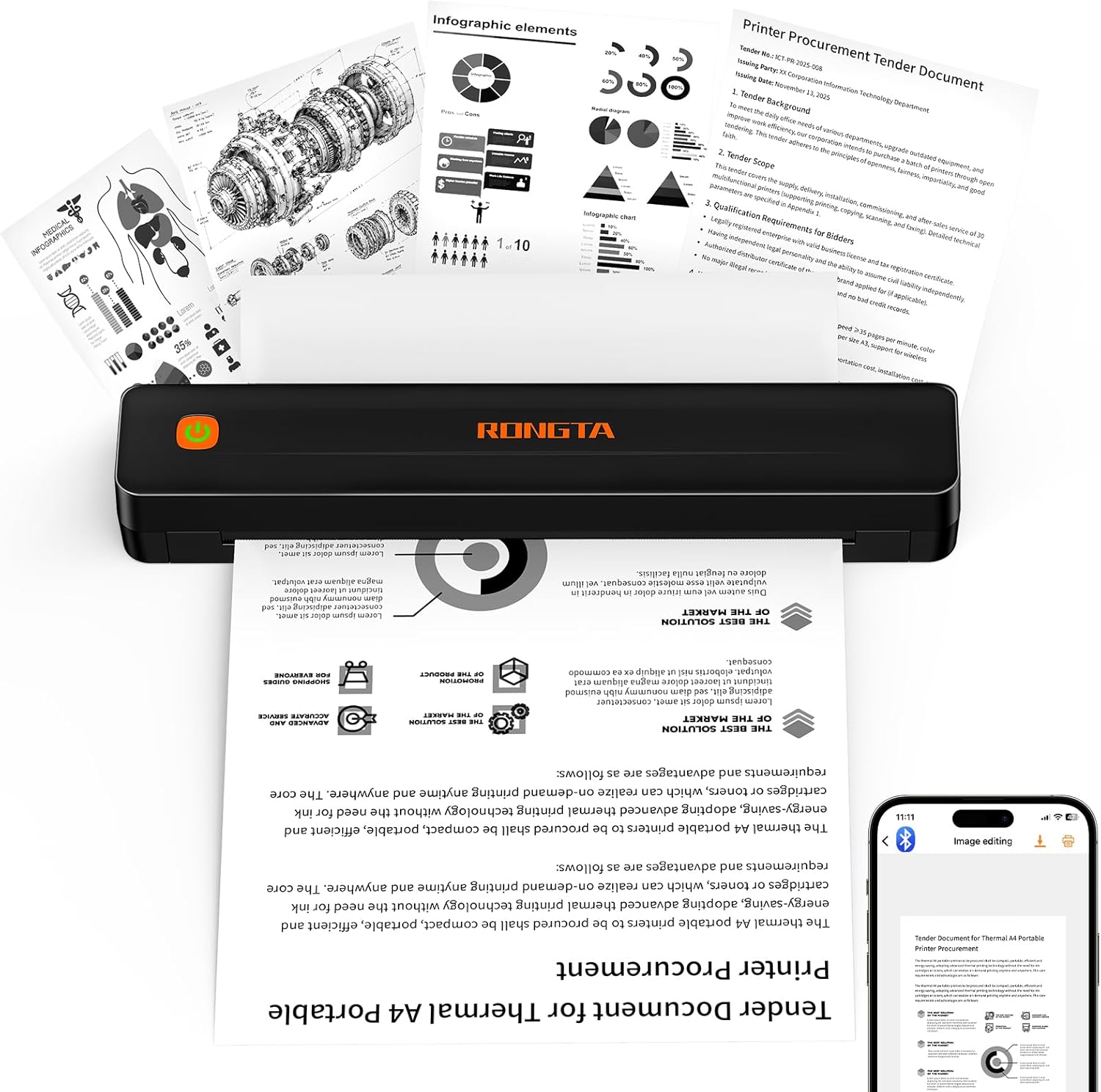
Rongta F11A Portable Thermal Printer
| Printer Type | Thermal |
|---|---|
| Resolution | 203 x 203 dpi |
| Print Speed | 7 pages_per_minute |
| Connectivity | Bluetooth, USB |
| Maximum Media Size | Letter (8.5 x 11 inches) |
The Rongta F11A is a pocketable thermal printer designed for quick, inkless printing of black-and-white pages up to 8.5 x 11 inches. It connects over Bluetooth to the vendor app on iOS or Android and also supports USB connections to Windows and macOS laptops, making it useful for printing receipts, forms, assignments, and travel documents when you do not want to carry ink or toner. The 203 x 203 dpi resolution and quoted 7 ppm speed are adequate for text, simple graphics, and clear forms but will not match photo-quality output. Its simple simplex-only thermal mechanism keeps operation quiet and maintenance minimal because no ribbons or cartridges are needed. Setup requires installing the RONGTA app and pairing through the app rather than the phone settings, which adds a step, and it only prints on thermal paper so standard copy paper cannot be used. For someone wanting a low-cost, portable printer to produce legible documents from a laptop or phone on the go, the F11A is a straightforward choice; users expecting high-resolution graphics or full duplex printing should look elsewhere.
Best for: Buyers prioritizing a low-cost, portable printer to produce text documents and forms from a laptop or phone while traveling or working remotely.
Less Ideal for: Users who need high-resolution photo printing, duplex printing, or the ability to use ordinary copy paper should consider a different printer type.
- Inkless thermal printing eliminates cartridges and lowers ongoing costs
- Bluetooth and USB connectivity for mobile devices and laptops
- Prints up to US Letter (8.5 x 11 inches) for full-page documents
- Compact, lightweight design suitable for travel and quick on-site printing
- Only prints on thermal paper so standard paper cannot be used
- Requires the RONGTA app for Bluetooth pairing instead of native OS pairing
Verdict: A budget-friendly, inkless portable printer that lets laptop and mobile users print full-letter monochrome pages on the go.
TATTMUSE A282M Portable Thermal Printer

| Print resolution | 300 DPI |
|---|---|
| Connectivity | Bluetooth, USB-C |
| Paper types | Thermal roll, continuous forms, single-sheet thermal |
The TATTMUSE A282M is a small, inkless thermal printer aimed at travelers and mobile professionals who need quick, disposable prints without the mess of ink or toner. It prints at 300 DPI using thermal media and accepts several roll and sheet sizes via a built-in paper tray, so you can produce receipts, invoices, boarding passes, notes, and simple photos on demand. Connectivity is straightforward: Bluetooth for phone and tablet printing through the companion app, and USB-C for laptop or desktop use (driver installation required for computers). The app supports common file types and basic image editing, which makes batch jobs and quick collages easy from a phone. The main benefits are its very small footprint and light weight for packing into a bag and the elimination of consumable ink costs. Limitations include the dependence on thermal paper for any output quality and the need to install drivers for computer printing, which adds setup steps for laptop-centric workflows.
Best for: Buyers who prioritize a reliable, packable printer for occasional document and receipt printing on the road and who value low operating cost over long-term archival quality.
Less Ideal for: Users who need high-fidelity color prints, archival-quality documents, or frequent full-page desktop printing as their primary workflow.
- Inkless thermal printing at 300 DPI eliminates ink and toner costs
- Bluetooth wireless printing from phones and tablets via companion app
- Compact, lightweight design made for travel and mobile use
- Built-in paper tray supports multiple thermal paper sizes and formats
- App supports common file types and basic image editing for quick jobs
- Prints require thermal paper so output is limited in longevity and color fidelity
- Computer printing needs a USB connection and driver installation
Verdict: Choose this compact thermal printer when you need a dependable, ink-free mobile printer for quick documents and receipts while traveling with a laptop.
HP DeskJet 2855e

| Printer Type | Inkjet |
|---|---|
| Print Output | Color |
| Compatible Cartridge | HP 67 |
| Paper Capacity | 60 sheets |
| Connectivity | single band wi-fi (2.4ghz only); USB 2.0 |
The HP DeskJet 2855e is a compact all-in-one inkjet geared toward basic home printing from laptops and mobile devices. It handles color and black-and-white documents, offers a flatbed scanner and copying, and holds up to 60 sheets in its single input tray. Setup is aimed at casual users through the HP app and 2.4 GHz Wi-Fi, and HP AI formatting helps trim unwanted webpage content before printing to avoid wasted pages. Print speeds are modest at about 5.5 ppm color and 7.5 ppm black, so it is best for occasional document and photo-size prints rather than heavy day-to-day workloads. The printer ships with starter HP 67 cartridges and includes a 3-month Instant Ink trial when you activate HP+, which simplifies ink replacement but becomes a paid subscription afterward. Manual duplexing means two-sided jobs require user flipping. For a small laptop-focused workstation this printer balances convenience and size, though power users will notice limits in speed, paper capacity, and duplex automation.
Best for: Buyers who want a small, app-friendly all-in-one for occasional printing and scanning from a laptop or smartphone and who prioritize easy setup and compact footprint.
Less Ideal for: People who need fast, high-volume printing, automatic two-sided printing, or advanced office features should consider a higher-capacity or business-class printer.
- Compact all-in-one design with print, scan, and copy in a small footprint
- Simple wireless setup and mobile printing via the HP app
- Includes 3-month Instant Ink trial to streamline cartridge replacement
- HP AI formatting reduces wasted pages when printing web content
- Only single-band 2.4 GHz Wi‑Fi and no automatic duplex printing
- Modest print speeds and a small 60-sheet input tray limit throughput
Verdict: A compact, easy-to-set-up all-in-one that fits laptop-centric home use and mobile printing needs where convenience and a small footprint matter most.
Canon PIXMA TS6520

| Printer Type | Inkjet |
|---|---|
| Duplex | Automatic |
| Printer Connectivity Type | USB, Wi-Fi |
| Display Type | OLED |
| Color Pages per Minute | 9 pages_per_minute |
The Canon PIXMA TS6520 is a compact home/office inkjet that balances everyday document and photo printing with simple setup and reliable wireless connections. It uses a two-cartridge hybrid ink system to deliver sharp text and vibrant color photos, and the 1.42" OLED display and intuitive controls make basic tasks like copying and scanning straightforward. For laptop users it supports USB and dual-band Wi-Fi plus mobile printing through Canon PRINT, AirPrint, and Mopria, so printing from a laptop or phone is painless. Automatic two-sided printing and borderless photo support save paper and let you produce small photo prints without extra adjustments. The trade-offs are a single paper tray with limited sheet capacity and no automatic document feeder, so heavy multi-page scanning or high-volume jobs will be slower than business-focused models. Power draw is modest and print speeds are reasonable for home use, making this a sensible, low-risk pick for typical household printing needs.
Best for: Buyers who want a low-risk, easy-to-use small printer for a laptop and occasional photo printing, preferring reliable wireless setup and straightforward controls over advanced office features.
Less Ideal for: Small businesses or users who routinely scan or print large multi-page jobs should choose a model with higher capacity and an automatic document feeder.
- Supports USB and dual-band Wi-Fi for stable laptop and mobile printing
- Automatic duplex printing reduces paper use and speeds two-sided jobs
- Hybrid two-cartridge ink system yields sharp text and vibrant color photos
- Compact footprint and simple OLED control panel fit small workspaces
- Single paper tray with low sheet capacity limits heavy printing runs
- No automatic document feeder, so multi-page scanning requires manual feeds
Verdict: A compact, dependable all-in-one that gives laptop owners easy wireless printing and good photo-capable output without complexity.
Choosing the Right Small Printer for Laptops: Key Factors to Consider
Print Quality and Resolution
Print quality determines how legible text appears and how well photos or graphics reproduce on paper. For laptop users who print documents, clear black text at typical business fonts is essential, while occasional photo printing benefits from higher resolution and better color rendering. Look beyond advertised dpi and consider real-world output for small fonts and thin lines. If you often print graphics or photos from your laptop, prioritize devices with dedicated color tanks or dye-based inks that handle gradations smoothly.
Higher print quality can increase print times and running costs, so balance resolution needs with how often you actually print high-detail items. For mixed use, a mid-range print engine will typically offer the best compromise between clarity and speed.
Wireless Connectivity and Compatibility
Connectivity is a primary concern for laptop users who expect seamless printing without wired setups. Evaluate whether the printer supports reliable Wi-Fi with standard security, Bluetooth for quick mobile or laptop pairing, and modern protocols like AirPrint or Mopria if you use those ecosystems. A printer with multiple connection modes gives flexibility when your laptop is on a different network or when you need to print from guest devices.
Also consider driver support and app availability for your laptop's operating system. Devices with lightweight, frequently updated drivers or web-based printing reduce setup friction and avoid interruptions during software updates.
Footprint, Weight, and Placement
Small printers are chosen for their compact size, so measure available desk or shelf space before selecting a model. Footprint and weight affect portability and how easy it is to move the printer between rooms or pack it for travel. Some compact printers sacrifice input capacity or features to stay small, so decide if a slightly larger footprint is acceptable for added paper tray capacity.
Consider ventilation and clearance requirements; placing a printer in a tight enclosed space can affect cooling and paper handling. Also factor in where you will access controls and load paper so frequent use remains convenient.
Paper Handling and Media Support
Even small printers vary widely in paper handling. Look at input tray capacity, supported paper sizes, and whether the printer can handle envelopes, labels, or glossy photo paper. A small input tray may be fine for light home use but will require more frequent refills for heavier workloads. If you need duplex printing, confirm the unit supports automatic double-sided printing rather than manual page flipping.
Also check output stacking and whether printed pages are easy to retrieve without smudging. For occasional photo printing, a dedicated photo tray or manual feed is helpful to avoid jams when switching media.
Consumables and Running Cost
Running cost influences long-term ownership, especially if you print frequently from a laptop. Assess ink or toner yield, the cost per page, and whether high-capacity cartridges or refillable tanks are available. Some compact printers use small cartridges that are inexpensive initially but have a higher cost per page.
Also consider how easy it is to check levels and replace consumables. Printers with transparent tanks or clear software indicators reduce the risk of unexpected empty cartridges when you need to print urgently.
Setting Up a Small Printer with Your Laptop
Start by placing the printer where you will access it most often and leave a small clearance for paper loading and ventilation. For networked printing, connect the printer to the same Wi-Fi network your laptop uses whenever possible to simplify discovery and maintain stable printing.
Use the manufacturer's setup utility or the laptop's built-in printing assistant to install drivers. If the printer supports standard protocols like AirPrint or Mopria, you may be able to print without installing additional software. Test a sample page after setup to confirm alignment, color balance, and duplex behavior.
- Place printer on a stable, level surface with room for paper trays to open
- Connect to the same Wi-Fi network as your laptop for seamless discovery
- Install official drivers or enable built-in printing protocols for minimal setup
- Print a test page to verify settings before heavy use
Maximizing Print Speed Without Sacrificing Quality
Most small printers allow you to trade quality for speed in driver settings. For draft documents or internal notes, select a draft or economy mode to reduce ink use and speed up output. For final documents you share or archive, choose higher-quality settings and consider printing in black-and-white when color is unnecessary.
Batch printing is more efficient than sending single pages repeatedly from your laptop. Queue documents and print in one session to reduce warm-up times and avoid repeated connectivity overhead.
- Use draft mode for internal documents
- Batch multiple files into a single print job
- Select black-and-white for text-heavy pages
Managing Mobile and Remote Printing
If you print from your laptop while away from your home network, look for printers that offer cloud printing or a secure remote printing feature. These options typically require an account and a secure connection but let you send a print job to your home printer from a laptop located elsewhere.
When using guest networks or public Wi-Fi, prefer direct wireless modes such as Bluetooth or Wi-Fi Direct to avoid exposing your laptop to network sharing. Secure these direct connections with any available passcodes and disable open access after use.
- Use cloud printing for remote job submission when supported
- Prefer Wi-Fi Direct or Bluetooth on untrusted networks
- Secure direct connections with unique passcodes
Maintaining Print Quality and Preventing Clogs
Regular use helps prevent ink from drying in small-format printers. Run a quick nozzle check or head cleaning routine if you notice banding or streaks. For infrequent users, print a page or two once a week to keep ink moving through the nozzles.
Store spare cartridges or photo paper in a cool, dry place, and follow the manufacturer's guidance on shelf life. When replacing cartridges, run a short alignment and test page to confirm the new supply is seated properly and producing expected colors.
- Print periodically to keep ink from drying
- Run nozzle checks and head cleaning when output degrades
- Store consumables in a cool, dry environment
When a Compact Printer Is Not Enough
If your printing needs grow to frequent multi-page jobs, heavy photo printing, or large-format documents, a compact printer may become a bottleneck. Signs you need a larger machine include constant paper refills, long print queues, or slower-than-acceptable print times even in draft mode.
Consider whether a slightly larger footprint with higher input capacity and faster duty cycle would reduce interruptions and provide better total cost of ownership for heavier laptop-centric workloads.
- High-volume printing favors larger input trays and faster engines
- Assess duty cycle and recommended monthly page volume for sustained use
- A larger machine can reduce total time spent managing print jobs
How We Chose the Best Small Printer for Laptops
We focused on small printers that are genuinely convenient for laptop users, applying practical filters that matter in daily use. Key evaluation criteria included print quality and speed, since readable text and reasonable throughput keep laptop workflows efficient; wireless connectivity and pairing, because many laptop setups rely on Wi-Fi, Bluetooth, or direct wireless printing; size and footprint, to ensure the device fits small desks, bedside tables, or compact home offices. We also evaluated paper handling and media versatility, looking at input capacity, supported paper sizes, and whether the device handles envelopes or photo paper without frequent jams. Ease of setup and driver support were considered to reduce friction when connecting a laptop across platforms. Finally, running cost and consumable availability informed longevity and practical ownership costs. We excluded bulky, workstation-grade printers and heavy-duty office MFPs that are not suitable for small-space or laptop-centric use. The resulting selections balance portability, reliable connectivity, and everyday printing needs.
Our full evaluation process is outlined in our review methodology.
FAQ
Can a small printer for laptops handle duplex printing?
Many compact printers offer automatic duplex printing, but not all. If duplex is important, confirm the feature before buying because some small models require manual page flipping for two-sided output.
Will a small printer work with both Windows and macOS laptops?
Usually yes, but driver support varies. Check that the printer provides drivers or built-in support for your laptop's operating system, or that it supports universal protocols like AirPrint or Mopria for seamless use across platforms.
Are refillable ink tanks a good idea for laptop users?
Refillable tanks can lower running costs for frequent printers and reduce cartridge waste. They may add slightly to initial complexity but are often worth considering if you print regularly from a laptop.
How important is print speed in a small printer for laptop use?
Print speed matters if you regularly print multi-page documents or need quick turnaround. For occasional single-page prints, speed is less critical. Consider both ppm ratings and real-world throughput when deciding.
Can I print photos from my laptop on a small printer?
Yes, some compact printers handle photo paper and deliver acceptable photo quality. Look for models with dedicated photo settings, support for glossy stocks, and higher resolution if you plan to print images often.
Final Verdict
Choose a small printer for laptops by prioritizing the features that match how you print. If you mainly print text, emphasize compact footprint, reliable wireless connectivity, and low running cost. If you occasionally print photos or graphics, give additional weight to color accuracy, media handling, and higher resolution. Expect tradeoffs between size and input capacity or speed, and pick the balance that minimizes interruptions to your laptop workflow. With the right priorities you can find a compact printer that keeps printing simple and dependable.