
Note: This article contains affiliate links. If you click on these links and make a purchase, we may earn a small commission at no extra cost to you. This helps support our research and content. Read our full affiliate disclosure here.
If you plan to make custom apparel, patches, or home decor with heat transfer materials, the right printer for heat transfer matters. A poor match can mean faded colors, misaligned images, or wasted media. This guide looks at seven shortlisted printers chosen for consistent print quality, accurate color reproduction, and reliable media handling. We focus on the features that actually affect transfer success, such as resolution, ink type compatibility, and paper feeding, so you can pick a machine that fits your production volume and surface types. Read on for clear buying guidance and the evaluation criteria used to select these top picks.
Top Picks at a Glance
| Best Overall The best all-around choice for most situations | Brother SP-1 Sublimation Printer |  |
| Best Quality Built to a higher standard if you want something more solid | Brother SP-1 Sublimation Printer |  |
| Best Value The sweet spot between price and what you get | Pinckney Super-Tank Sublimation Printer |  |
| Best Budget The cheapest option that still gets the job done reliably | Canon PIXMA TR4720 |  |
| Top Rated A top-rated pick with lots of positive feedback | B btransfer M1630 Pro DTF Printer |  |
| Most Popular A crowd favorite that many people choose with confidence | Epson EcoTank ET-2400 |  |
| Best Seller A high-volume bestseller chosen again and again | Epson EcoTank ET-2800 | 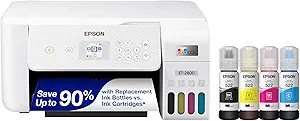 |
Brother SP-1 Sublimation Printer

| Printer Type | Dye Sublimation |
|---|---|
| Maximum print Resolution Color | 1440 x 1440 dpi |
| Maximum Media Size | 8.5×11 |
| Printer Connectivity Type | Wi-Fi |
The Brother SP-1 is a small-footprint dye sublimation printer aimed at crafters who want to make custom shirts, mugs, tumblers, and other polyester- or polymer-coated items. It prints high-resolution color images (up to 1440 x 1440 dpi) onto sublimation paper and connects over Wi-Fi so designs from the Artspira app or a desktop driver can be sent wirelessly. Brother includes four genuine sublimation ink cartridges and a starter pack of sublimation paper so you can start making transfers right away. The 2.7-inch touch panel and LCD give simple onboard control, while Ethernet and USB ports handle wired setups. Practical benefits include vivid, wash-resistant transfers when used with a heat press and a compact size that fits a craft table. Important limitations are the requirement of a separate heat press for transfers and the maximum media size limited to 8.5 x 11, which constrains larger projects; speed metrics are oriented to small craft runs rather than high-volume commercial production.
Best for: Crafters and small-business makers who want a dedicated, easy-to-use sublimation printer to produce vibrant, wash-stable transfers for apparel and small goods.
Less Ideal for: Users who need wide-format or high-volume commercial production or those who want an all-in-one solution that includes a heat press should look elsewhere.
- Designed specifically for dye sublimation transfers with Brother genuine sublimation inks included
- High color resolution (up to 1440 x 1440 dpi) for detailed, vibrant prints
- Wi-Fi plus Ethernet and USB connectivity for flexible workflow from phone or PC
- Compact footprint and simple touch-panel controls suitable for a craft table
- Maximum media size is 8.5 x 11, so larger transfers require different equipment or split printing
- Requires a separate heat press to complete sublimation transfers
Verdict: Buy this if you want a compact, craft-friendly sublimation printer that produces high-resolution, vibrant transfers when paired with a heat press.
Brother SP-1 Sublimation Printer

| Printer Type | Dye Sublimation |
|---|---|
| Ink Color | Cyan, Magenta, Yellow, Black |
| Maximum Media Size | Legal (8.5 x 14 inches) |
| Connectivity | Ethernet, Wi-Fi |
| Color Pages per Minute | 10 |
The Brother SP-1 Sublimation Printer bundle is a compact dye-sublimation system built for makers and small-run heat-transfer work. It prints in full color using CMYK sublimation inks and accepts standard letter and legal media, so you can produce transfers for shirts, mugs, tumblers, coasters, and other blanks included in the kit. The bundle ships with a full set of 47 ml inks, 310 sheets of sublimation paper, 50 blanks, multiple heat-resistant tapes, and design assets to get started quickly. Connectivity options include Wi‑Fi and Ethernet for easy file transfer from Windows, Mac, or the Artspira app. Print speed is listed at about 10 pages per minute and maximum copy resolution is 300 dpi, which is sufficient for vibrant craft pieces though not aimed at ultra-high‑res photo output. Its compact footprint and starter consumables make it practical for a home studio or small business, but users needing heavy duty throughput or higher resolution photographic prints may find its limits sooner.
Best for: Buyers who prioritize getting a ready-to-run sublimation setup for crafting or small-batch heat-transfer production and want a compact, reliable machine with included inks and supplies.
Less Ideal for: Users who need high-volume commercial throughput or ultra-high-resolution photo-grade sublimation should consider larger production printers instead.
- Complete starter bundle with CMYK sublimation inks and papers included
- Supports Wi‑Fi and Ethernet for flexible connectivity
- Accepts up to legal size media for larger transfers
- Compact footprint suited to home studios and small business use
- Maximum copy resolution of 300 dpi may limit very fine photo detail
- Print speed and sheet capacity are modest compared with production-grade sublimation printers
Verdict: If you want a compact, ready-to-run sublimation solution for crafting and small-batch heat-transfer projects, the Brother SP-1 bundle delivers the inks, paper, blanks, and connectivity to start producing vibrant transfers quickly.
Pinckney Super-Tank Sublimation Printer

| Printer Type | Dye Sublimation |
|---|---|
| Maximum print Resolution Color | 5760 x 1440 dpi |
| Printer Connectivity Type | Wi-Fi |
| Maximum Media Size | 8.5 x 11 inch |
| Color Pages per Minute | 5 |
This Pinckney Super-Tank bundle converts an EcoTank-style all-in-one into a dye sublimation workstation aimed at heat-transfer projects like T-shirts, mugs, and phone cases. It uses large refillable ink tanks (one sizable black bottle and three color bottles) and an easy-fill nozzle to avoid syringes and frequent cartridge swaps, and it supports letter and smaller paper sizes used for transfer sheets. The unit includes a scanner and copier, an LCD, Wi-Fi and USB connectivity, and prints at a high nominal resolution up to 5760 x 1440 dpi for fine detail on transfer paper. Practical benefits include low running interruptions from long-life tanks, straightforward filling, and a built-in scanner for creating or reproducing designs without extra hardware. Limitations to consider are that successful sublimation requires correct transfer workflow and heat-press steps for vivid final results, print speeds are modest, and duplexing is simplex only so double-sided workflows need manual handling.
Best for: A pragmatic home or small-business crafter who wants a low-maintenance sublimation setup for regular heat-transfer projects and prefers long-run ink tanks and an integrated scanner for in-house design work.
Less Ideal for: People who need fast, high-volume office printing, automatic double-sided production, or turnkey garment printing without a separate heat-press step should consider other solutions.
- Cartridge-free high-capacity ink tanks reduce refill frequency and lower per-print ink cost
- Includes Pinckney sublimation inks sized for multiple transfers (one large black bottle and three color bottles)
- Built-in scanner and copier simplify creating and reproducing designs without extra equipment
- High maximum print resolution (5760 x 1440 dpi) for detailed transfer prints
- Wi-Fi and USB connectivity allow printing from computers and mobile devices
- Requires correct heat-press workflow for final color vibrancy since prints are sublimation transfers
- Print speed is relatively slow compared with fast office printers
- Duplex printing is not automatic (simplex only)
Verdict: If you want a low-maintenance sublimation printer for in-house heat-transfer projects, this cartridge-free Super-Tank bundle delivers high-resolution prints and easy refilling to keep production moving.
Canon PIXMA TR4720

| Printer Type | Inkjet |
|---|---|
| Print Resolution | 4800 x 1200 |
| Print Speed (B&W) | 8.8 pages_per_minute |
| Print Speed (Color) | 4.4 pages_per_minute |
| Connectivity | USB, Wi-Fi |
The Canon PIXMA TR4720 is a small, budget-friendly all-in-one inkjet designed for basic home and small-office tasks. It prints color documents and photos, scans on a flatbed, copies and sends faxes, and its 20-sheet auto document feeder handles multipage jobs without manual feeding. The front 100-sheet tray and automatic two-sided printing make it convenient for everyday letter-size work, while Canon's hybrid ink produces sharp black text and acceptable color photos up to 8.5 x 11 inches. Connectivity is flexible with USB and Wi-Fi plus mobile printing through the Canon app, so you can print from phones and cloud services. Speeds are modest (about 8.8 ppm black, 4.4 ppm color) so larger print runs take time, and this is not built for heavy-duty or high-volume production. The TR4720 uses Canon CL-276 and PG-275 cartridges, which keep initial cost low but can be pricier over time versus high-yield or refill systems. For occasional heat-transfer work, it can produce color prints and borderless photos but may not match higher-end photo printers in color saturation or longevity for transfer applications.
Best for: Buyers looking for an inexpensive, space-conscious all-in-one that covers everyday document and occasional photo printing with easy mobile connectivity.
Less Ideal for: People who need fast, high-volume output, professional photo-quality prints, or the lowest long-term color cost should consider more robust or high-yield alternatives.
- All-in-one functionality: print, scan, copy and fax in a compact unit
- Auto document feeder and automatic duplexing for easier multipage jobs
- Simple wireless and mobile printing via Canon Print app
- Front 100-sheet paper tray suits everyday home or small-office printing
- Modest print speeds and not suited for heavy-volume production
- Uses standard Canon cartridges that can be costly per page for frequent color printing
- Color/photo output is adequate but not on par with higher-end photo printers for transfer-grade prints
Verdict: A compact, budget-friendly all-in-one that reliably handles everyday documents and occasional photo prints with easy wireless setup.
B btransfer M1630 Pro DTF Printer

| Printer Type | DTF Printing |
|---|---|
| Resolution | 1440 x 1440 |
| Printer Output Type | CMYK+WW |
| Maximum Media Size | 13 in |
| Printer Connectivity Type | USB |
The M1630 Pro is a purpose-built DTF heat-transfer printer bundle that combines a 13-inch A3-capable DTF printer with inks, film, an A3 oven, powder, and cleaning supplies so you can start producing transfers quickly. It uses a high-resolution 1440 x 1440 dpi print engine and a six-color CMYK+WW ink set for dense color and opaque whites on dark garments, while the built-in preheating and vacuum suction system keeps film flat and helps ink adhere consistently. Practical features like an auto/manual cutter, an LED display, and a holiday auto-protect mode that guards the printhead reduce downtime and routine maintenance. The bundle also includes extra ink, powder, and cleaning fluid to lower initial running costs and smooth first-time setup. Limits to consider are Windows-only USB connectivity and simplex printing only, so networked or macOS workflows will need workarounds, and the unit is sizable and intended for a dedicated workspace rather than casual desktop use. For reliability-focused users who want a ready-to-run DTF solution, this bundle covers inks, film handling, and maintenance in one package.
Best for: Buyers who prioritize a reliable, turnkey DTF heat-transfer setup and want included inks, film, and maintenance features so production stays consistent without frequent intervention.
Less Ideal for: Users who need macOS or network printing, or those who want a compact desktop printer for occasional hobby use.
- High 1440 x 1440 dpi resolution and CMYK+2W inks produce vibrant colors and strong opaque whites for dark fabrics
- Built-in preheating and vacuum suction stabilize film feeding to reduce wrinkles and misfeeds
- Holiday mode and auto self-cleaning protect the printhead and lower maintenance needs
- Comprehensive bundle includes oven, inks, powder, extra film, and cleaning fluids for quick startup
- USB-only connectivity and Windows-only compatibility limit integration into macOS or networked workflows
- Simplex-only printing and large physical footprint require a dedicated workspace
Verdict: Choose the M1630 Pro if you want a reliability-minded, ready-to-run DTF heat-transfer bundle that bundles inks, film handling, and automated maintenance features to keep production running smoothly.
Epson EcoTank ET-2400

| Printer Type | Inkjet |
|---|---|
| Print Resolution | 5760 x 1440 dpi |
| B&W Pages per Minute | 10 pages_per_minute |
| Color Pages per Minute | 5 pages_per_minute |
| Connectivity | USB, Wi-Fi |
The Epson EcoTank ET-2400 is a wireless all-in-one inkjet that replaces cartridges with large refillable ink tanks to lower running costs and reduce waste. It prints, scans, and copies using Epson's Micro Piezo heat-free printhead, and supports USB or Wi-Fi connections and mobile app control for convenient home use. The rear-feed tray holds up to 100 sheets and the machine yields high-resolution output (up to 5760 x 1440 dpi), so text and photos look sharp for everyday documents and occasional photo prints. Supplied ink bottles are substantial and Epson rates thousands of pages per bottle set, which means far fewer interruptions to refill compared with cartridge printers. On the downside the ET-2400 only offers manual duplexing and a modest color speed of about 5 ppm, so it is slower for heavy two-sided or color job throughput. It also lacks advanced paper handling and an automatic document feeder, which limits efficiency for frequent multi-page scanning or copying. For buyers prioritizing low ink cost and reliable daily prints, the ET-2400 is a sensible, low-maintenance choice.
Best for: Buyers who want a low-cost, low-maintenance home printer that minimizes ink replacements and produces sharp documents and occasional photos without needing advanced office features.
Less Ideal for: Users who need fast color throughput, automatic two-sided printing, or heavy multi-page scanning and copying for a busy office.
- Cartridge-free EcoTank system with high-capacity refillable ink bottles to reduce replacement frequency and waste
- High maximum print resolution up to 5760 x 1440 dpi for sharp text and good photo detail
- Built-in scanner and copier make it a true all-in-one for home and small office needs
- Wireless and USB connectivity with app control for printing from phones, tablets, and computers
- Rear-feed 100-sheet tray supports longer print runs without frequent refilling
- No automatic duplex; two-sided printing is manual which slows multi-page workflows
- Relatively slow color print speed (about 5 ppm) compared with higher-end inkjets
Verdict: Choose the ET-2400 if you want cartridge-free printing that dramatically cuts ink replacements and delivers high-resolution everyday prints.
Epson EcoTank ET-2800

| Printer Type | Inkjet |
|---|---|
| Printer Connectivity Type | wired, wireless |
| B&W Pages per Minute | 10 |
| Color Pages per Minute | 5 |
| Maximum print Resolution Color | 5760 x 1440 dots_per_inch |
The Epson EcoTank ET-2800 is a cartridge-free all-in-one inkjet that replaces disposable cartridges with large refillable ink tanks, making it a low-maintenance choice for steady home printing. It prints, copies, and scans and connects via USB or wireless with app and voice-printing support for easy mobile workflows. The PrecisionCore/Micro Piezo print system delivers sharp text and good color photos at up to 10 pages per minute for black and 5 ppm color, and the flatbed scanner handles single-page scans and copies. Included ink bottles are sized to print thousands of pages so you can skip frequent cartridge swaps and lower operating cost. Limitations for more specialized uses include manual duplex only and a modest maximum sheet capacity, so heavy duplex workflows or high-volume office jobs will be slower than higher-end models; photo-quality output is strong for casual projects but not optimized for professional heat-transfer proofs. For someone who values reliable, low-cost everyday printing with straightforward setup and minimal ink fuss, the ET-2800 is practical and economical.
Best for: Buyers who want a fuss-free home all-in-one that minimizes recurring ink purchases and emphasizes reliable everyday printing with simple mobile connectivity.
Less Ideal for: Users needing fast automatic duplexing, large daily throughput, or professional-grade heat-transfer proofing should consider higher-end models built for heavy production or specialized photo output.
- Cartridge-free EcoTank system with high-capacity refillable ink tanks included
- Lower long-term ink cost due to large ink bottles equivalent to many cartridges
- Wireless, USB and app-based connectivity with voice printing for convenient mobile use
- Flatbed scanner and copy function built into a compact all-in-one design
- High maximum print resolution for detailed text and graphics
- Manual two-sided printing rather than automatic duplex
- Modest paper tray capacity that limits large single-batch jobs
Verdict: Choose the ET-2800 if you want a low-maintenance, cartridge-free home all-in-one that dramatically reduces ink fuss and running costs.
Choosing the Right Printer for Heat Transfer: Key Factors to Consider
Print Resolution and Detail
Higher resolution and finer droplet control matter because the transfer process reproduces whatever the printer lays down. Small text, thin lines, and gradients can blur or band after heat pressing if the printer lacks sufficient resolution. When working with detailed logos or photographic images, choose a printer whose native resolution supports the level of detail you need.
Also consider how the printer handles halftones and gradients. Printers that produce smoother tonal transitions will yield cleaner transfers with fewer visible steps in shaded areas, reducing the need for design adjustments or post-processing.
Ink and Media Compatibility
Not all inks and transfer papers behave the same under heat. Some ink chemistries bond better to transfer media and withstand heat pressing without fading or cracking. Verify that the printer supports inks and papers designed for heat transfer methods you plan to use, such as transfer paper for light or dark garments or compatible pigment/solvent/lab-quality inks.
Media compatibility also extends to specialty substrates. If you plan to print on stretchy fabrics, dark textiles, or coated surfaces, the transfer system must adhere reliably and remain flexible after pressing. Choosing compatible ink and paper reduces the chance of peeling, cracking, or wash-related degradation.
Paper Handling and Feed Reliability
Accurate, reliable paper feeding is critical when producing transfers because misfeeds or skewed sheets waste expensive transfer media and disrupt production. Look for printers with straight-through or manual feed paths for thicker transfer papers and with adjustable paper guides to maintain alignment.
Sheet flatness controls, robust rollers, and the ability to accept various paper weights help prevent jamming. In higher-volume scenarios, automatic document feeders or multi-sheet input trays that handle heavier stock can speed workflow and reduce manual intervention.
Color Management and Consistency
Consistent color output matters when matching brand colors or reproducing photographic images. A printer that supports color management tools, ICC profiles, and predictable color behavior across runs will cut down on wasted tests and reprints. Check whether the device offers driver-level controls or software that helps create or apply profiles tailored to your transfer paper and ink combination.
Repeatability is especially important for batch jobs. Printers that stabilize quickly and maintain consistent color across multiple sheets help ensure uniform results from the first print to the last.
Durability and Maintenance Needs
Maintenance frequency and long-term reliability affect total cost of ownership and uptime. Some printers require daily head cleaning or other routine maintenance when used with specialty inks or thick media. Understand common service tasks, like nozzle checks, head alignments, and regular roll changes, before committing to a device.
Look for accessible service parts, straightforward maintenance workflows, and clear manufacturer guidance. Durable build quality and user-serviceable elements reduce downtime and make it easier to keep the printer running in small-batch production environments.
Workflow Features and Usability
Workflow features such as driver stability, print-preview options, and support for multiple paper sizes influence how quickly you can move from design to pressed transfer. A comfortable interface and reliable drivers reduce the time spent troubleshooting prints and aligning outputs to transfer sheets.
Consider connectivity options and software compatibility with the design tools you use. Built-in utilities that simplify color correction, layout, and nesting of multiple prints on a single sheet can save time and materials during production.
Types of Heat Transfer Methods
Different transfer methods have distinct printing requirements. Cut-heat transfers and vinyl transfers typically need precise cutting and layering rather than photographic printing, while paper-based transfers rely heavily on the printer's ability to reproduce full-color artwork accurately. Dye-sublimation works best on polyester fabrics and requires printers compatible with sublimation inks.
Understanding the method you plan to use helps narrow the printer features you need. For photographic transfers, prioritize resolution and color management. For transfers that involve pressure-sensitive adhesives or layered vinyl, focus instead on media handling and the ability to print on thicker or specialty papers.
- Cut vinyl: needs plotter compatibility rather than photographic detail
- Paper-based transfers: require flat feeding and color fidelity
- Dye-sublimation: requires compatible inks and heat-stable substrates
Setting Up Files for Transfer Printing
Prepare artwork at the target print resolution and in the color space that best matches your output workflow. When possible, work in CMYK or a managed color profile that aligns with your printer's driver to reduce color shifts. Include bleed and crop marks if you will trim transfer sheets after printing.
Mirror images for garment transfers when required, especially for text and directional graphics. Use vector files for logos and sharp shapes to preserve edge clarity, and embed ICC profiles if your workflow supports them.
- Export at printer-native resolution to avoid resampling artifacts
- Convert text to outlines or embed fonts to prevent substitution
- Use solid areas with appropriate trapping to avoid white gaps after pressing
Pressing and Heat Settings Basics
Successful heat transfer depends on matching the press temperature, pressure, and dwell time to the ink and paper combination. Too much heat can scorch materials or cause inks to bleed, while too little heat can leave transfers that do not adhere fully. Follow manufacturer recommendations for the transfer media, and run small test presses when changing materials.
Even pressure across the platen is as important as temperature. Use a calibrated heat press when possible, and allow for cooling if the transfer process specifies a cold-peel versus hot-peel workflow. Proper pressing technique extends the life of the transfer and improves wash durability.
- Always test on a scrap piece before a full run
- Adjust pressure based on garment thickness and media type
- Document settings that produced successful results for repeatability
Troubleshooting Common Transfer Print Issues
Common problems include banding, color shifts, misalignment, and poor adhesion after pressing. Banding often points to nozzle or maintenance issues and may be resolved by nozzle checks and head cleanings. Color shifts can indicate incorrect color profiles or inconsistent ink supply.
Misalignment usually stems from feeding issues or artwork setup errors. Check paper guides, perform alignment tests, and verify that software mirroring or crop settings are correct. If adhesion fails post-press, review the compatibility of the ink and transfer paper with the substrate and adjust heat-press parameters.
- Run nozzle checks and clean print heads to address banding
- Use consistent, tested profiles to minimize color variation
- Verify feed path and paper flatness if prints are skewed
Planning for Volume and Production Workflows
If you expect to produce transfers in batches, plan for media storage, roll or sheet capacity, and predictable maintenance windows. High-volume workflows benefit from printers with larger input trays or roll-feed capabilities and from establishing standard operating procedures for print-to-press handoff.
Consider whether you need additional post-print equipment, such as cold cutters, trimmers, or a conveyor dryer for certain transfer types. Streamlining the workflow from printing through pressing reduces handling errors and increases throughput.
- Organize media by type and label batches to avoid mix-ups
- Schedule regular maintenance to reduce unexpected downtime
- Use nesting layouts to maximize the number of prints per sheet
How We Chose the Best Printer for Heat Transfer
We evaluated printers for heat transfer using concrete, practical criteria that reflect real-world transfer workflows. Print resolution and color accuracy were prioritized because fine detail and correct tones are essential for transfers that look professional after pressing. Media handling and feed reliability were assessed to reduce misfeeds, skewing, and wasted transfer sheets during production. Ink and media compatibility was another core filter, focusing on printers that accept transfer papers and inks that adhere well under heat. Durability and maintenance needs were included to estimate how much downtime and upkeep owners can expect. Ease of setup and workflow features, such as driver support and paper-size handling, were considered for both hobbyists and small-scale production users. We excluded machines designed solely for large-format signage, dye-sublimation-only printers incompatible with common transfer papers, and devices without supported driver updates. Models lacking consistent print quality across multiple media types were not considered. The final selection balances image fidelity, handling, durability, and practical workflow features to surface printers that are most likely to produce repeatable, high-quality heat transfers.
Our full evaluation process is outlined in our review methodology.
FAQ
Can any printer be used for heat transfer?
Not every printer is suitable. The best results come from printers that are compatible with the transfer paper and ink chemistry you plan to use, and that can handle the paper weight and size required for transfers. Printers designed solely for other specialized workflows may lack necessary compatibility.
Do I need special ink for heat transfer?
Often yes. Certain transfer methods require specific ink types to bond and survive heat pressing. Check compatibility between inks, transfer paper, and the substrate to ensure adhesion and wash durability. Using inks not intended for transfers can lead to fading or peeling.
How can I prevent prints from peeling after washing?
Durable transfers rely on compatible ink and paper, correct pressing temperature and pressure, and proper cooling or peeling technique. Run tests with your chosen materials and follow recommended post-press care instructions to improve wash resistance.
Is dye-sublimation suitable for all fabrics?
Dye-sublimation usually works best on polyester or high-polyester-content fabrics because the process dyes the fibers. It is generally not effective on natural fibers like cotton unless a special coating or transfer paper designed for mixed fabrics is used.
How often will a printer need maintenance with transfer media?
Maintenance frequency depends on ink type, media thickness, and daily print volume. Specialty inks or heavier media may require more frequent head checks and cleanings. Plan for routine maintenance and keep supplies on hand to minimize production interruptions.
Final Verdict
Choosing the right printer for heat transfer comes down to matching the machine to your transfer method and production needs. Prioritize print resolution, ink and media compatibility, and robust paper handling if you print detailed or photographic designs. If you will run higher volumes, weigh durability and maintenance in your decision to minimize downtime. Balance the tradeoffs between color fidelity, throughput, and ease of use. With the right priorities, you can pick a printer that consistently produces high-quality transfers and supports a streamlined print-to-press workflow.